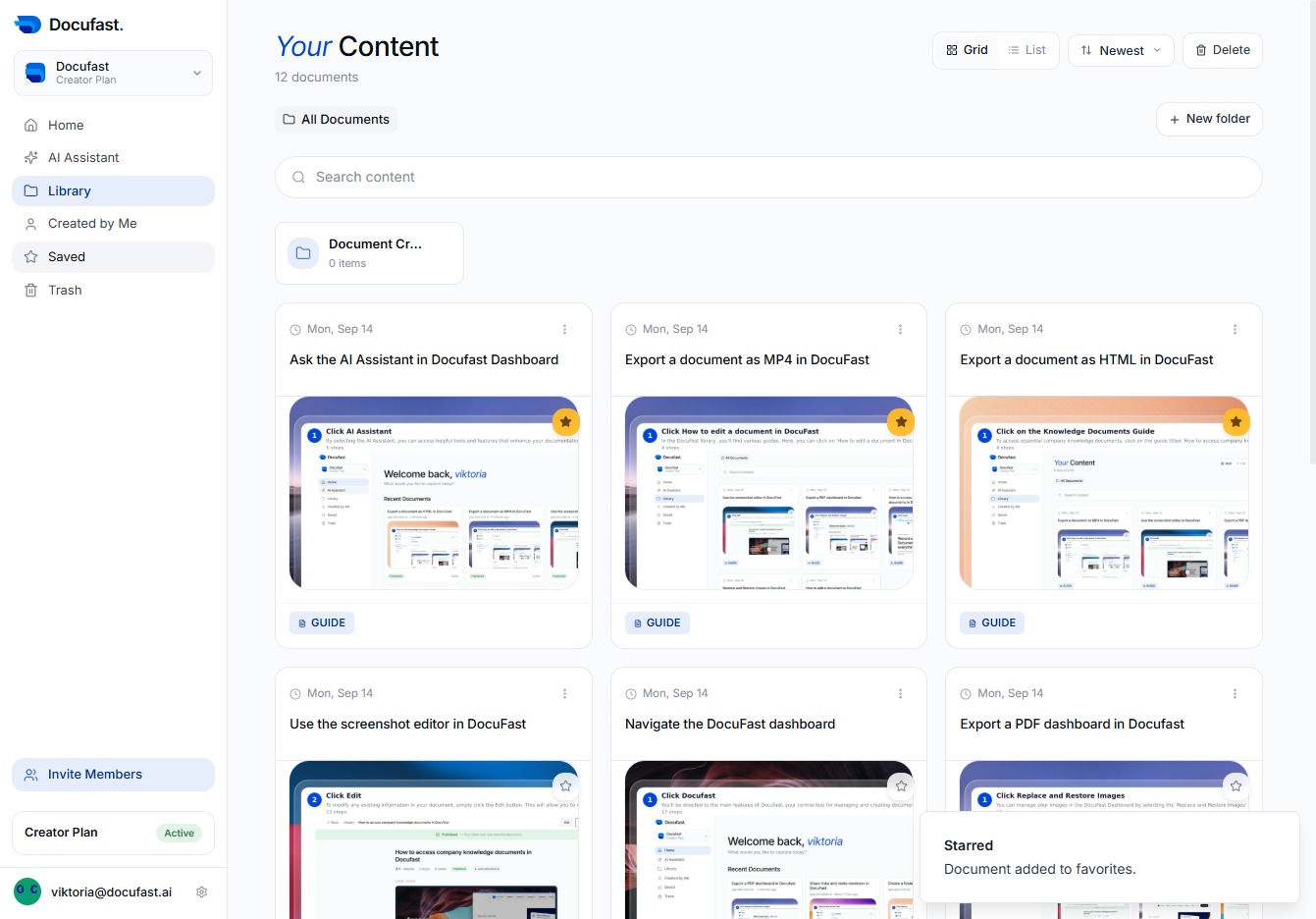
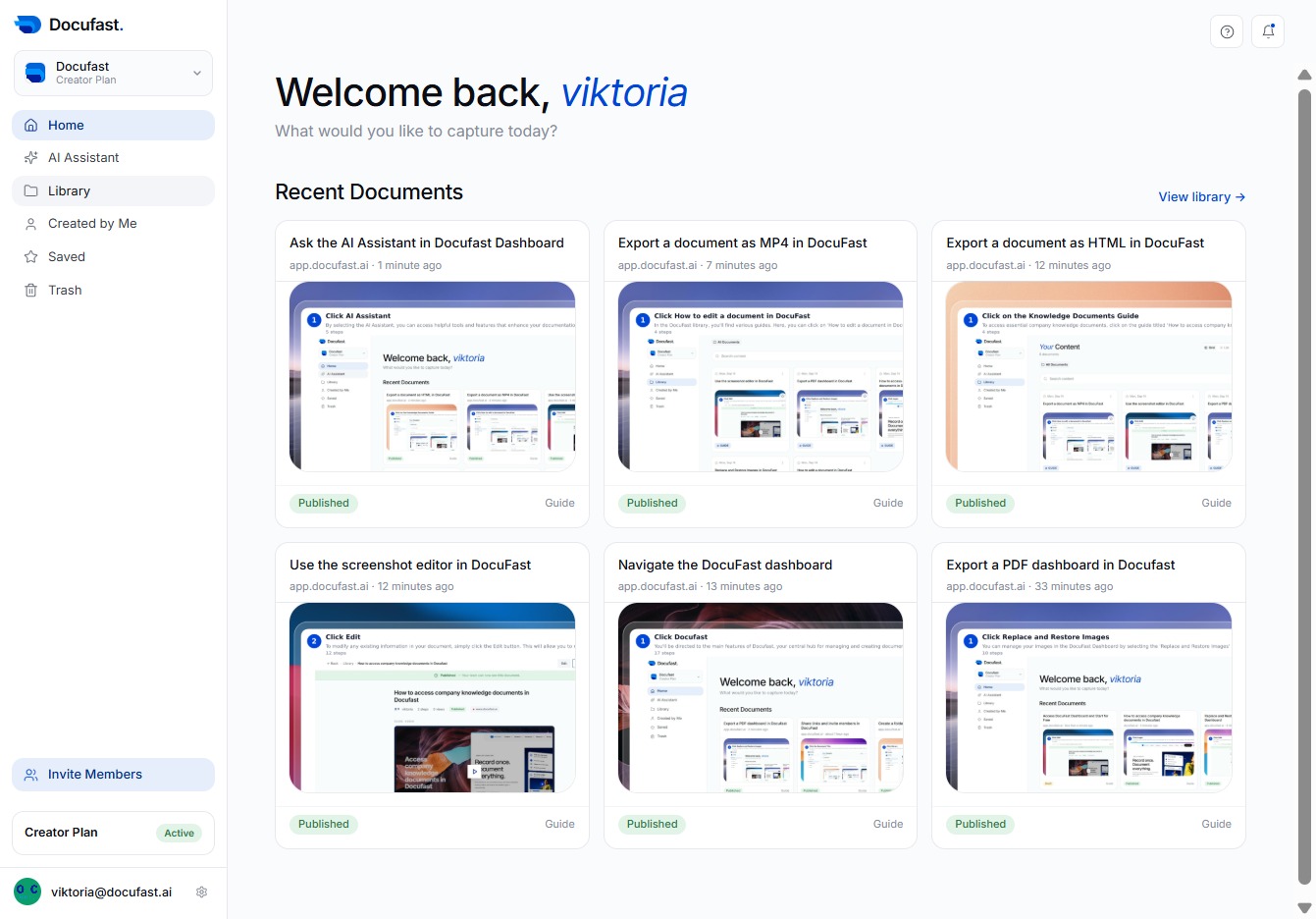
Click Library
Access the Library section in Docufast to explore all your stored documents and resources, providing a centralized location for managing your files efficiently.
Loading screenshot…
100%
Explore your stored documents and resources in the Library section of DocuFast, allowing you to efficiently manage files and access important favorites using the Starred feature.
 viktoria
Explore your stored documents and resources in the Library section of DocuFast, allowing you to efficiently manage files and access important favorites using the Starred feature.
Access the Library section in Docufast to explore all your stored documents and resources, providing a centralized location for managing your files efficiently.
You'll click on the highlighted area to access additional options or information related to your content in Docufast, making navigating your documents more efficient.
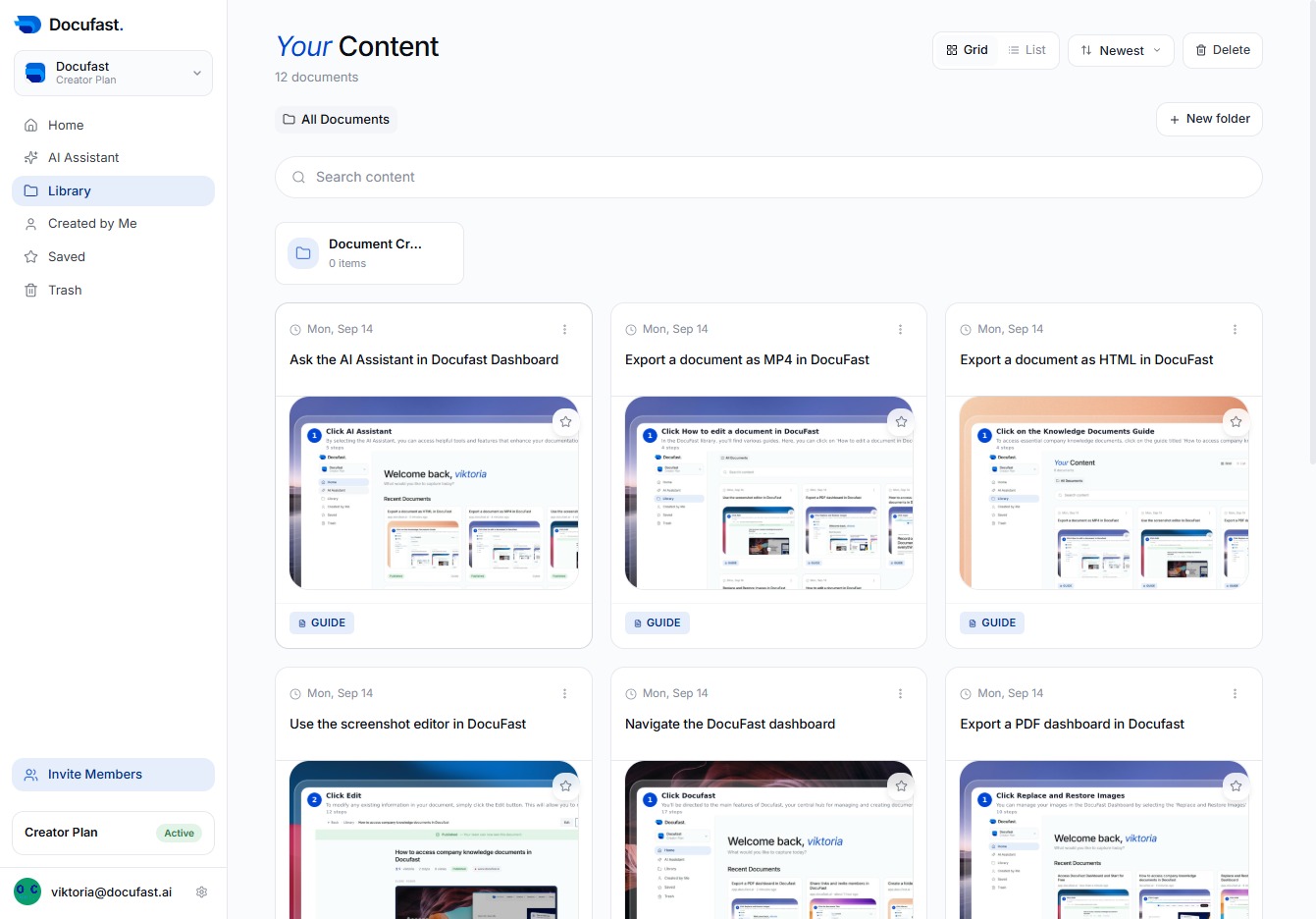
You'll find options to navigate your content in Docufast. Clicking here allows you to interact with the available features to manage your documents effectively.
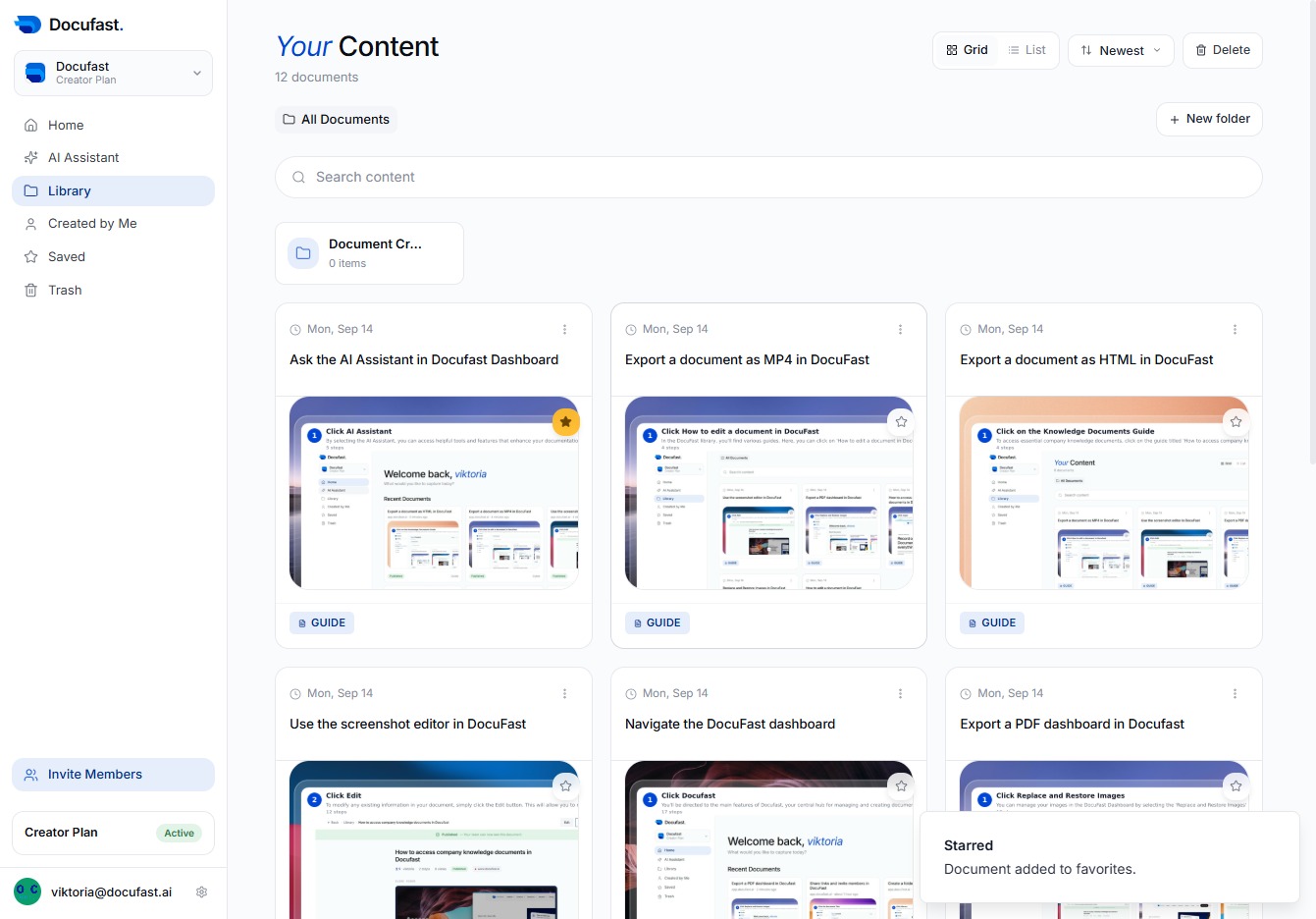
To proceed, simply click the 'Click here' option. This action will guide you further in the setup or navigation process within the Docufast interface.
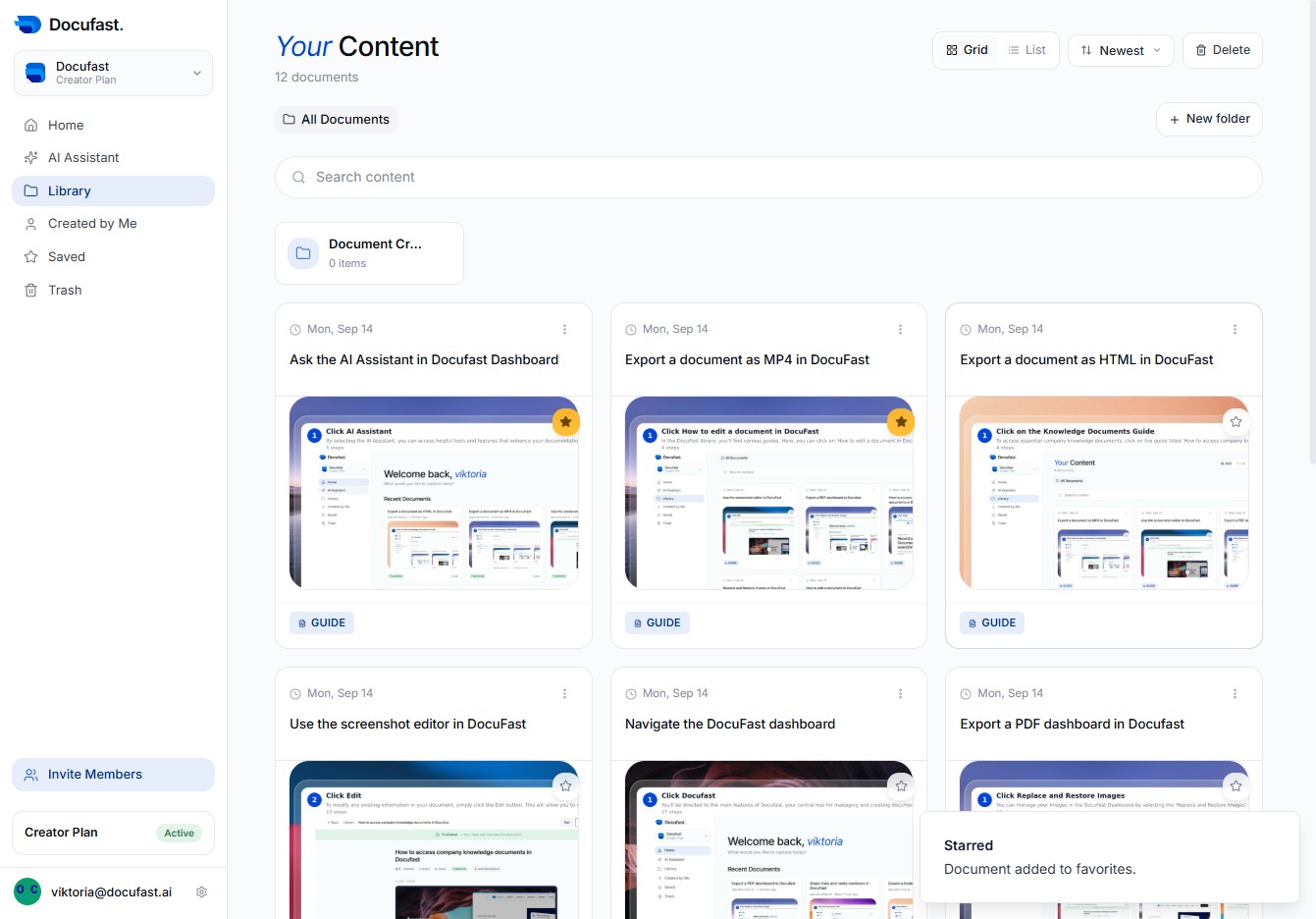
By clicking 'Starred', you add important documents to your favorites, making them easier to find later. This feature helps you quickly access the content that matters most to you.