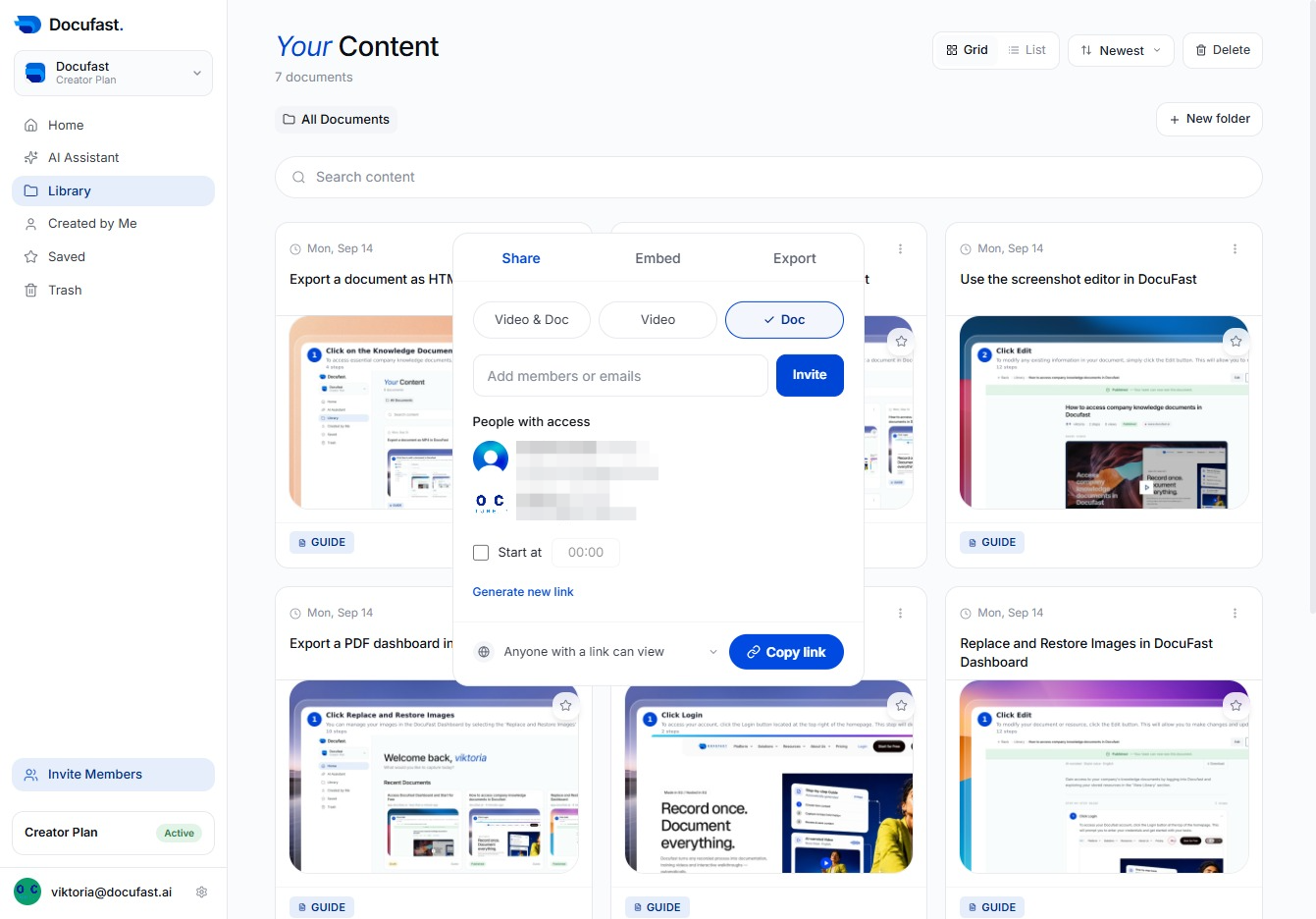
Click the Document Title
Clicking the document title allows you to view more details and edit the content within Docufast. This is where you can make necessary adjustments to your documents.

Loading screenshot…
100%
Manage document sharing in DocuFast by generating shareable links and inviting collaborators through email, enhancing teamwork and content accessibility.
 viktoria
Manage document sharing in DocuFast by generating shareable links and inviting collaborators through email, enhancing teamwork and content accessibility.
Clicking the document title allows you to view more details and edit the content within Docufast. This is where you can make necessary adjustments to your documents.
You'll click the Share button to easily distribute the document with others, making collaboration straightforward and efficient in Docufast.
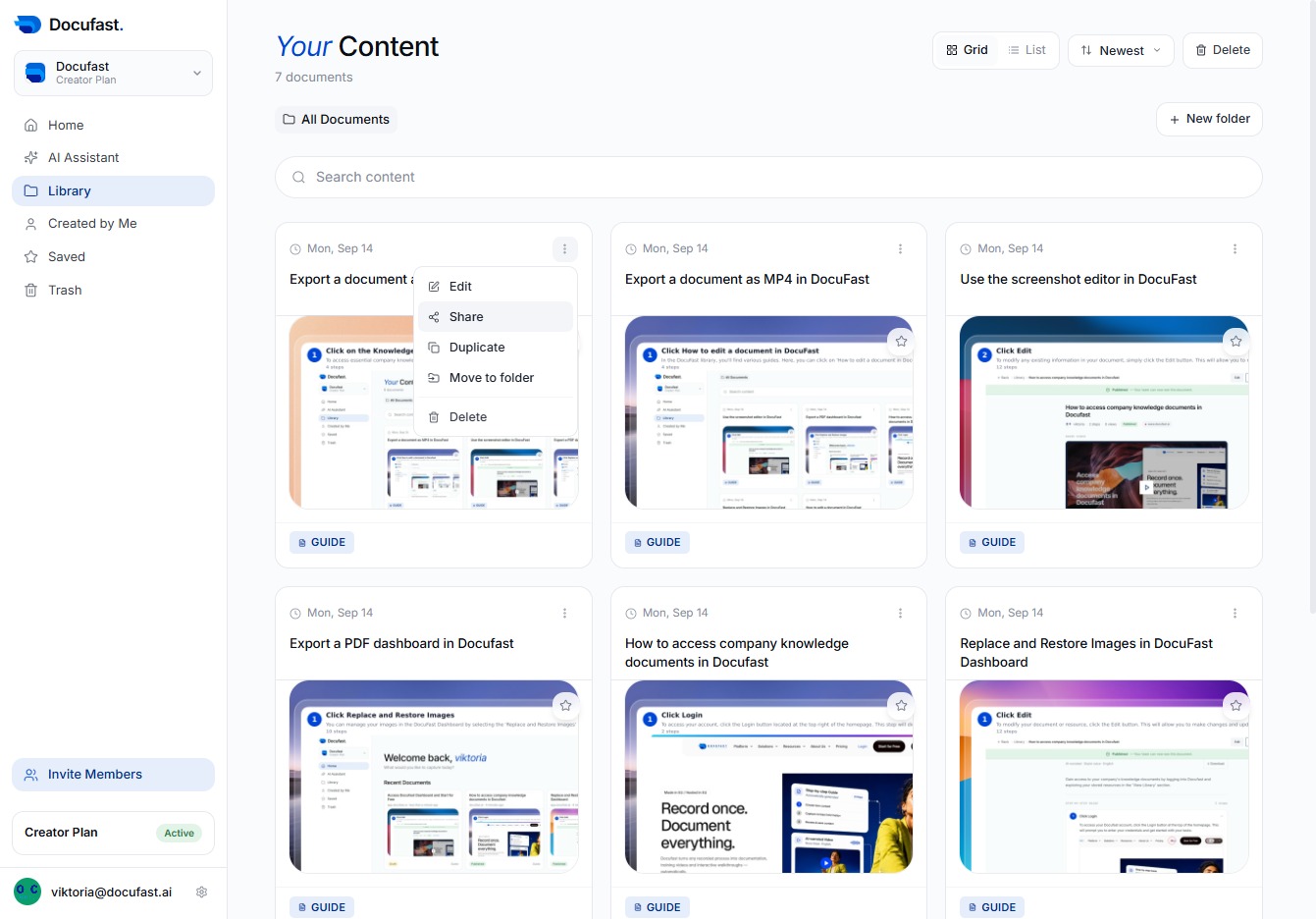
Here, you see the link sharing feature currently turned off. Clicking this option will allow you to adjust settings for who can access the shared document.

Choose the link sharing option to allow anyone with the link to view your document. This ensures easy access for those you want to share it with.
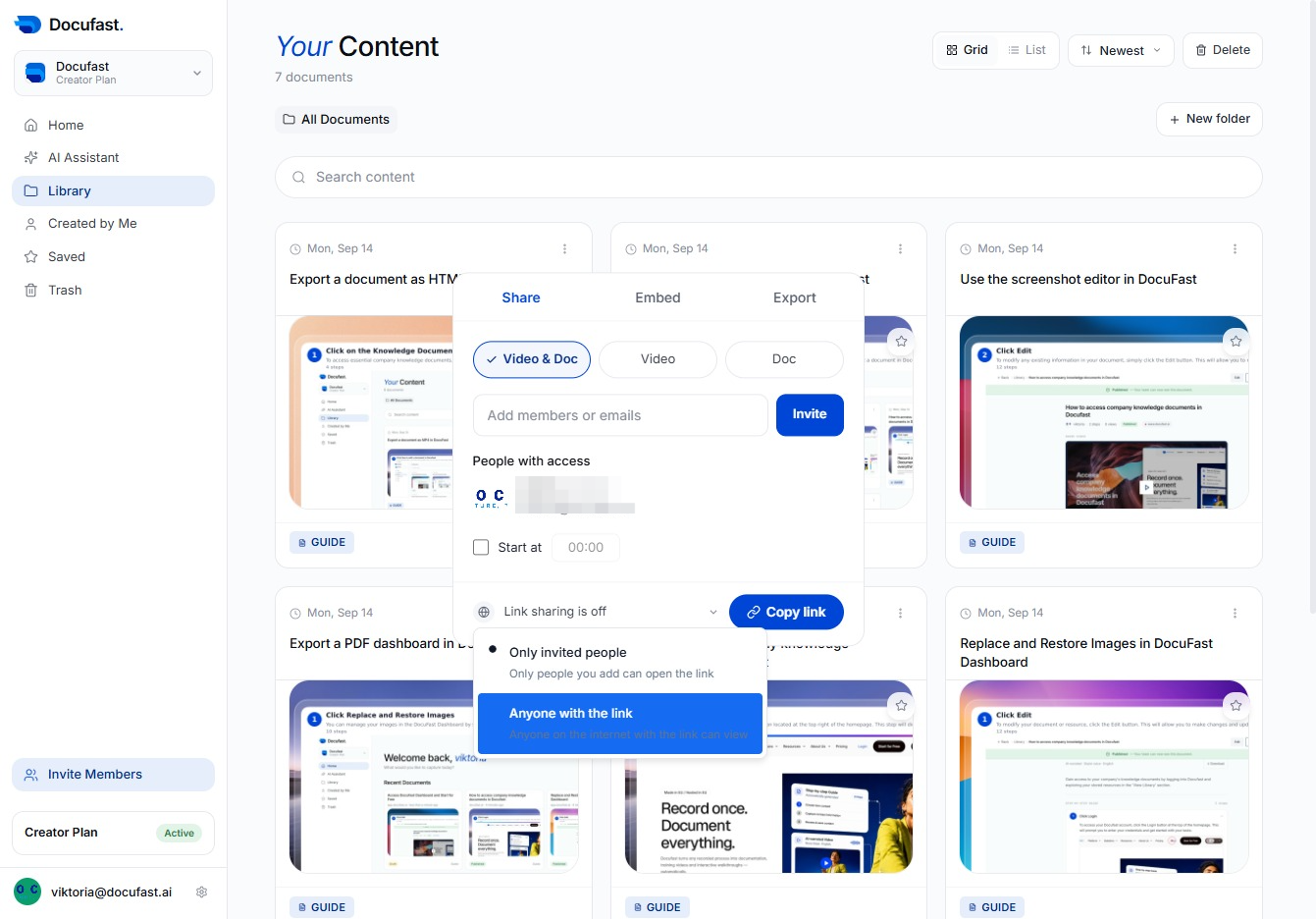
In this section, you can invite new members or enter email addresses to share access to your documents, facilitating collaboration and easy access for your team.

In the invite field, you'll want to type in the email address of the person you wish to add. This is where you can easily collaborate with others by inviting them to your document.
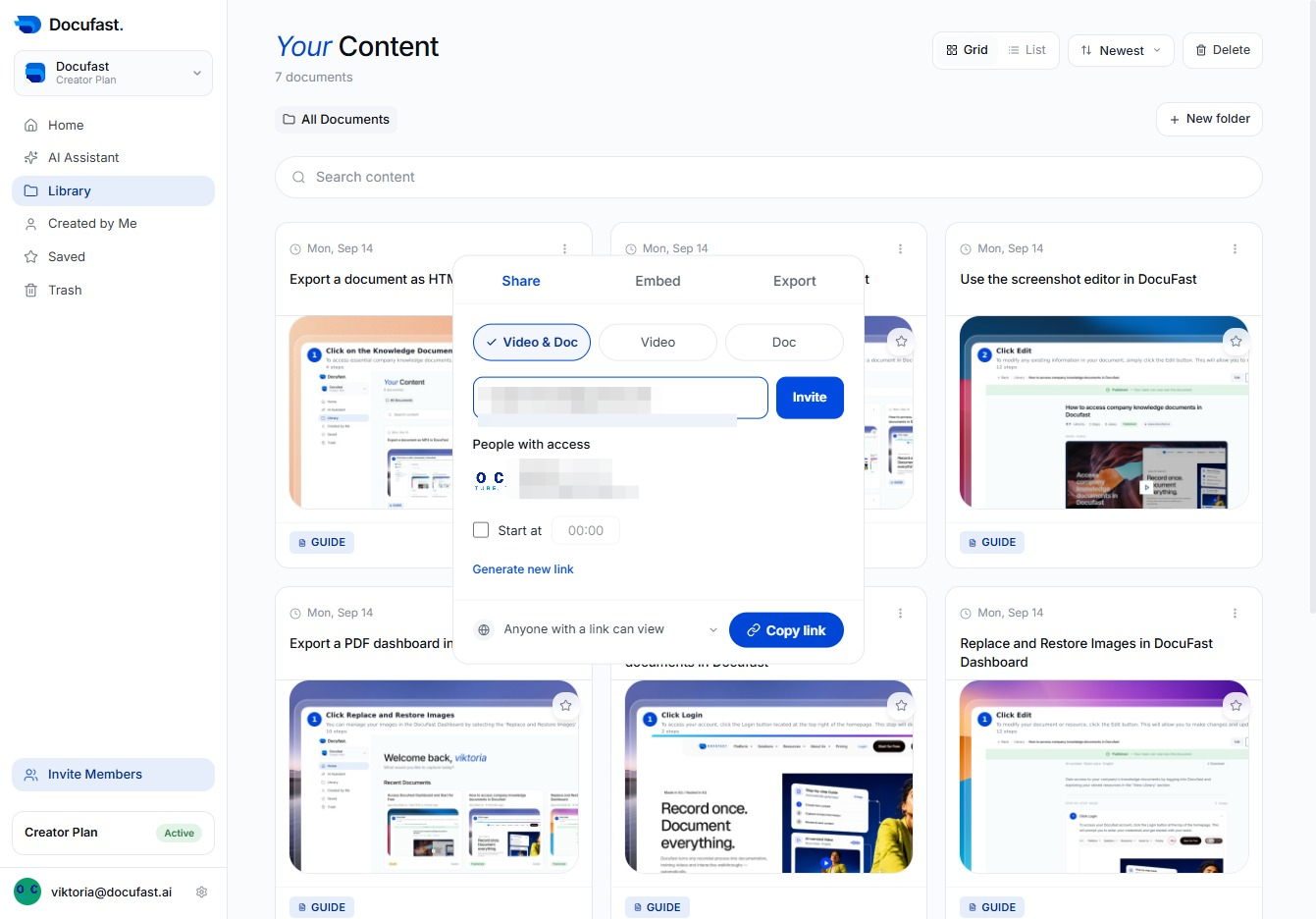
Now you can invite people to access your document by clicking the Invite button. This allows you to share your content with others easily and manage their access.

To share your document, click the 'Copy link' button. This allows you to easily copy the link for sharing with others or for future reference.

In the sharing options, you can select the Video tab to view different video-related settings. This allows you to manage and invite people to view your video content.
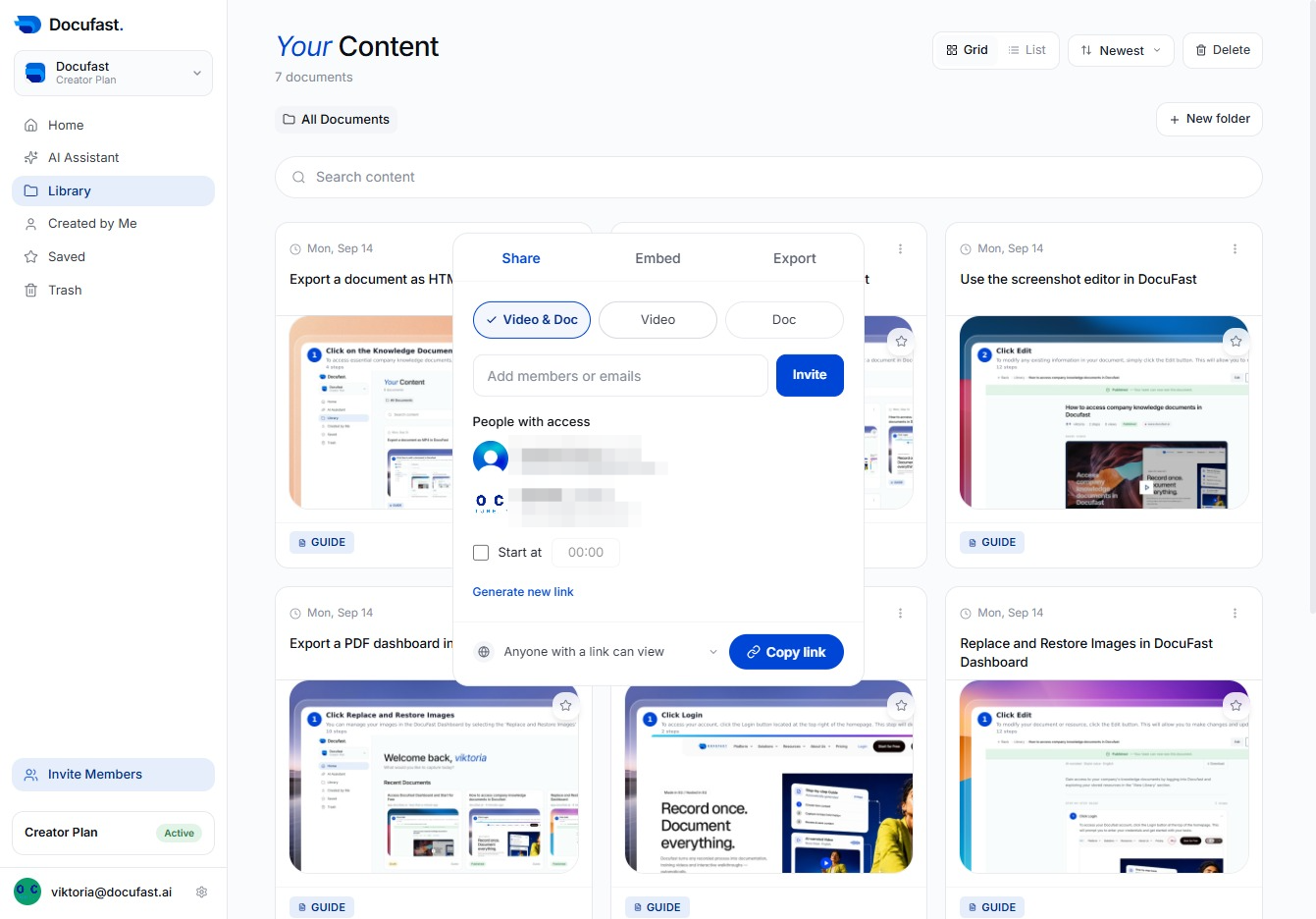
To share your document easily, click the 'Copy link' button. This will copy a shareable link to your clipboard, making it straightforward to distribute the document to others.

In your content area, click on the 'Doc' option to access important document functionalities, allowing you to manage and interact with your files effectively.

To share your document, click the 'Copy link' button. This will copy the document's link to your clipboard, making it easy to share with others.