Click Recent Documents
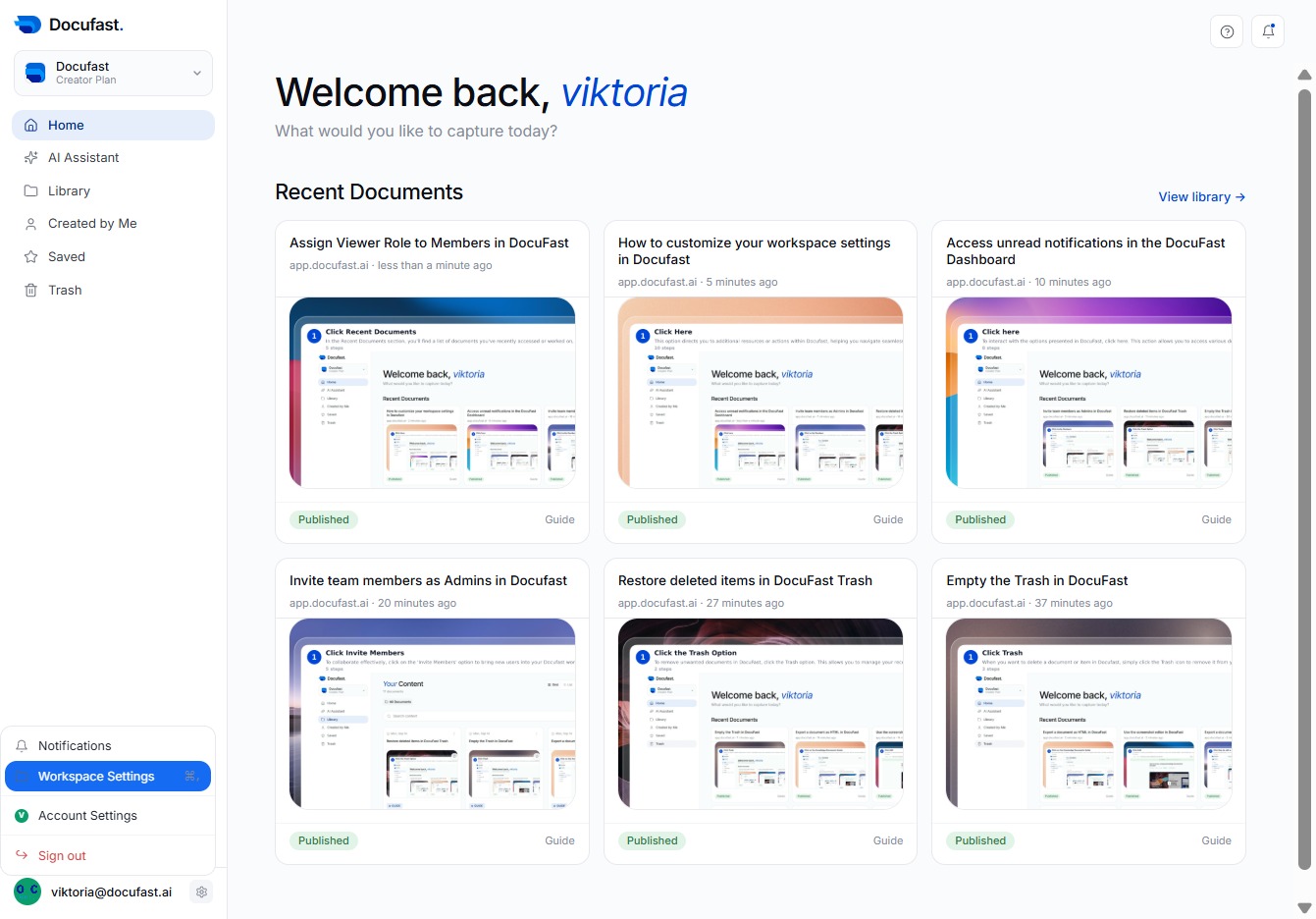
You can quickly access your recently viewed documents right here. This makes it easier to pick up where you left off or revisit important files in Docufast.

Loading screenshot…
100%
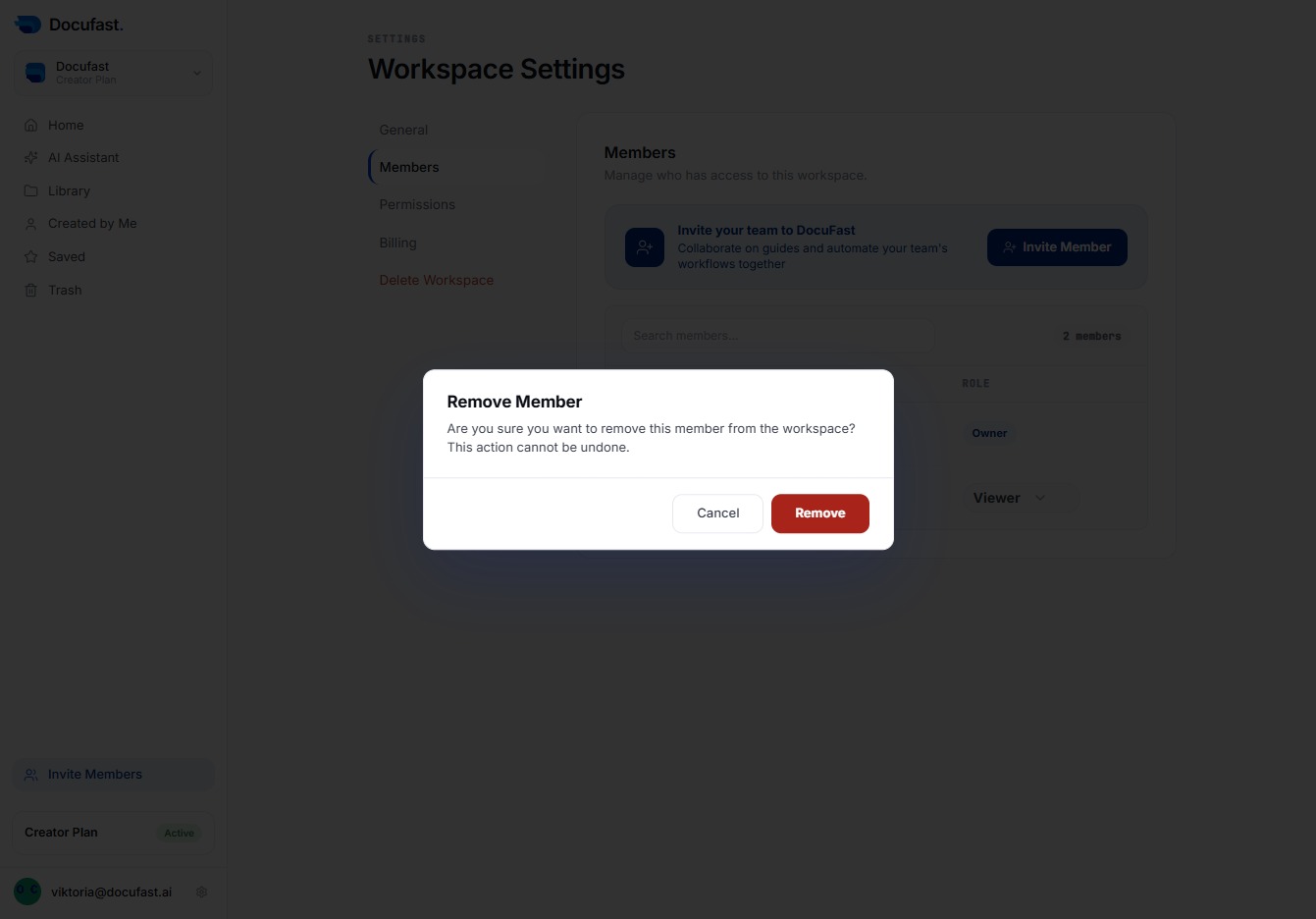
Remove members from your workspace by navigating to the Members tab in Workspace Settings, where you can manage user access and enhance team collaboration.
 viktoria
Remove members from your workspace by navigating to the Members tab in Workspace Settings, where you can manage user access and enhance team collaboration.
You can quickly access your recently viewed documents right here. This makes it easier to pick up where you left off or revisit important files in Docufast.
To modify your preferences, click on the Workspace Settings option. This will lead you to various settings where you can customize how you interact with the Docufast platform.
In the Workspace Settings, you'll navigate to the Members tab, where you can manage and invite users to your workspace, enhancing your team's collaboration and access.
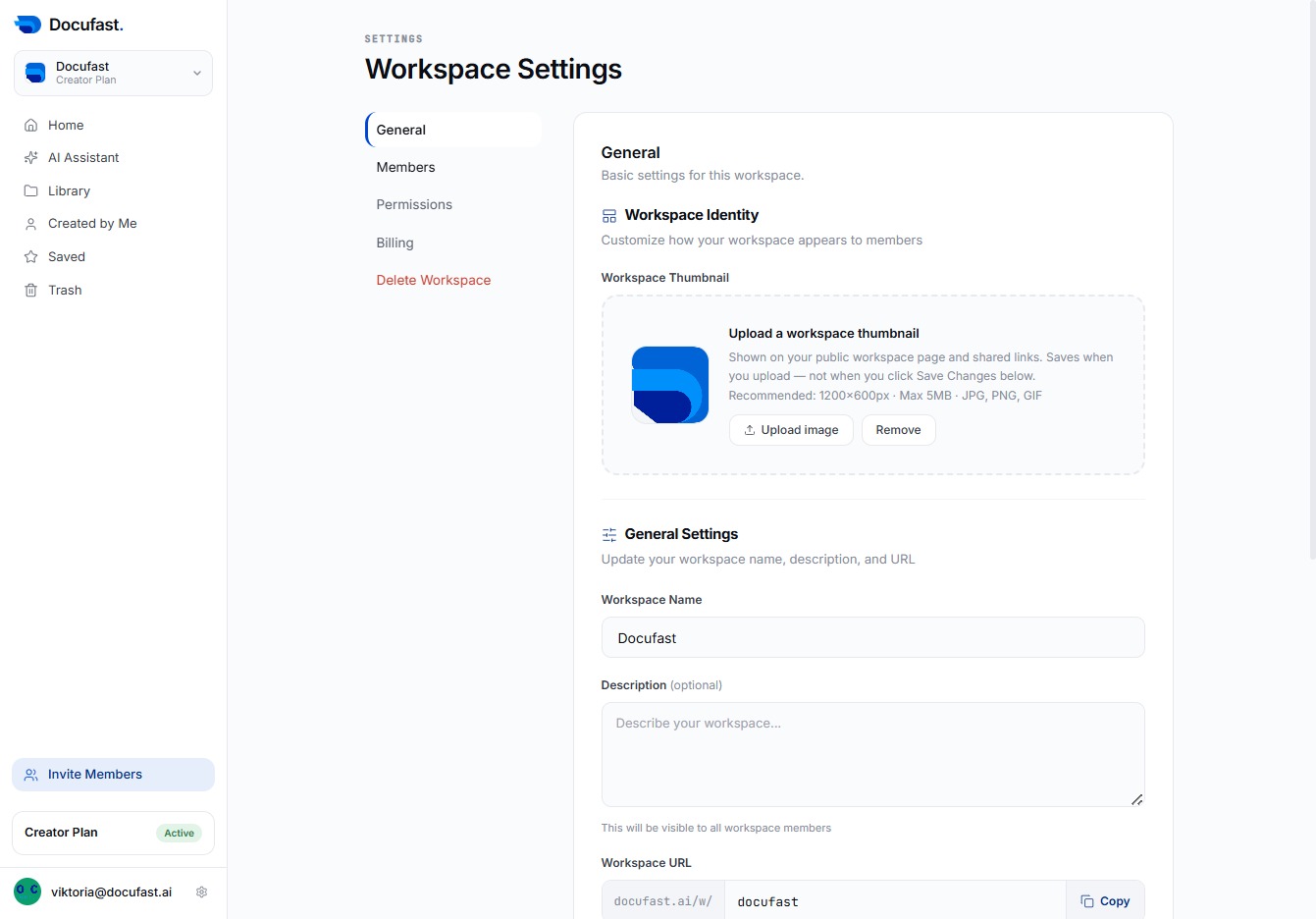
You can close the current settings window by clicking the '×' icon. This action will help you quickly dismiss the settings display and return to your previous view.

Confirm that you want to remove a member from the workspace. This action is permanent and cannot be undone, so make sure you really want to proceed.