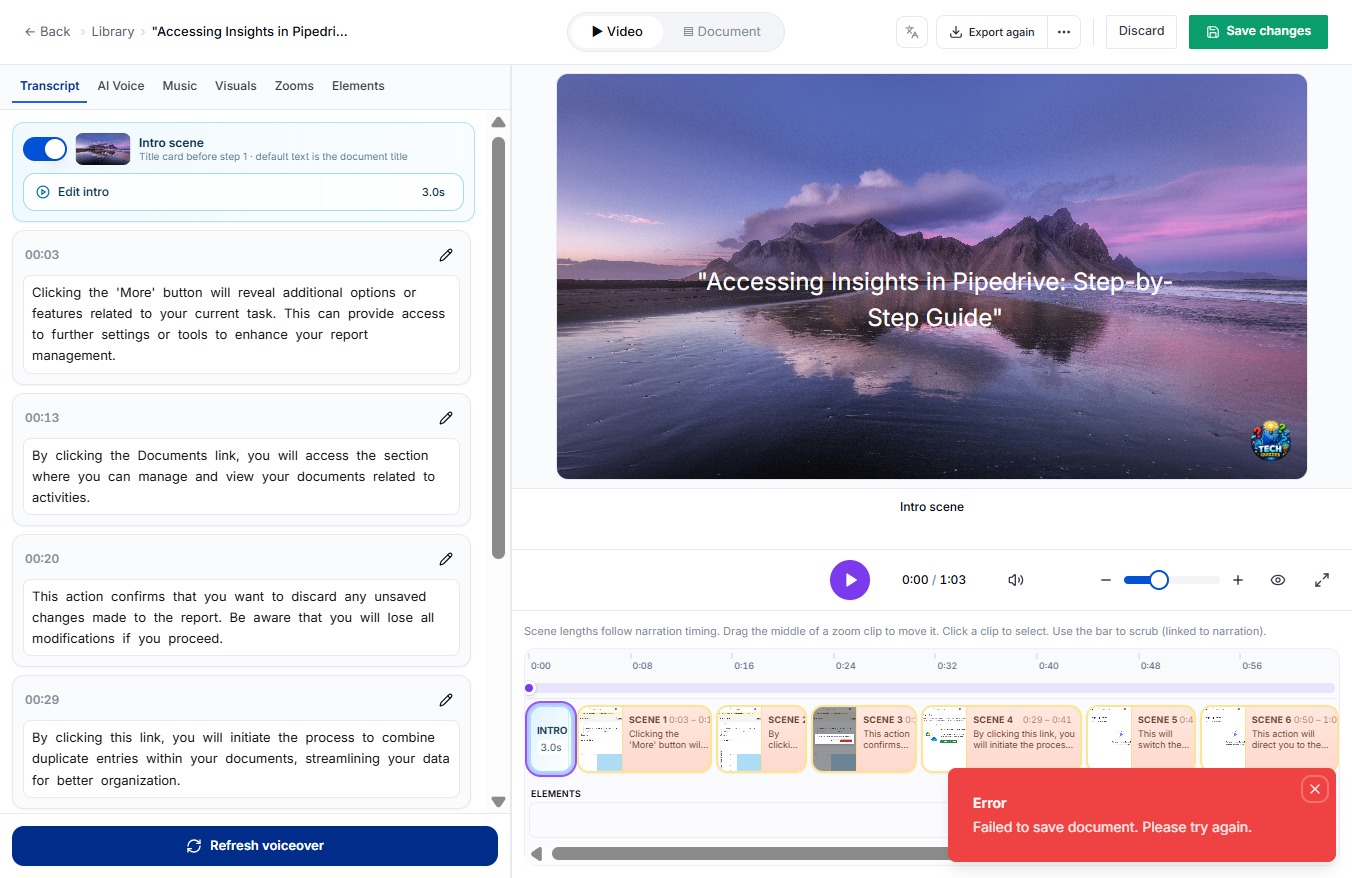
Click Save
To ensure your changes are recorded, click the Save button. This action securely updates your document with any modifications you've made.
Loading screenshot…
100%
Learn how to effectively navigate the DocuFast dashboard in just five simple steps.
 viktoria
Learn how to effectively navigate the DocuFast dashboard in just five simple steps. This guide will show you how to upload your project logo, save changes, and access additional settings to optimize your document management process.
To ensure your changes are recorded, click the Save button. This action securely updates your document with any modifications you've made.
Error
This action saves any modifications you have made to your document, ensuring that your updates are securely stored.

Tip
This action allows you to select and upload a logo for your project, enhancing its visual branding.

Clicking this link will provide you with further settings or tools to enhance your report management.