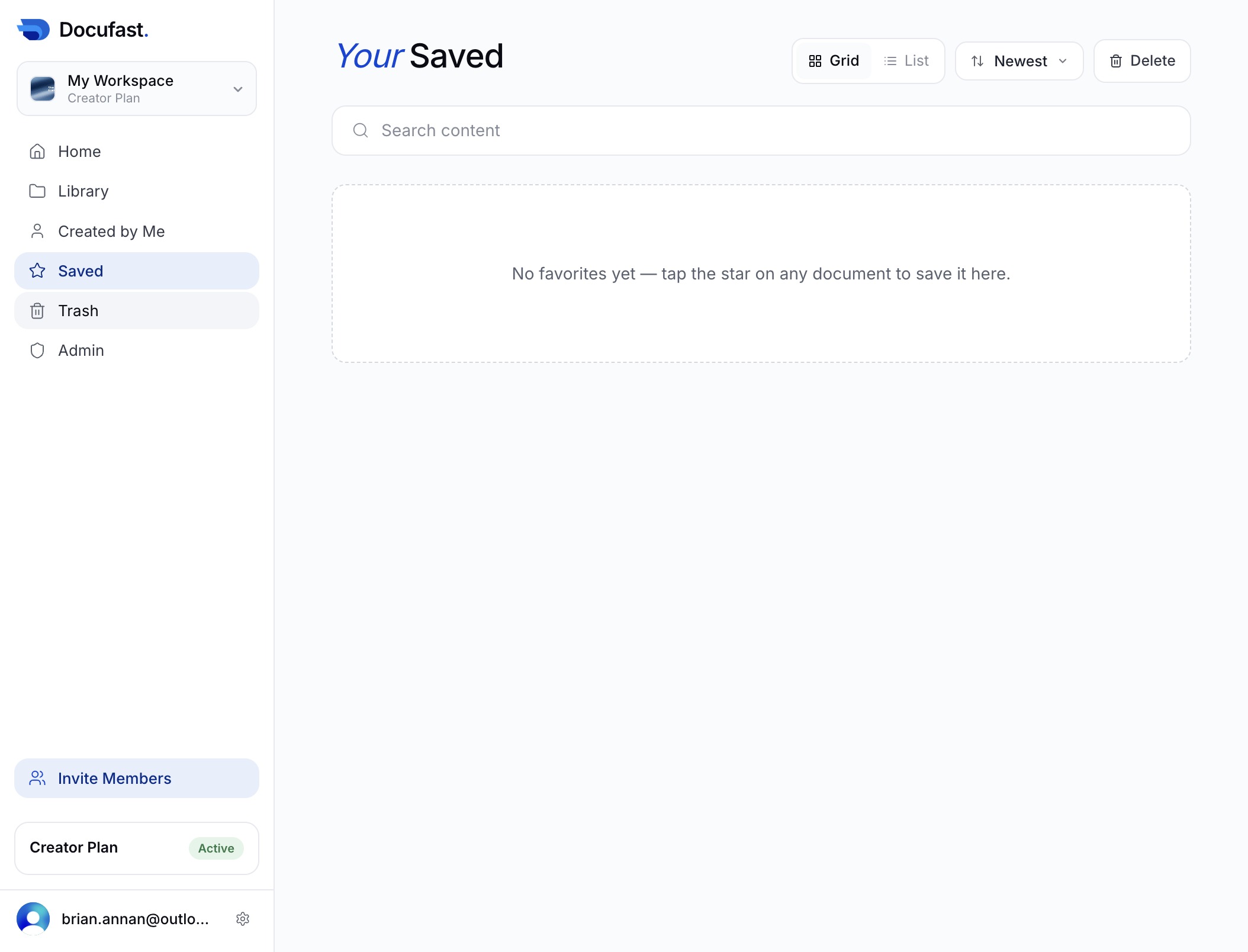
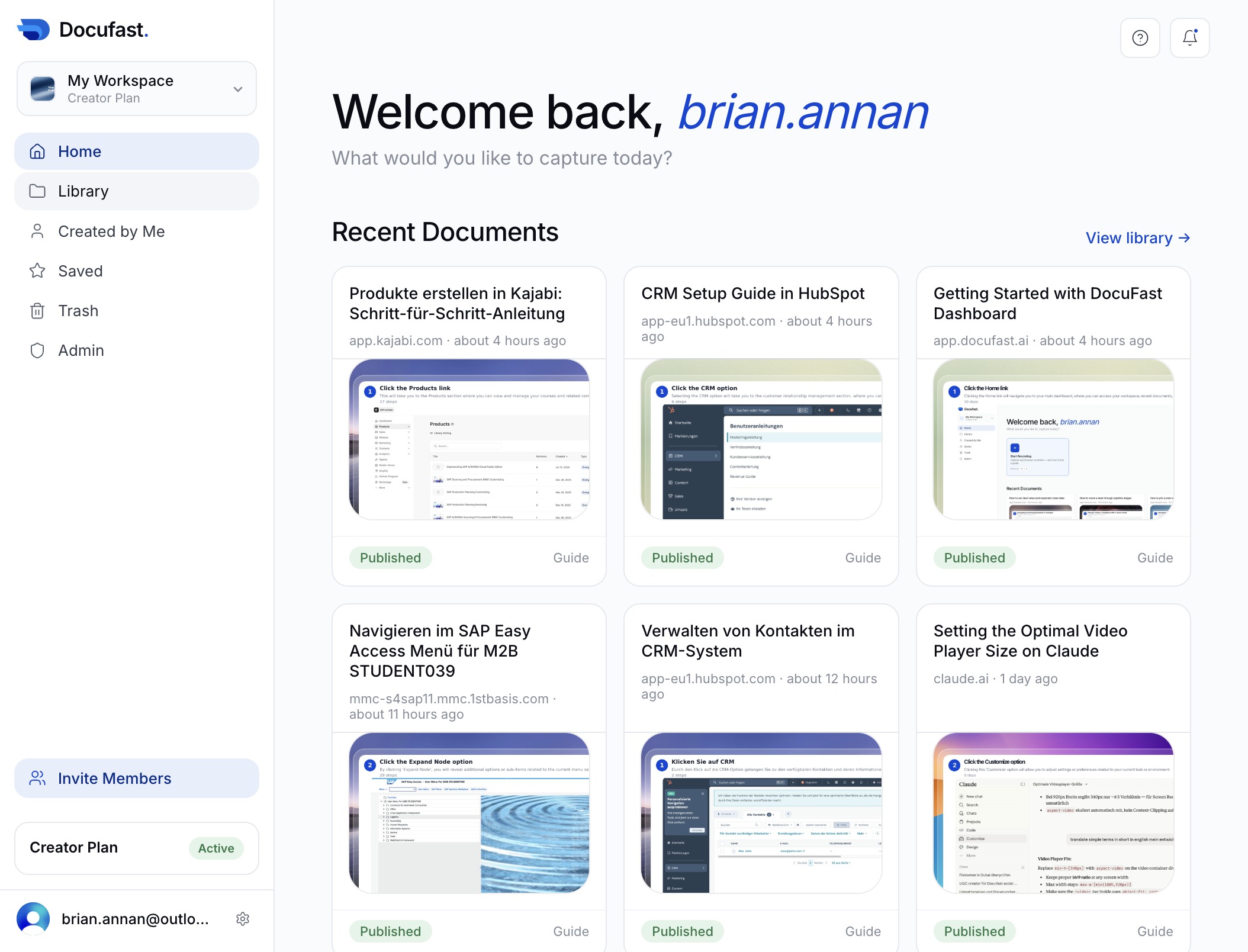
Click the Library link
This action navigates you to the Library section where you can view and manage your stored documents.
Loading screenshot…
100%
In this how-to guide, you'll learn to efficiently navigate the DocuFast dashboard in just four simple steps.
 brian.annan
In this how-to guide, you'll learn to efficiently navigate the DocuFast dashboard in just four simple steps. Discover how to manage your documents, access your authored content, and handle your saved and deleted files, enabling a streamlined document management experience.
This action navigates you to the Library section where you can view and manage your stored documents.
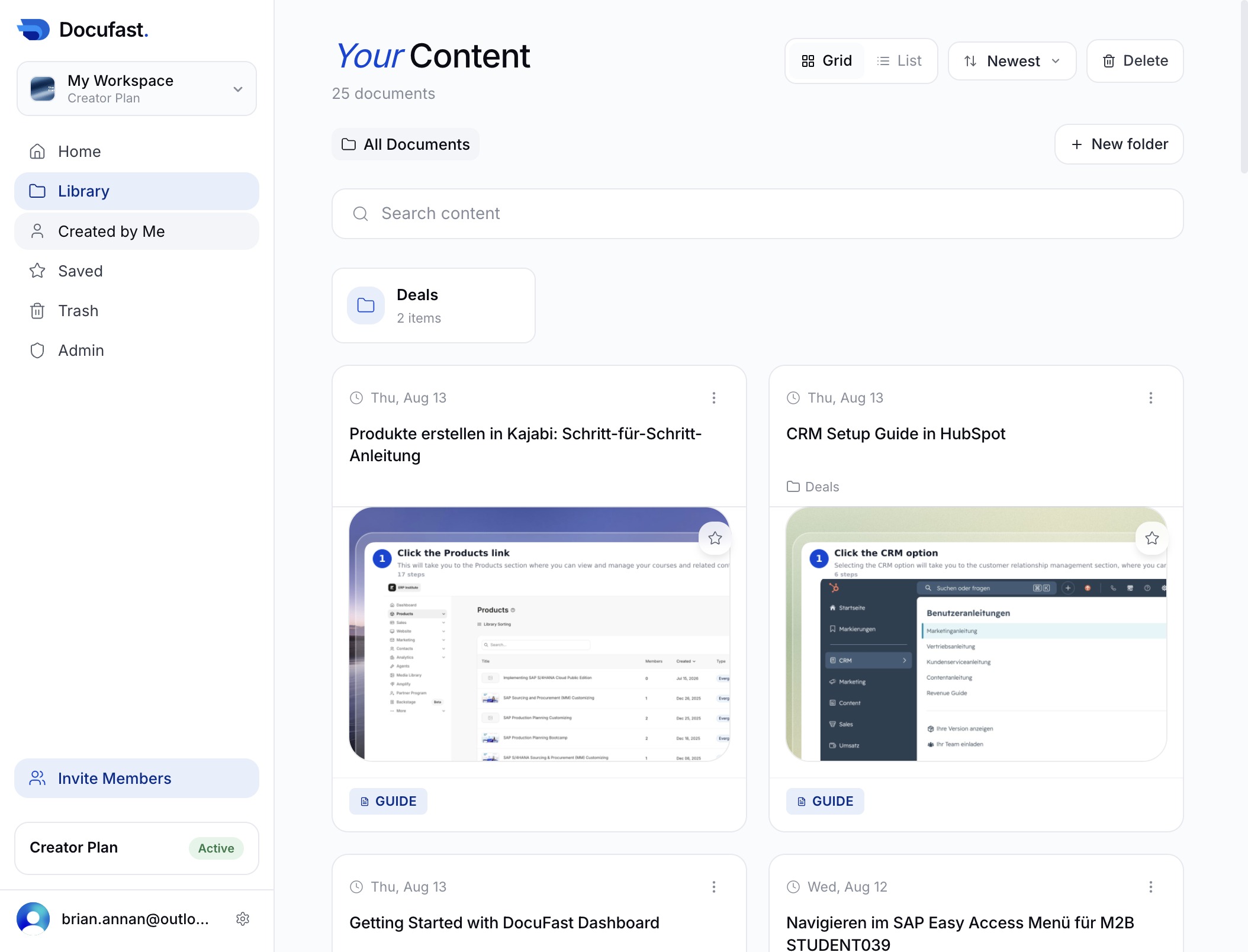
Selecting the 'Created by Me' area will display all documents you've authored, allowing you to easily access and manage your content.
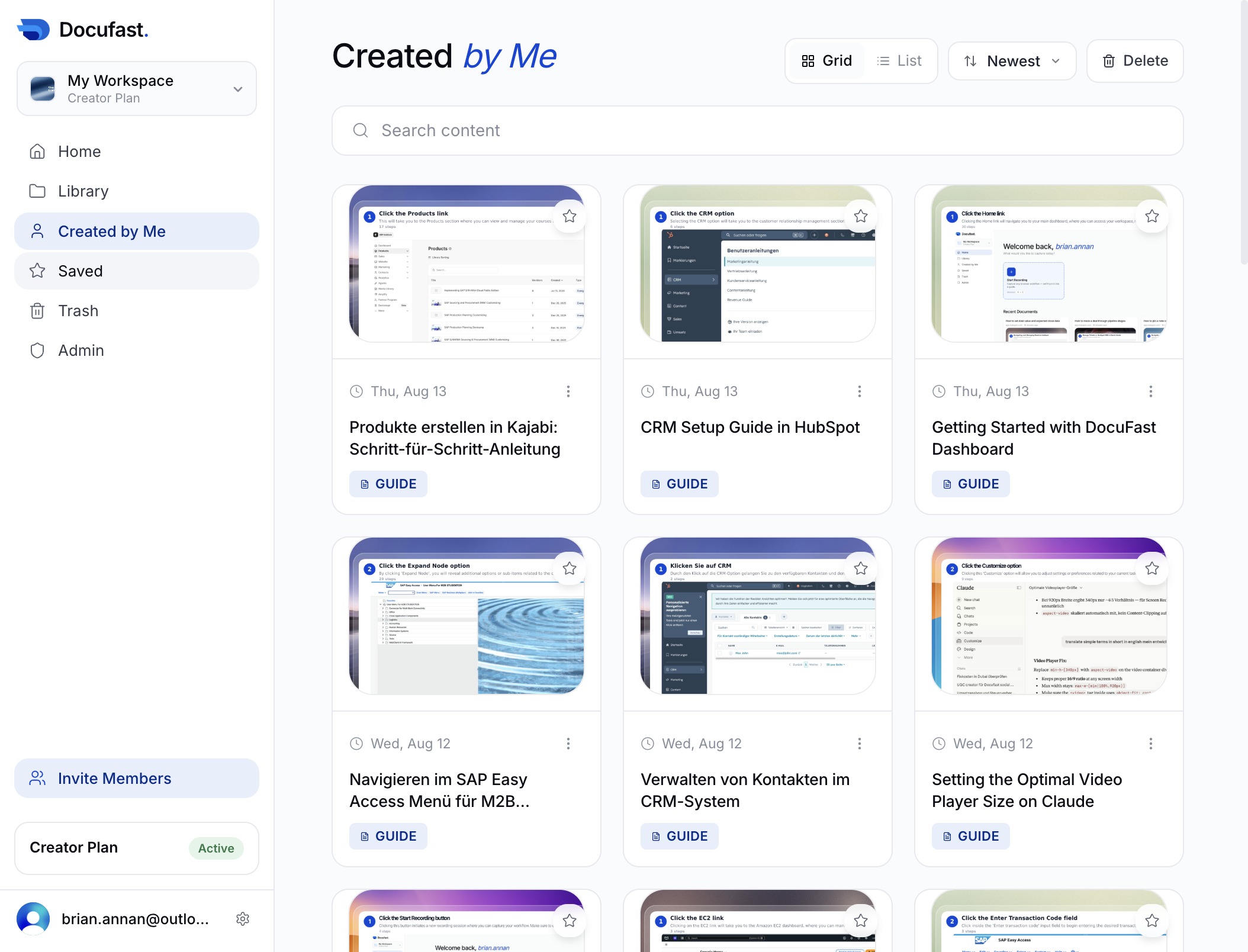
This action takes you to the list of items that have been saved for easy access later. You will be able to view and manage your saved content from this section.
This action opens the Trash section, where you can view and manage deleted documents within your workspace.