Click Docufast
You'll be directed to the main features of Docufast, your central hub for managing and creating documents, ensuring you have all the tools you need at your fingertips.

Loading screenshot…
100%
Explore the main sections, access your documents and videos, manage your workspace, and quickly find the tools and features you need.
 viktoria
Explore the main sections, access your documents and videos, manage your workspace, and quickly find the tools and features you need.
You'll be directed to the main features of Docufast, your central hub for managing and creating documents, ensuring you have all the tools you need at your fingertips.
By clicking the Home tab, you return to your main dashboard in Docufast, where you can easily access your recent documents and explore other features of the application.

By selecting the AI Assistant, you can access advanced features that help you automate tasks and streamline your workflow within Docufast, making it easier to capture and organize your documents.

By selecting the Library option, you open a space that houses all your guides and documents, making it easy to access important resources and information within your workspace.

Here, you’ll find all documents that you have created, making it easier to manage your personal contributions within Docufast.
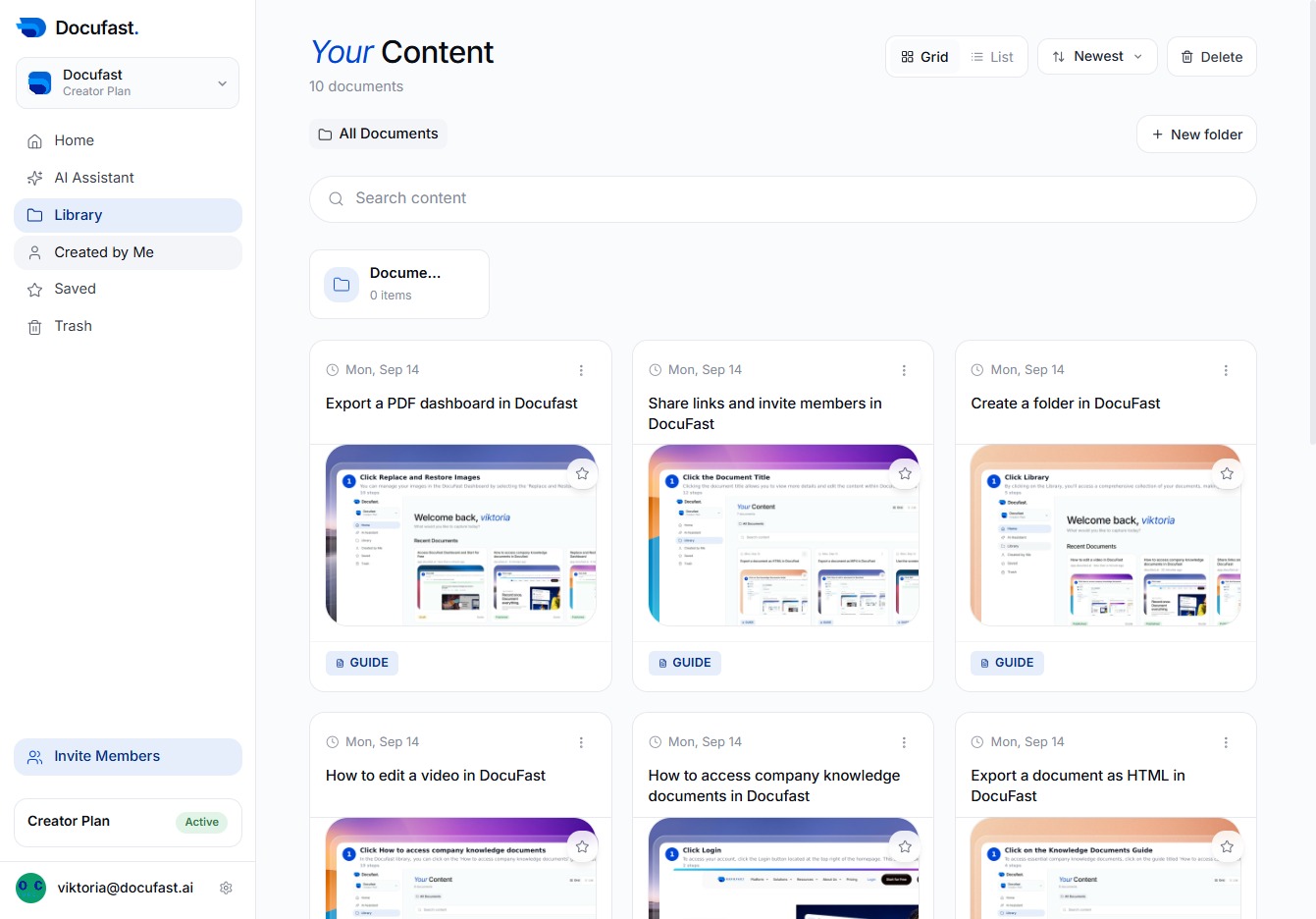
By clicking 'Saved', you confirm that your changes have been successfully stored in Docufast, ensuring your recent work is preserved and easily accessible.

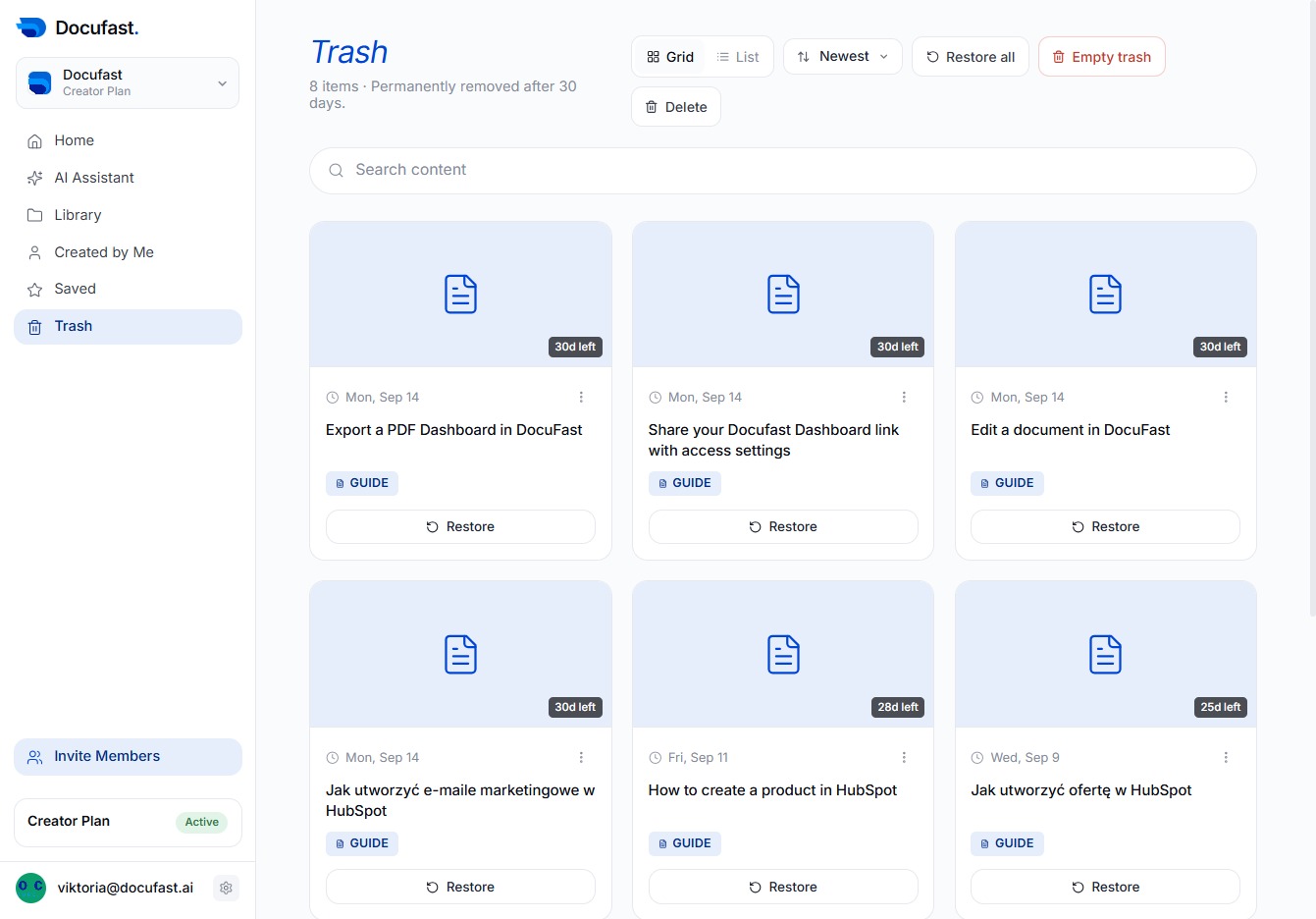
Here, you'll remove items from your saved documents by clicking the Trash option, allowing you to manage what you no longer need in your saved area.

Here, you can invite other members to collaborate within DocuFast. This feature allows you to expand your team and share access to your projects effortlessly.

In this step, you'll click the highlighted area to proceed with inviting your team member. Make sure to fill in their email address and select the appropriate workspace and role before sending the invitation.

You'll find an option to interact with the selected item in the Trash area, allowing you to manage your deleted content effectively. Click here to proceed with your action.
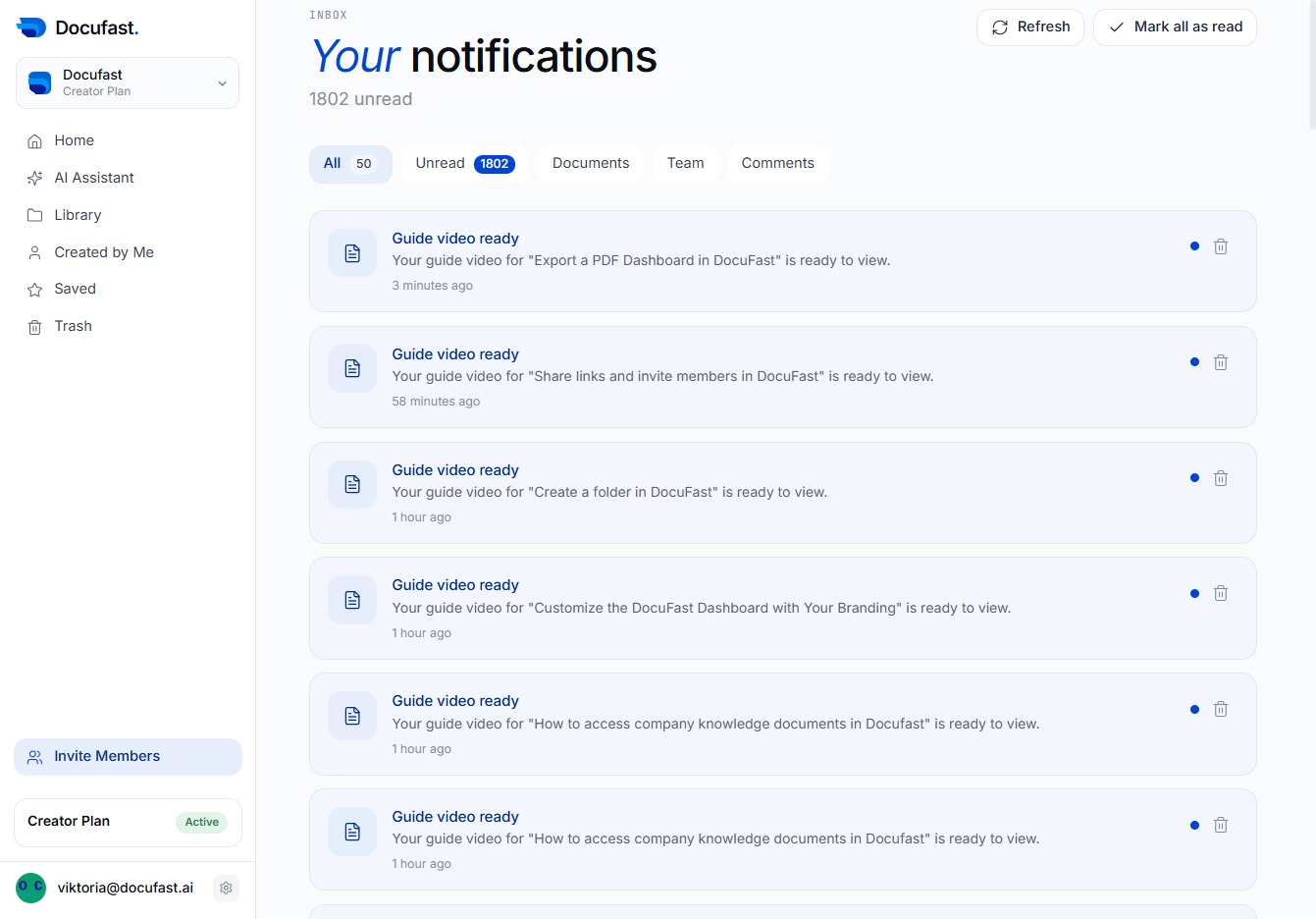
Here, you can access important alerts and updates regarding your DocuFast activities, ensuring you stay informed about any changes or new activities related to your documents.

In the notifications section, you'll see important updates and guide videos ready for you. Clicking here allows you to stay informed on the latest features and resources available in Docufast.
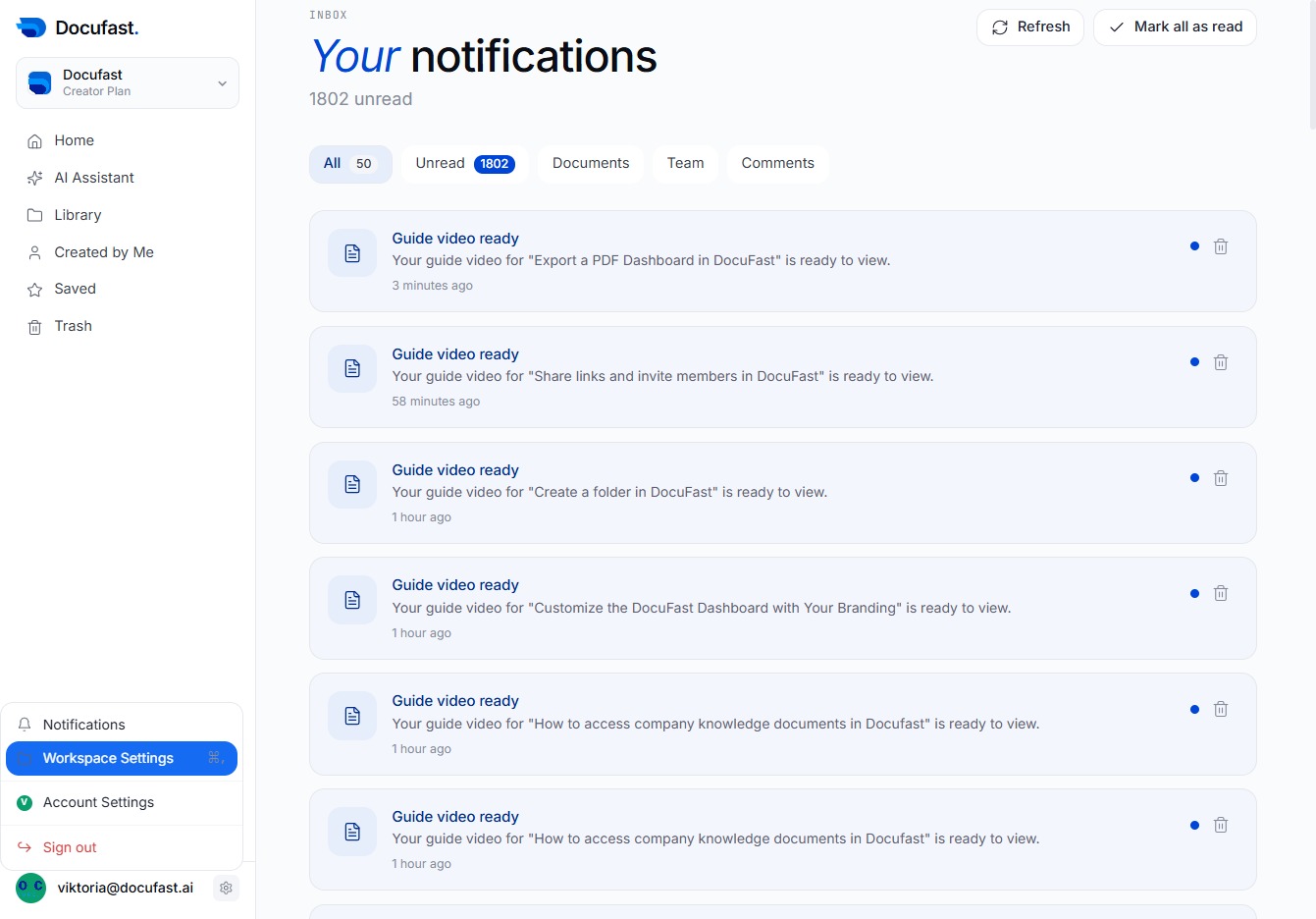
By selecting Workspace Settings, you can customize various preferences for your workspace, helping you tailor the Docufast experience to better suit your needs.
Here, you can upload a workspace thumbnail to personalize your workspace. This thumbnail helps in visually distinguishing your workspace at a glance.

You'll access your Account Settings here, allowing you to manage your personal details and preferences within the workspace setup.

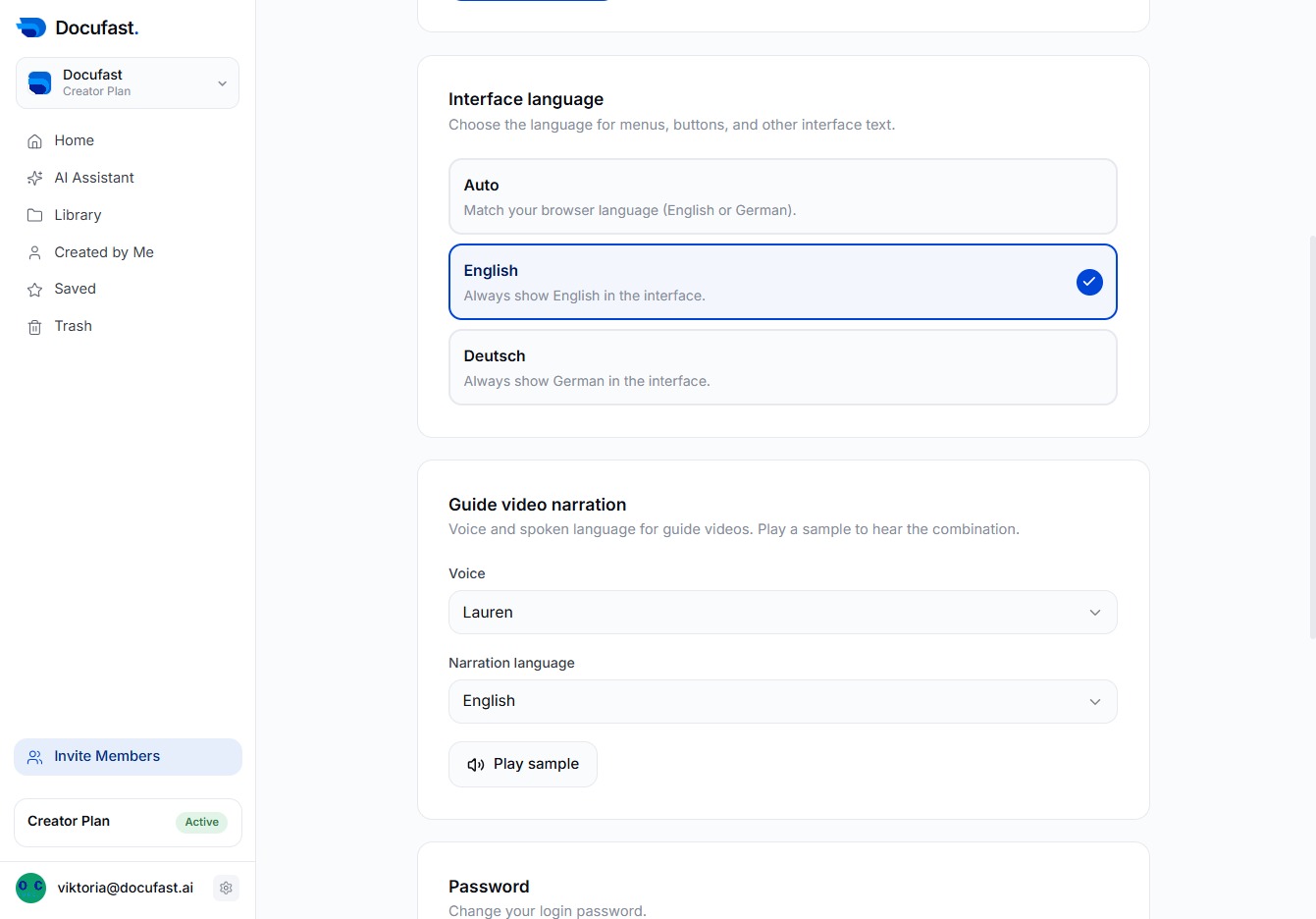
Select your preferred interface language from the options available. This allows you to customize the visual language settings for the Docufast interface.
When you're ready to leave your account, clicking Sign out ensures that your session ends securely. This action takes you back to the login screen, protecting your information.
