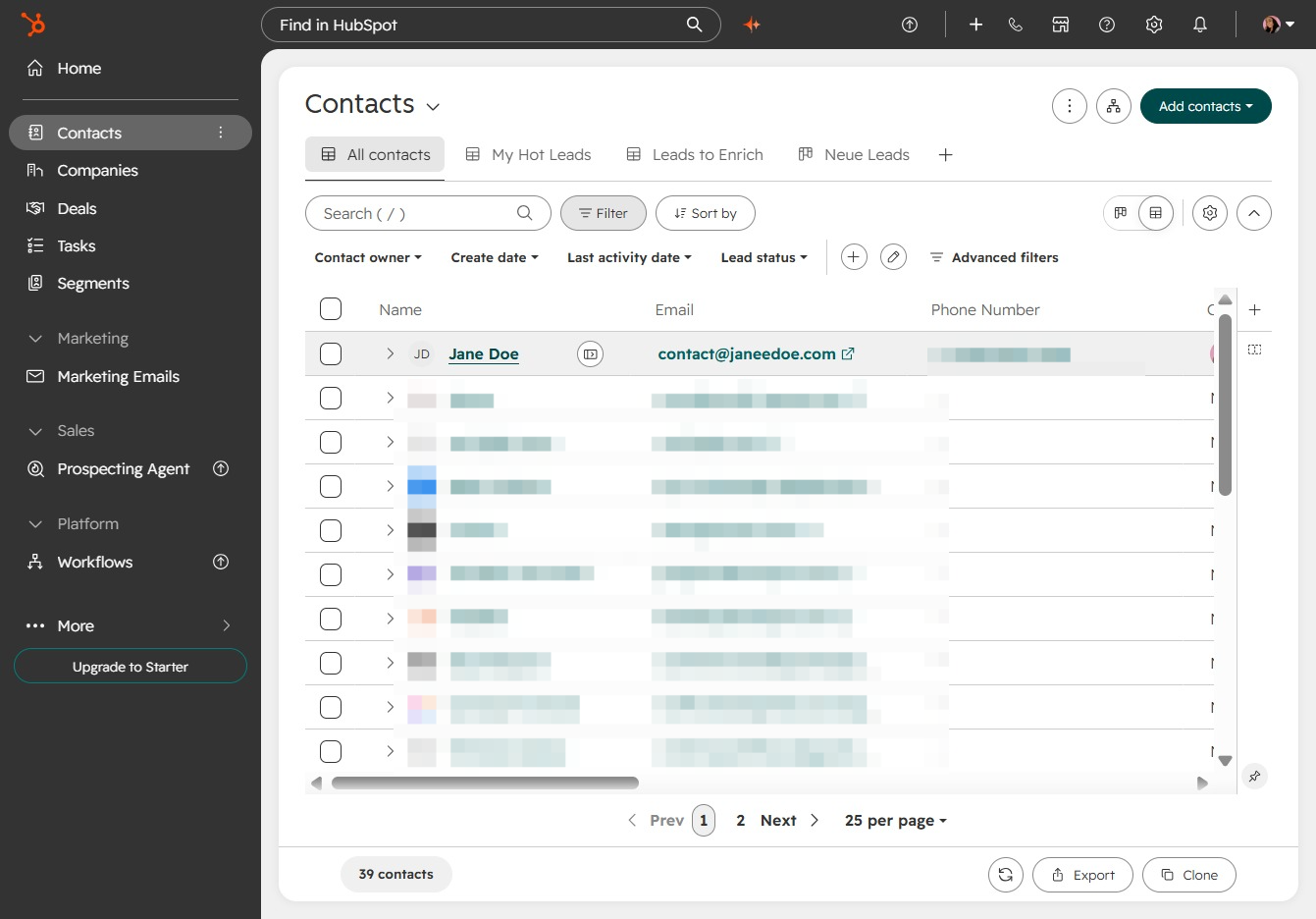
Click Contacts
You’ll find the Contacts section, where you can manage and view all your contacts, making it easier to stay connected with clients and leads.

Loading screenshot…
100%
Merge duplicate contacts in HubSpot by selecting the appropriate records, reviewing their details, and using the Merge option to consolidate information into a single entry.
 viktoria
Merge duplicate contacts in HubSpot by selecting the appropriate records, reviewing their details, and using the Merge option to consolidate information into a single entry.
You’ll find the Contacts section, where you can manage and view all your contacts, making it easier to stay connected with clients and leads.
In the Contacts section, you'll want to select Jane Doe to view her details and interactions. This is where you can manage information related to individual contacts.
Access the Actions menu to explore different options available for managing contacts in HubSpot, allowing you to choose various functionalities related to this contact.
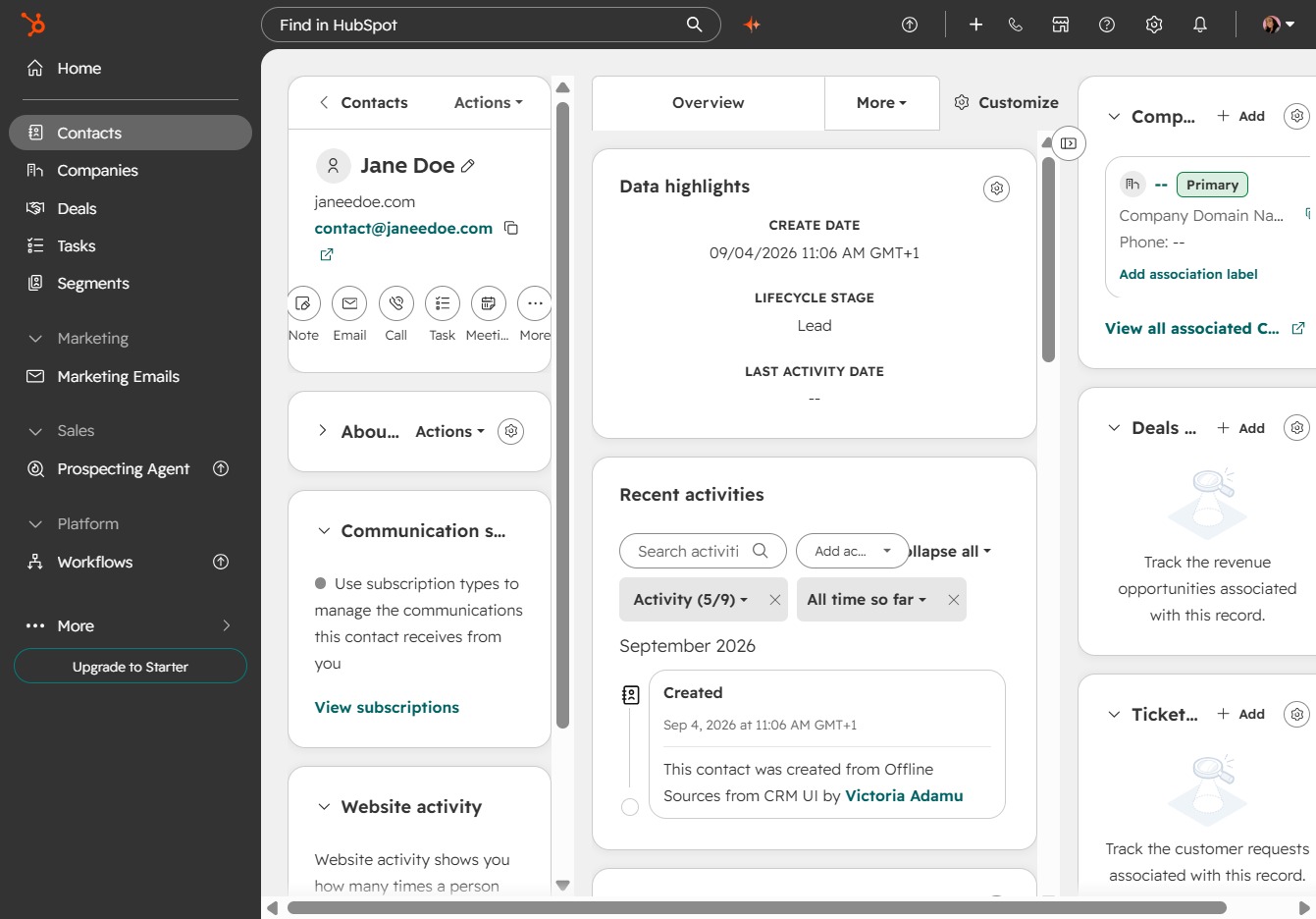
To combine selected contacts, click the 'Merge' option from the actions menu. This helps streamline your contact list by merging duplicate entries into one.

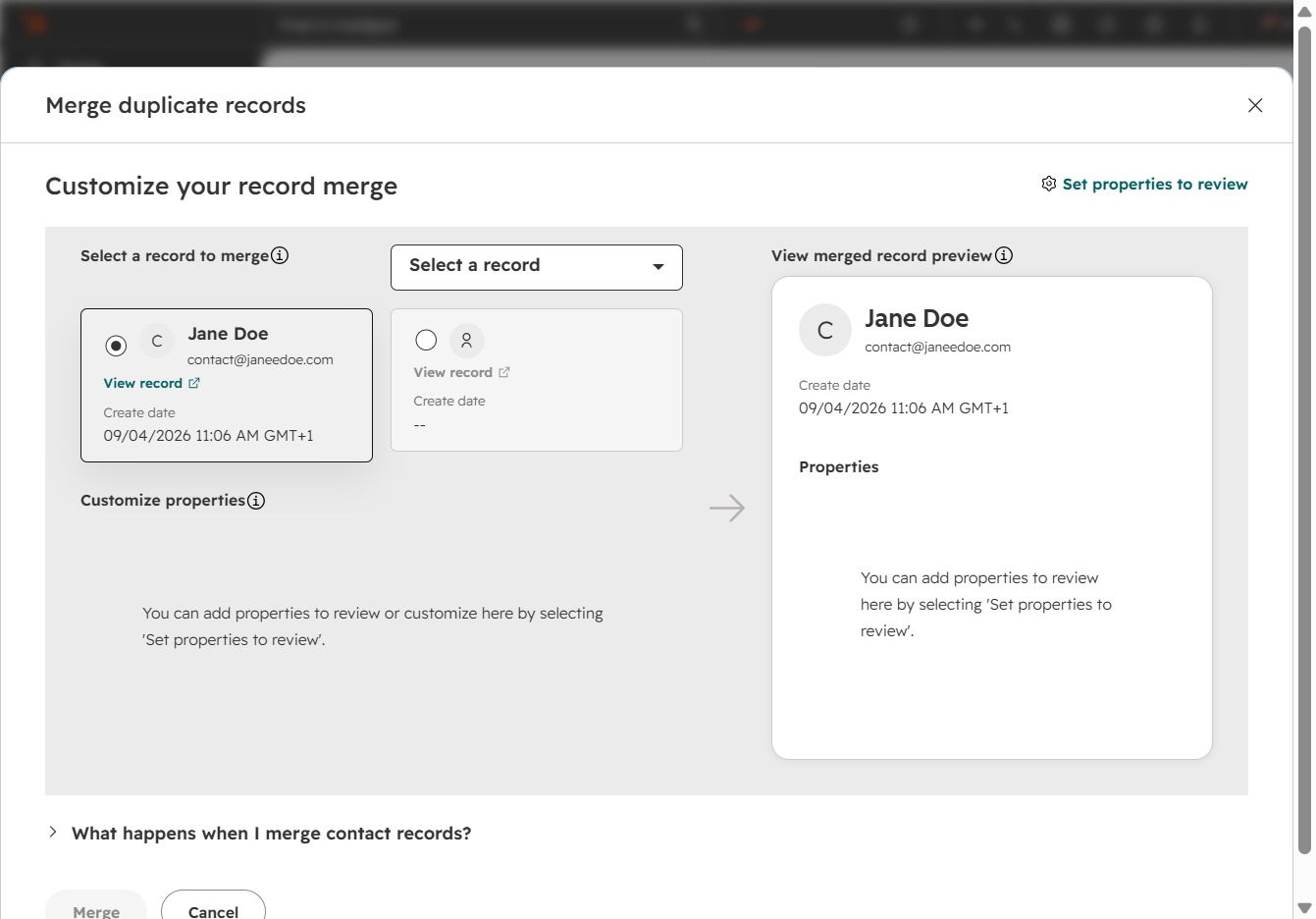
To merge duplicate records in your system, click on 'Select a record' to choose the entry you want to combine with the current one. Make sure to review the information for accuracy.
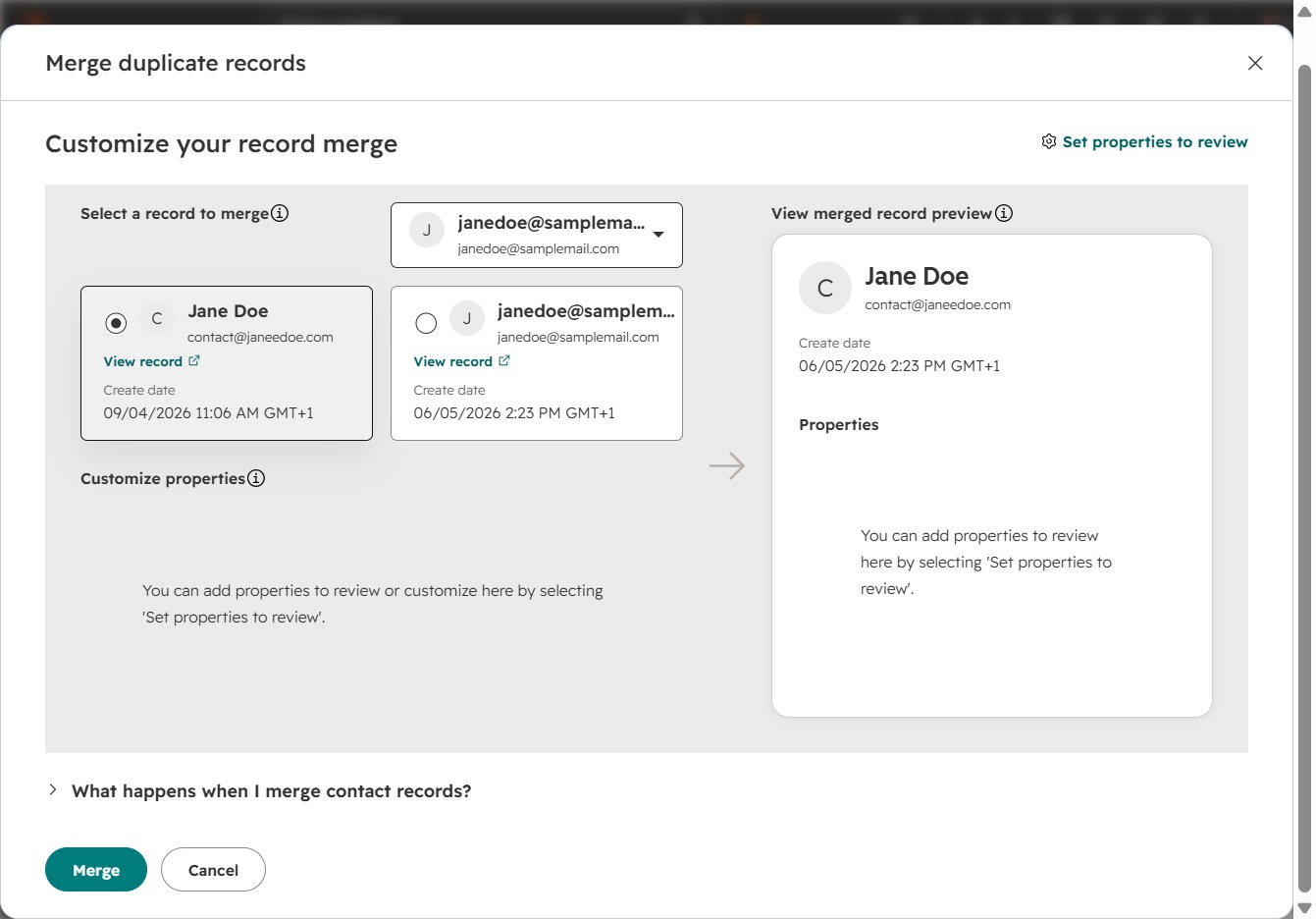
To merge duplicate records effectively, choose Jane Doe's record from the list shown. This step is crucial for ensuring you have the correct details for the merge process.
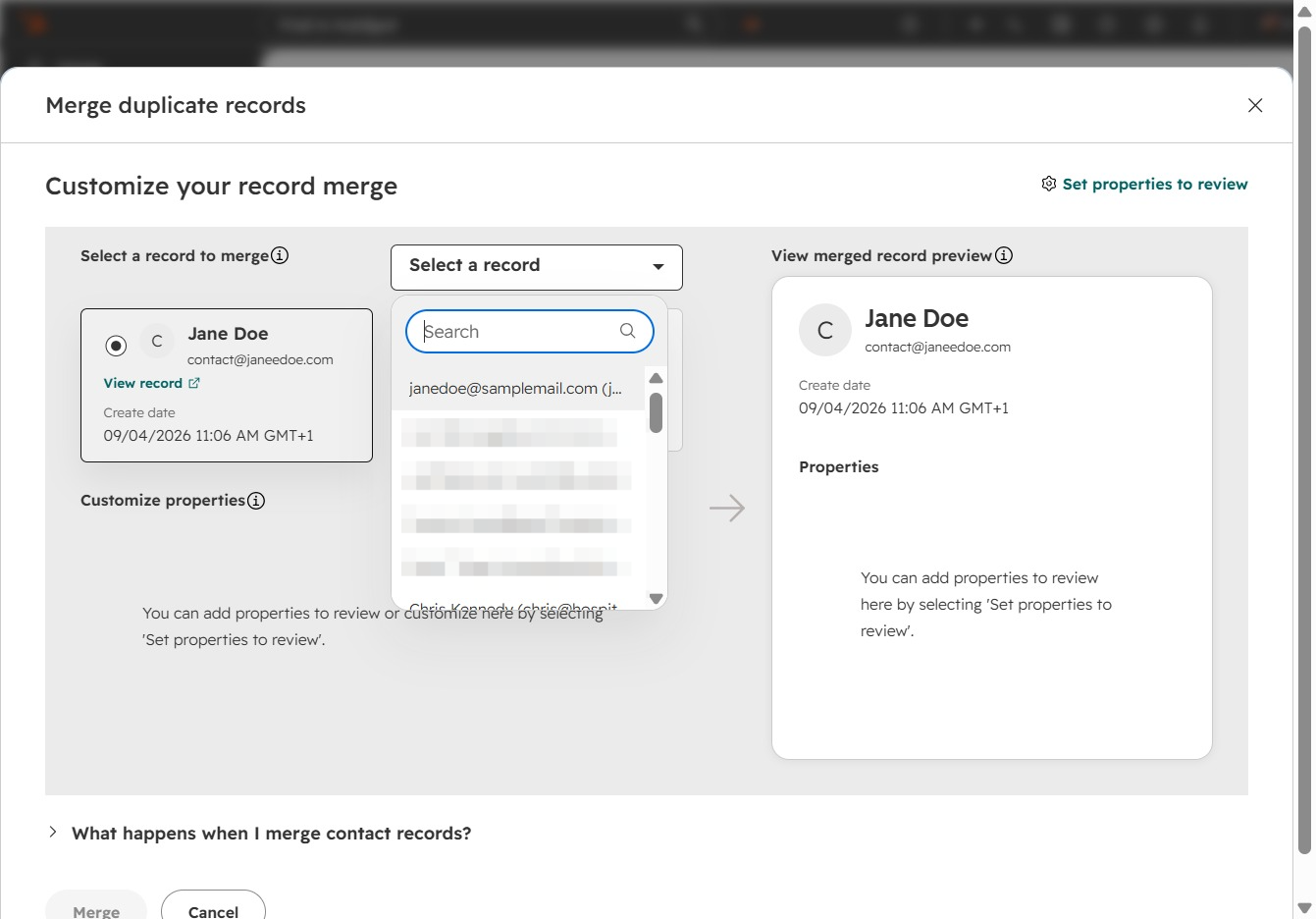
To combine duplicate records, click the Merge button. This action will initiate the process of merging the selected contact records, ensuring that all relevant information is consolidated into a single entry.