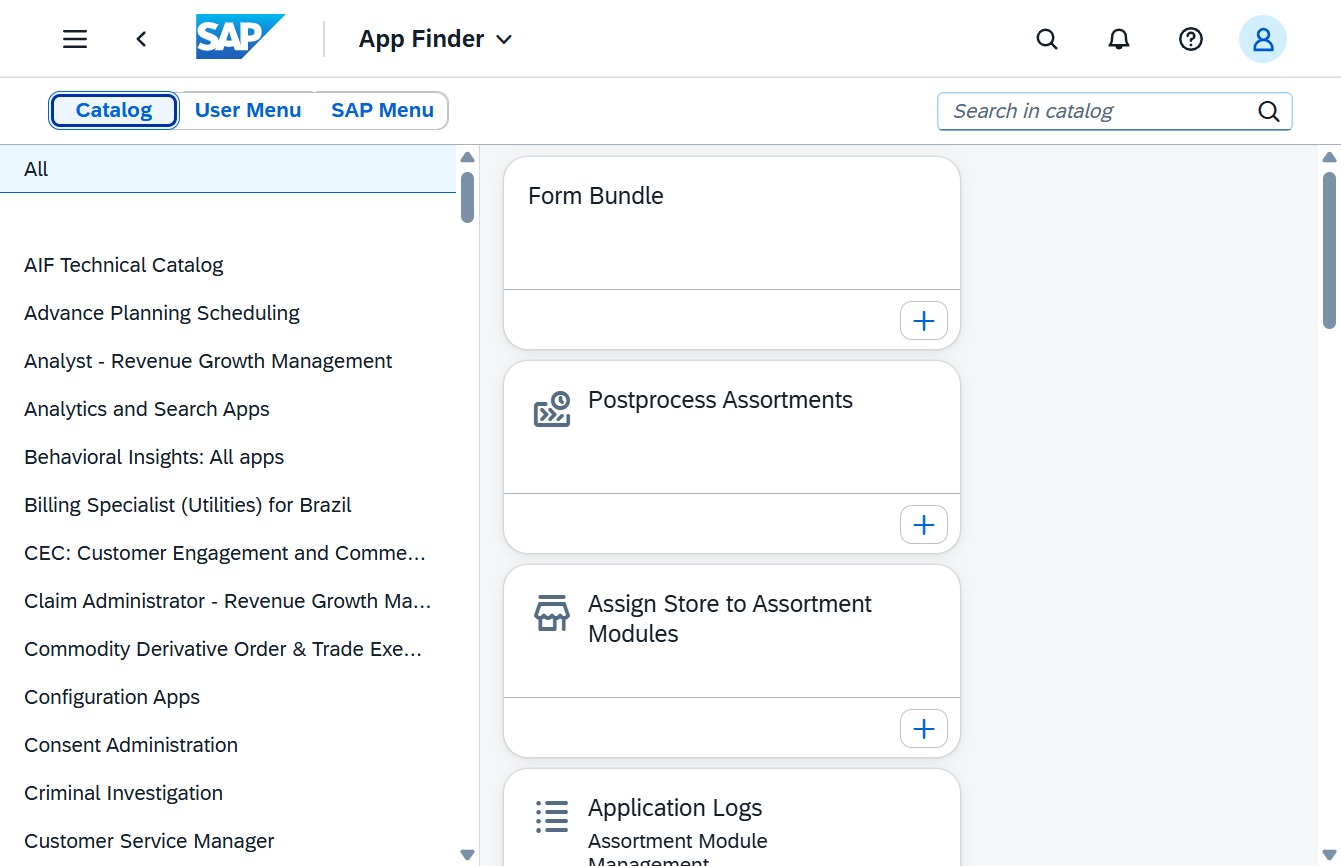
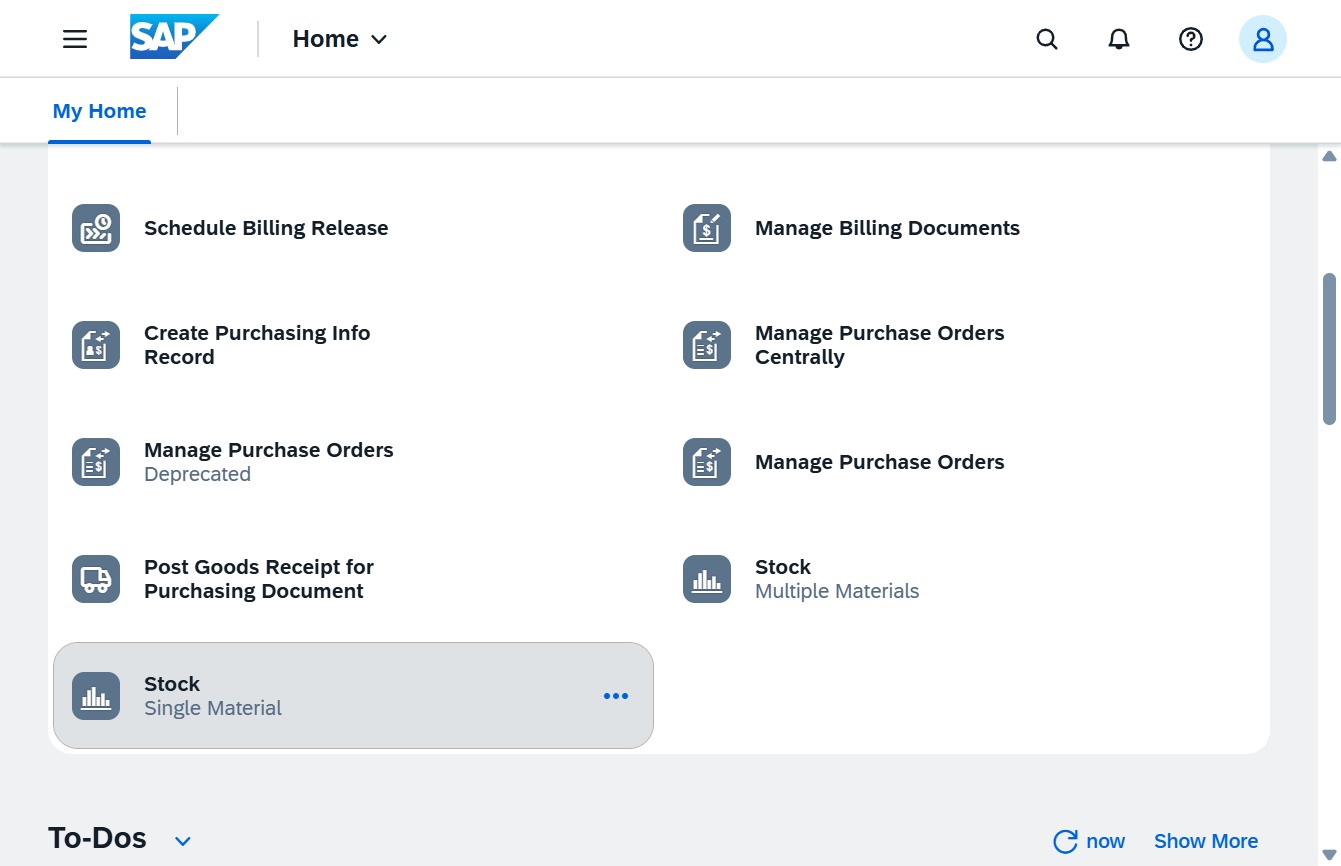
Click the Stock Single MaterialMore option
This action opens a submenu or additional options related to managing a single material's stock details, allowing you to perform specific stock-related tasks.
Loading screenshot…
100%
In this how-to guide, you will learn the step-by-step process to effectively manage stock for a single material, including entering material information, scanning items, and…
 Ferdaus r
In this how-to guide, you will learn the step-by-step process to effectively manage stock for a single material, including entering material information, scanning items, and processing goods receipts in the SAP system. Follow these concise instructions to streamline your inventory management tasks and ensure accurate record-keeping for your materials.
This action opens a submenu or additional options related to managing a single material's stock details, allowing you to perform specific stock-related tasks.
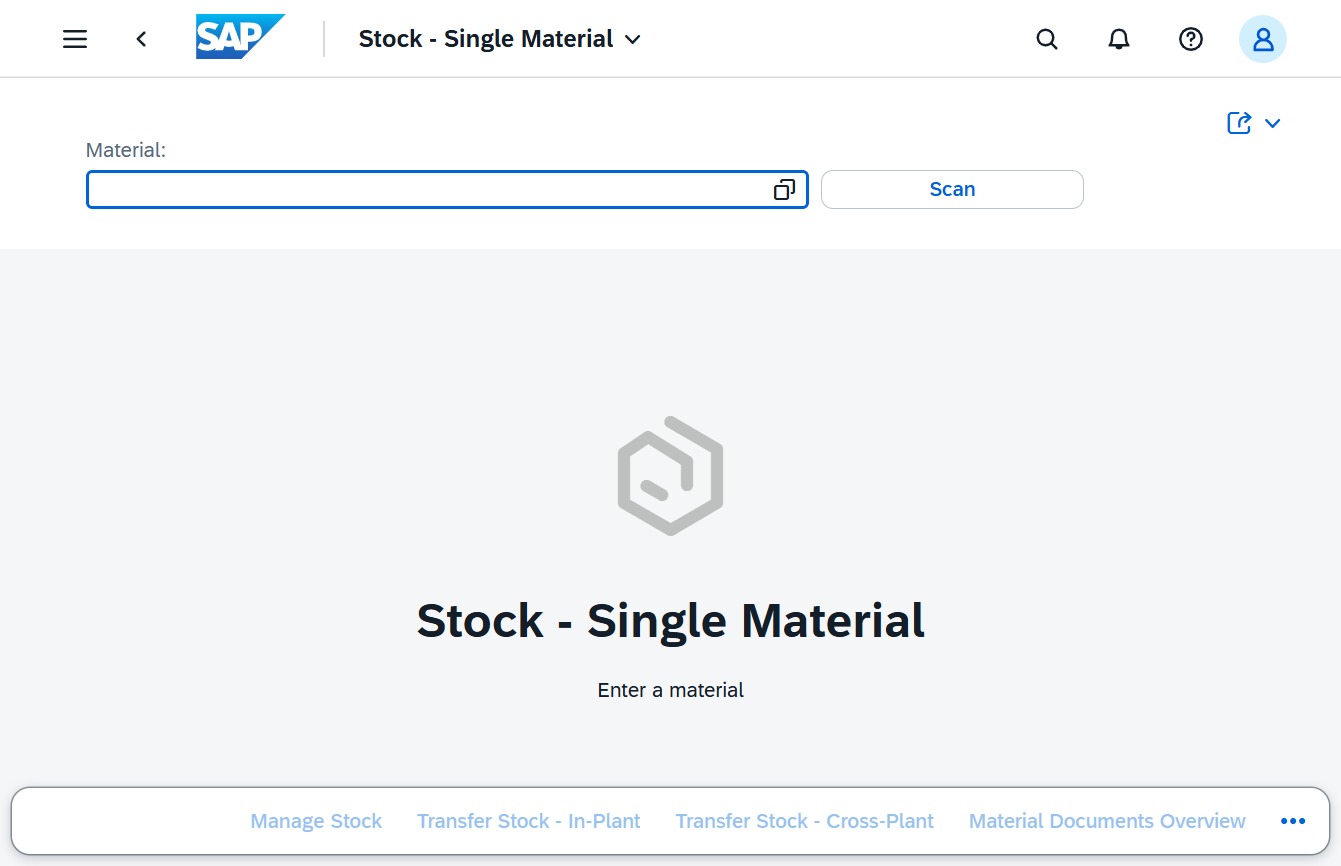
Click the 'Click here' link to begin entering the material information in the provided input field.
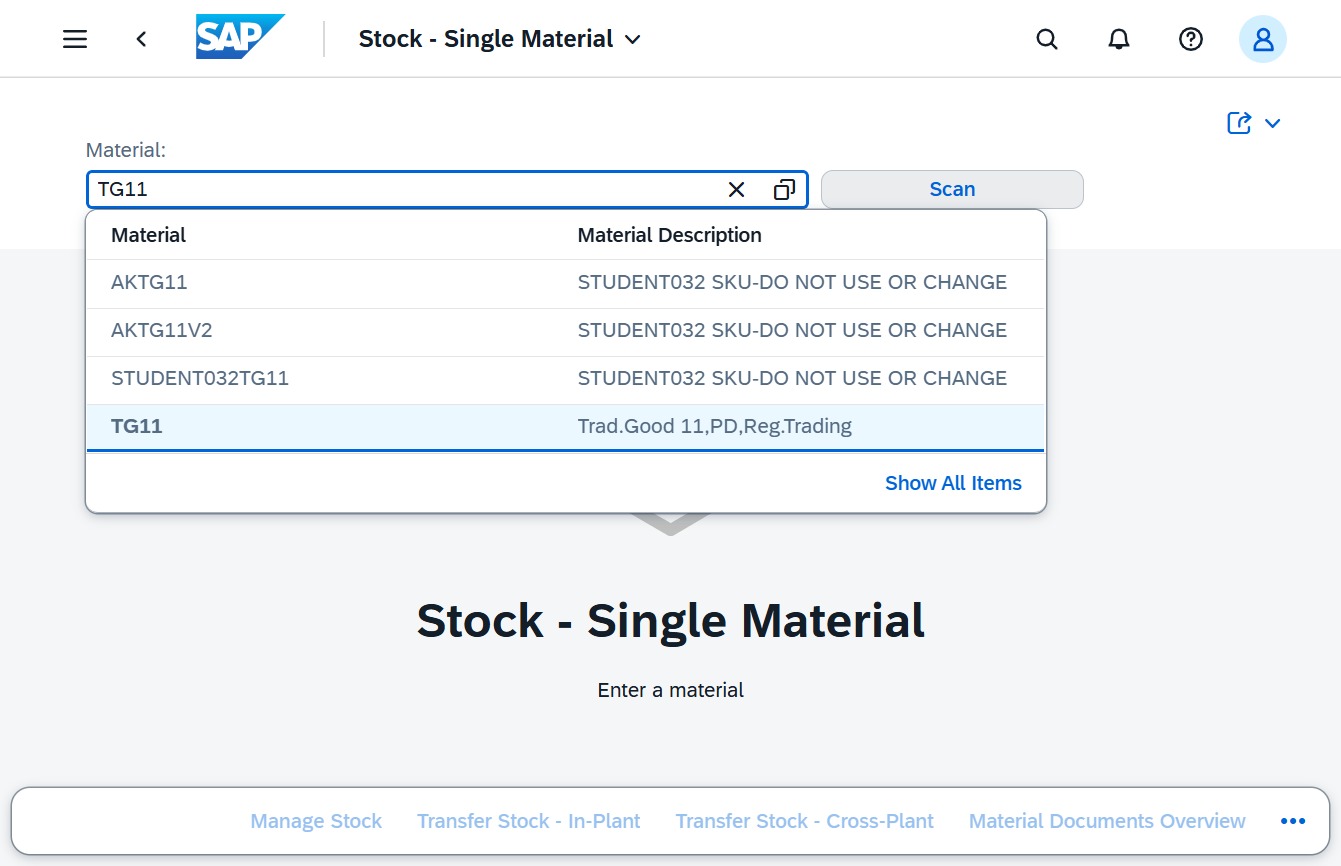
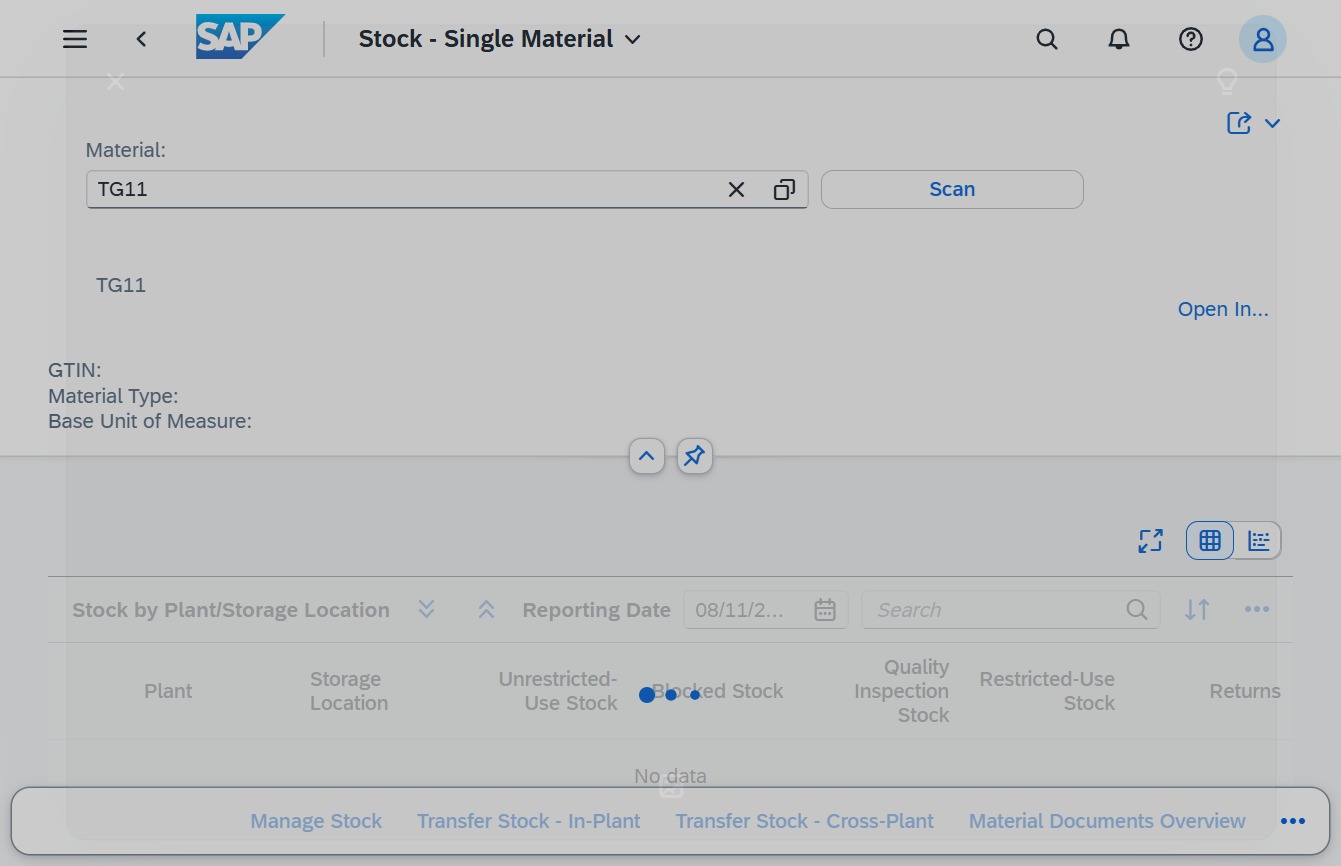
Enter 'TG11' in the Material field to search for specific stock items related to this material code. This will filter the available options and display relevant material descriptions.
Clicking the Scan button initiates the scanning process for the material TG11, allowing you to capture relevant data for inventory management in the SAP system.
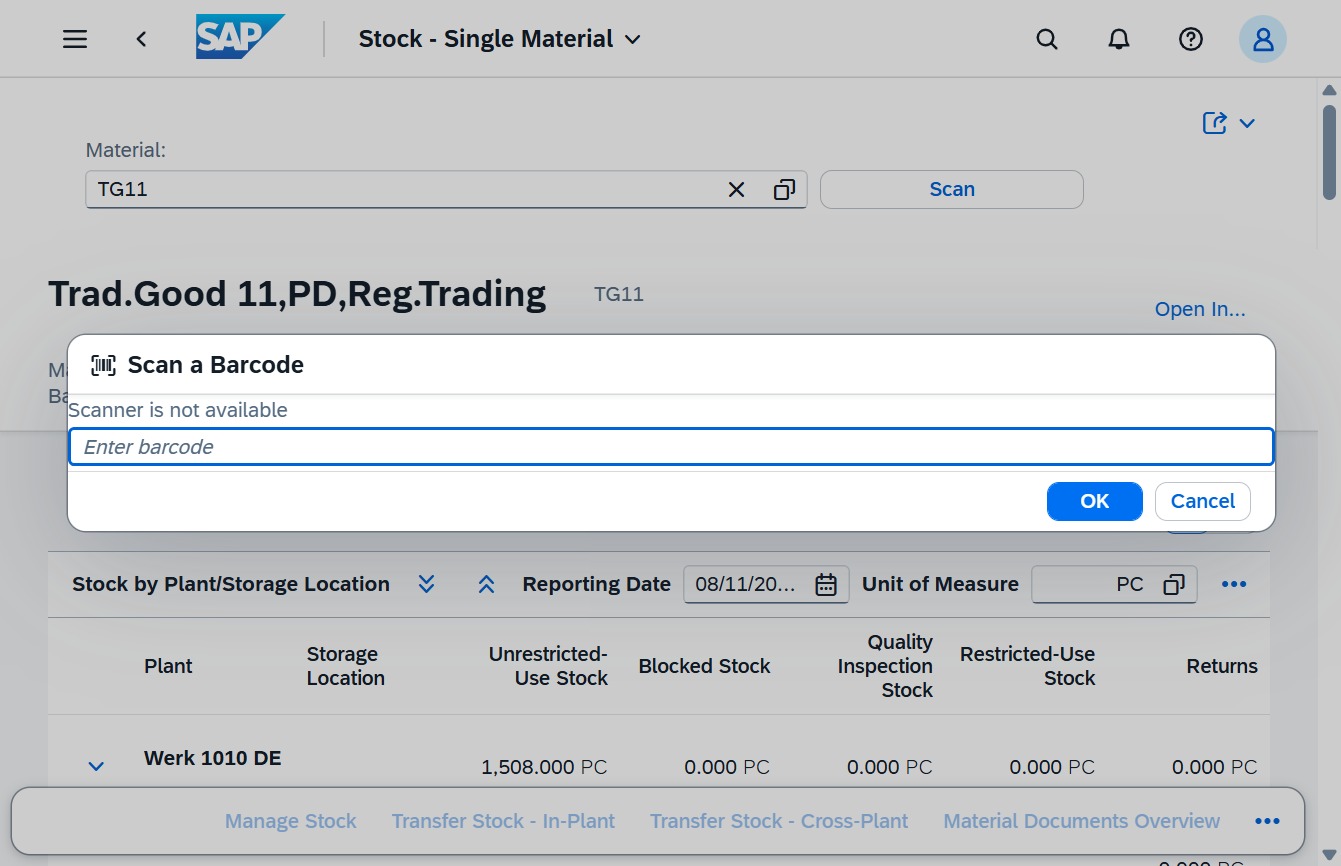
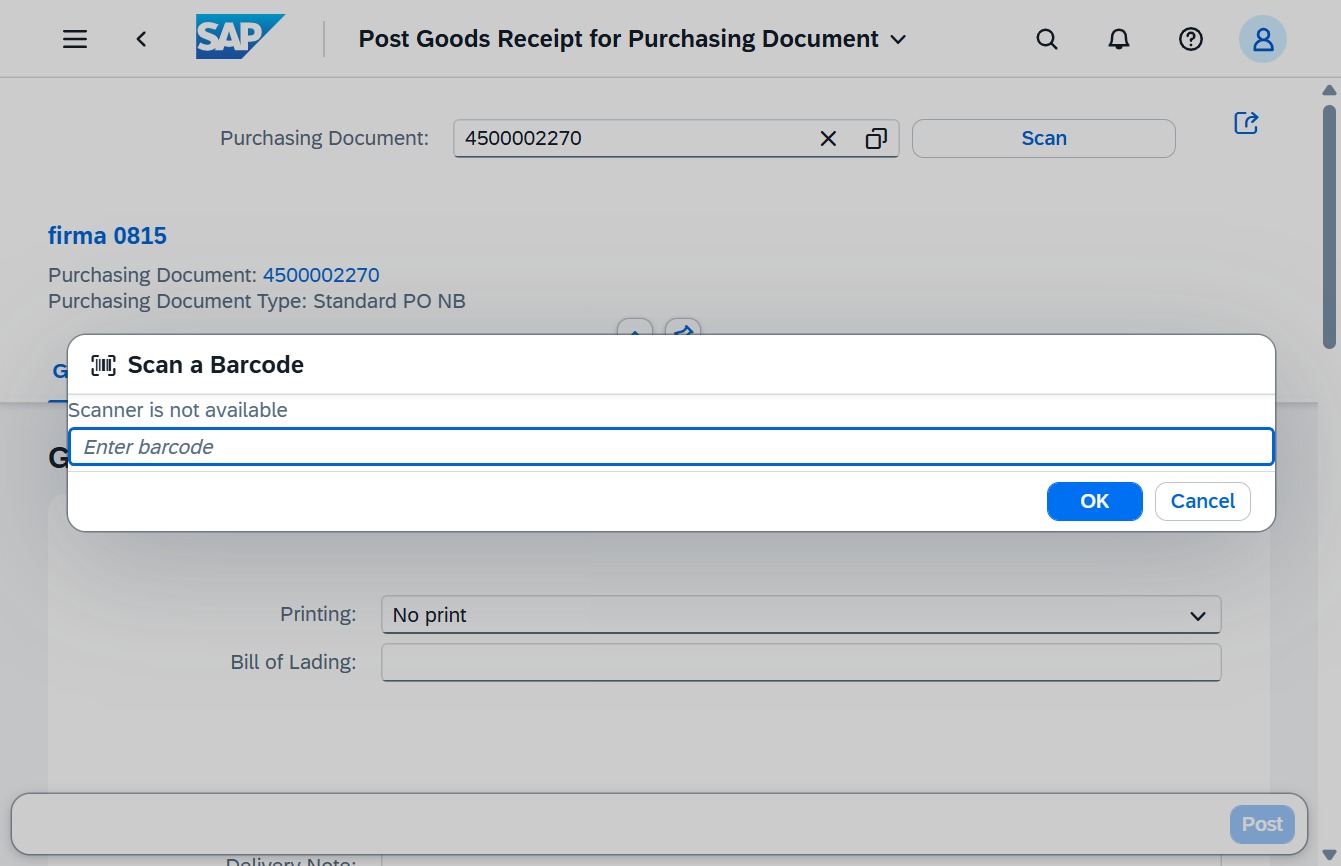
This will close the current barcode entry dialog without saving any changes.
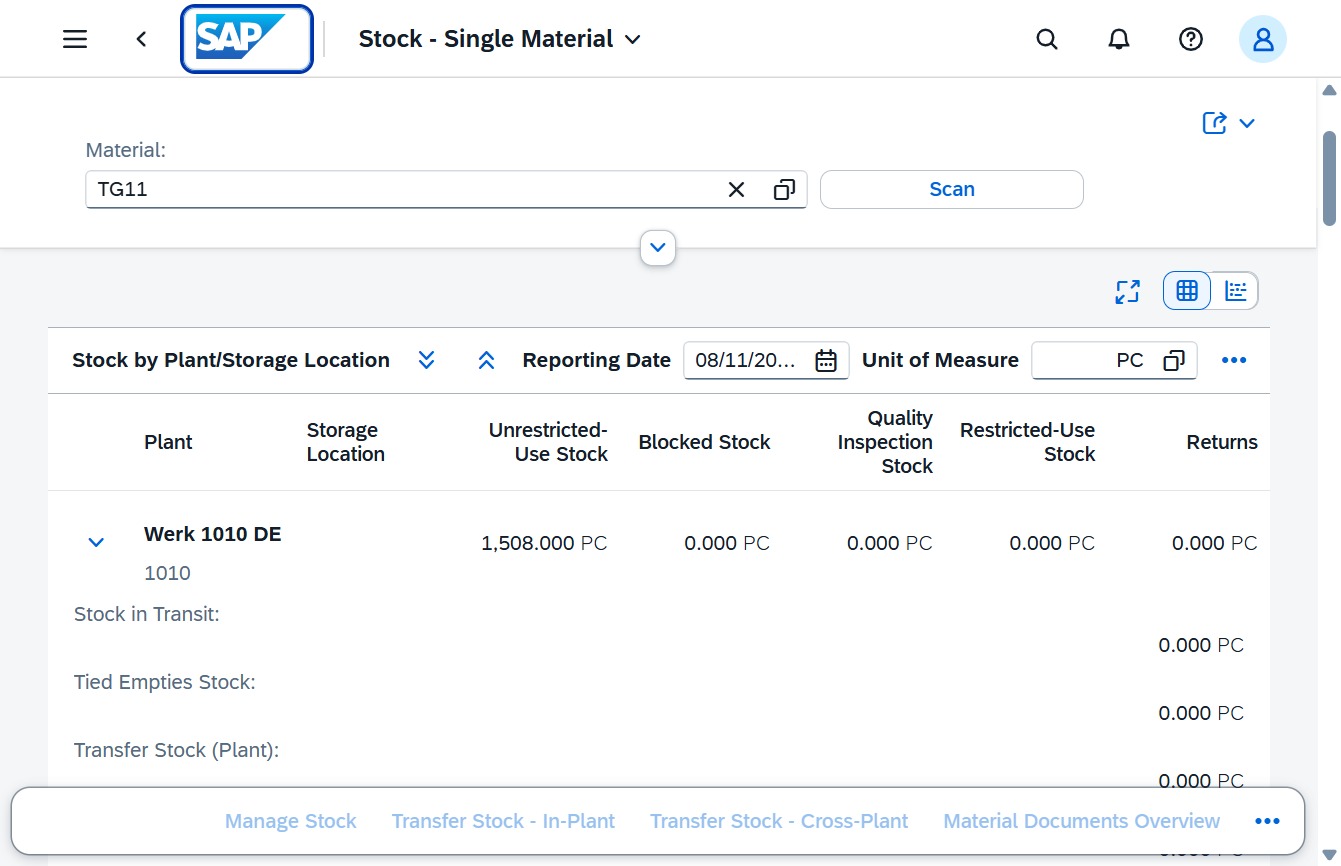
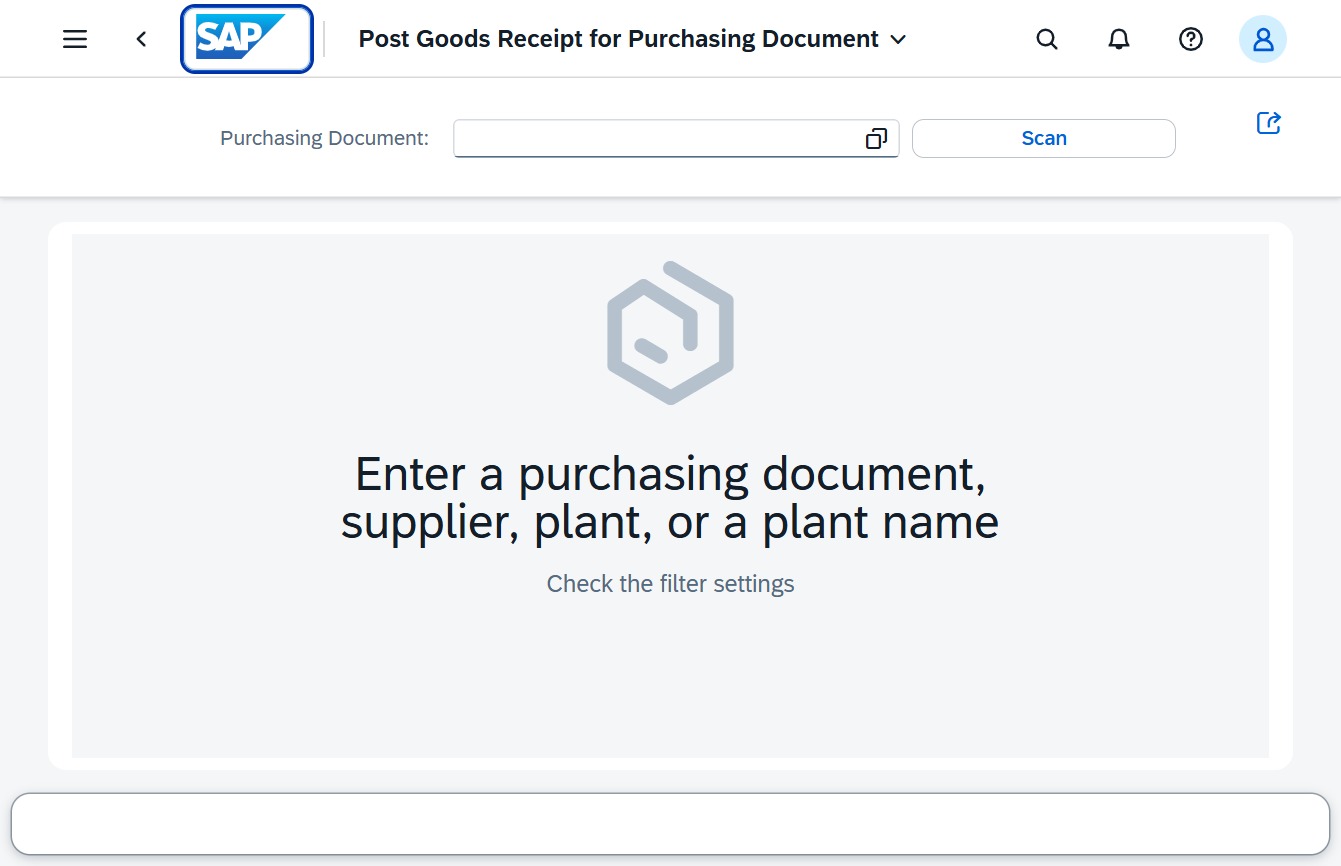
Clicking the Branding area will typically redirect you to the home page or dashboard of the application, allowing for easy navigation across different functionalities.
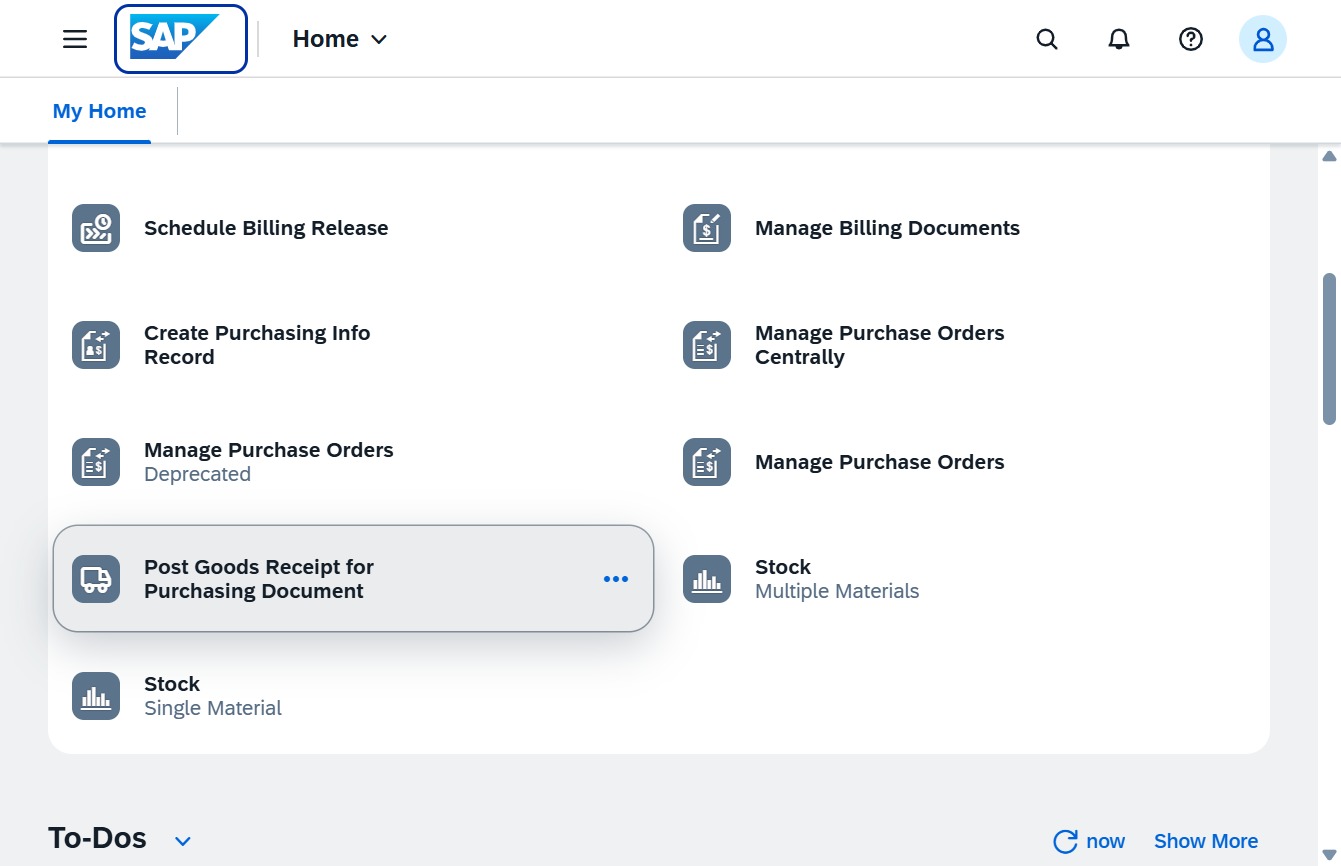
This will allow you to register the receipt of goods associated with a purchasing document in the system. Completing this action updates inventory and confirms the transaction related to the order.
Enter '4500002270' in the Purchasing Document field to specify the relevant document for processing. This will enable you to retrieve or update the associated goods receipt.
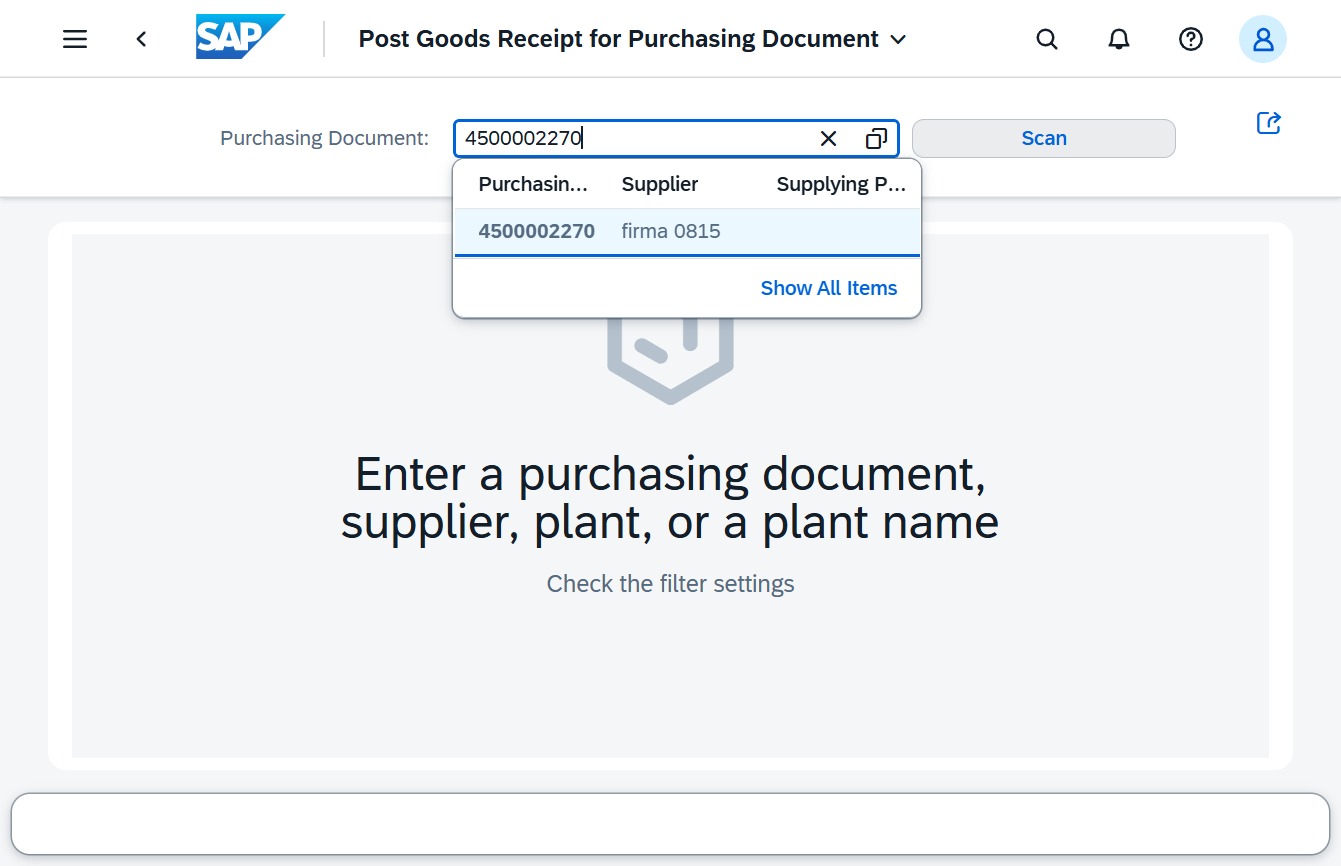
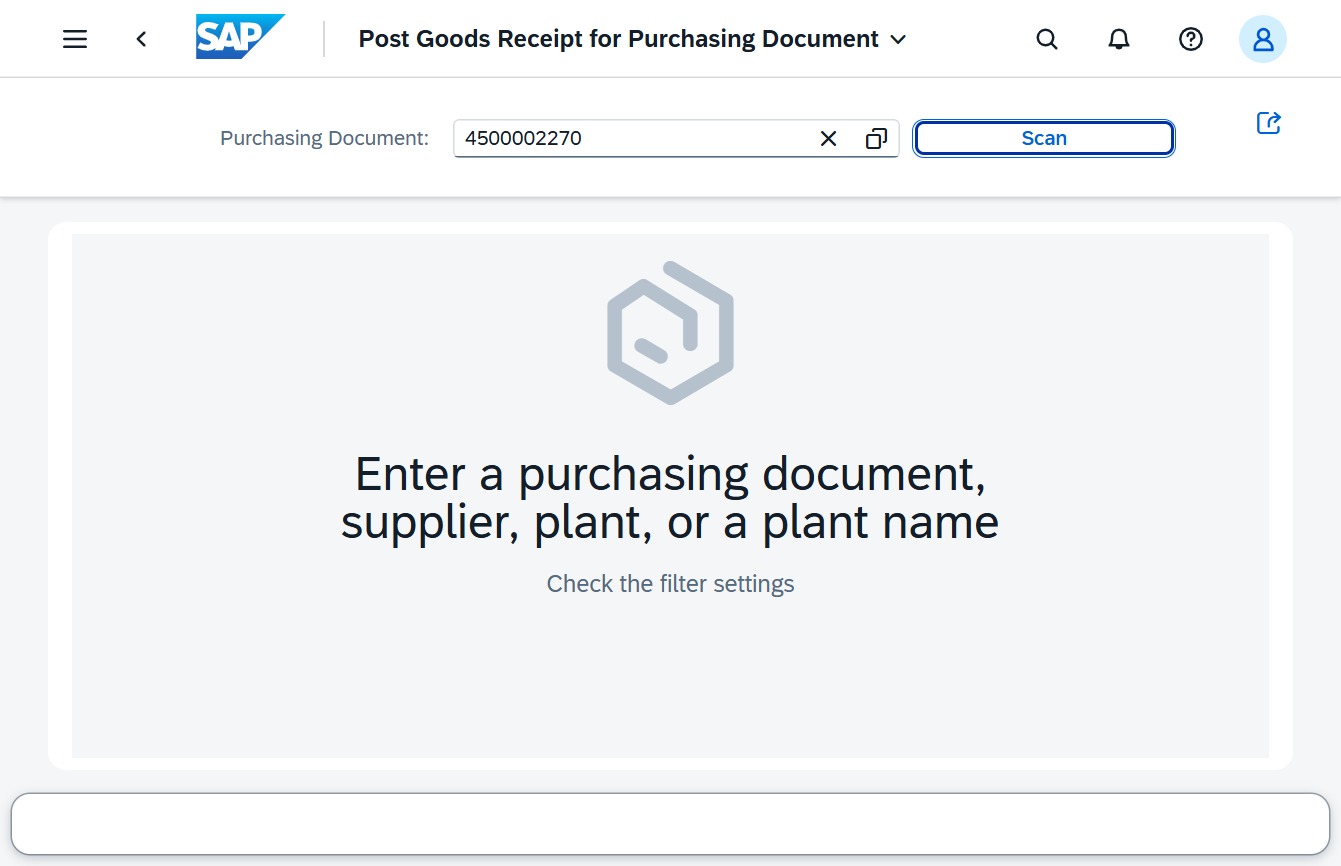
This action initiates a scanning process to retrieve and display information related to the purchasing document you entered.
Clicking 'Cancel' will close the barcode scanning dialog, allowing you to return to the previous screen without entering a barcode.
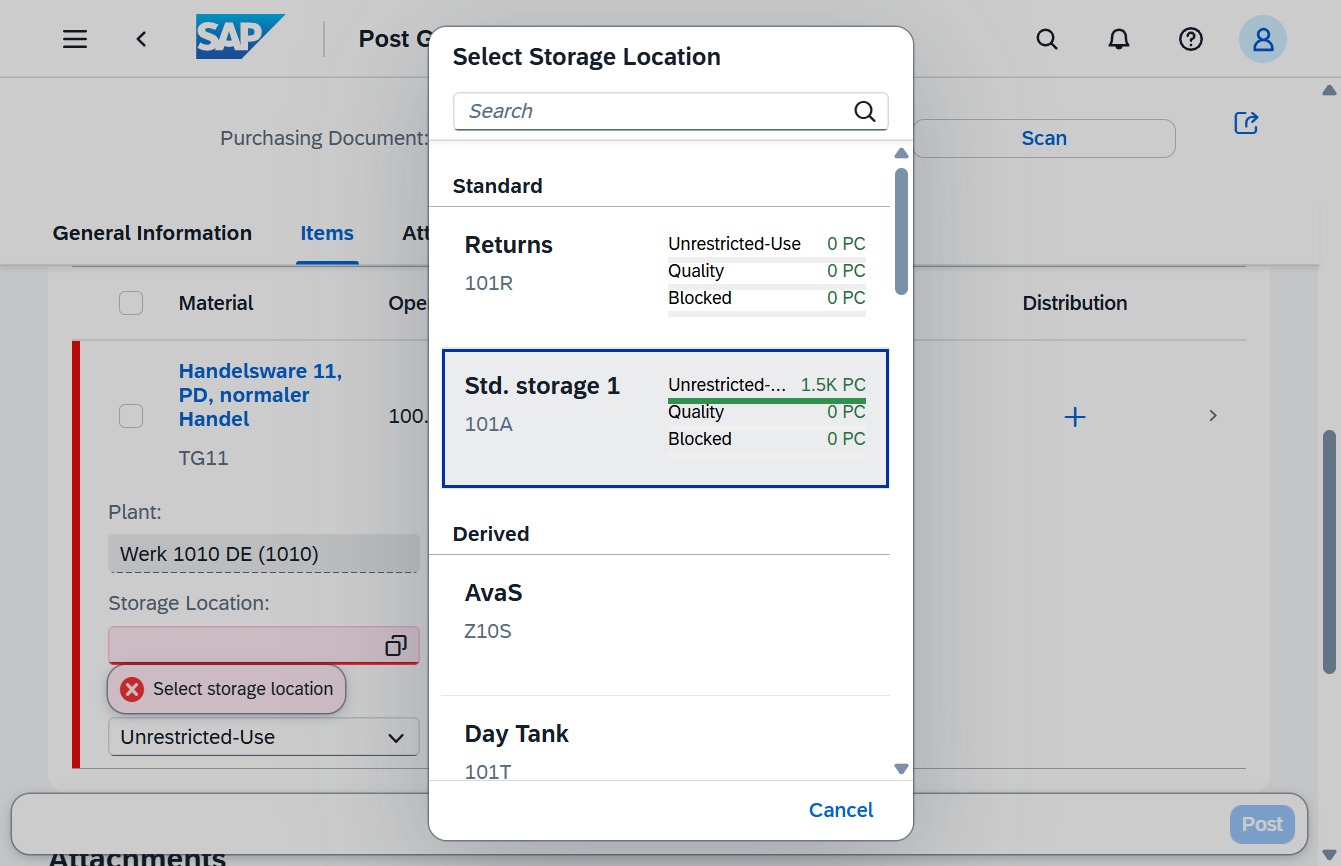
This action opens a dialog that provides additional information or options related to the currently selected field, helping you make informed choices regarding materials or entries.
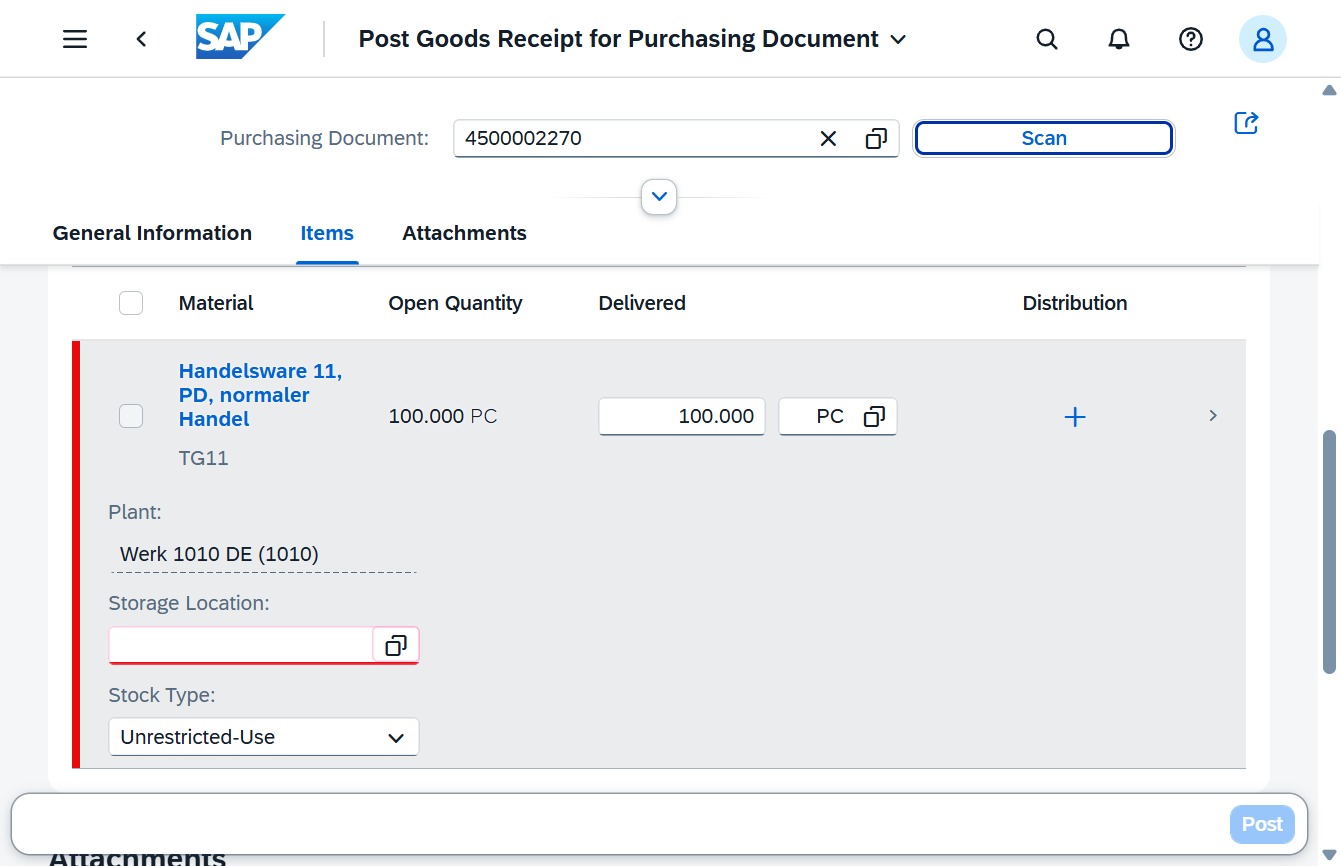
This action selects the 'Std. storage 1' storage location, allowing you to manage the associated inventory and details for that storage type.
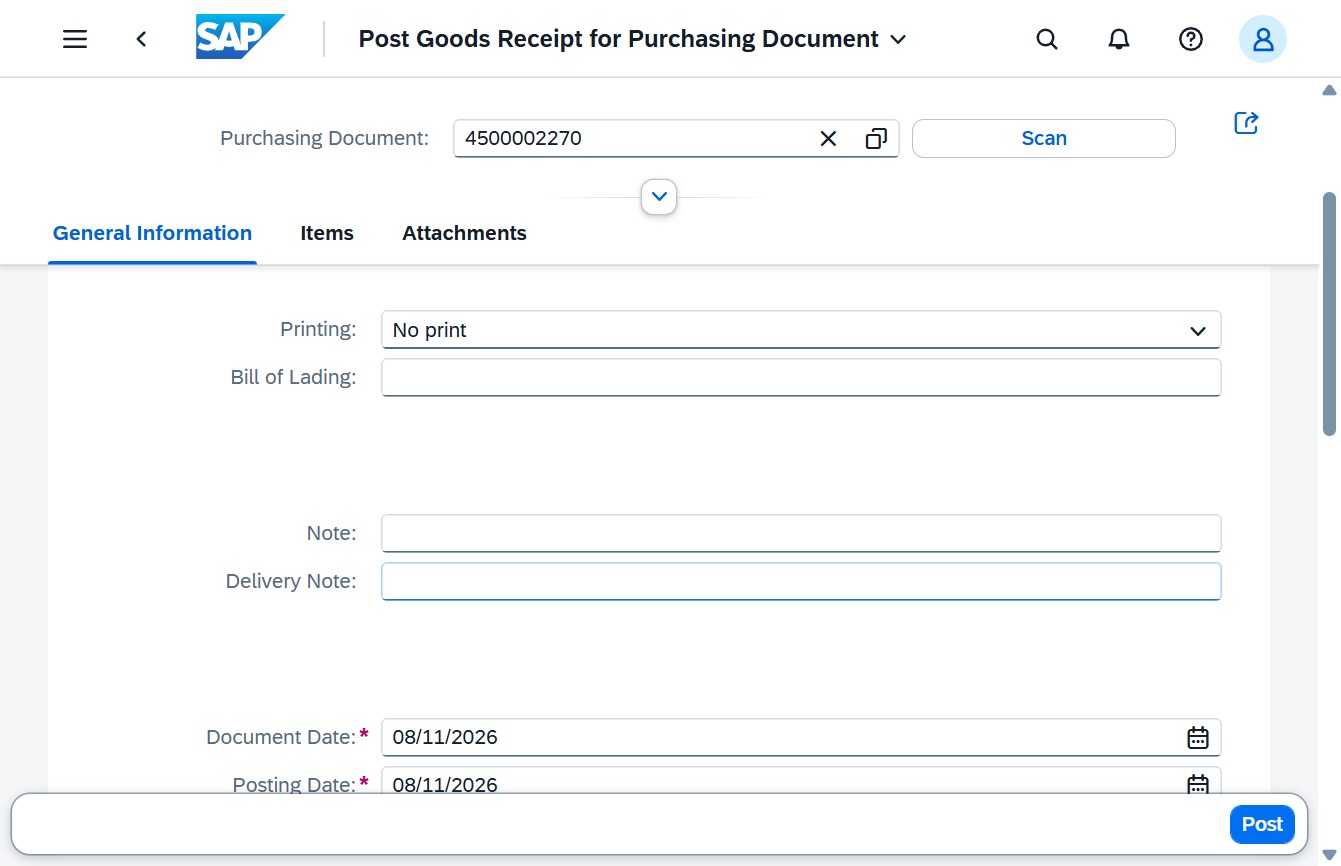
Select the desired printing option from the dropdown menu to configure the printing preferences for the document.
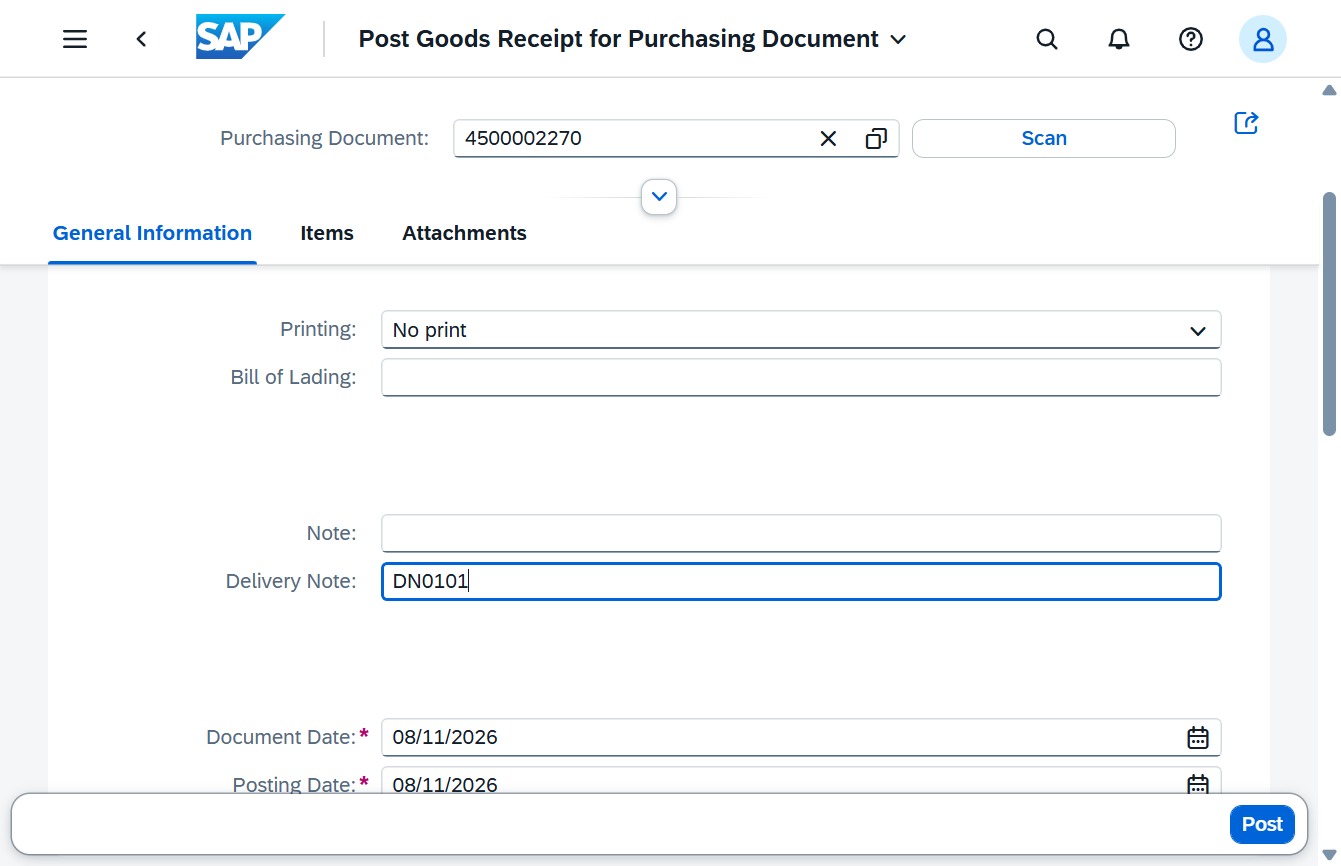
Enter 'DN0101' into the Delivery Note field to specify the relevant delivery for the goods receipt. This information is crucial for tracking and processing the associated purchasing document.
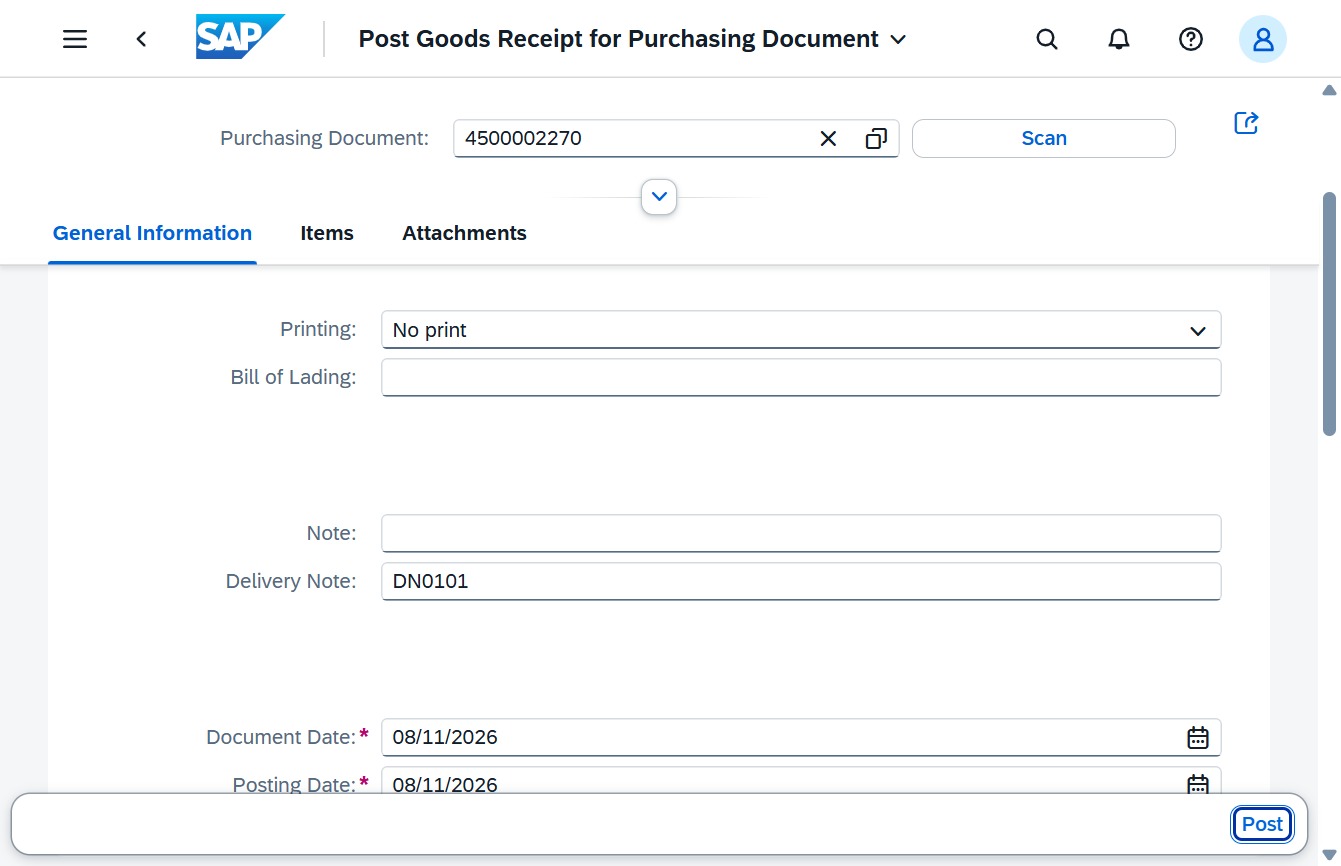
Clicking the 'Post' button will submit the goods receipt for the specified purchasing document, finalizing the transaction and updating the inventory records accordingly.
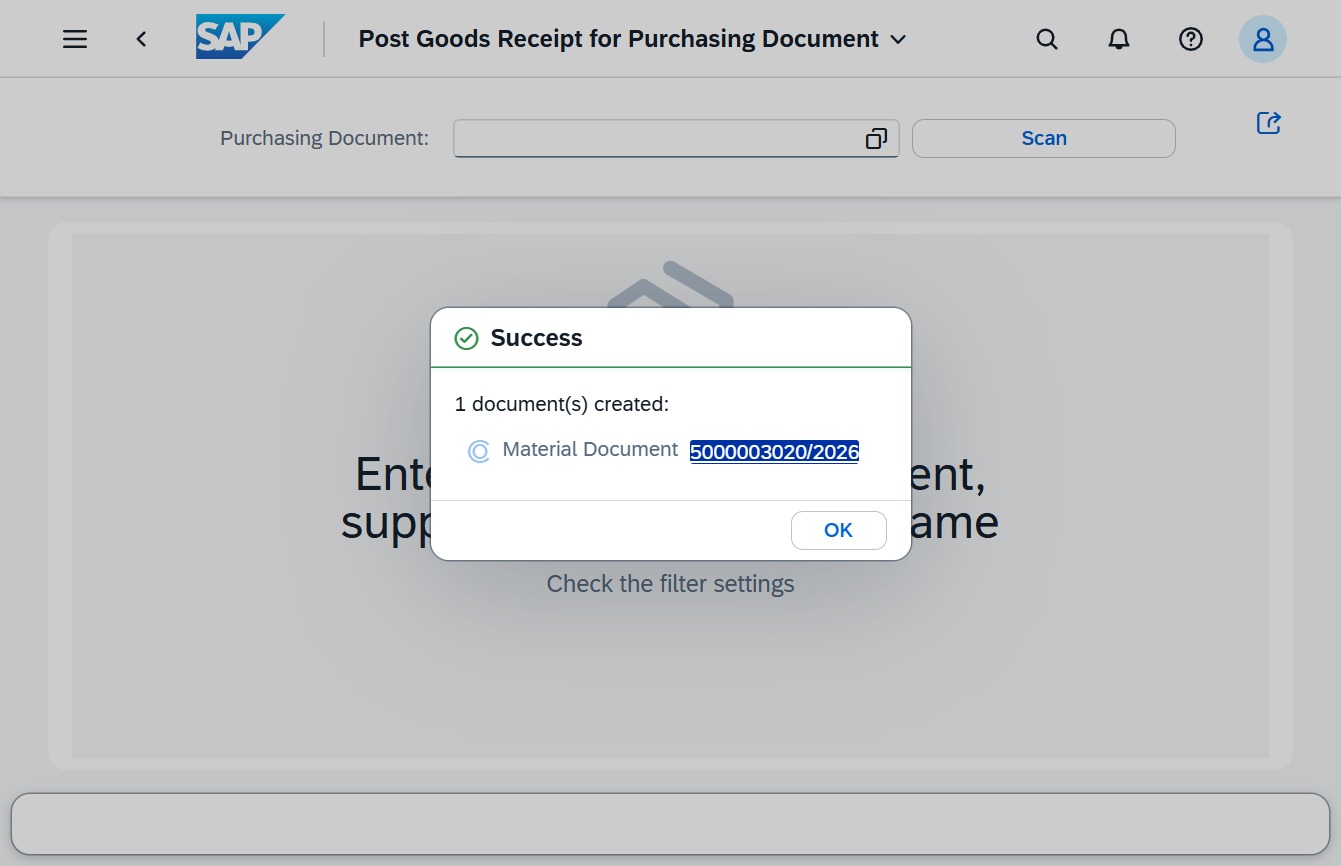
Confirm the creation of the material document by clicking 'OK'. This will close the success notification and return you to the main interface where you can continue your tasks.
Clicking the branding link will allow you to access the main features of the SAP application, facilitating navigation to different sections such as purchasing documents and reports.
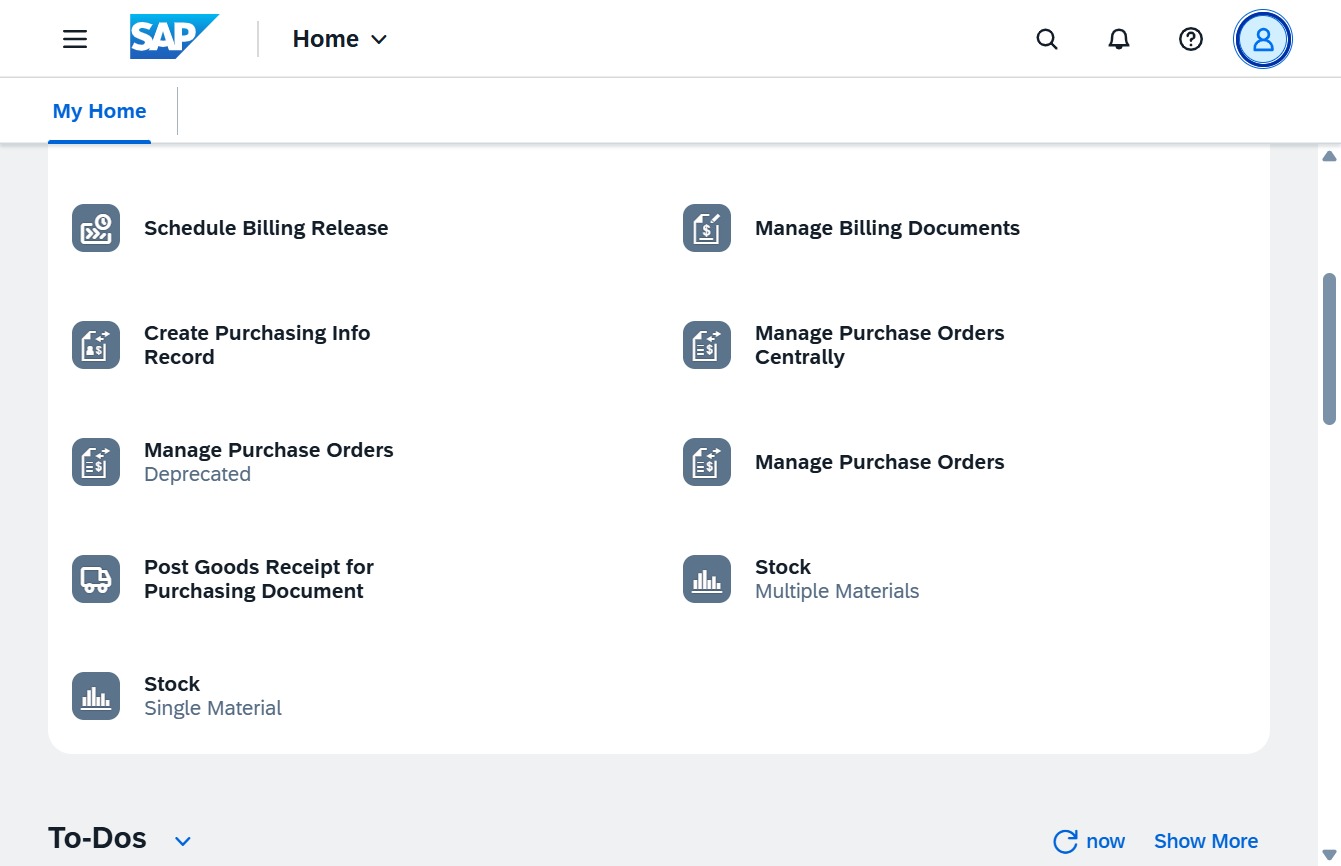
Clicking on the Avatar icon at the top right allows you to access your user profile settings and account information.
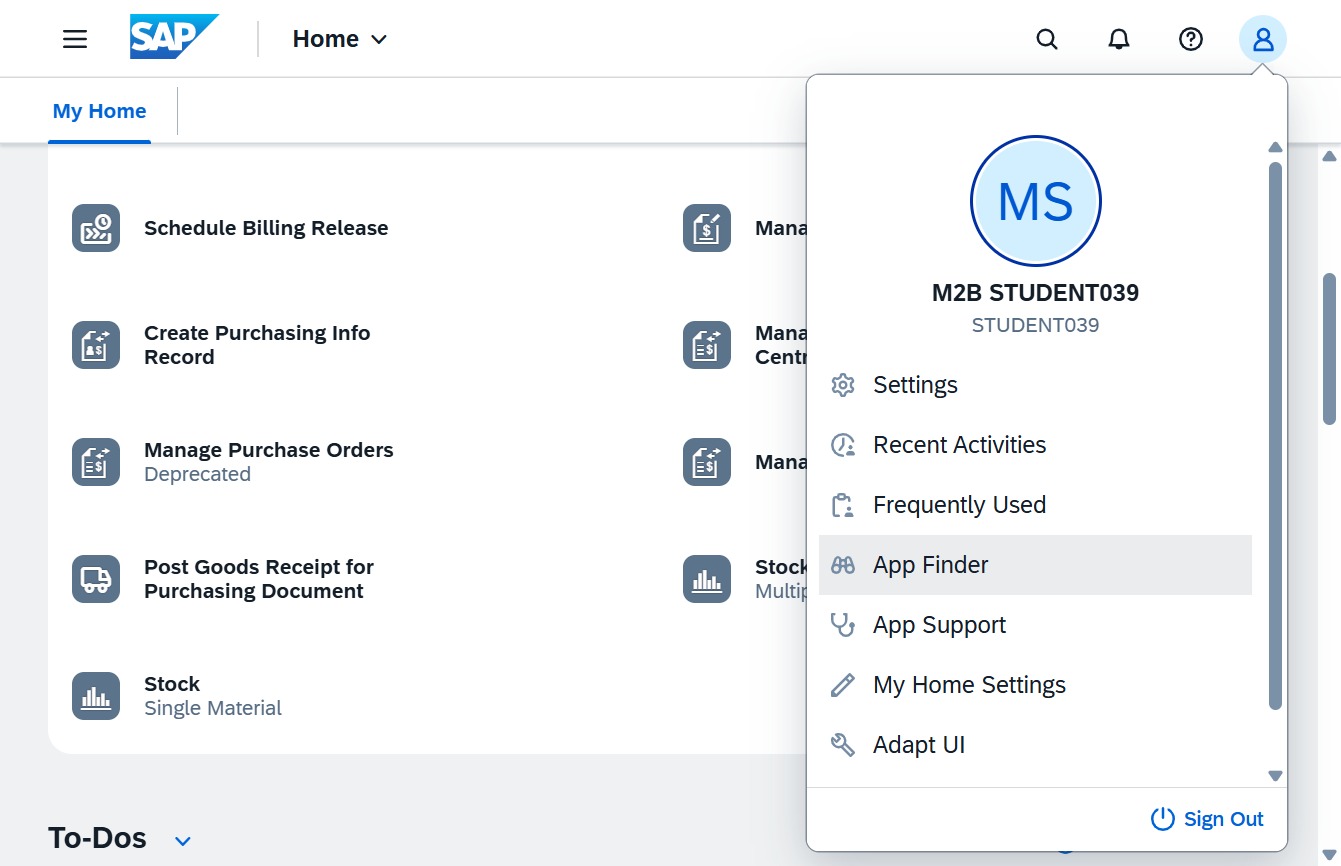
By clicking the App Finder option, you will access a list of available applications that can enhance your workflow and productivity within the SAP system.
This action allows you to enter keywords to find specific applications within the catalog. Start typing to filter the available options based on your input.
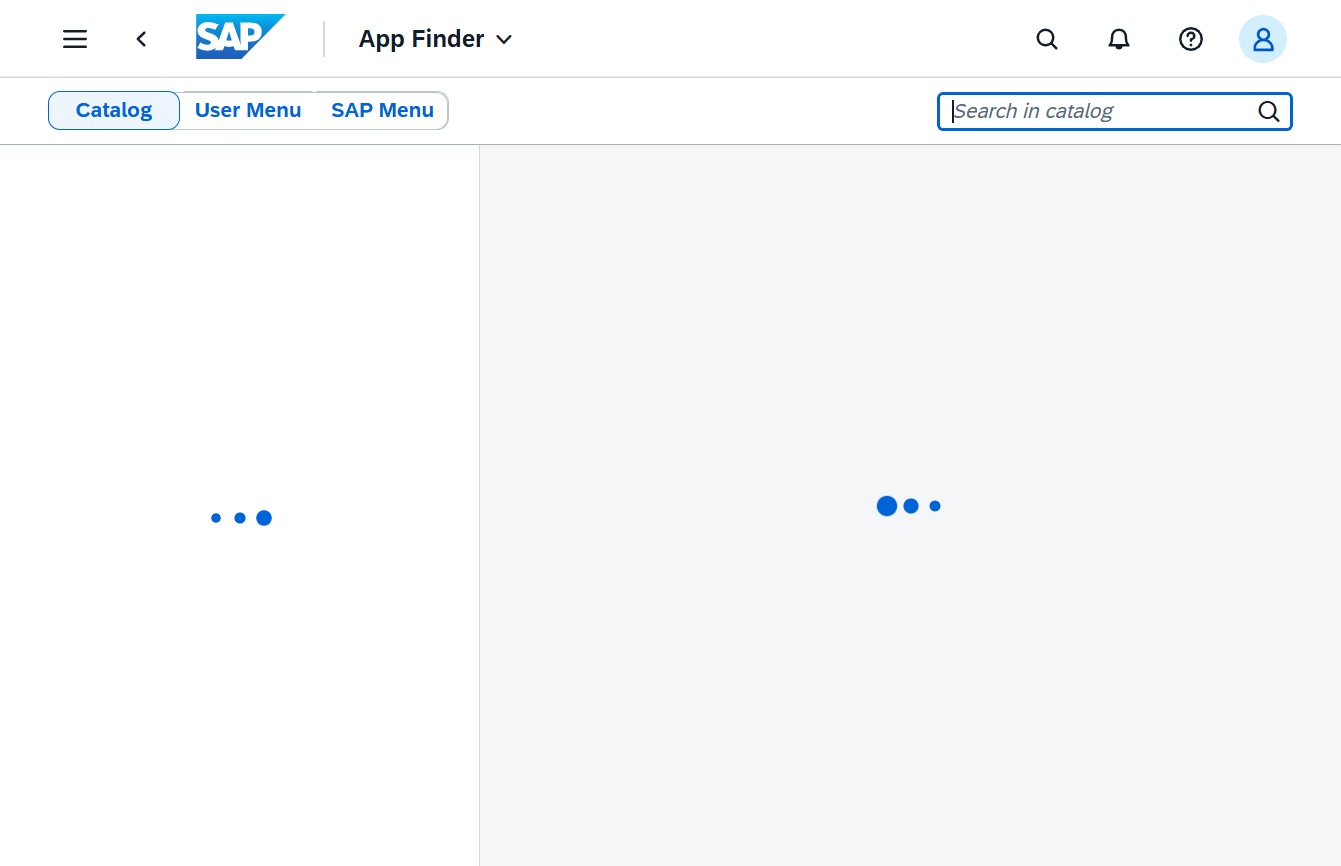
After clicking, a text input will be activated, allowing you to enter keywords to search for specific items within the catalog.