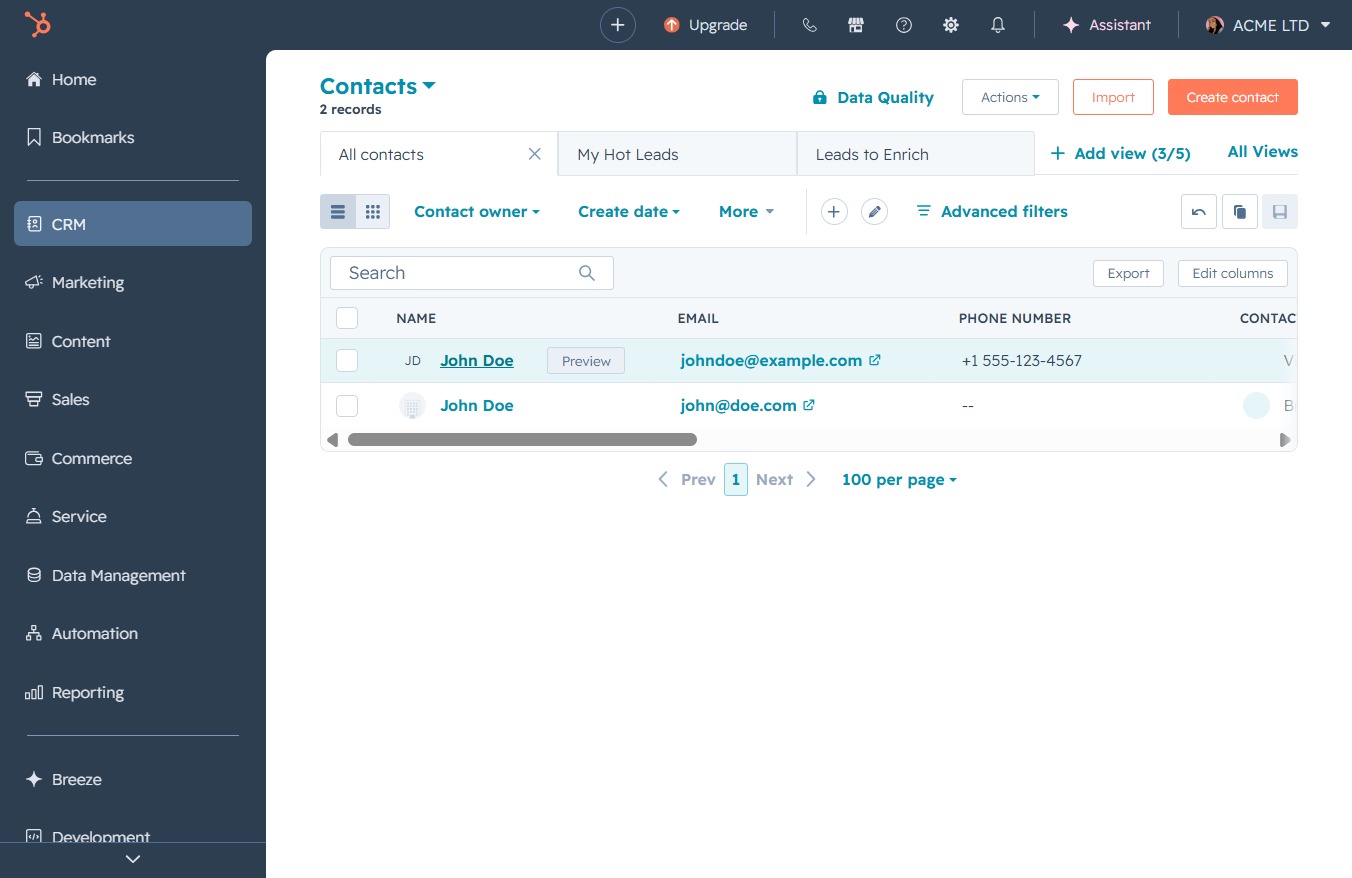
Click on John Doe's name
Clicking on John Doe's name opens the detailed contact view, allowing you to access and edit his information such as email and phone number.
Loading screenshot…
100%
Log details of a call with a contact in the CRM system by accessing their profile and using the Log Call feature to record key information, including notes and call outcomes.
 viktoria
Log details of a call with a contact in the CRM system by accessing their profile and using the Log Call feature to record key information, including notes and call outcomes.
Clicking on John Doe's name opens the detailed contact view, allowing you to access and edit his information such as email and phone number.
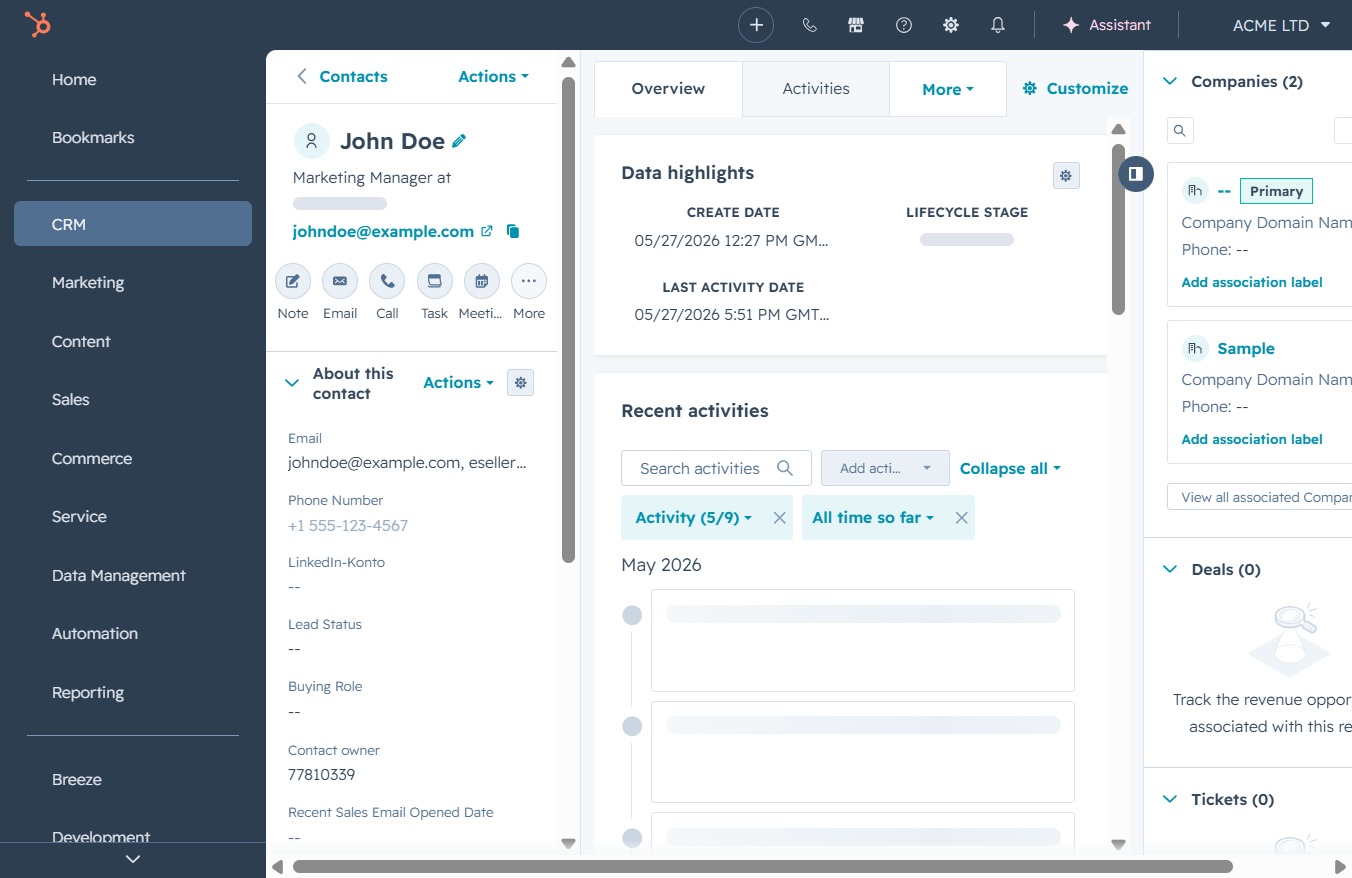
Clicking this will open a detailed view of the selected contact, providing access to their data highlights and recent activities.
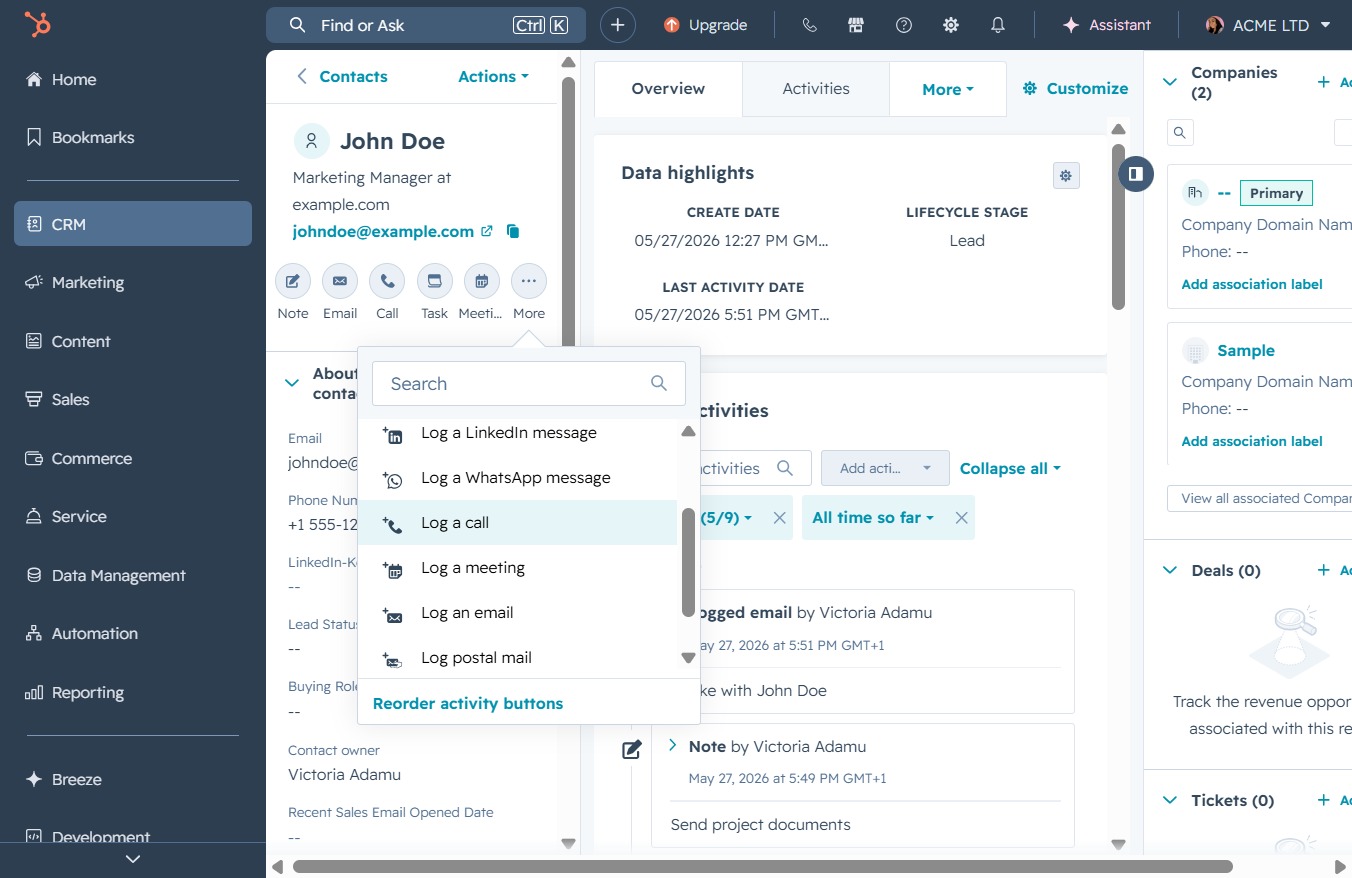
This action allows you to record details about a phone call made with the contact. You can specify the date, duration, and notes related to the call in the following form.
Input details such as 'Called client to discuss onboarding' in the Log Call section to document your conversation with the client. This entry will be saved as part of the call log for future reference.

This action opens the log call form where you can enter details about your conversation with the contact. You can specify the call outcome, direction, and associate it with related records.
