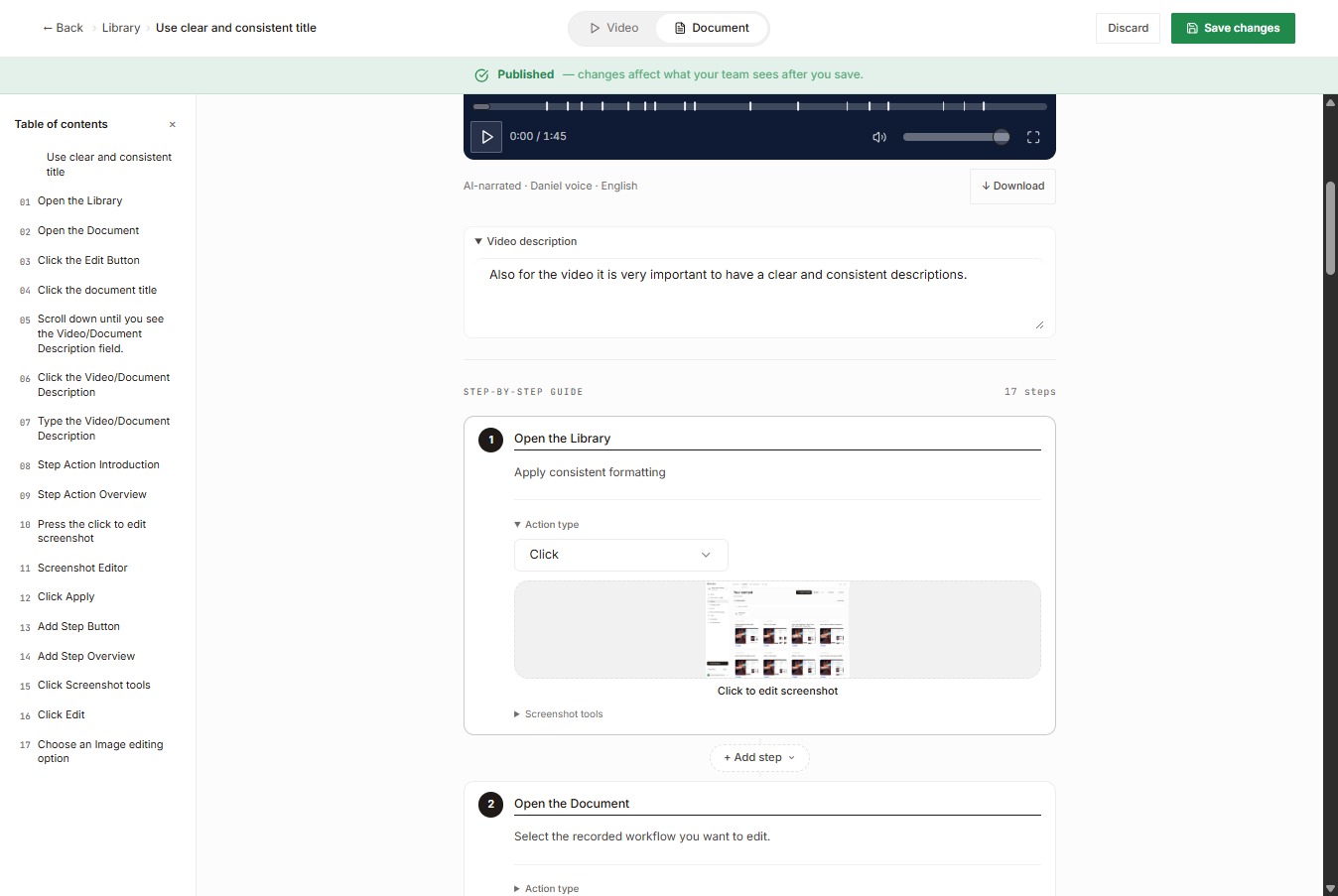
Click the Document title
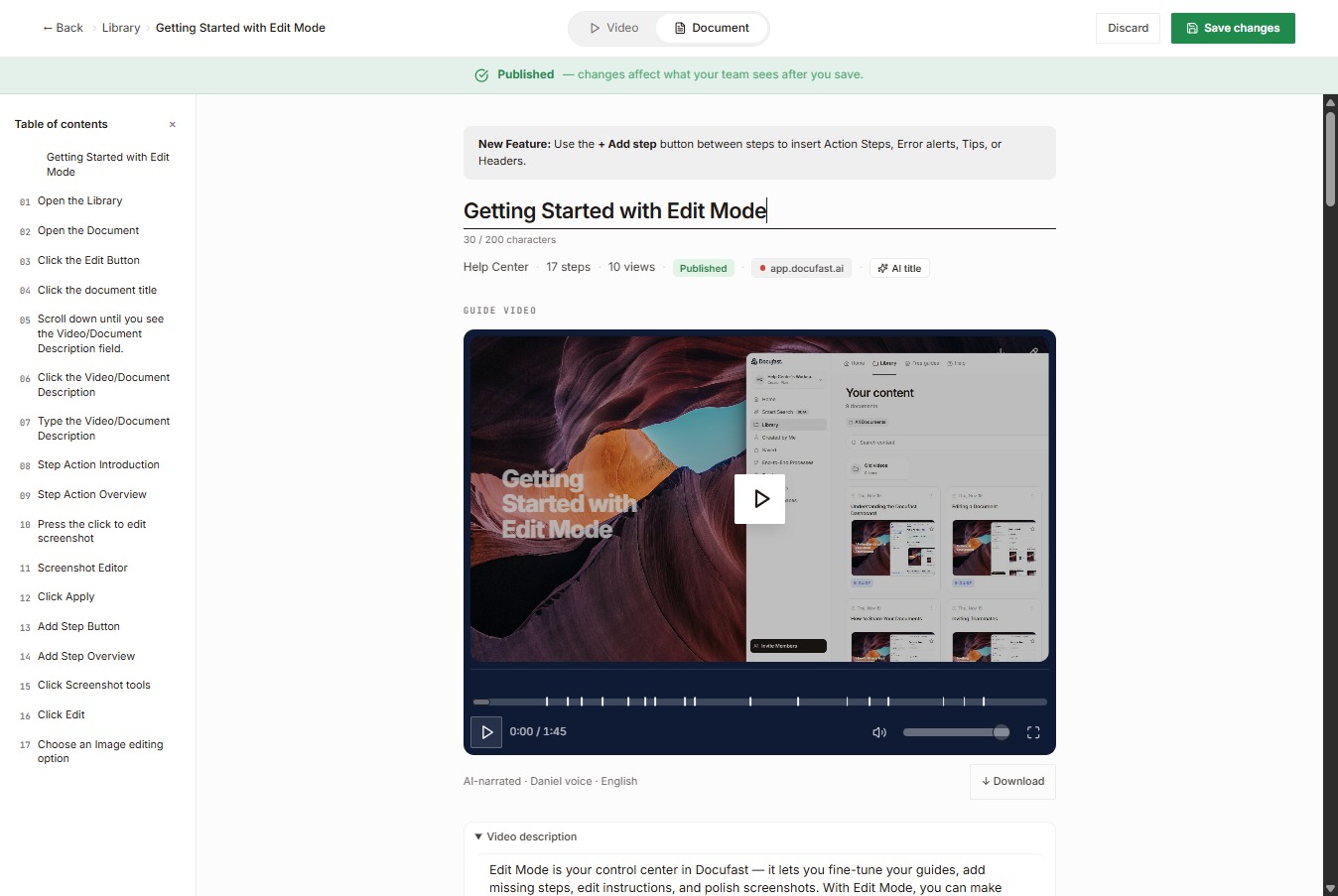
First, select the document title.
Loading screenshot…
100%
When your step actions, instructions, and screenshots follow the same style, your team can quickly understand workflows without confusion.
When your step actions, instructions, and screenshots follow the same style, your team can quickly understand workflows without confusion. Docufast makes it easy to enforce consistency in your guides.
First, select the document title.
For document titles, always use clear, consistent naming conventions and descriptions for your guides.
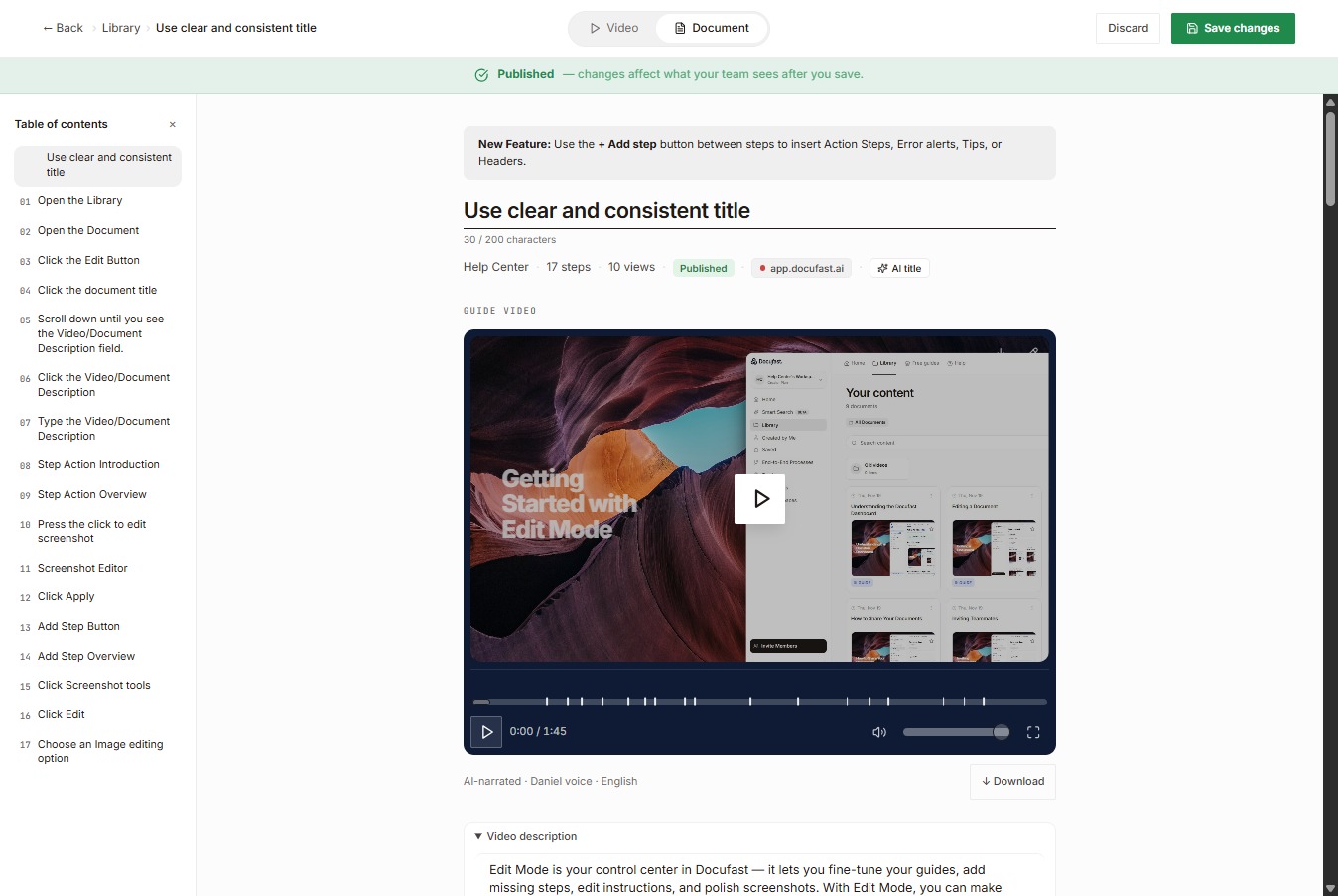
Now select the video description.
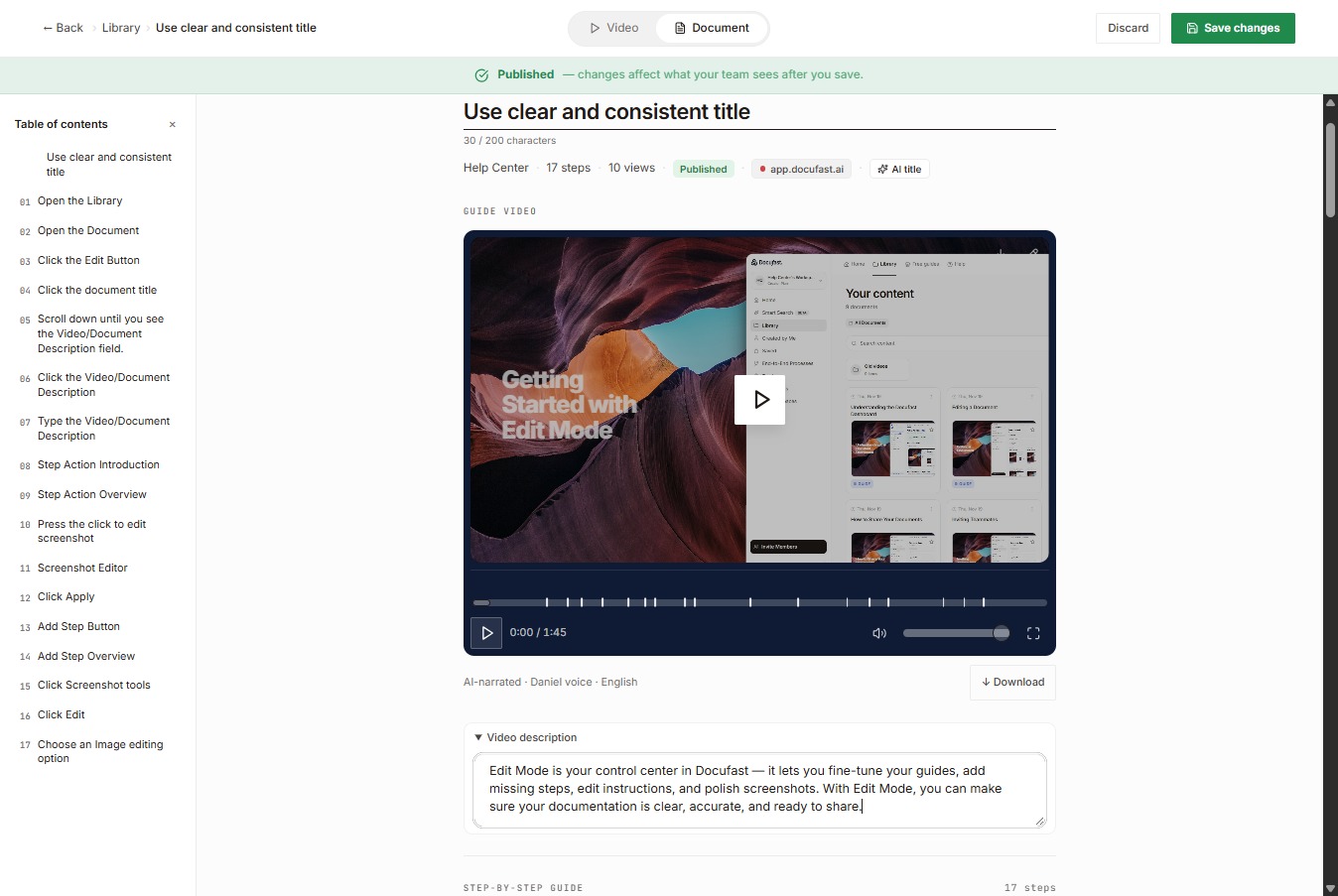
Same with the titles. Always use clear, consistent naming conventions and descriptions for your guides.
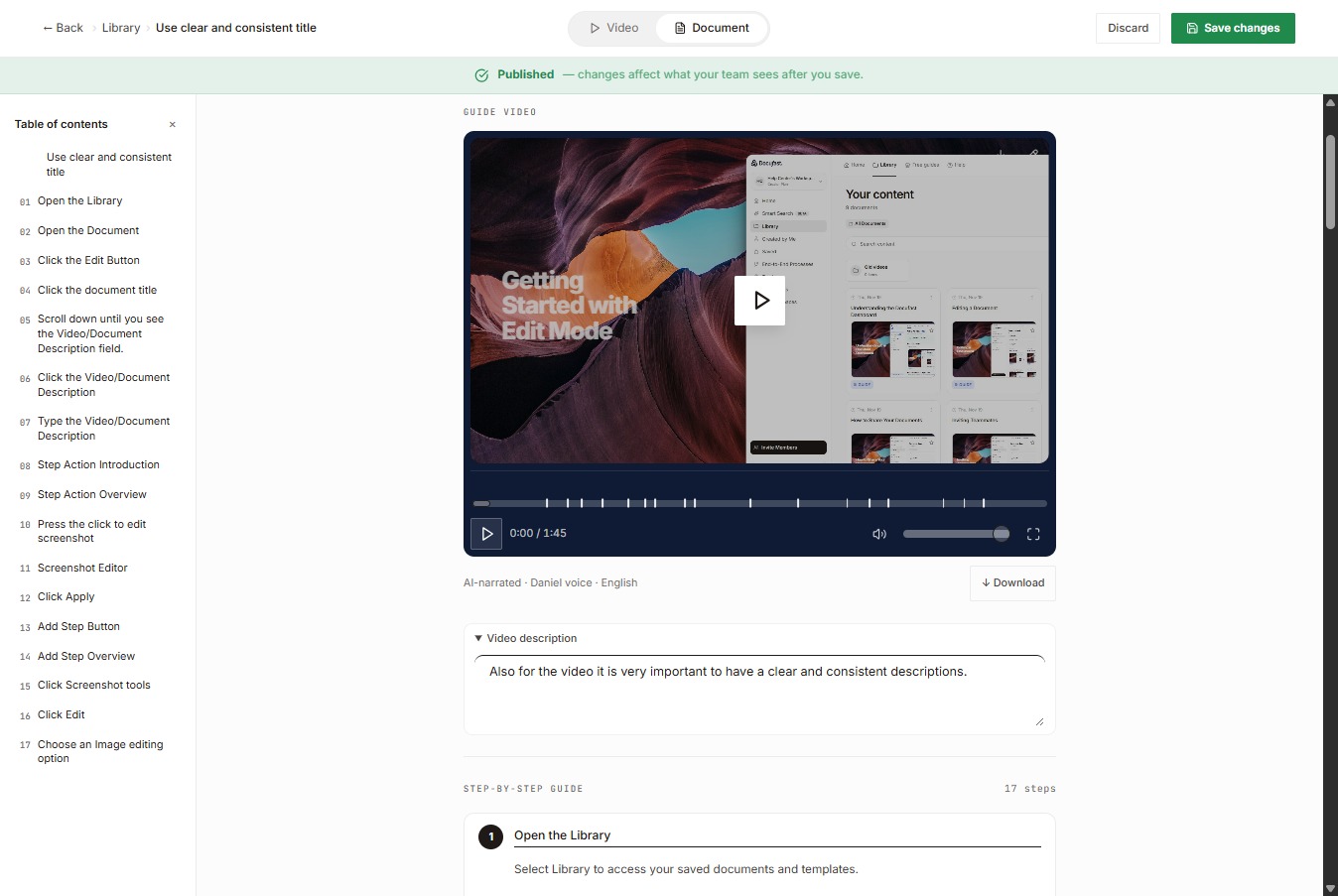
So, we also need to be consistent with step actions. Look for the action type.
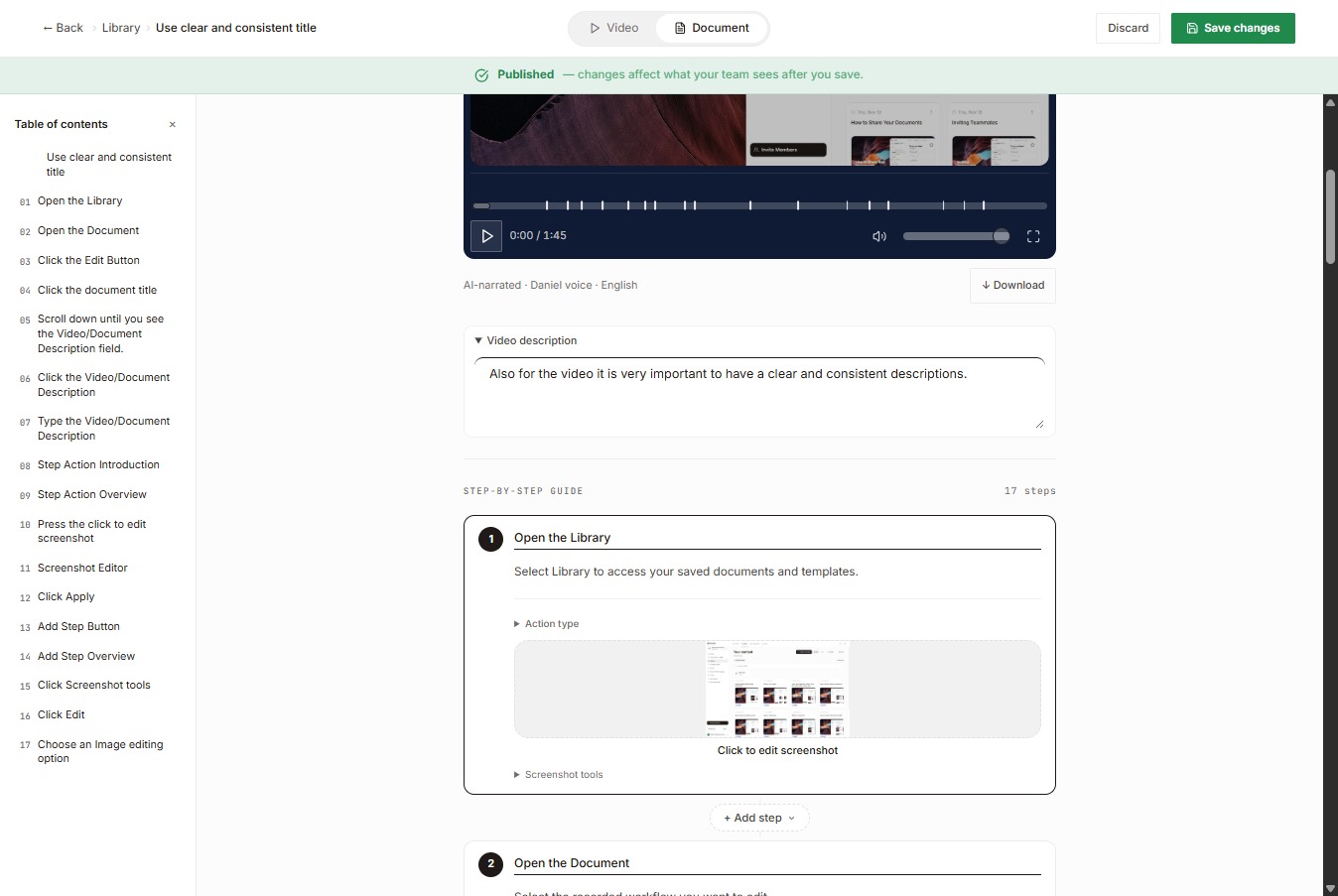
Now, Select the action type.
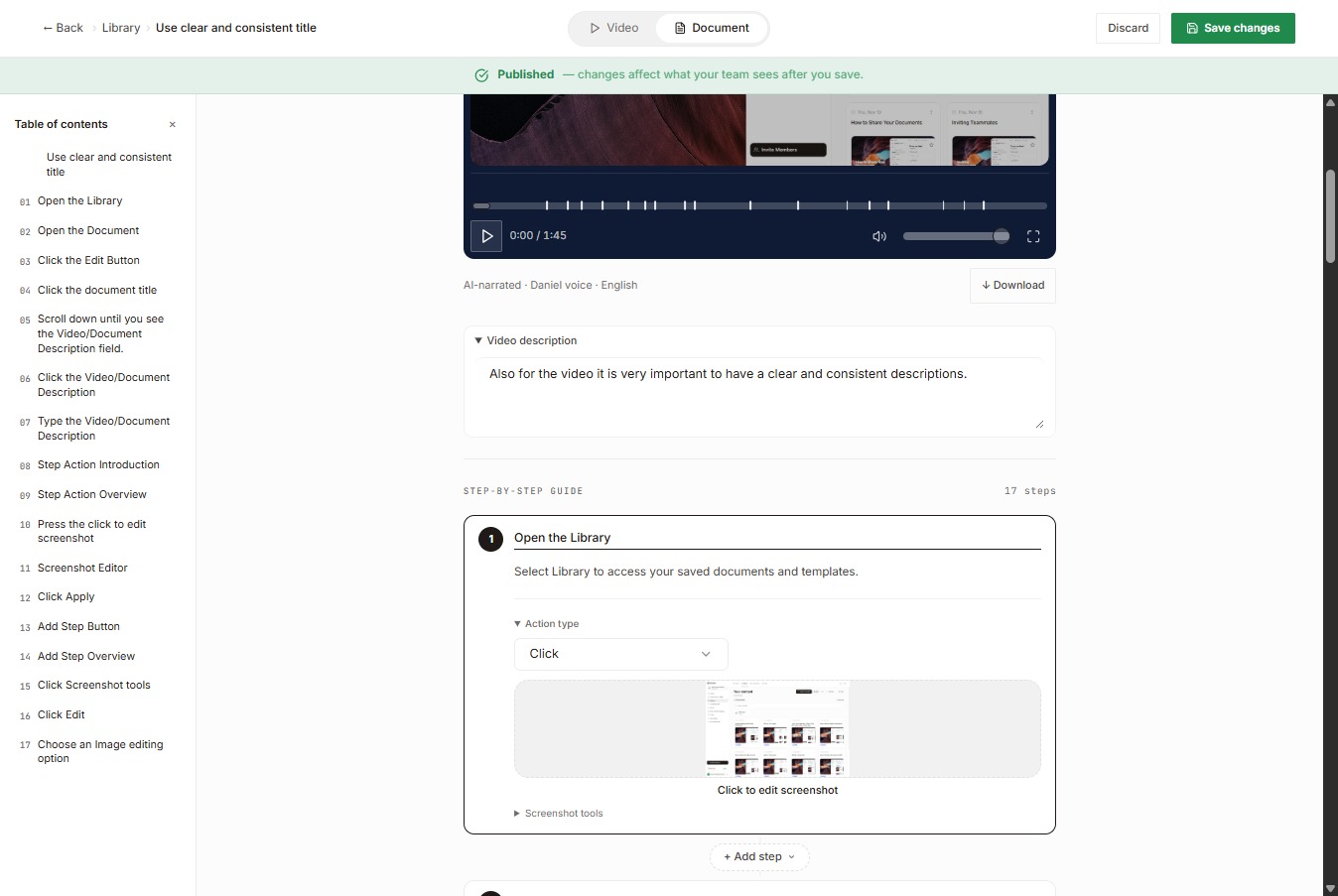
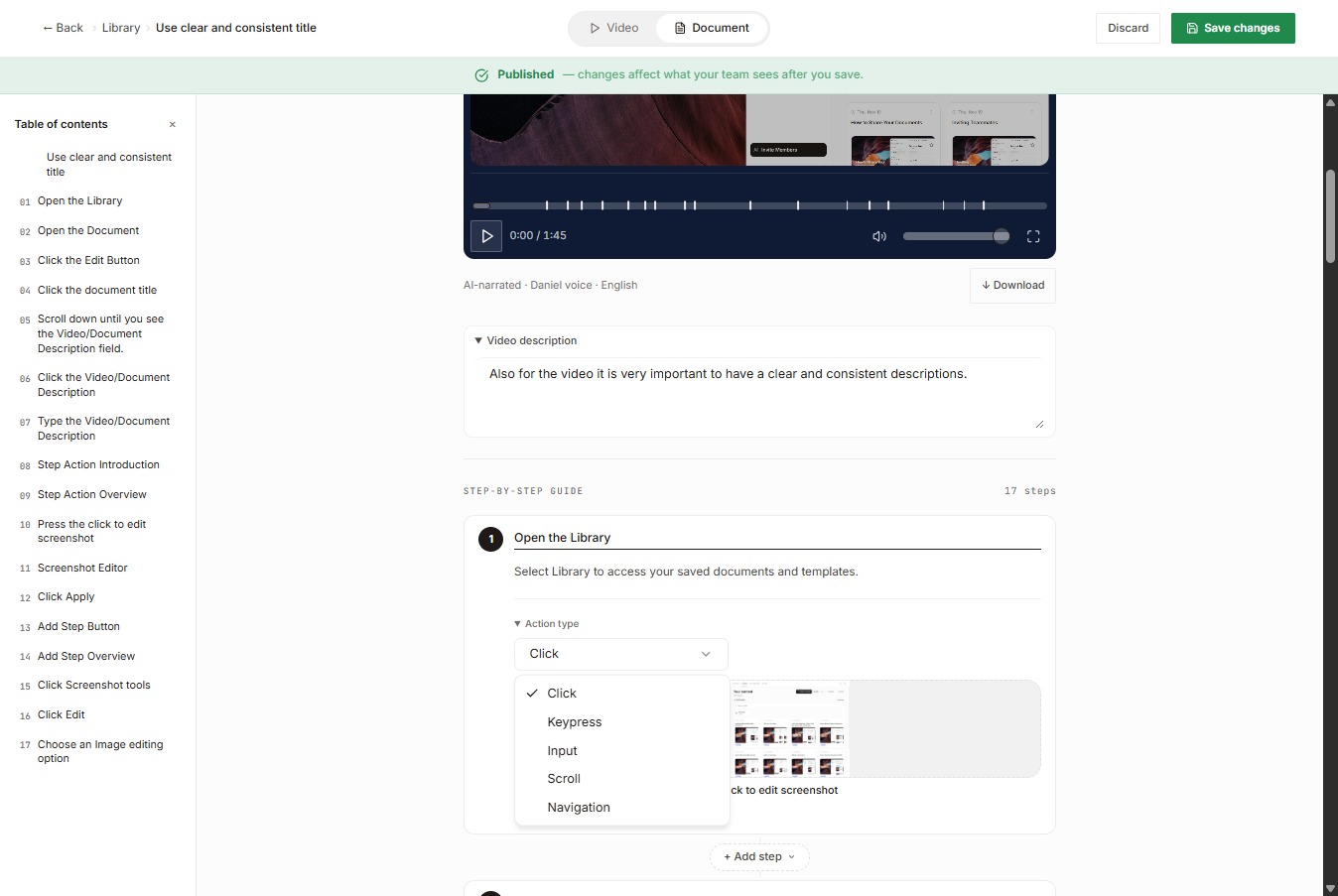
Ensure that each action type — Click, Input, Keypress, Scroll, Navigation — is used consistently and clearly labeled. This helps your team know exactly what to do for every step.
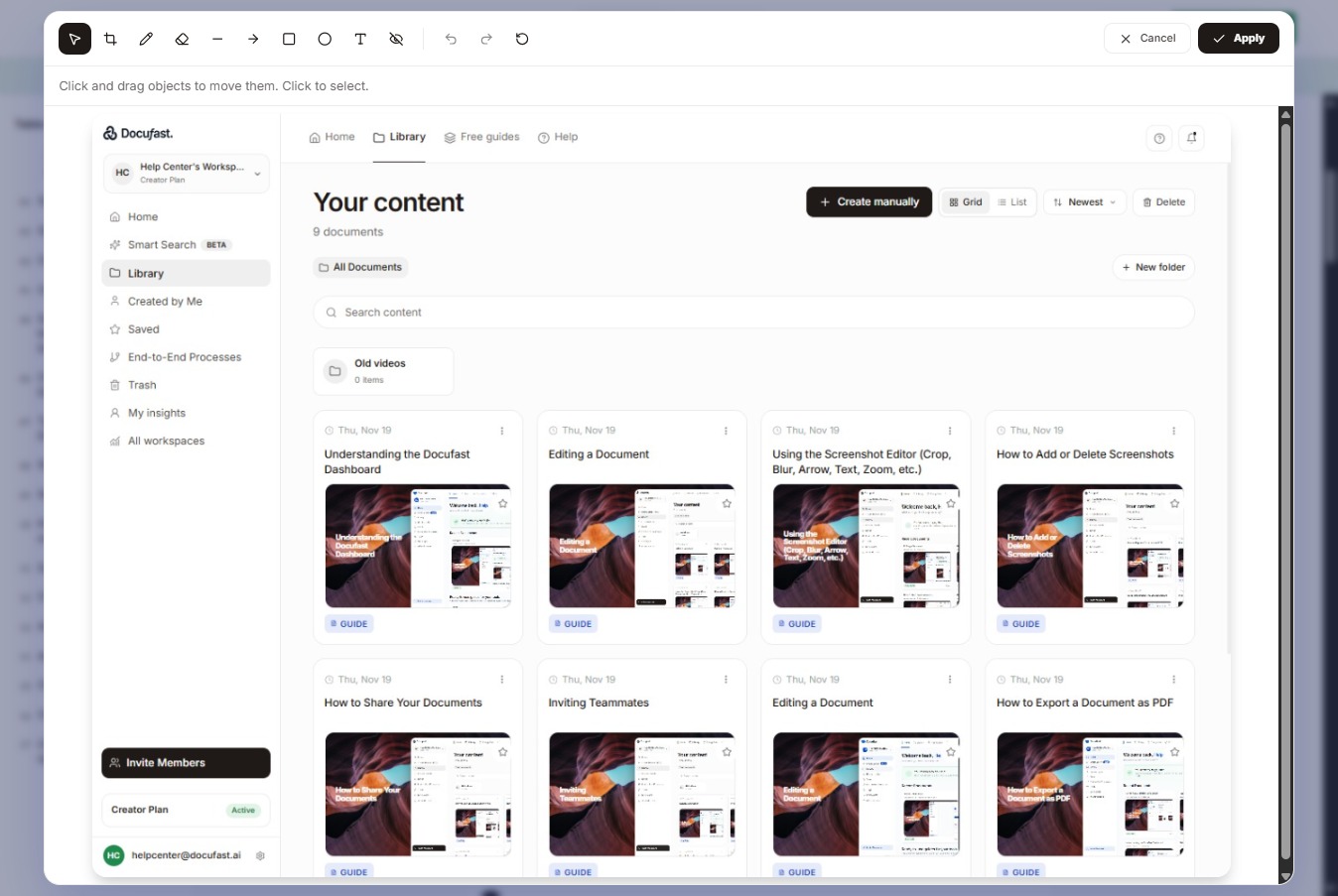
For screenshots, it’s important to maintain them. Just click the screenshot to edit it, and make sure you’re in Edit mode.
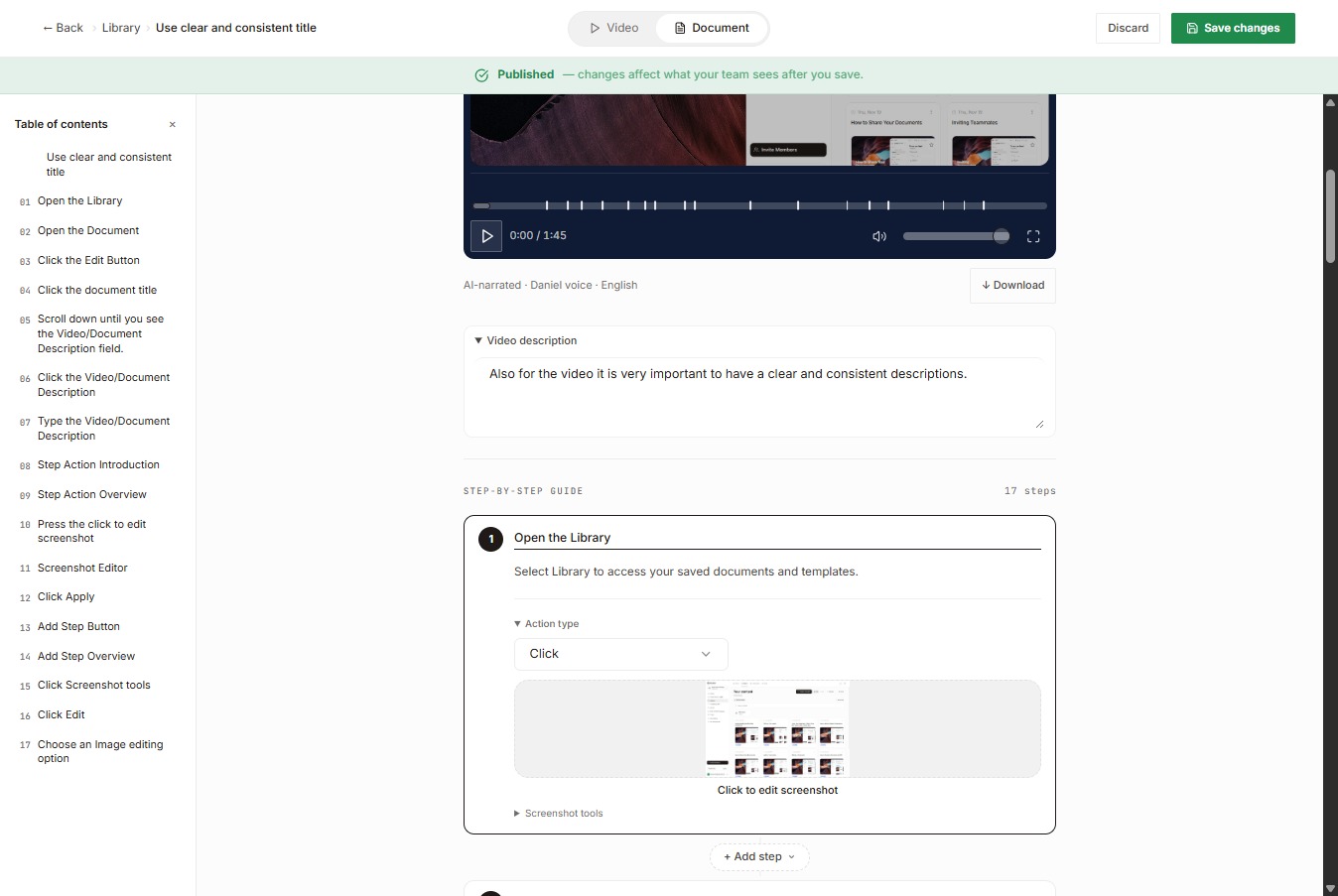
Even though Docufast automatically captures screenshots, make sure they’re clear and readable, that highlights or annotations are applied consistently across similar steps, and that images are sized uniformly for a clean look.
Lastly, click the step title or description.
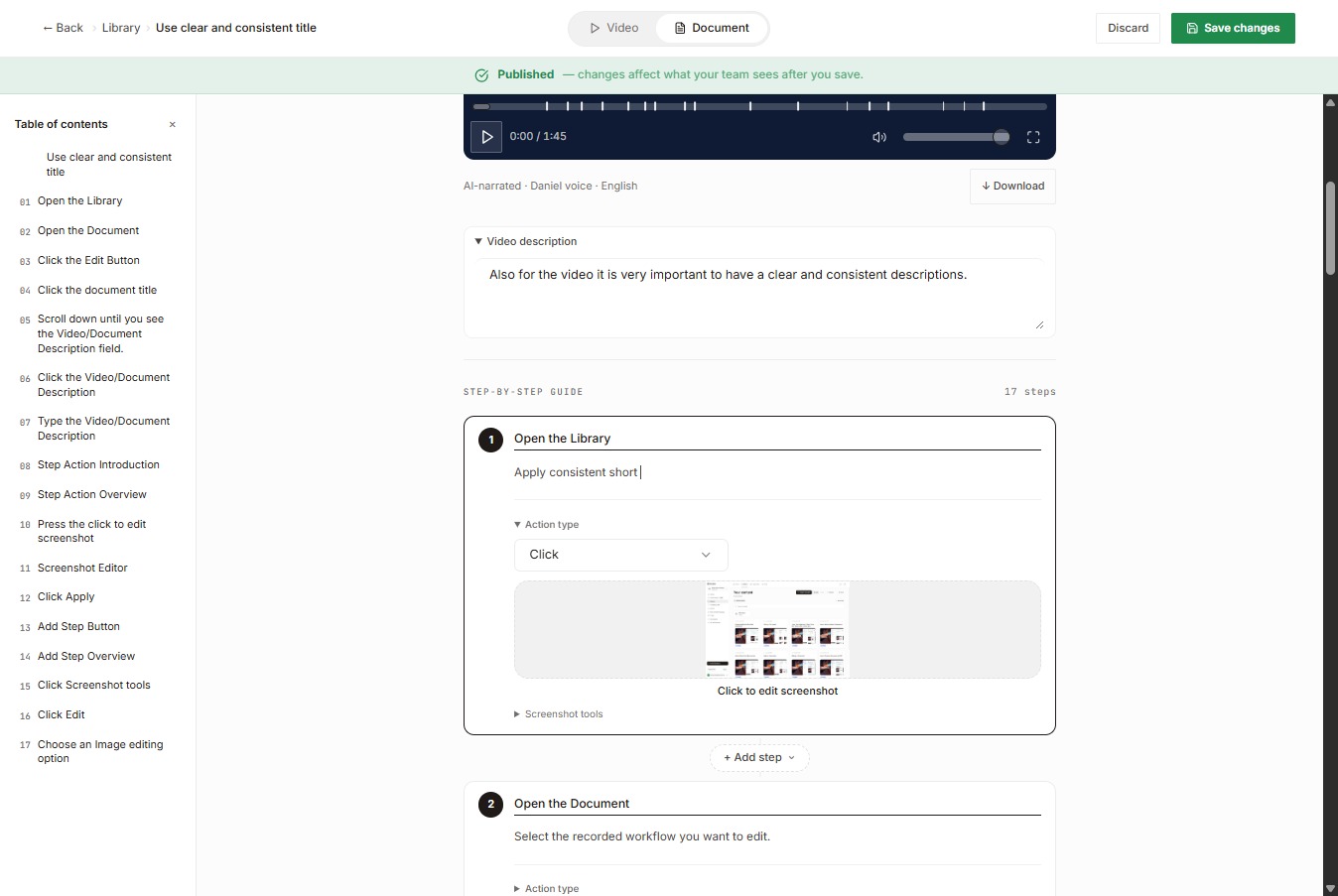
Again, use clear, consistent naming conventions and descriptions for your guides. Also, review before saving. Make sure all terminology and formatting match your style guide, and confirm that screenshots and annotations are consistent.