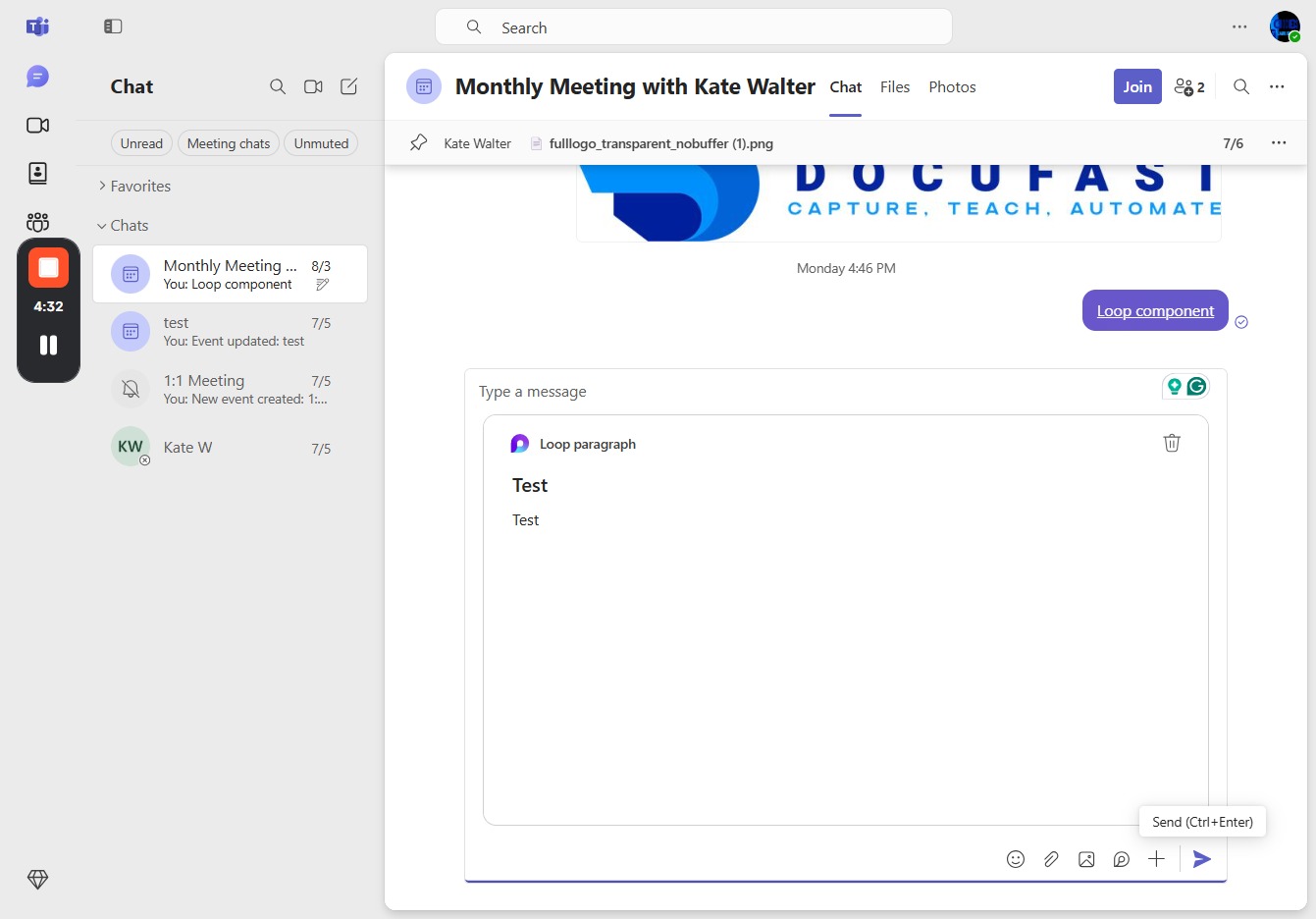
Click here to access more options
Clicking this link will reveal additional options or settings related to your current view.
Loading screenshot…
100%
In this how-to guide, learn how to effectively join and participate in the monthly meeting with Kate Walter on Microsoft Teams.
 viktoria
In this how-to guide, learn how to effectively join and participate in the monthly meeting with Kate Walter on Microsoft Teams. Discover how to use the Canvas feature for collaborative visual elements and the Loop component to enhance interaction with your team in real-time.
Clicking this link will reveal additional options or settings related to your current view.
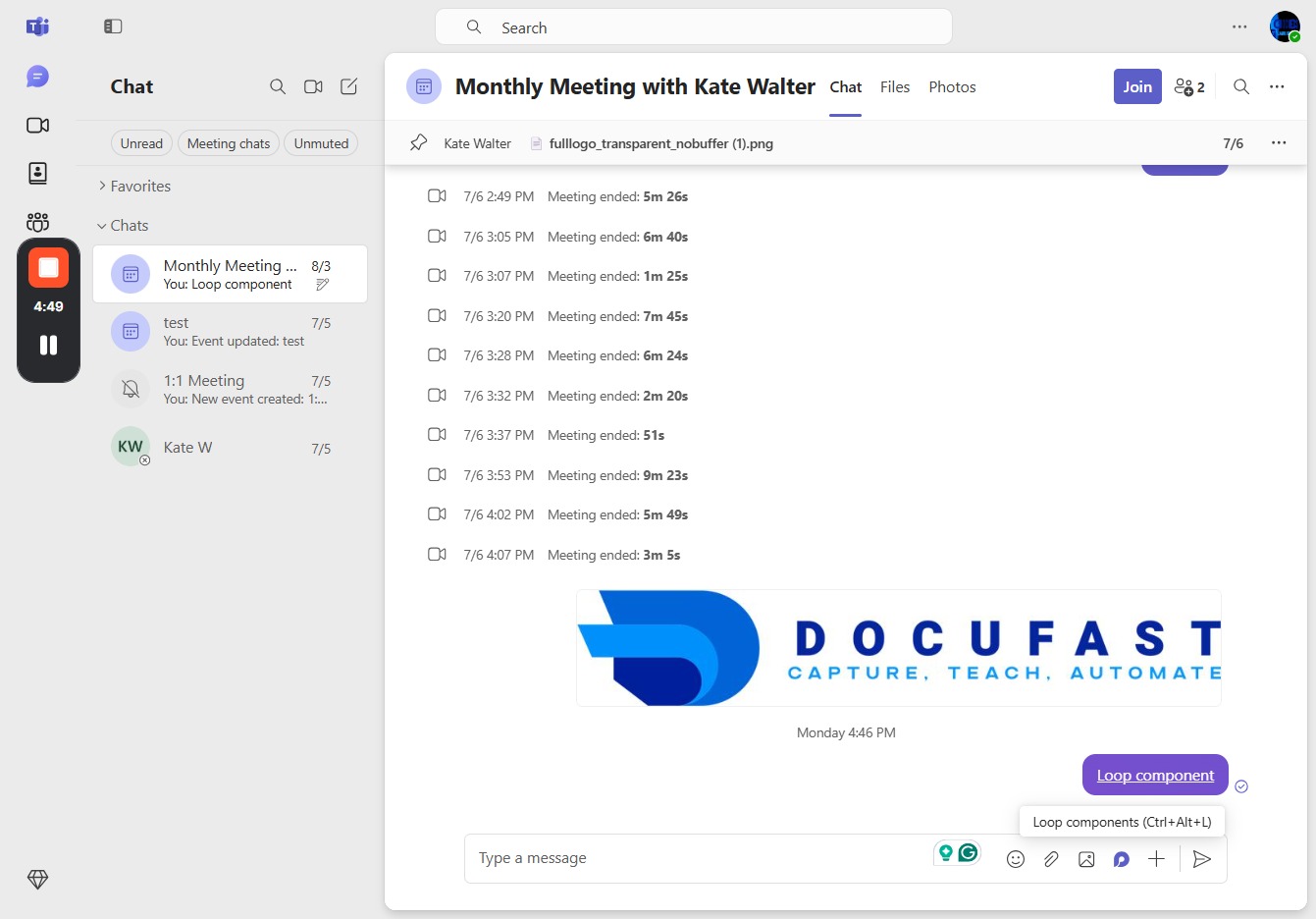
Selecting the Canvas option allows you to collaborate on visual elements within the meeting. This feature enables you to create, edit, and share content interactively with participants.
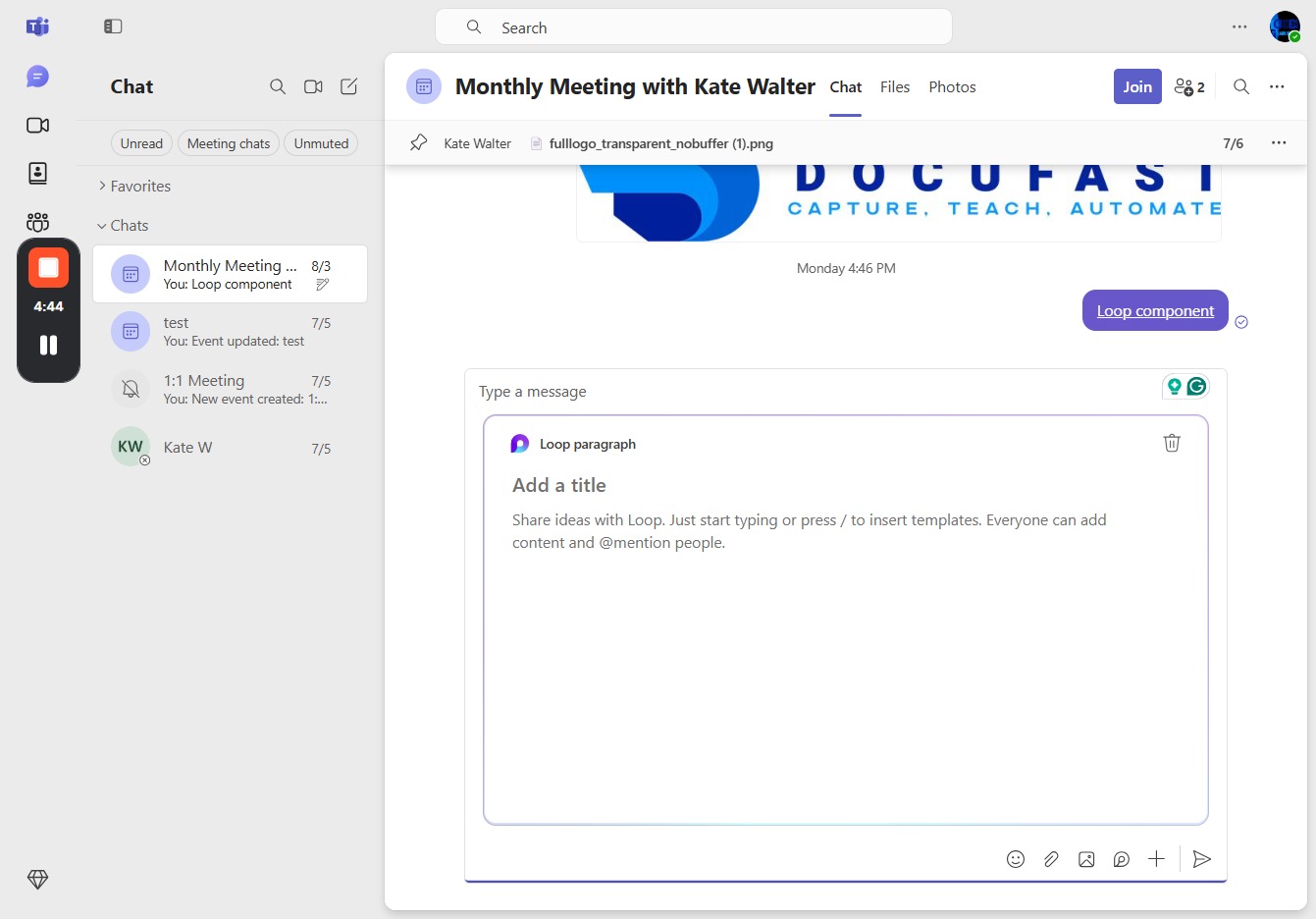
Clicking the Canvas button will allow you to open and work on collaborative drawing or design elements, enabling content creation with team members in real-time.
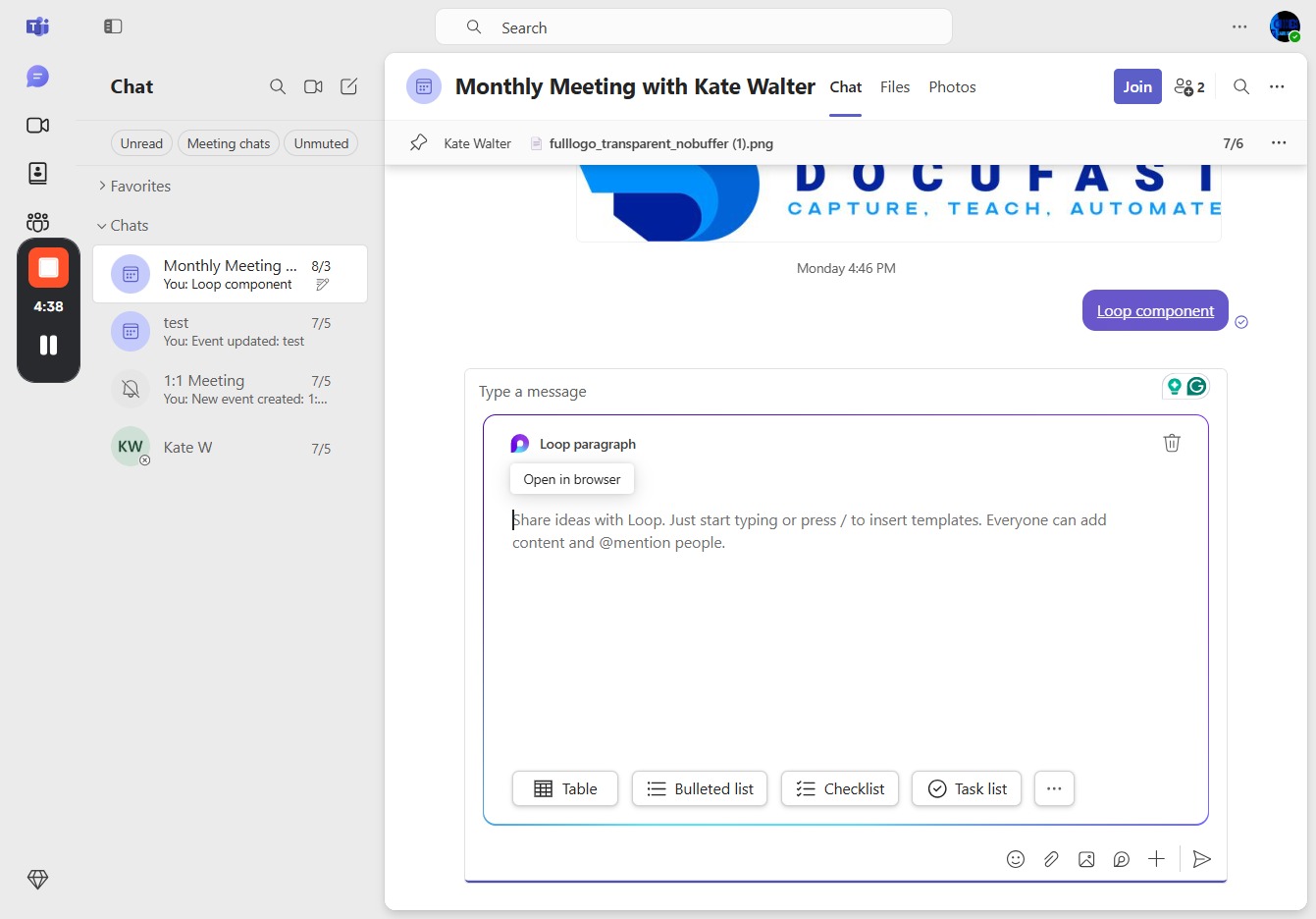
Clicking this link will enable the Loop component, allowing you to utilize its features during the meeting.