Shared guide

How to create and sign in to a Microsoft Teams account

In this how-to guide, you'll learn the step-by-step process to create and sign in to your Microsoft Teams account, from navigating the sign-in screen to entering your personal…

Olga Neumann
·22 steps·54 views·Published

In this how-to guide, you'll learn the step-by-step process to create and sign in to your Microsoft Teams account, from navigating the sign-in screen to entering your personal information. Follow these clear instructions to get started with your account swiftly and efficiently.

insights-test-134insights-test-src:696e01995d5ef4b9b9b39251insights-seed-134
Step-by-step guide22 steps
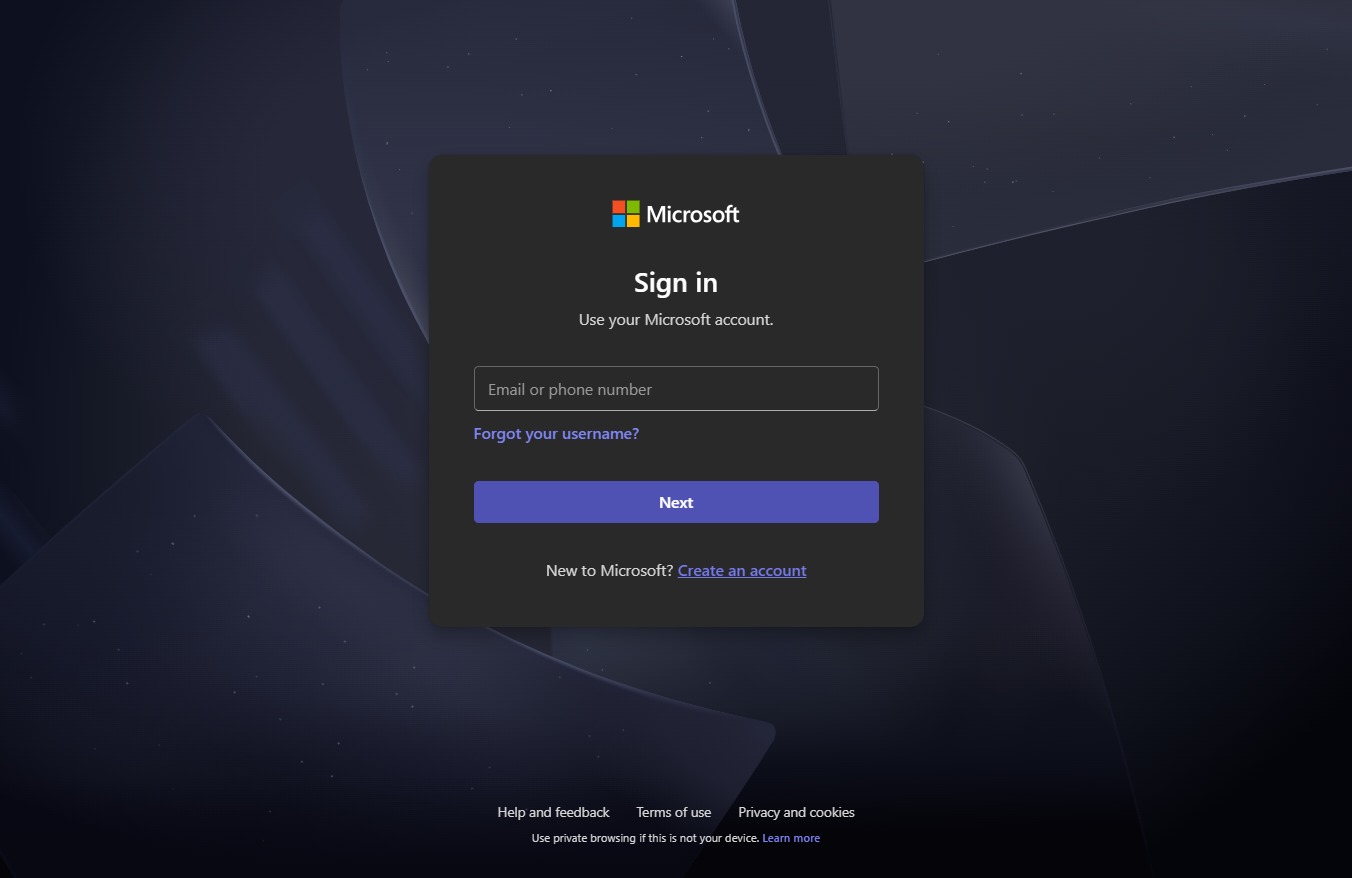
  1. Click Sign in

    Click Sign in
    Loading screenshot…
    100%
  2. Click Sign in

    Click Sign in
    Loading screenshot…
    100%
  3. Click Create an account

    Click Create an account
    Loading screenshot…
    100%
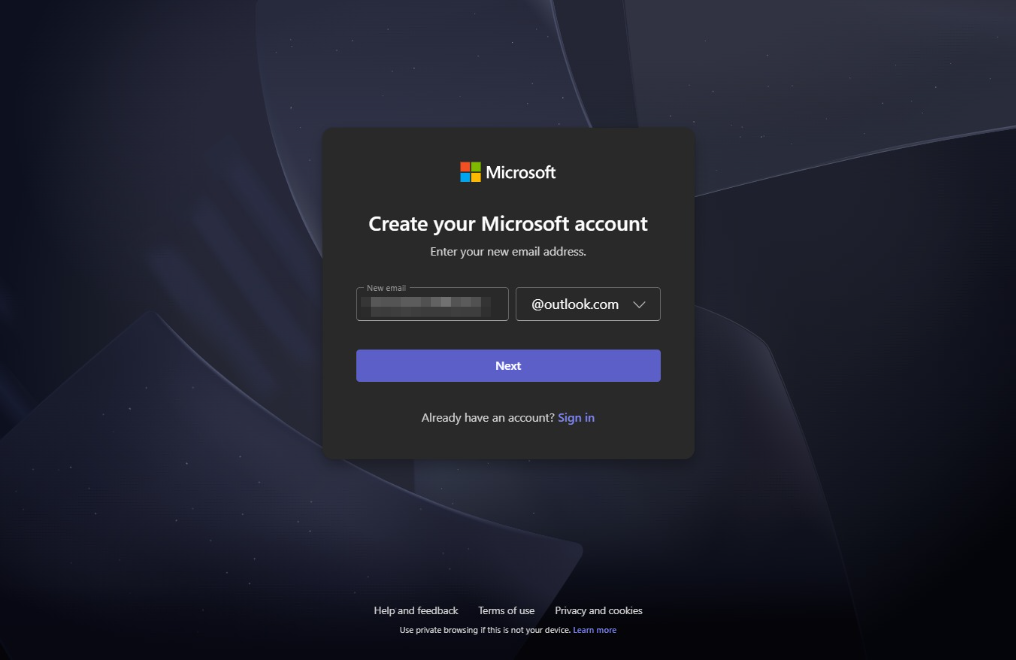
  4. Type "victoriaworkflowsss@outlook.co..." in Email

  5. Click Next

    Click Next
    Loading screenshot…
    100%
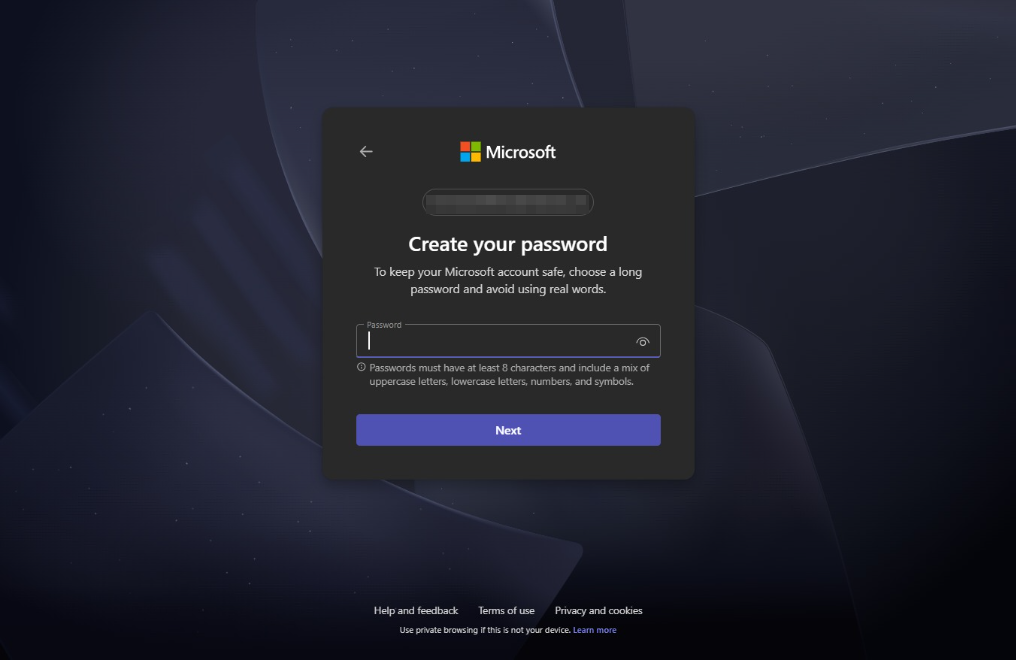
  6. Click on "Click here."

    Click on "Click here."
    Loading screenshot…
    100%
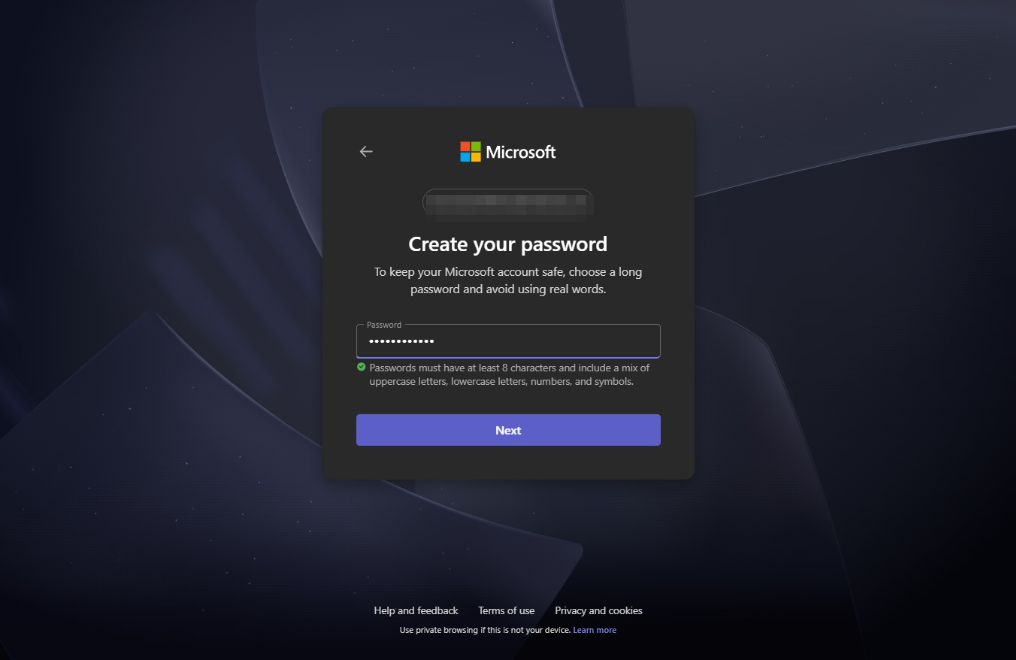
  7. Click Next

    Click Next
    Loading screenshot…
    100%
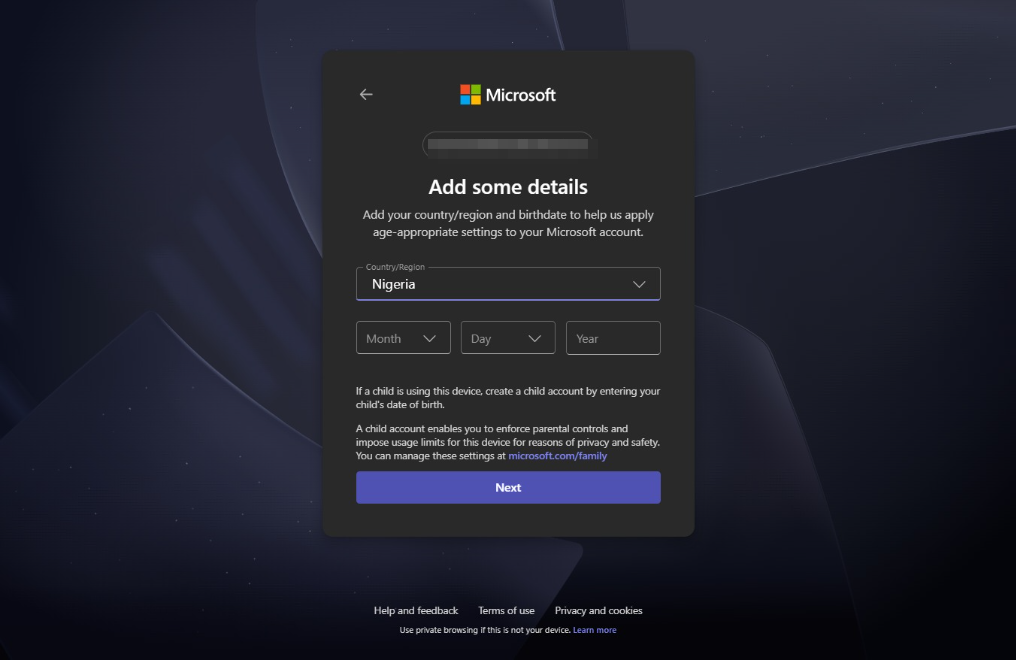
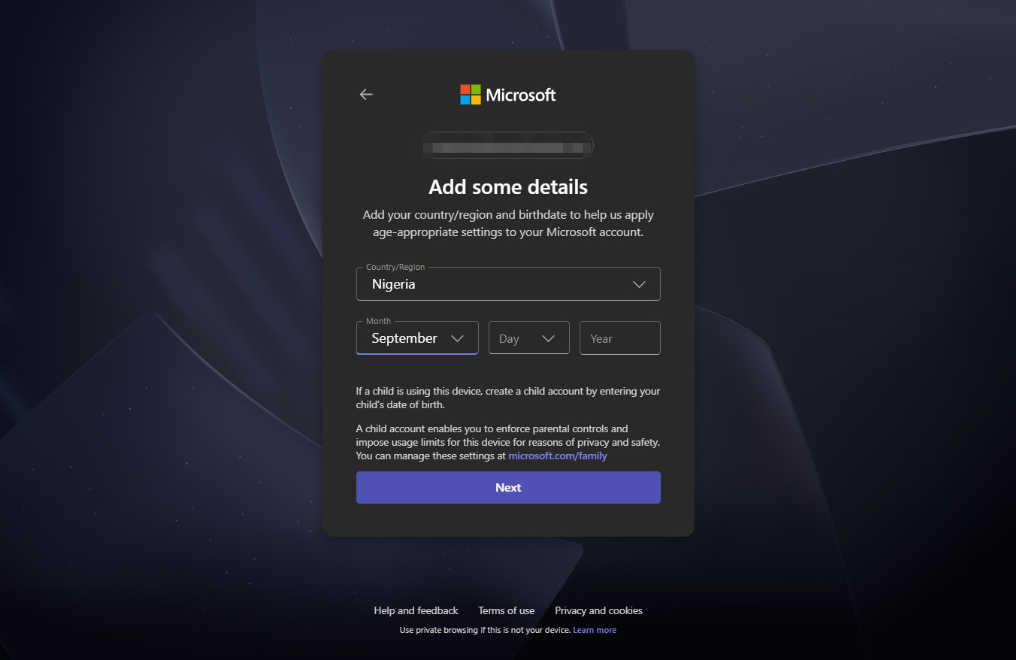
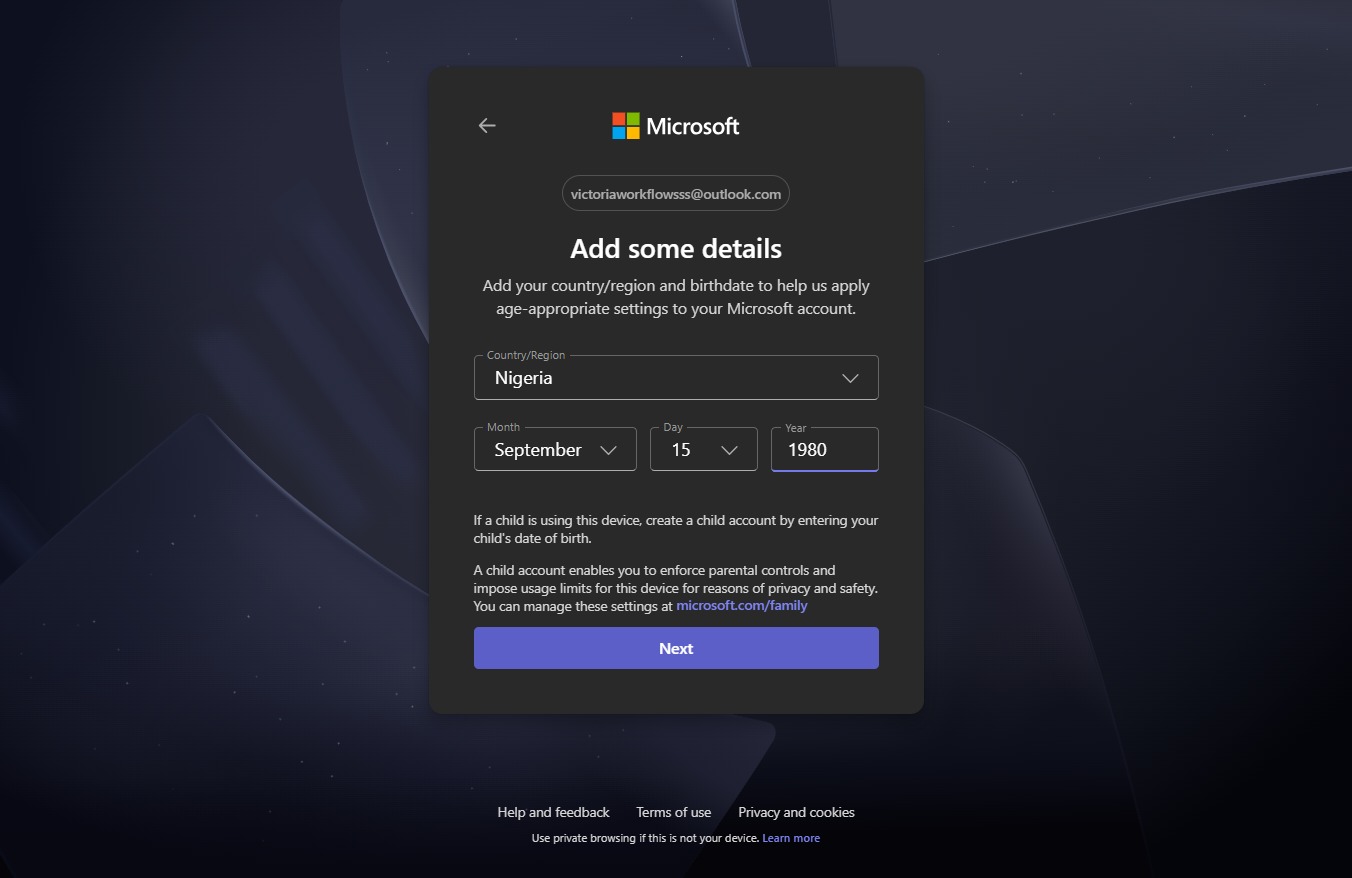
  8. Click Birth month

    Click Birth month
    Loading screenshot…
    100%
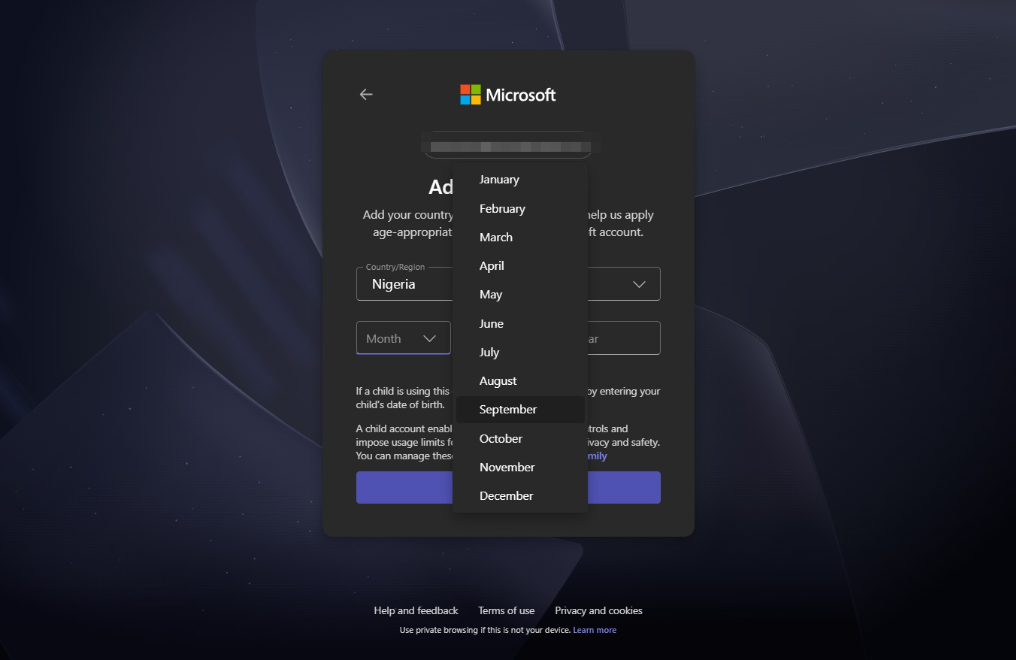
  9. Click September

    Click September
    Loading screenshot…
    100%
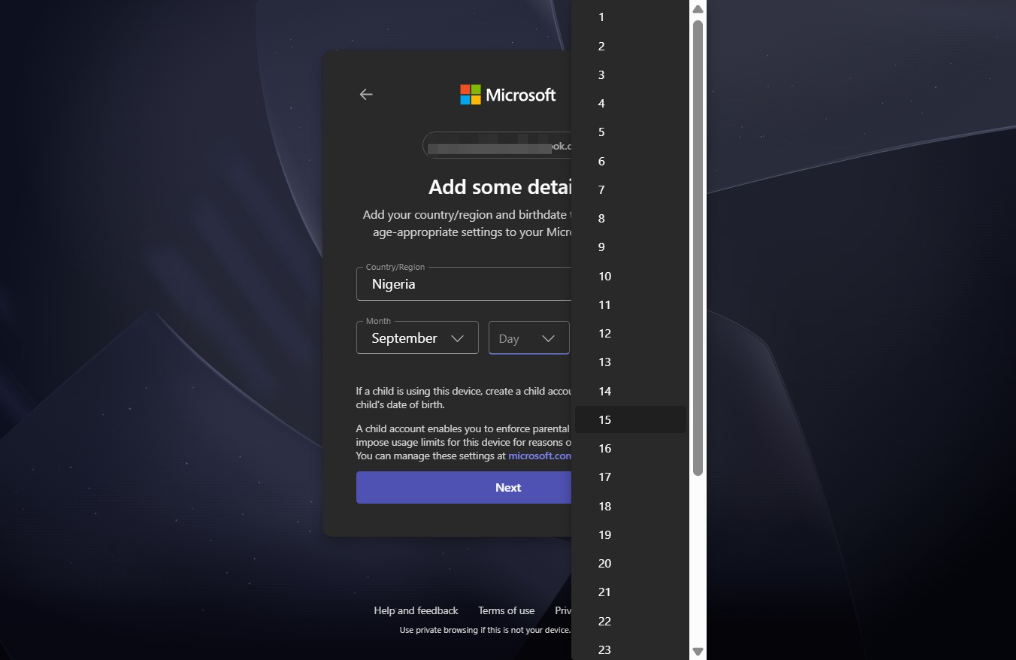
  10. Click Birth day

    Click Birth day
    Loading screenshot…
    100%
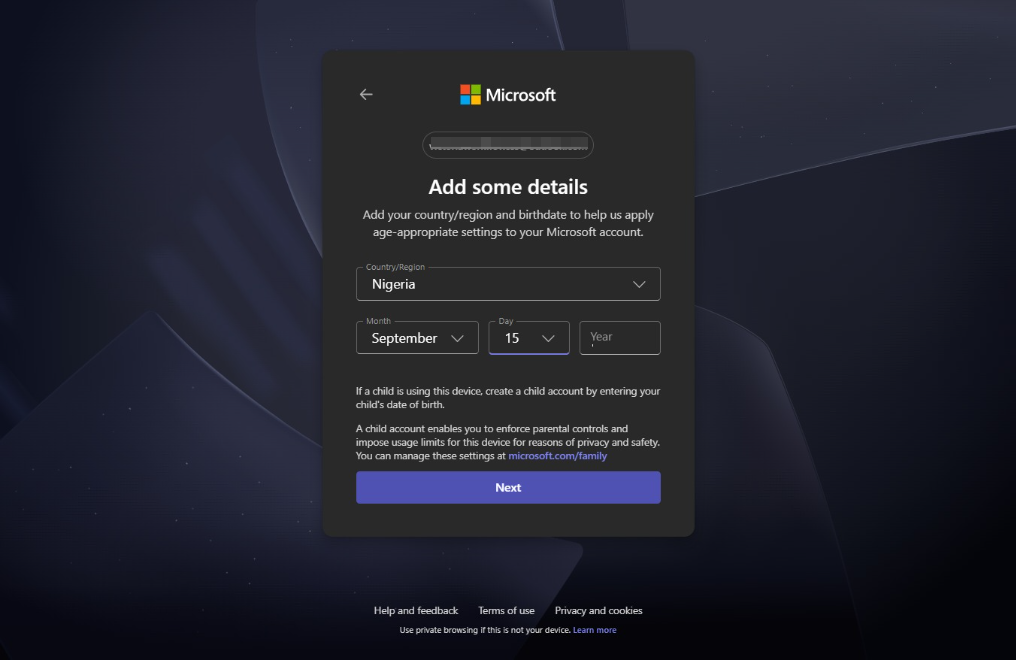
  11. Click 15

    Click 15
    Loading screenshot…
    100%
  12. Click Birth year

    Click Birth year
    Loading screenshot…
    100%
  13. Type "1980" in Year

  14. Click Next

    Click Next
    Loading screenshot…
    100%
  15. Click on "Click here."

    Click on "Click here."
    Loading screenshot…
    100%
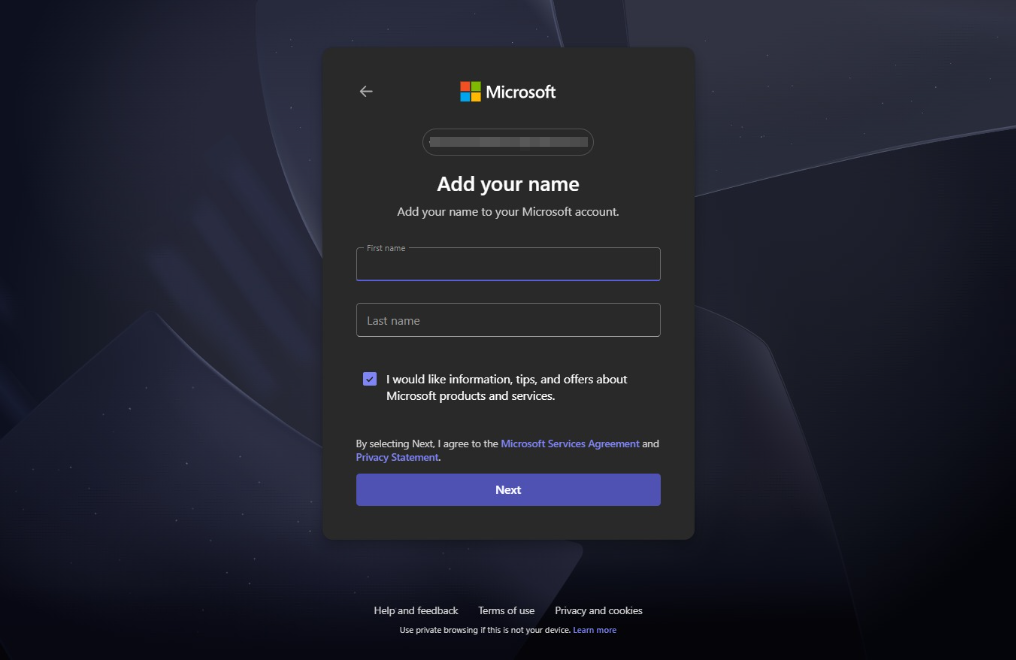
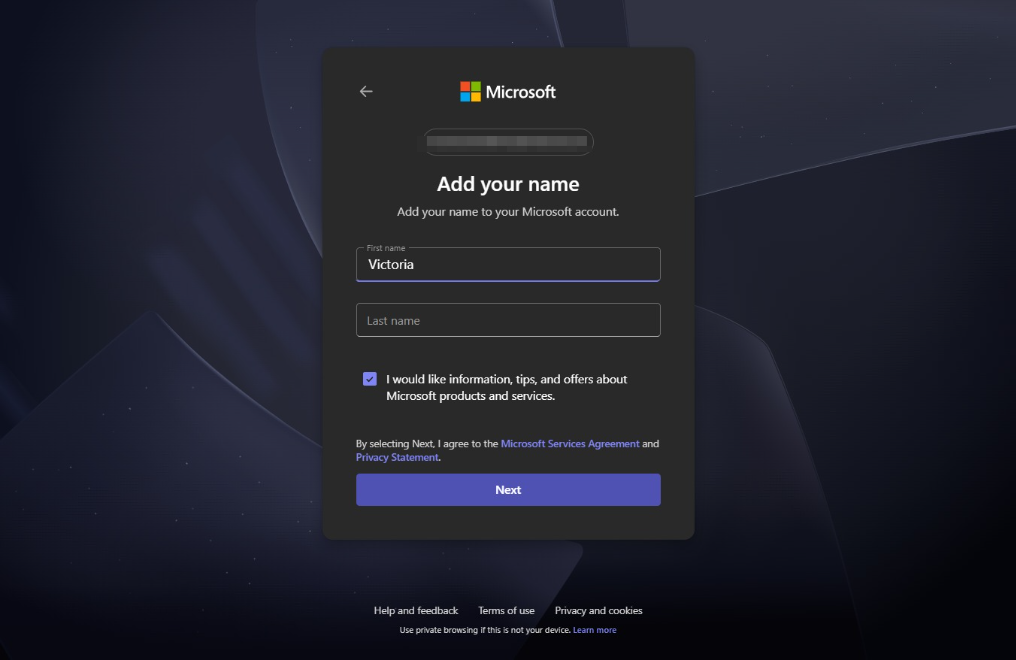
  16. Type "Victoria" in First name

  17. Click Last name

    Click Last name
    Loading screenshot…
    100%
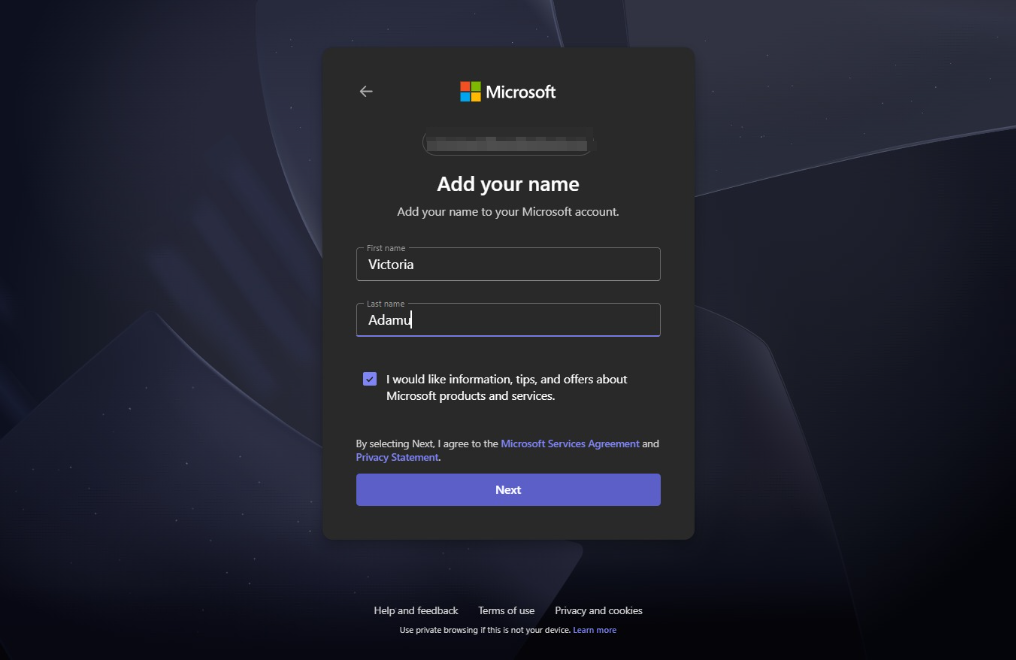
  18. Type "Adamu" in Last name

  19. Click Next

    Click Next
    Loading screenshot…
    100%
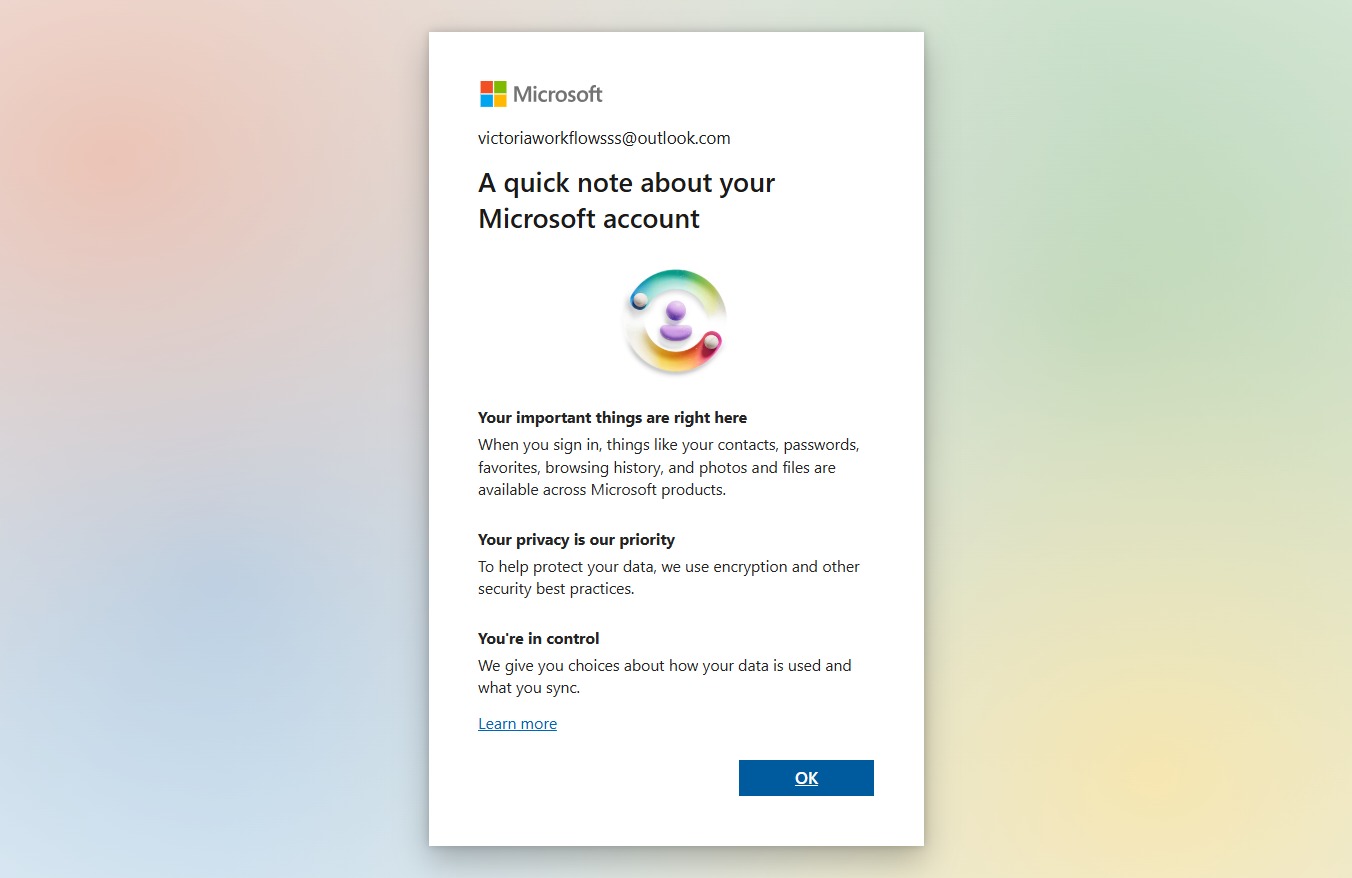
  20. Click OK

    Click OK
    Loading screenshot…
    100%
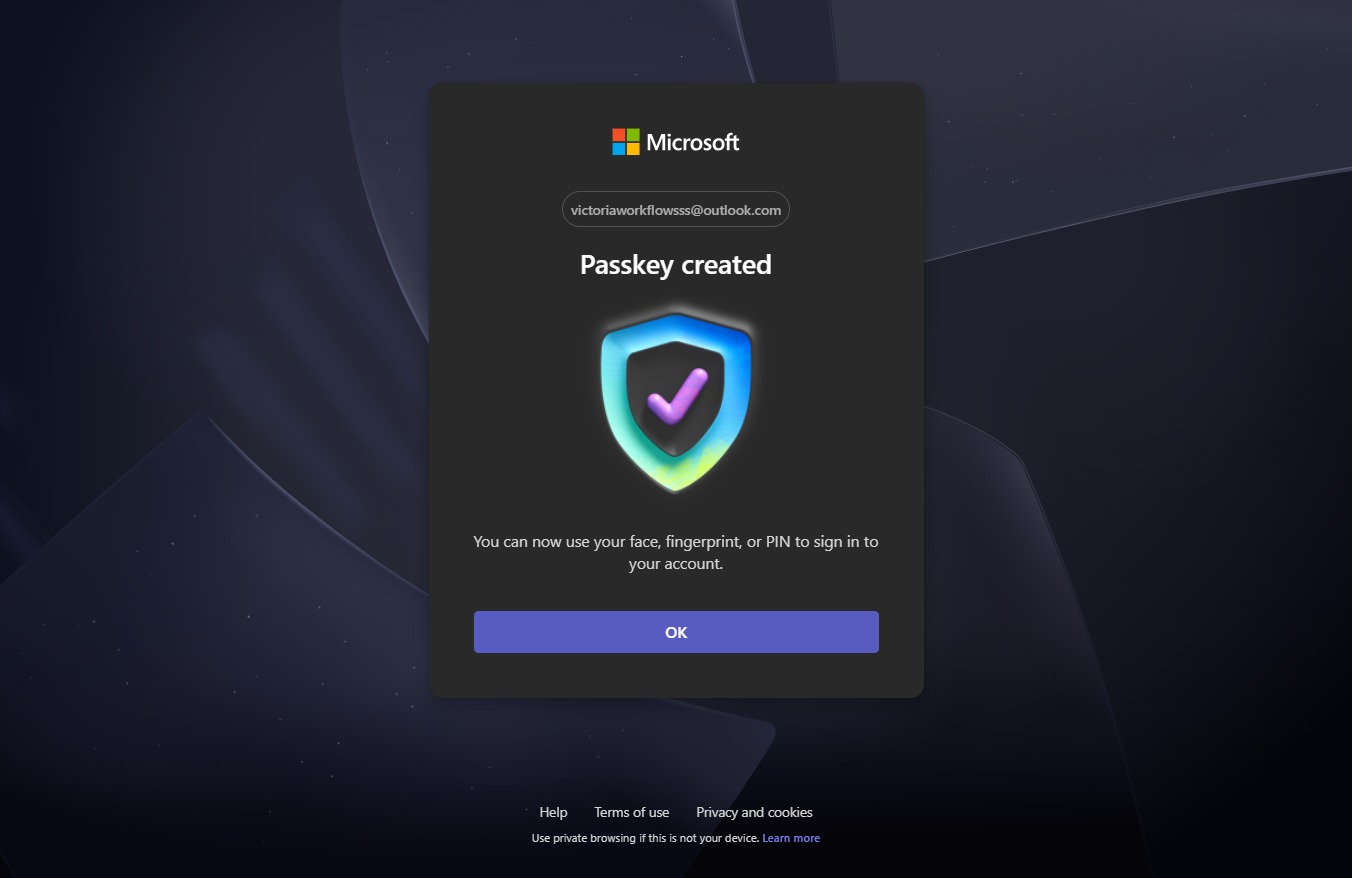
  21. Click OK

    Click OK
    Loading screenshot…
    100%
  22. Click Continue

    Click Continue
    Loading screenshot…
    100%