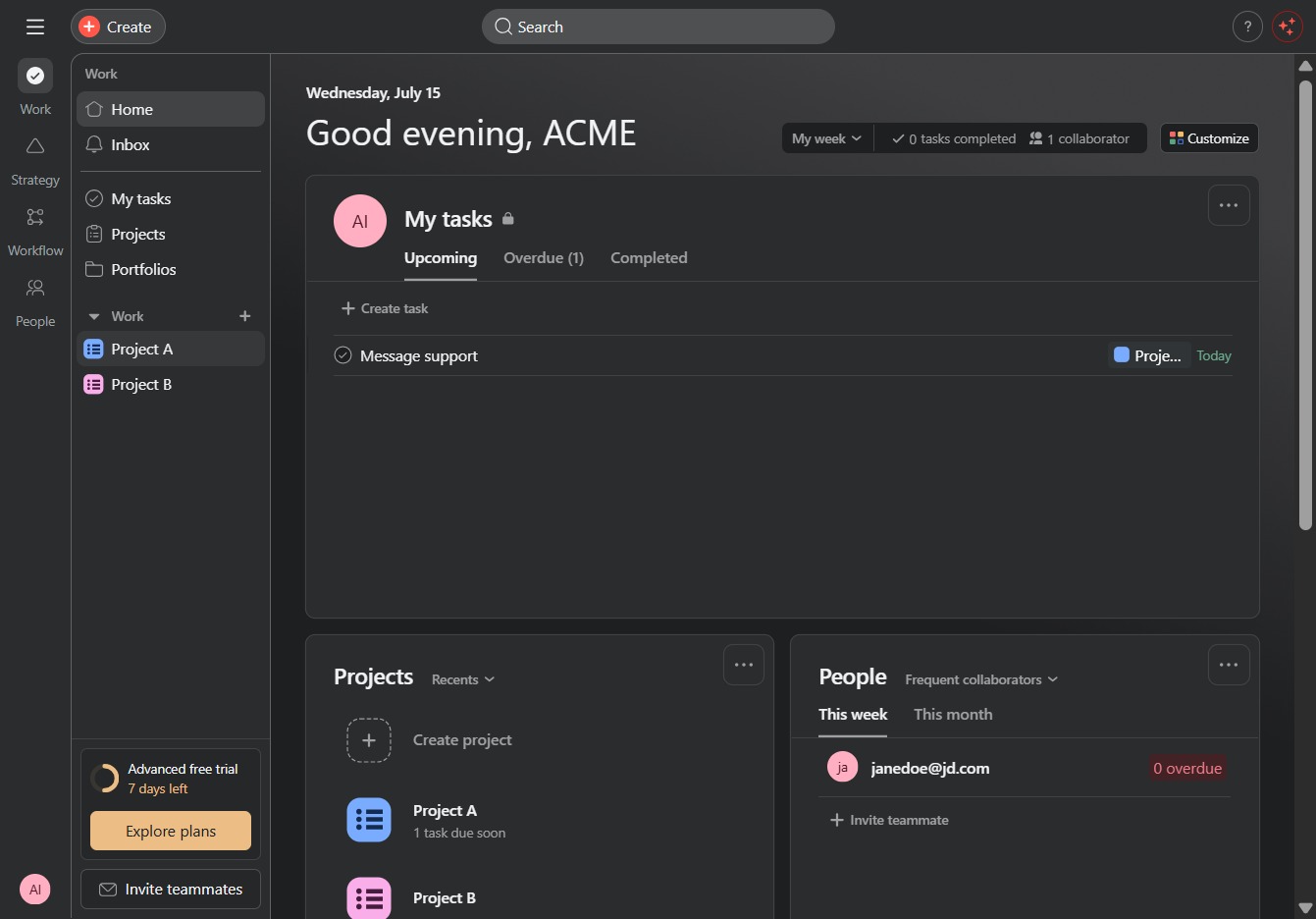
Click Project A
Selecting 'Project A' opens the project details where you can manage tasks, view progress, and collaborate with team members.
Loading screenshot…
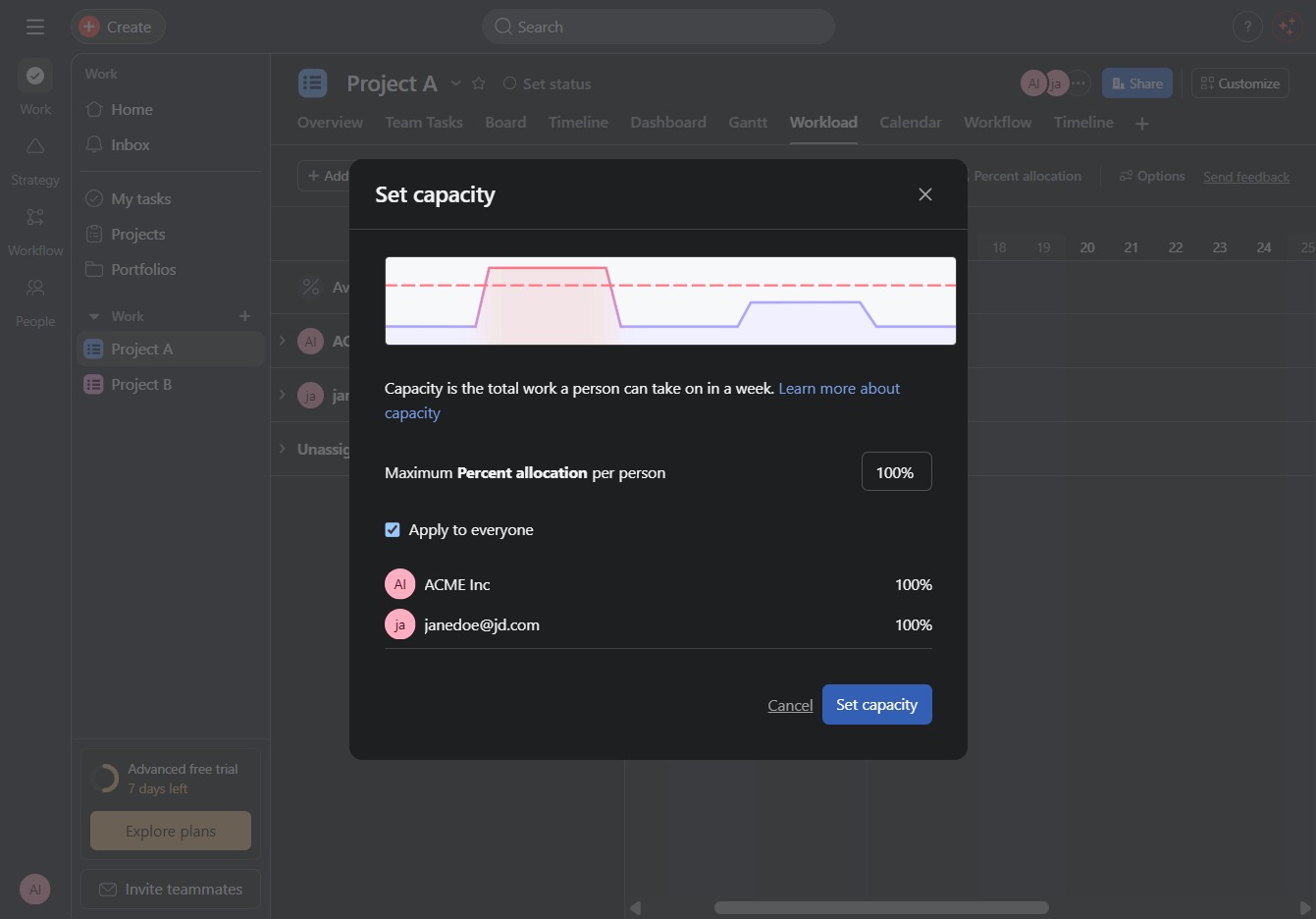
100%
In this how-to guide, you'll learn how to visualize workloads for Project A by navigating through project details, accessing the workload view, and adjusting task allocations.
 viktoria
In this how-to guide, you'll learn how to visualize workloads for Project A by navigating through project details, accessing the workload view, and adjusting task allocations. By following these steps, you'll effectively manage resource distribution and track team capacity, ensuring optimized project progress.
Selecting 'Project A' opens the project details where you can manage tasks, view progress, and collaborate with team members.
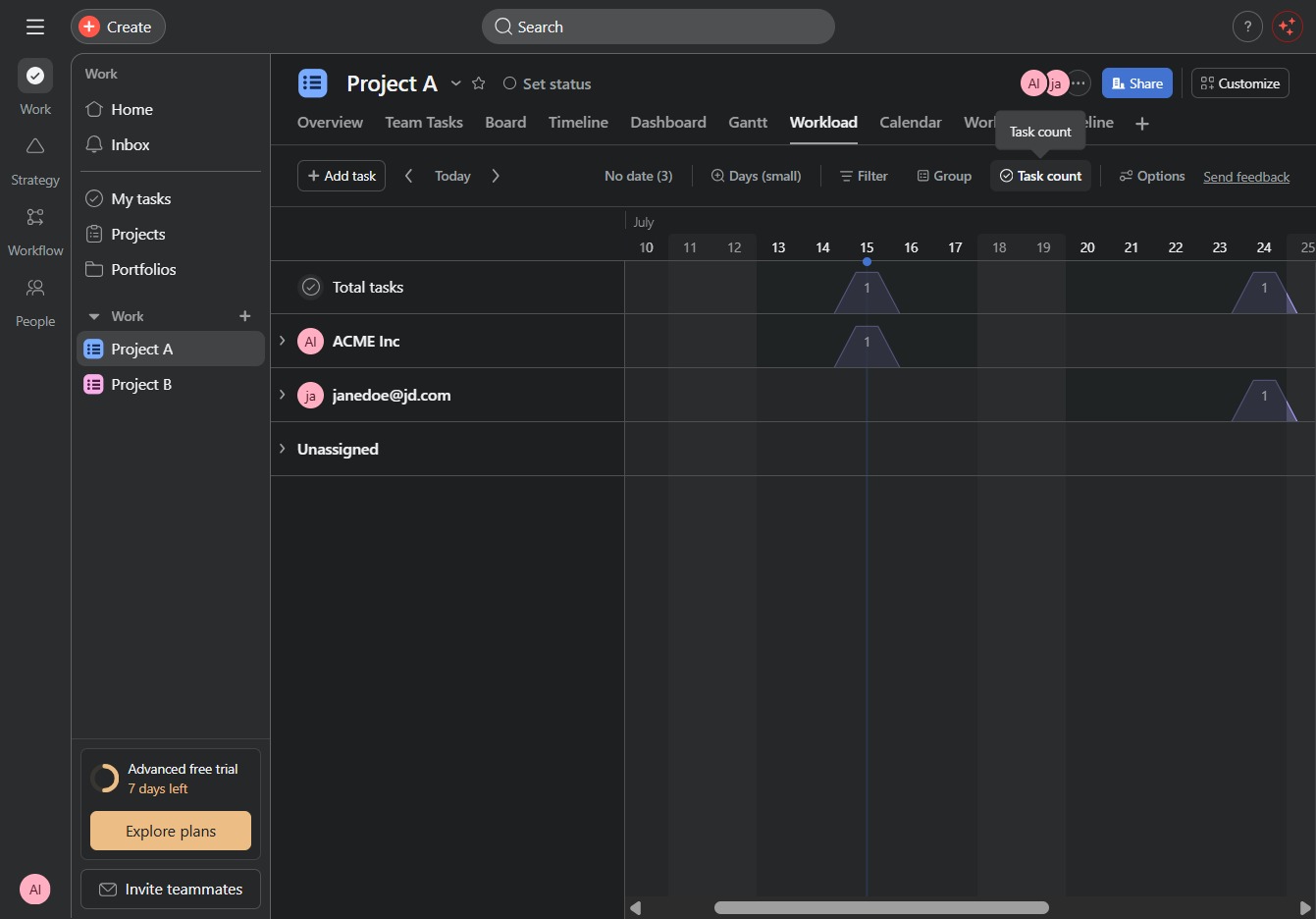
Clicking the Workload tab opens the workload view, allowing you to assess team capacity and task allocation for Project A.

Clicking the Task Count will show you the number of total tasks associated with the current project, helping you track project progress and workload.
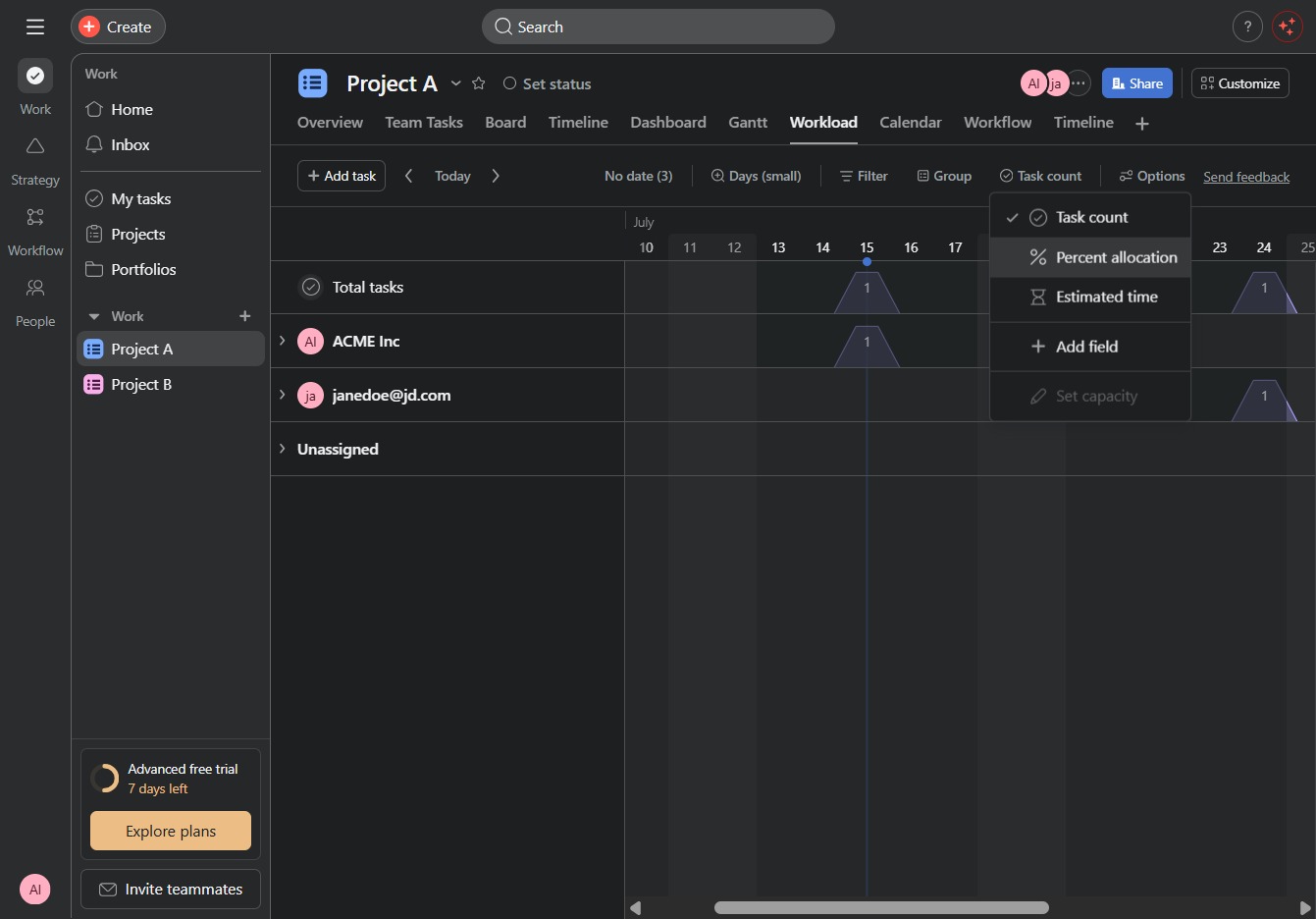
This allows you to adjust the percentage allocation for tasks within the project. Updating the allocation helps manage resources and track workload more effectively.
This will apply the specified capacity allocation settings for the selected project members, ensuring that their workload is managed effectively.