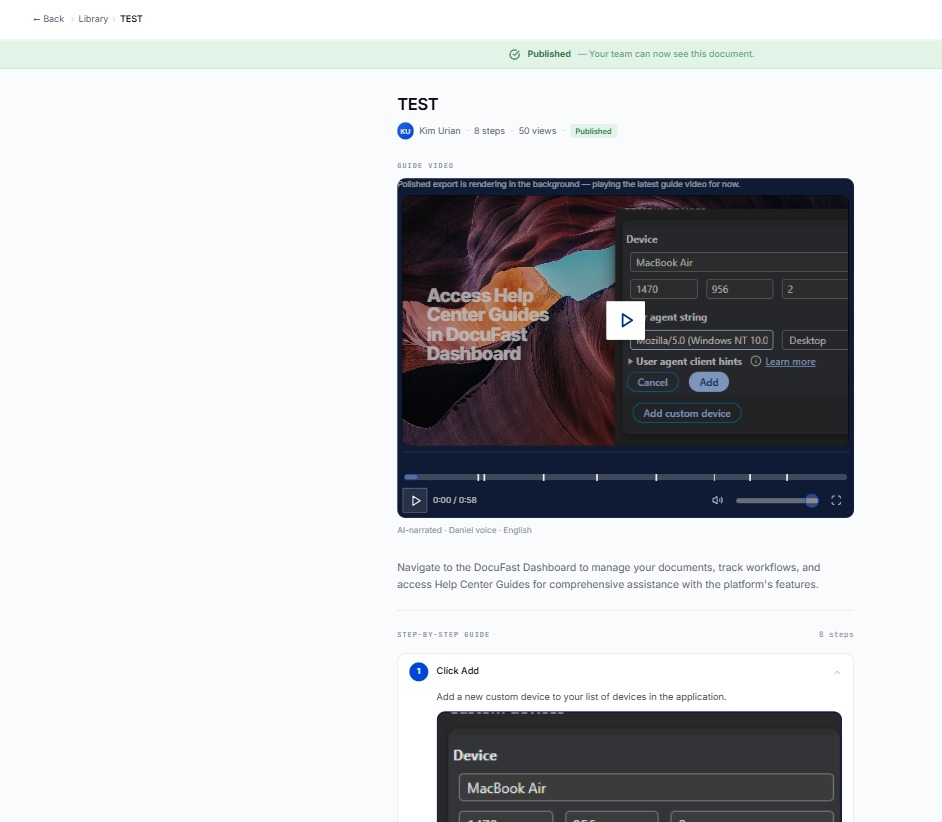
Click Add
Kim pogi 1,Kim pogi 1,Kim pogi 1,Kim pogi 1,Kim pogi 1,Kim pogi 1,Kim pogi 1,Kim pogi 1,Kim pogi 1,
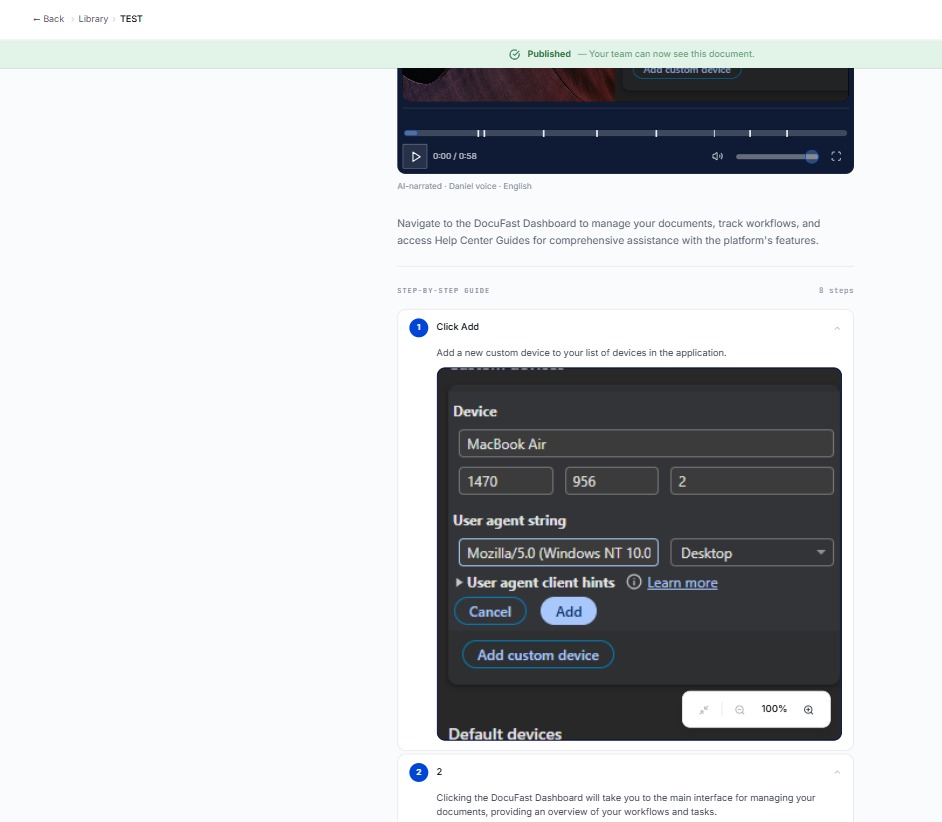
Loading screenshot…
100%
View public workspaces in the software by navigating to the appropriate section, allowing you to engage with the latest features and resources while processing background tasks.
View public workspaces in the software by navigating to the appropriate section, allowing you to engage with the latest features and resources while processing background tasks.
Kim pogi 1,Kim pogi 1,Kim pogi 1,Kim pogi 1,Kim pogi 1,Kim pogi 1,Kim pogi 1,Kim pogi 1,Kim pogi 1,
Kim test 2 pogi, Kim test 2 pogi, Kim test 2 pogi, Kim test 2 pogi, Kim test 2 pogi, Kim test 2 pogi, Kim test 2 pogi, Kim test 2 pogi, Kim test 2 pogi, Kim test 2 pogi, Kim test 2 pogi, Kim test 2 pogi, Kim test 2 pogi, Kim test 2 pogi, Kim test 2 pogi, Kim test 2 pogi,Kim test 2 pogi,
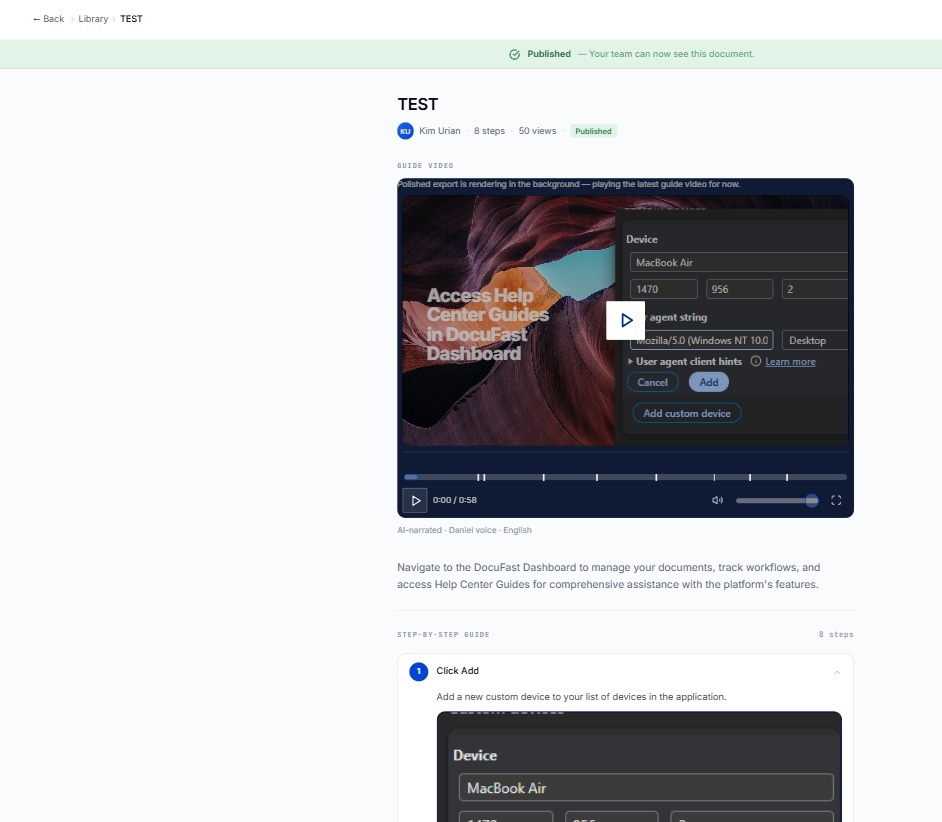
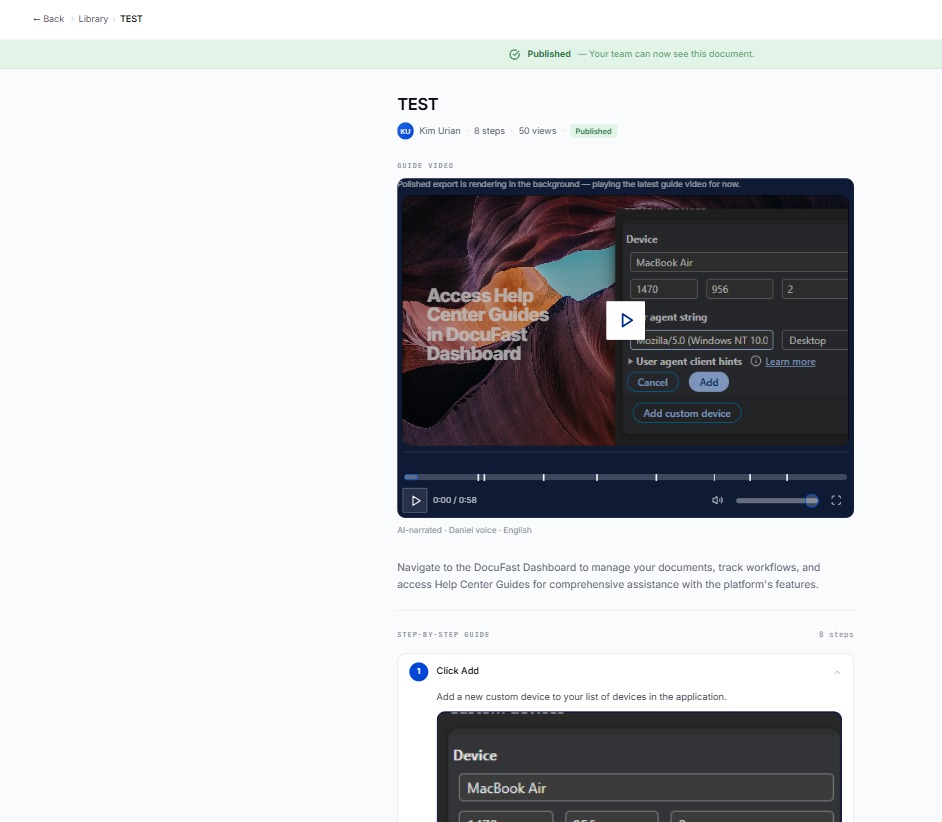
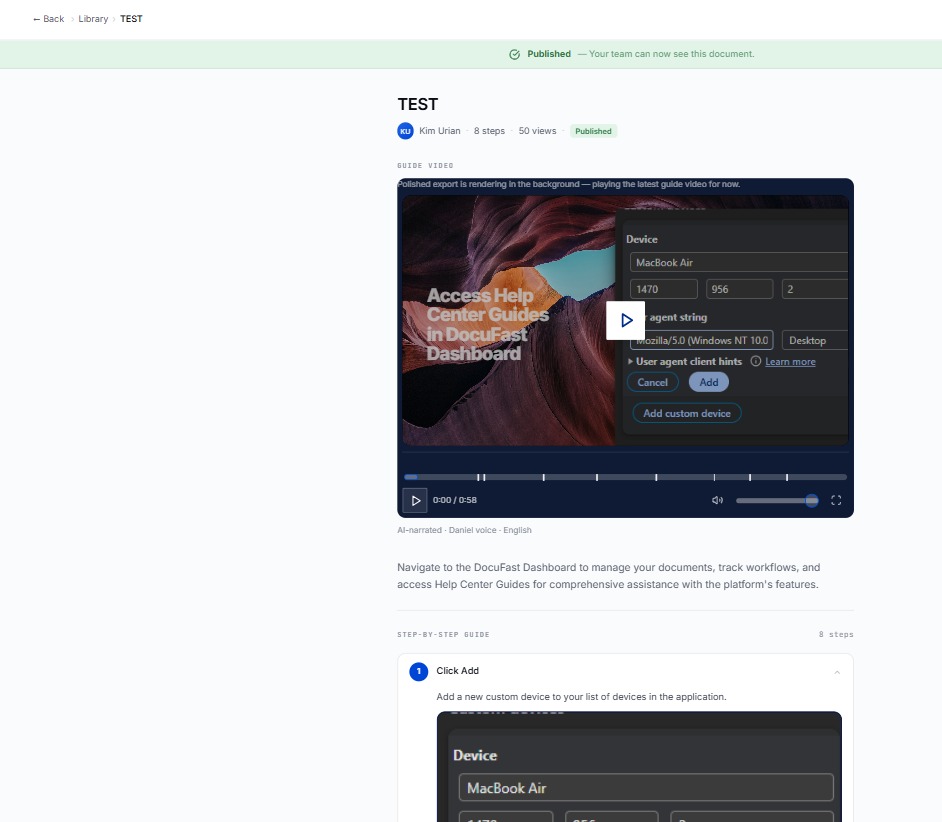
To view the latest guide video while the polished export is rendering in the background, click the Play button.
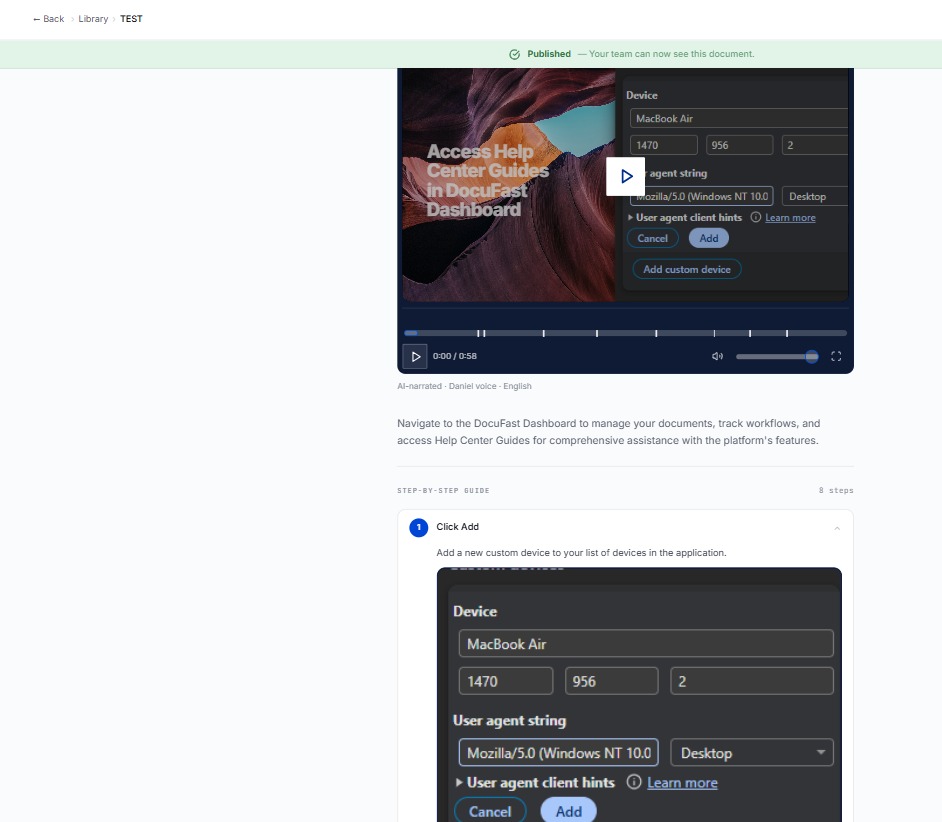
While the polished export is rendering in the background, click the guide video to play its content.
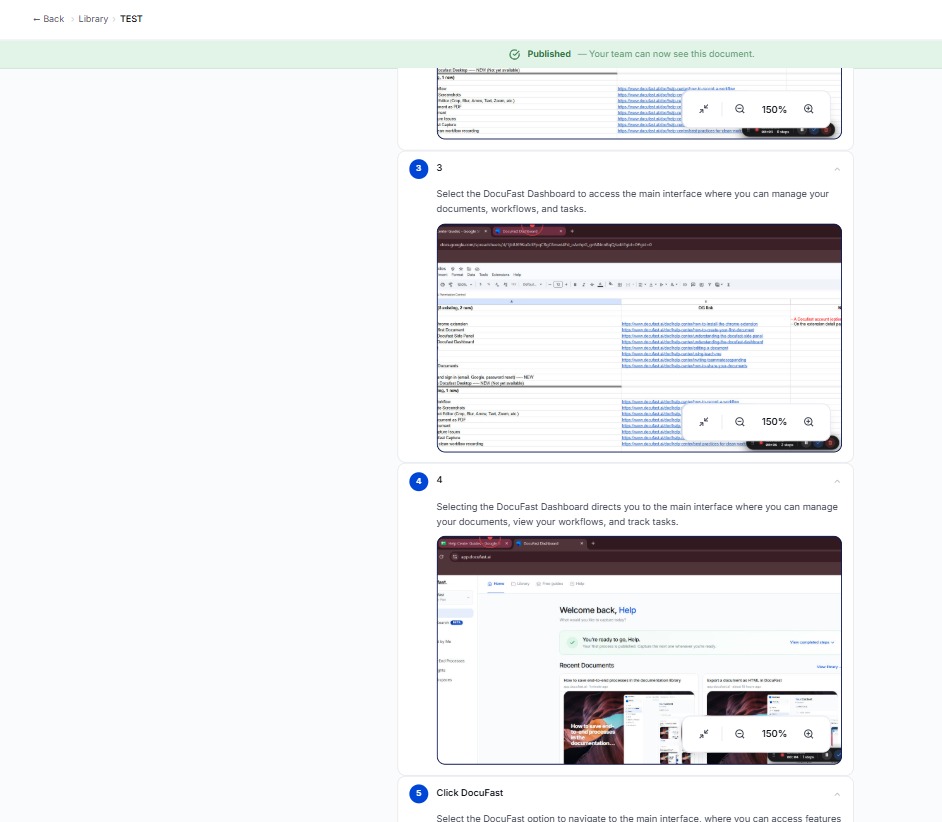
While the polished export is rendering in the background, click play to view the latest guide video. This allows you to stay updated with the content.
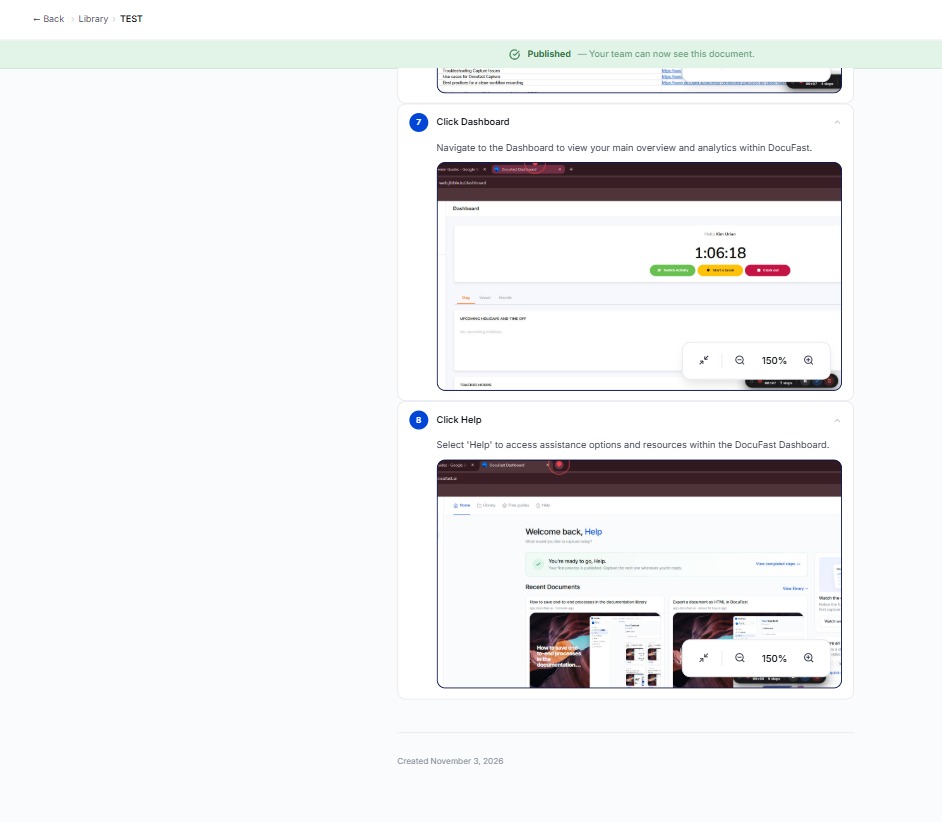
Play the latest guide video while the polished export is rendering in the background.
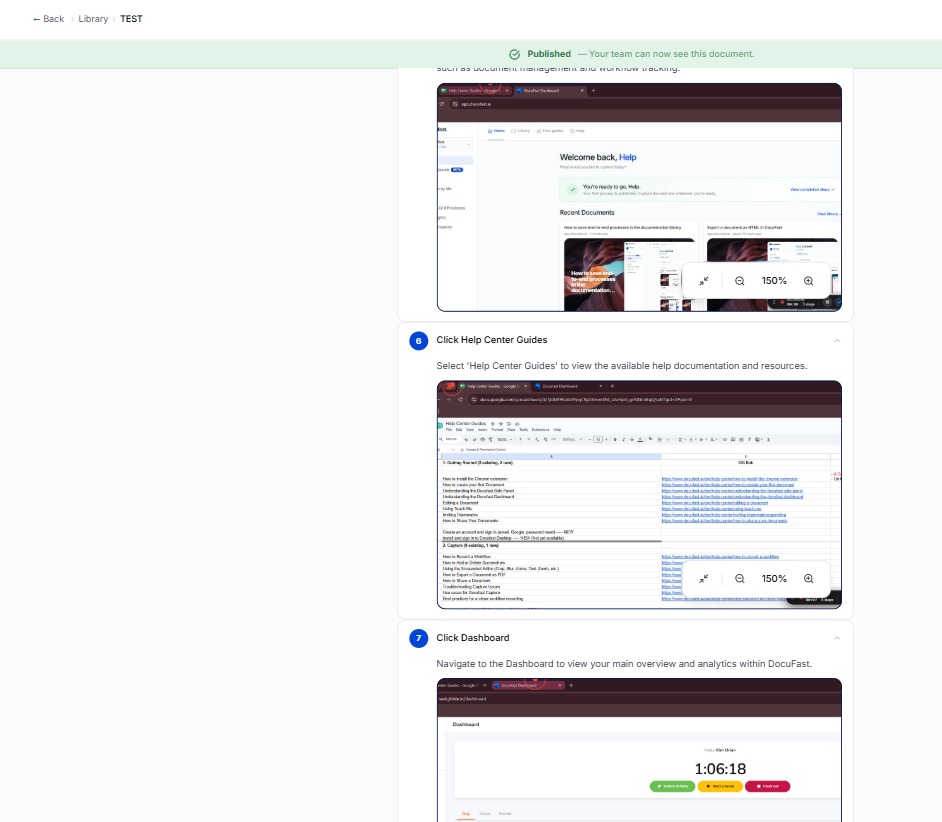
While the polished export is rendering, select Play to watch the latest guide video available. This allows you to engage with helpful content while the background process completes.
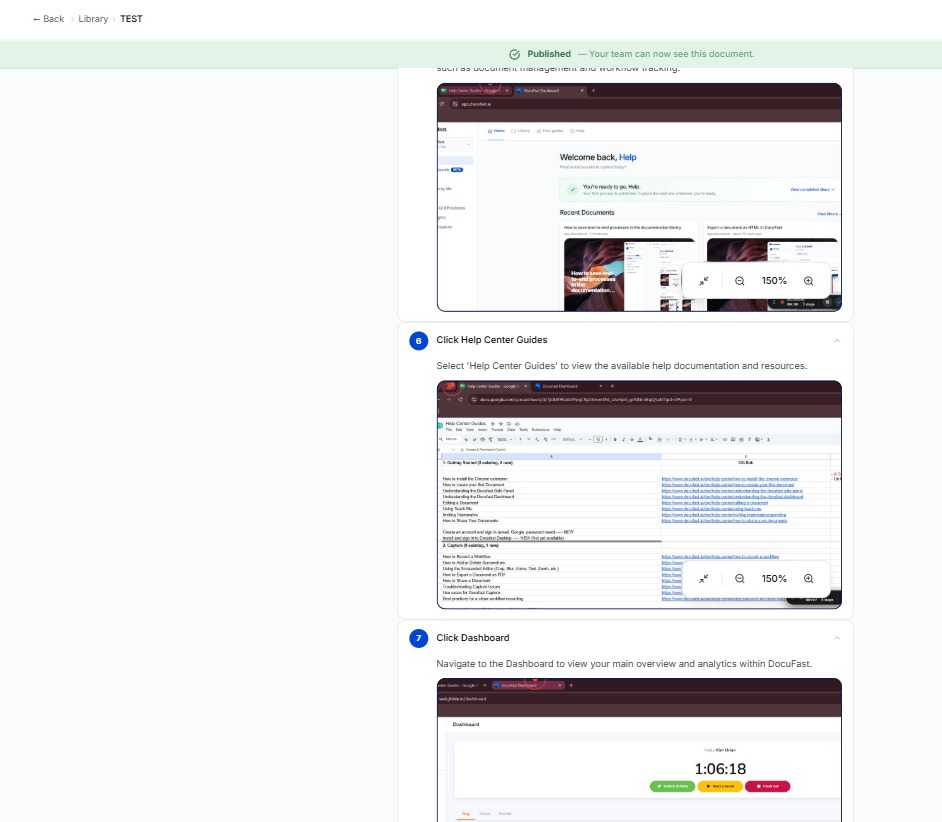
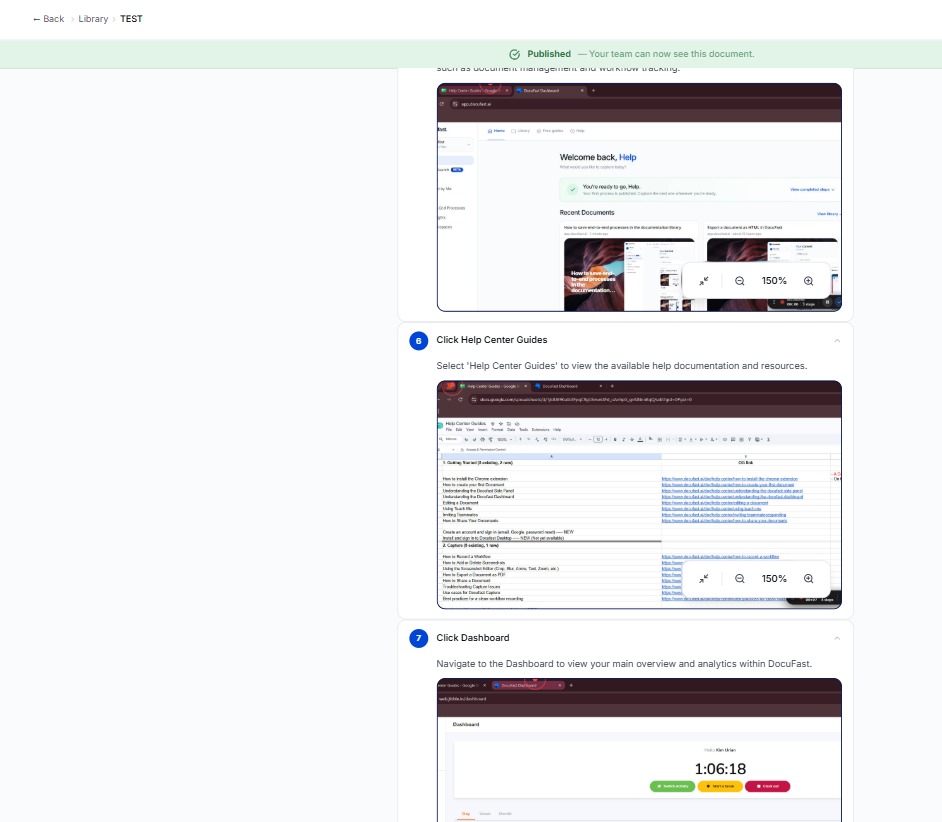
Select 'Help Center Guides' to view the available help documentation and resources.
Kim pogi 9, Kim pogi 9, Kim pogi 9, Kim pogi 9, Kim pogi 9, Kim pogi 9, Kim pogi 9, Kim pogi 9, Kim pogi 9, Kim pogi 9, Kim pogi 9, Kim pogi 9, Kim pogi 9,
Kim pogi 10, Kim pogi 10, Kim pogi 10, Kim pogi 10, Kim pogi 10, Kim pogi 10, Kim pogi 10, Kim pogi 10, Kim pogi 10, Kim pogi 10, Kim pogi 10, Kim pogi 10, Kim pogi 10, Kim pogi 10, Kim pogi 10,
Kim pogi 11, Kim pogi 11, Kim pogi 11, Kim pogi 11, Kim pogi 11, Kim pogi 11, Kim pogi 11, Kim pogi 11, Kim pogi 11, Kim pogi 11, Kim pogi 11, Kim pogi 11, Kim pogi 11, Kim pogi 11, Kim pogi 11, Kim pogi 11, Kim pogi 11, Kim pogi 11, Kim pogi 11, Kim pogi 11, Kim pogi 11, Kim pogi 11,