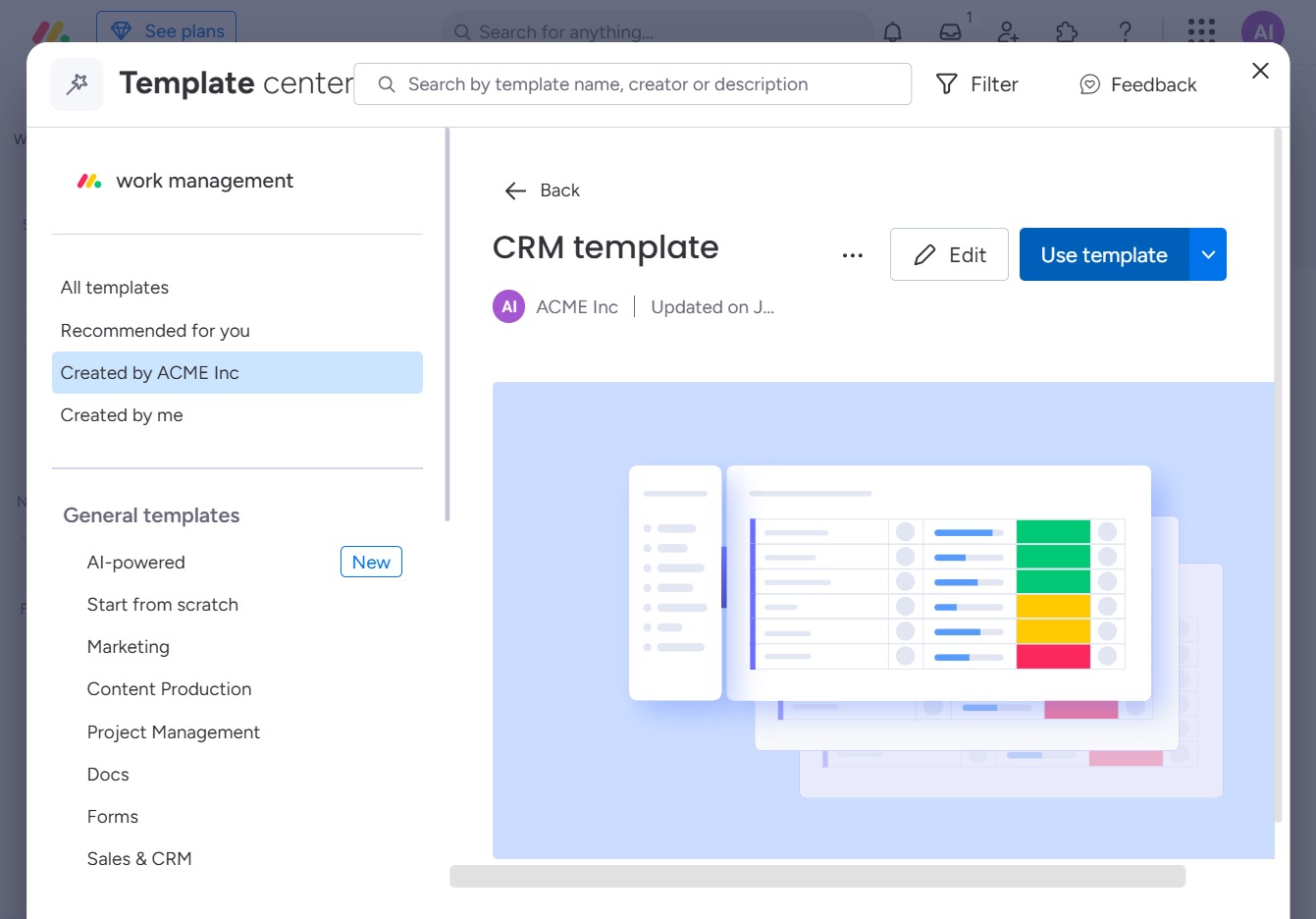
Click 'Add item to workspace'
Clicking this button allows you to add a new item or feature to your selected workspace, enhancing your project's functionality.

Loading screenshot…
100%
This how-to guide explains the step-by-step process for utilizing workspace templates effectively.
 viktoria
This how-to guide explains the step-by-step process for utilizing workspace templates effectively. From adding features to customizing CRM templates, you'll learn how to enhance your projects with the right resources and tools.
Clicking this button allows you to add a new item or feature to your selected workspace, enhancing your project's functionality.
This will open a dropdown menu that allows you to select options to create a new Agent, Vibe app, Board, or Folder, as well as access the Template center and Project management features.
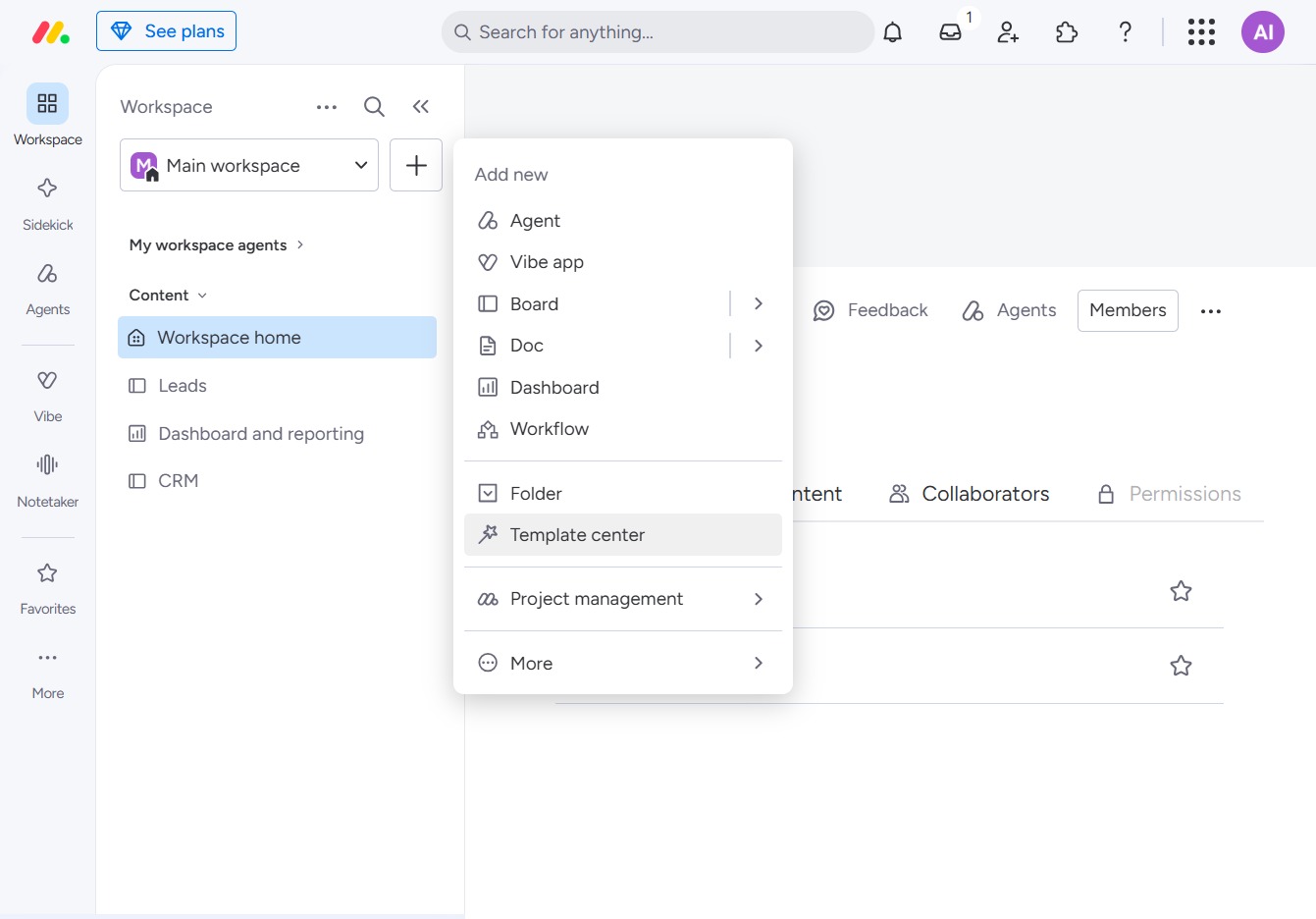
This action will display templates or items that have been created by ACME Inc, allowing you to browse and select from those specific resources.

This action opens the CRM template for editing or viewing details, allowing you to customize or use it as needed.

This action will apply the selected CRM template to your current project, allowing you to customize it according to your workflow needs.