Geteilte Anleitung

How to use triggers and conditions

This guide will walk you through the process of setting up triggers and conditions in your automation settings.

victoriaworkflowsvictoriaworkflows
·13 Schritte·70 Aufrufe·Veröffentlicht

This guide will walk you through the process of setting up triggers and conditions in your automation settings. Follow these steps to effectively configure actions based on specific criteria, ensuring streamlined workflows tailored to your organization's needs.

Step-by-step Guide13 Schritte
  1. Click Automation

    Click Automation
    Loading screenshot…
    100%
  2. Click on "Click here."

    Click on "Click here."
    Loading screenshot…
    100%
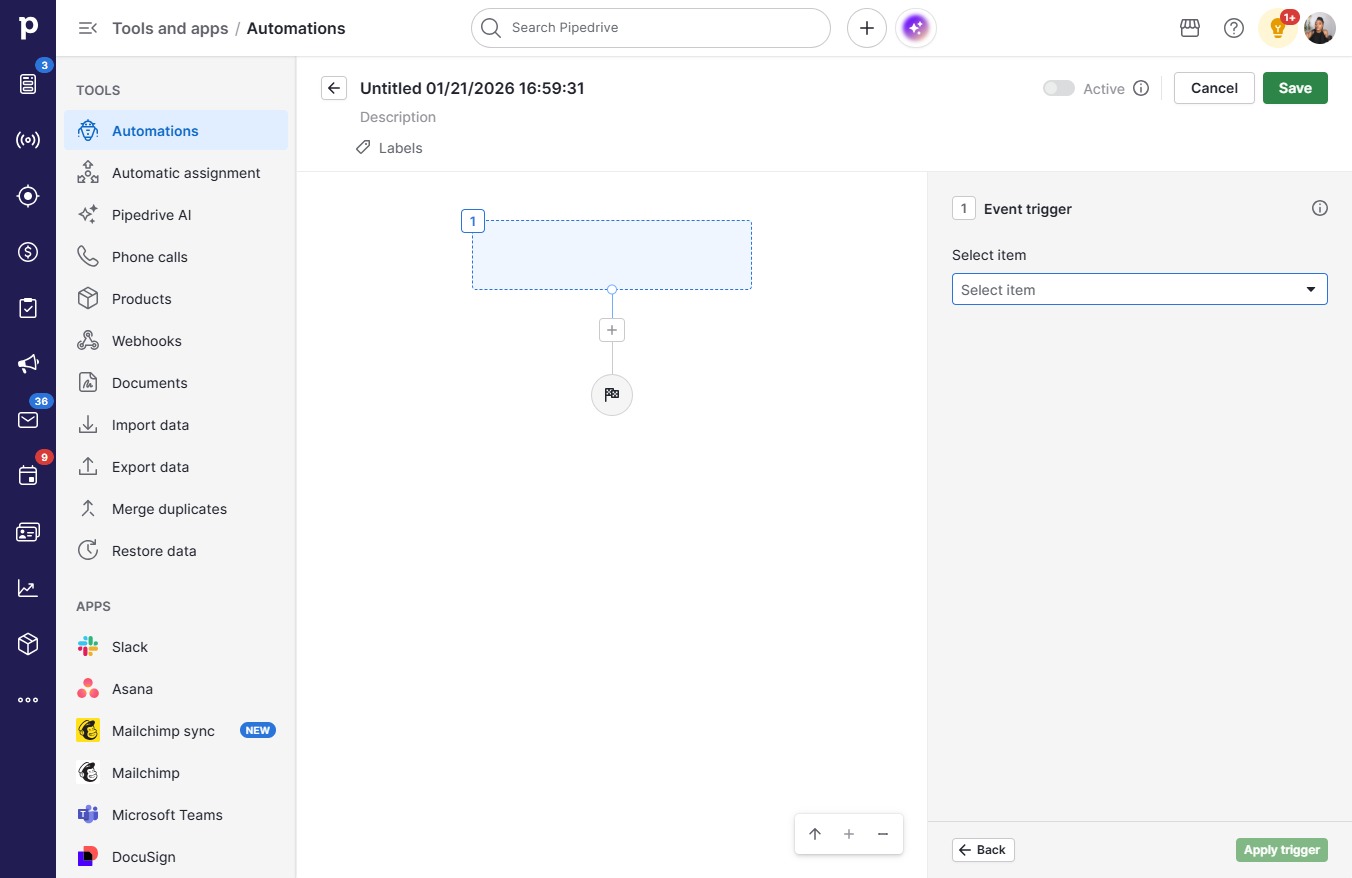
  3. Click Select item

    Click Select item
    Loading screenshot…
    100%
  4. Click Organization

    Click Organization
    Loading screenshot…
    100%
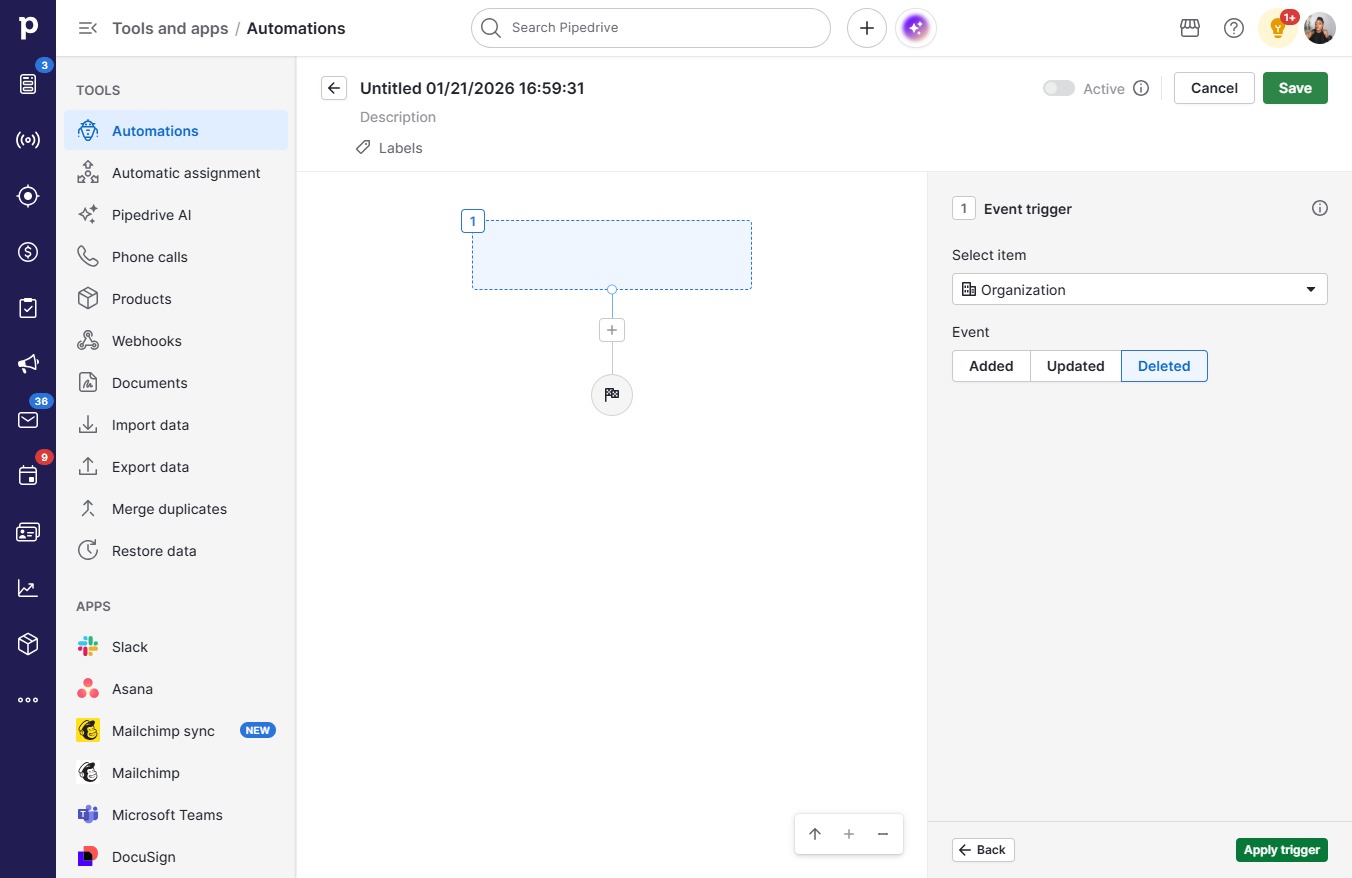
  5. Click Deleted

    Click Deleted
    Loading screenshot…
    100%
  6. Click Apply trigger

    Click Apply trigger
    Loading screenshot…
    100%
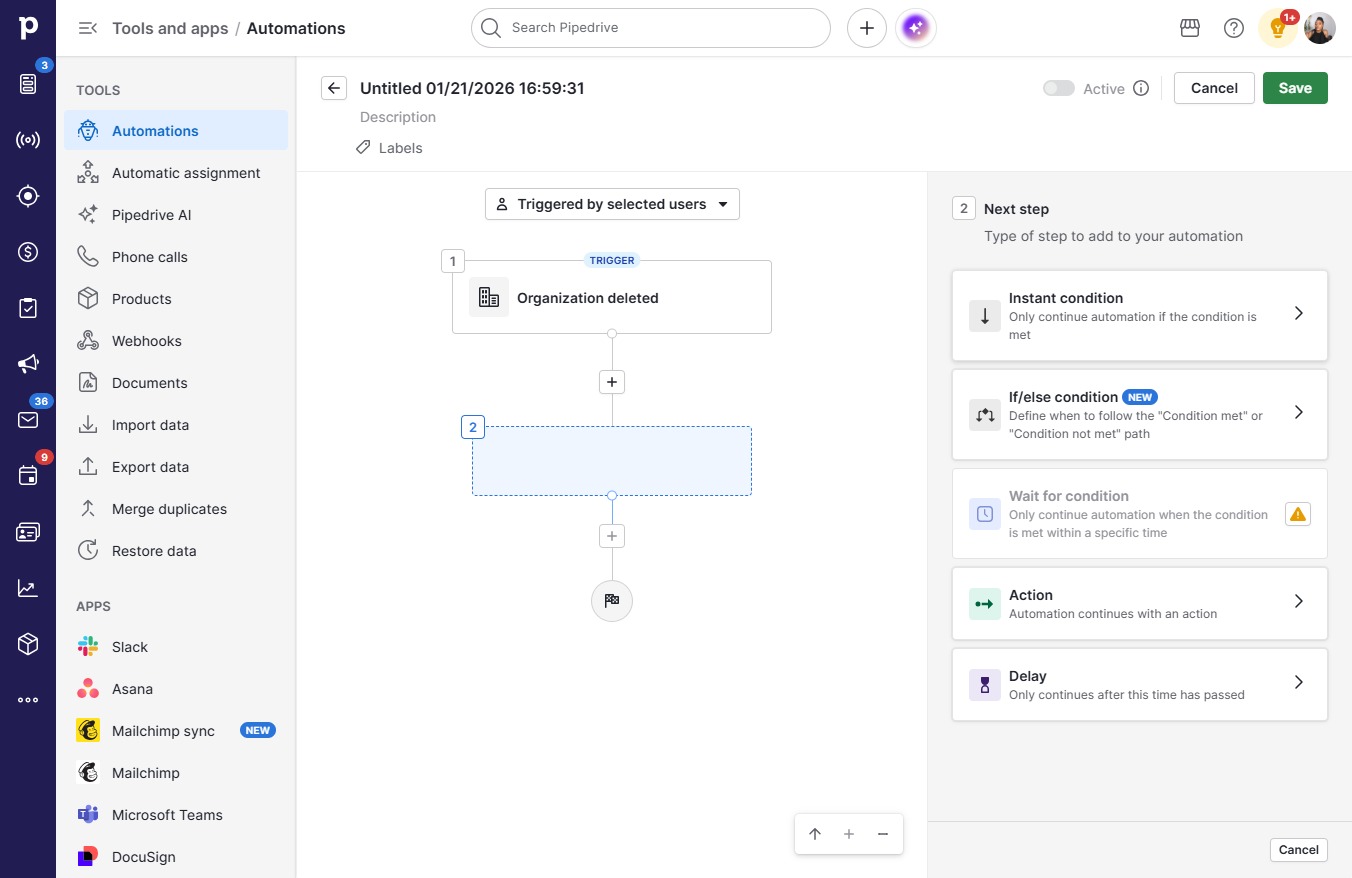
  7. Click on "Click here."

    Click on "Click here."
    Loading screenshot…
    100%
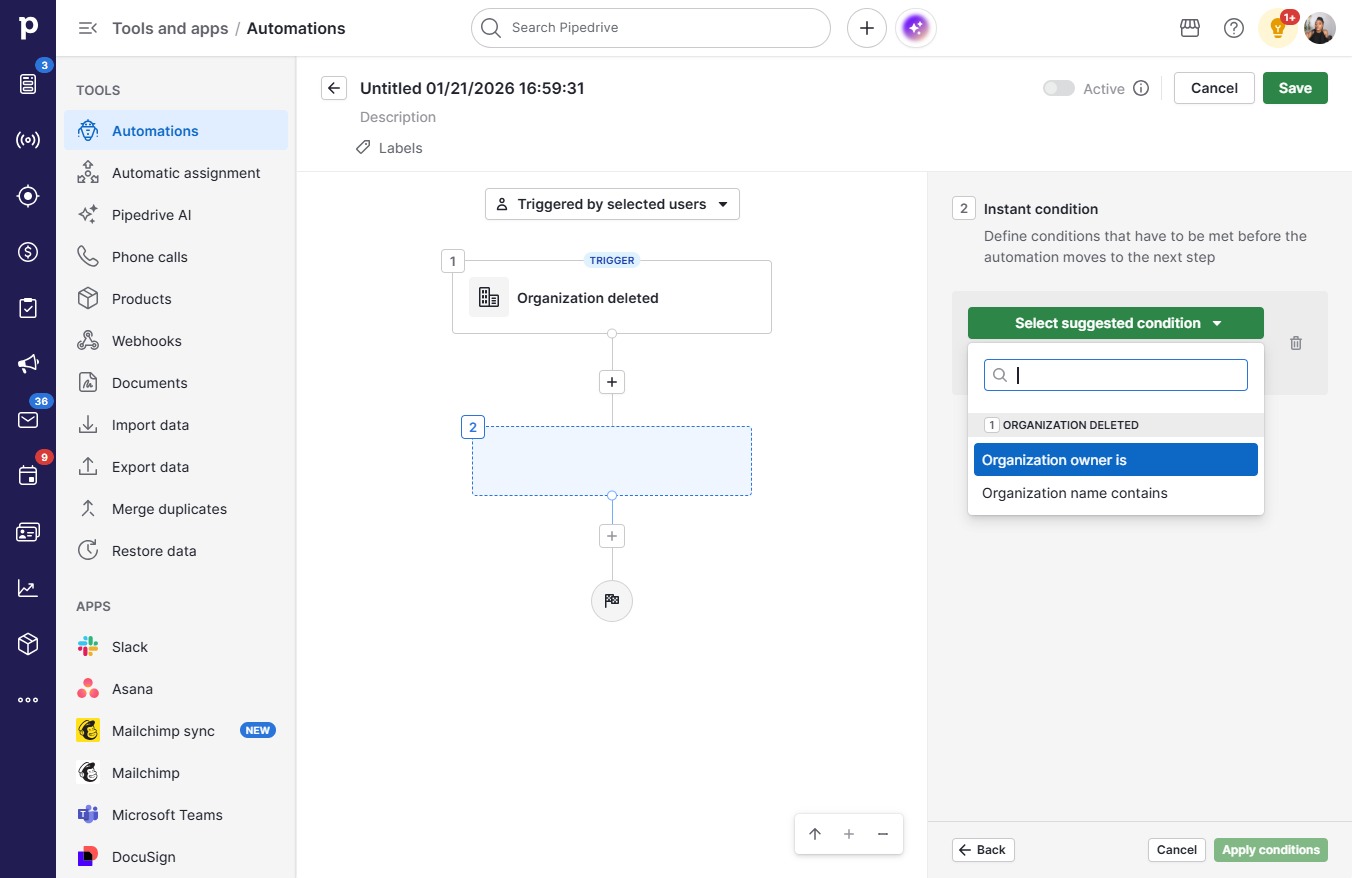
  8. Click Select suggested condition

    Click Select suggested condition
    Loading screenshot…
    100%
  9. Click Organization owner is

    Click Organization owner is
    Loading screenshot…
    100%
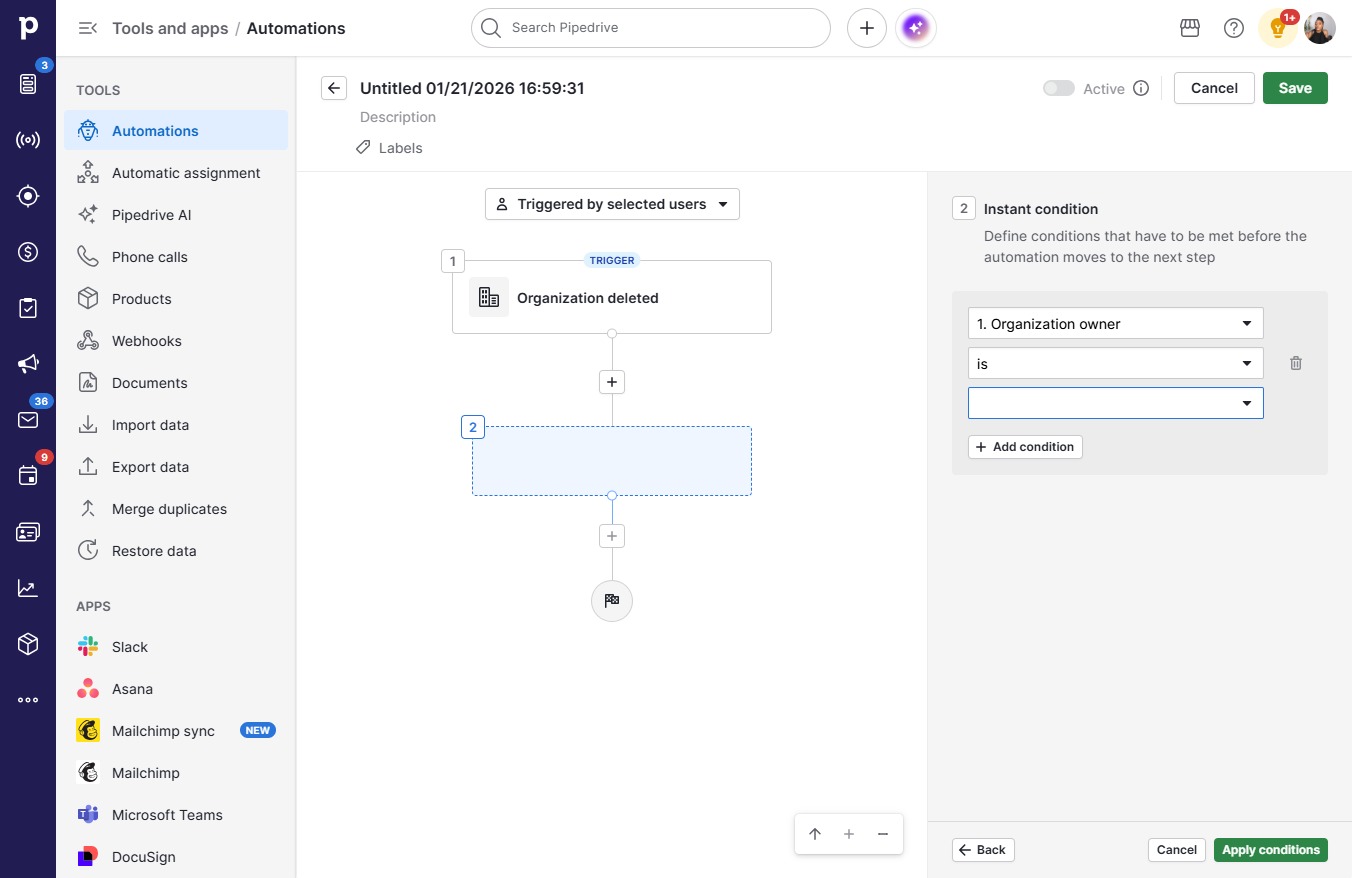
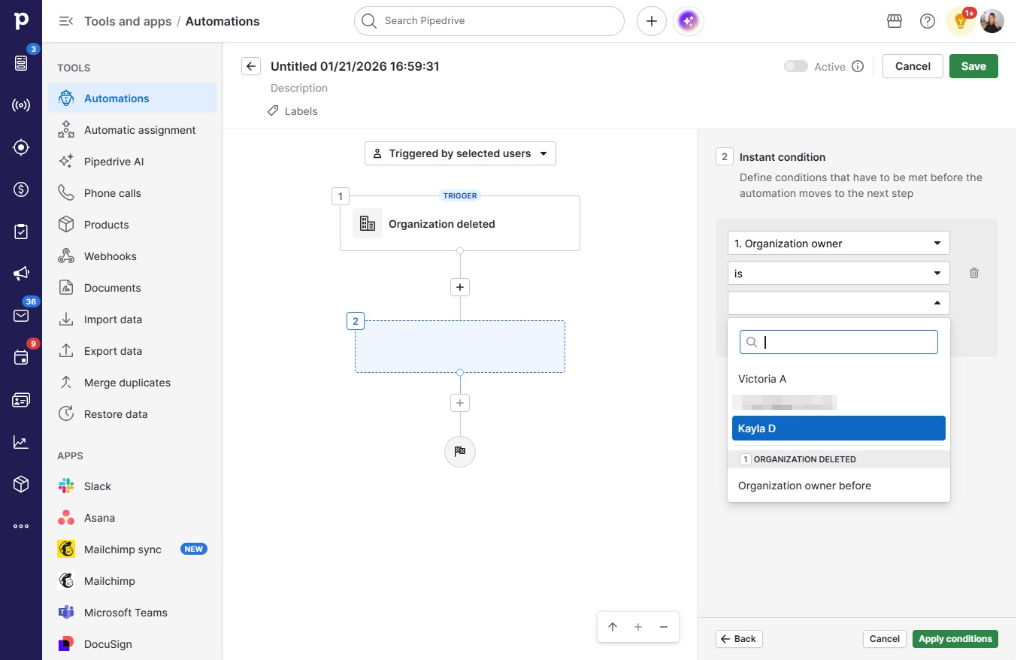
  10. Click on "Click here."

    Click on "Click here."
    Loading screenshot…
    100%
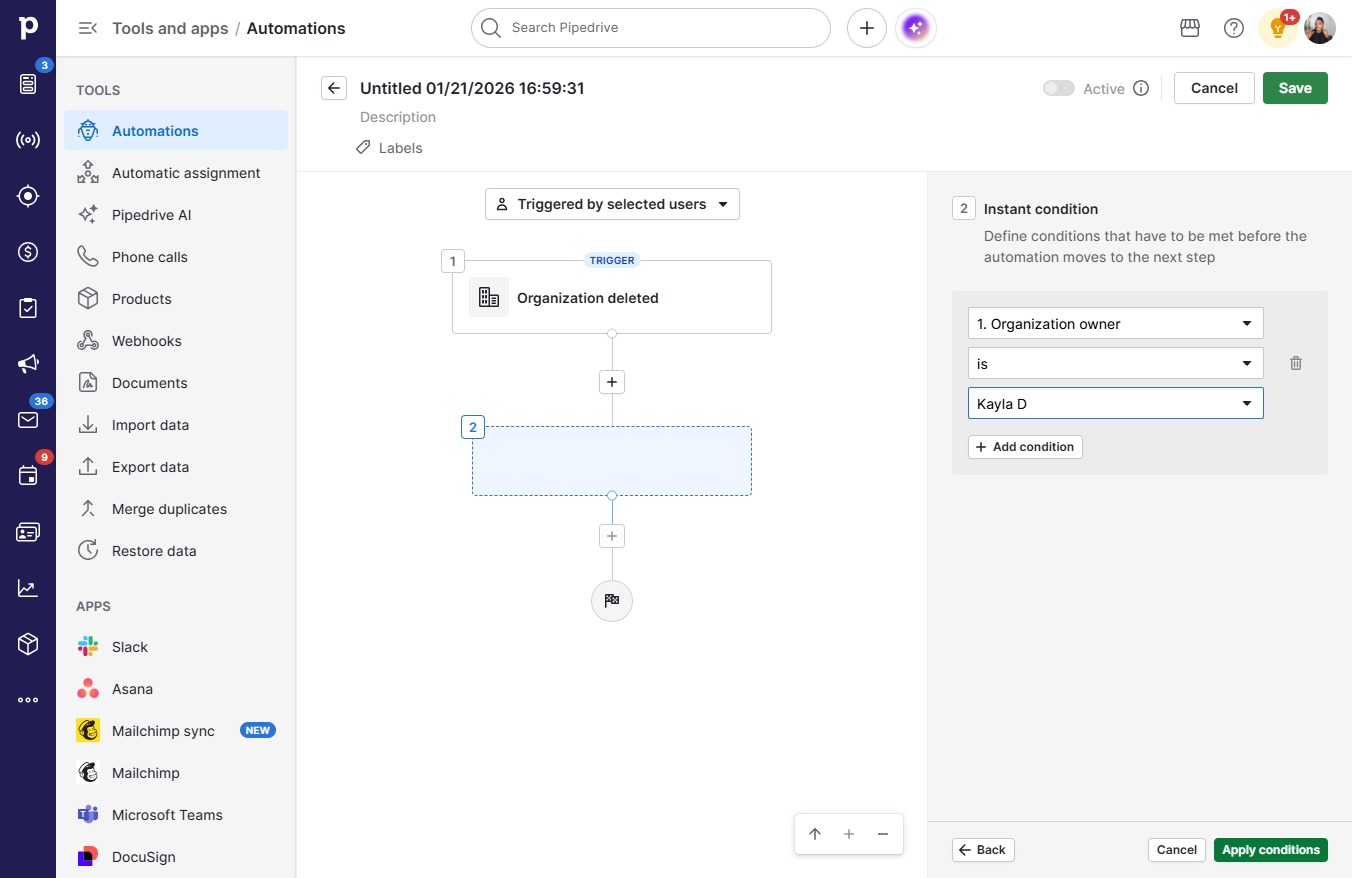
  11. Click Kayla D

    Click Kayla D
    Loading screenshot…
    100%
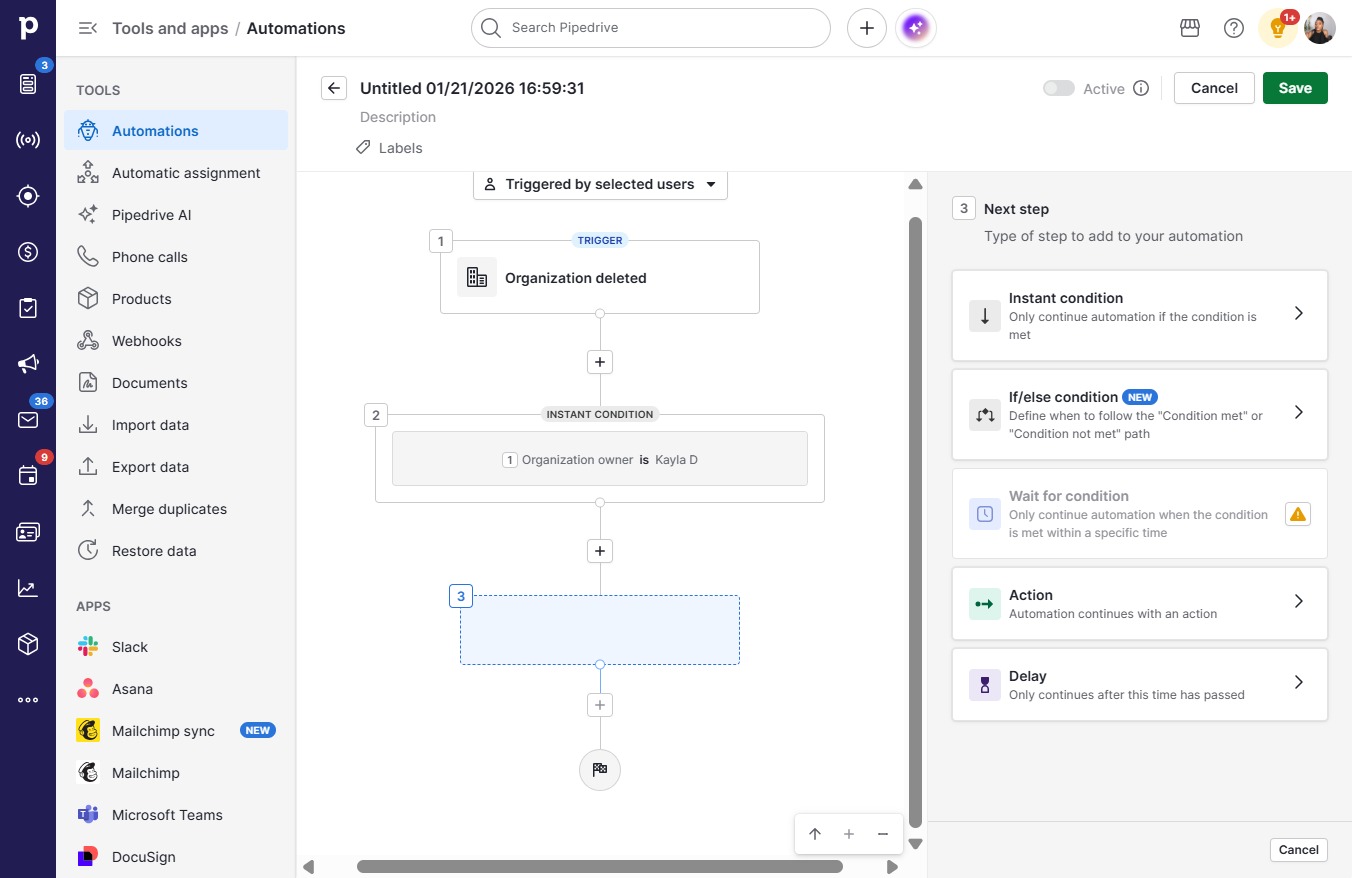
  12. Click Apply conditions

    Click Apply conditions
    Loading screenshot…
    100%
  13. Click Save

    Click Save
    Loading screenshot…
    100%