Shared guide

How to use triggers and conditions

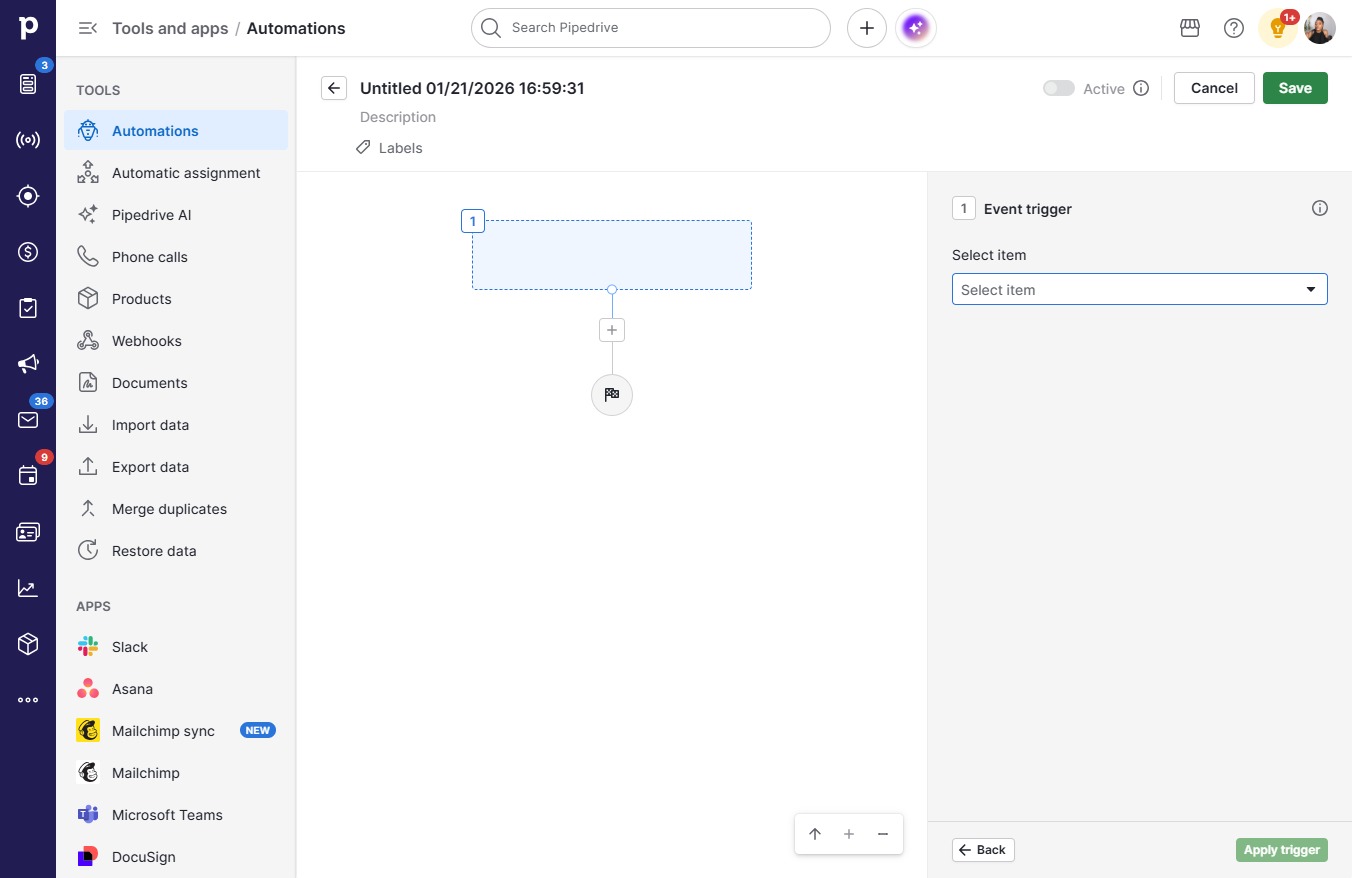
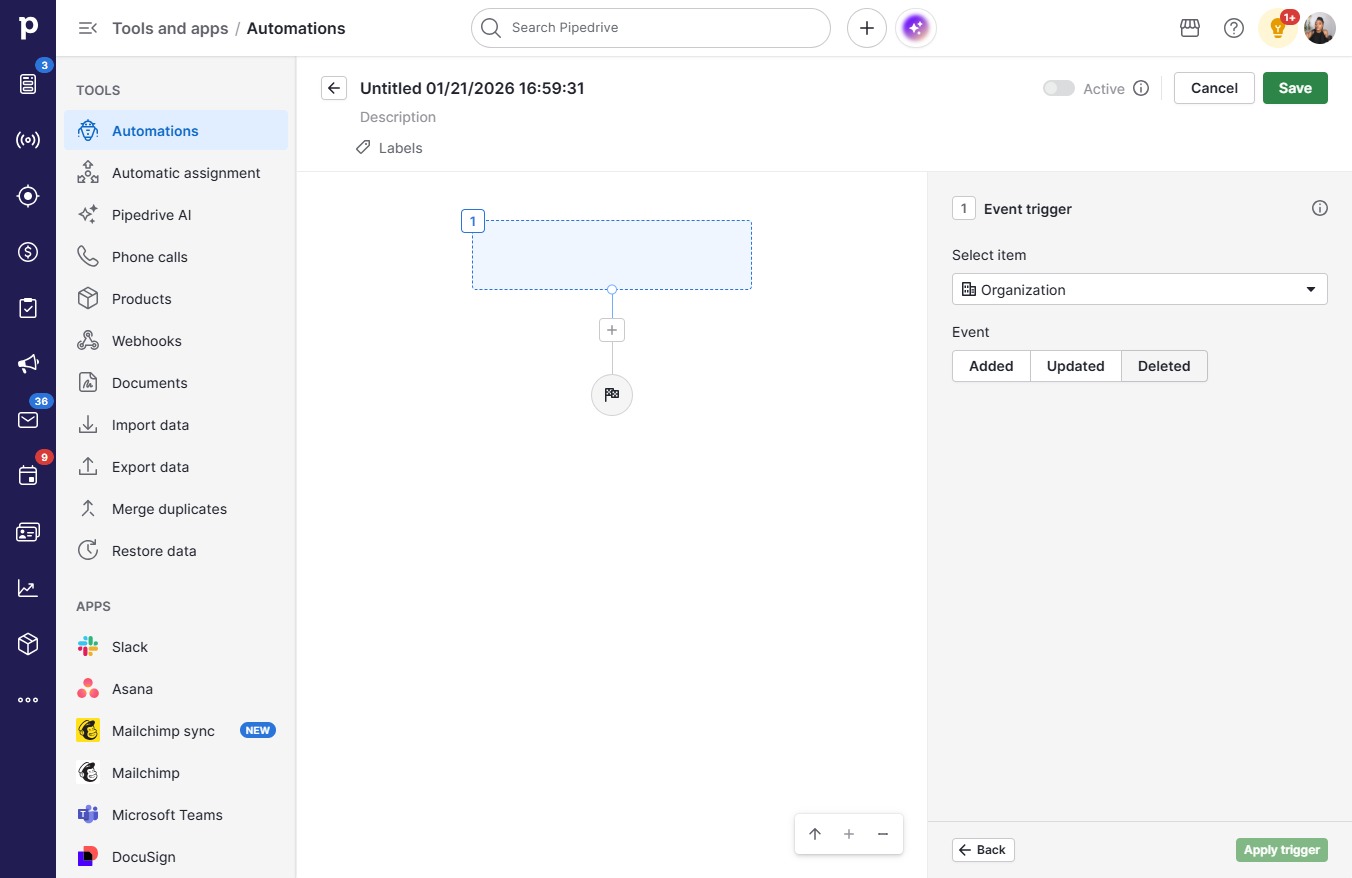
Step-by-step guide covering: Click Automation; Click on "Click here."; Click Select item; Click Organization.

victoriaworkflowsvictoriaworkflows
·13 steps·11 views·Published
Guide Video
0:00 / 0:00
AI-narrated · Marin voice · English
Step-by-step Guide13 steps
  1. Click Automation

    Click Automation
    Loading screenshot…
    100%
  2. Click on "Click here."

    Click on "Click here."
    Loading screenshot…
    100%
  3. Click Select item

    Click Select item
    Loading screenshot…
    100%
  4. Click Organization

    Click Organization
    Loading screenshot…
    100%
  5. Click Deleted

    Click Deleted
    Loading screenshot…
    100%
  6. Click Apply trigger

    Click Apply trigger
    Loading screenshot…
    100%
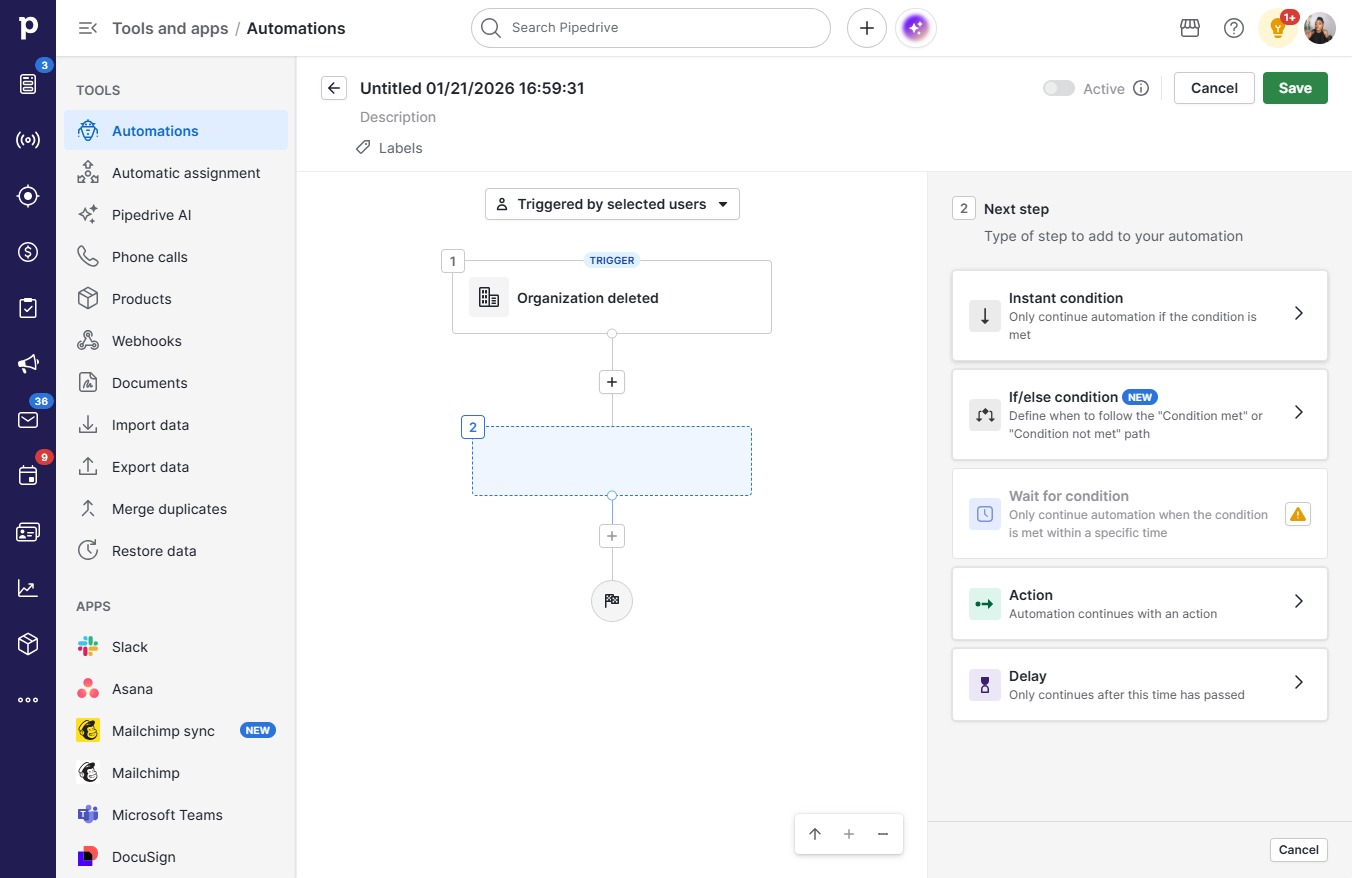
  7. Click on "Click here."

    Click on "Click here."
    Loading screenshot…
    100%
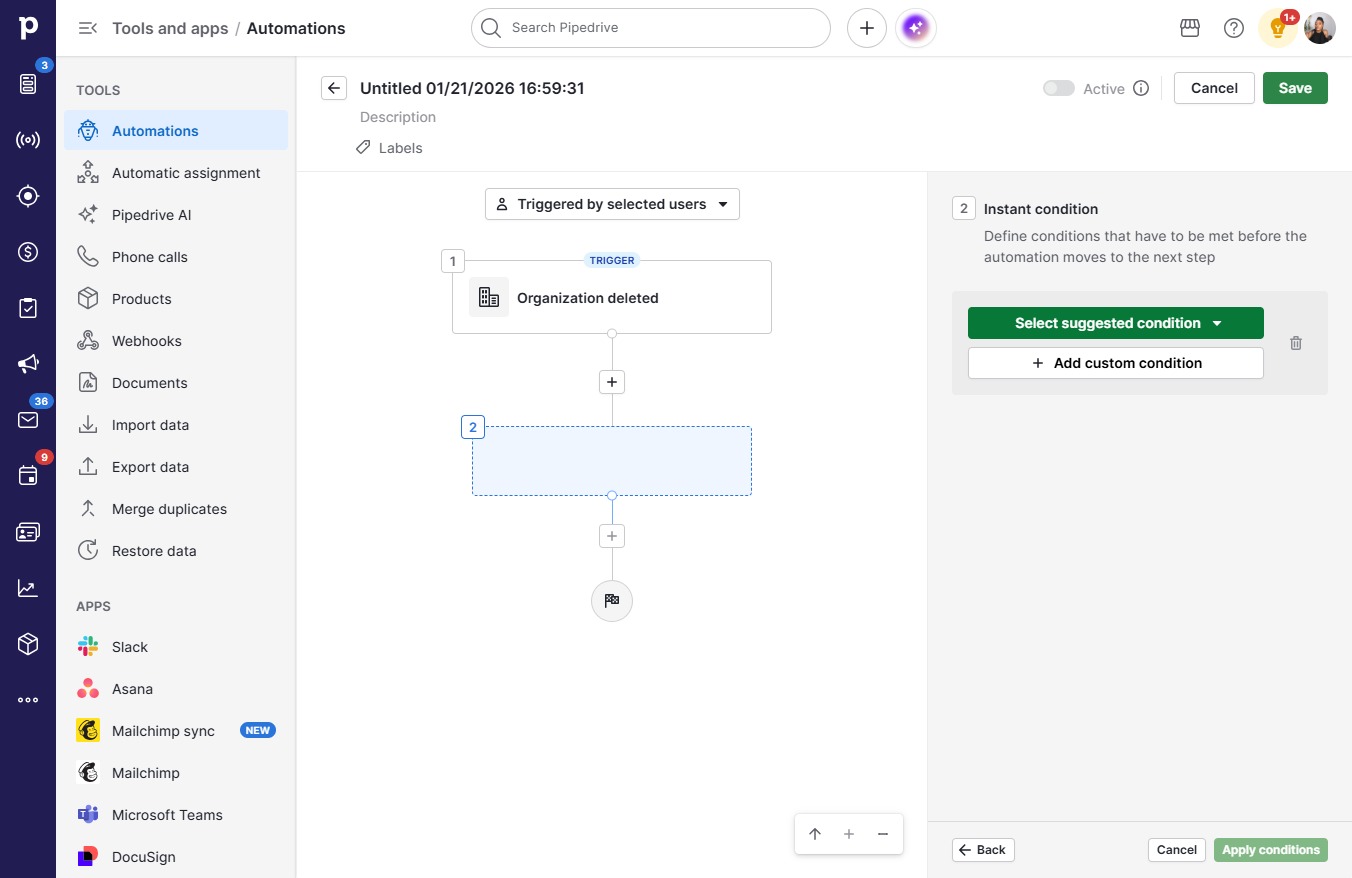
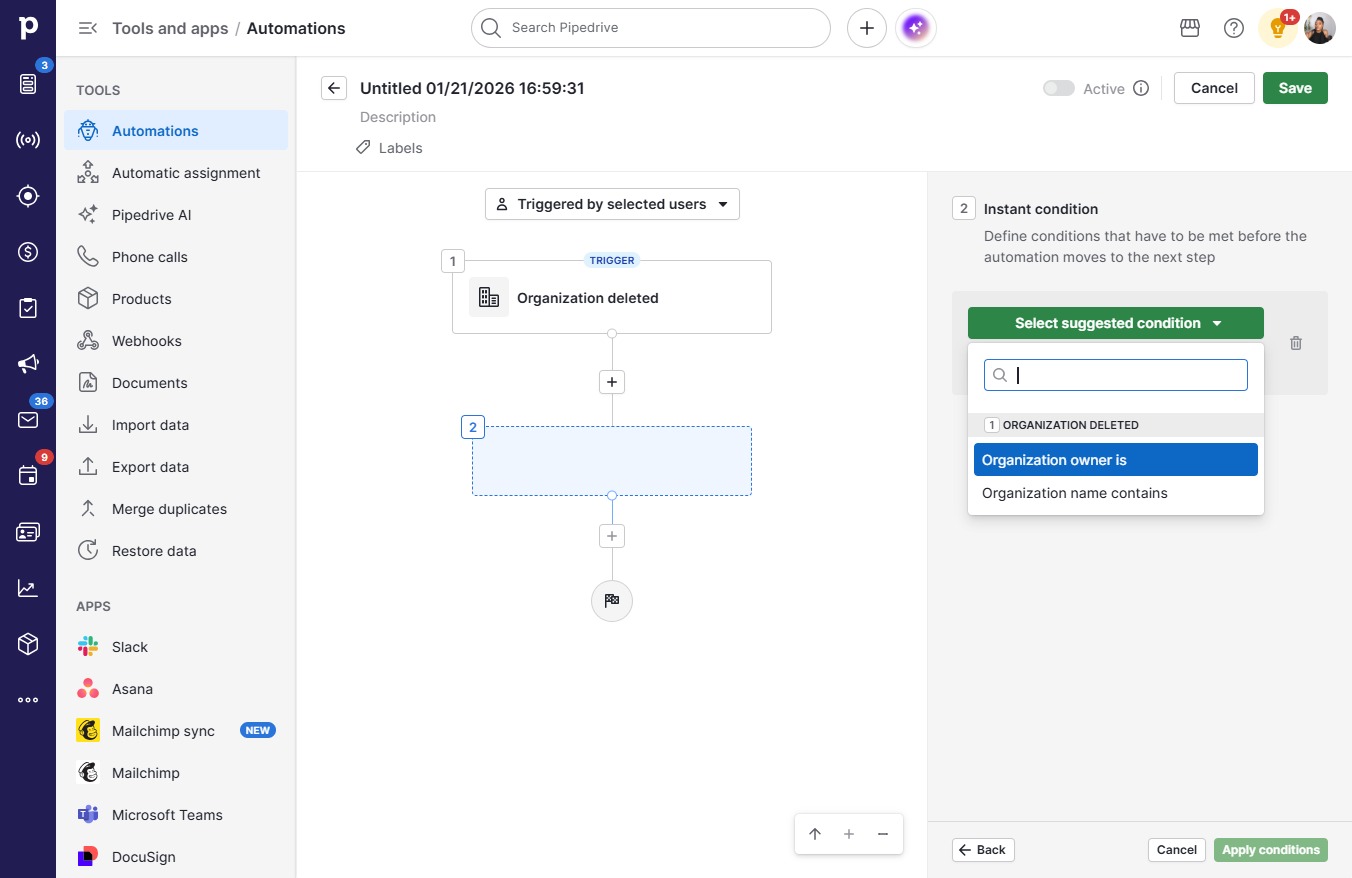
  8. Click Select suggested condition

    Click Select suggested condition
    Loading screenshot…
    100%
  9. Click Organization owner is

    Click Organization owner is
    Loading screenshot…
    100%
  10. Click on "Click here."

    Click on "Click here."
    Loading screenshot…
    100%
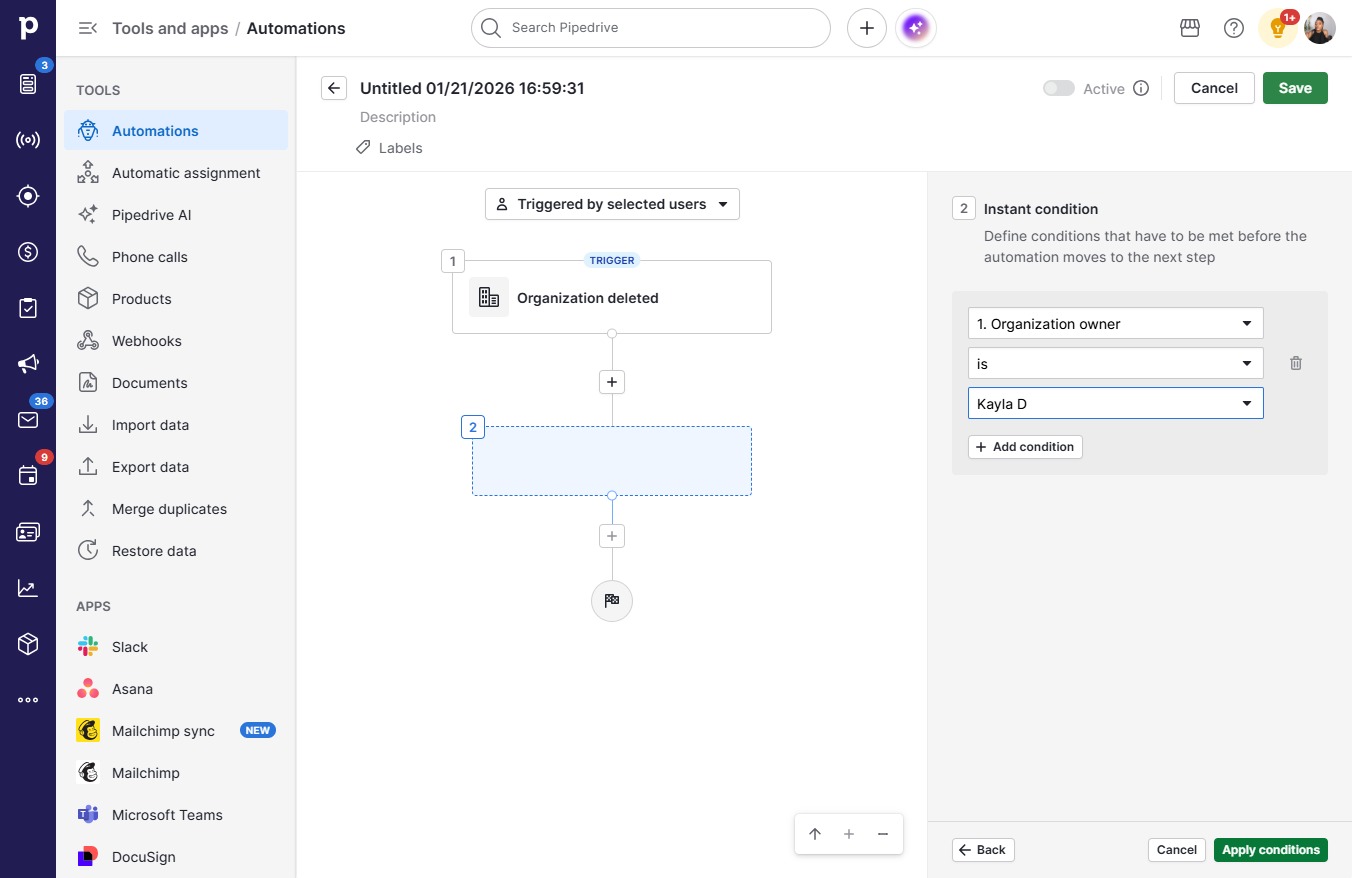
  11. Click Kayla D

    Click Kayla D
    Loading screenshot…
    100%
  12. Click Apply conditions

    Click Apply conditions
    Loading screenshot…
    100%
  13. Click Save

    Click Save
    Loading screenshot…
    100%