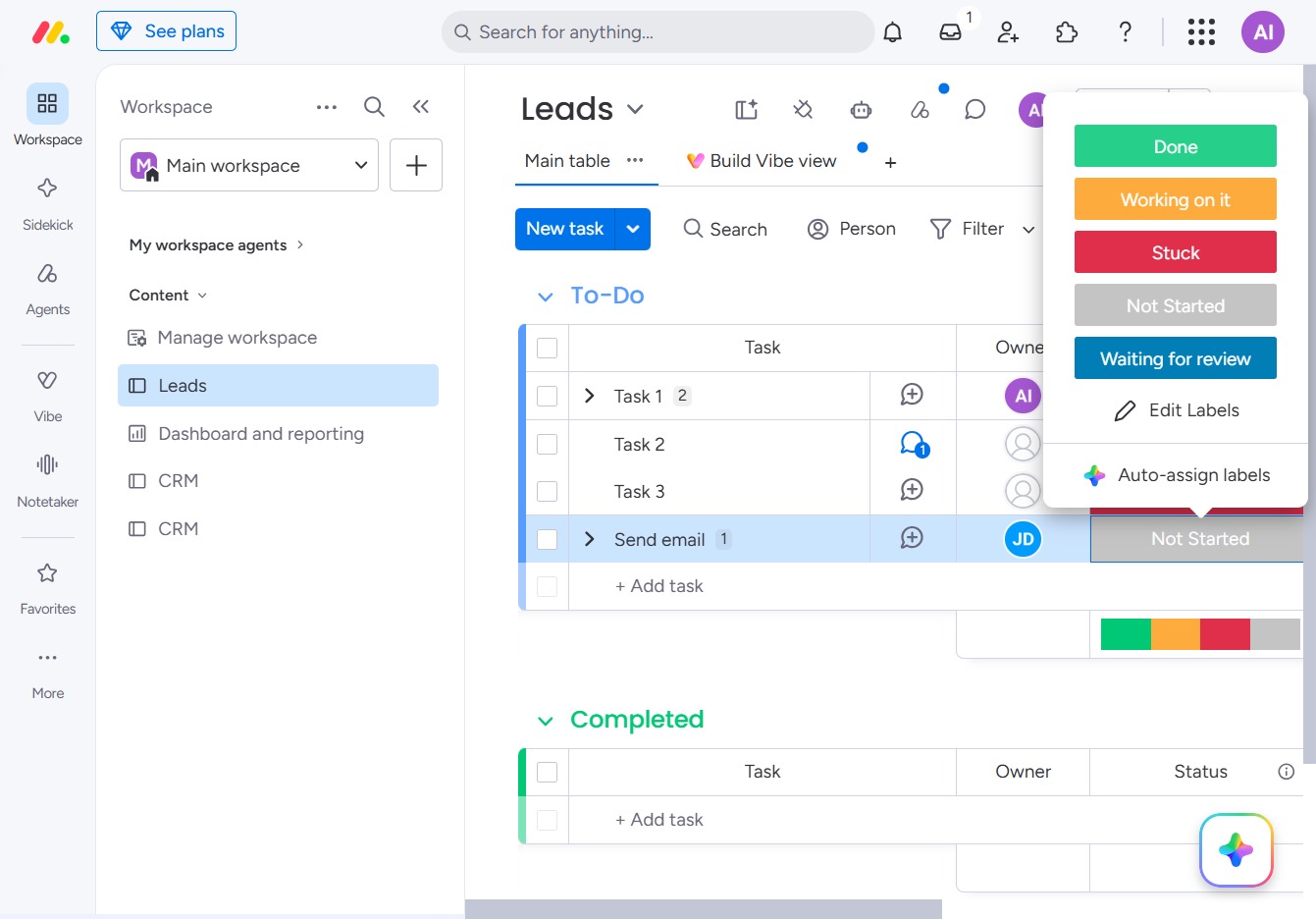
Click the BoardLeads button
Clicking the BoardLeads button will direct you to the leads management section, where you can view and manage your CRM leads.
Loading screenshot…
100%
This how-to guide walks you through utilizing the Status column in your leads management workflow.
 viktoria
This how-to guide walks you through utilizing the Status column in your leads management workflow. Learn how to update task statuses from 'Not Started' to 'Done' to effectively track progress and manage your CRM more efficiently.
Clicking the BoardLeads button will direct you to the leads management section, where you can view and manage your CRM leads.
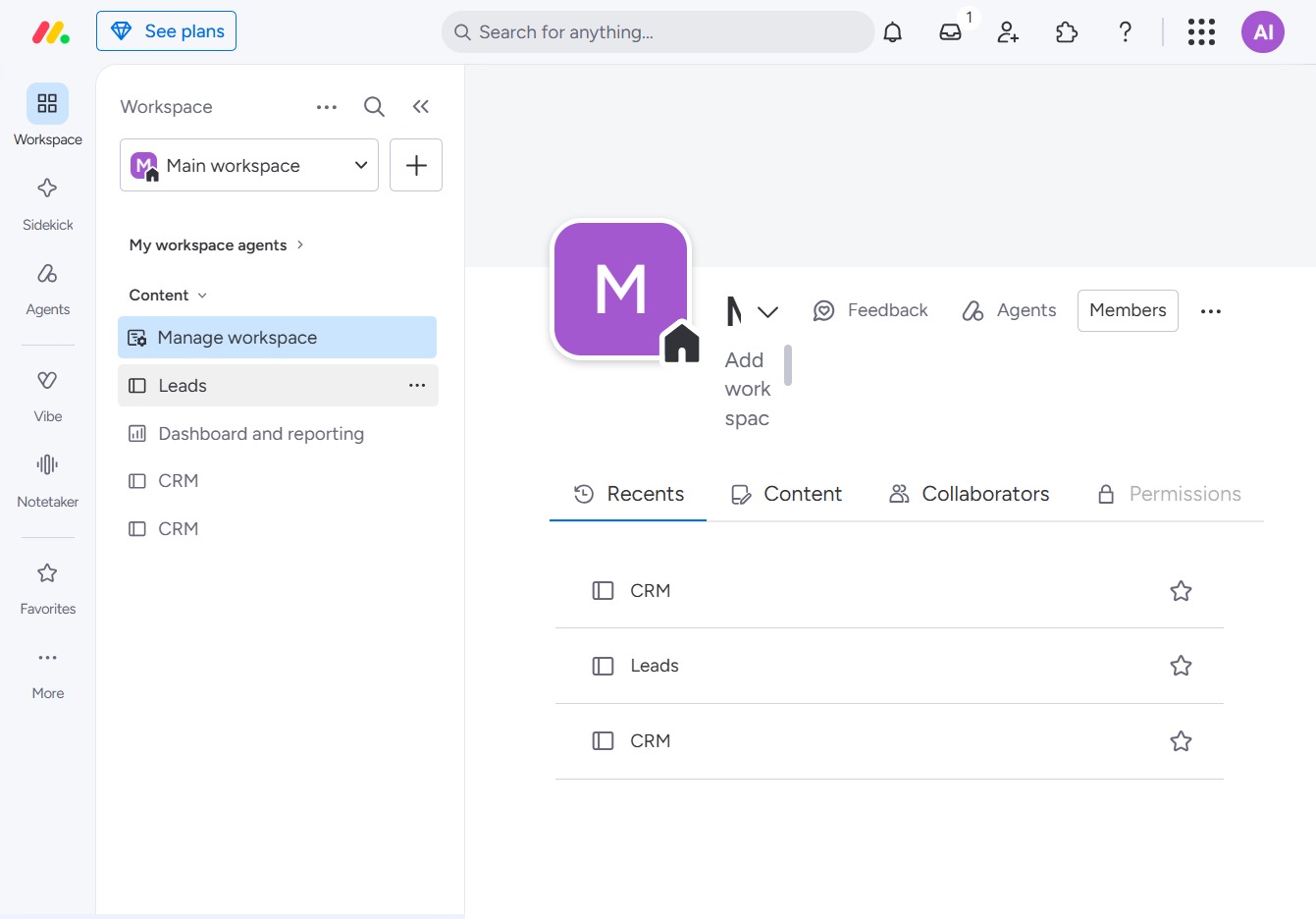
Clicking the 'Not Started' status label will allow you to update the status of the task, indicating that it has not yet been addressed. This action can help in managing your workflow more effectively by tracking the progress of each task.
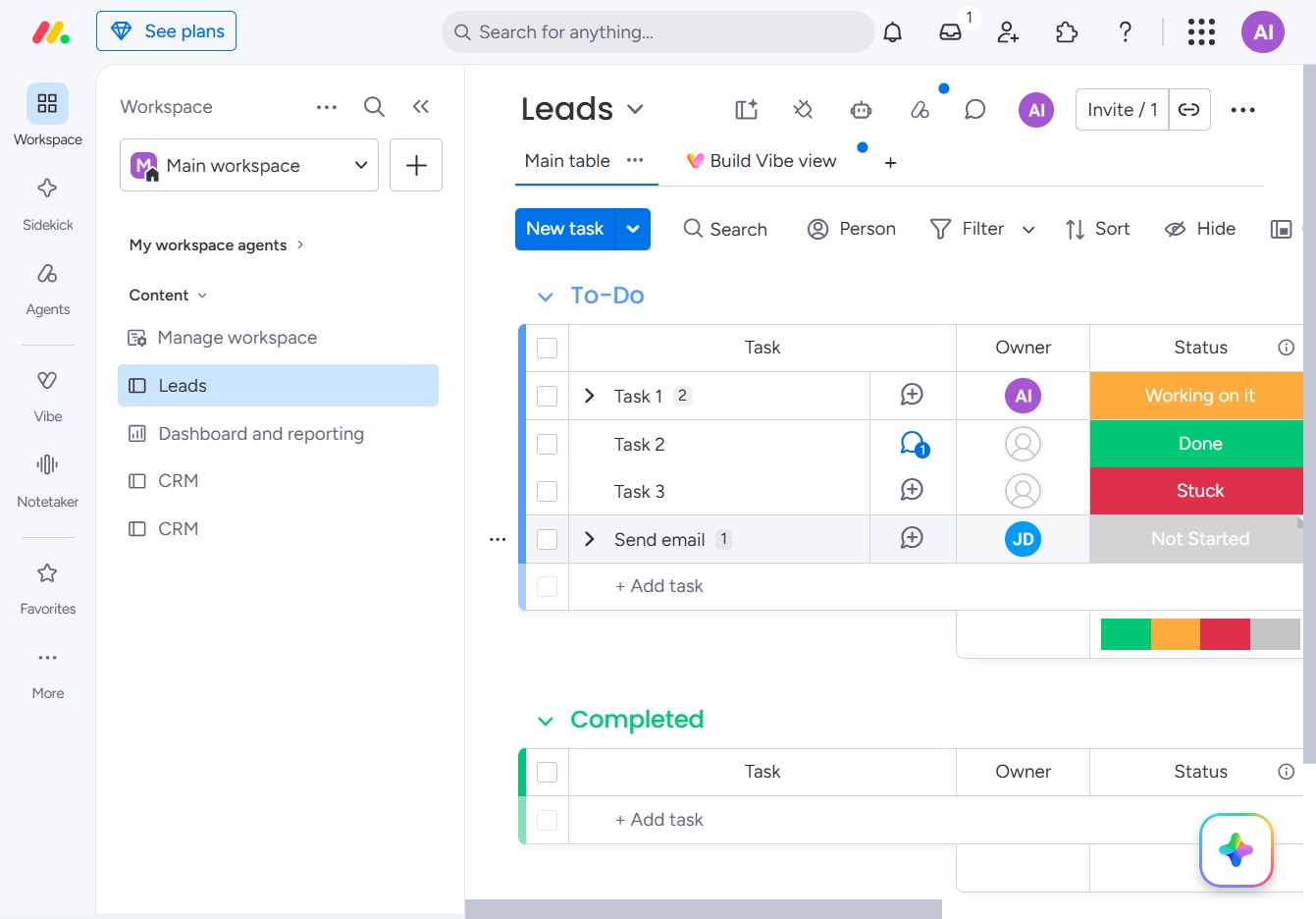
Selecting 'Done' updates the task status, indicating it is pending review and necessary feedback.