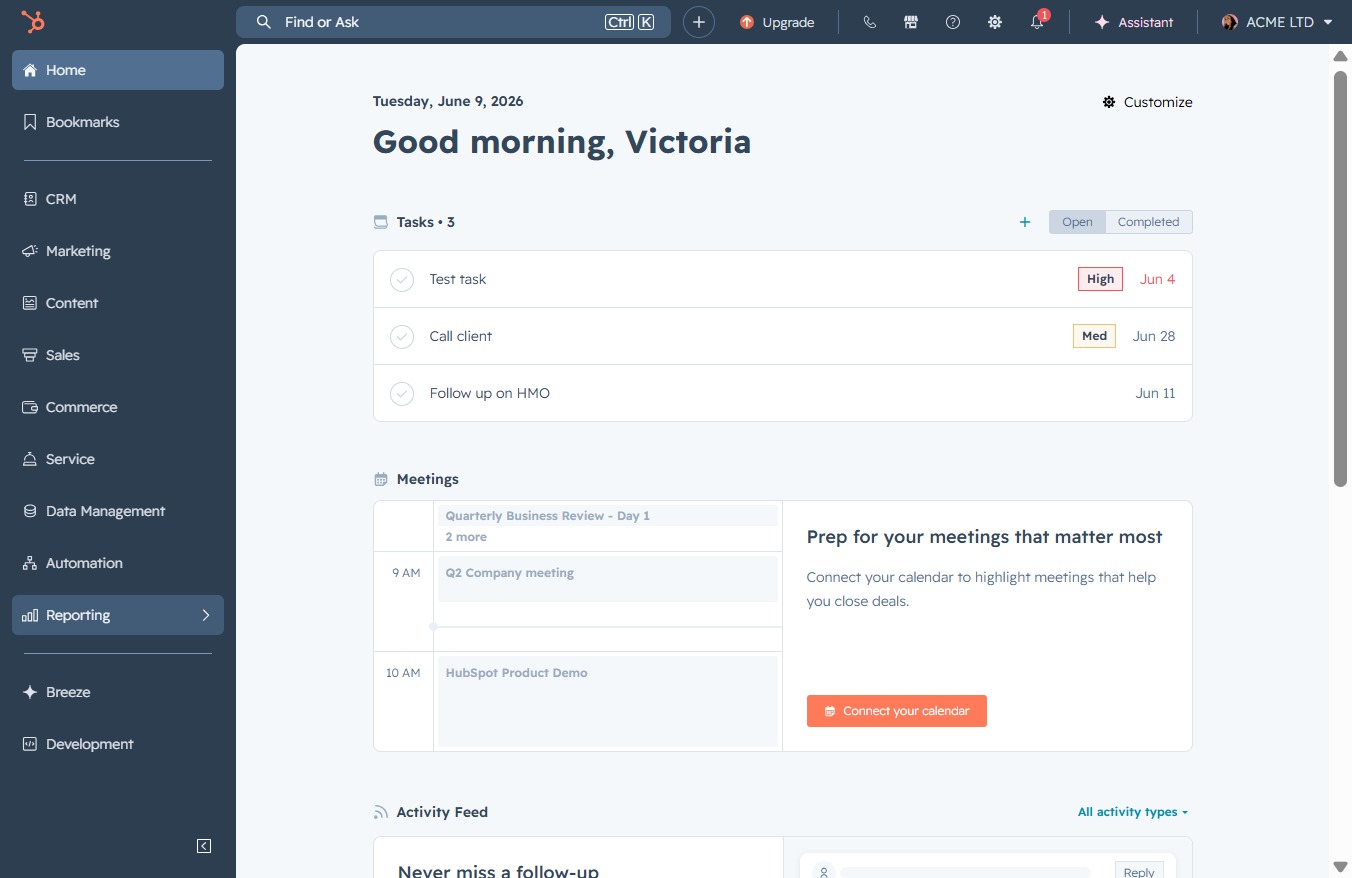
Click the Reporting section
Selecting the Reporting section allows you to view and manage various reports related to your tasks and meetings. This area provides insights into your activities and helps track progress.
Loading screenshot…
100%
Utilize the reporting feature to generate a revenue report, filter templates by entering 'revenue', and customize access settings for collaborative insights into revenue tracking.
 viktoria
Utilize the reporting feature to generate a revenue report, filter templates by entering 'revenue', and customize access settings for collaborative insights into revenue tracking.
Selecting the Reporting section allows you to view and manage various reports related to your tasks and meetings. This area provides insights into your activities and helps track progress.
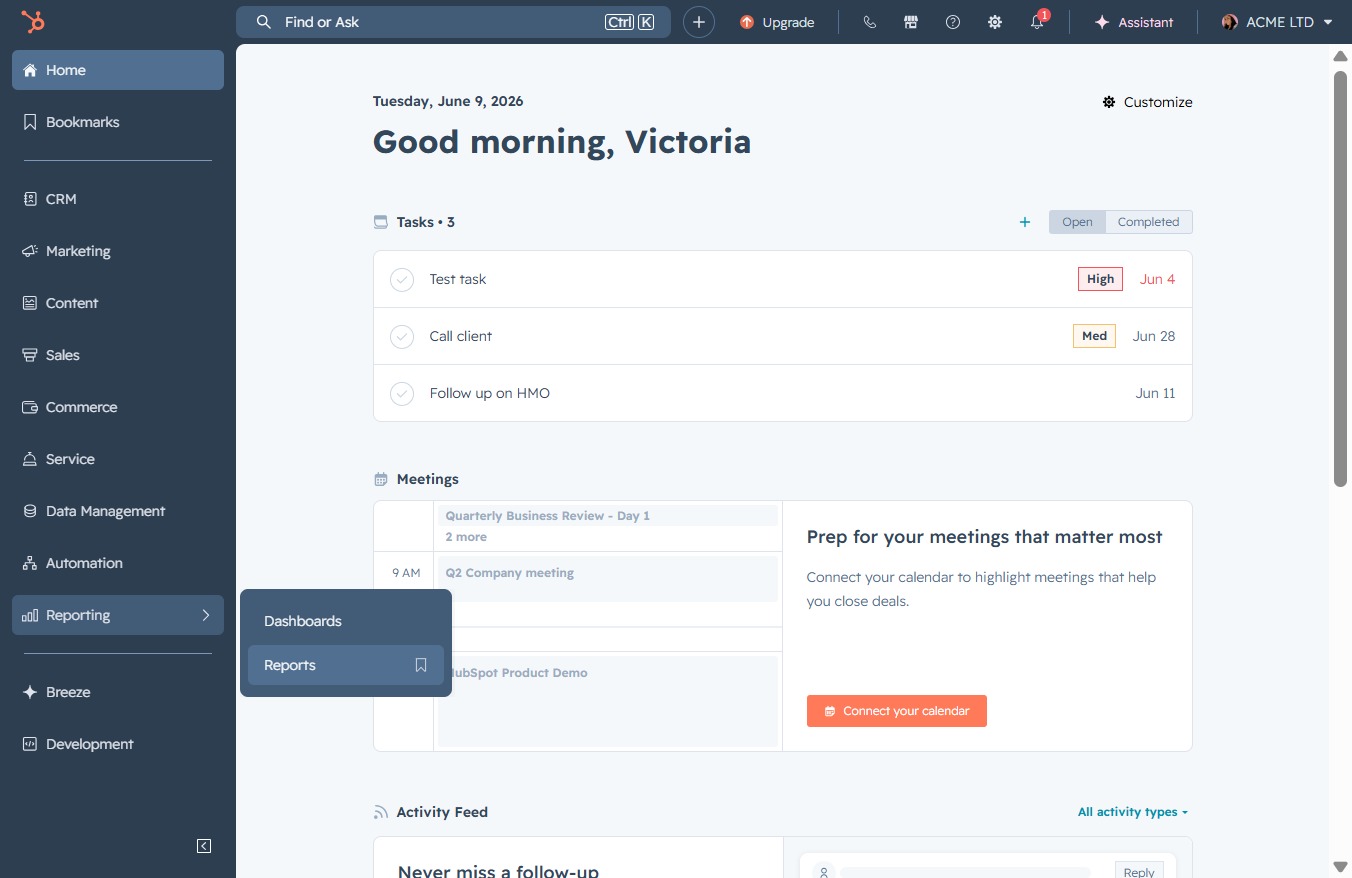
Clicking the 'Reports' link will navigate you to the reports section, where you can view and manage various analytics related to your data.
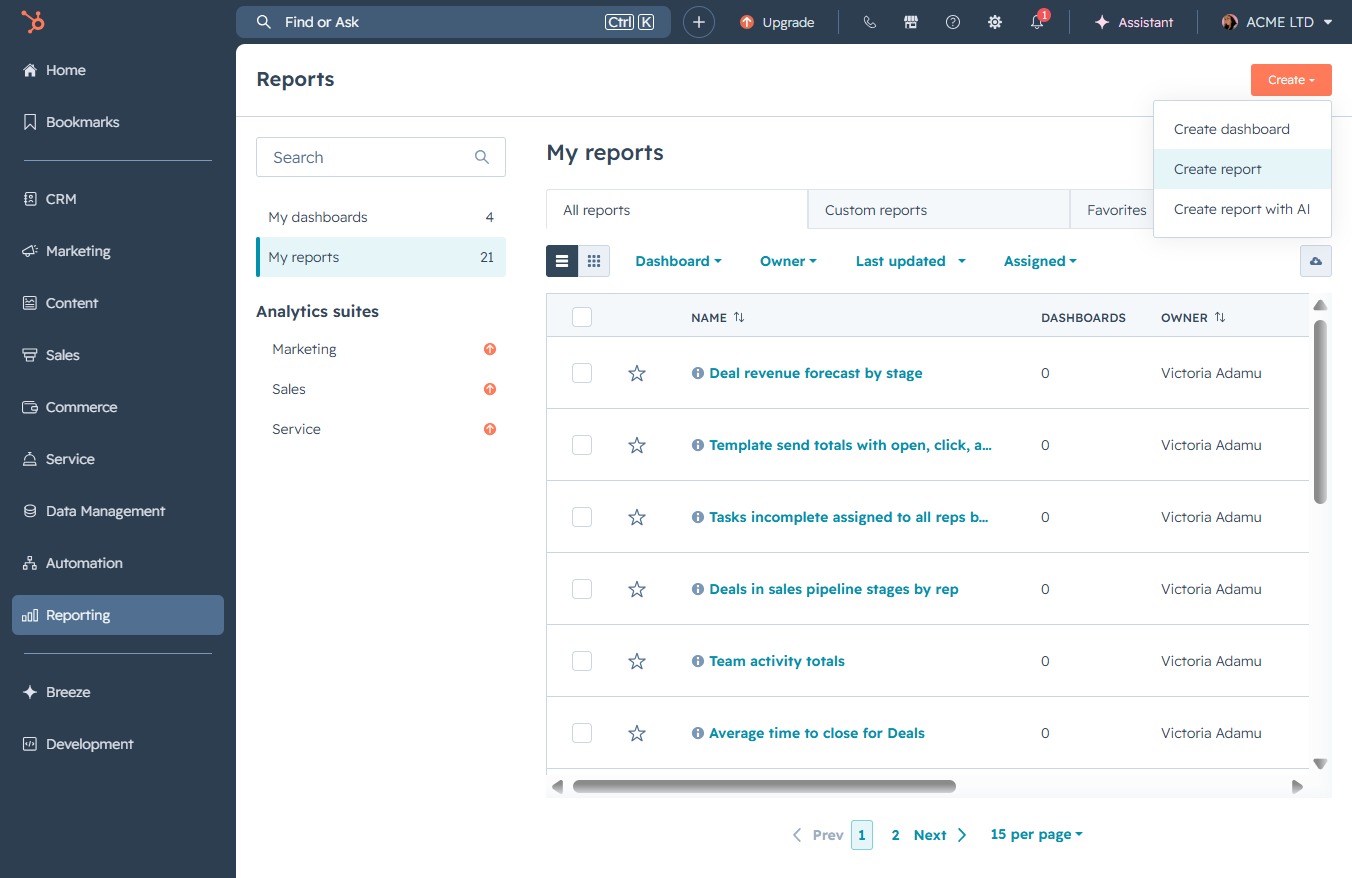
This action will initiate the creation of a new report in the 'My Reports' section. You will be prompted to specify details for the new report after clicking.

This action opens a form where you can specify the details needed to generate a new report. Fill in the required fields to customize your report and then submit to create it.
This will activate the search input where you can type to filter or find specific report templates. Once you've entered your query, relevant templates will be displayed based on your input.

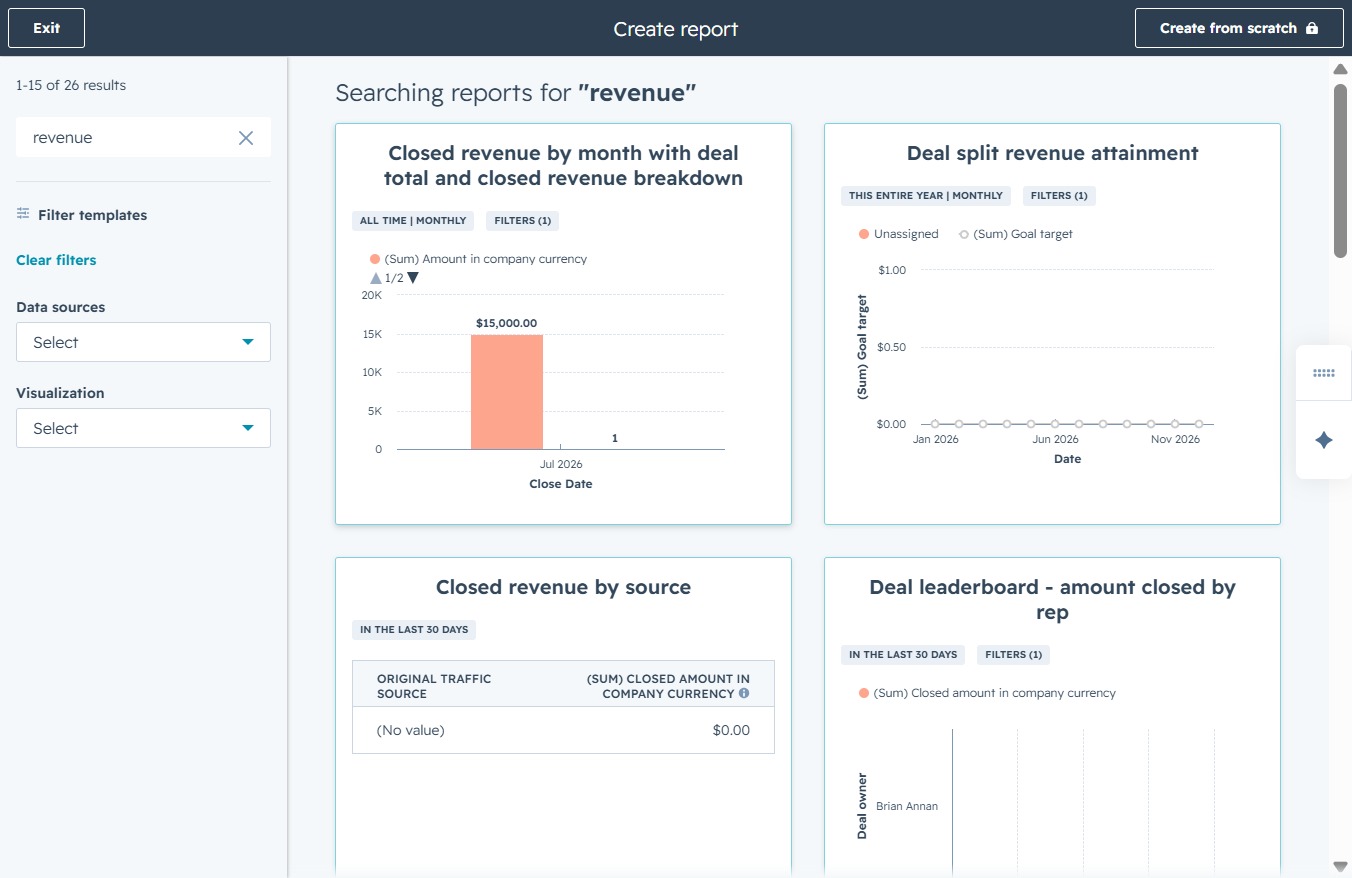
Enter 'revenue' in the search field to filter and display available reporting templates related to revenue tracking. This action will help you quickly find templates such as 'Closed revenue by month' and 'Deal split revenue attainment'.
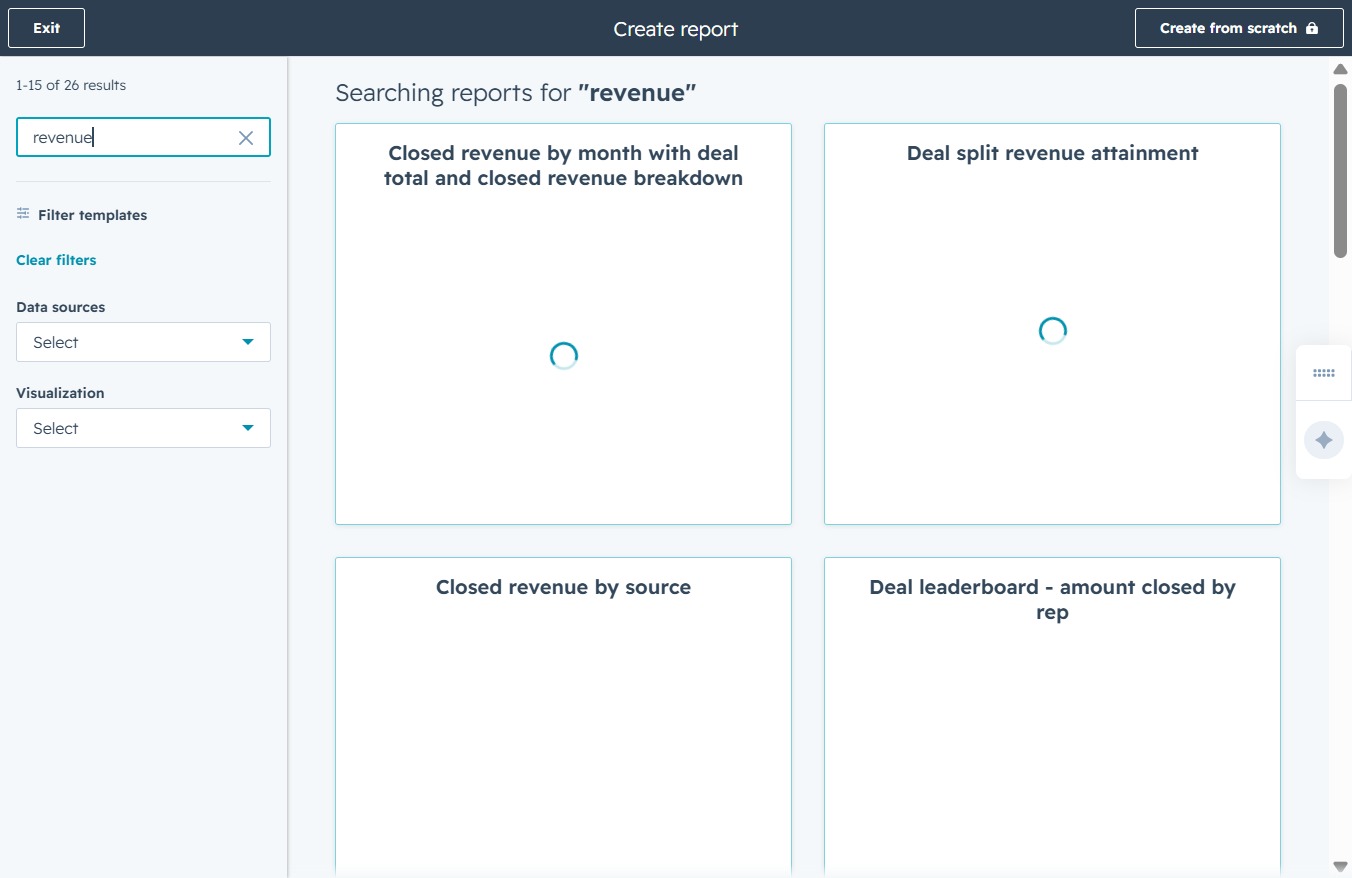
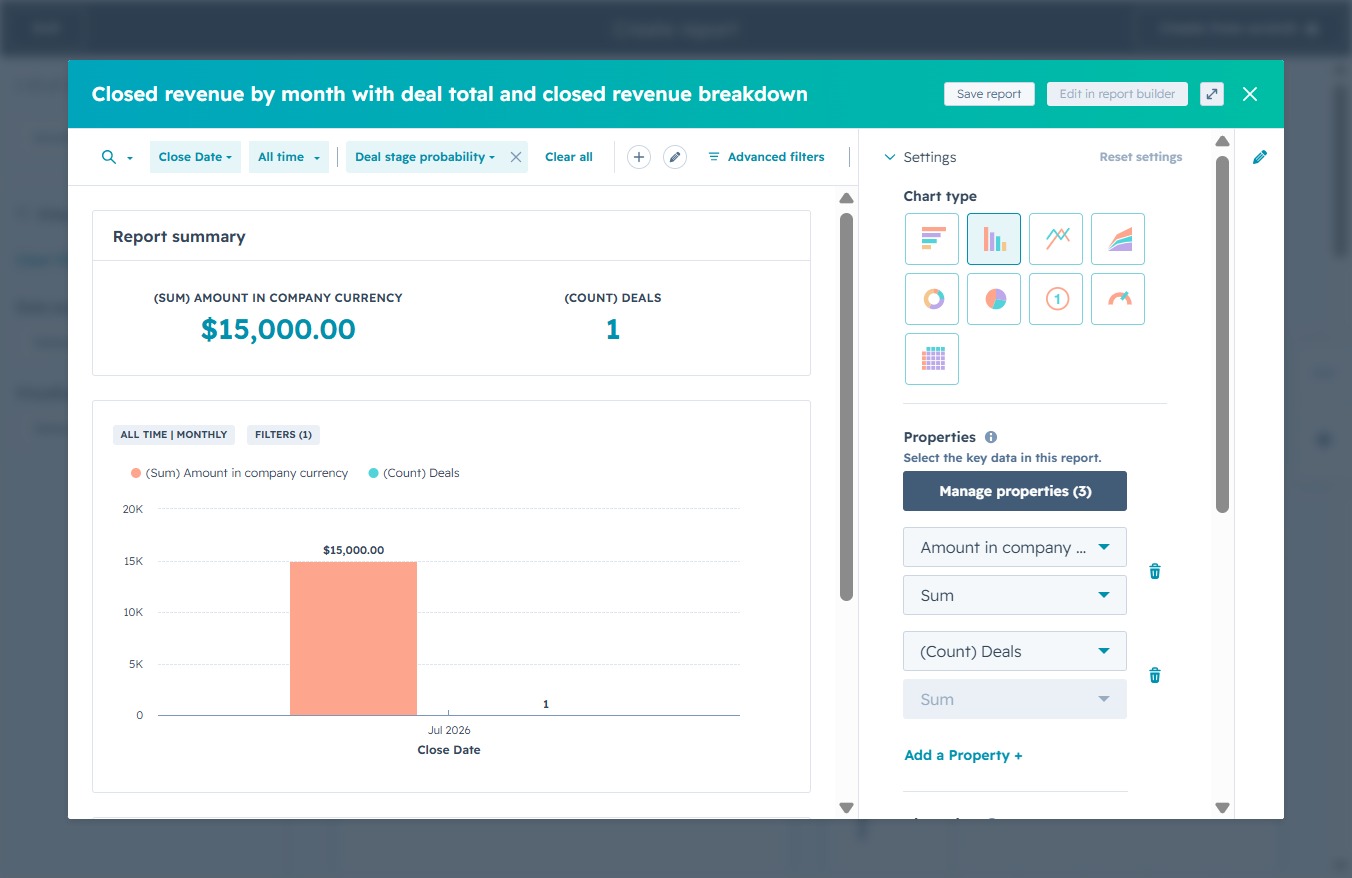
This action opens the detailed view of closed revenue over time, allowing you to analyze the breakdown of deals and revenue totals for selected periods.
This action will save your current report settings and data, allowing you to revisit it later without losing any modifications made.
By clicking 'Next', you will advance to the next step in the report saving process, allowing you to finalize your preferences for dashboard integration.
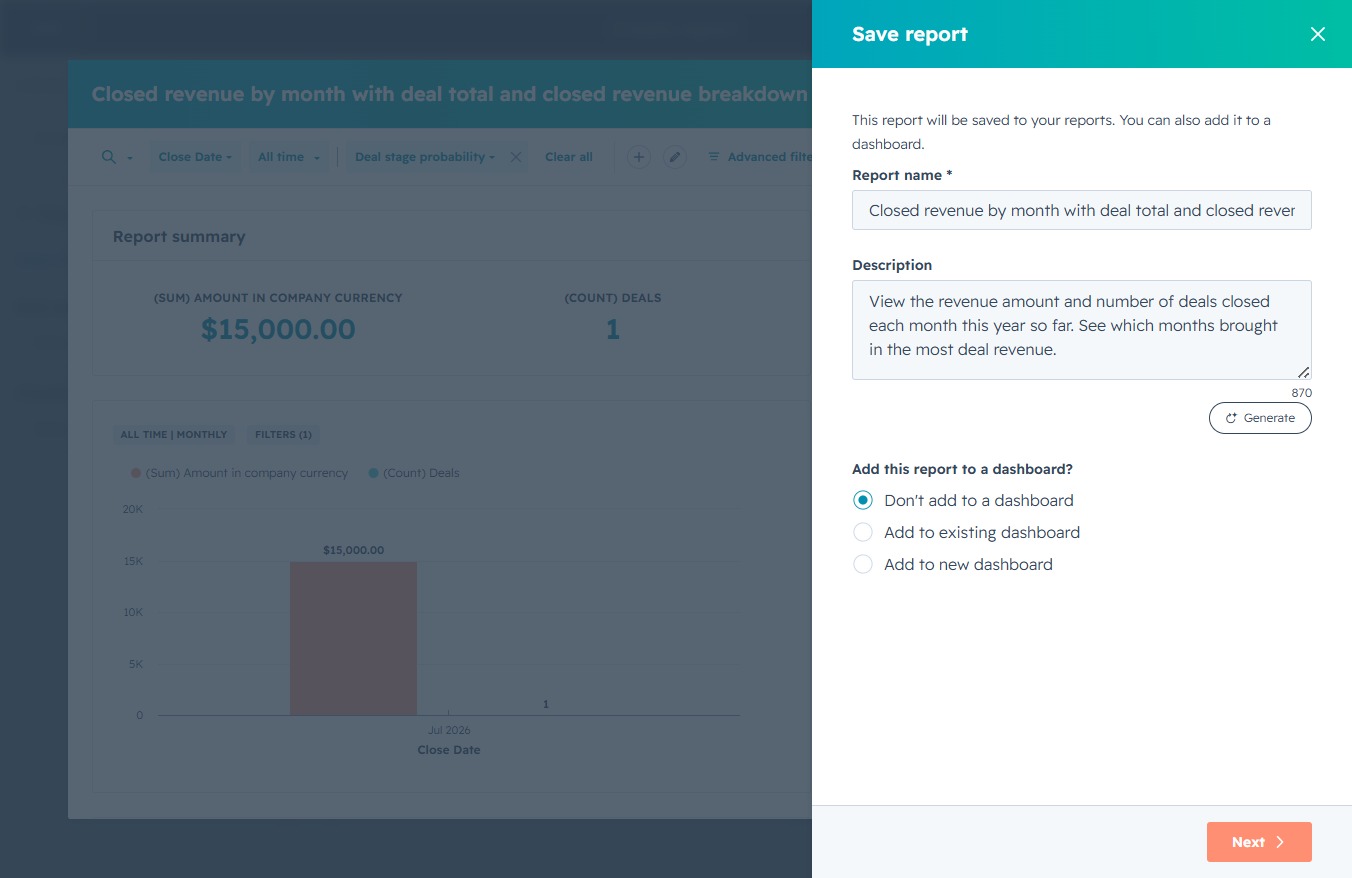
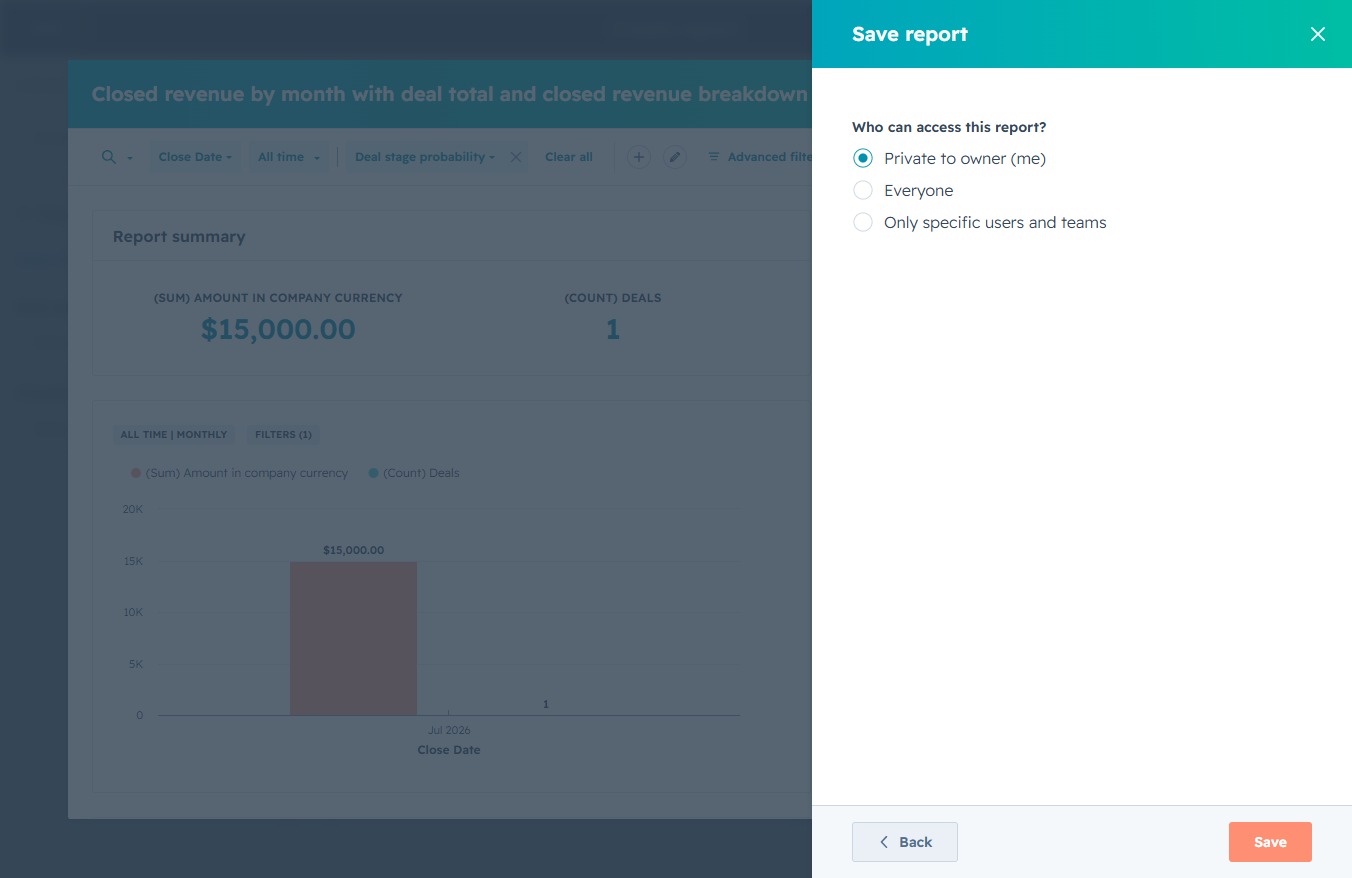
This action saves the current report and its access settings. You can choose who can view or edit the report, ensuring the appropriate audience has access.
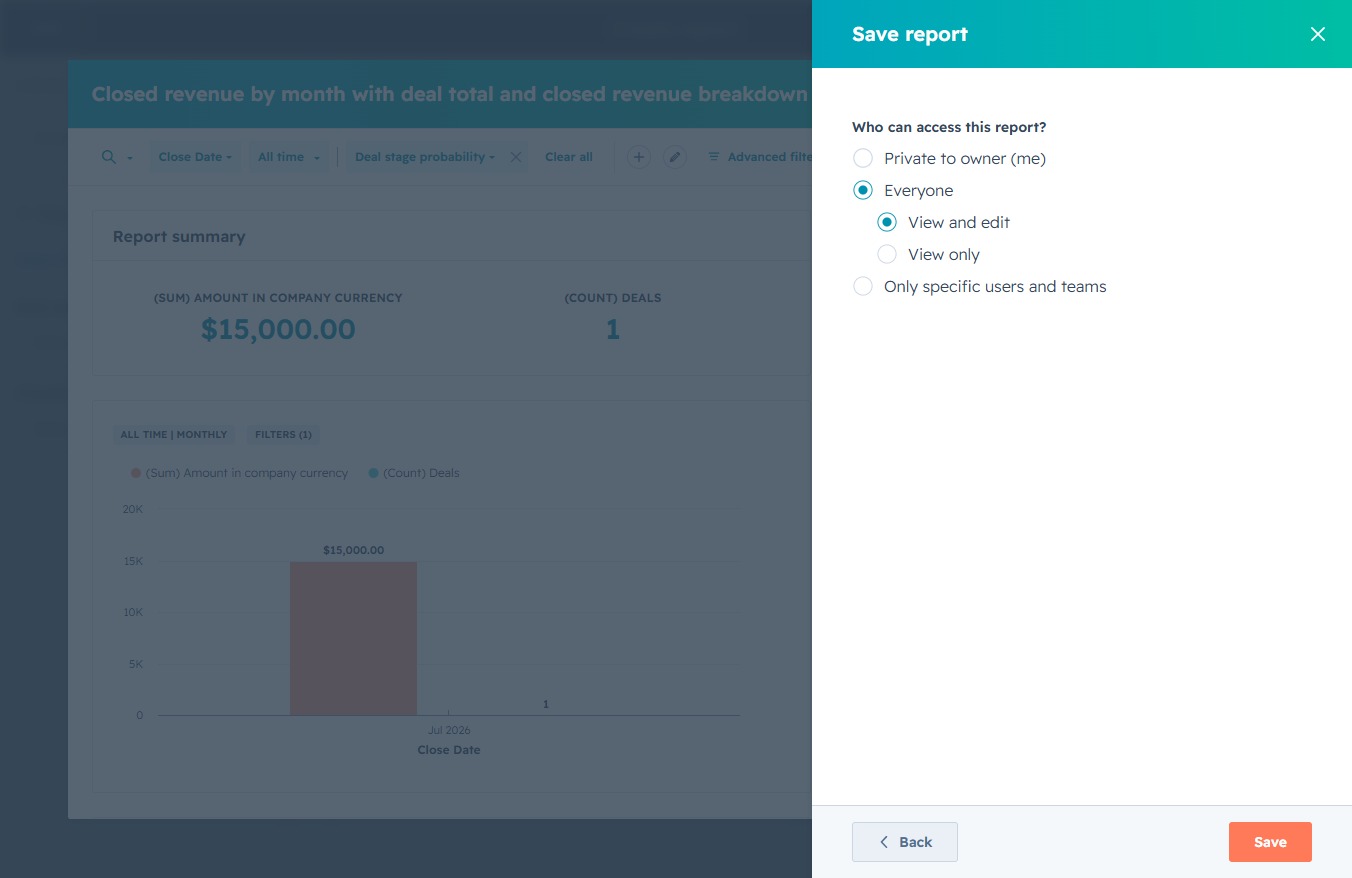
This action saves your report with the selected access permissions. Ensure you have chosen who can access the report before saving.