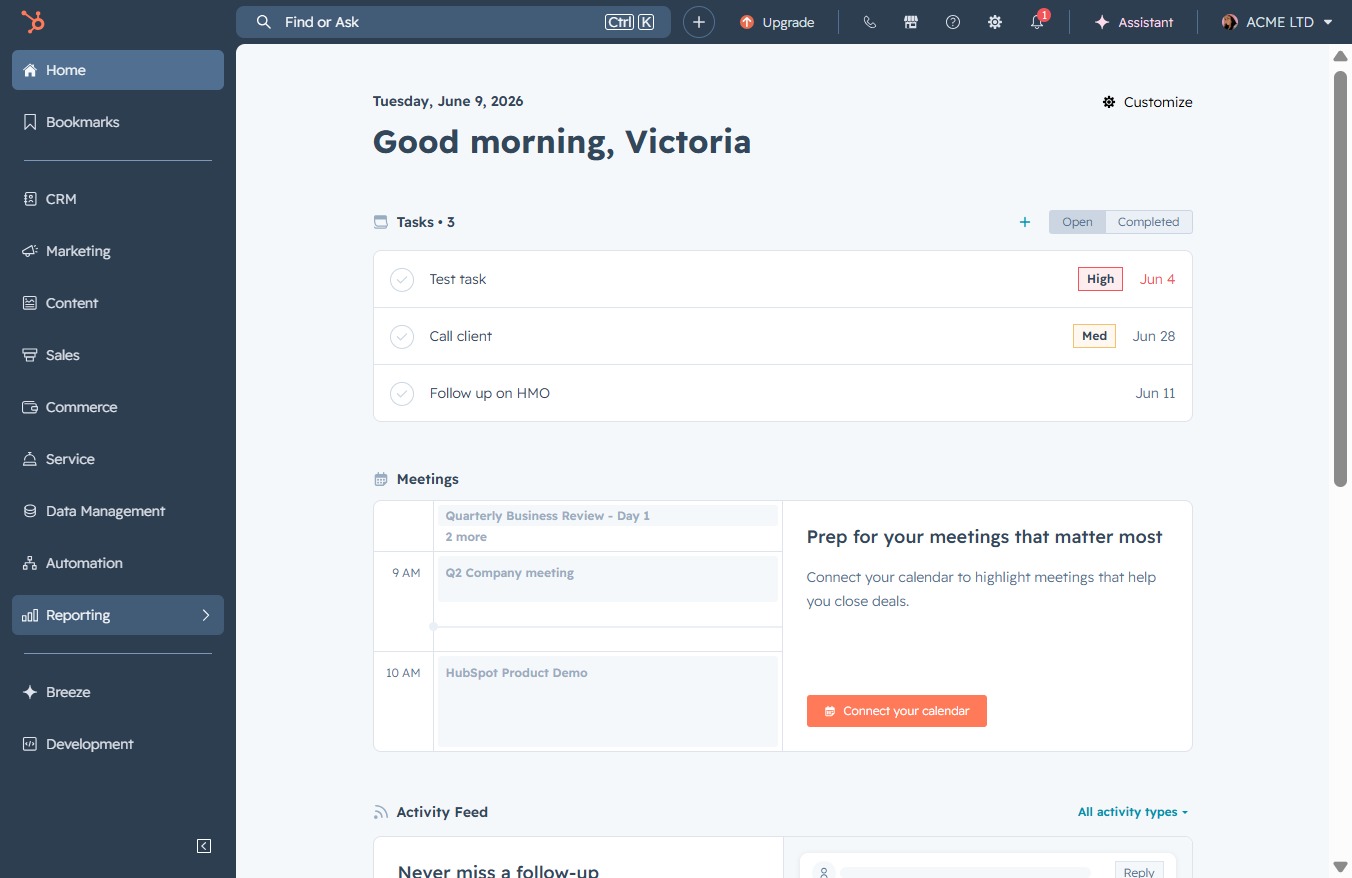
Click the Reporting link
This will take you to the Reporting section where you can view and manage your reports and analytics related to your tasks and meetings.
Loading screenshot…
100%
Generate a customized pipeline snapshot report in the reporting tool by selecting templates, configuring filters, and saving your report with designated access permissions for…
 viktoria
Generate a customized pipeline snapshot report in the reporting tool by selecting templates, configuring filters, and saving your report with designated access permissions for future analysis.
This will take you to the Reporting section where you can view and manage your reports and analytics related to your tasks and meetings.
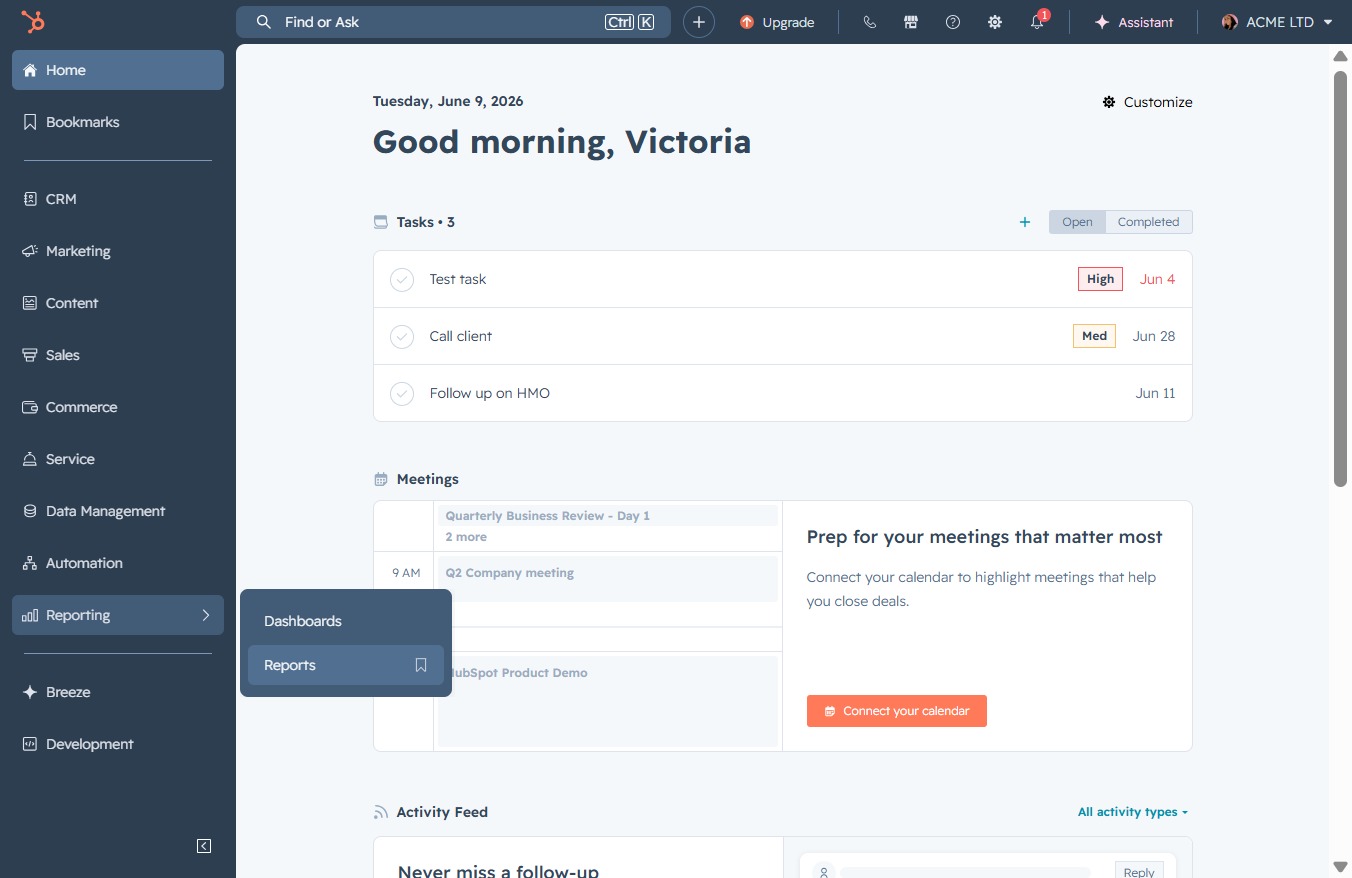
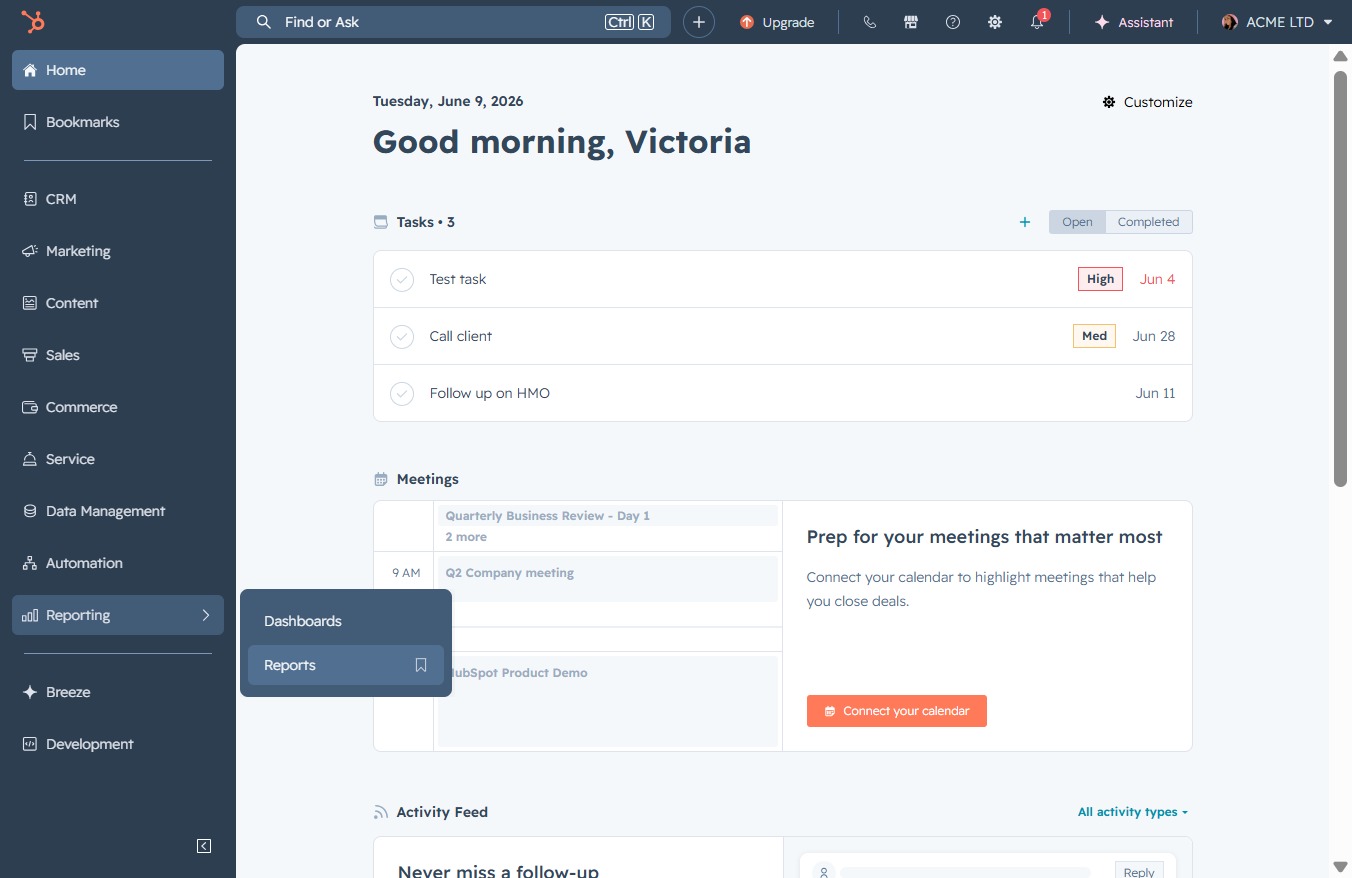
This action will navigate you to the Reports section, where you can view and analyze different performance reports related to your activities.
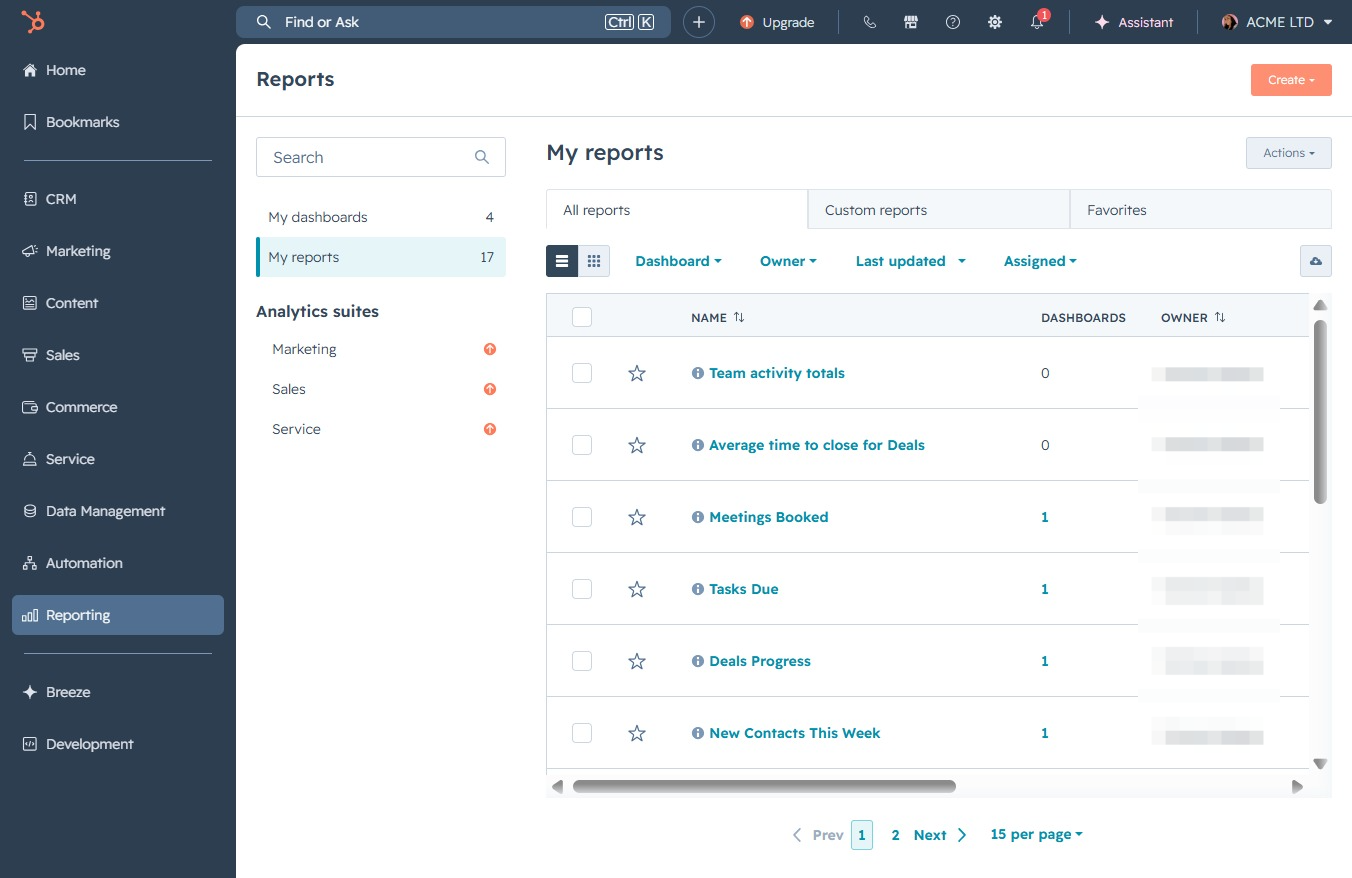
This action will display the reports available for review and analysis, allowing you to access various data insights and performance metrics.
Clicking the Create button allows you to initiate the process of generating a new report within the Reports section, enabling you to customize your analytics and track important metrics.
This will open a new interface allowing you to configure and generate a report tailored to your specific needs.

By clicking the 'Search all templates' input box, you can begin typing to find specific report templates based on your needs. This feature helps streamline the process of locating the desired reporting format quickly.
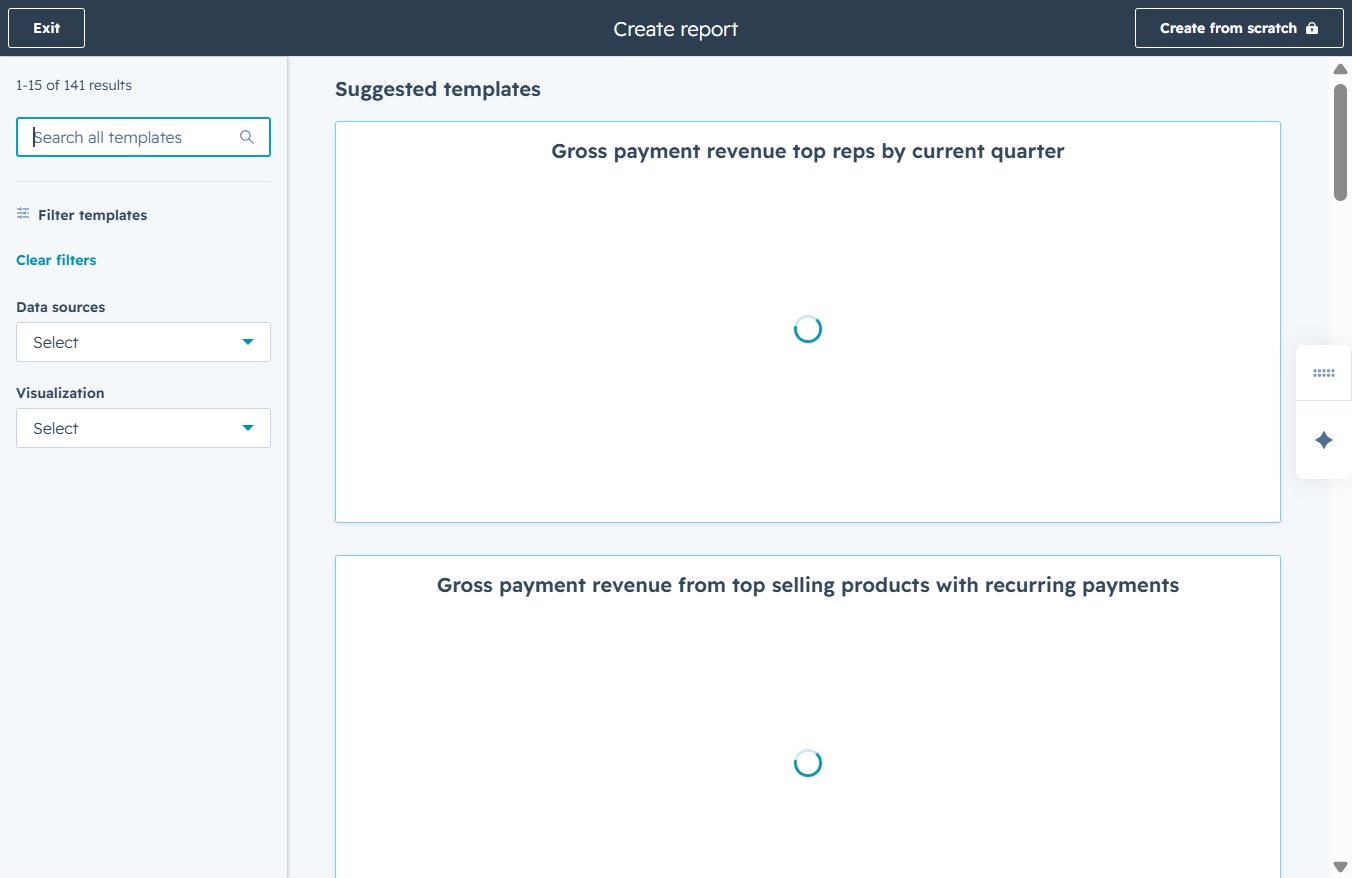
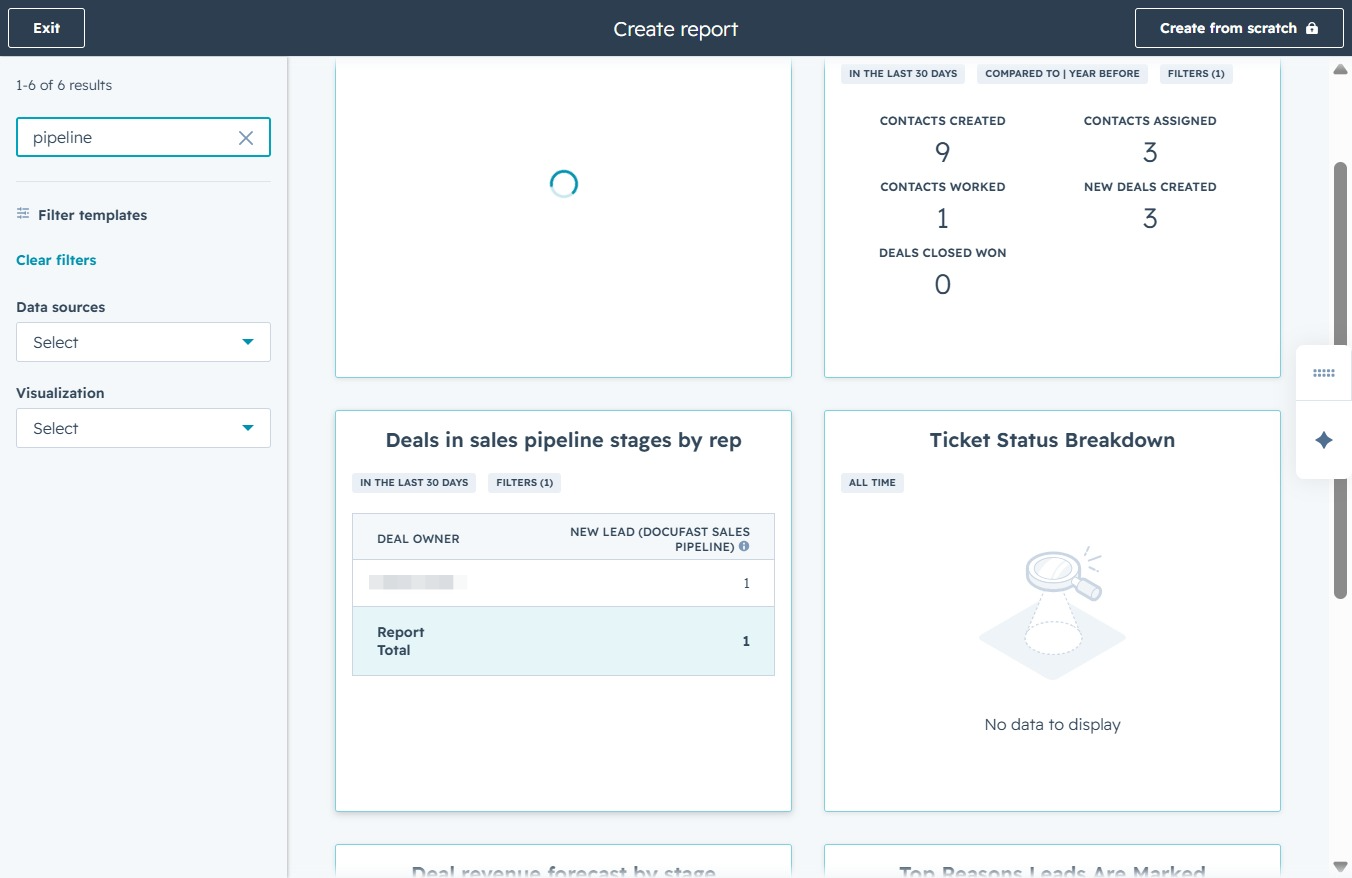
Enter 'pipeline' in the Search all templates field to filter and display reports related to pipeline management, helping you locate the desired templates more efficiently.

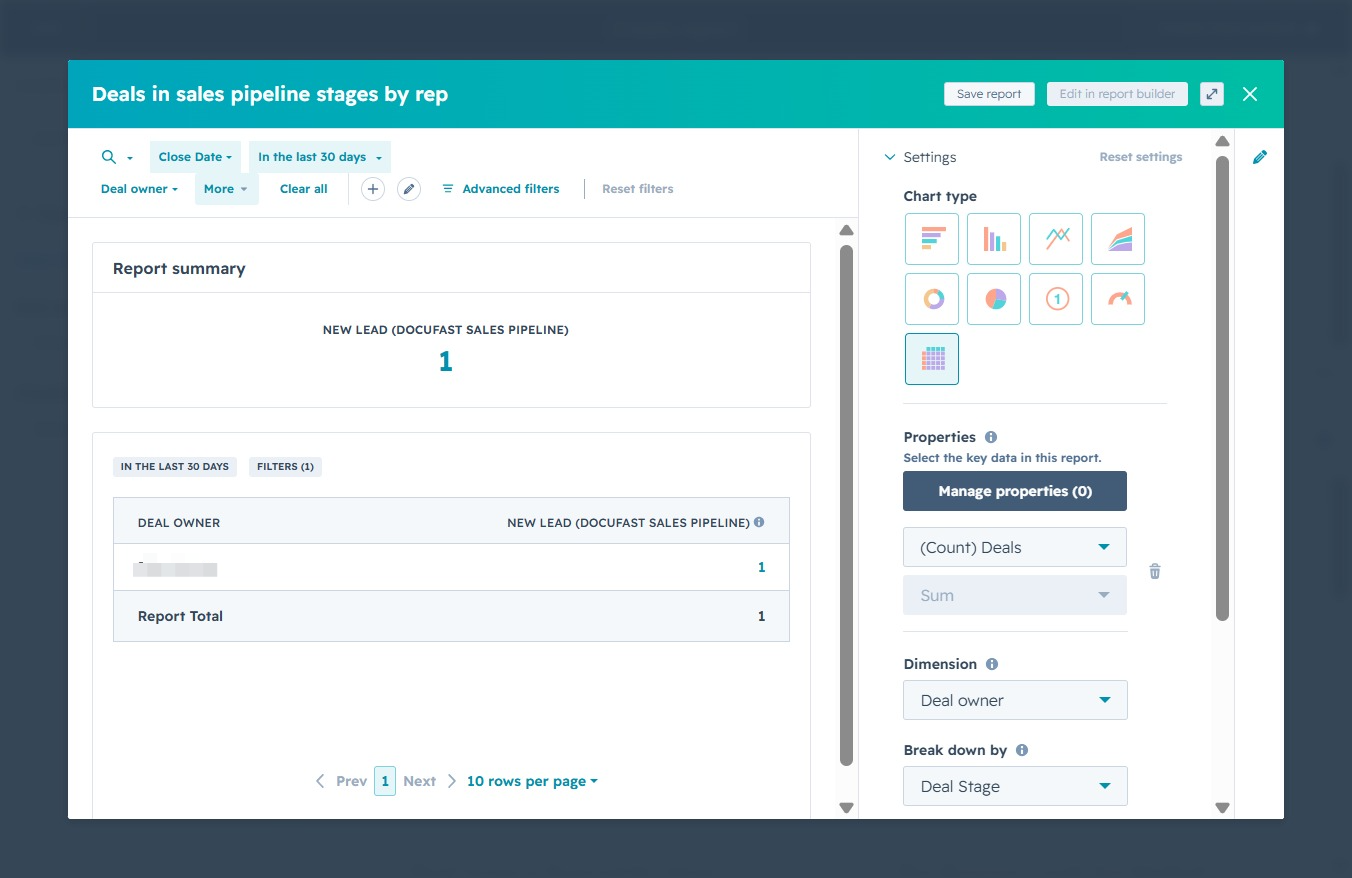
This action displays the total number of deals in the selected sales pipeline stage for the designated deal owner. You can evaluate the performance and track progress over specific time frames.
Clicking this button will save the current report configuration and any applied filters, ensuring your selections are preserved for future access.
This action will take you to the next step of saving your report, allowing you to finalize your selections for the dashboard.
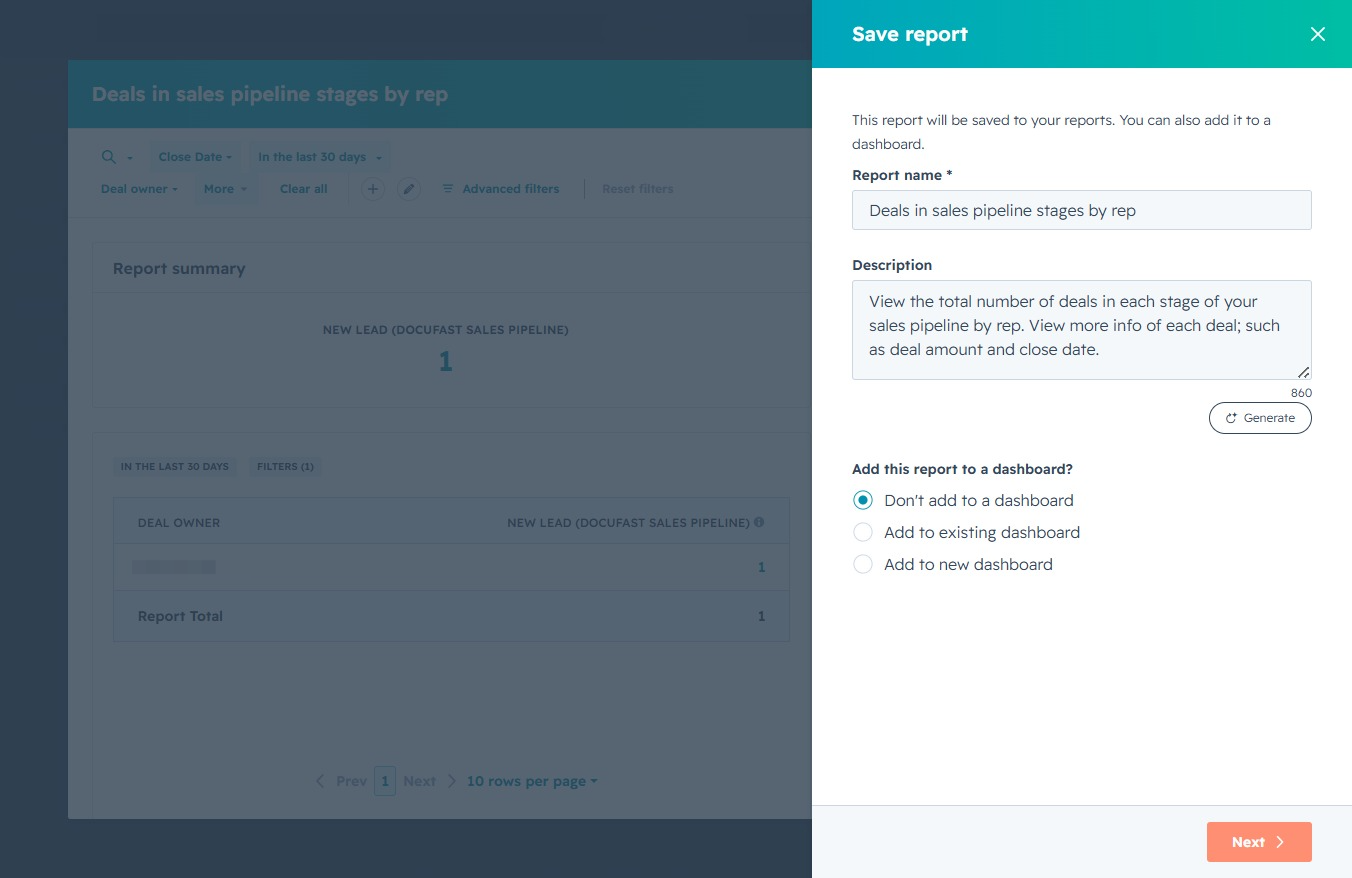
This action saves your report with the selected access settings, allowing you to control who can view or edit the report.

By clicking this button, you will finalize the report settings and save your current report with the specified access permissions.
