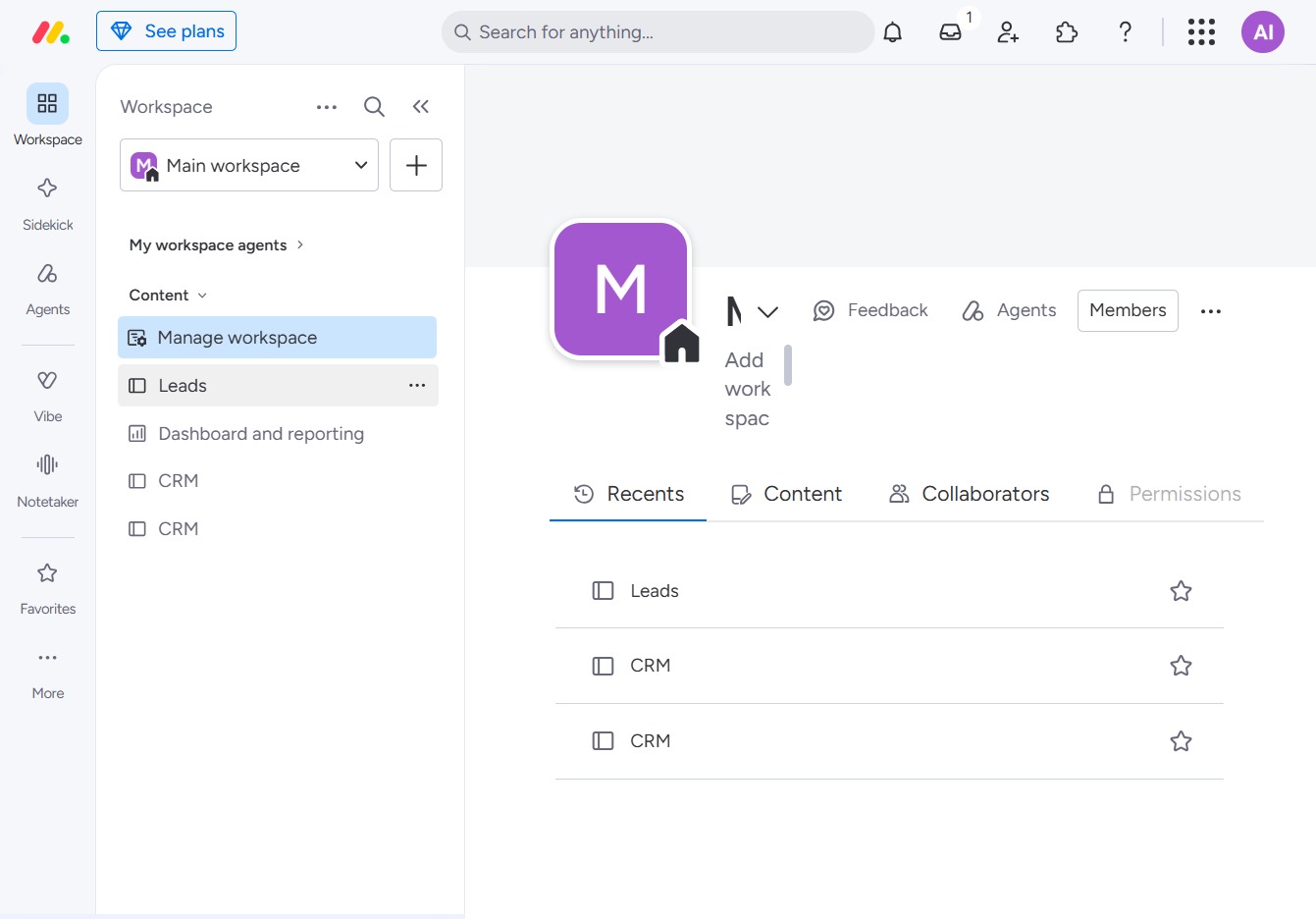
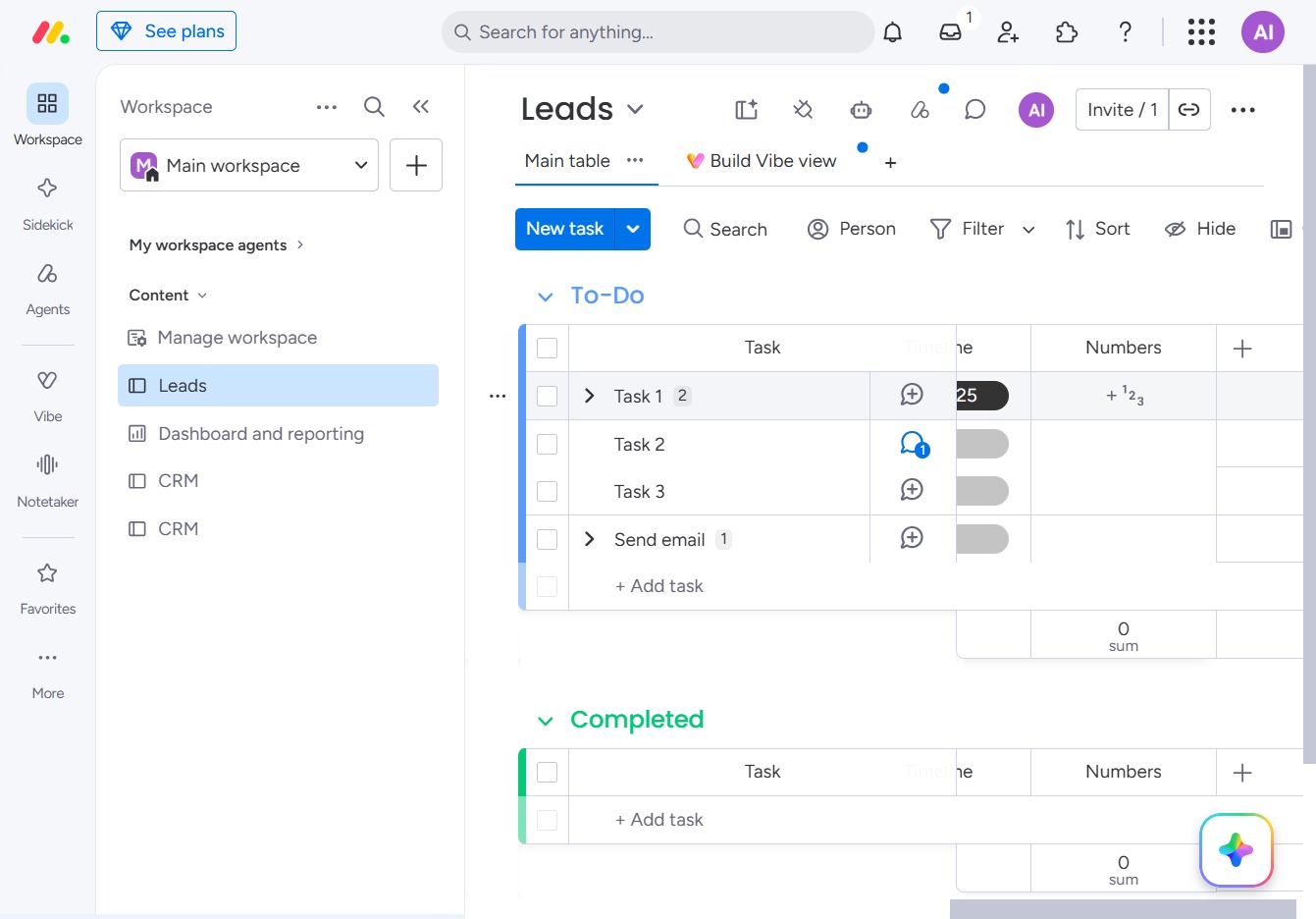
Click the BoardLeads option
Selecting the 'BoardLeads' option will provide access to lead management features, allowing you to view and manage your leads effectively.
Loading screenshot…
100%
Learn how to effectively manage your leads by utilizing the Numbers column in your project management tool.
 viktoria
Learn how to effectively manage your leads by utilizing the Numbers column in your project management tool. This guide walks you through navigation steps, adding tasks, and inputting numerical data to enhance your lead management process.
Selecting the 'BoardLeads' option will provide access to lead management features, allowing you to view and manage your leads effectively.
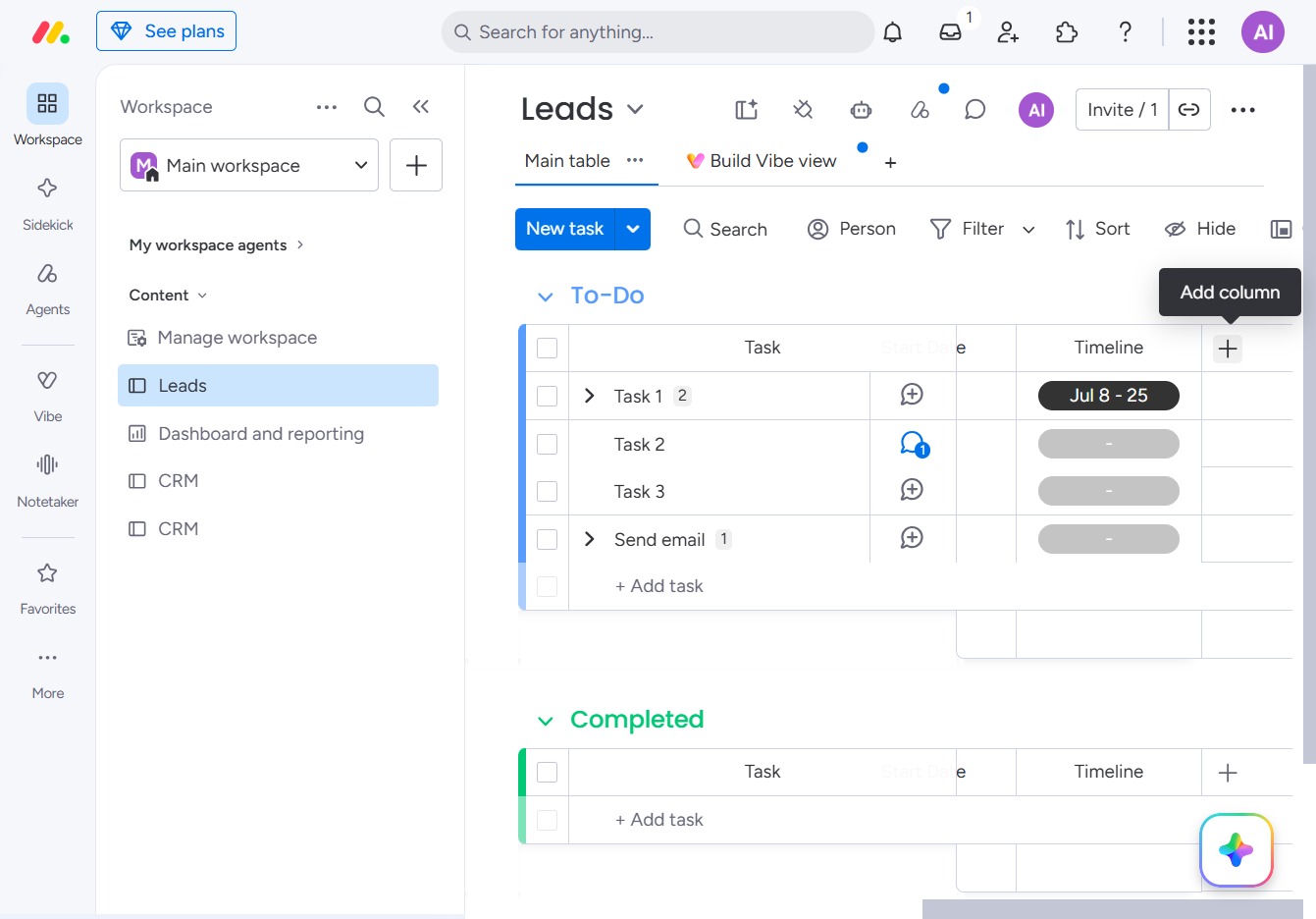
Clicking this link allows you to create and add a new task to your leads list, enhancing your project management capabilities.
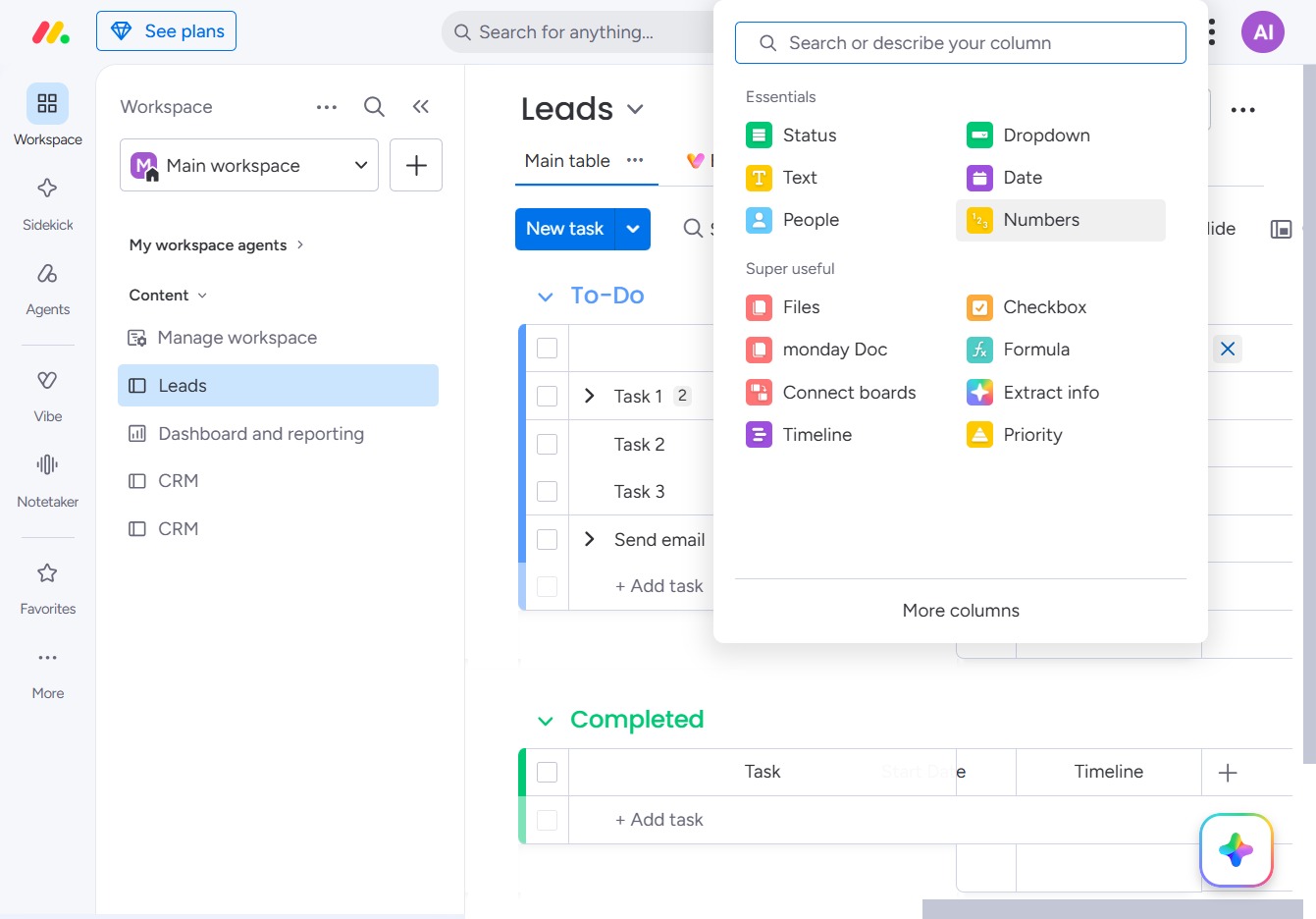
This will add a Numbers column to your Leads table, allowing you to input numerical data relevant to your tasks.
Selecting this area will display additional details about the selected task in the Leads section, allowing you to manage or edit the task efficiently.
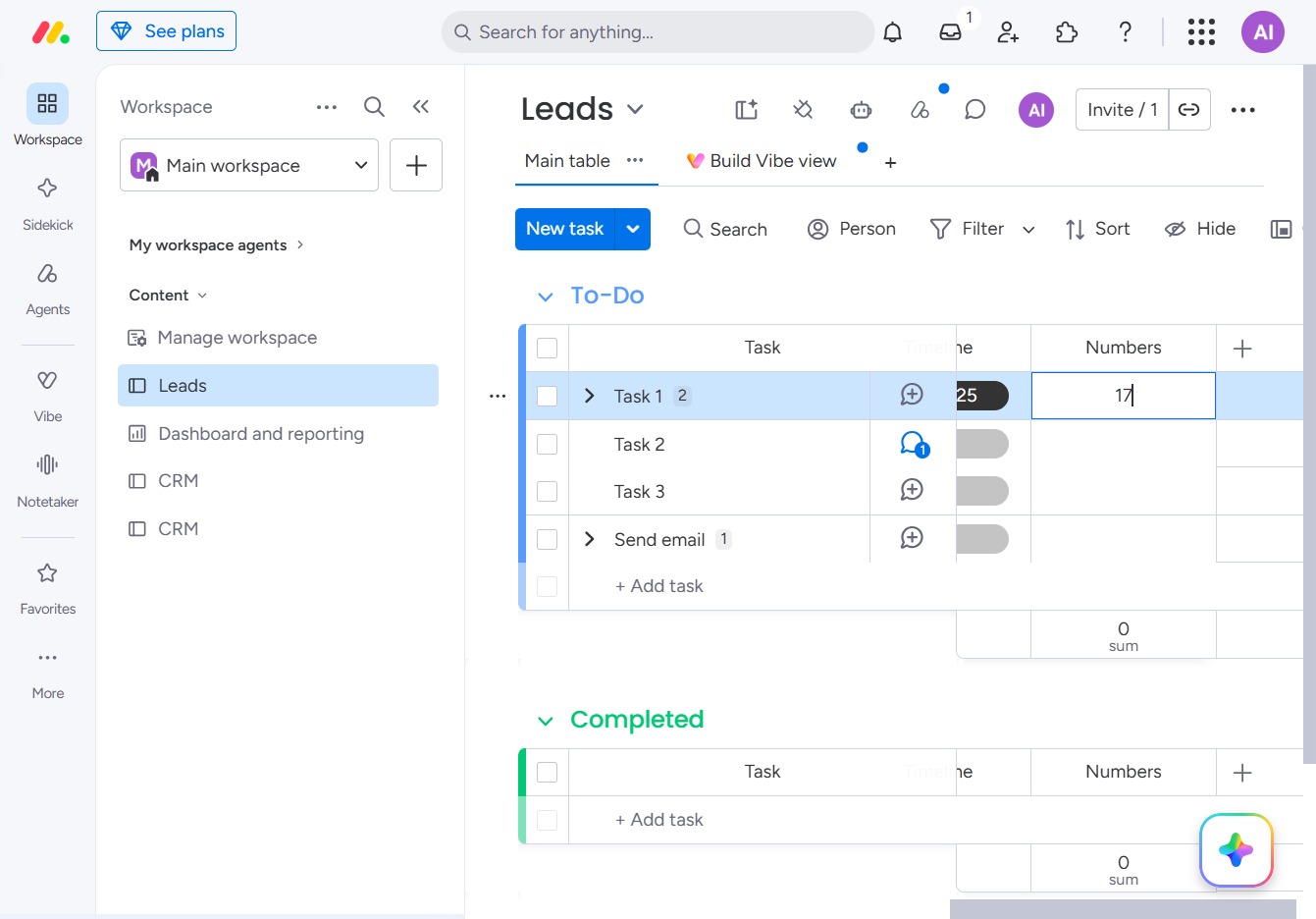
Enter '17' in the designated input field to specify the quantity for the task. This will update the corresponding entry in the task management view.