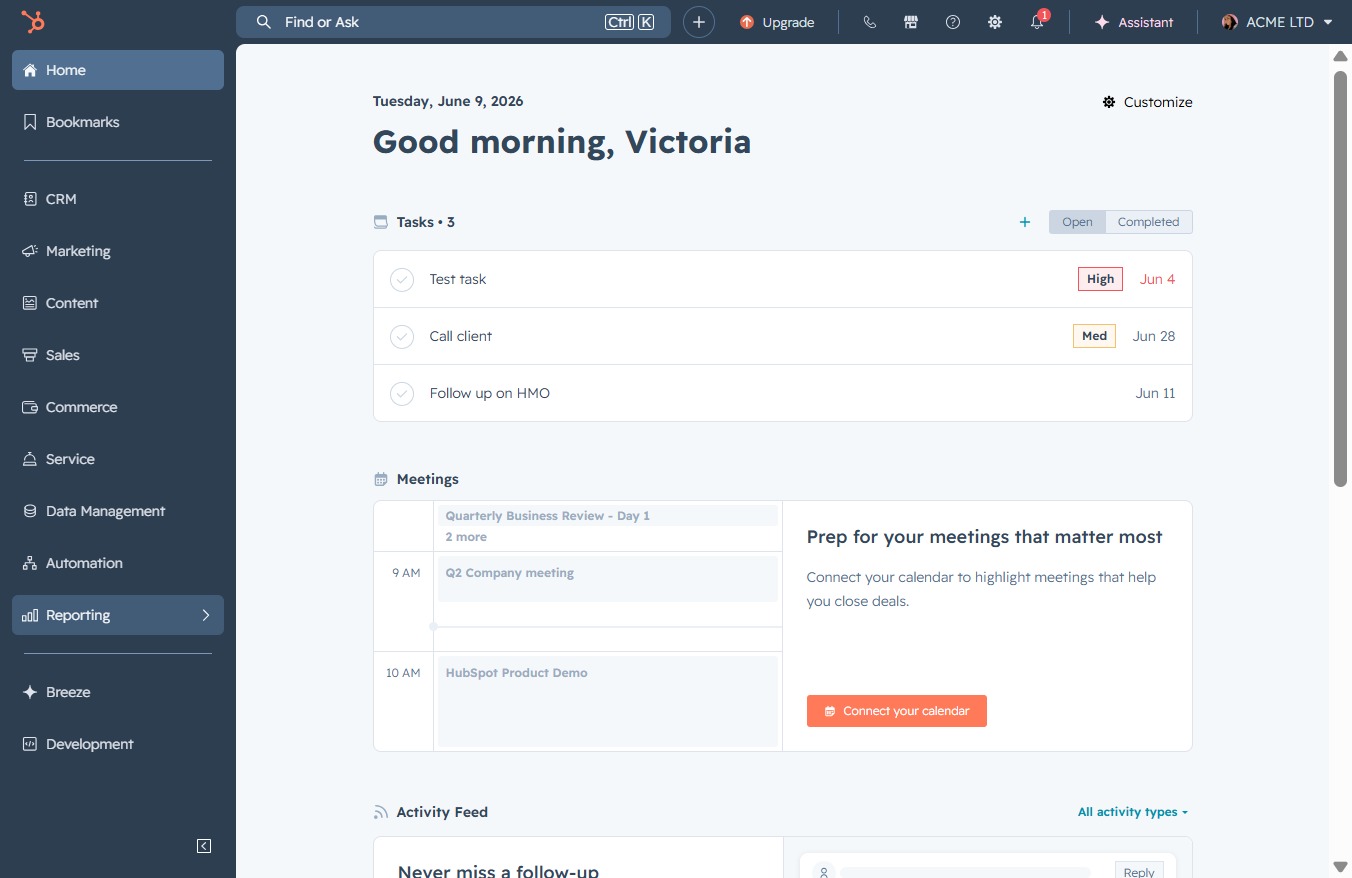
Click the Reporting link
Access the Reporting section to view and manage your reports and analytics.
Loading screenshot…
100%
Create a deal revenue forecast report in the reporting tool by navigating to the reporting section, selecting the appropriate templates, and saving your customized report for…
 viktoria
Create a deal revenue forecast report in the reporting tool by navigating to the reporting section, selecting the appropriate templates, and saving your customized report for future reference.
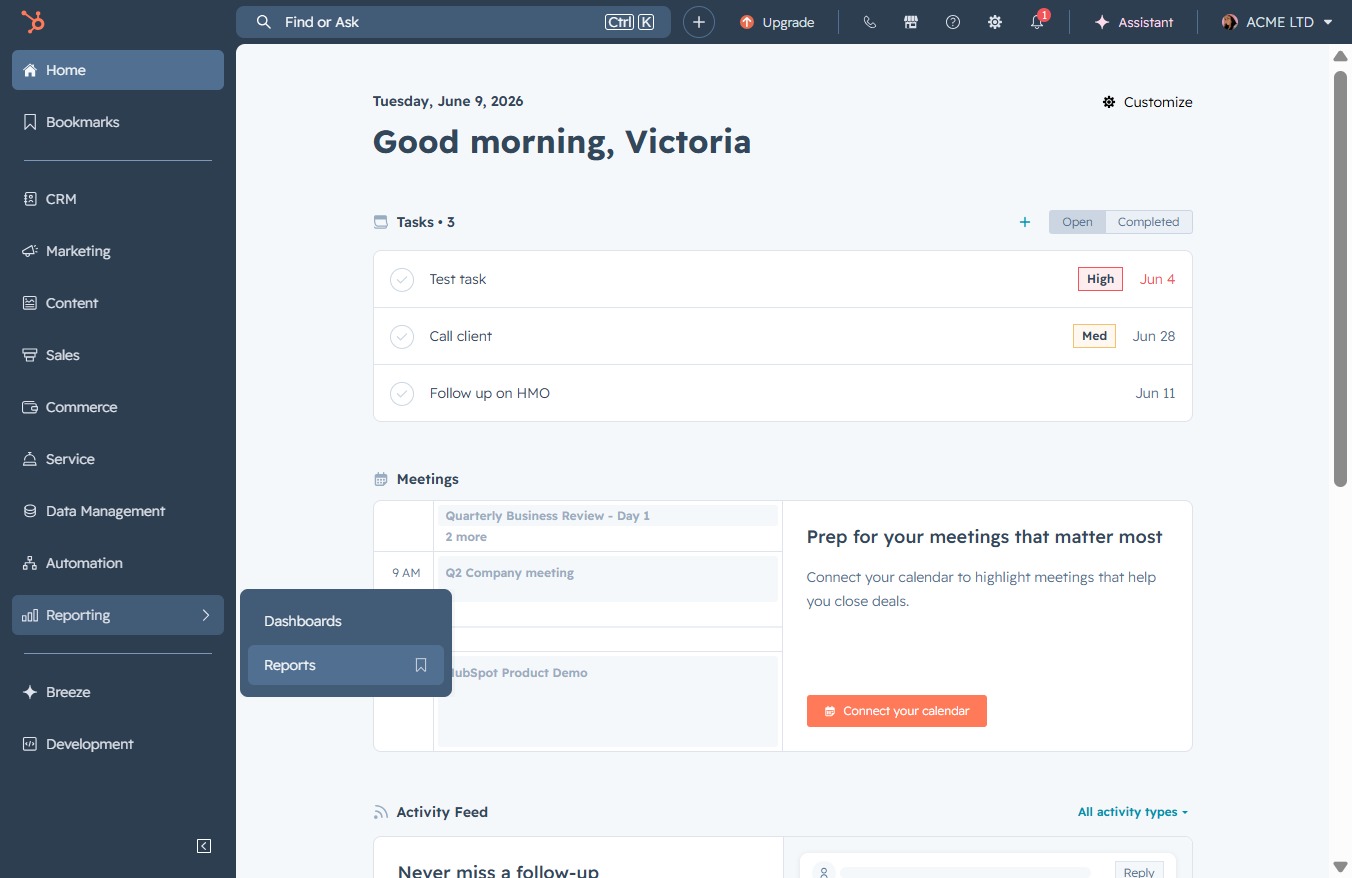
Access the Reporting section to view and manage your reports and analytics.
By clicking the Reports link, you will access the reporting section where you can view and manage various reports related to your activities and performance.
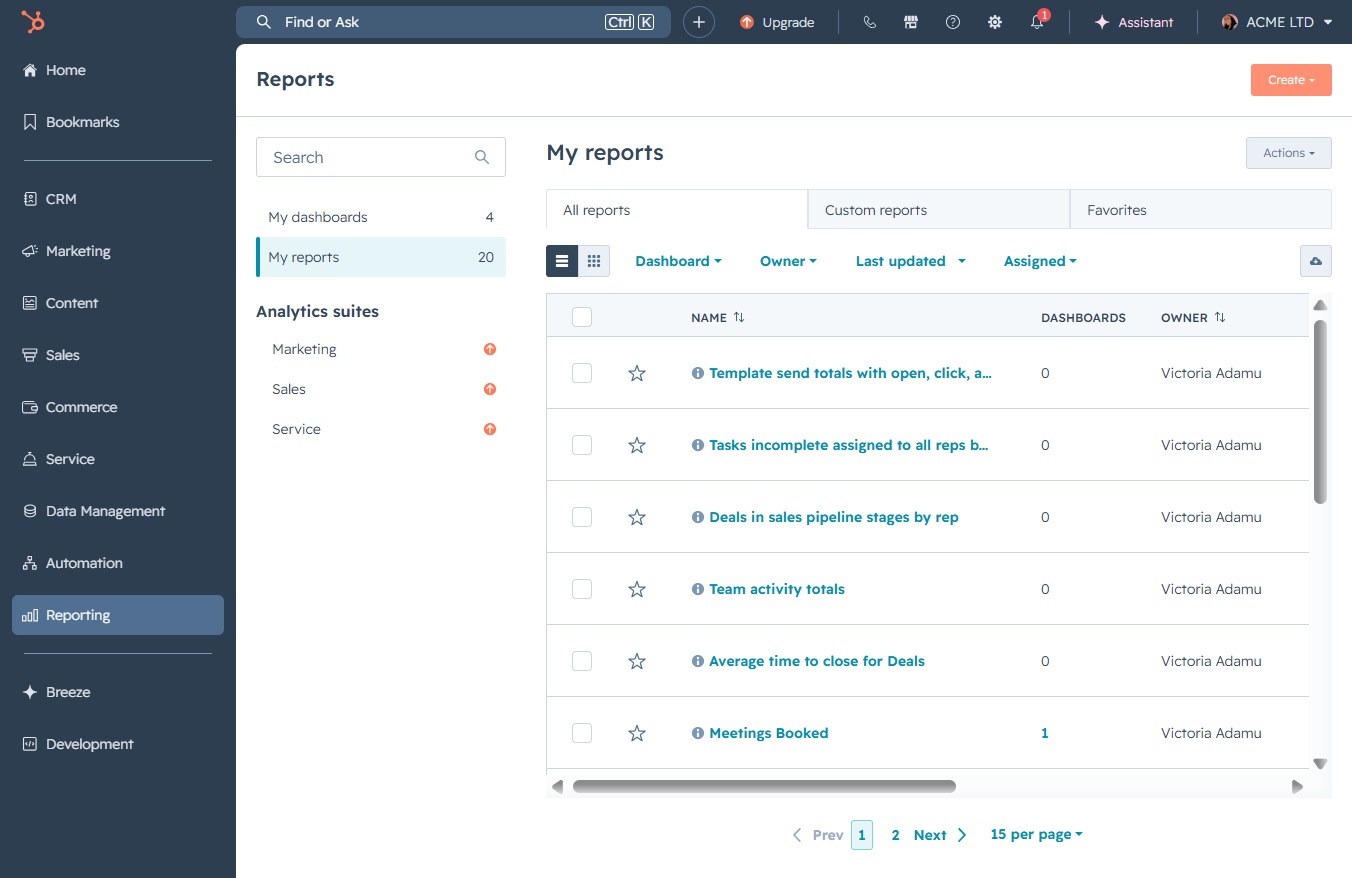
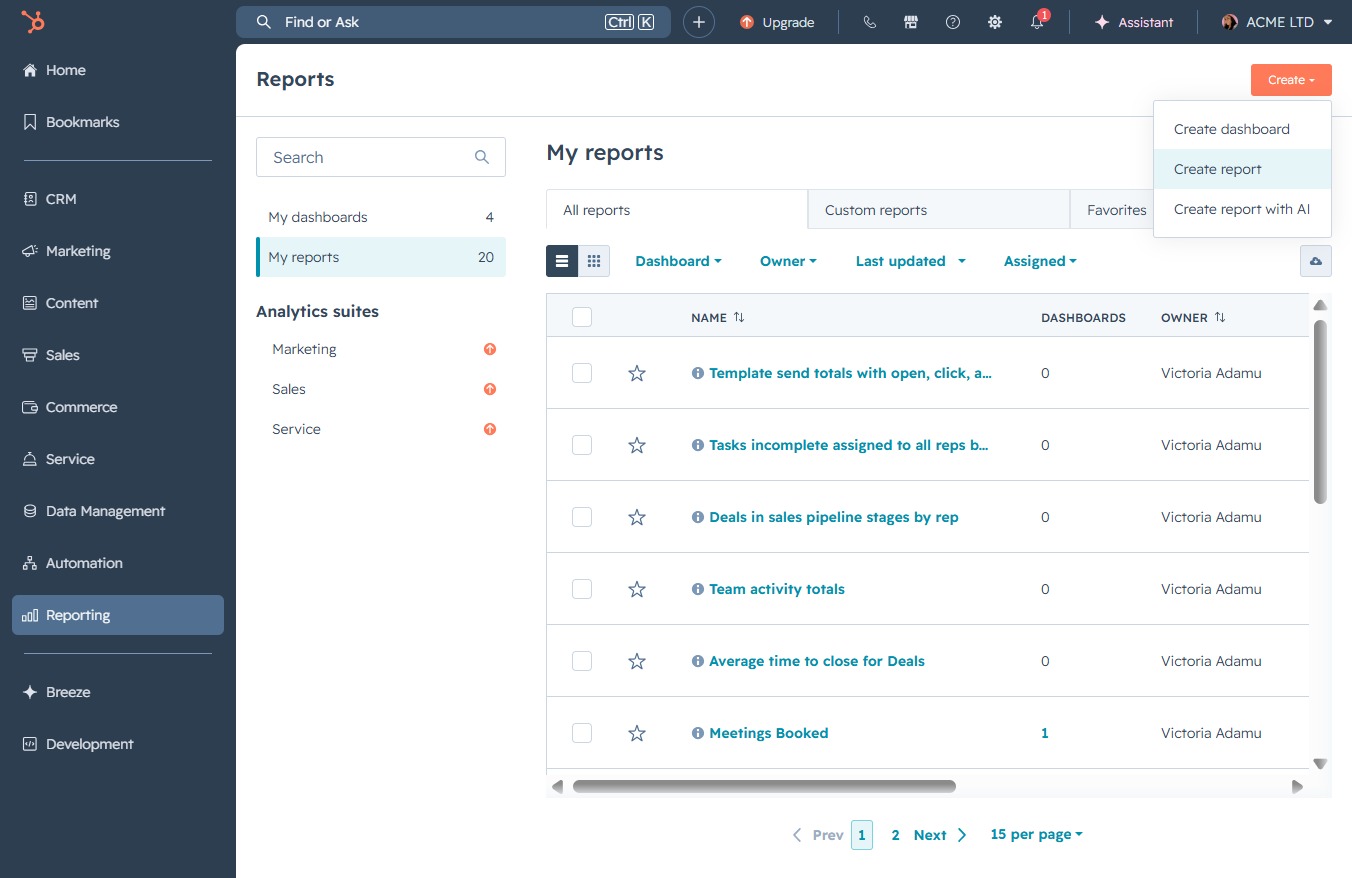
Clicking the 'Create' button will initiate the process for generating a new report in the 'My Reports' section.
This action opens a new window where you can configure and design a report tailored to your specific needs in the Reports section.
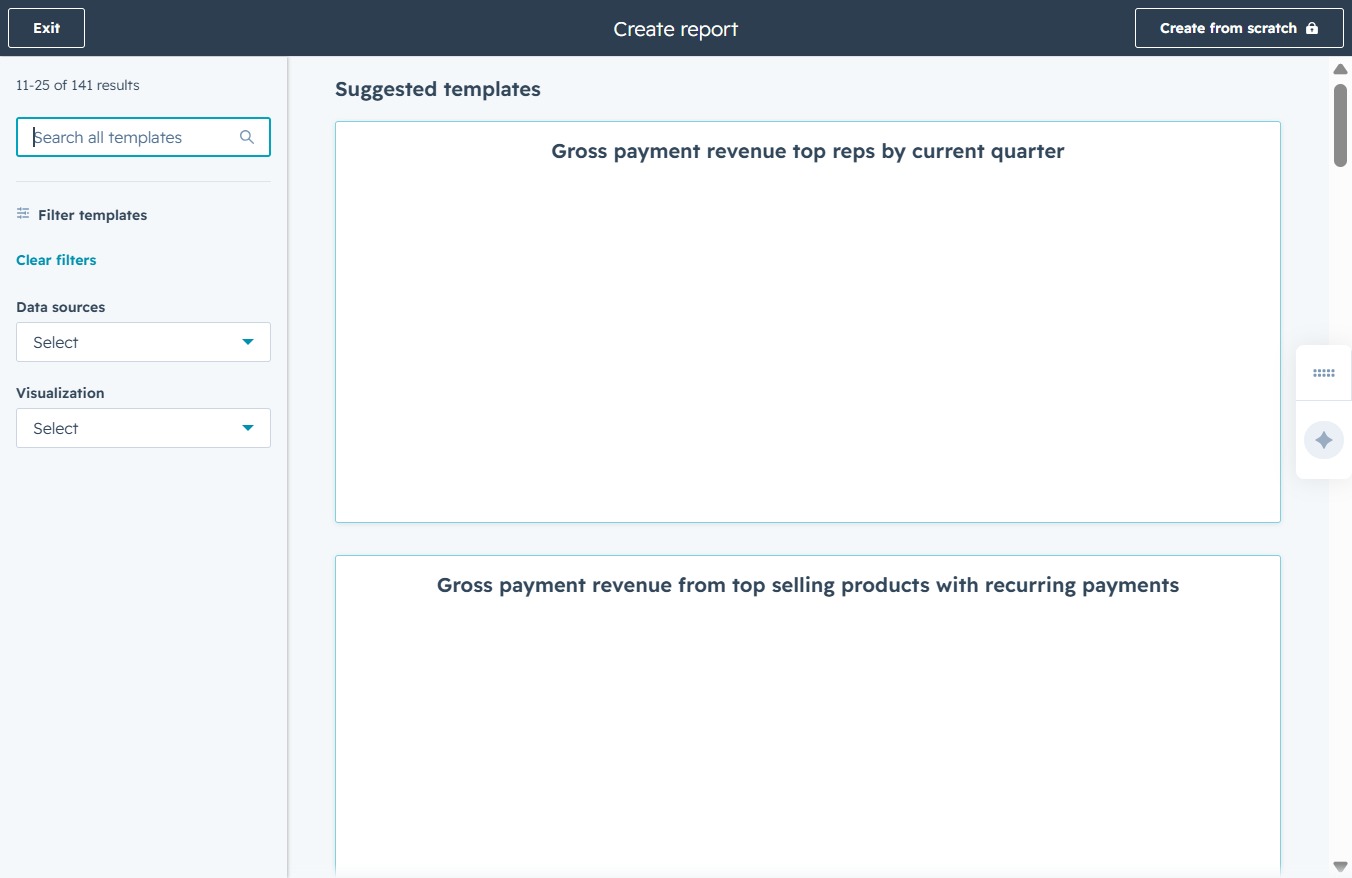
This action allows you to input text to search for specific report templates. After clicking, you can type in keywords to filter through the available templates quickly.
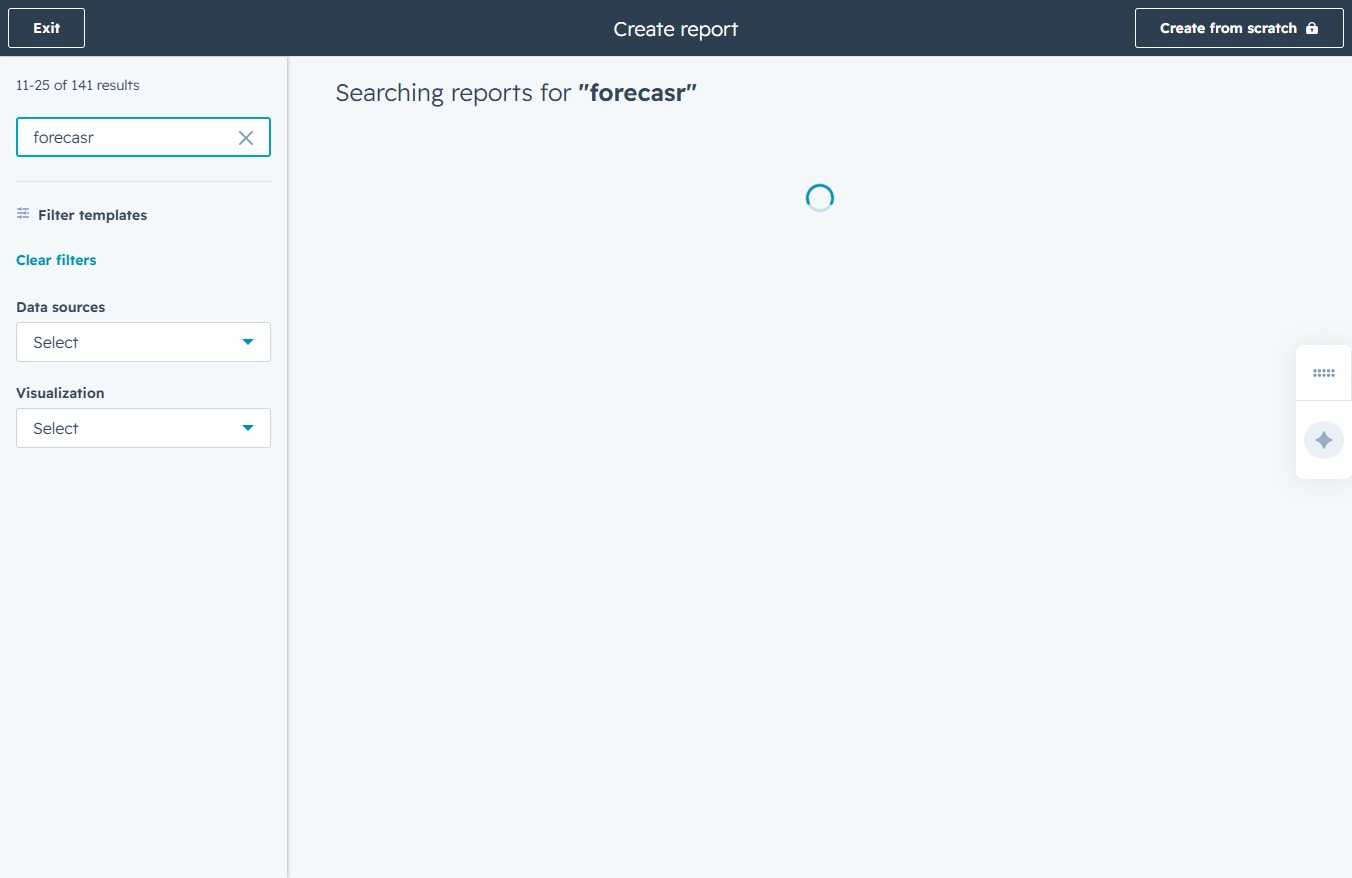
Inputting 'forecasr' will initiate a search for available report templates related to forecasting. The system will then display matching templates for your selection.
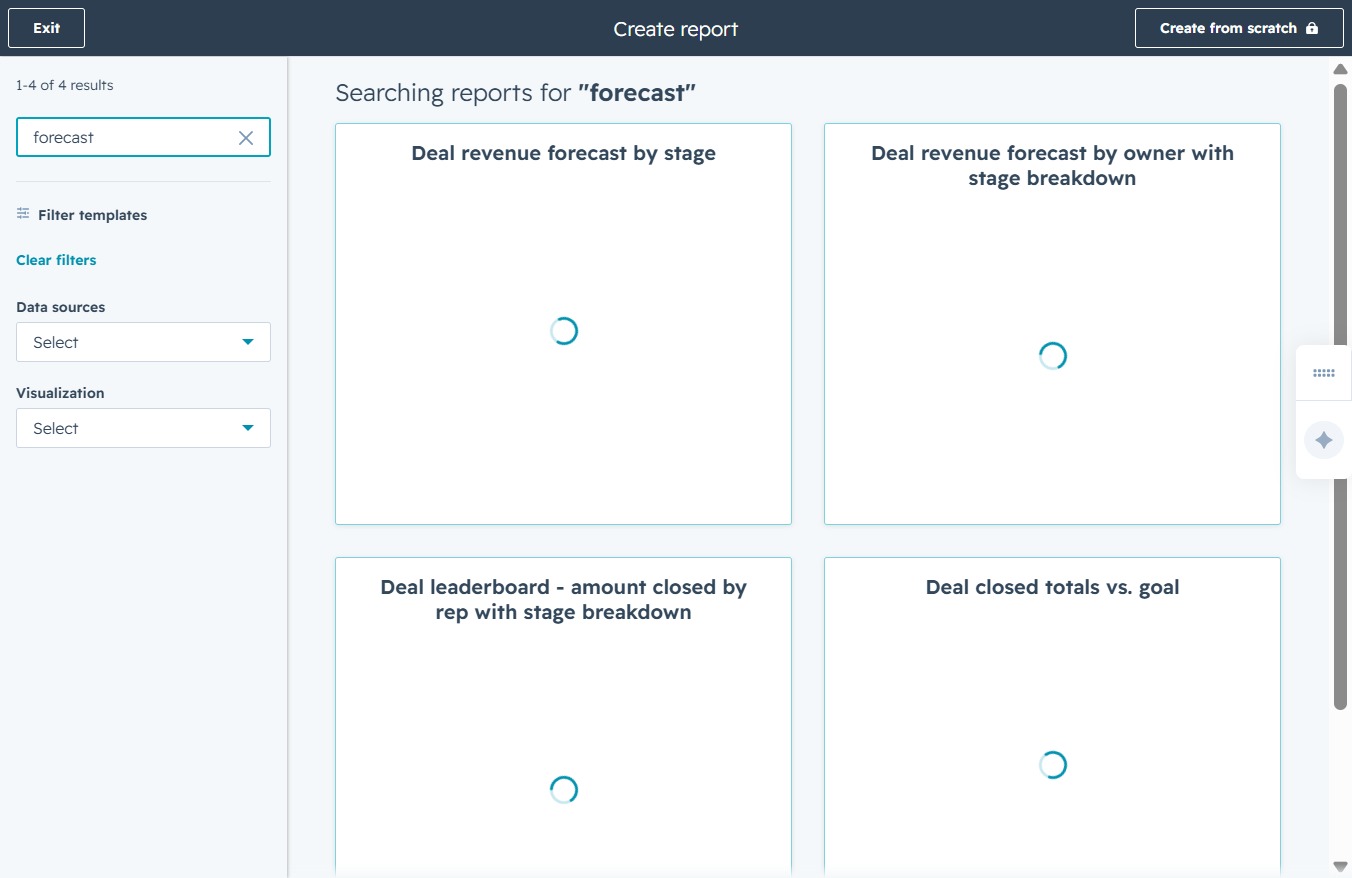
Entering 'forecast' in the Search all templates field will filter and display relevant report templates related to forecasting, helping you quickly find the appropriate report to use.
This will display the revenue forecast chart categorized by deal stages for the current year, allowing you to analyze performance over the selected months.
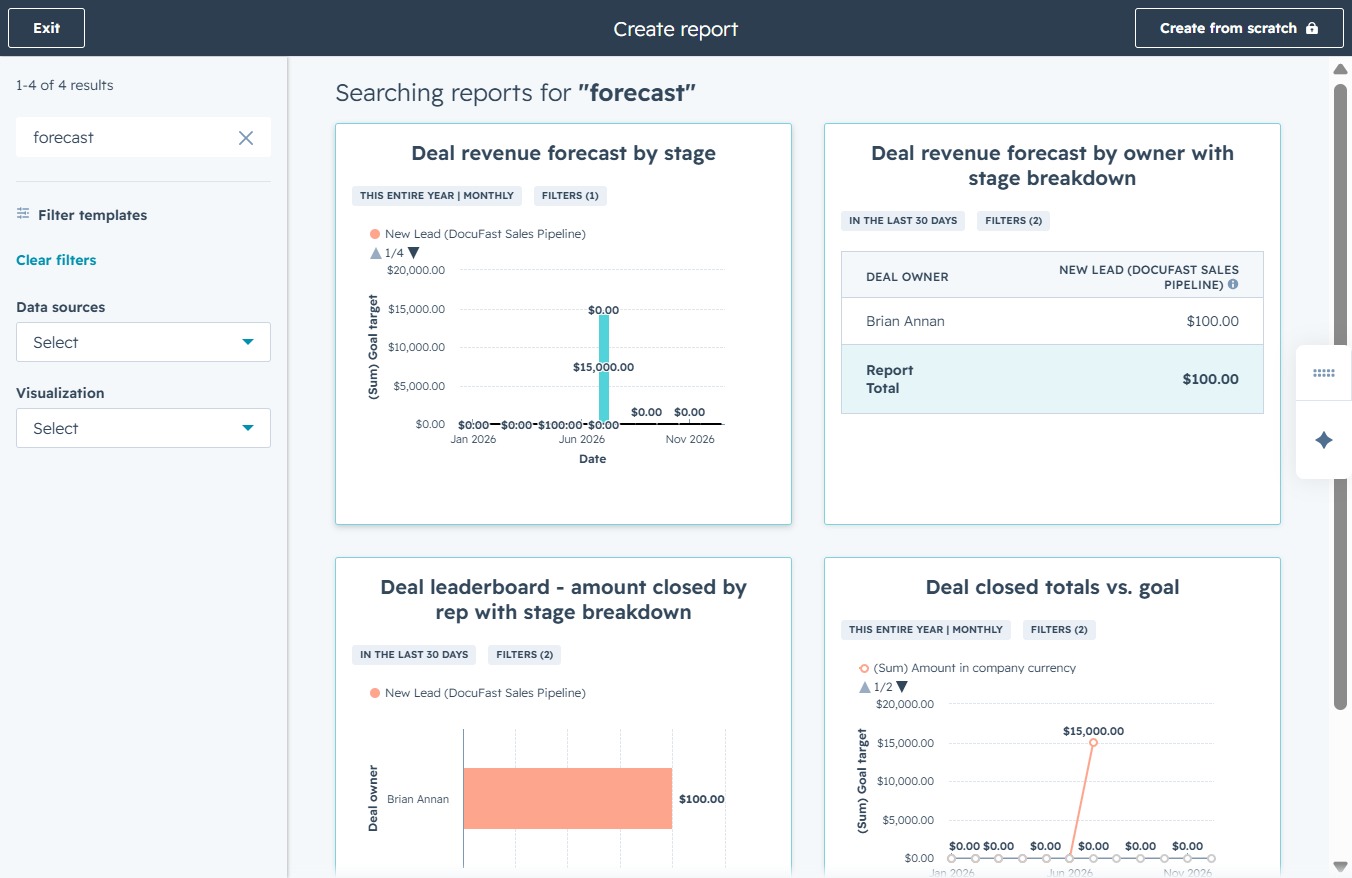
This action will save the current deal revenue forecast report, allowing you to access it later for reference or sharing.

This action continues the process of saving your report, progressing you to the next step in the setup for the report titled 'Deal revenue forecast by stage'.

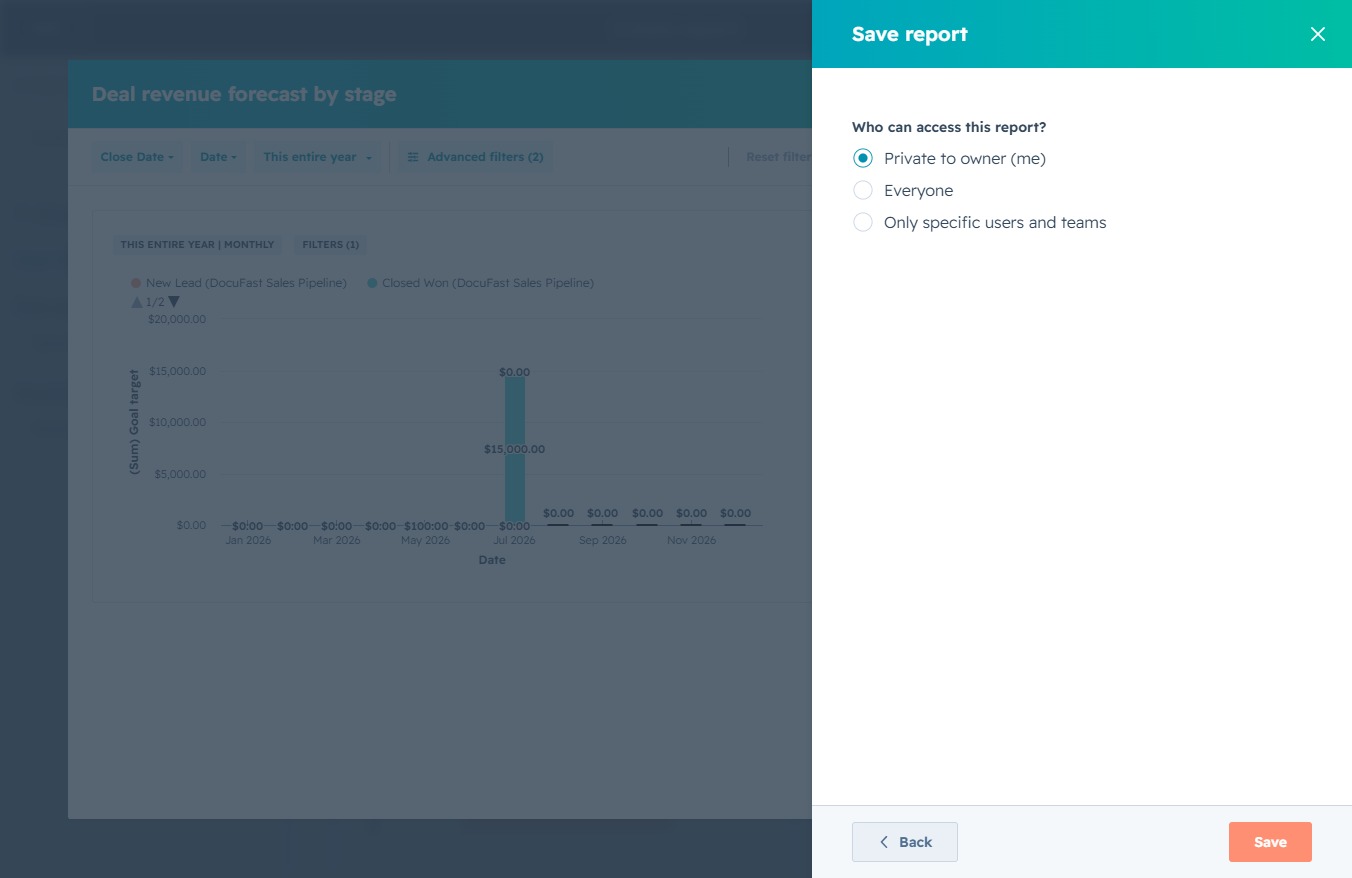
After clicking the Save report button, your report will be saved with the selected access permissions, allowing you to control who can view or edit it.
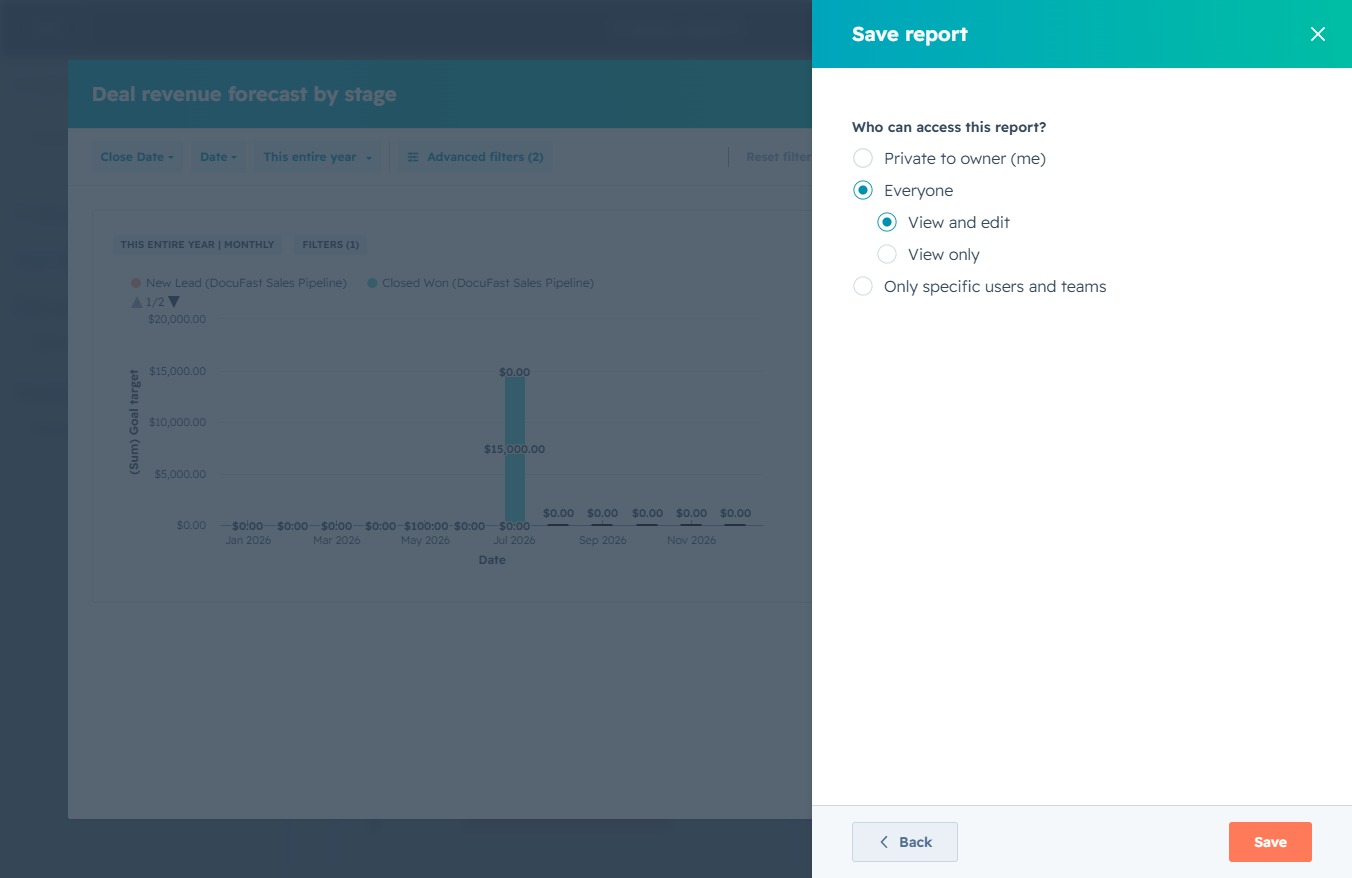
By clicking the Save button, you will store the report with the specified access permissions, ensuring it is saved for future reference.