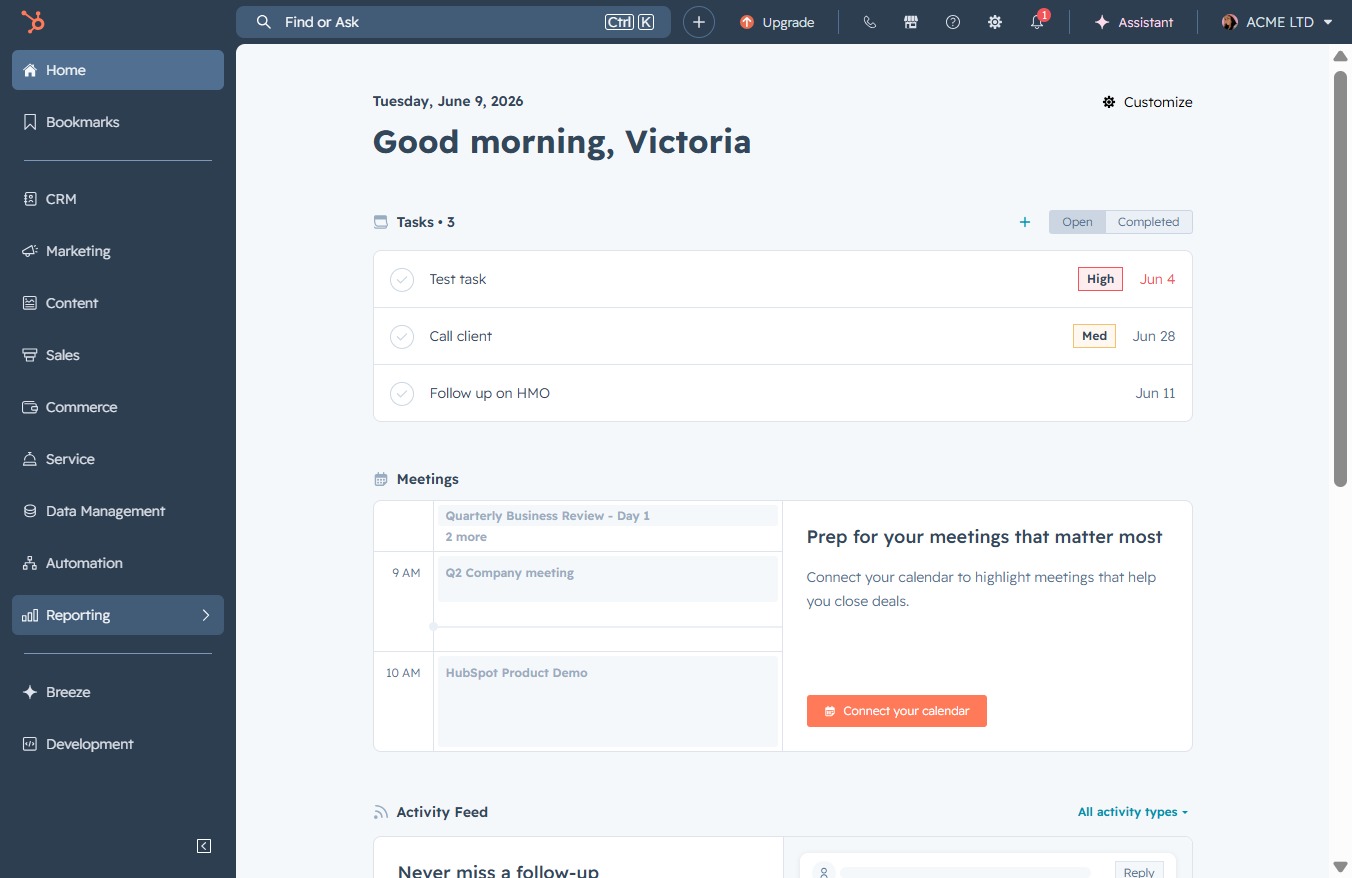
Click the Reporting link
This will take you to the Reporting section where you can view and manage your reports and analytics.
Loading screenshot…
100%
Generate a customized email performance report in the reporting tool by selecting templates, configuring parameters, and setting access permissions to analyze your campaign…
 viktoria
Generate a customized email performance report in the reporting tool by selecting templates, configuring parameters, and setting access permissions to analyze your campaign metrics effectively.
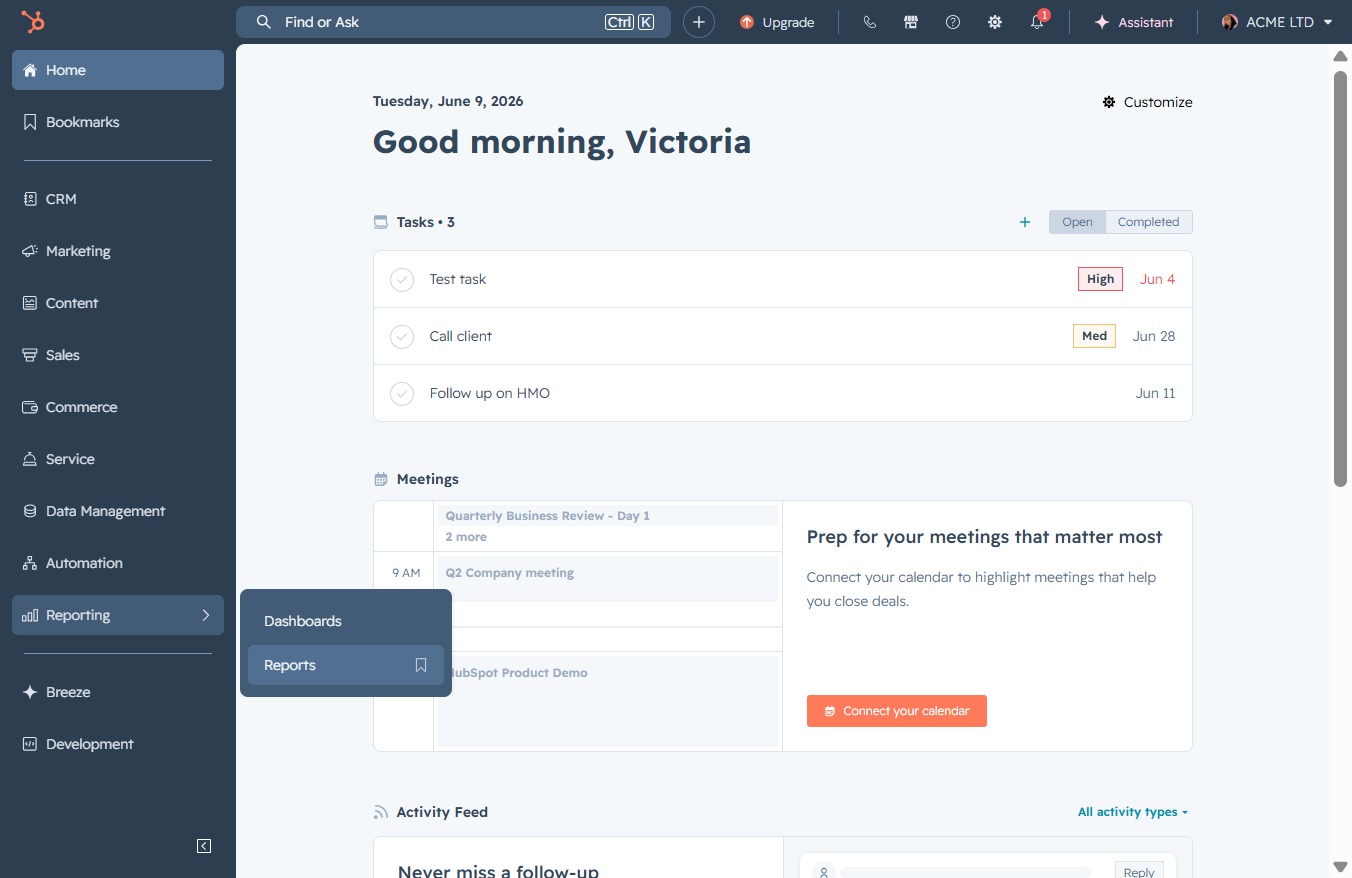
This will take you to the Reporting section where you can view and manage your reports and analytics.
Selecting the Reports section will display various reports available for analysis, allowing you to view data insights and metrics for your projects.
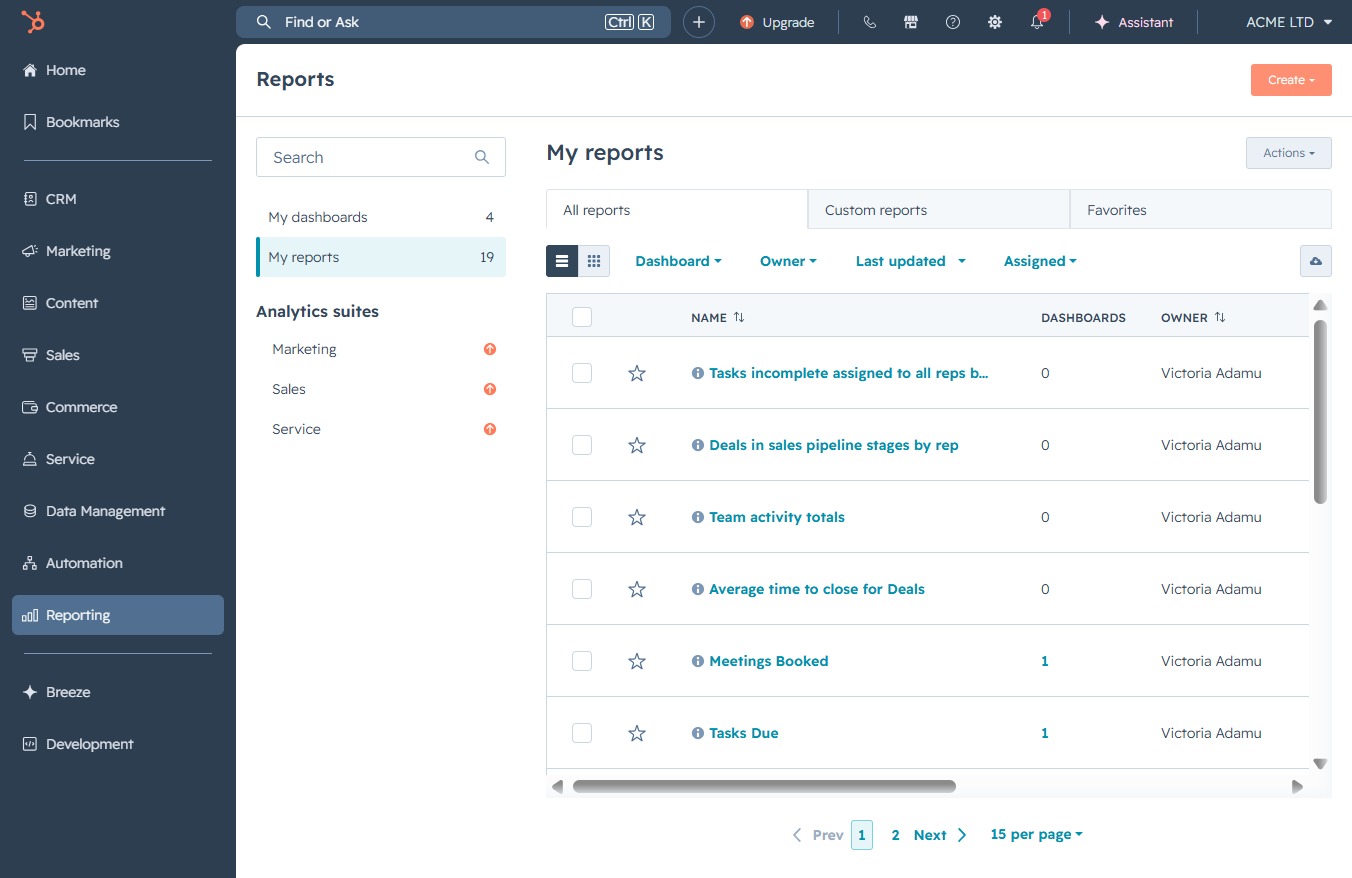
This action initiates the process to generate a new report in the 'My Reports' section, allowing you to customize and manage your reports effectively.
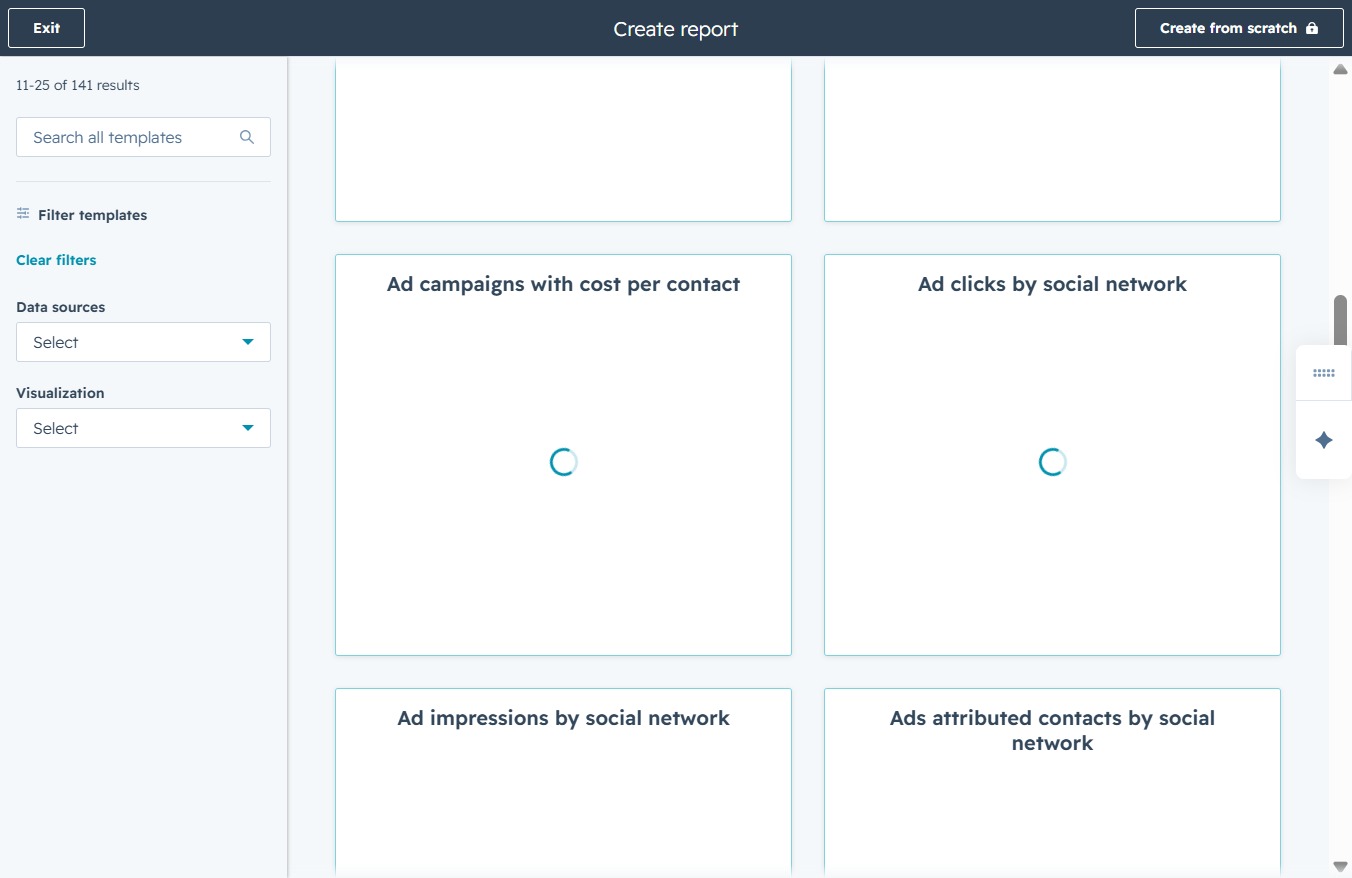
This action opens a new interface where you can set parameters for generating a report based on your selected criteria and data.

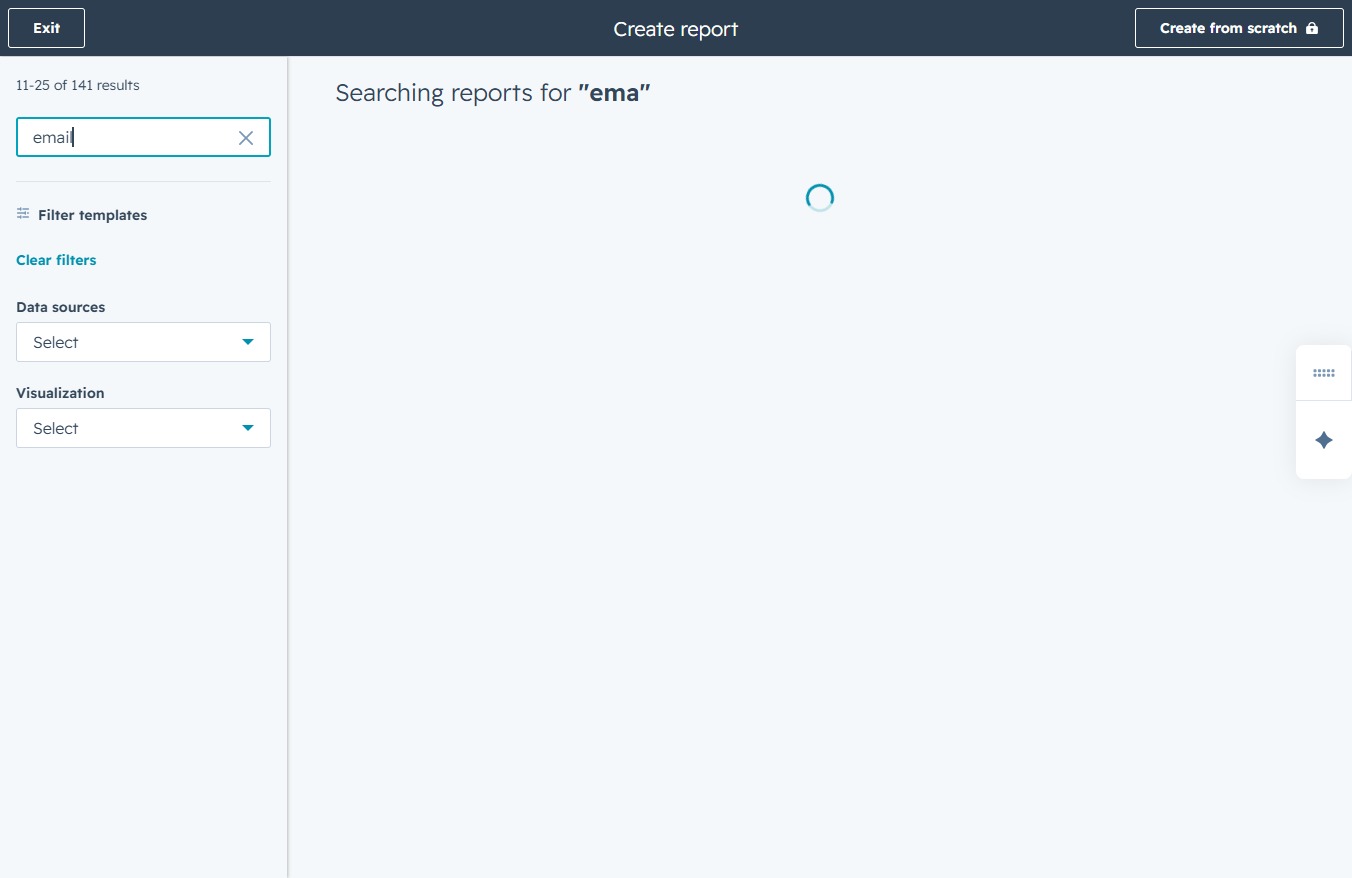
This input allows you to search for specific report templates, making it easier to find the template you need for your report.
Enter 'email' in the search field to filter the available templates. This will narrow down the options, showing relevant templates associated with the keyword 'email'.
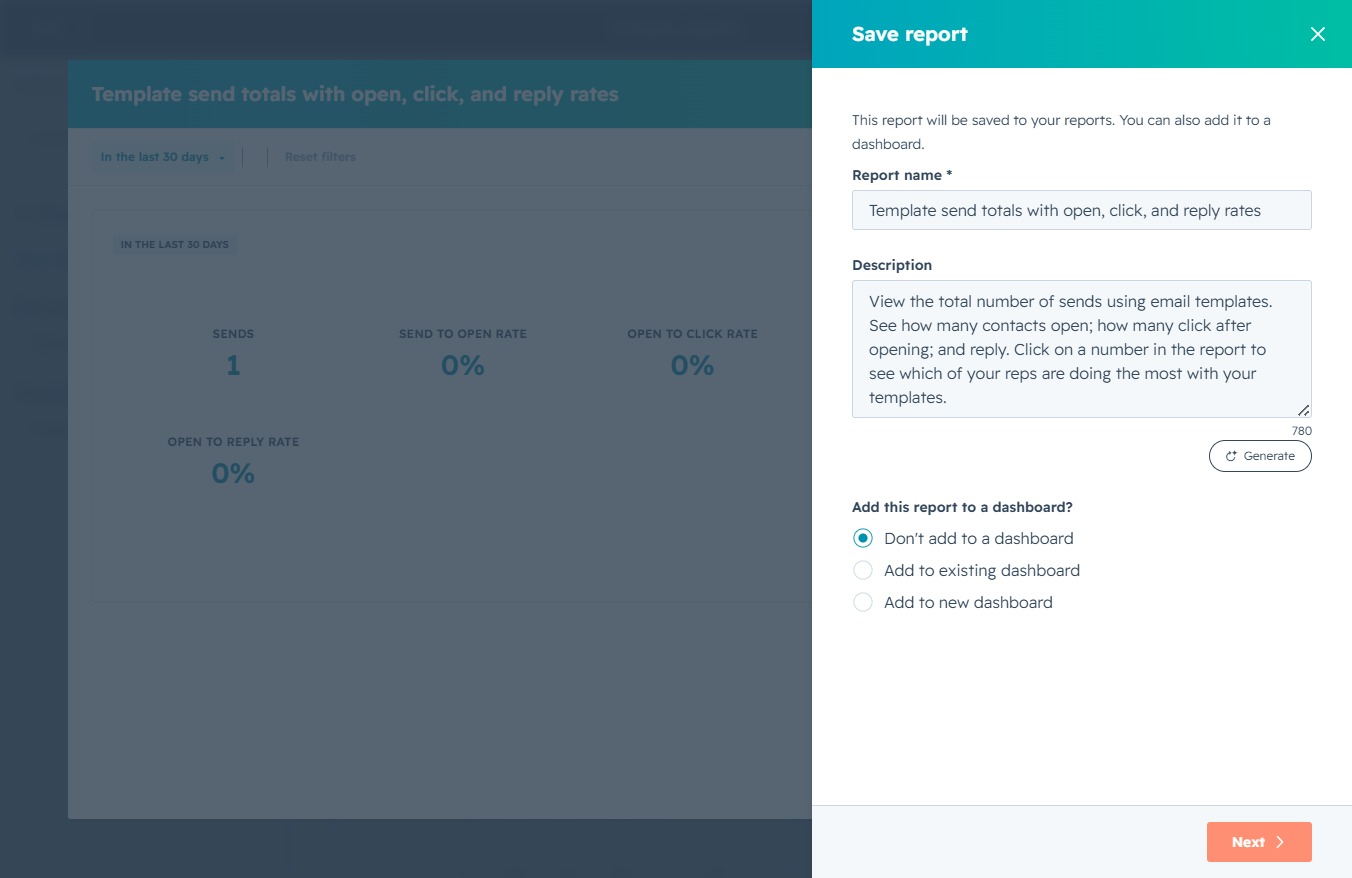
This action displays the statistics for the template, including open, click, and reply rates from the last 30 days, allowing you to assess campaign performance.

By clicking this button, your current report data will be saved, allowing you to retain the metrics related to email sends and their performance such as open and click rates.

This button allows you to proceed to the next step in saving your report, where you can configure additional settings or finalize the report creation.
This action will save your report with the selected access permissions for users. Make sure to choose the appropriate access level, such as 'Everyone' or 'Private to owner (me)'.
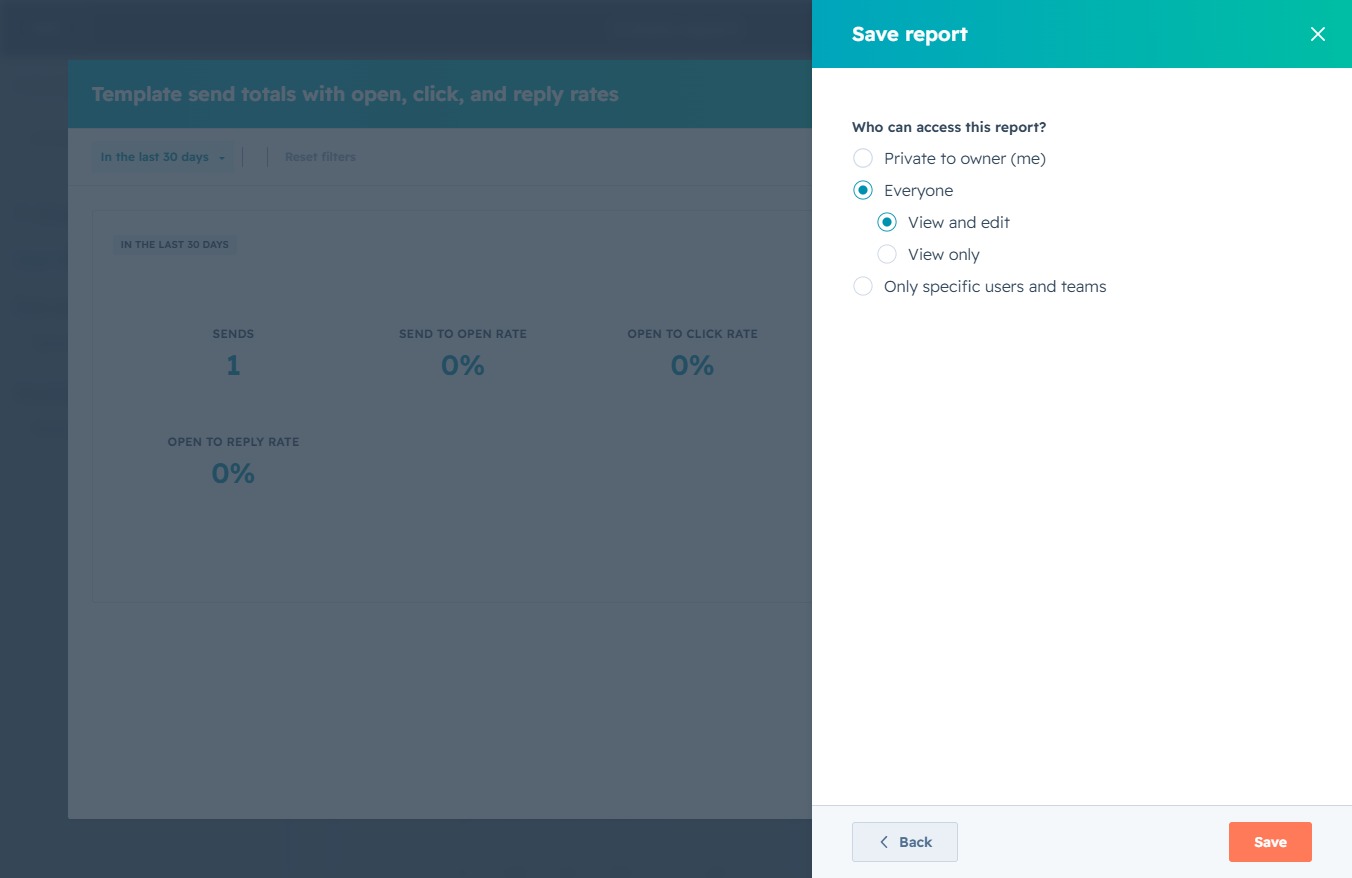
Clicking the Save button will store your current report settings and access preferences. Ensure that you have selected the appropriate access level for your report before saving.
