Click the CRM icon
This action opens the Customer Relationship Management section, allowing you to manage contacts and leads effectively.

Loading screenshot…
100%
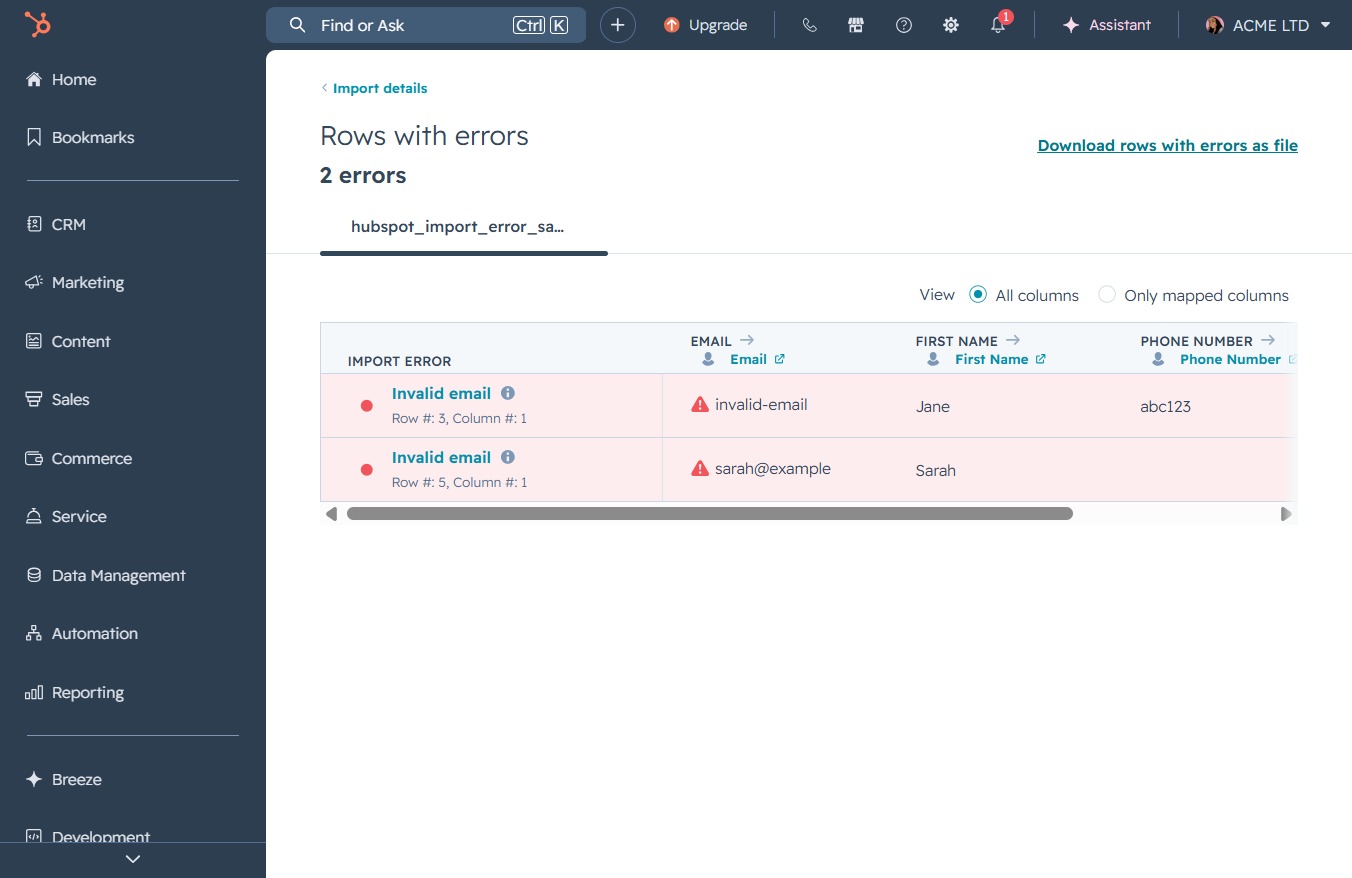
Download the contact import error report in your CRM to identify and correct data issues, ensuring accurate management of your contacts during import processes.
 viktoria
Download the contact import error report in your CRM to identify and correct data issues, ensuring accurate management of your contacts during import processes.
This action opens the Customer Relationship Management section, allowing you to manage contacts and leads effectively.
This will take you to the Contacts section where you can manage your contact records and view details related to your CRM's audience.

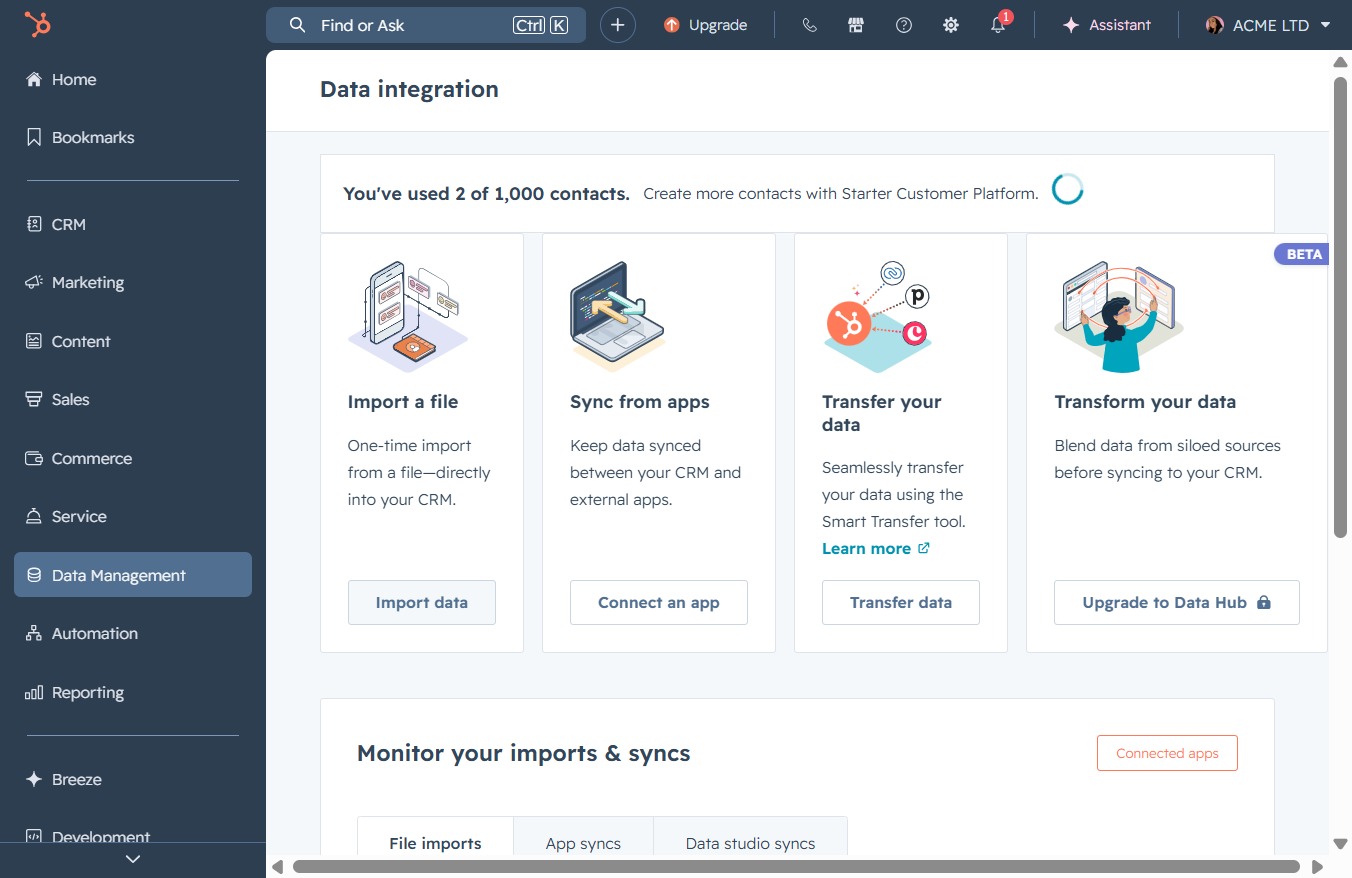
Clicking the Import button will allow you to upload new contact data into the CRM system, enabling easier management and organization of your contacts.

Initiate a one-time import of a file directly into your CRM by selecting this option. This allows you to import contacts or other data seamlessly into your system.
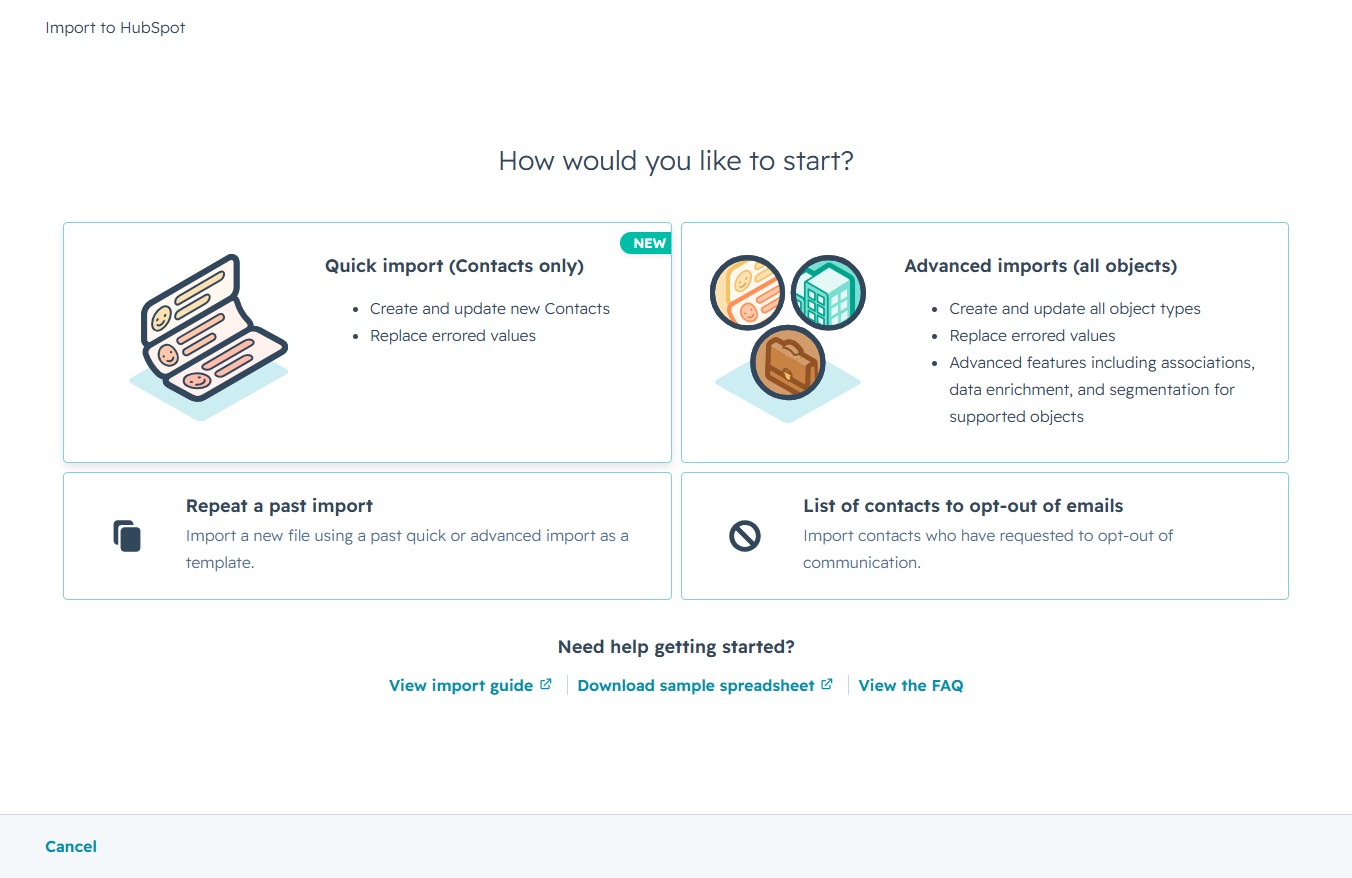
This option allows you to create and update new Contacts while also providing the ability to replace any errored values during the import process.
This action opens a file selection dialog, allowing you to upload a CSV, XLS, or other compatible file that contains your contacts.

Clicking this button will proceed you to the next step in the file upload process for creating or updating contacts in HubSpot.

Clicking this option will prevent any data from being imported from columns that have not been mapped to HubSpot contact properties. This ensures only relevant and accurate data is included in your import.
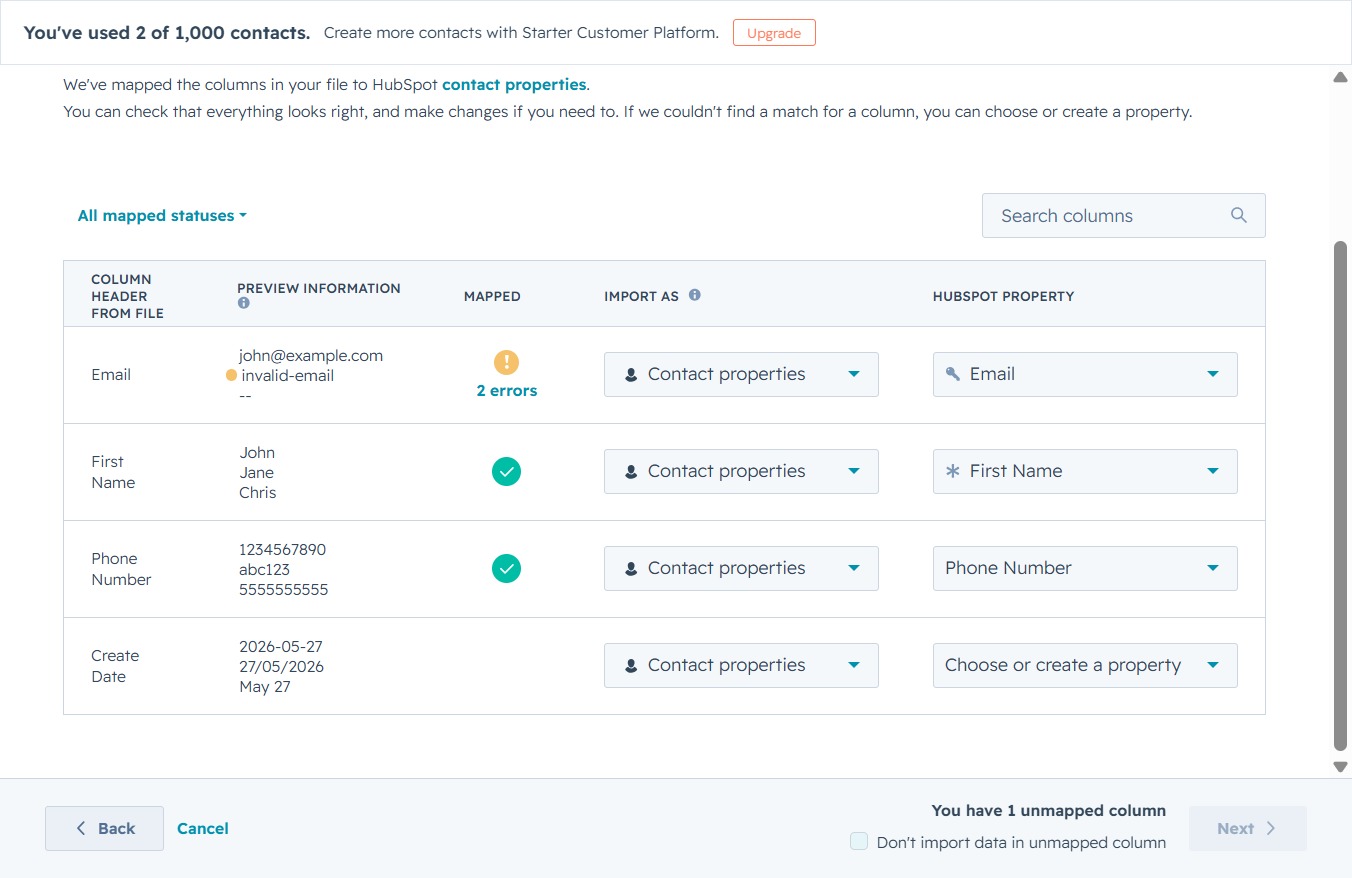
Proceed to the next step in mapping your contact properties by clicking this button. Ensure all columns and their corresponding properties are set correctly before continuing.

This action will prompt a search for contacts or data within the import process, helping you to quickly find the relevant information you need.
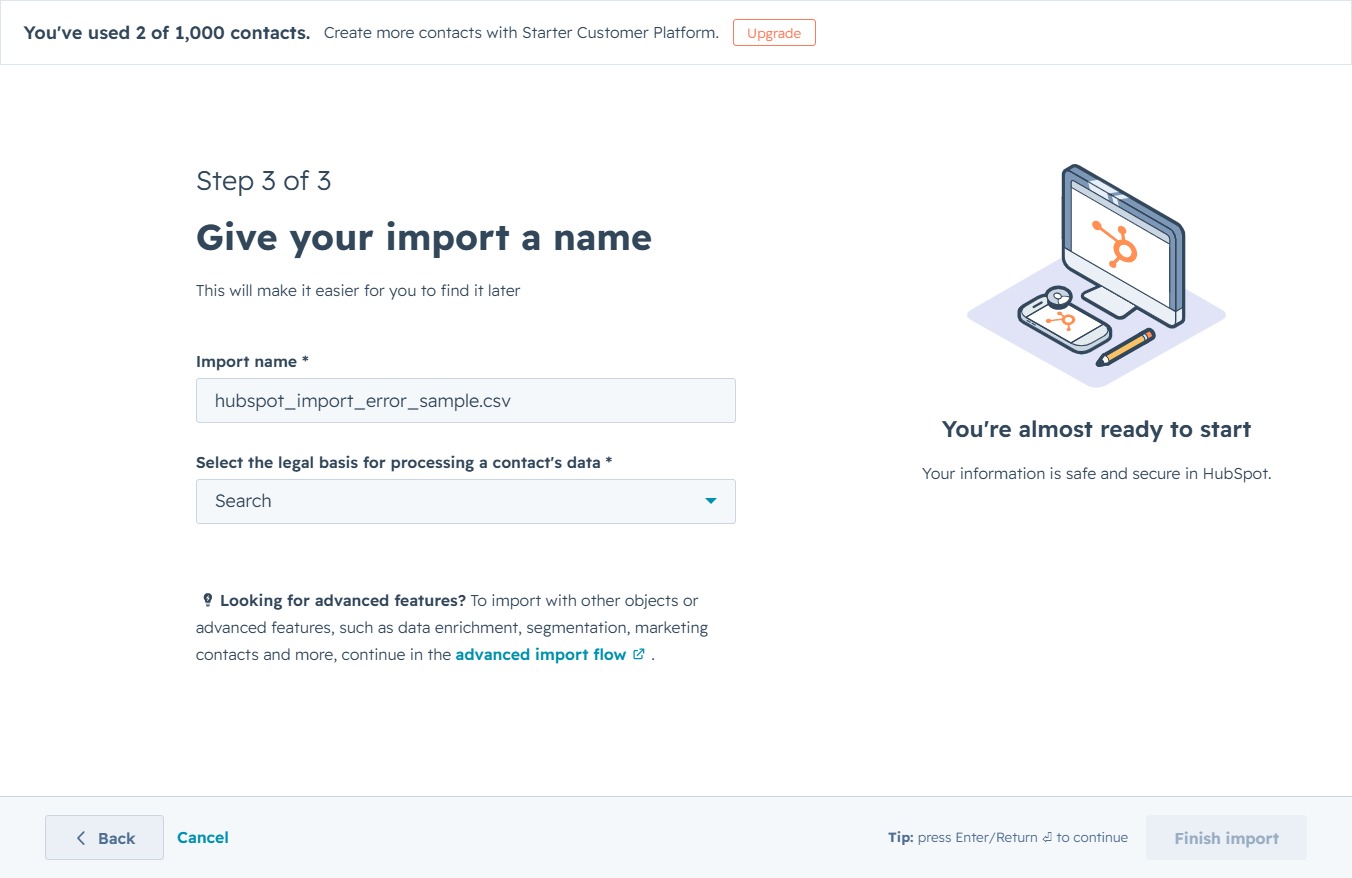
Selecting this option specifies the legal basis for processing the contact's data as related to legitimate interest, which is necessary for compliance with data protection regulations.
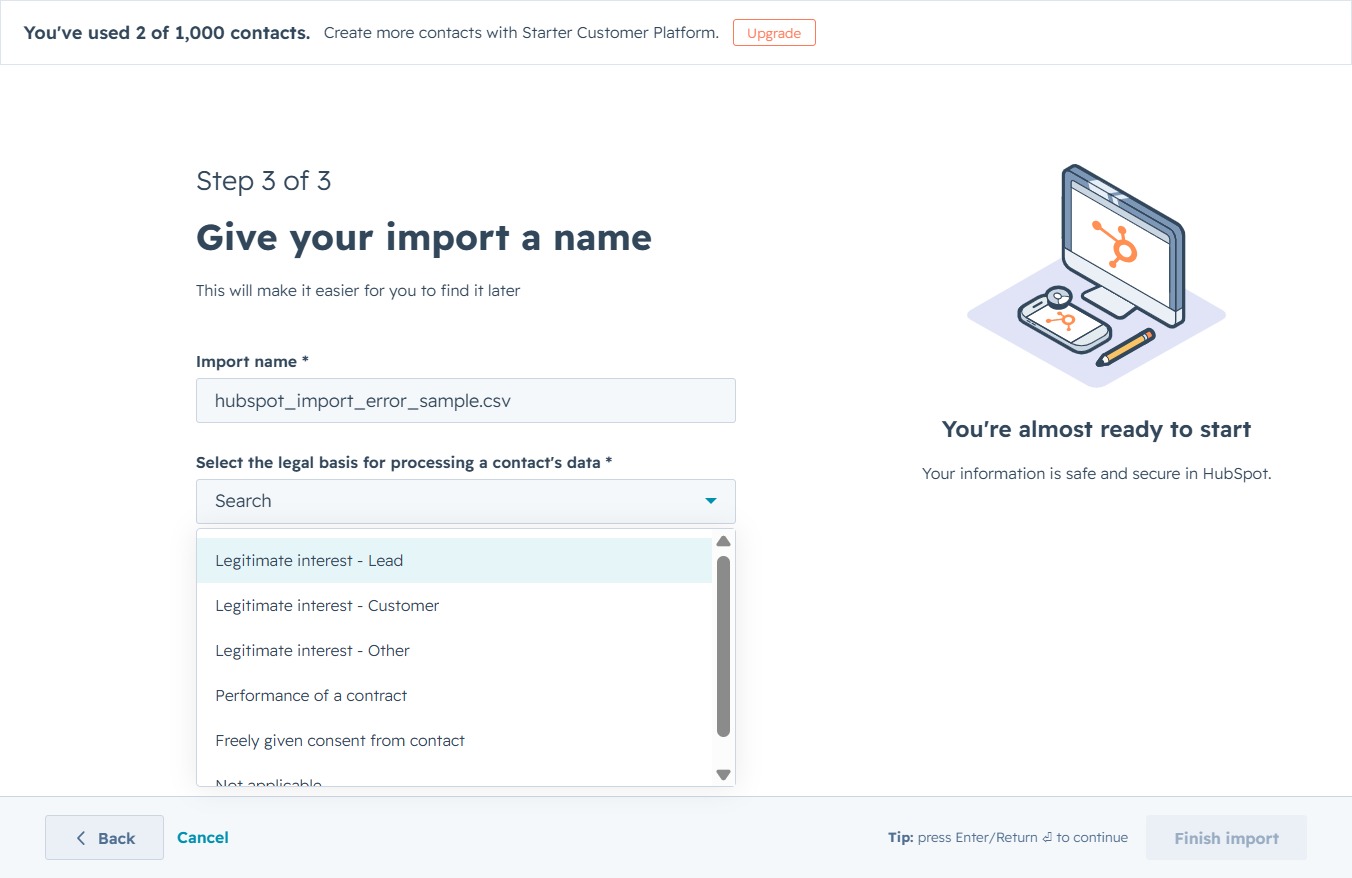
Completing this step will finalize your import process in HubSpot. Your information will be securely processed and you'll be ready to start managing your contacts.

This action opens a detailed view of the records that encountered errors during the import process, allowing you to address any formatting issues.
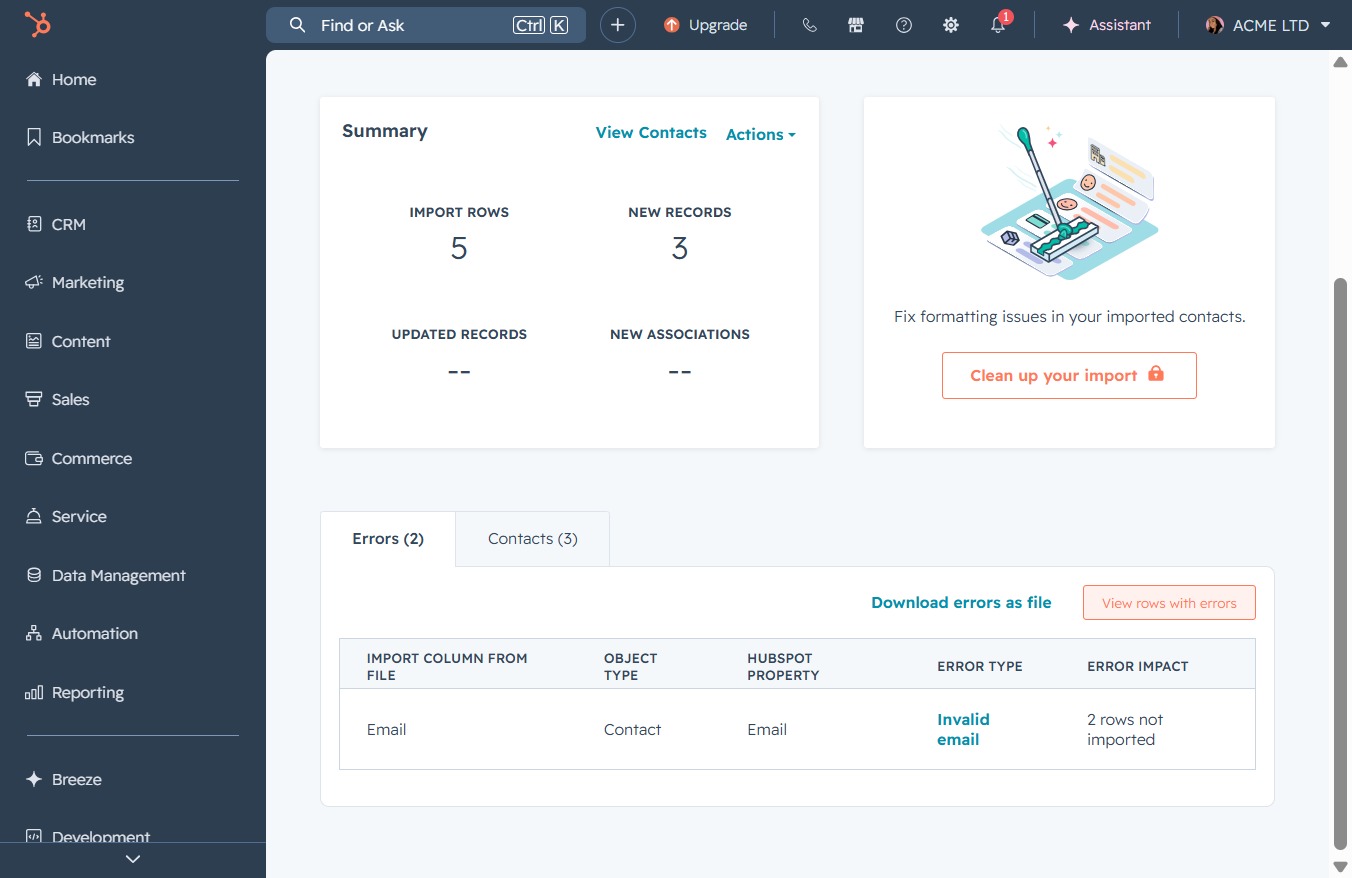
This action allows you to download a file containing the rows that have errors in your import. Review the downloaded file to identify and correct the issues listed.