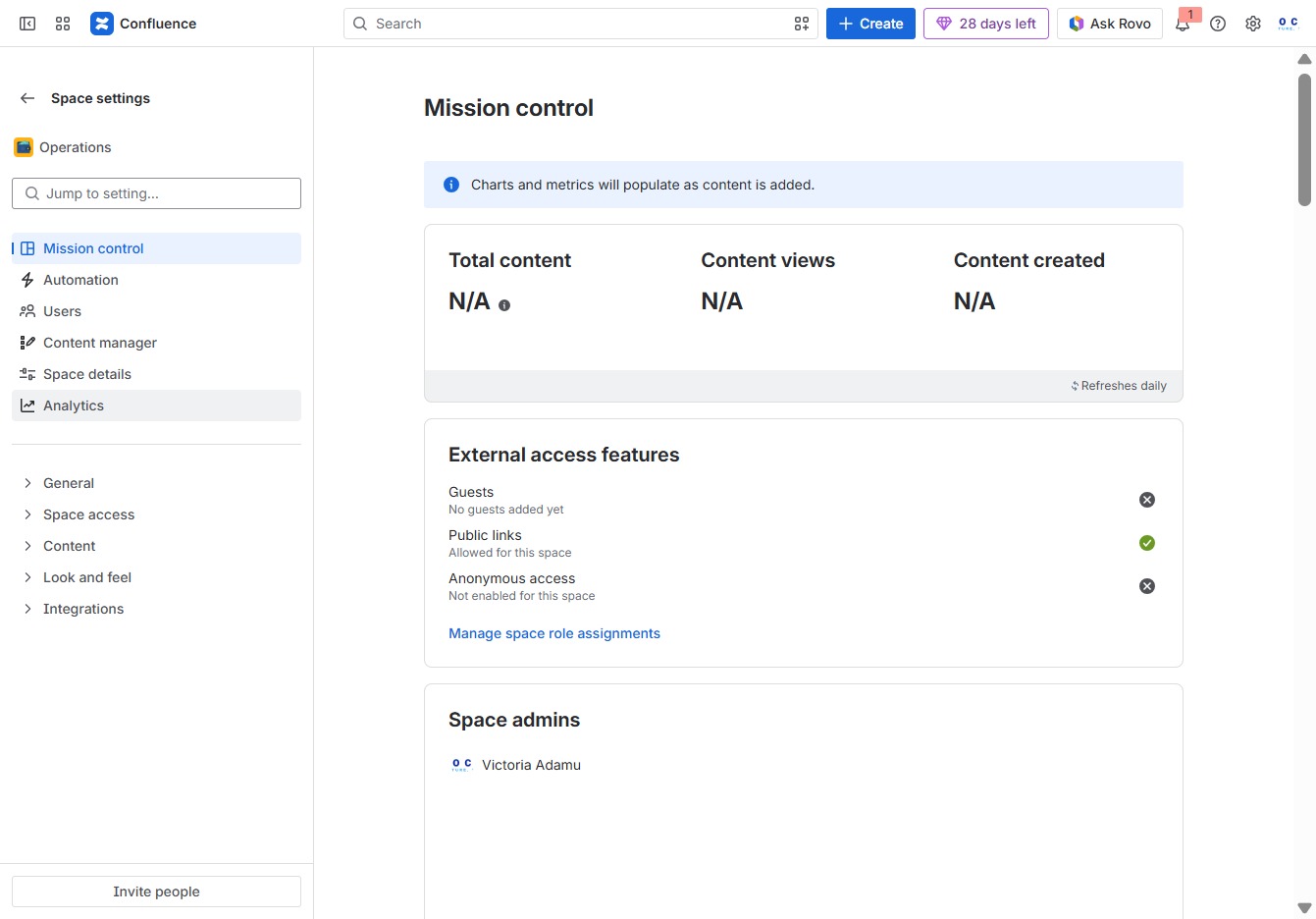
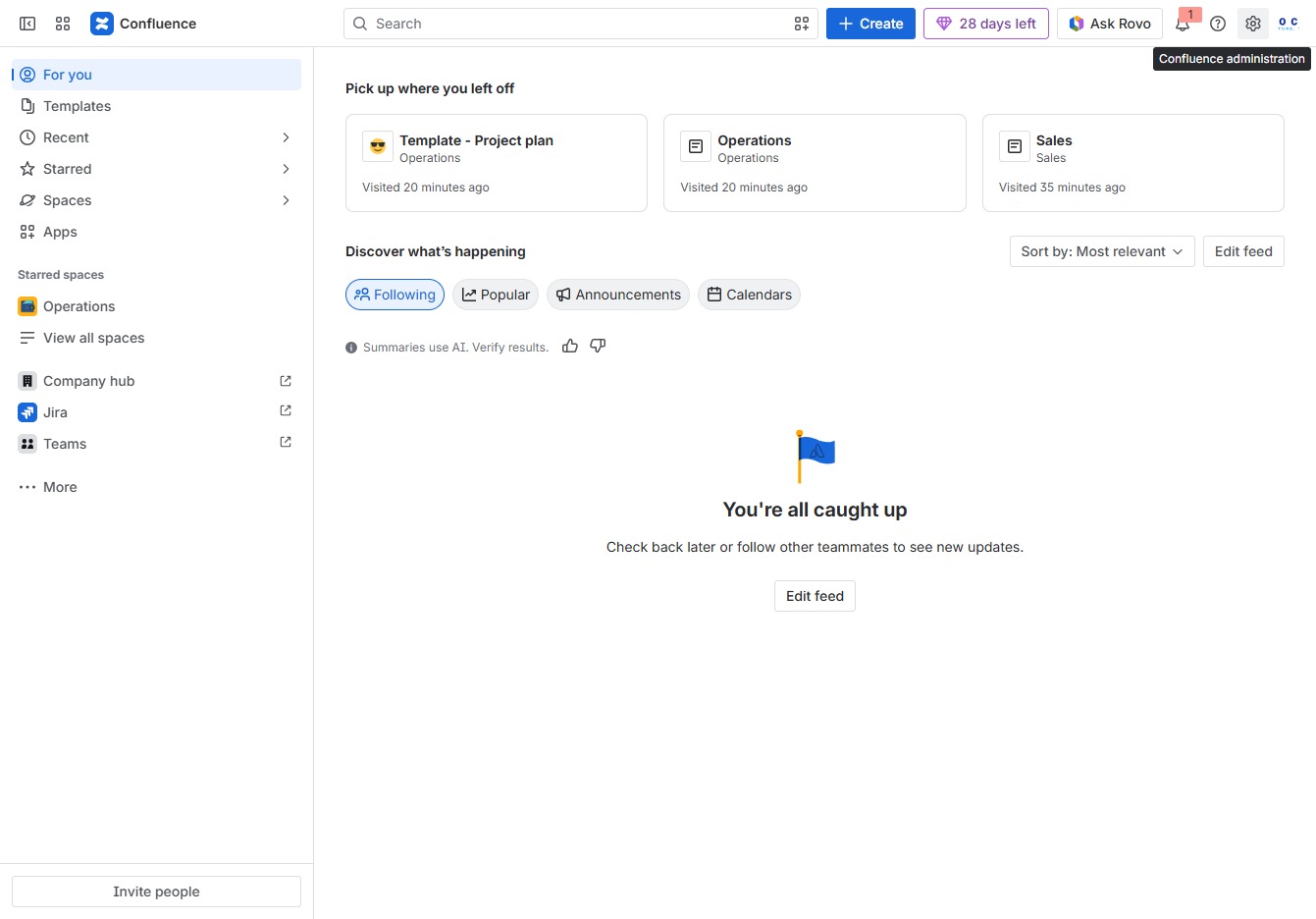
Click the Confluence administration link
This will take you to the administrative settings of Confluence, where you can manage configurations, user permissions, and system settings.
Loading screenshot…
100%
Learn how to effectively use space analytics in Confluence by navigating through the administrative settings to manage your spaces, configure settings, and analyze content metrics.
 viktoria
Learn how to effectively use space analytics in Confluence by navigating through the administrative settings to manage your spaces, configure settings, and analyze content metrics. This guide provides step-by-step instructions to help you optimize your space management and gain insights into performance data.
This will take you to the administrative settings of Confluence, where you can manage configurations, user permissions, and system settings.
This action will take you to the Spaces section, where you can manage and view details about your existing spaces in Confluence.
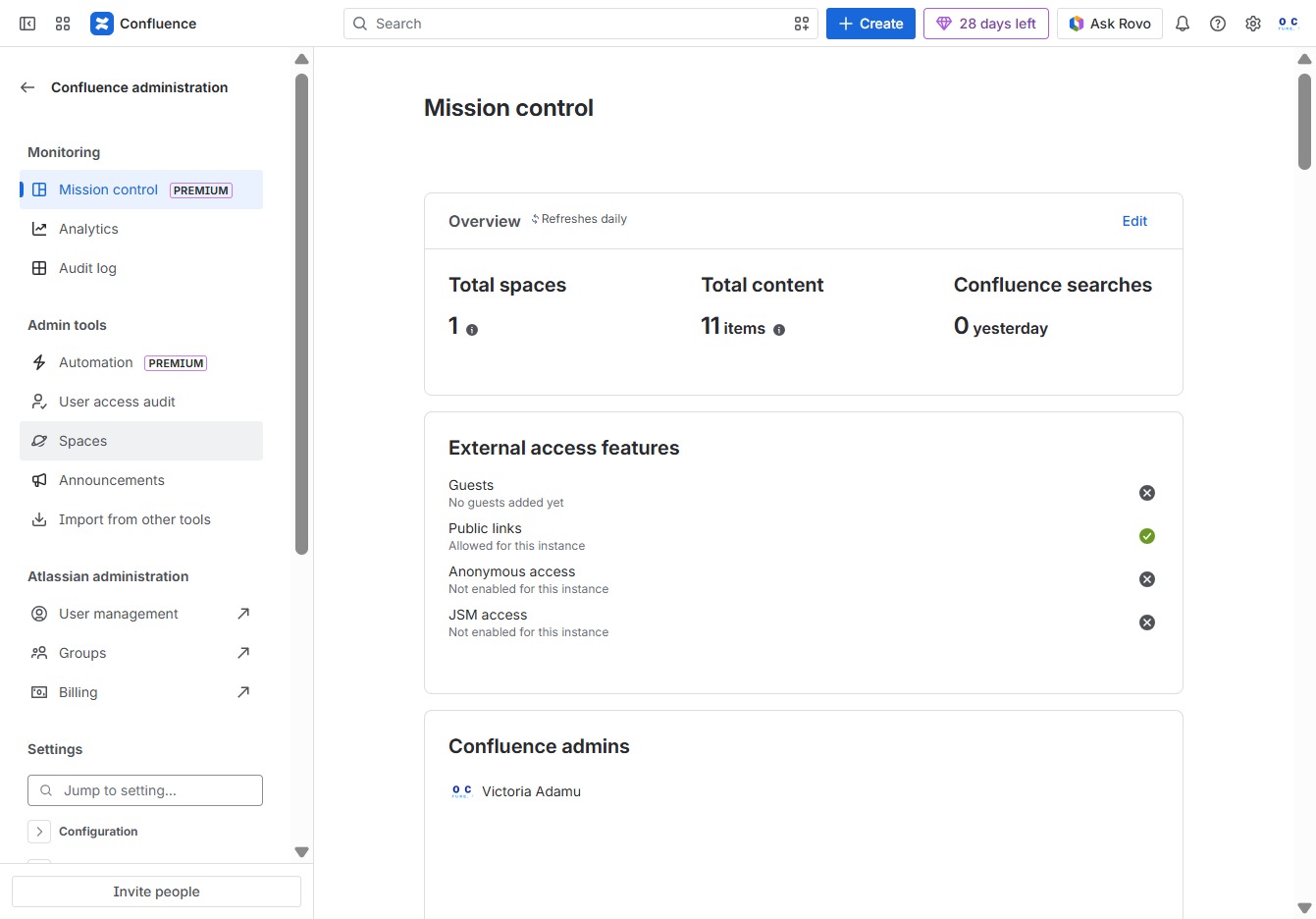
Selecting 'Quick Actions' will reveal a menu of available actions that you can perform on the selected spaces.
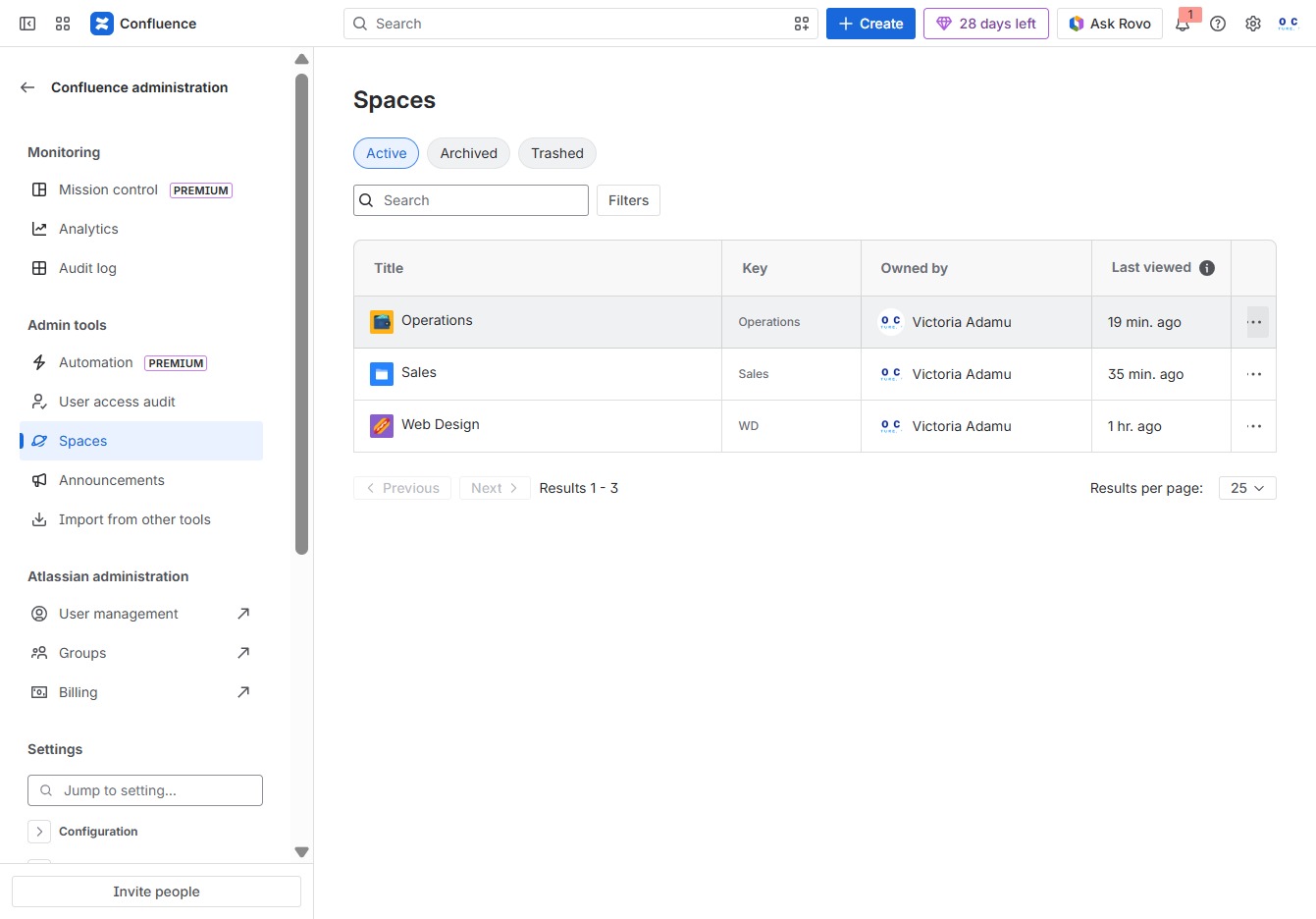
This action opens the configuration options for the selected space, allowing you to adjust settings, permissions, and other properties pertinent to managing the space effectively.

This will take you to the Analytics section where you can view and analyze content metrics and performance data.