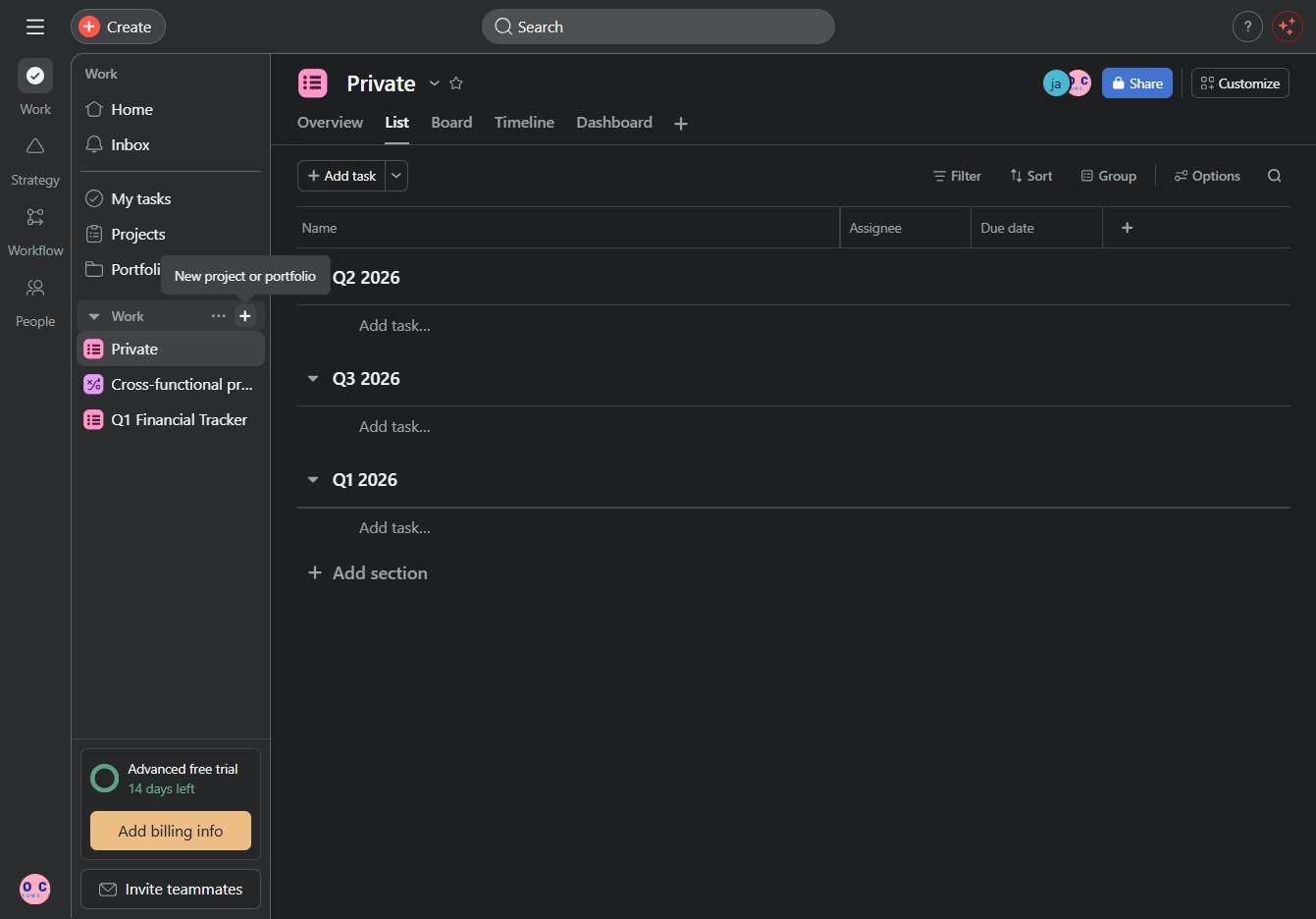
Click here to add a new task
This will open a prompt allowing you to enter details for a new task in your project. Fill in the necessary information such as task name, assignee, and due date.
Loading screenshot…
100%
This how-to guide provides step-by-step instructions for efficiently using project templates, enabling you to create and manage new tasks and projects seamlessly.
 viktoria
This how-to guide provides step-by-step instructions for efficiently using project templates, enabling you to create and manage new tasks and projects seamlessly. Learn how to navigate to the necessary links, fill in project details, and apply templates that streamline your workflow, ensuring organization and clarity in your project management.
This will open a prompt allowing you to enter details for a new task in your project. Fill in the necessary information such as task name, assignee, and due date.
This action will initiate the creation of a new project, allowing you to enter details and define parameters specific to your new task.
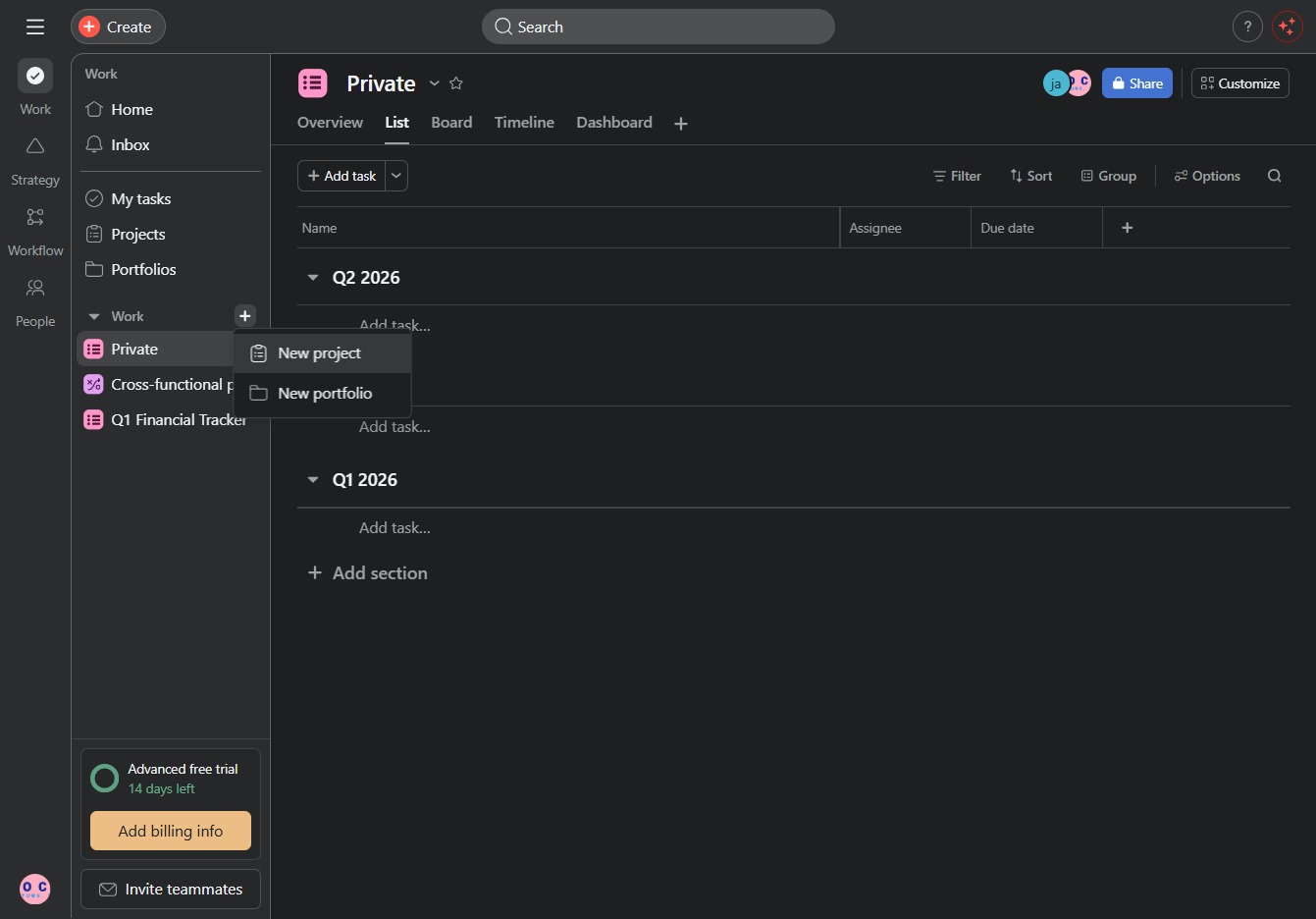
Access the list of available project templates to start new projects or manage existing ones. This view allows you to organize and select templates tailored to your organization's needs.

This action allows you to apply a predefined template to your current project, streamlining your workflow with set guidelines.
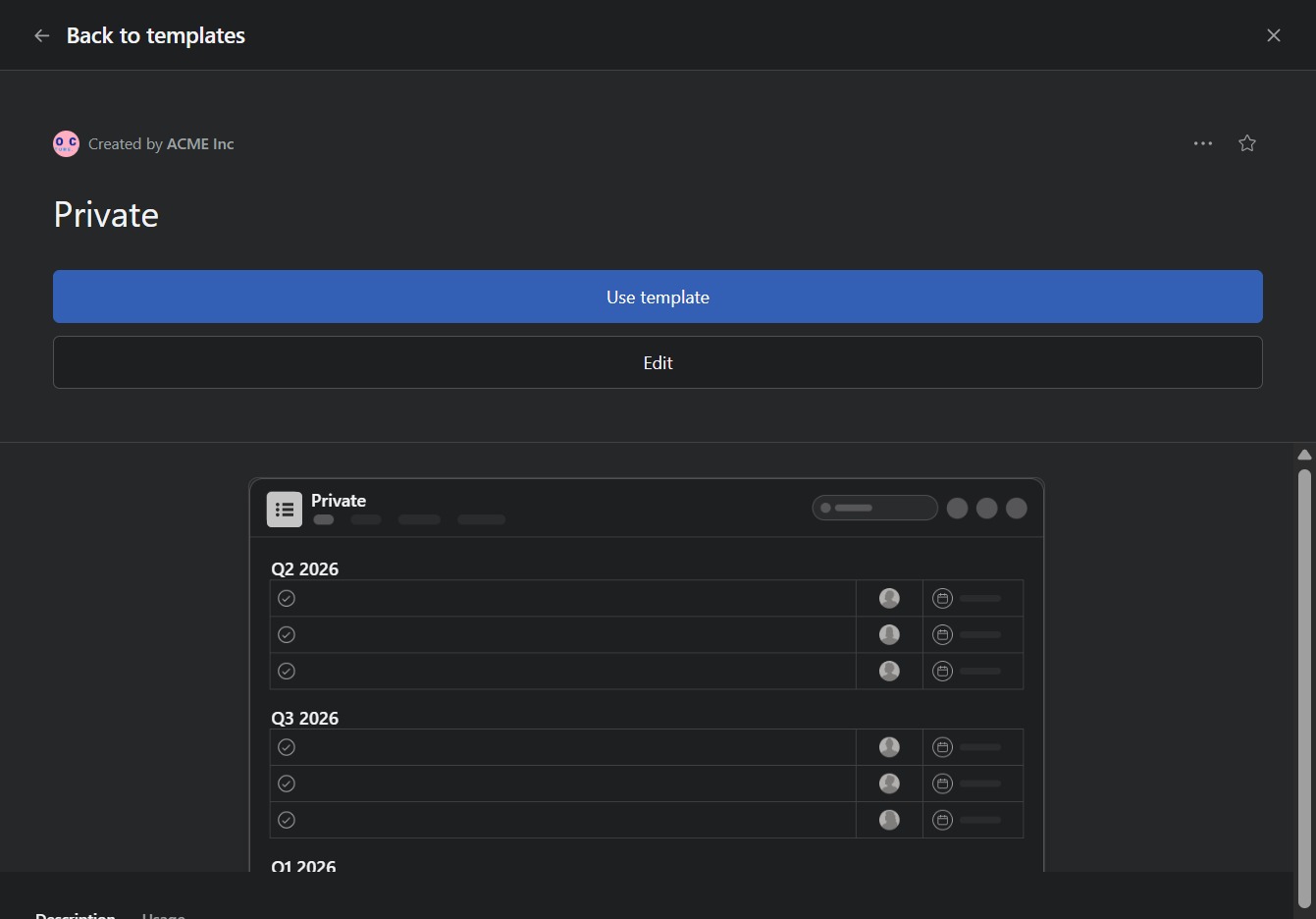
Clicking this button will finalize the project setup and redirect you to the project's overview page, where you can manage tasks and timelines.
