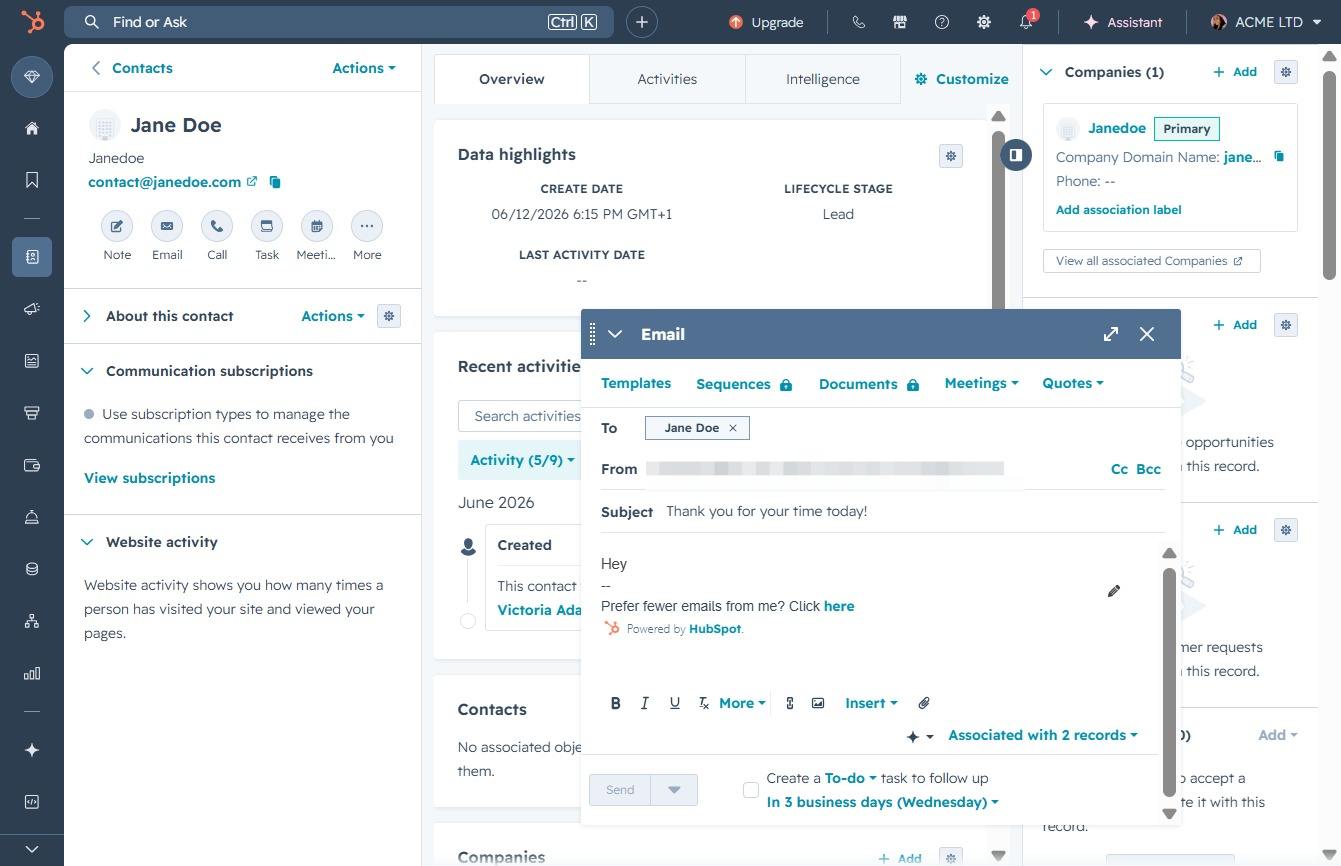
Click the Contacts link
Selecting the 'Contacts' link will navigate you to the section where you can manage your contacts, view details, and update information as needed.

Loading screenshot…
100%
Compose and send a follow-up email to Jane Doe in HubSpot after a demo by managing her contact details, customizing your message, and confirming delivery.
 viktoria
Compose and send a follow-up email to Jane Doe in HubSpot after a demo by managing her contact details, customizing your message, and confirming delivery.
Selecting the 'Contacts' link will navigate you to the section where you can manage your contacts, view details, and update information as needed.
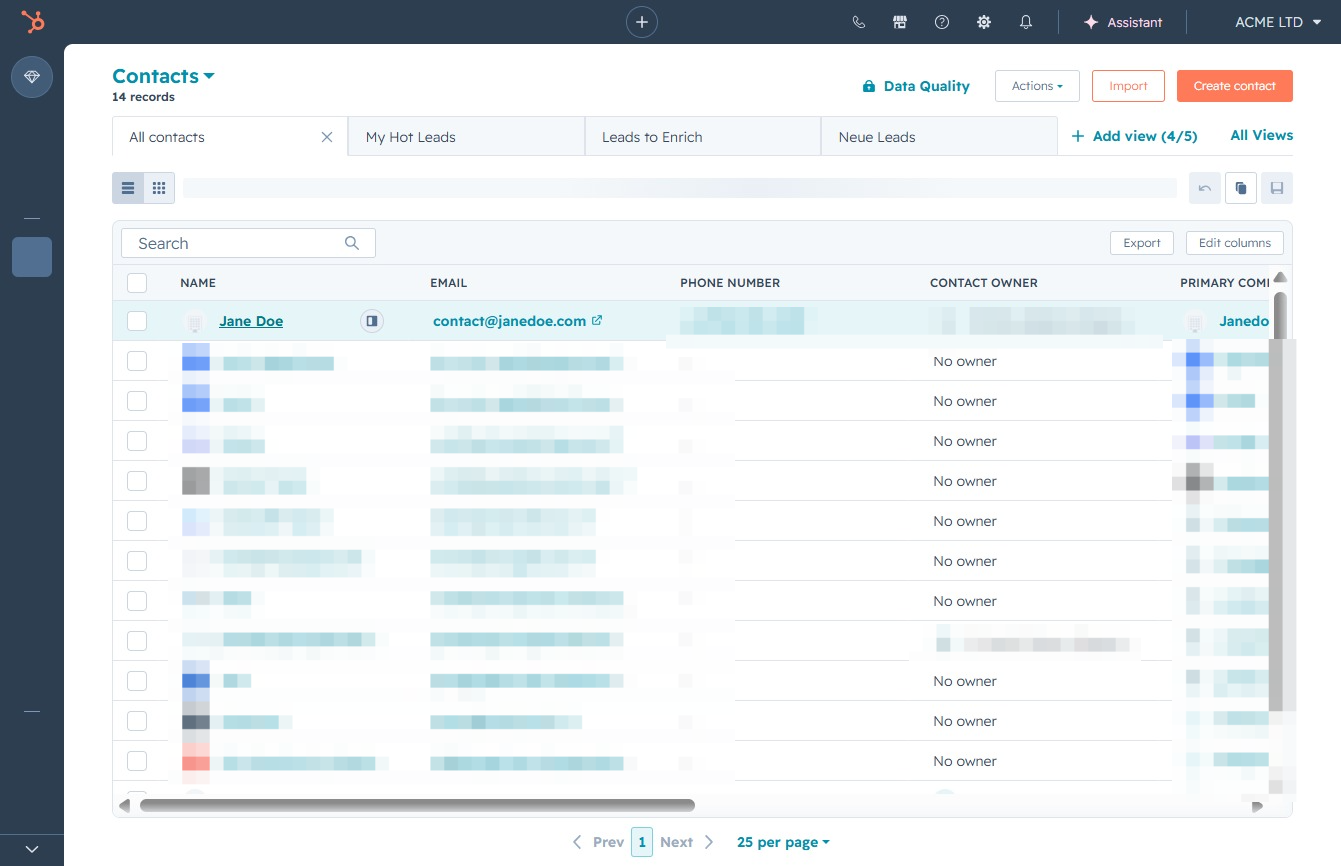
This action opens the detailed view of Jane Doe's contact information, allowing you to edit or manage details such as email, phone number, and contact ownership.
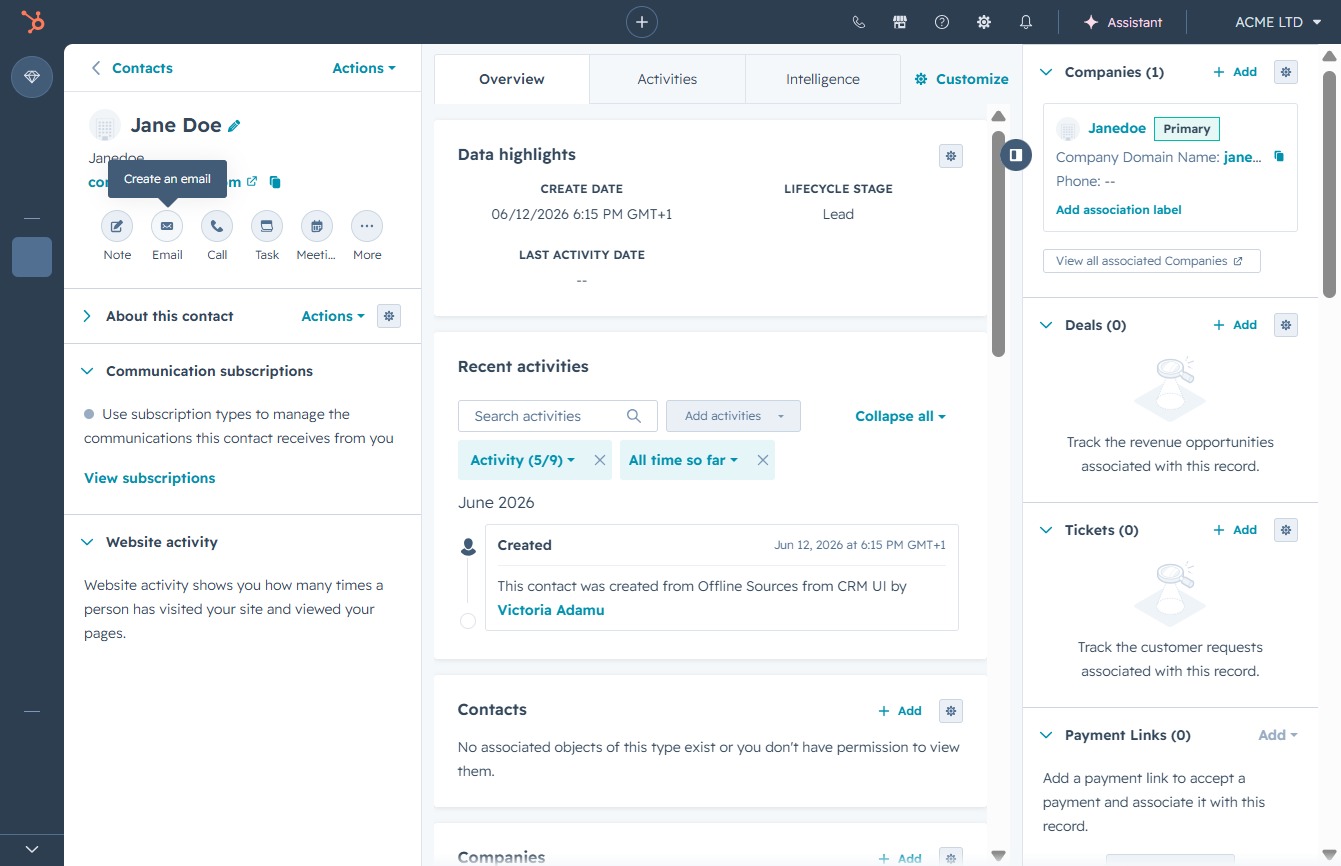
This action opens the email composition window, allowing you to draft and send a message to Jane Doe.
This action will allow you to manage your email preferences or subscription settings, enabling you to customize how you receive emails from this contact.
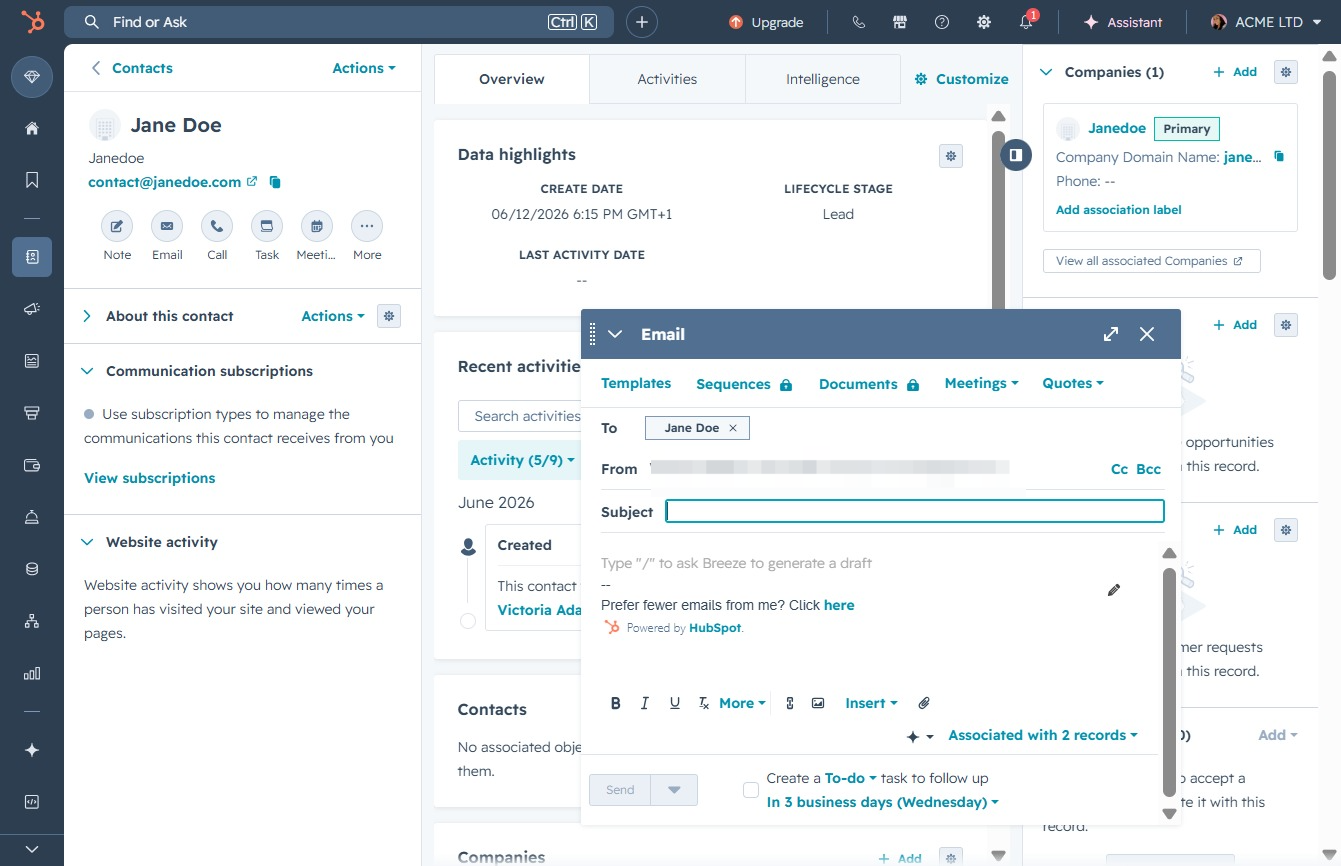
In the email window, enter your message in the body field to communicate with Jane Doe. You can also customize the subject line as needed before sending.
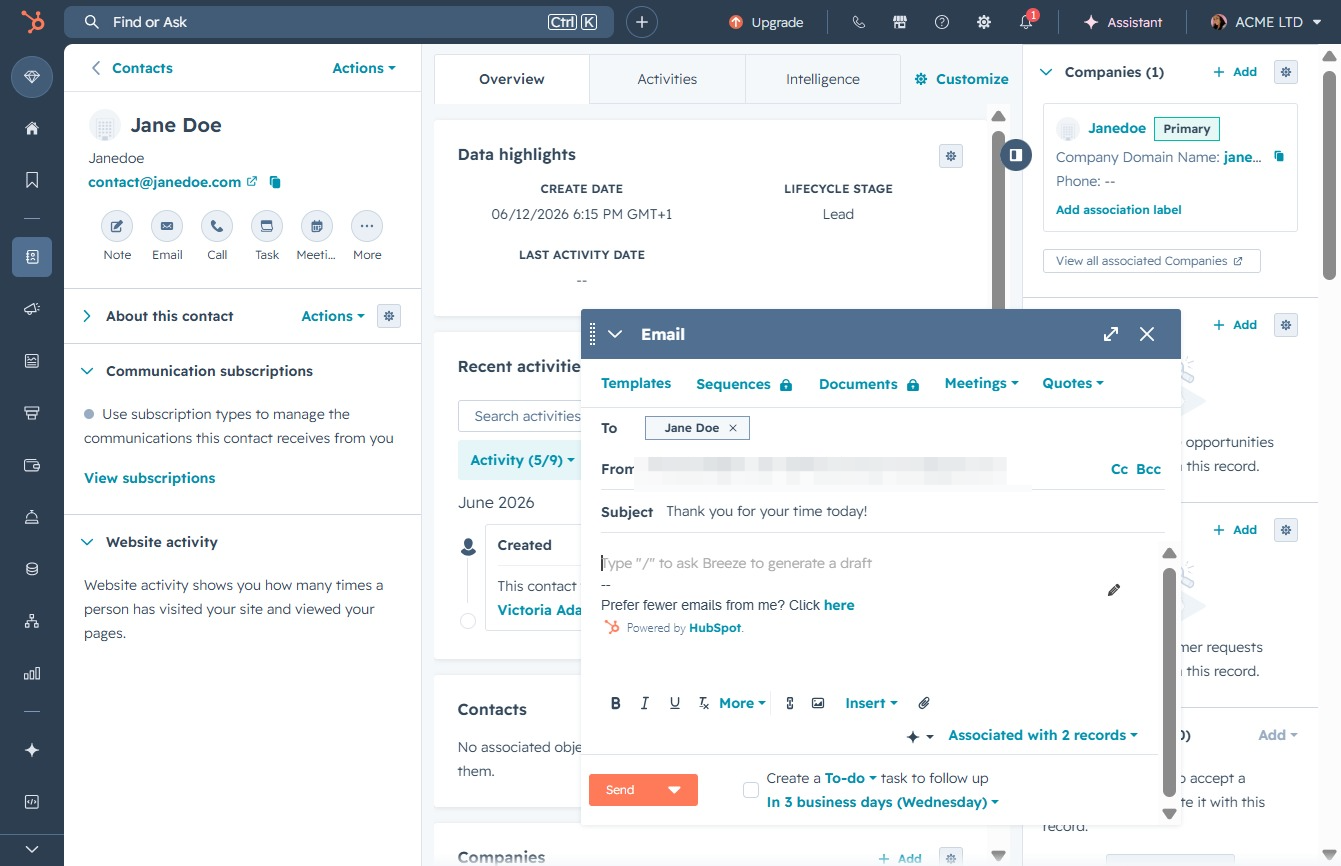
Clicking this link will initiate the email sending process, allowing you to compose and send a message to the selected contact, Jane Doe.
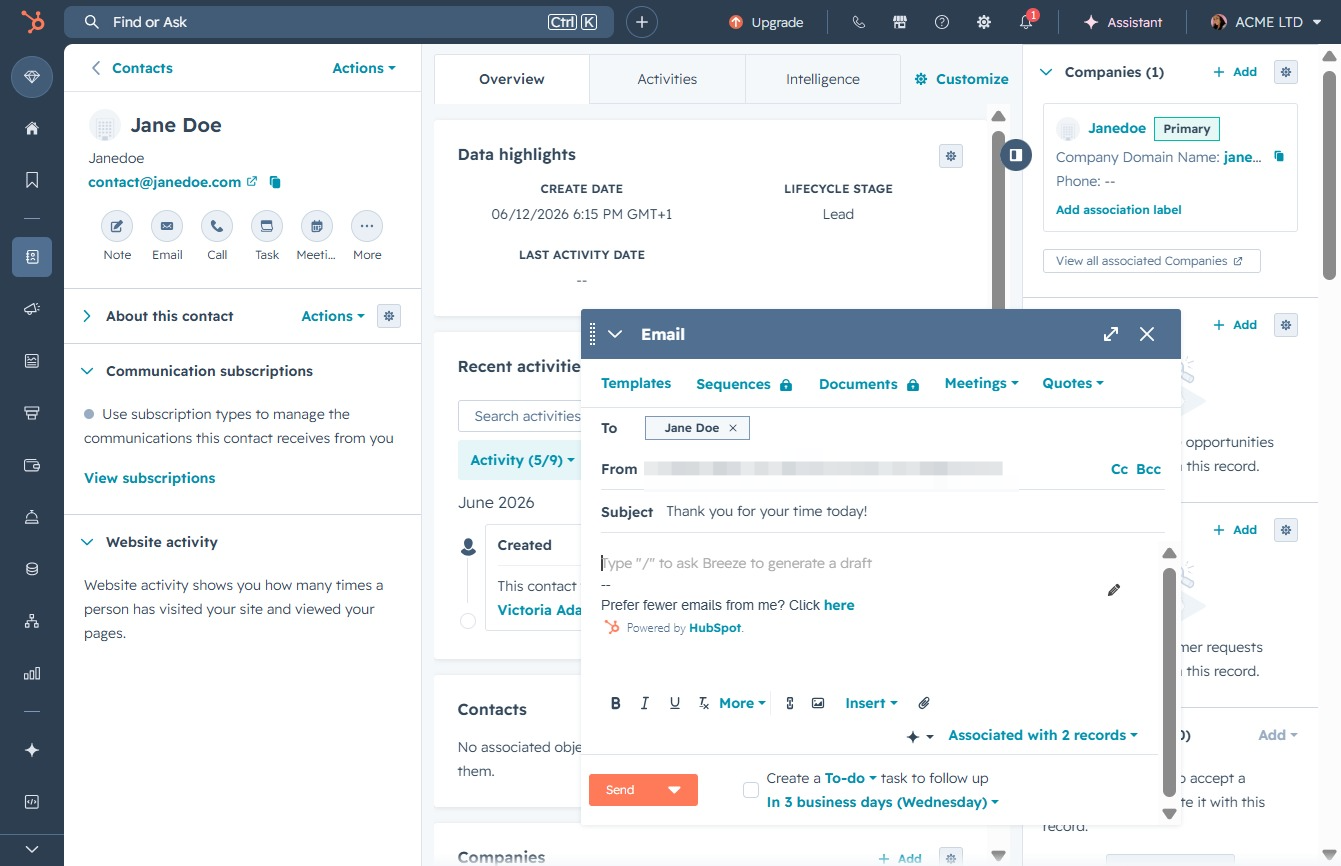
Enter a brief and descriptive subject for your email to Jane Doe. This helps the recipient understand the purpose of your message at a glance.
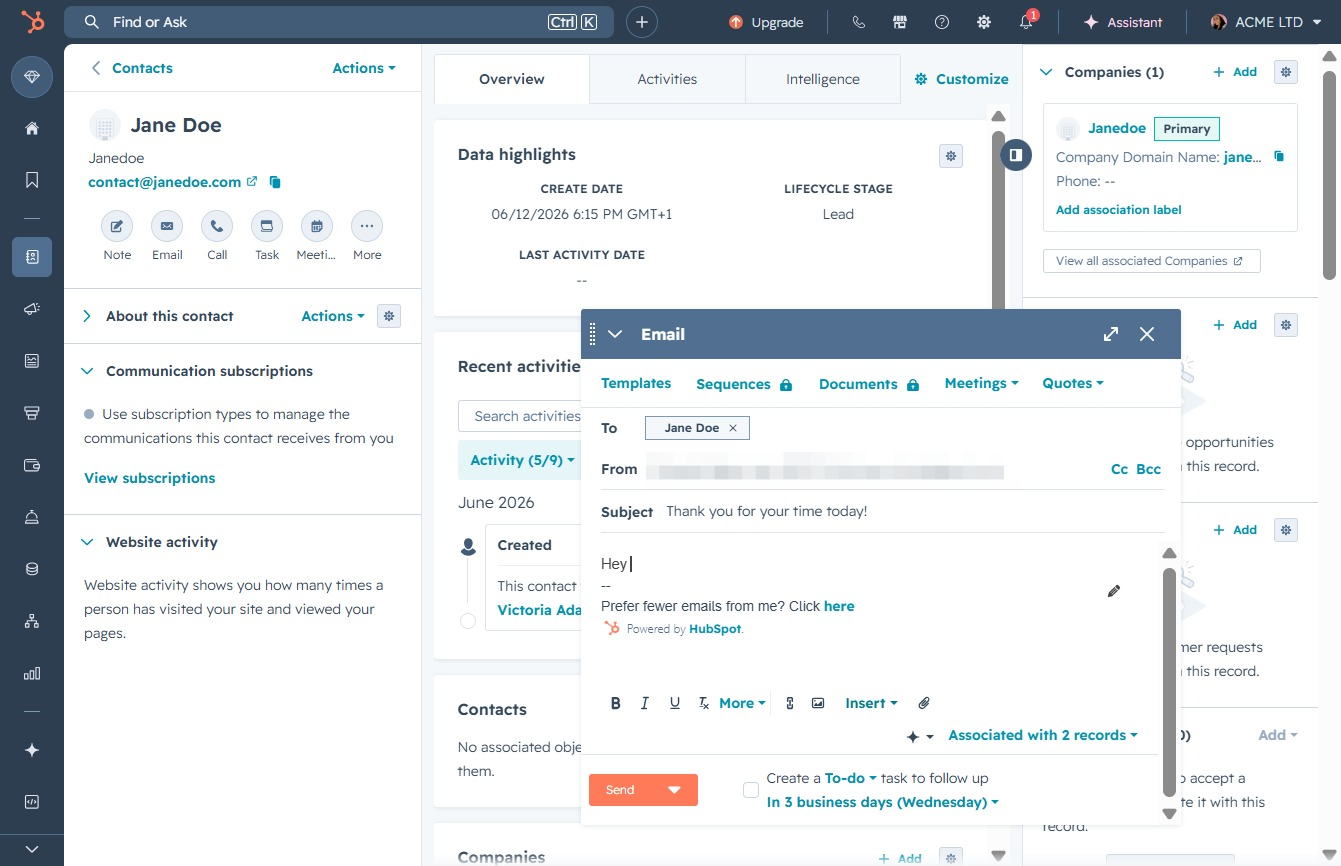
Clicking the 'Send' button will transmit your email to Jane Doe, confirming your message delivery.