Geteilte Anleitung

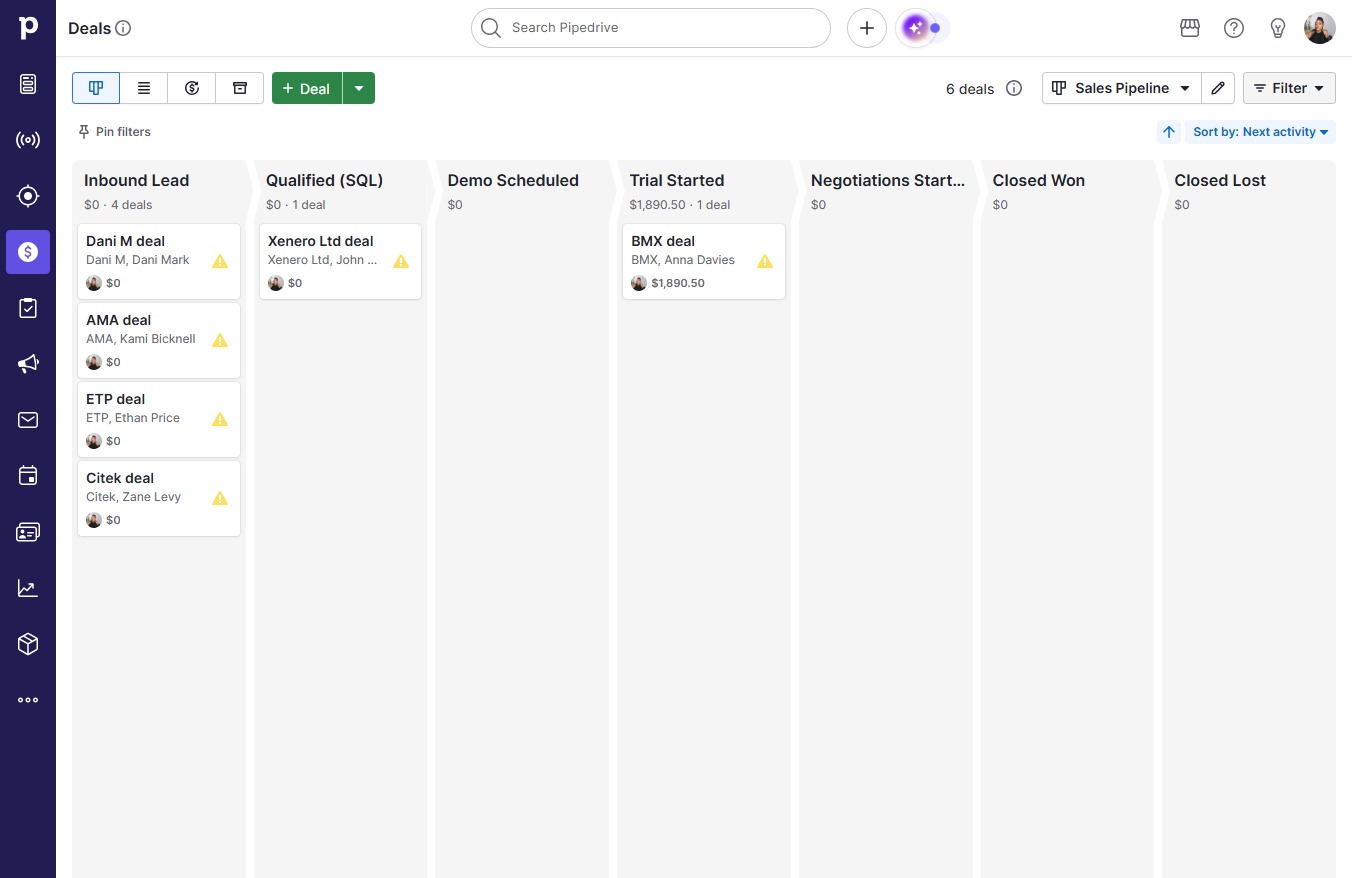
How to use deal filters and saved views

Learn how to effectively use deal filters and create saved views in your workflow by following this step-by-step guide.

victoriaworkflowsvictoriaworkflows
·10 Schritte·85 Aufrufe·Veröffentlicht

Learn how to effectively use deal filters and create saved views in your workflow by following this step-by-step guide. This tutorial will walk you through filtering your deals based on specific organizations and saving custom views for easy access in the future.

Step-by-step Guide10 Schritte
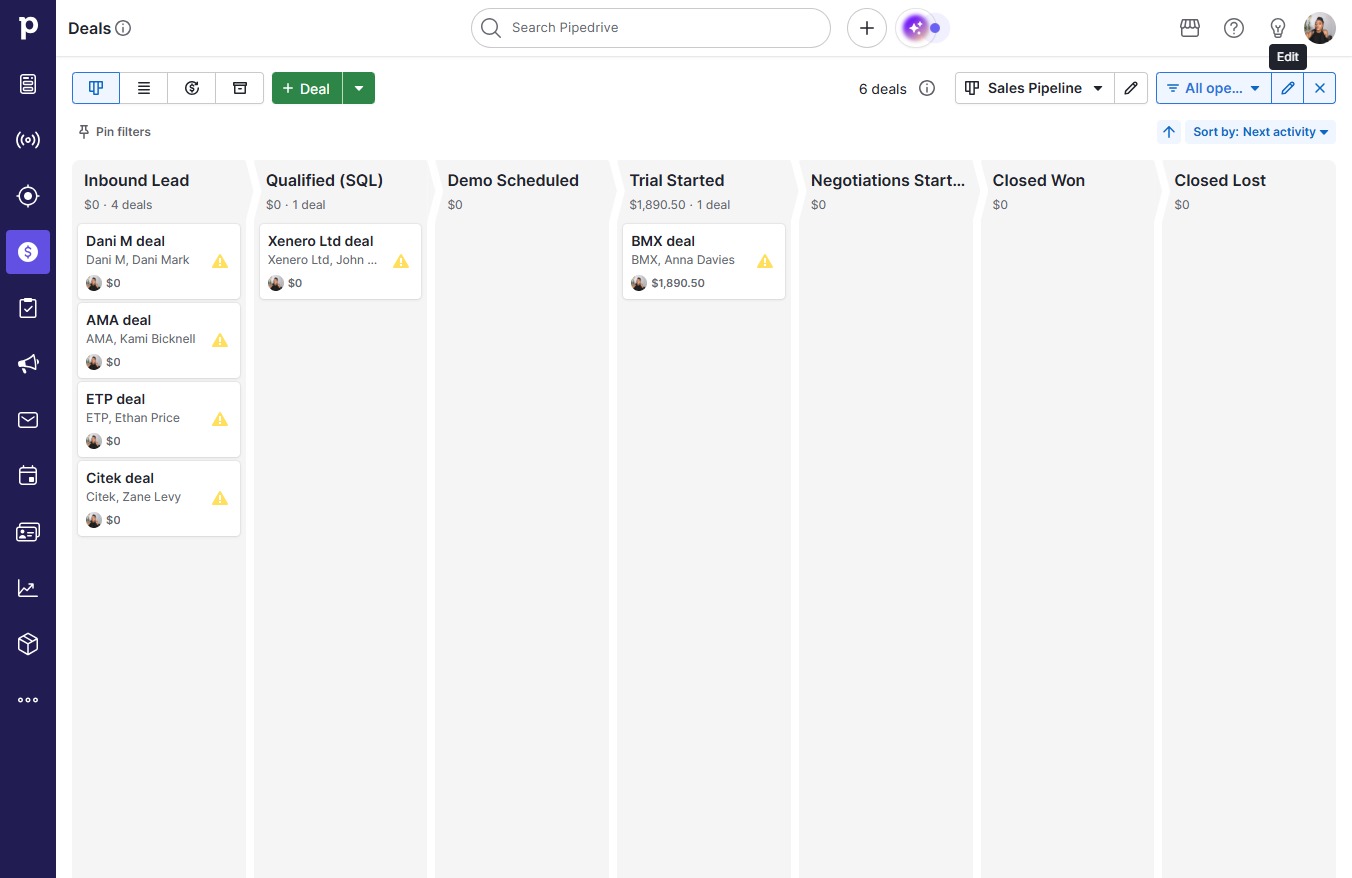
  1. Click Filter

    Click Filter
    Loading screenshot…
    100%
  2. Click on "Click here."

    Click on "Click here."
    Loading screenshot…
    100%
  3. Click All open deals

    Click All open deals
    Loading screenshot…
    100%
  4. Click on "Click here."

    Click on "Click here."
    Loading screenshot…
    100%
  5. Click Add condition

    Click Add condition
    Loading screenshot…
    100%
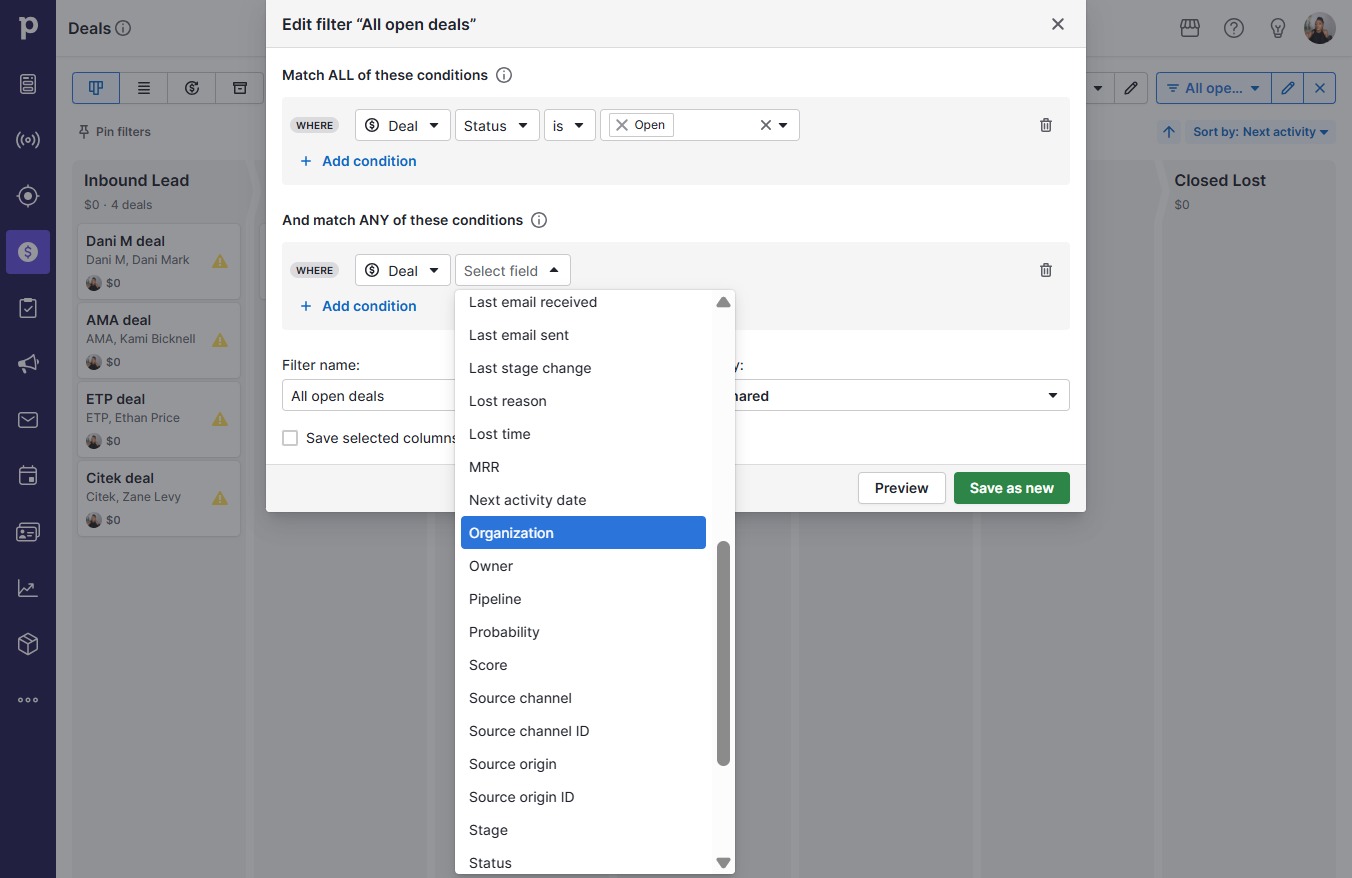
  6. Click Organization

    Click Organization
    Loading screenshot…
    100%
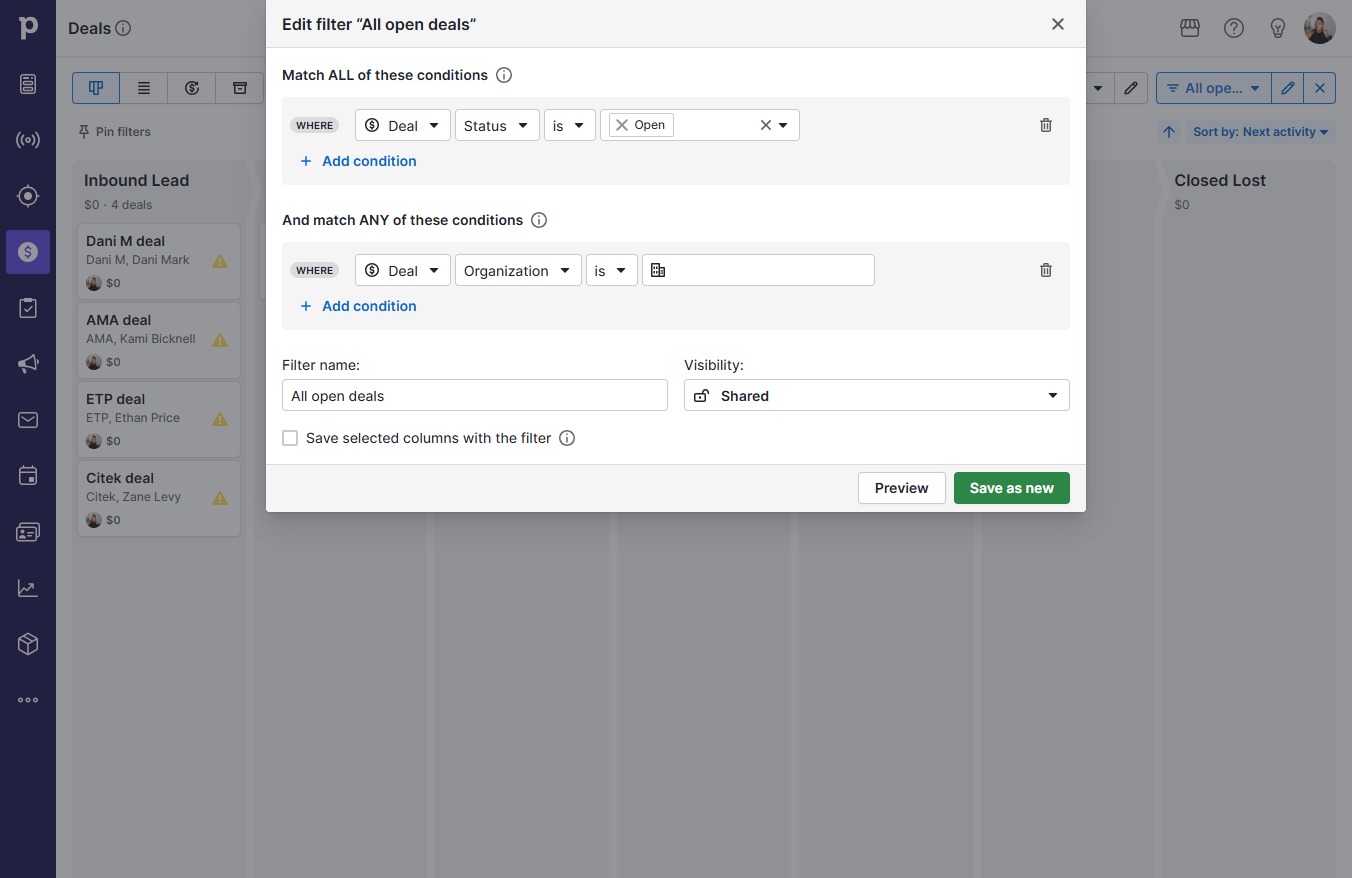
  7. Click on "Click here."

    Click on "Click here."
    Loading screenshot…
    100%
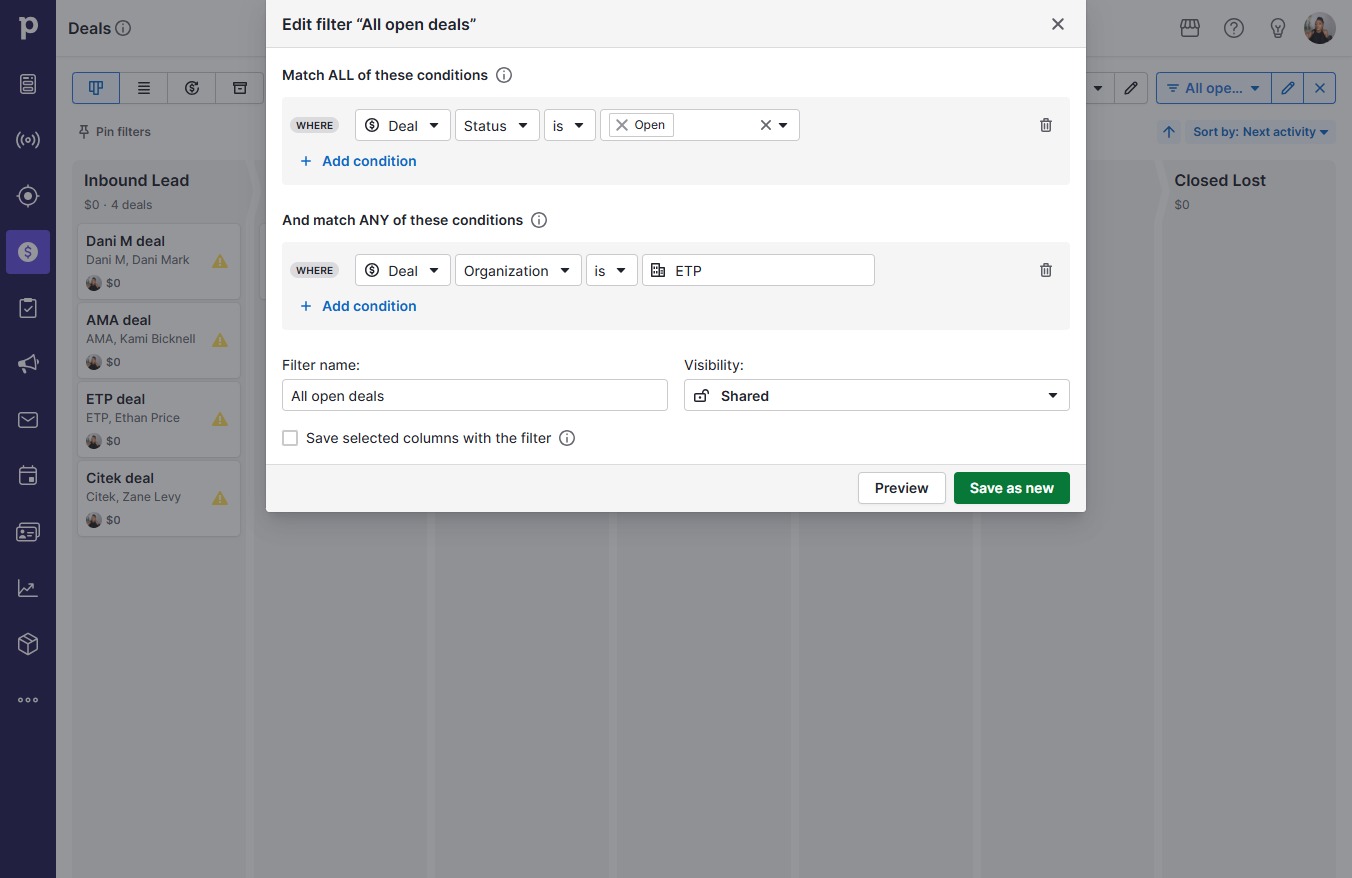
  8. Type "ETP" in Downshift 0 input

  9. Click ETP

    Click ETP
    Loading screenshot…
    100%
  10. Click Save as new

    Click Save as new
    Loading screenshot…
    100%