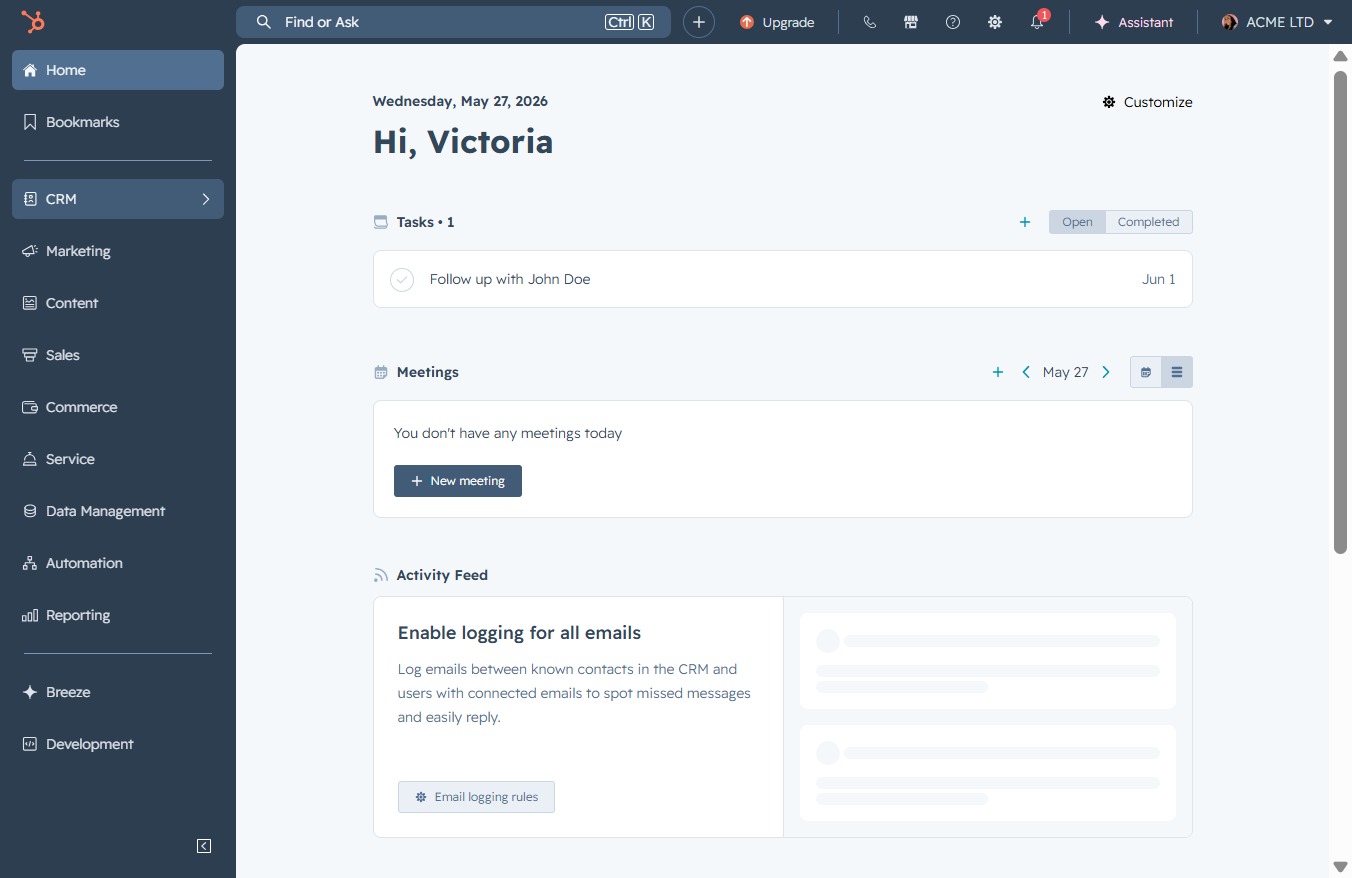
Click the CRM icon
Selecting the CRM icon will take you to the Customer Relationship Management dashboard, where you can manage and track customer interactions.
Loading screenshot…
100%
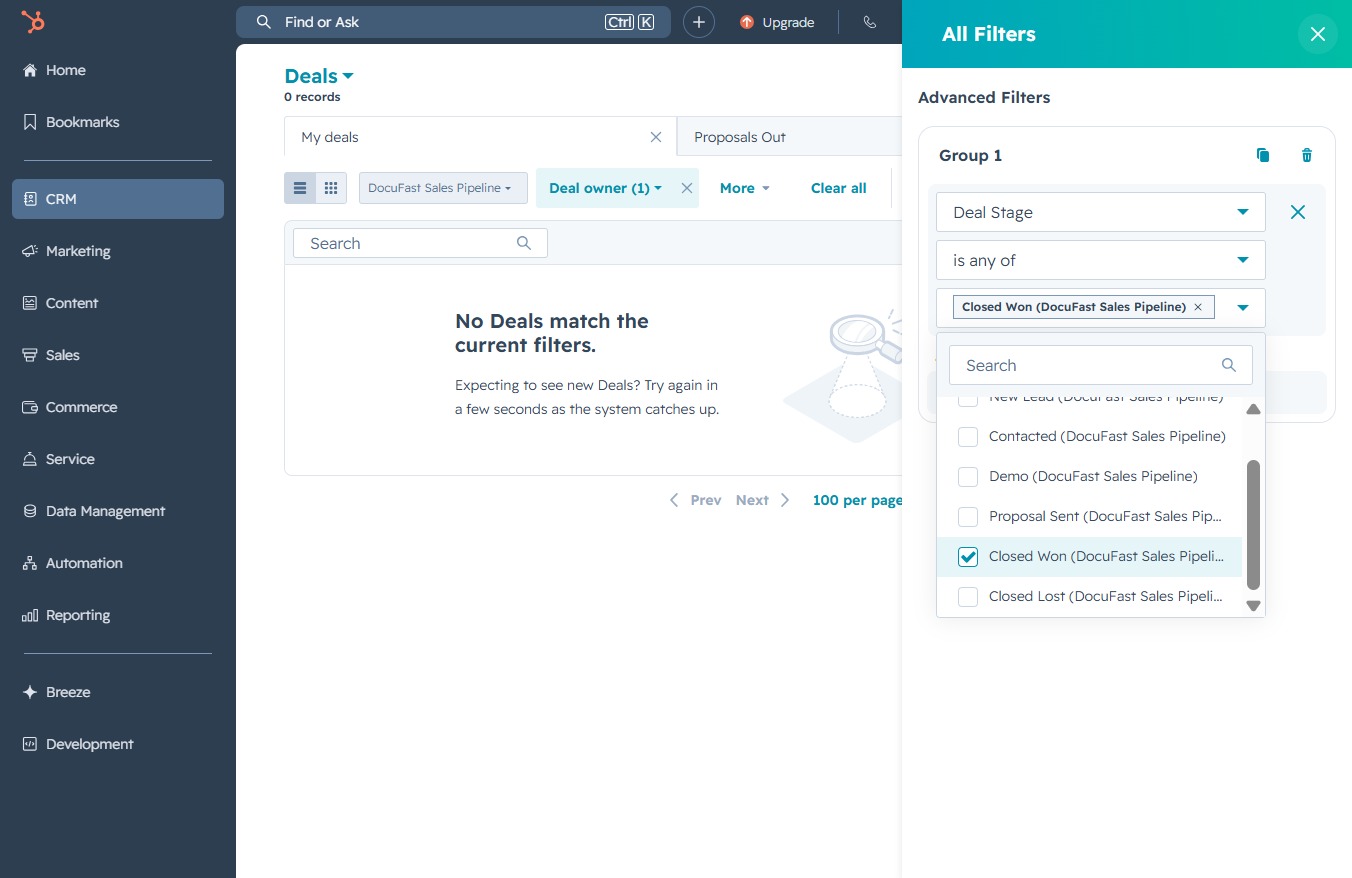
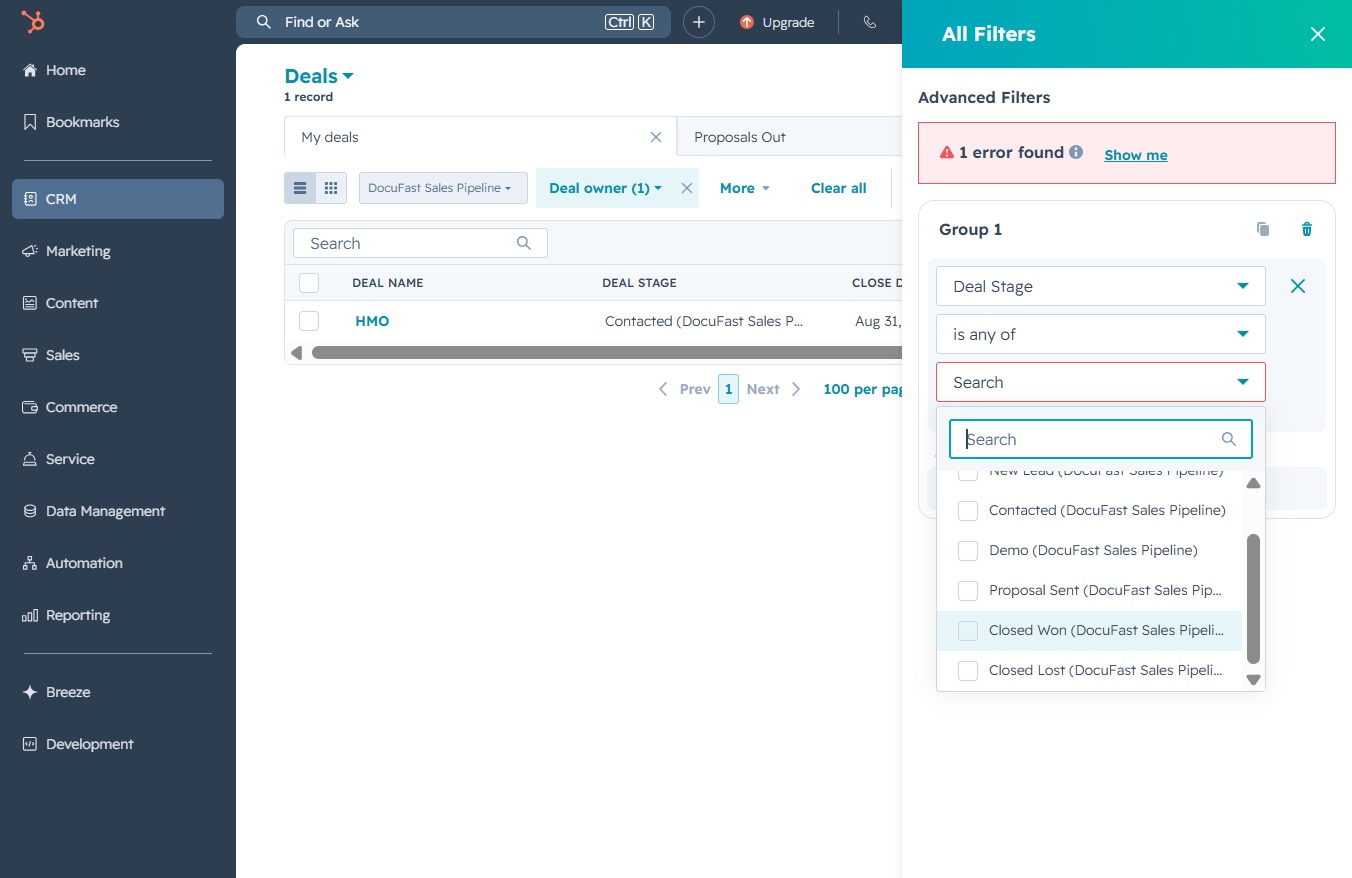
Use the CRM dashboard to filter deals by stage and keywords to efficiently track and manage your sales opportunities in the Deals section with tailored search results.
 viktoria
Use the CRM dashboard to filter deals by stage and keywords to efficiently track and manage your sales opportunities in the Deals section with tailored search results.
Selecting the CRM icon will take you to the Customer Relationship Management dashboard, where you can manage and track customer interactions.
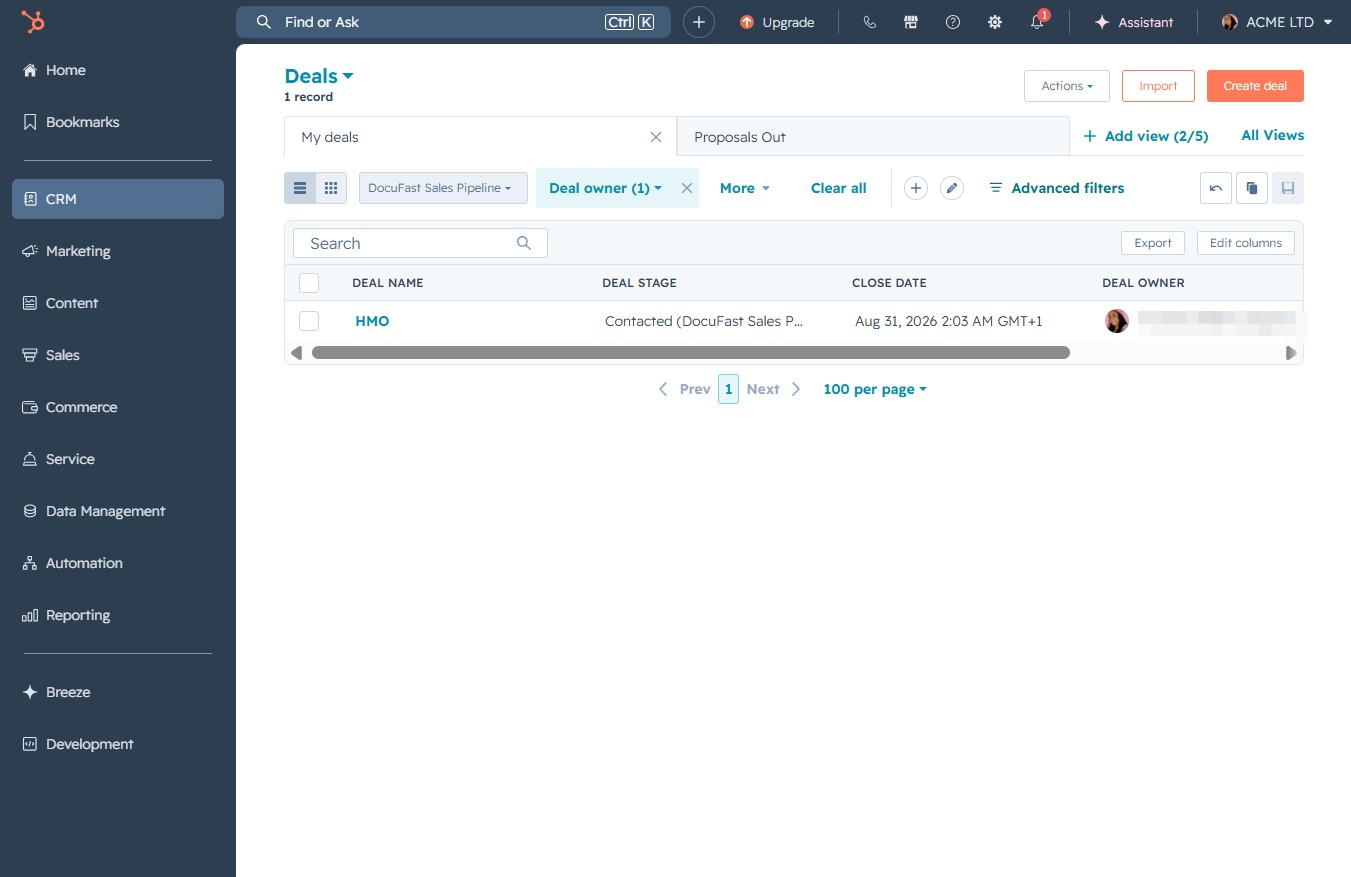
Selecting the 'Deals' link will take you to the deals management section, where you can view and manage your ongoing deals and sales opportunities.

This action opens the advanced filtering options, allowing you to refine your deal search criteria for more tailored results in the Deals section.
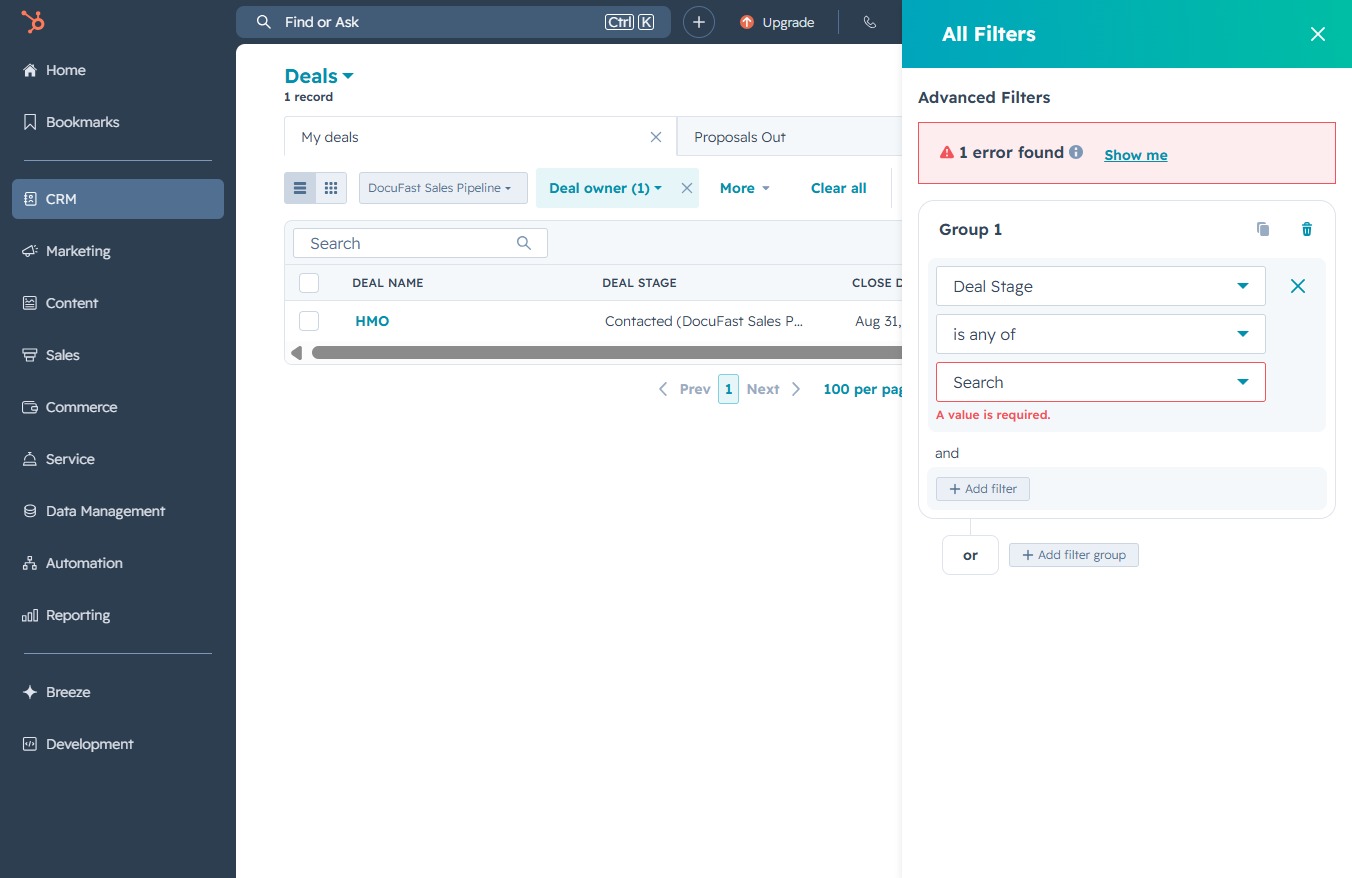
This action will allow you to set additional criteria to narrow down your deal search results in the filtering options.

Select a deal stage from the dropdown menu to categorize your deals in the CRM. This allows you to track the progress of each deal effectively.

Entering a keyword in the Search field will filter your deals based on the specified criteria, allowing you to quickly locate the relevant deal or information.
Clicking this link will trigger an action related to the current filters in the Deals section, allowing you to expand or modify your search parameters.
This action will dismiss the advanced filters panel, allowing you to return to the main Deals view.