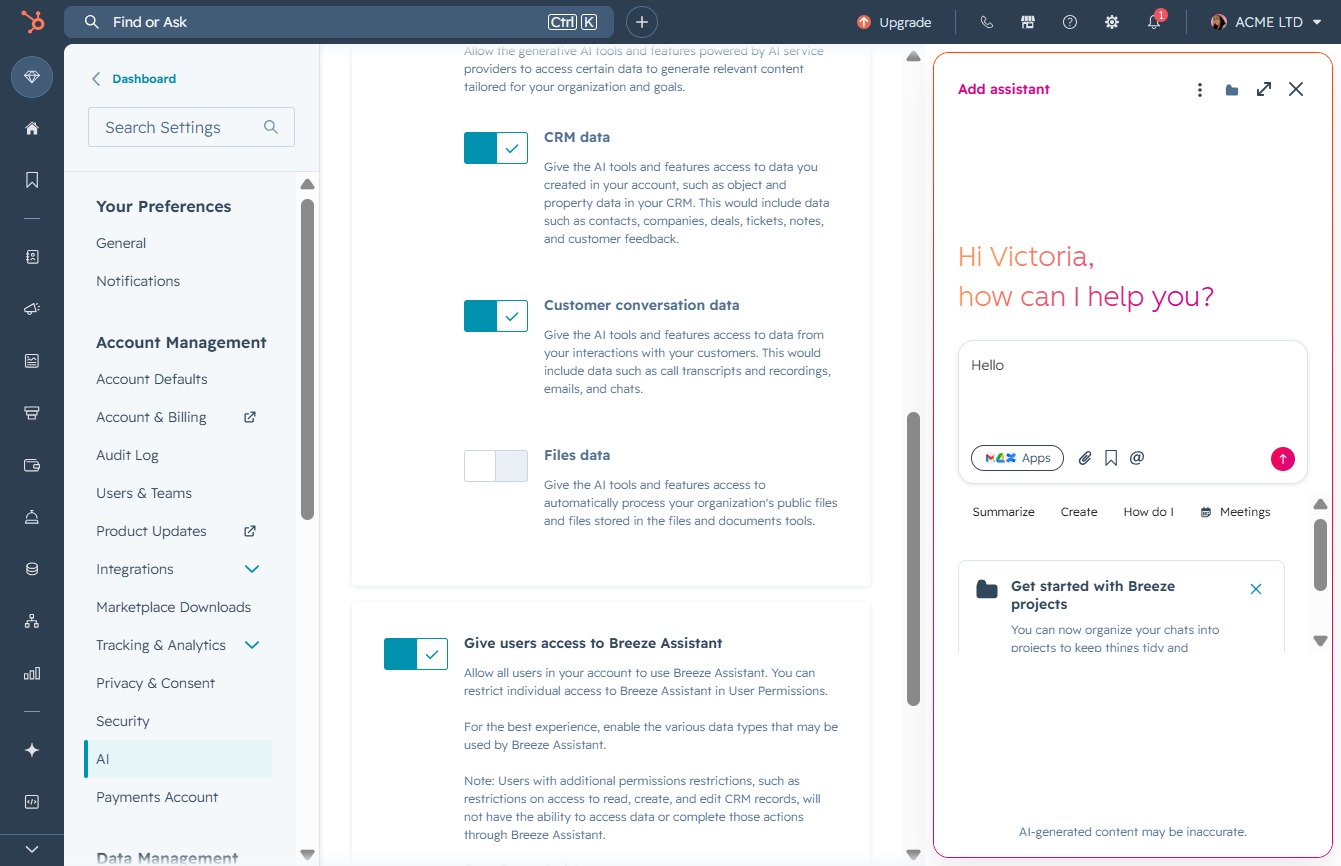
Click here to access details
Clicking this link will expand or provide more information about the current context or section on the interface.

Loading screenshot…
100%
Utilize Breeze AI features in HubSpot to personalize your experience and manage advanced AI tools, enhancing your project interactions and permissions effectively.
 viktoria
Utilize Breeze AI features in HubSpot to personalize your experience and manage advanced AI tools, enhancing your project interactions and permissions effectively.
Clicking this link will expand or provide more information about the current context or section on the interface.
Clicking the 'AI' option allows you to access advanced artificial intelligence features and settings within the platform. This may include personalizing your experience or leveraging AI tools for improved functionality.
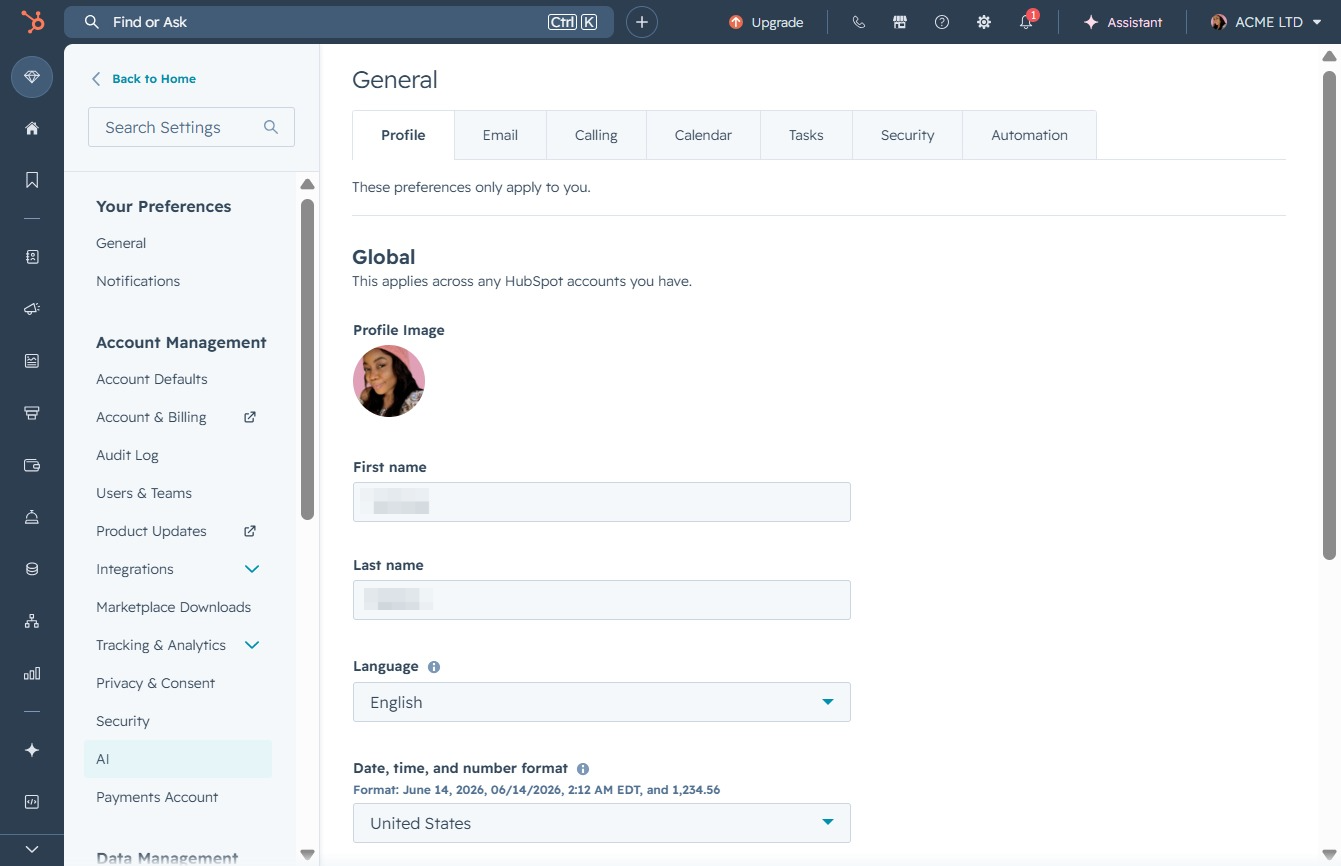
By clicking this setting, you can manage your AI features and tools, including providing feedback to enhance your AI experience.
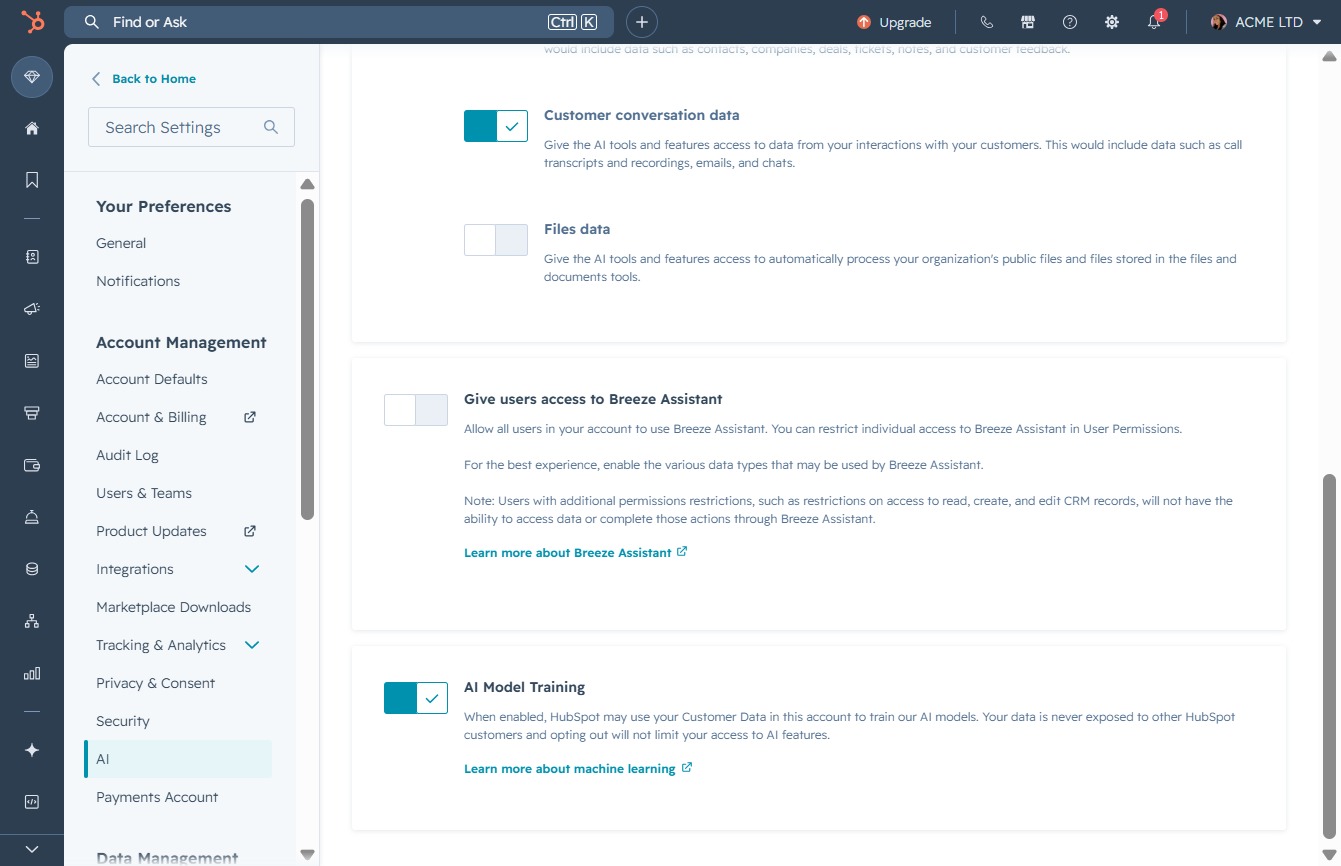
Clicking this button will save the changes made to your settings, including adjustments related to user access and data preferences.
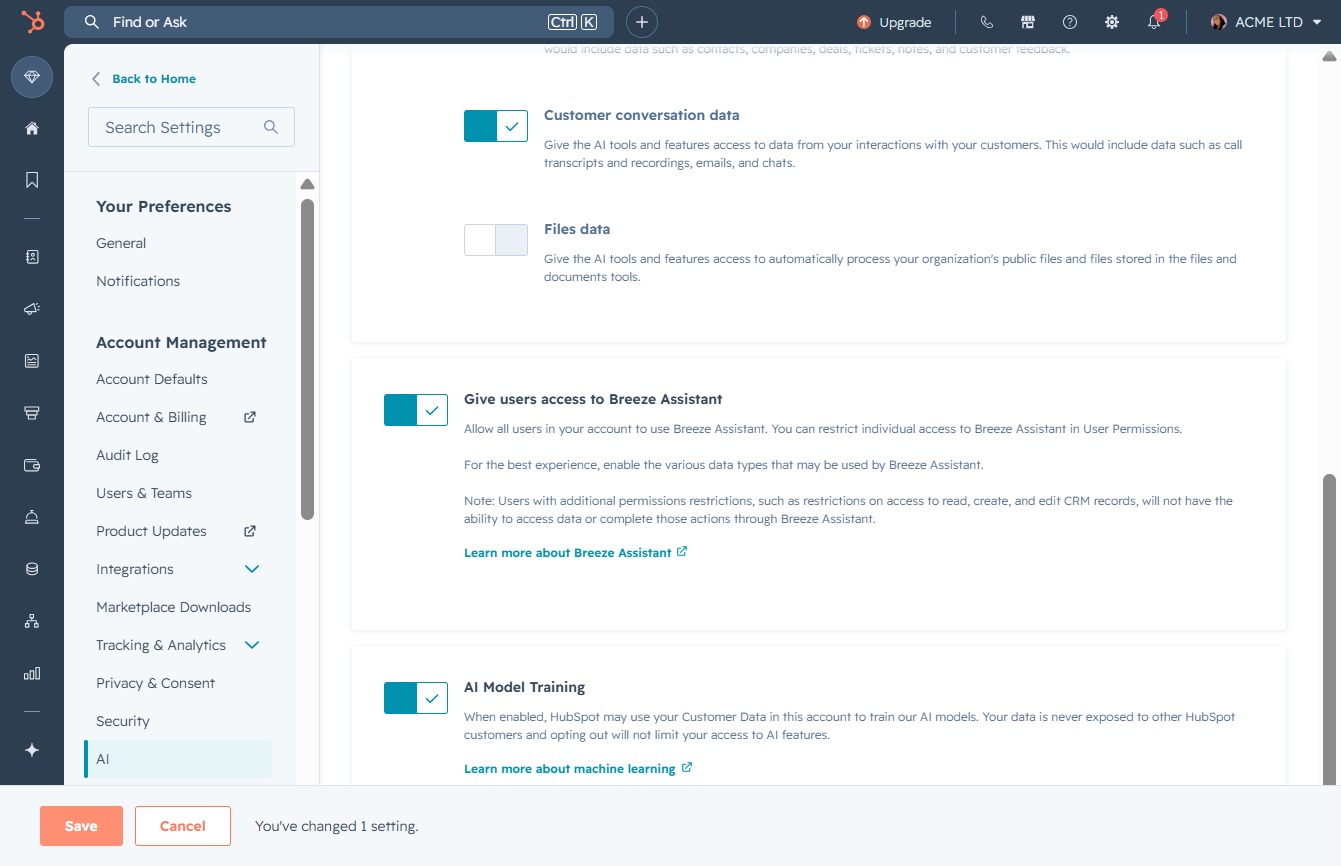
Selecting 'Open Breeze Assistant' will launch the Breeze Assistant, allowing users to interact with additional features and manage their permissions effectively.

Clicking this link will open the Breeze Assistant, allowing you to interact with your assistant for help with project-related inquiries.
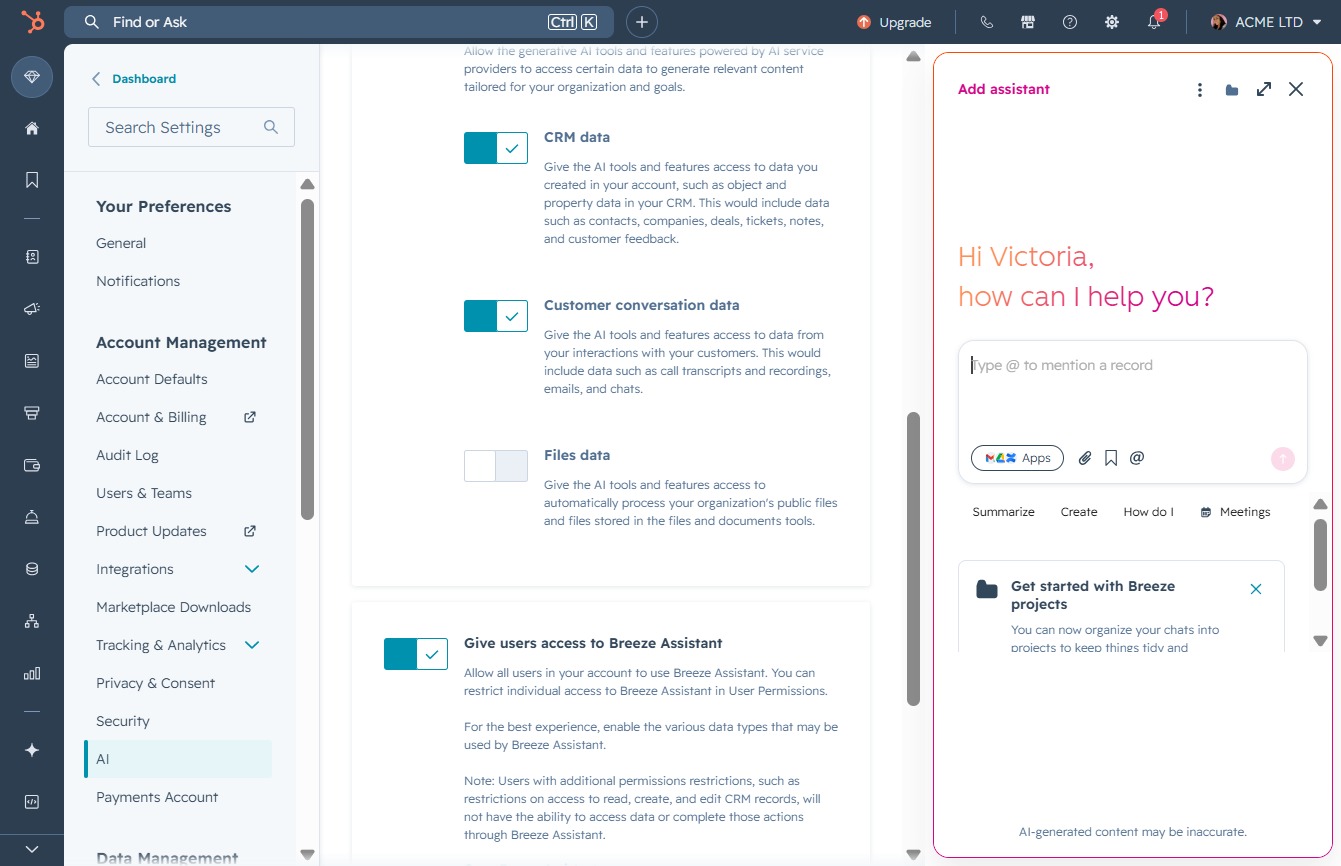
Enter 'Hello' in the chat field to initiate a conversation with the assistant. This will allow you to start interacting with the assistant for help or information.
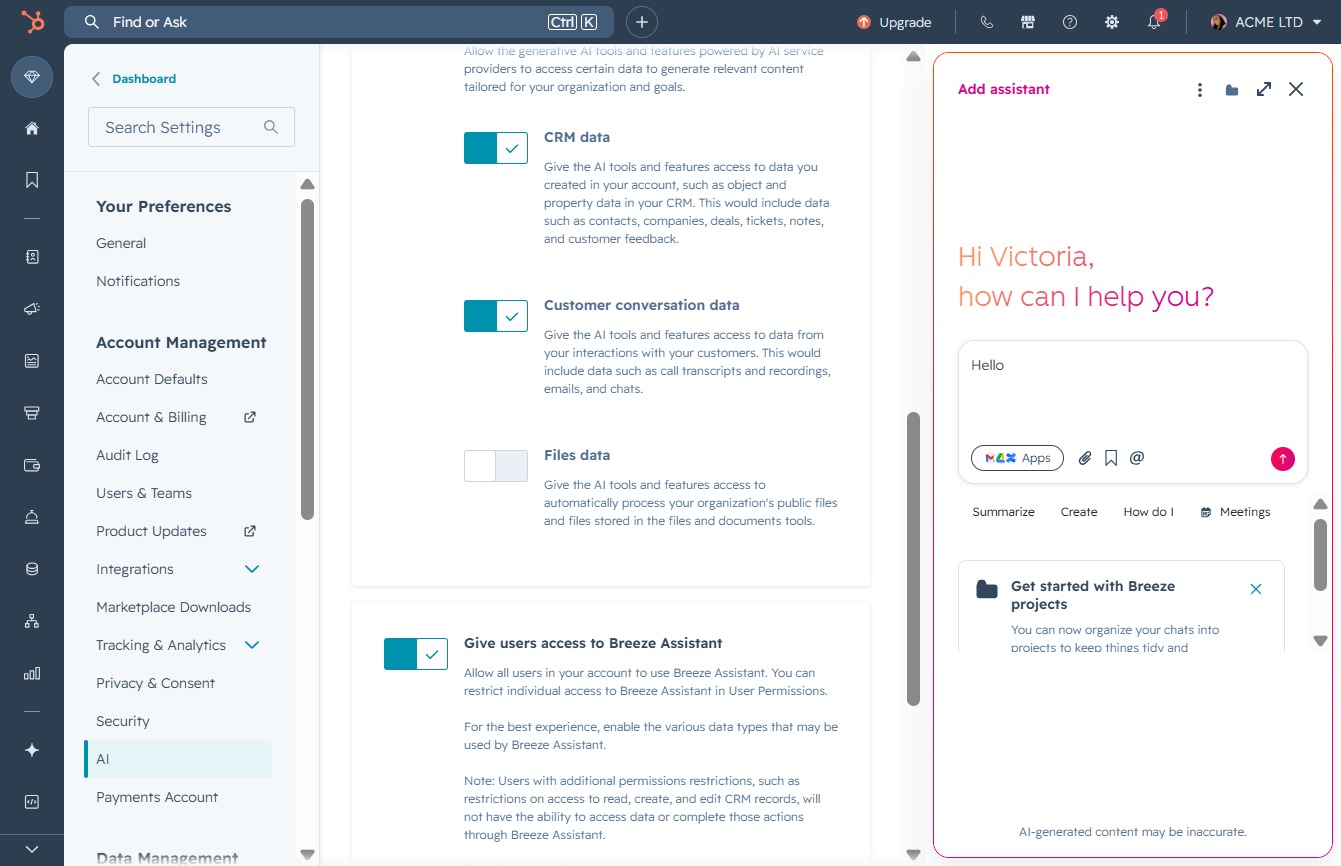
Clicking this control opens the Breeze Assistant, allowing you to ask questions or request assistance with your Breeze projects.