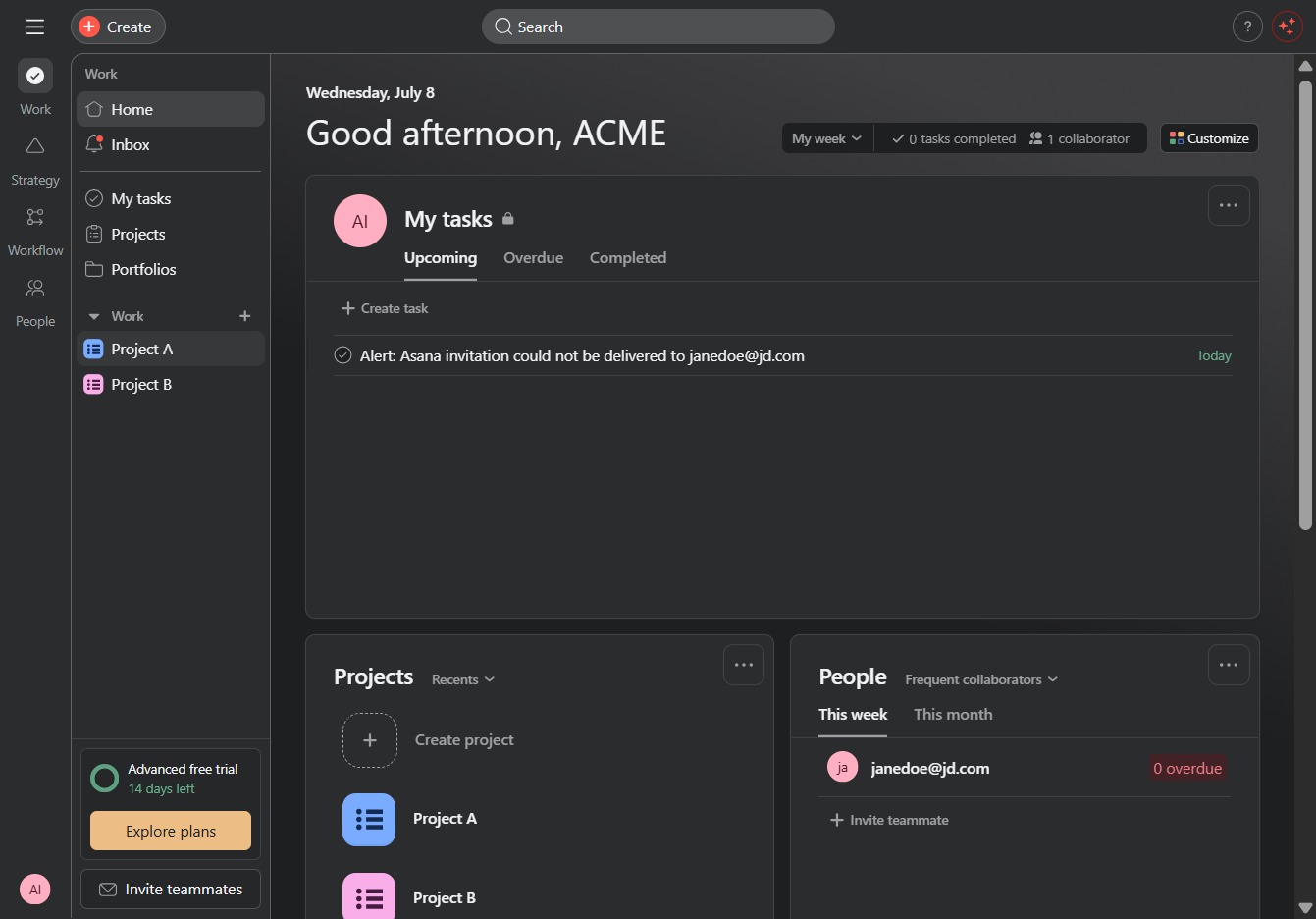
Click on Project A
By clicking on Project A, you will access the specific details and tasks associated with this project, allowing for better management and organization.
Loading screenshot…
100%
In this how-to guide, you'll learn how to effectively utilize the Board view for Project A, streamlining task management with an organized visual interface.
 viktoria
In this how-to guide, you'll learn how to effectively utilize the Board view for Project A, streamlining task management with an organized visual interface. Follow the steps to navigate through your project details and access the task board for enhanced oversight of task statuses.
By clicking on Project A, you will access the specific details and tasks associated with this project, allowing for better management and organization.
This action will display the task board view for Project A, allowing you to manage tasks and their statuses visually.
