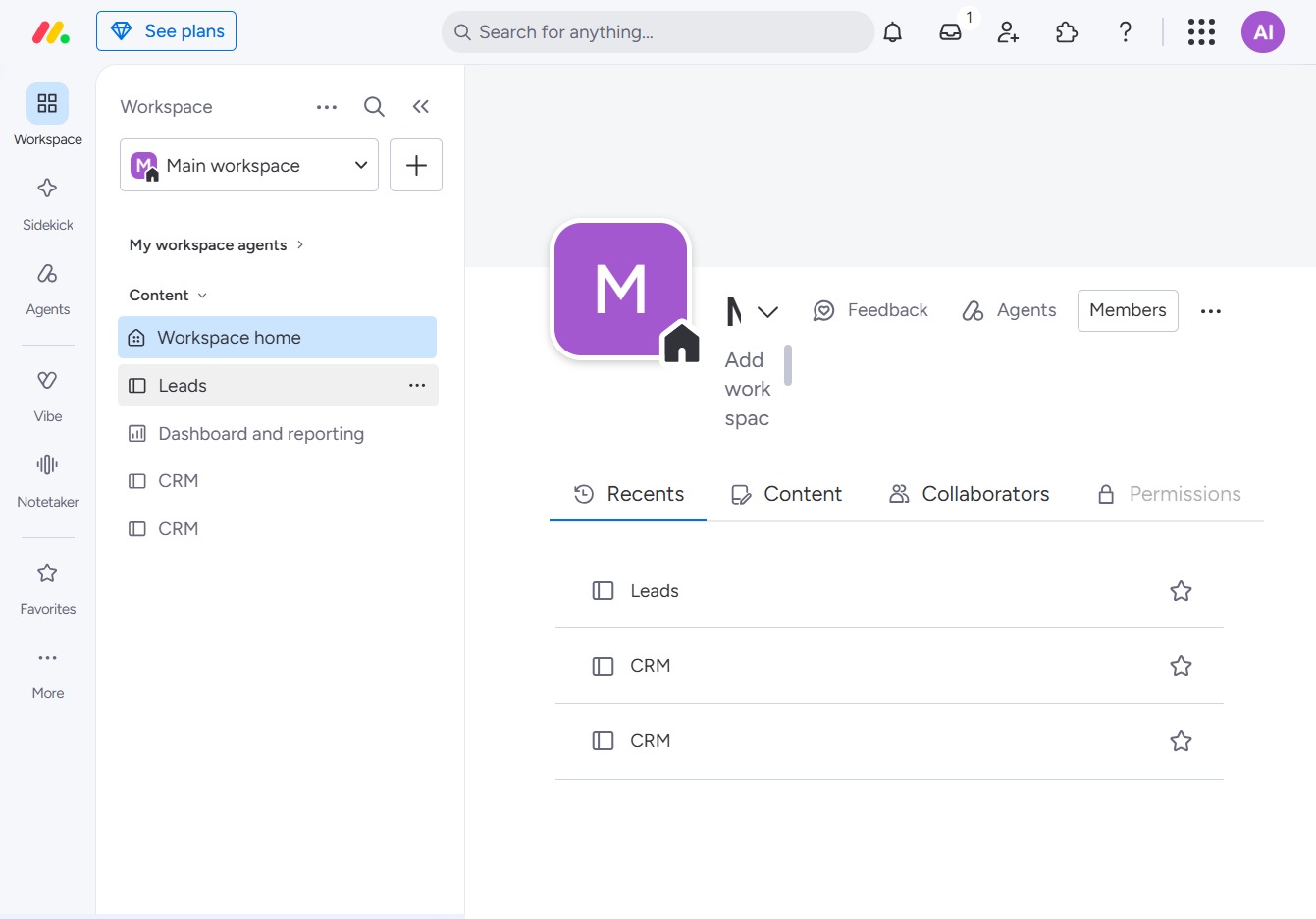
Click the BoardLeads section
Selecting the BoardLeads section will display the related leads and enable you to manage various lead details and activities.
Loading screenshot…
100%
This guide provides a step-by-step overview of how to effectively use board activity logs to manage your leads and track project progress.
 viktoria
This guide provides a step-by-step overview of how to effectively use board activity logs to manage your leads and track project progress. Learn how to navigate between workspaces, access additional functionalities, and view detailed logs of actions taken on your board to stay updated on recent activities.
Selecting the BoardLeads section will display the related leads and enable you to manage various lead details and activities.
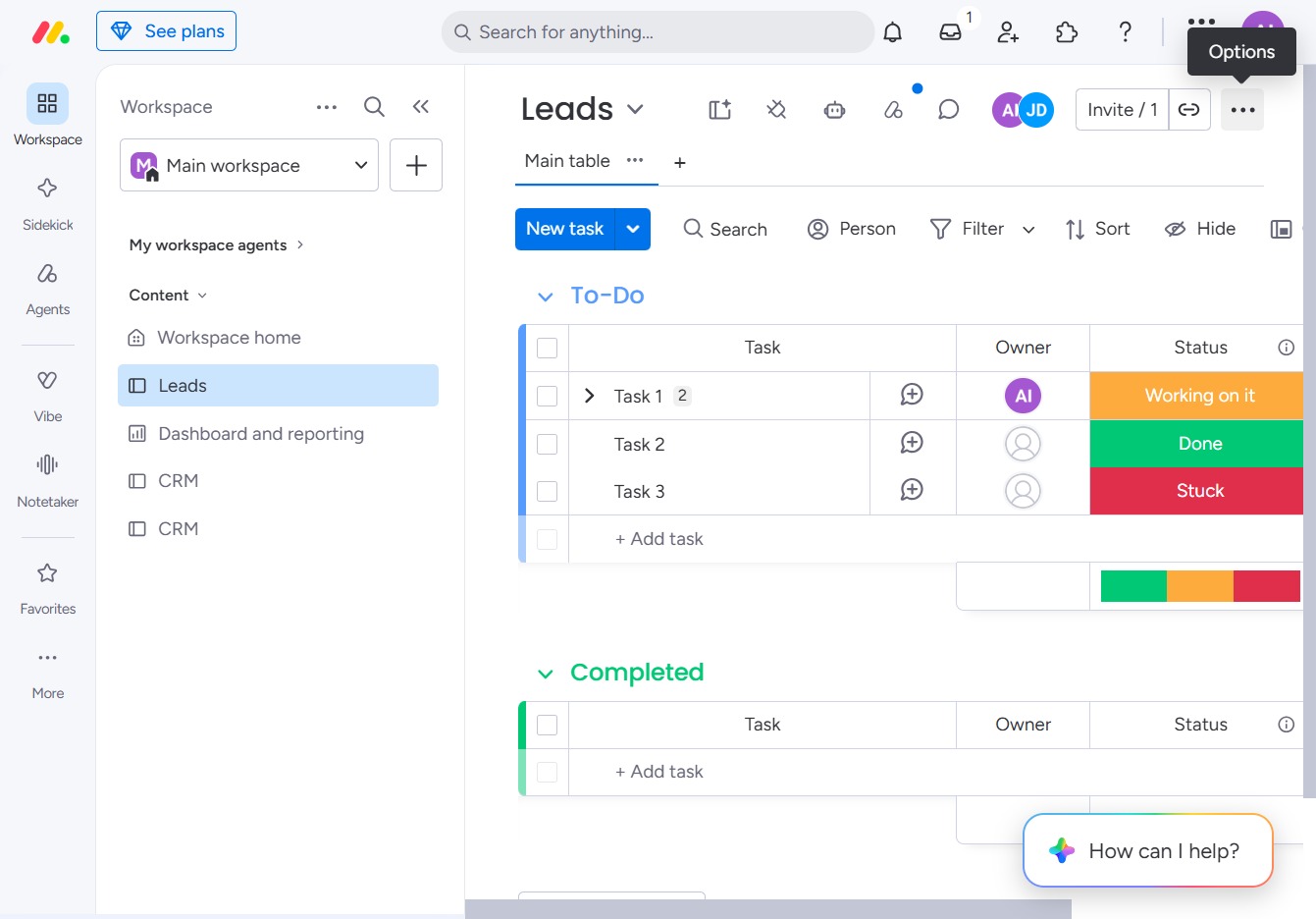
Selecting the 'Click here' link may lead you to additional options or settings related to your current Leads view. This action helps you access further functionalities to manage your tasks effectively.
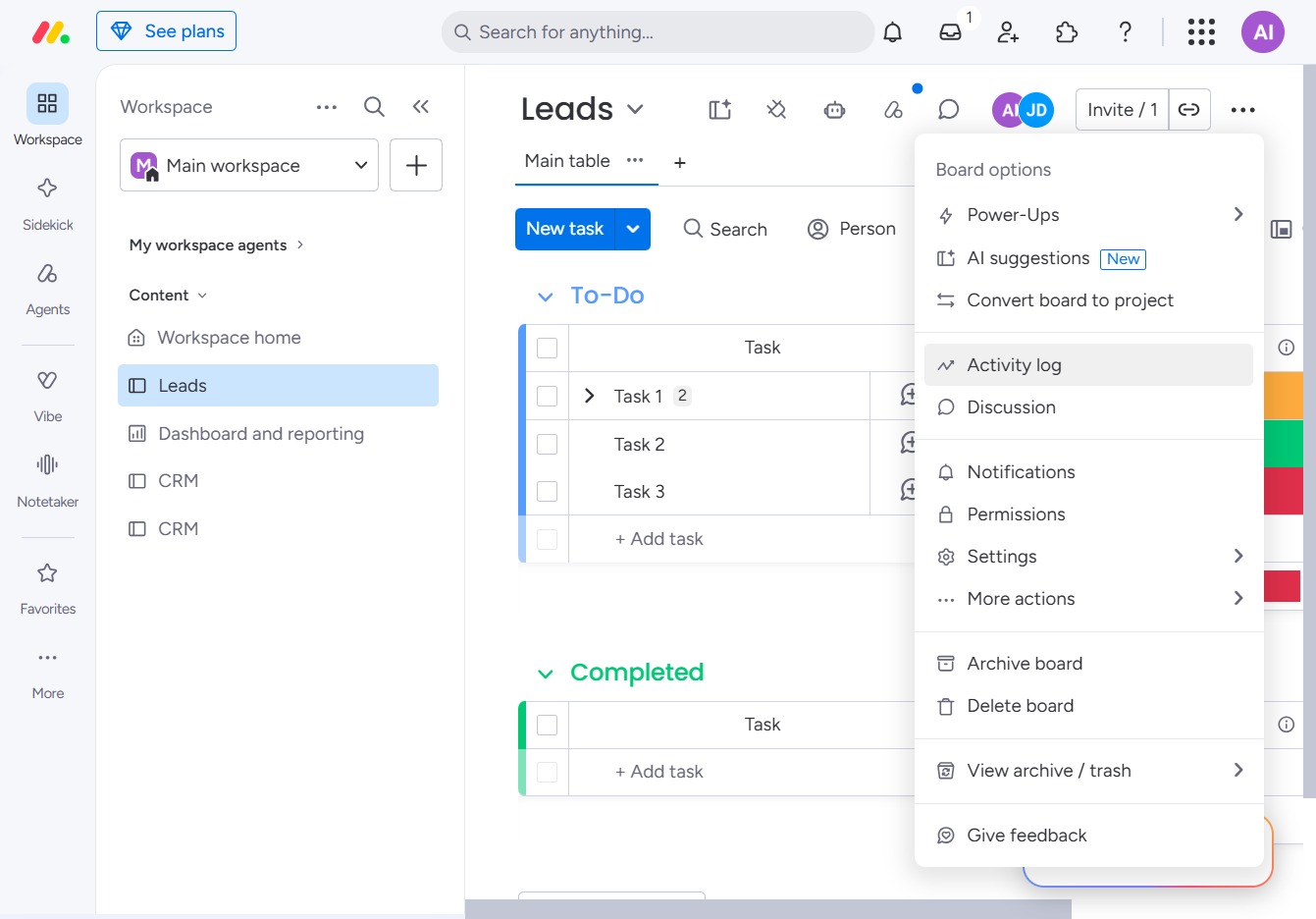
Selecting the Activity log will display a detailed log of actions taken on the board, including task changes and user activities. This helps you track the progress and modifications within your projects.
Selecting 'Last viewed' will display the most recently accessed items in your Leads Log, allowing you to quickly reference your prior activities.
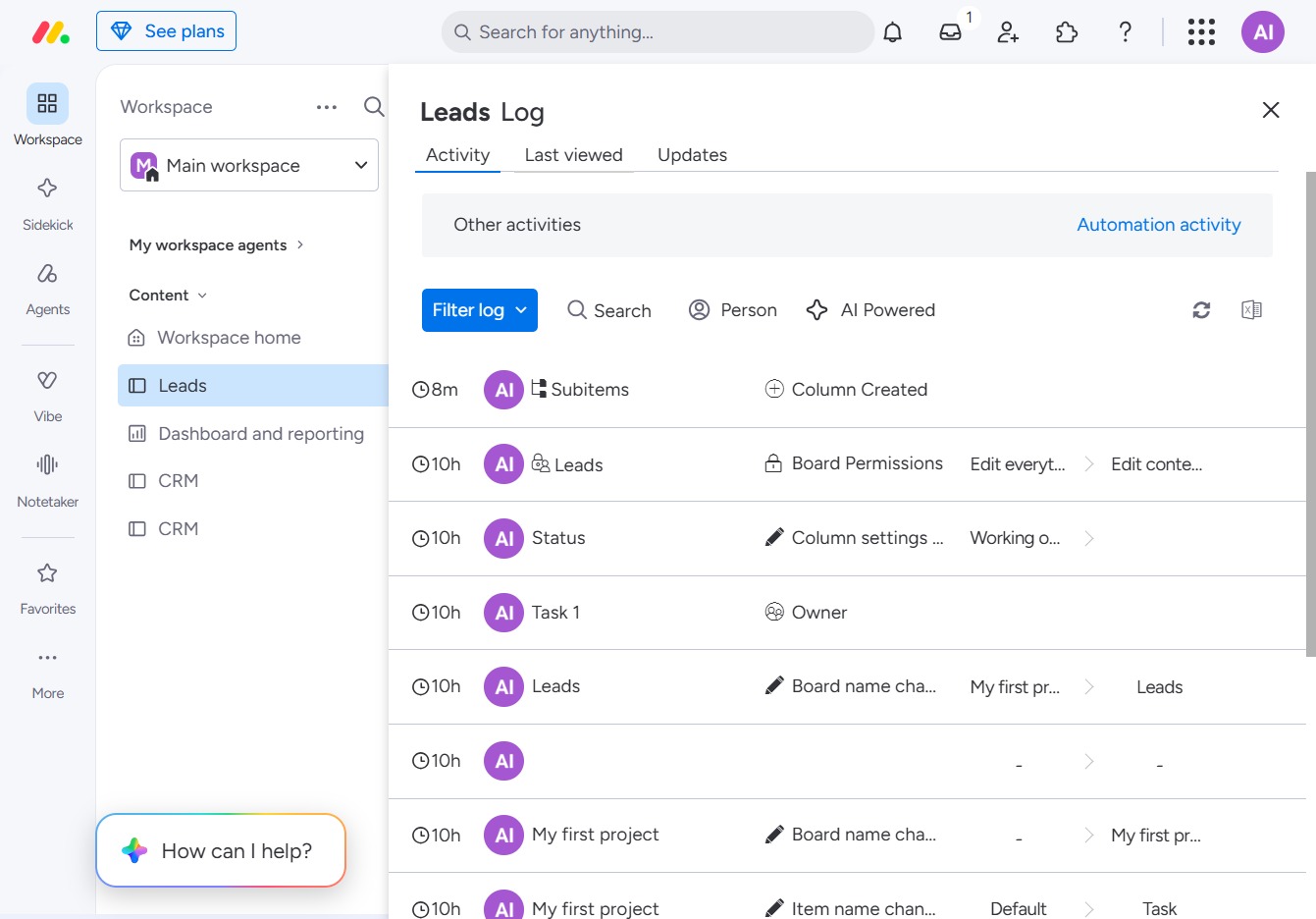
This will display the latest updates related to your leads, allowing you to stay informed about recent activities and interactions.
