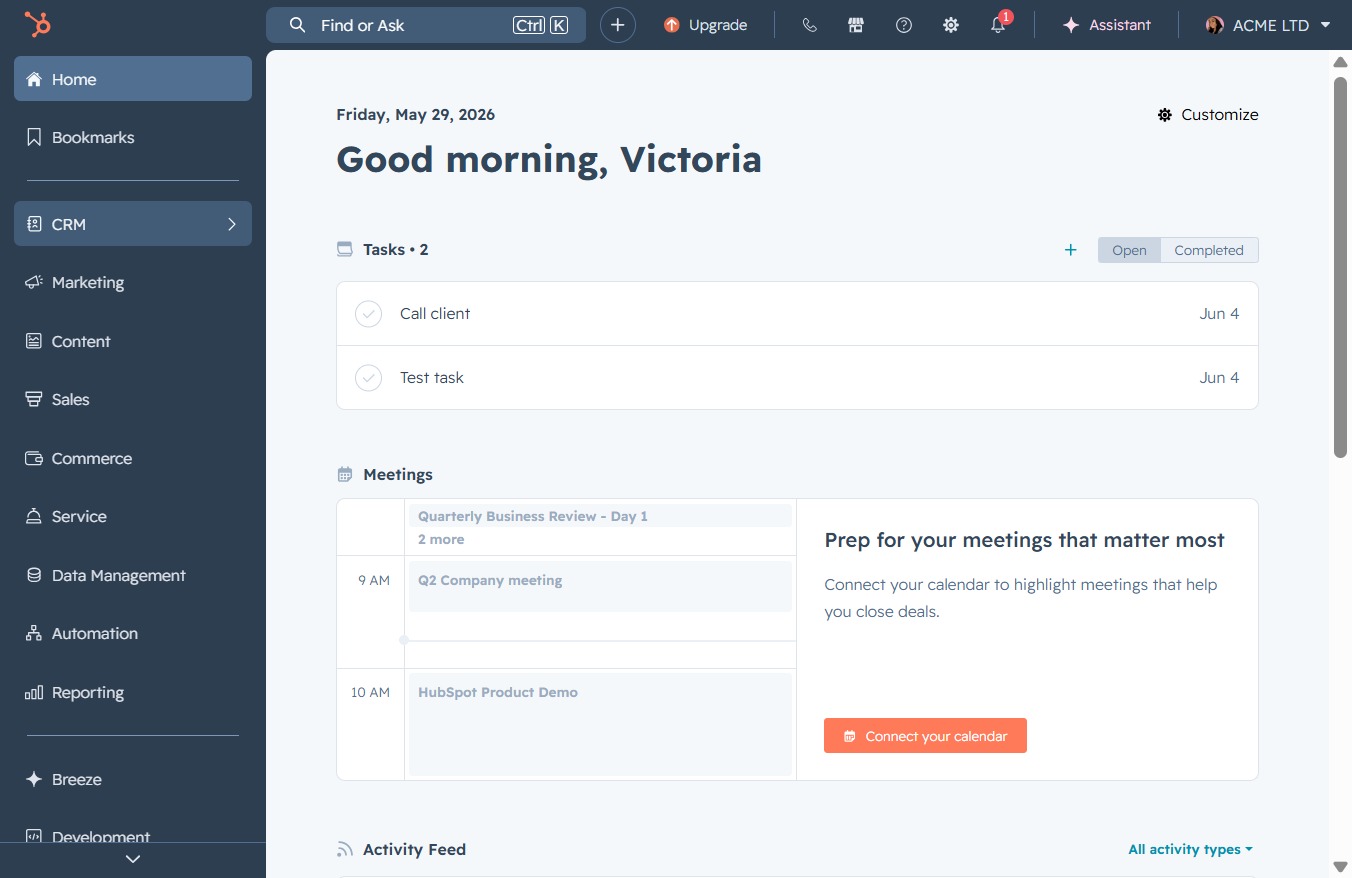
Click the CRM icon
Clicking the CRM icon will take you to the Customer Relationship Management section, where you can manage leads, view sales pipelines, and track customer interactions.
Loading screenshot…
100%
Send an email to a contact in the CRM by selecting an email template, customizing it if needed, and ensuring all fields are filled before sending it to the recipient.
 viktoria
Send an email to a contact in the CRM by selecting an email template, customizing it if needed, and ensuring all fields are filled before sending it to the recipient.
Clicking the CRM icon will take you to the Customer Relationship Management section, where you can manage leads, view sales pipelines, and track customer interactions.
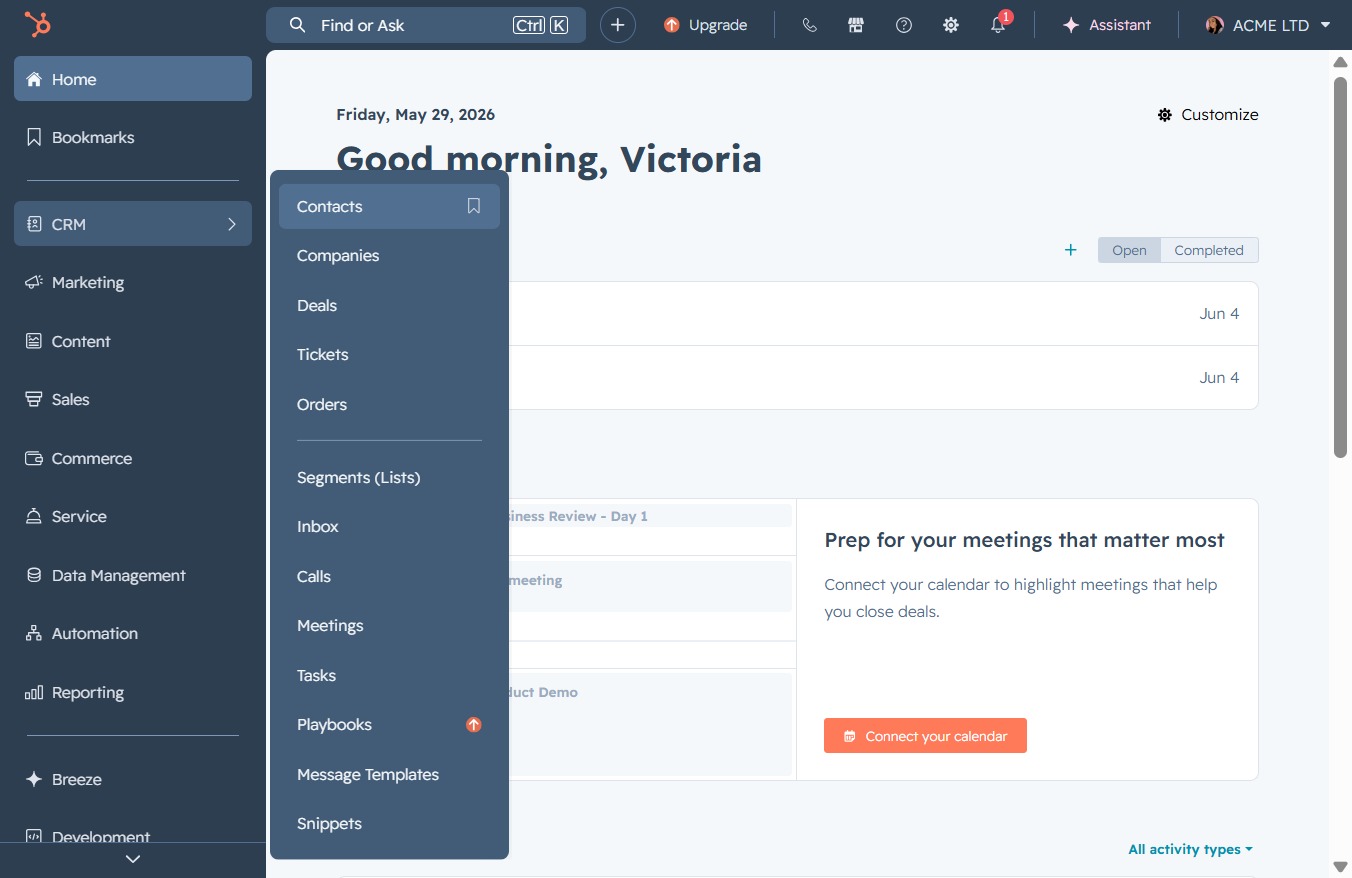
Selecting the 'Contacts' link will take you to the area where you can manage your contacts, view companies, deals, and other related information within your CRM.
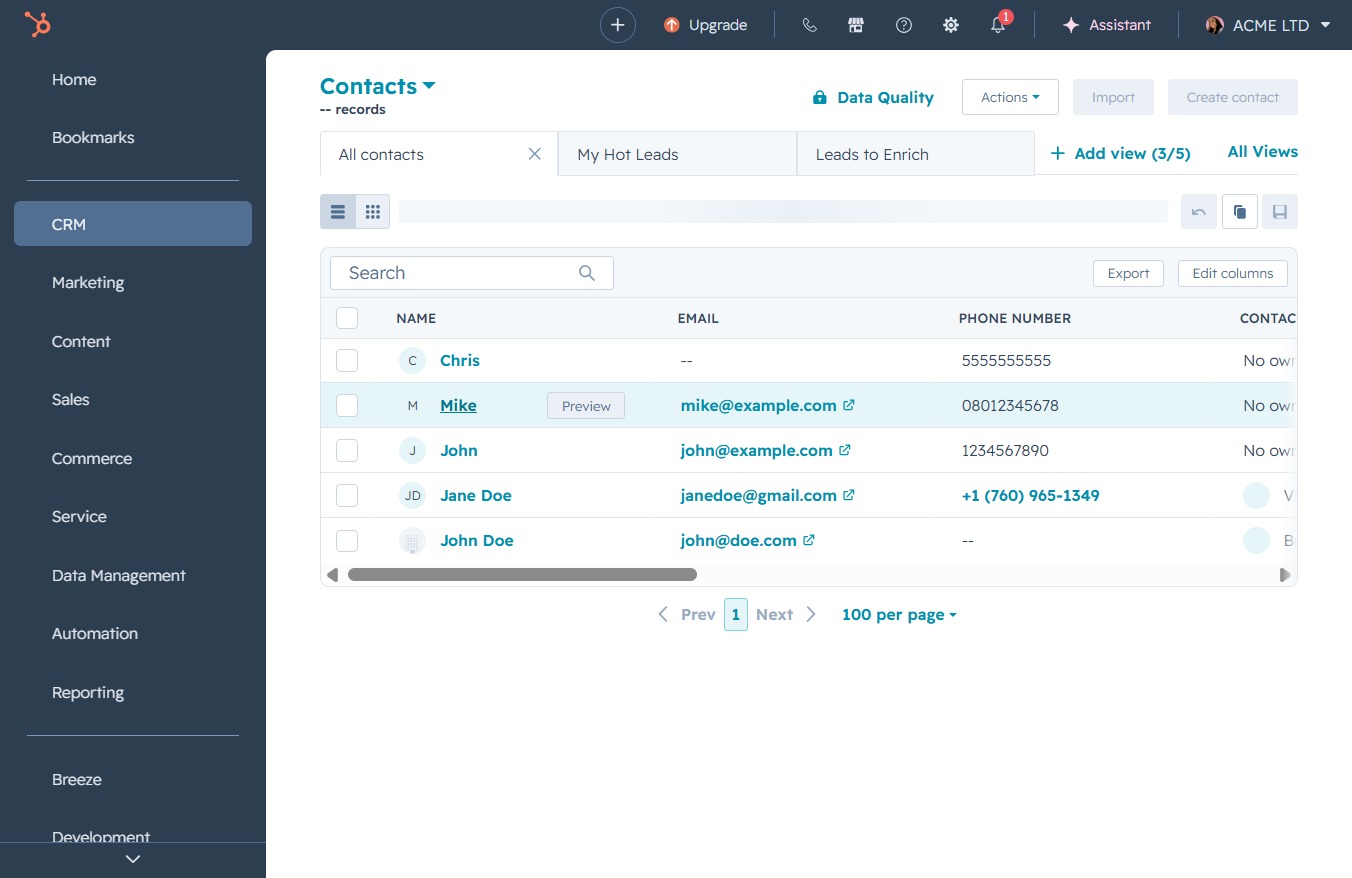
This action will open the contact details for Mike, allowing you to view or edit his information.
By clicking this link, you will expand the activities section to reveal additional details about the interactions and updates related to this contact.

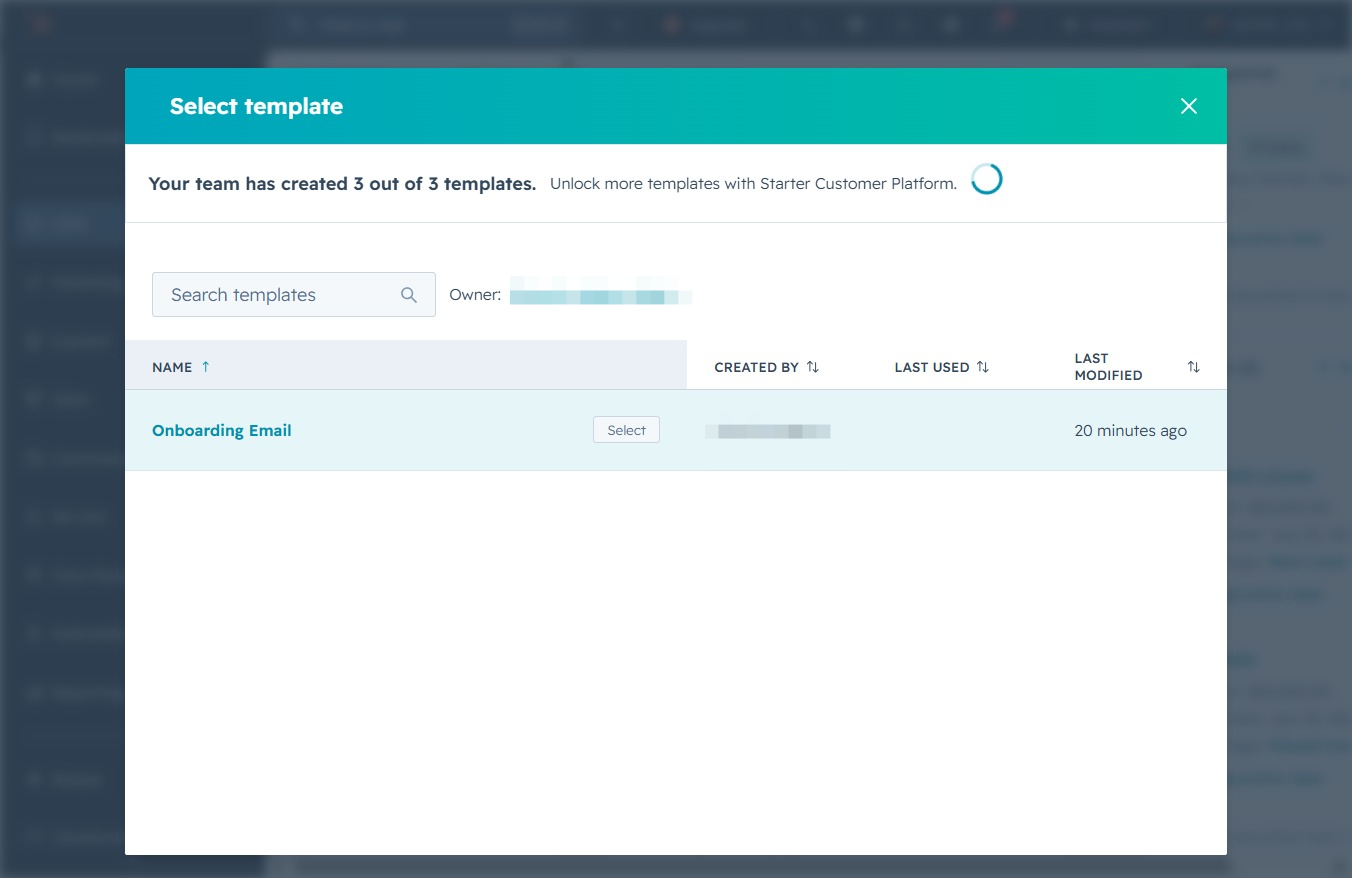
Selecting the Templates button will open a list of pre-defined email templates, allowing you to choose one for your email correspondence.

Clicking the Select button will confirm your choice of the 'Onboarding Email' template, allowing you to proceed with customizing or using it for your email campaign.
Clicking the 'Send' button will deliver your email to the specified recipient. Ensure all fields are correctly filled out before sending.
