Click the KW button
Clicking the KW button will open the associated options related to your current chat setting, allowing you to manage or customize your interactions.

Loading screenshot…
100%
In this how-to guide, learn the step-by-step process to update your profile picture for your Microsoft account.
 viktoria
In this how-to guide, learn the step-by-step process to update your profile picture for your Microsoft account. We'll show you how to access profile settings, upload a new image, and save your changes to keep your profile up to date.
Clicking the KW button will open the associated options related to your current chat setting, allowing you to manage or customize your interactions.
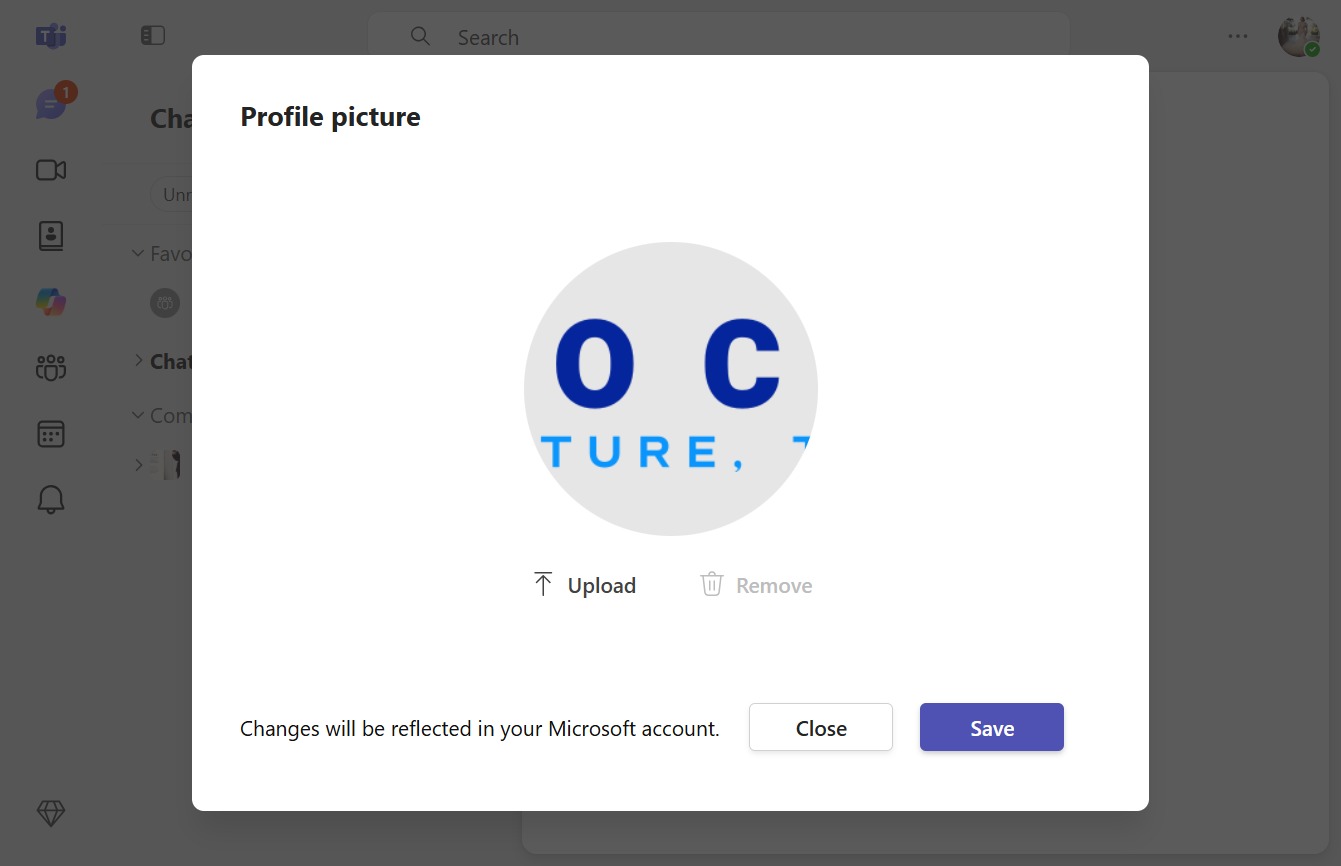
This action opens the profile settings where you can upload or modify your profile picture for your Microsoft account.

This will prompt you to select a new image file for your profile picture, which will be updated in your Microsoft account.
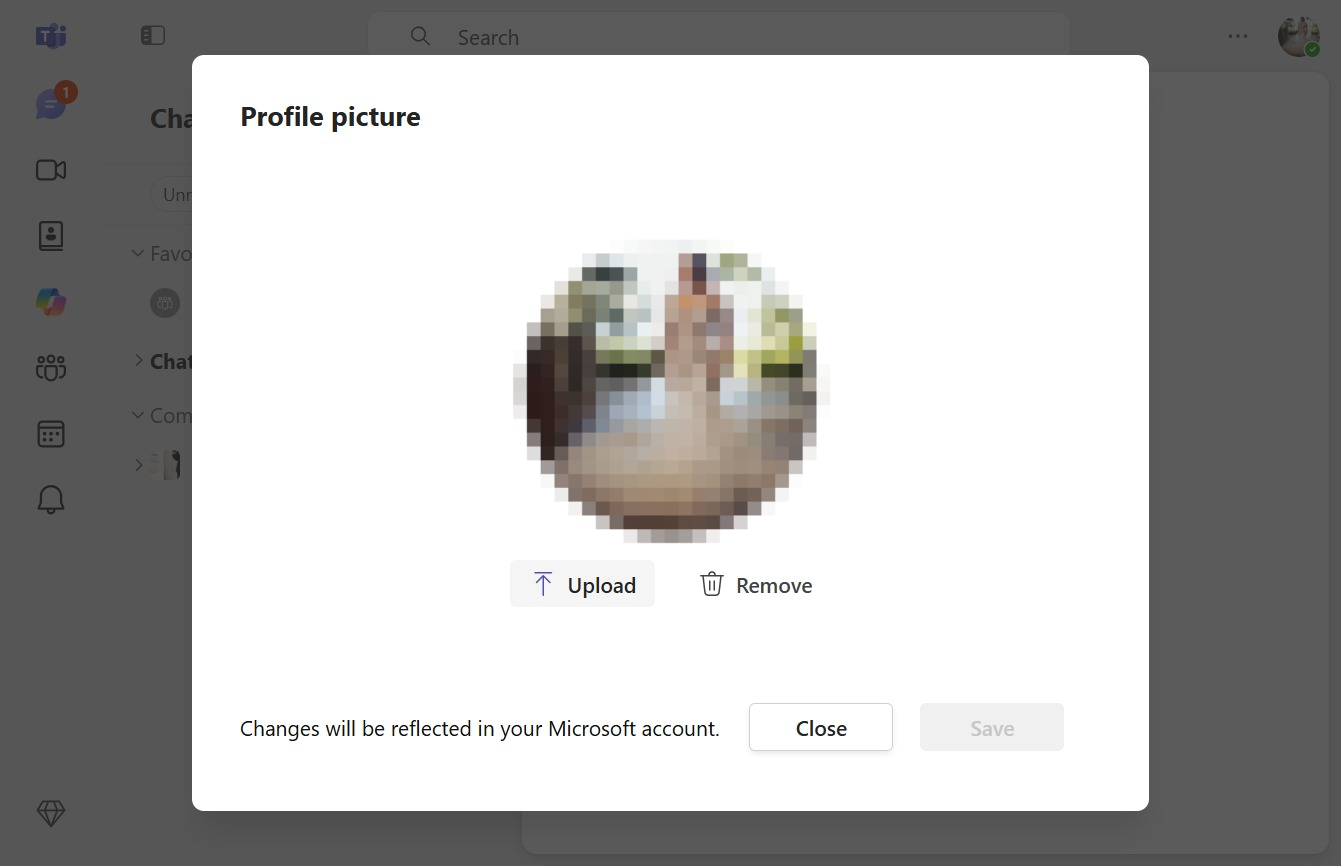
This saves any changes made to your profile picture, ensuring that updates are reflected in your Microsoft account.