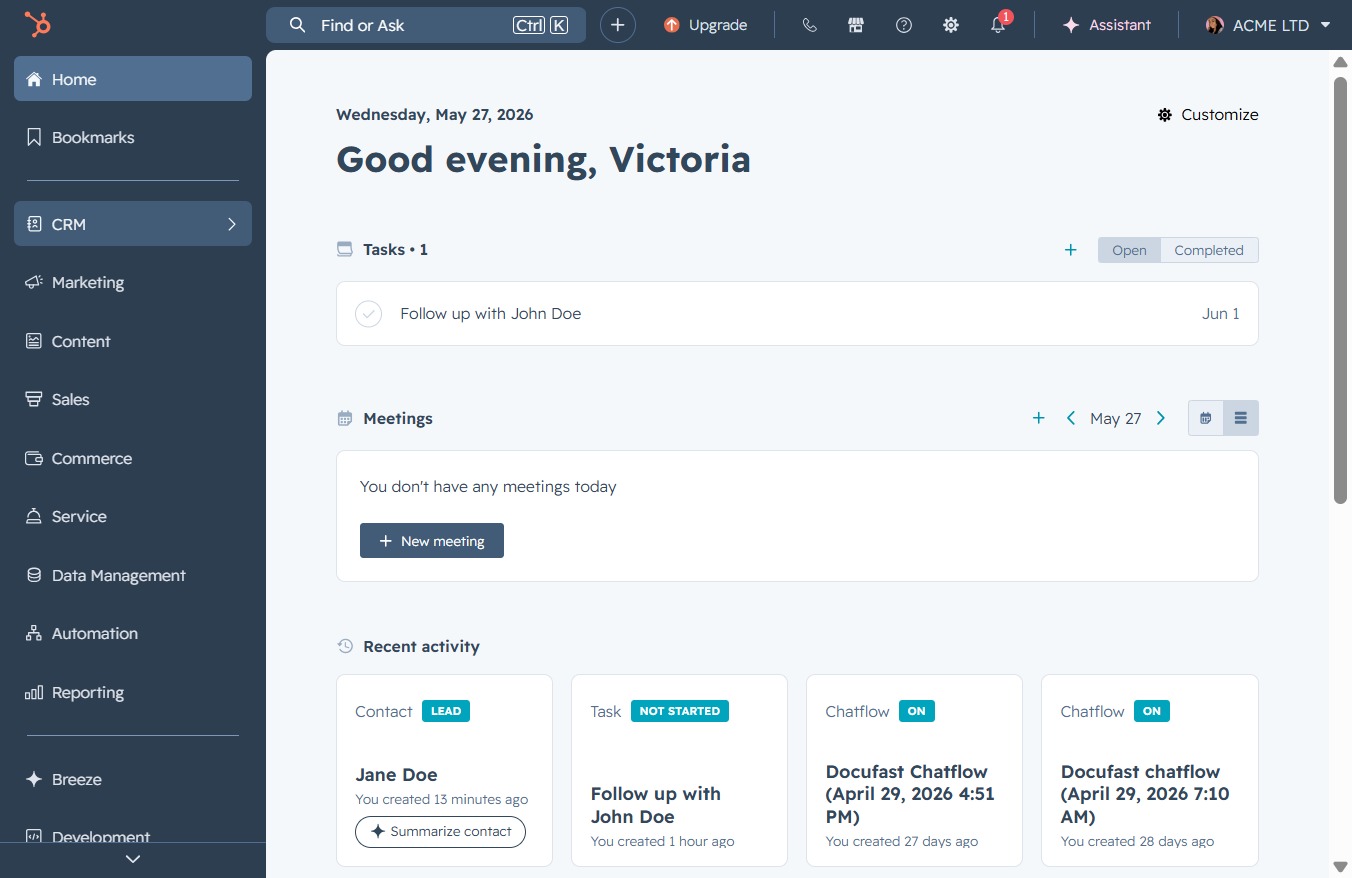
Click the CRM icon
This action will navigate you to the CRM section where you can manage customer relationships, view contacts, and handle relevant tasks.
Loading screenshot…
100%
Track customer interactions in your CRM by navigating to the contact details of Jane Doe, where you can view associated activities like Emails, Calls, and Meetings for insightful…
 viktoria
Track customer interactions in your CRM by navigating to the contact details of Jane Doe, where you can view associated activities like Emails, Calls, and Meetings for insightful relationship manageme
This action will navigate you to the CRM section where you can manage customer relationships, view contacts, and handle relevant tasks.
Clicking the Contacts link will direct you to the section where you can manage your contacts, view details, and add or edit contact information.
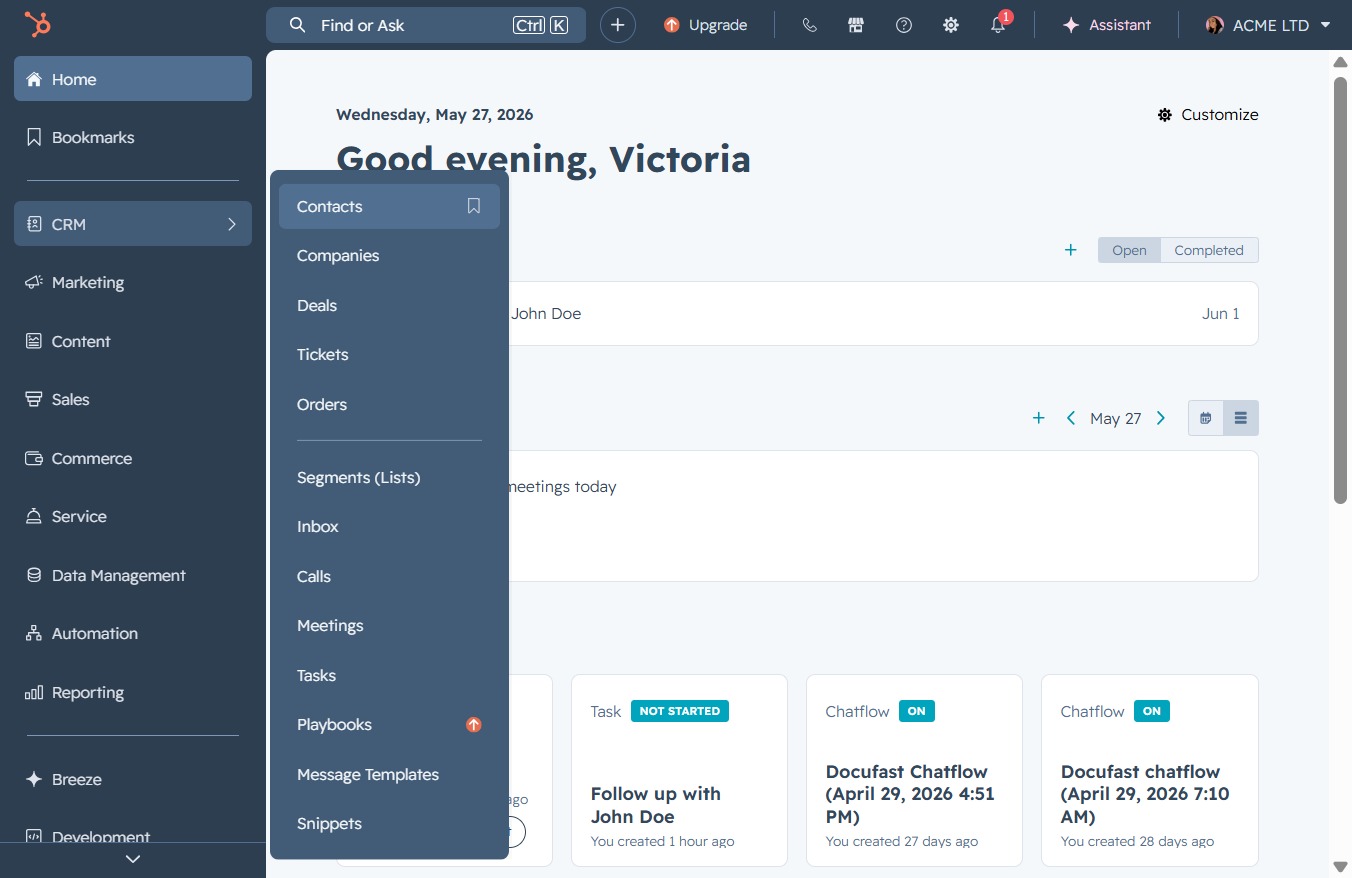
Clicking on the Jane Doe contact entry will open the details page for this contact, allowing you to view and edit their information.

Clicking the Activities tab will display a list of activities associated with the selected contact, providing insights into the interaction history and updates.

This will display a list of all activities associated with the selected contact, allowing you to view detailed information about interactions and updates.

Select specific activity types to display, such as Emails, Calls, or Meetings, allowing you to narrow down the information related to the contact.
