Click on Project A
Selecting 'Project A' will take you to the details and tasks associated with this project, allowing you to manage assignments and track progress effectively.

Loading screenshot…
100%
In this guide, you'll learn how to effectively track task history within your project management tool.
 viktoria
In this guide, you'll learn how to effectively track task history within your project management tool. Follow simple steps to navigate through projects, view detailed task information, access comments and attachments, and organize your tasks by various criteria to ensure you're always up-to-date with your team's progress.
Selecting 'Project A' will take you to the details and tasks associated with this project, allowing you to manage assignments and track progress effectively.
Clicking the Details button opens additional information about the selected task, including comments, attachments, and other relevant details.

This will display a list of all comments and updates related to the selected task, providing a comprehensive overview of discussions and changes.
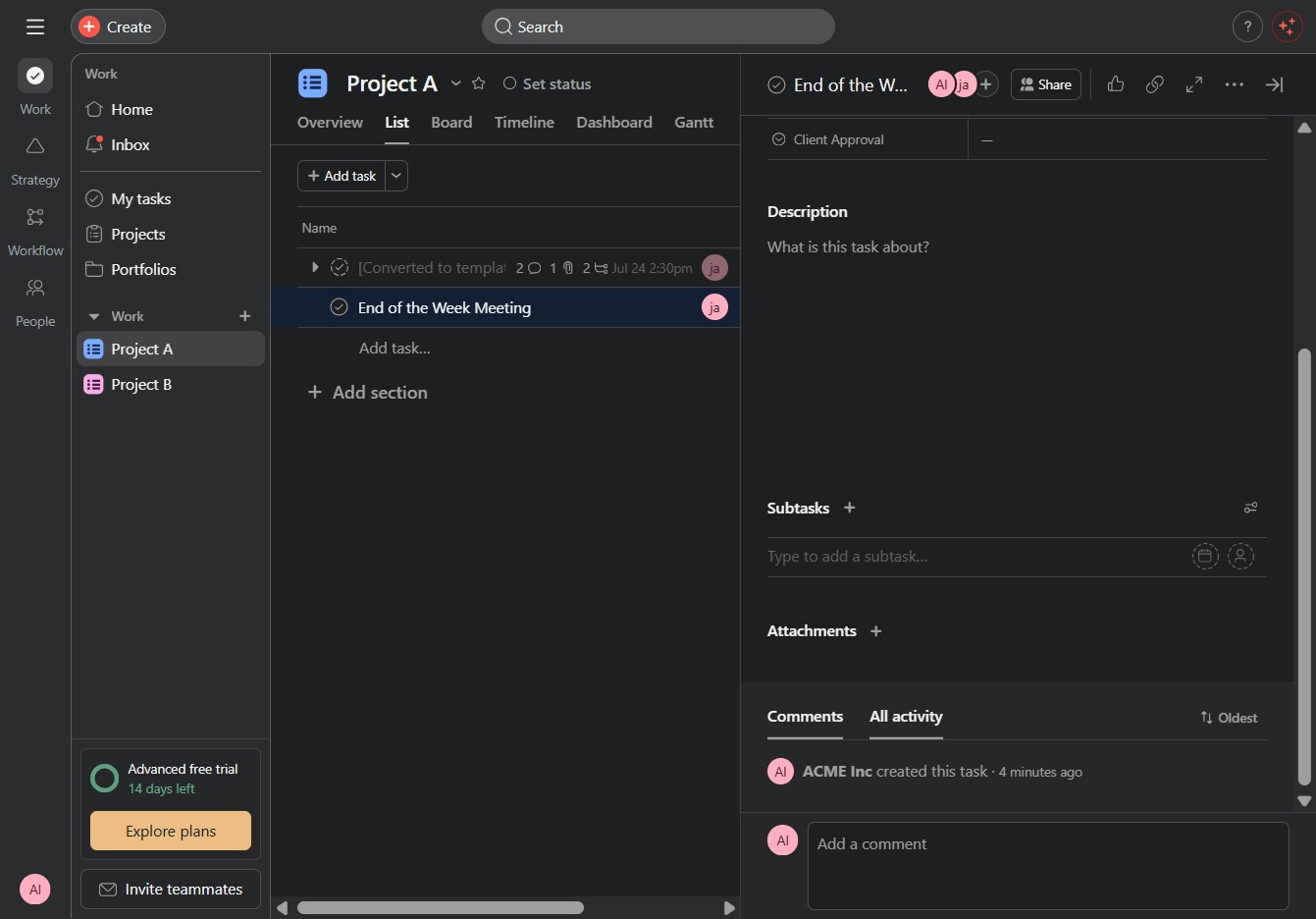
Selecting this button will display various sorting preferences for tasks, allowing you to organize the list according to criteria such as priority or due date.
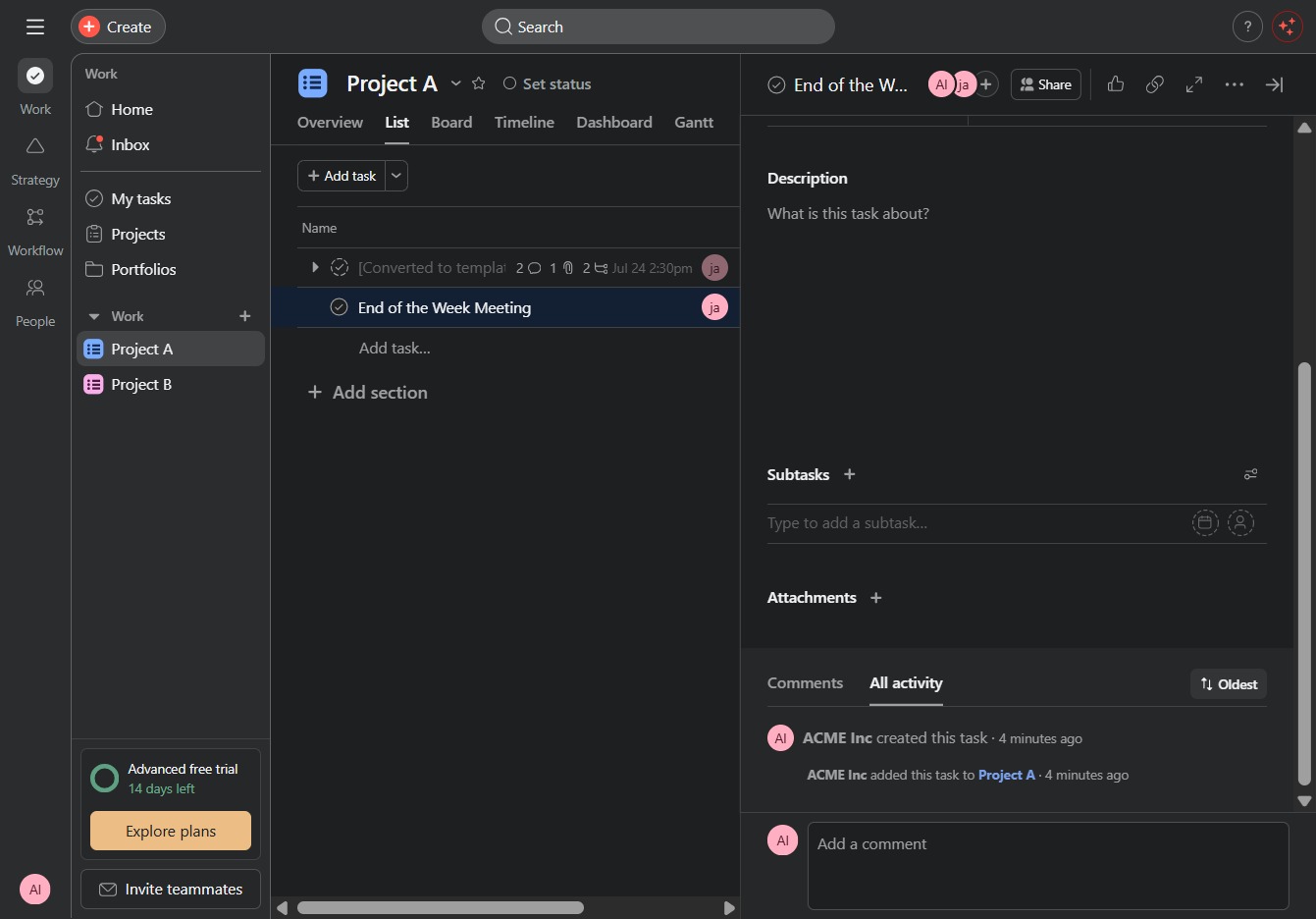
This action will display the latest comments and activities at the top of the comments section, ensuring you see the most current updates from your team.
