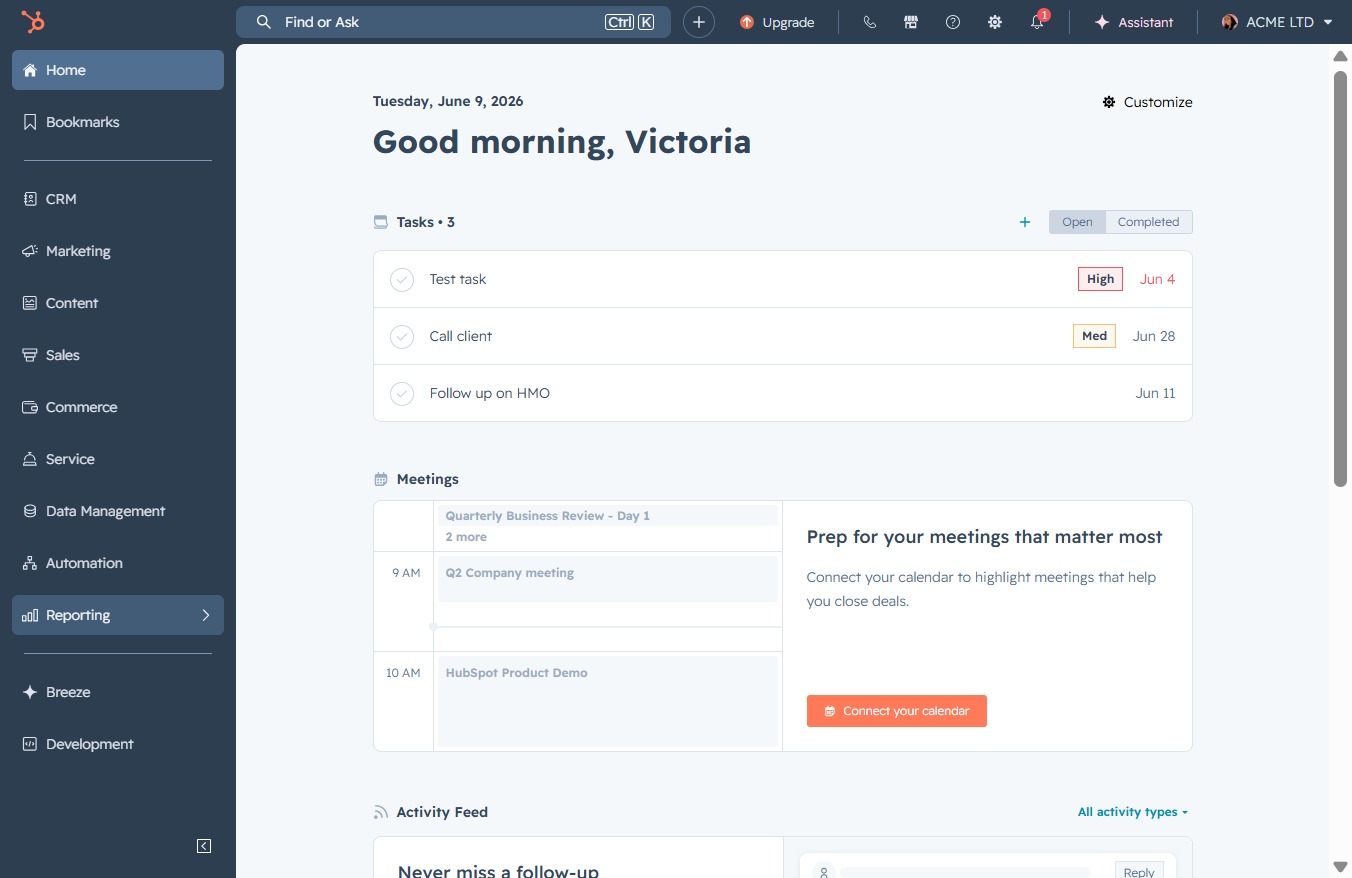
Click the Reporting link
This action navigates you to the Reporting section, where you can view and manage various performance metrics and insights.
Loading screenshot…
100%
Create a sequence performance report by accessing the Reports section, selecting relevant templates, customizing metrics, and saving the report with appropriate visibility…
 viktoria
Create a sequence performance report by accessing the Reports section, selecting relevant templates, customizing metrics, and saving the report with appropriate visibility settings.
This action navigates you to the Reporting section, where you can view and manage various performance metrics and insights.
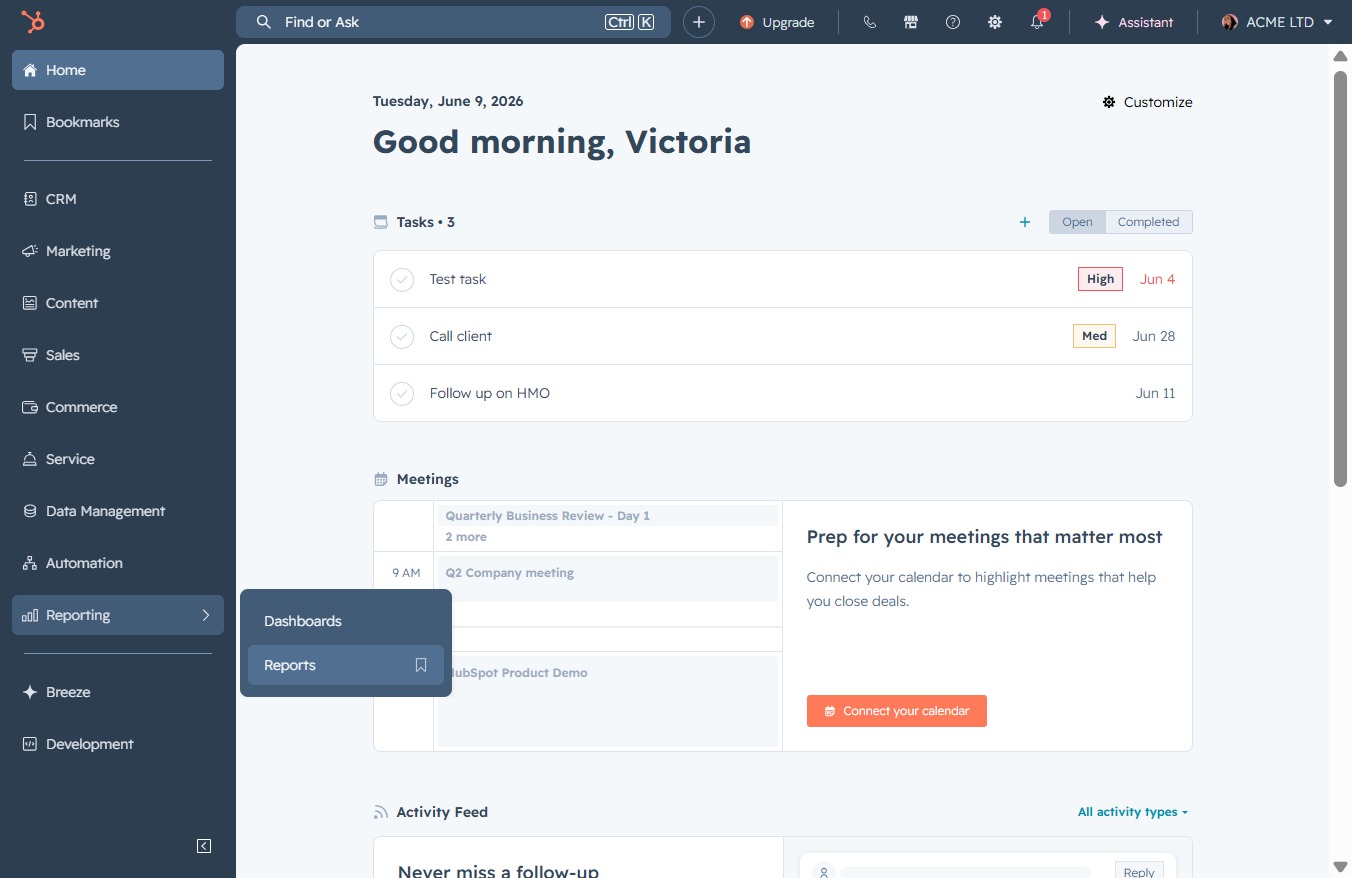
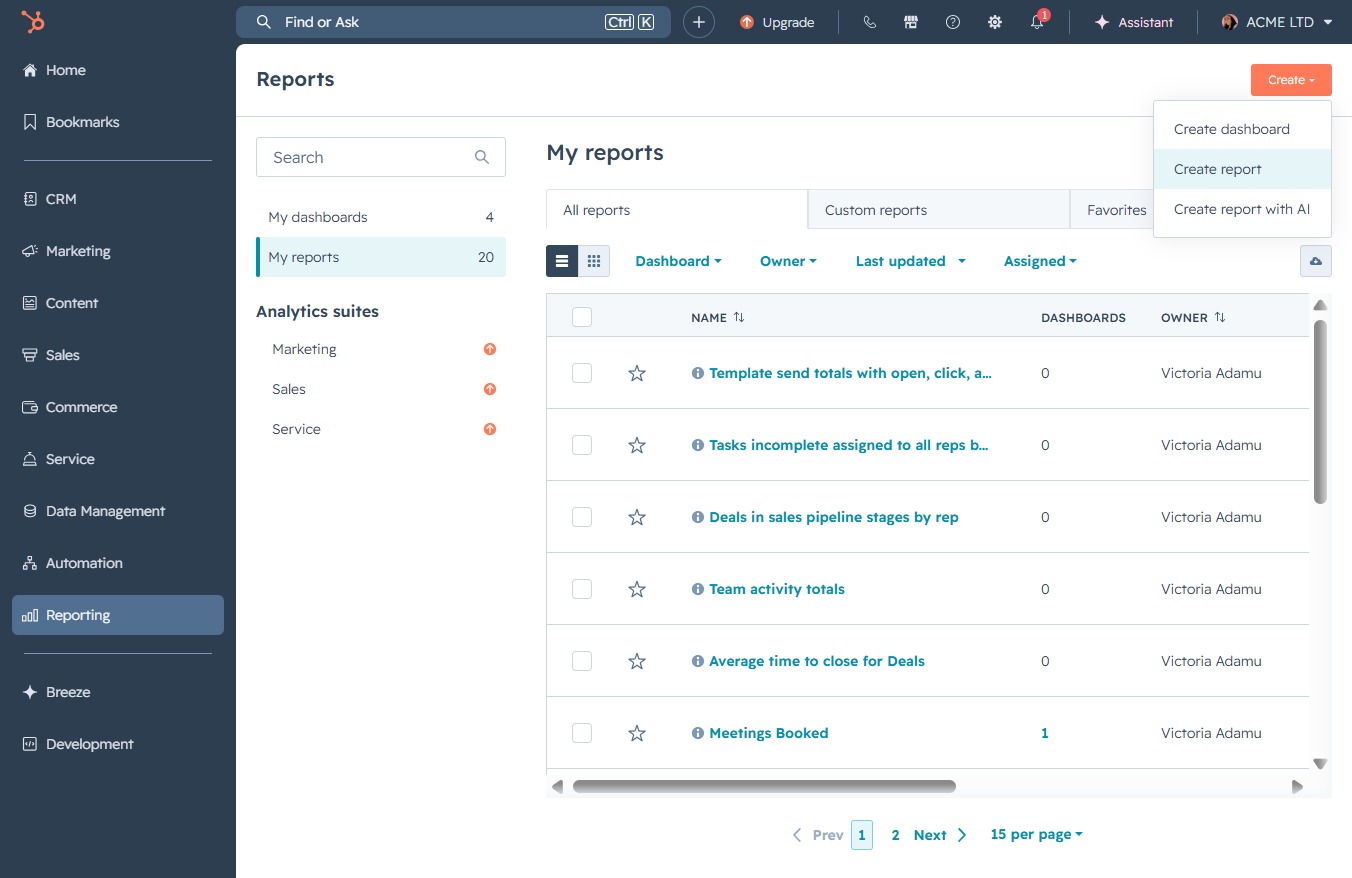
Clicking on 'Reports' will take you to the Reports section where you can view and analyze various data insights relevant to your tasks and meetings.
Clicking this button allows you to initiate the creation of a new report, enabling you to customize the metrics and data you want to include.
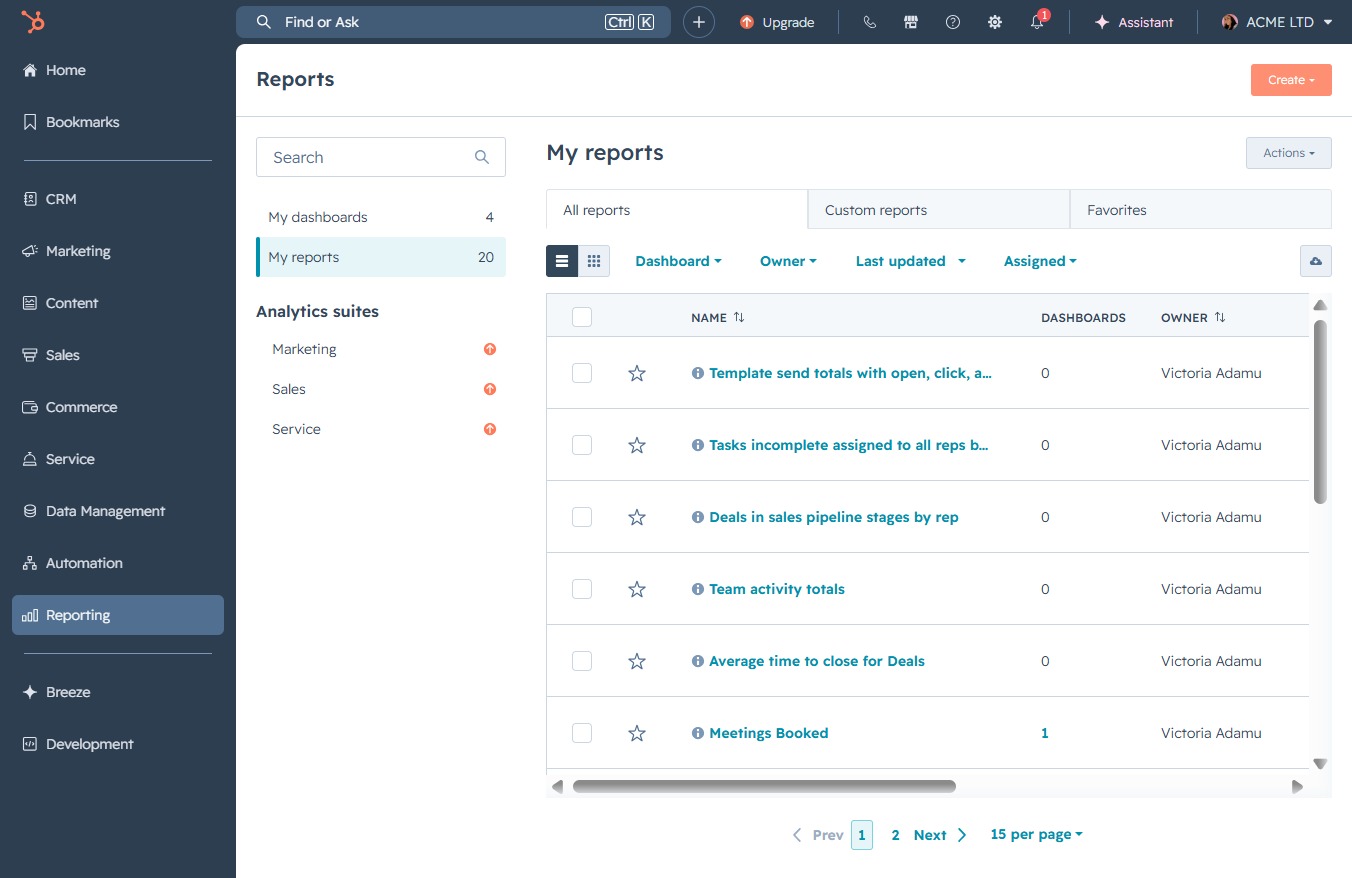
Clicking this button initiates the process to generate a new report within the 'My reports' section, allowing you to customize the report parameters and include relevant data.
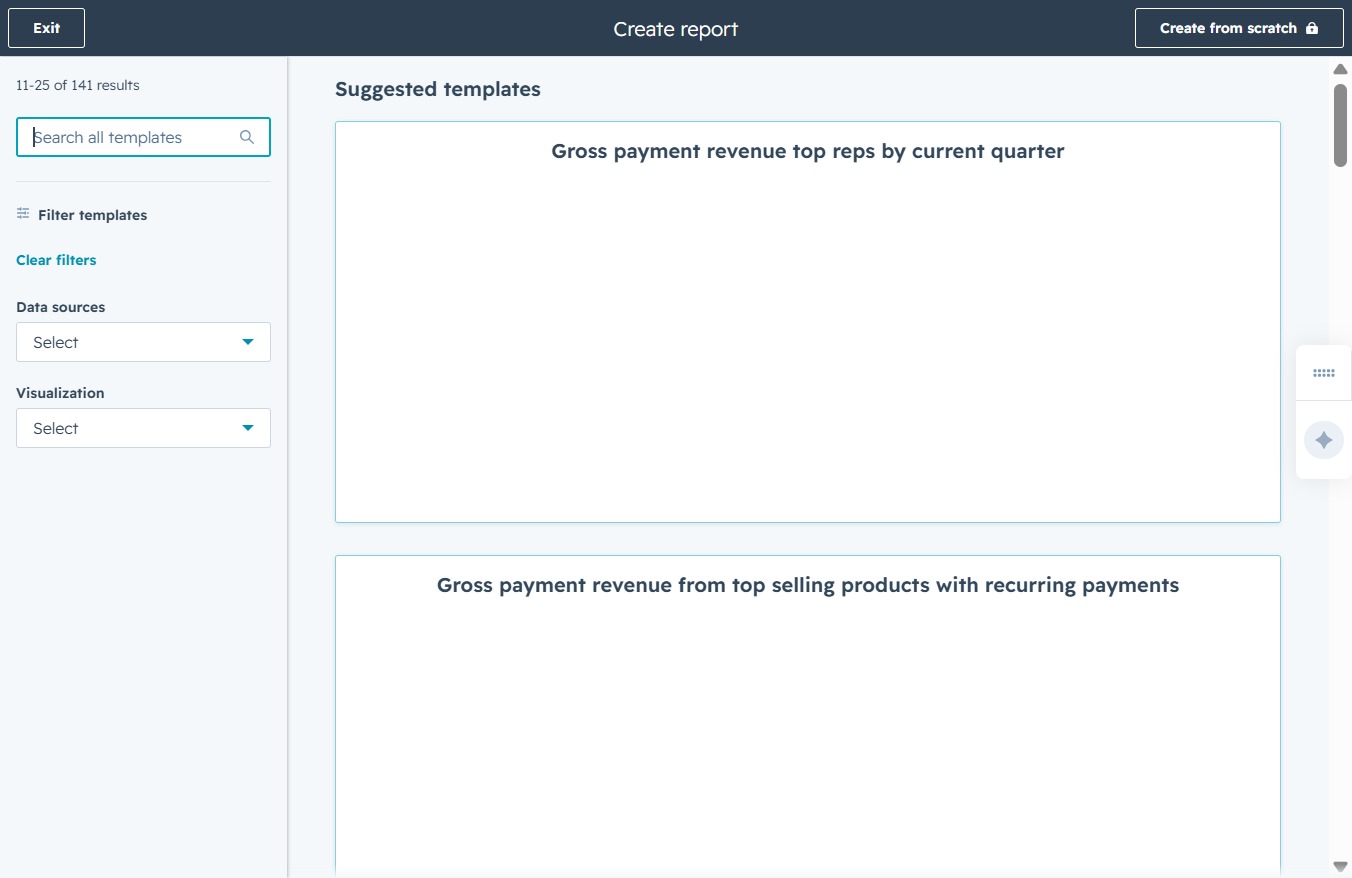
By clicking this input, you can begin typing to search for specific report templates. This allows you to quickly find the templates you need from the suggested options.
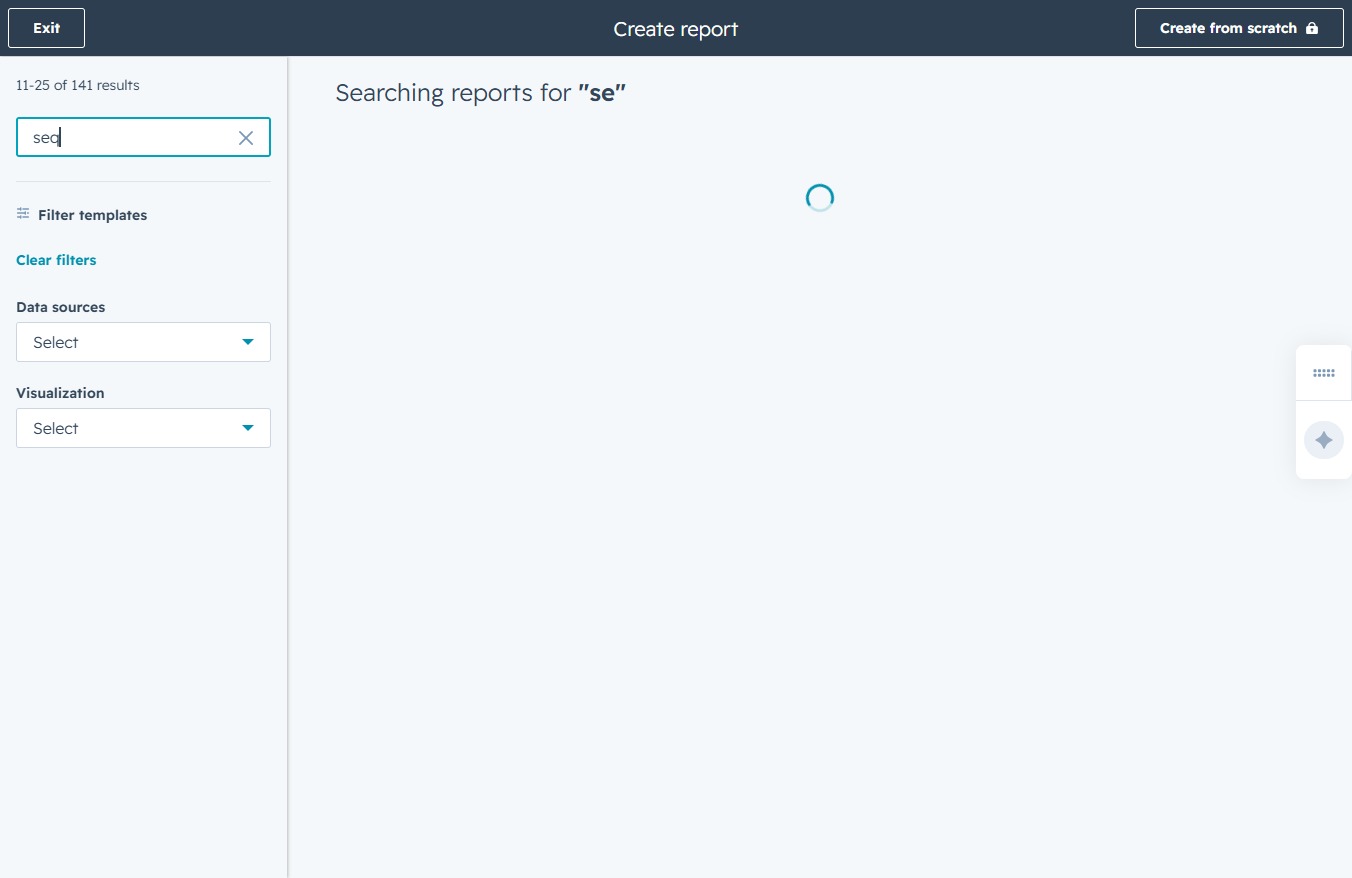
Entering 'seq' in this search field will filter the available templates to show only those related to sequences, helping you quickly locate the desired template for your report.
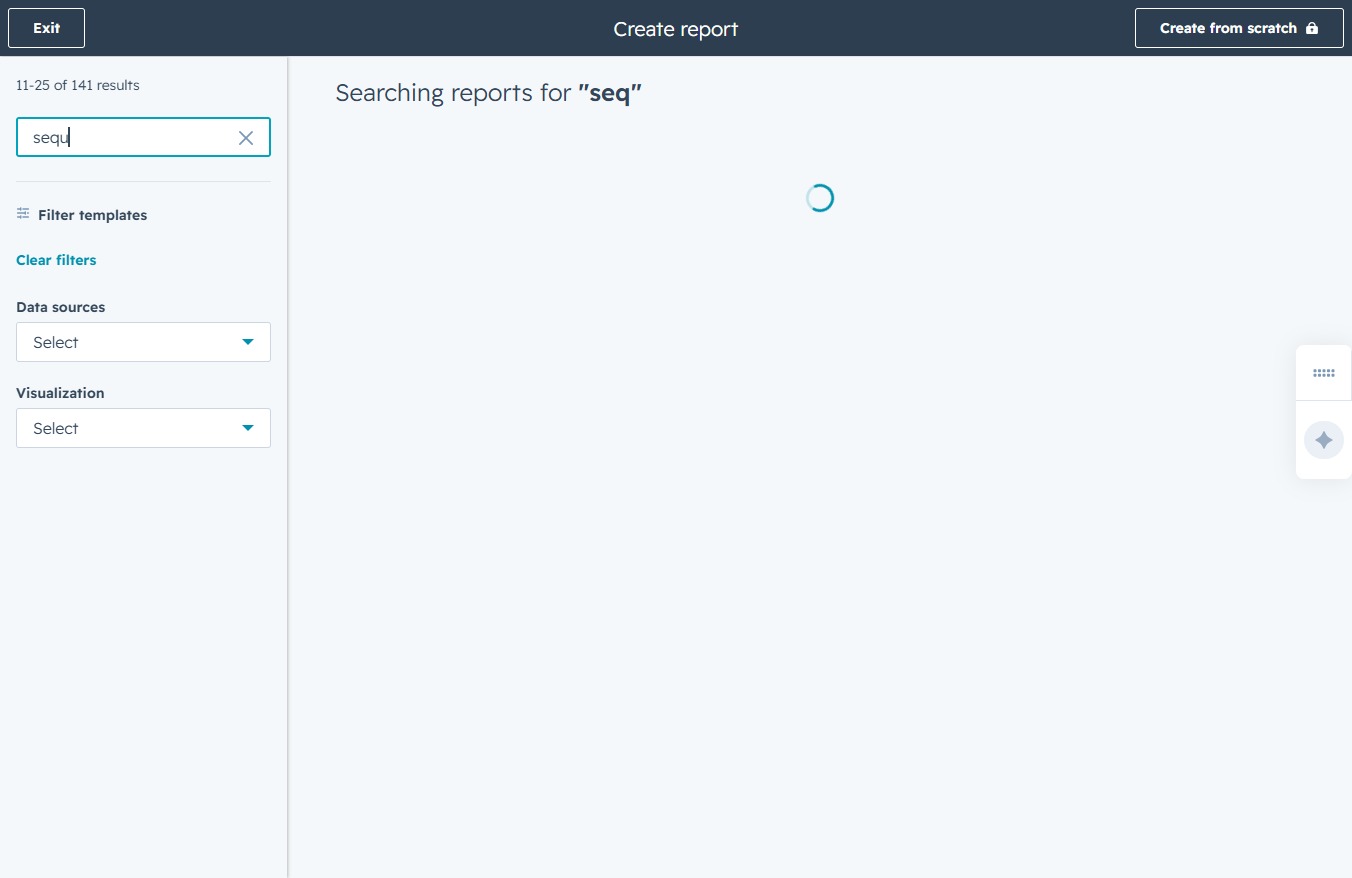
Enter 'sequ' into the Search all templates field to find available report templates related to sequences. This action will filter the templates to show only those that include 'sequ' in their name or description.
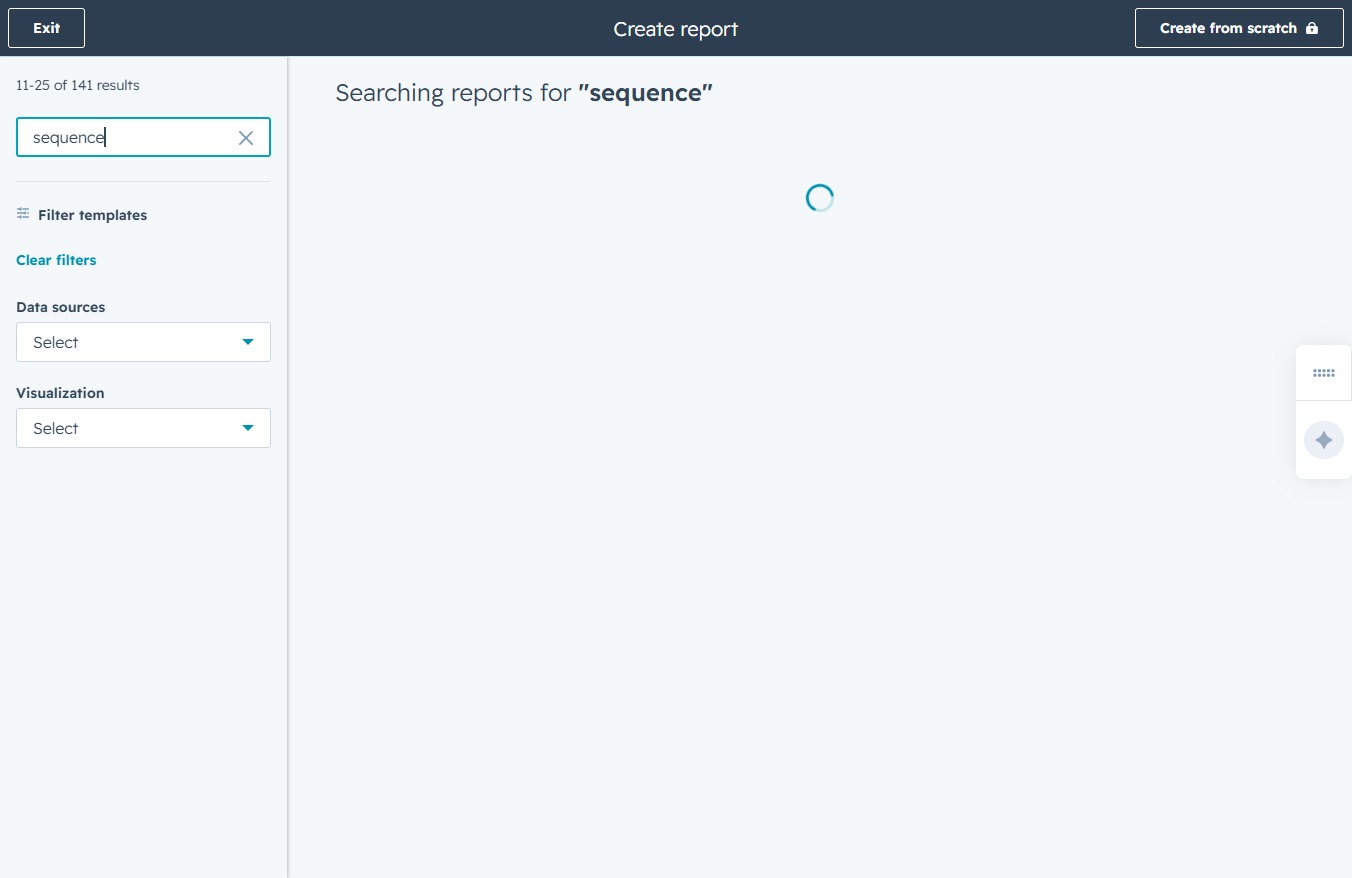
Entering 'sequence' in the Search all templates field will initiate a search for relevant reports and templates that match the keyword, helping you locate the desired resources more efficiently.
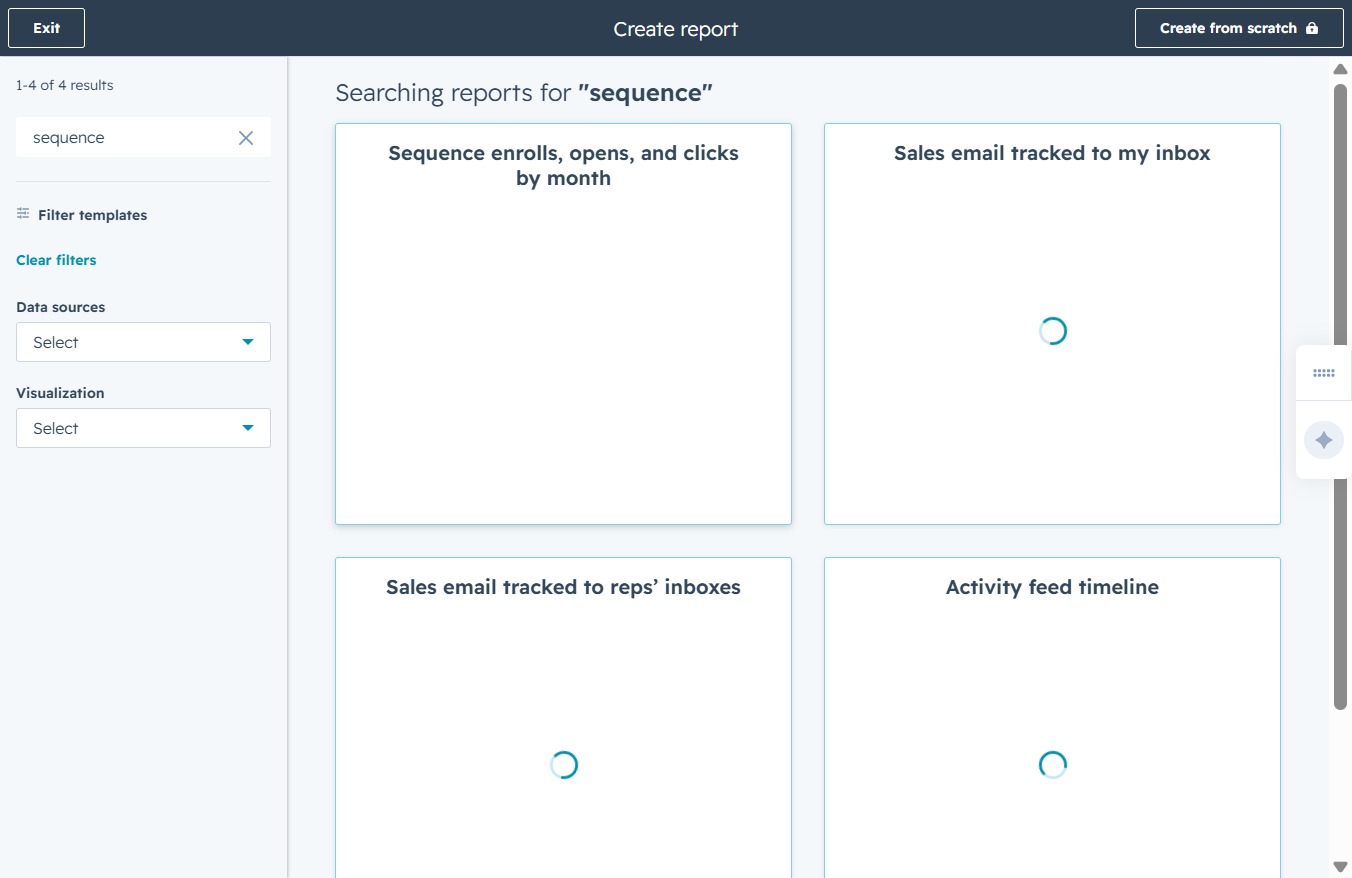
This selection will open the report detailing the monthly statistics for enrolls, opens, and clicks associated with your sequences.
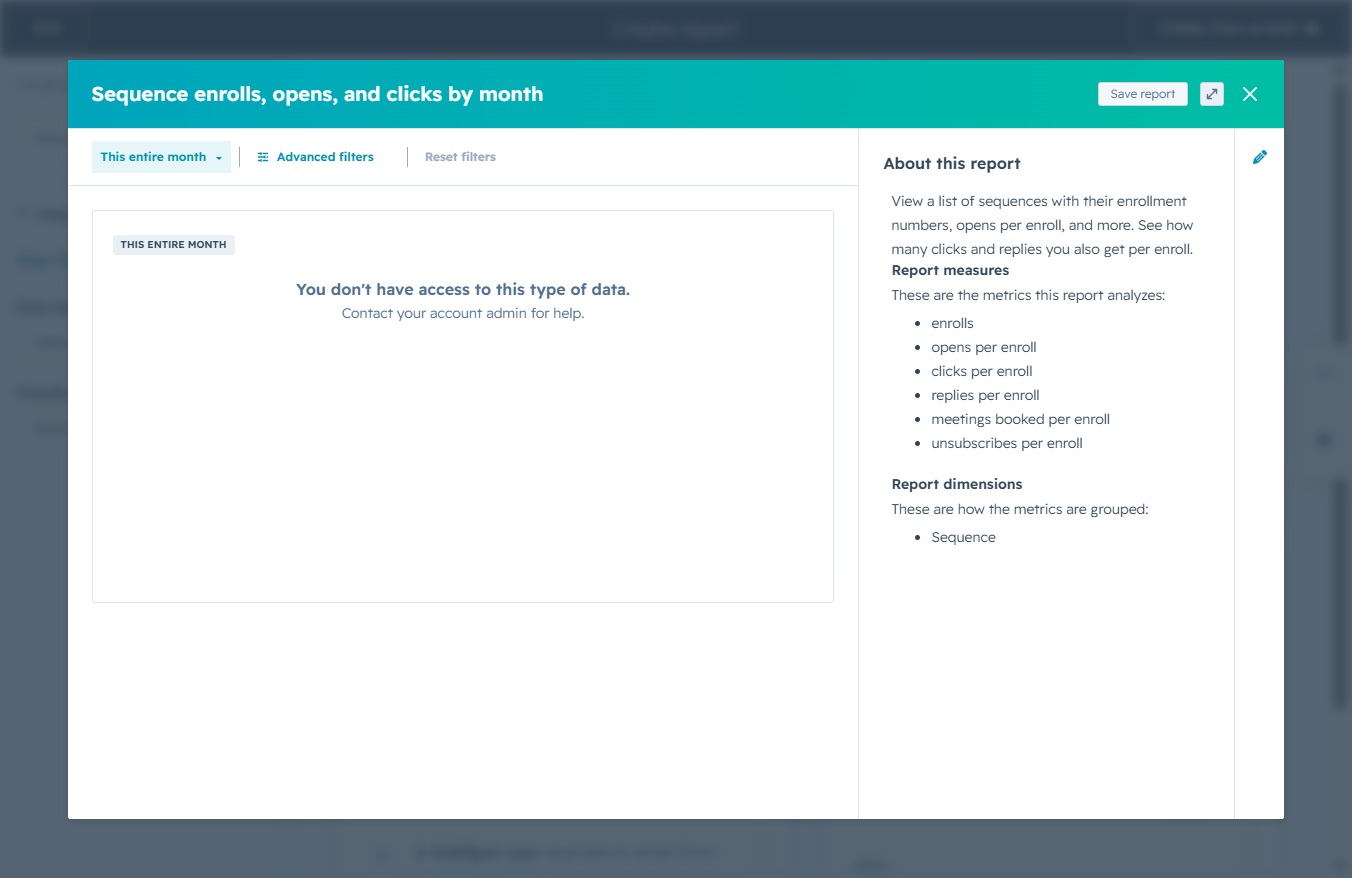
This action will save the current report on sequence enrolls, opens, and clicks for later access. Ensure that any changes made to the report parameters are finalized before saving.
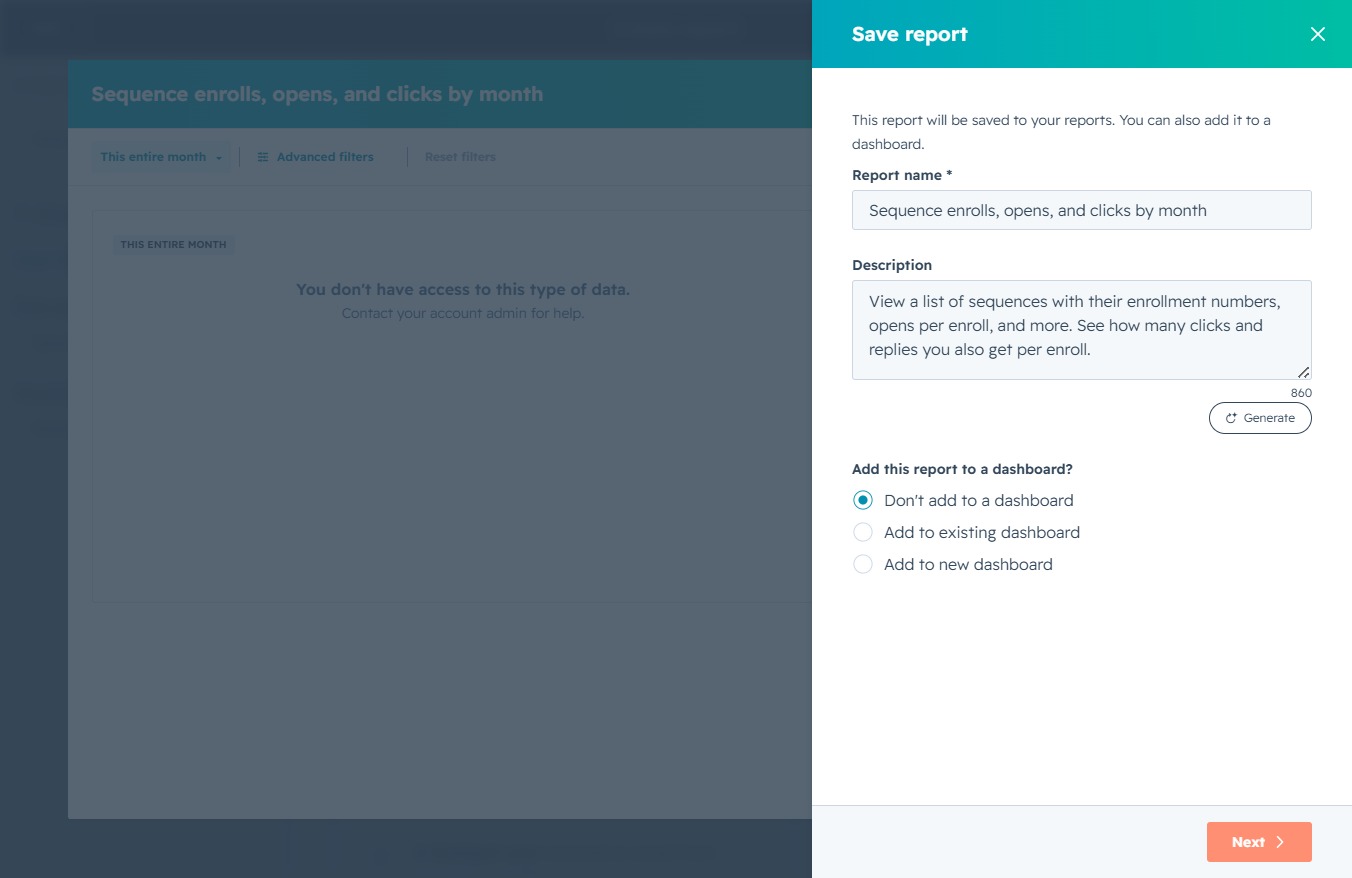
Proceed to the next step in the report setup, allowing you to finalize your reporting choices and save the selected options.
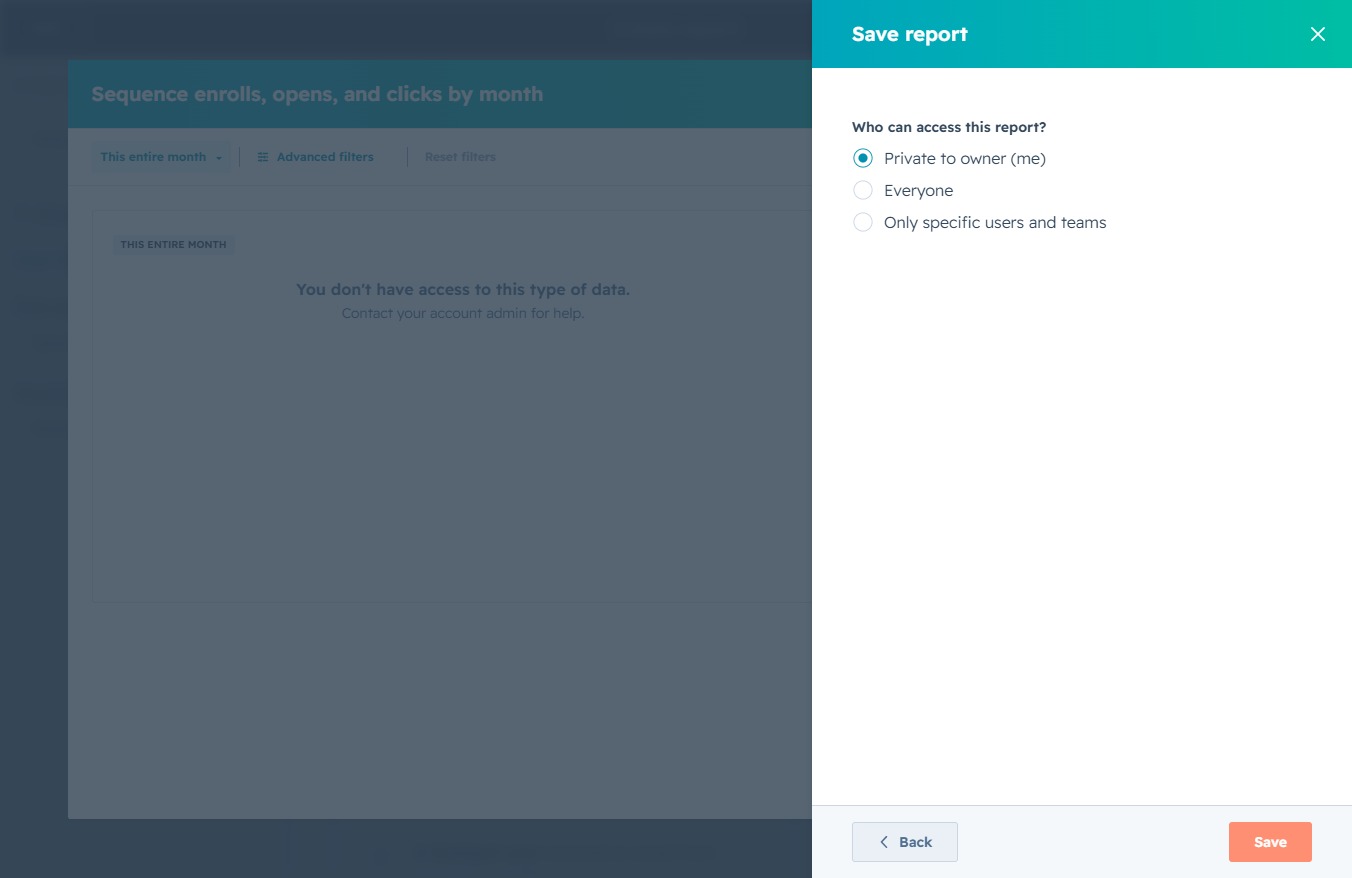
Clicking this button will save your report along with the selected access permissions. Make sure to choose who can access this report before saving.
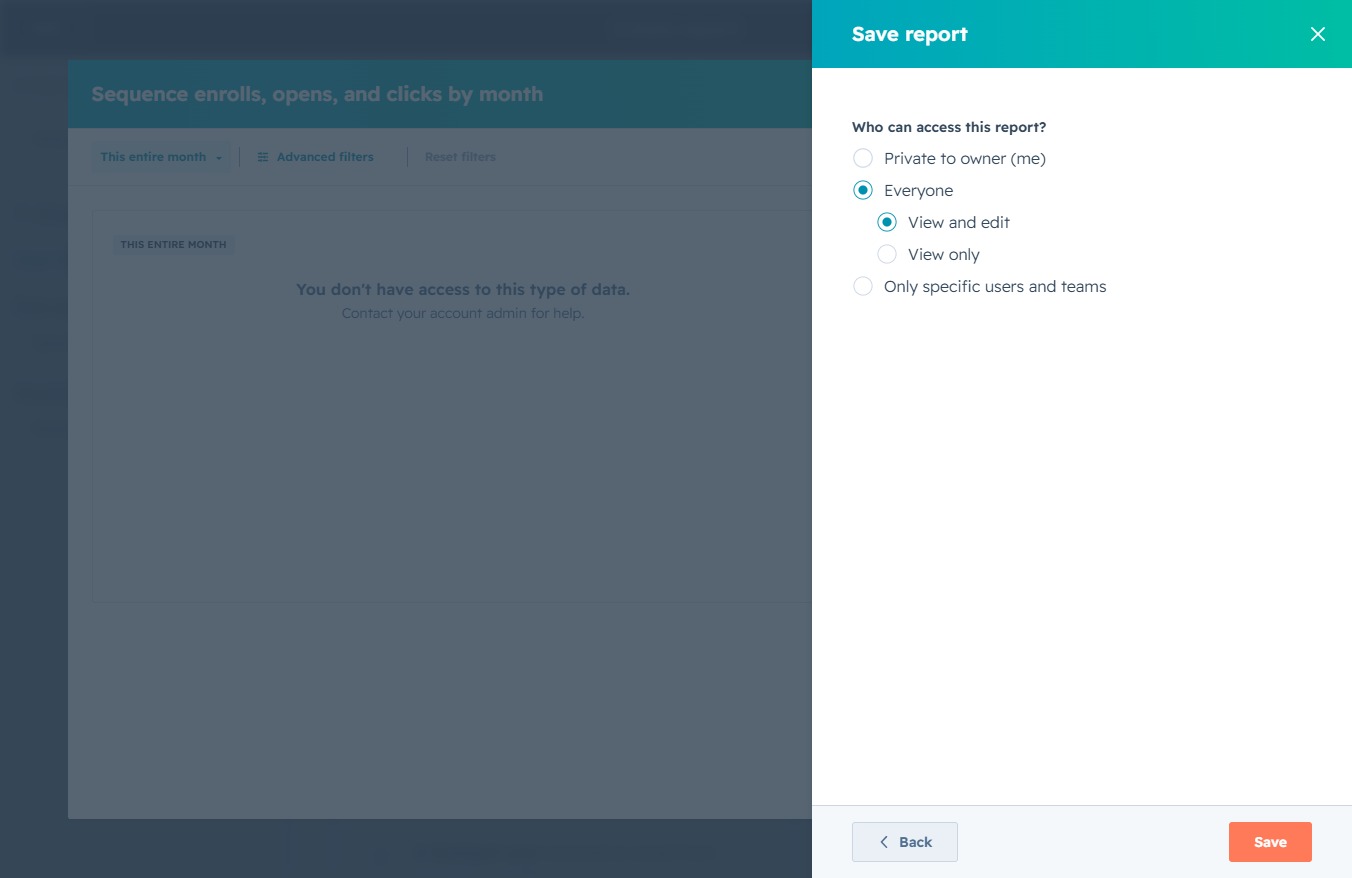
This action will save your report with the specified access settings. Ensure the correct options for report visibility are selected before proceeding.