Click the Operations section
After clicking the Operations section, you will access a list of operational documents and tasks related to your current projects and inquiries.

Loading screenshot…
100%
This how-to guide teaches you how to track the history of a page within the Operations section, detailing steps to navigate through various links to access version history and…
 viktoria
This how-to guide teaches you how to track the history of a page within the Operations section, detailing steps to navigate through various links to access version history and manage content effectively. Follow the outlined steps to stay up-to-date with changes and enhancements made to important documents.
After clicking the Operations section, you will access a list of operational documents and tasks related to your current projects and inquiries.
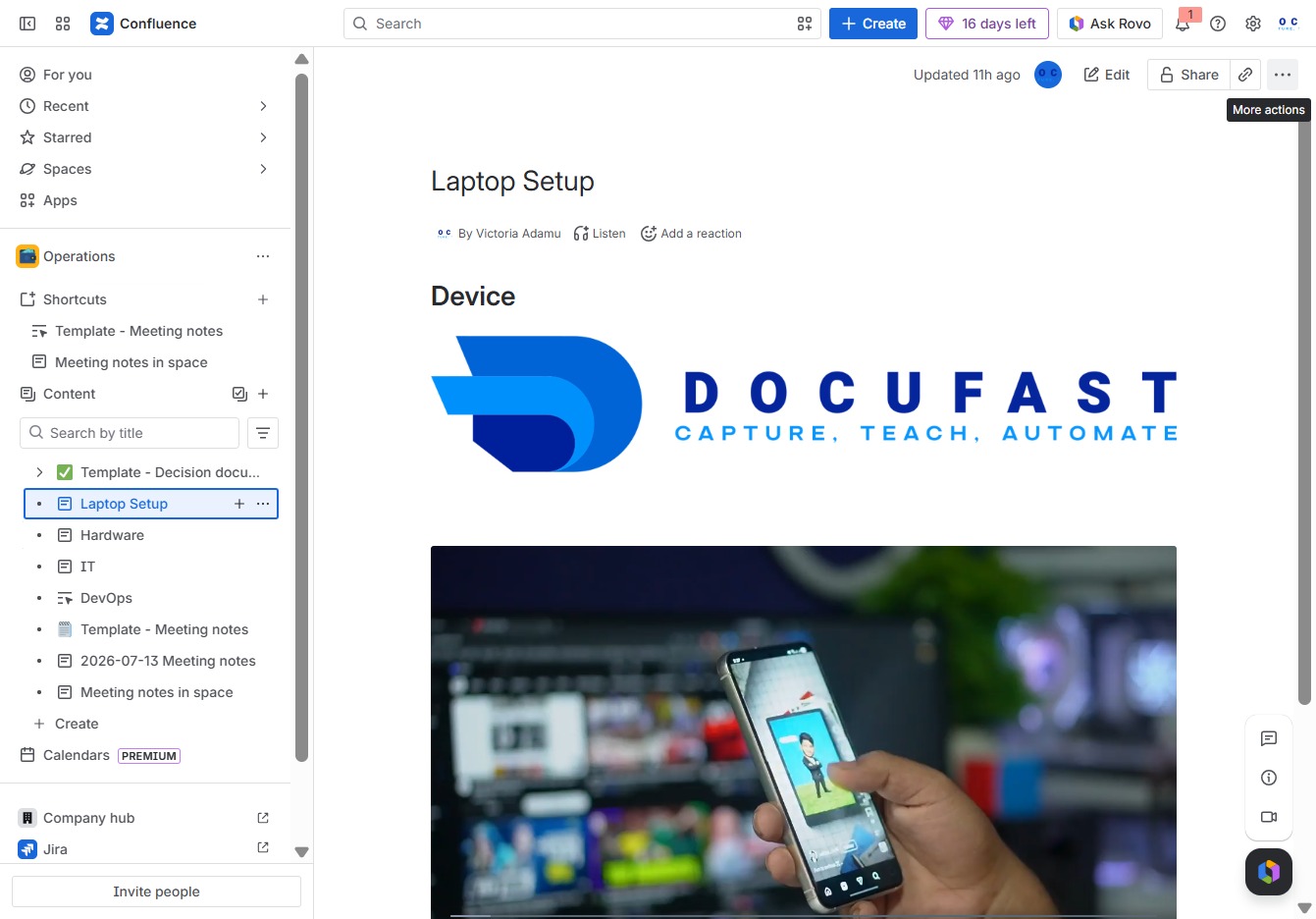
This will open the detailed page for the Laptop Setup, allowing you to create child content and access more actions related to this topic.

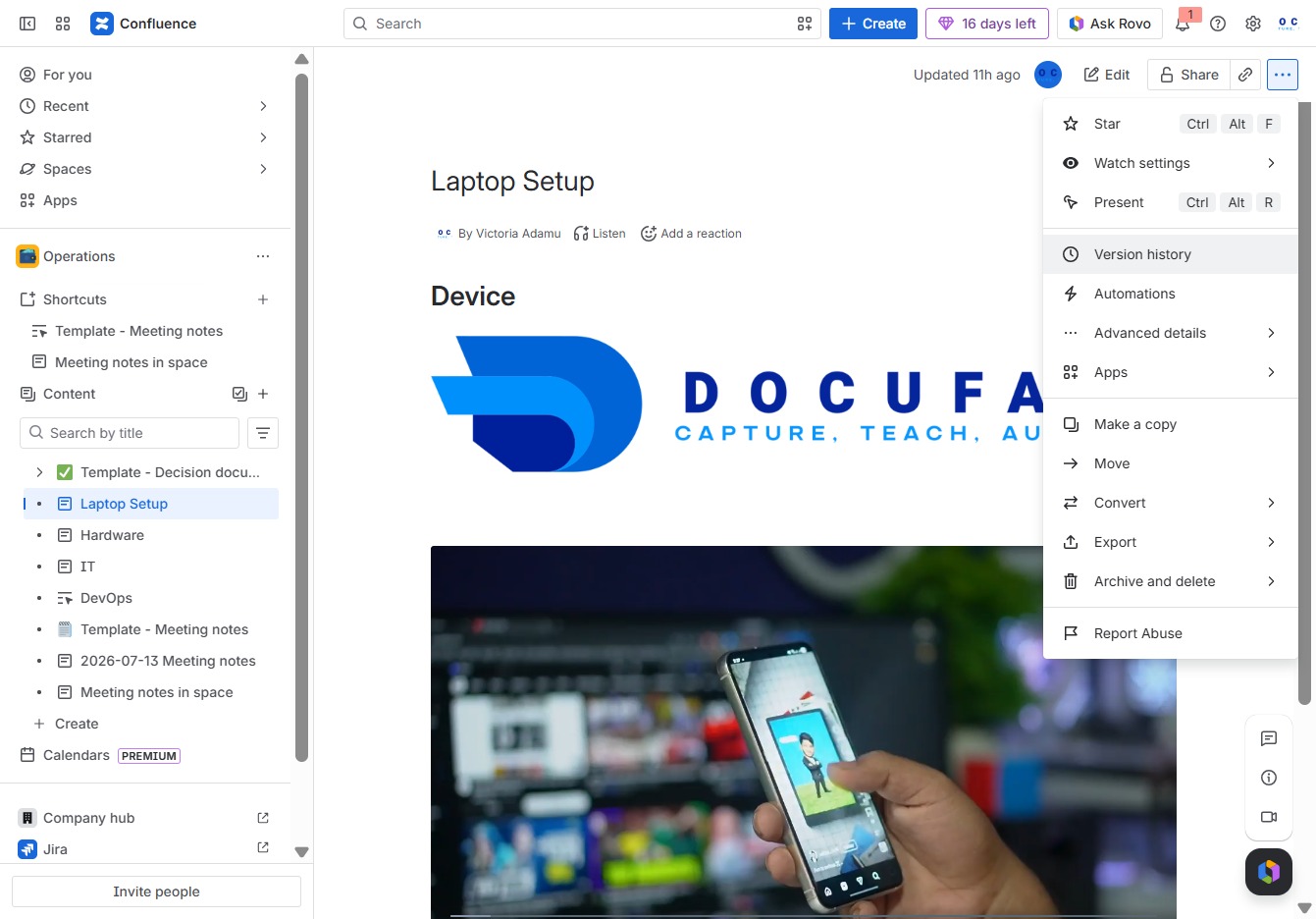
This opens a menu with additional features and options related to the current document or page.
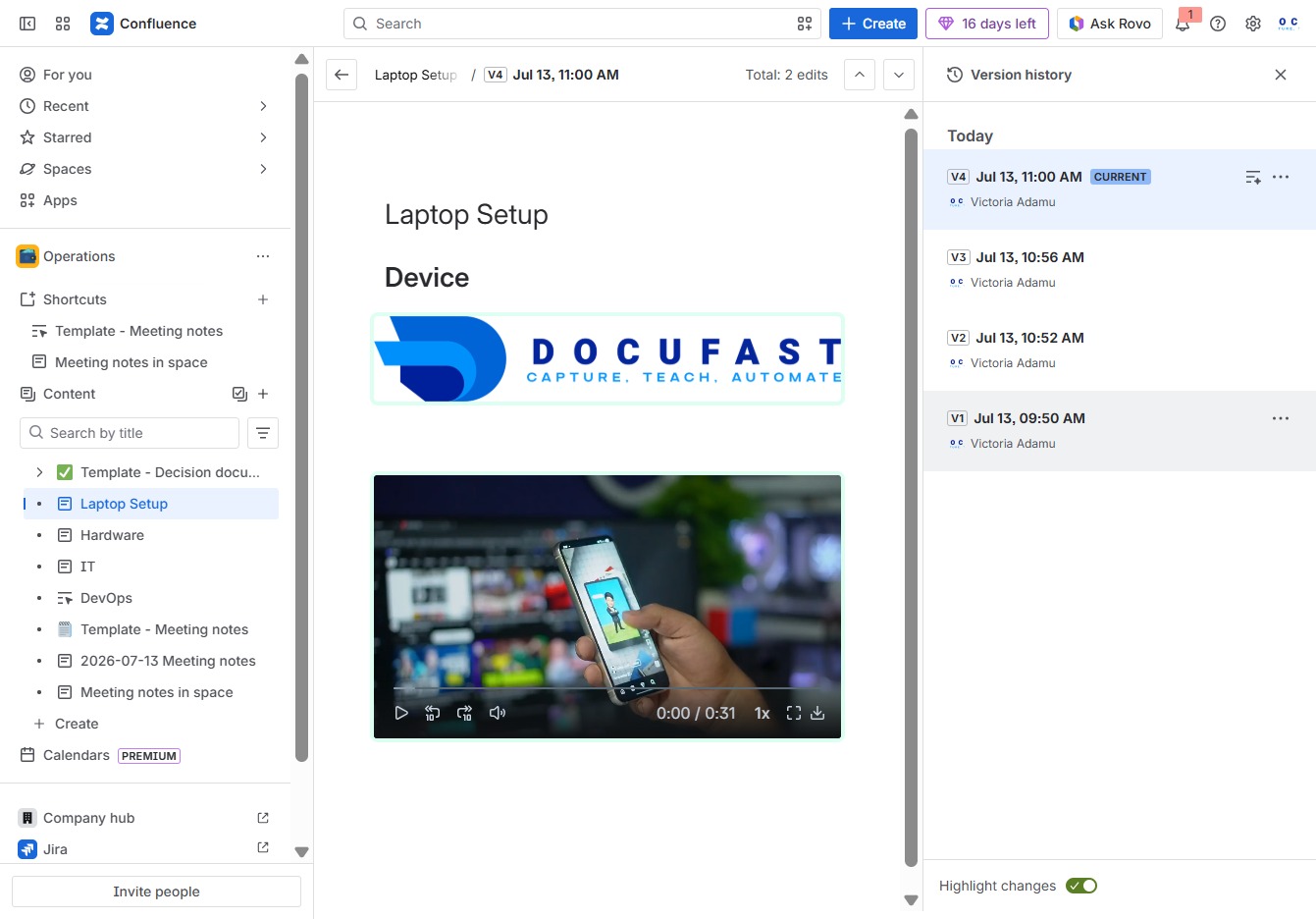
This will display the document's version history, allowing you to view past versions and changes made over time.
This will reveal additional options related to the content shared by Victoria Adamu, allowing you to manage or interact with the entry effectively.