Geteilte Anleitung

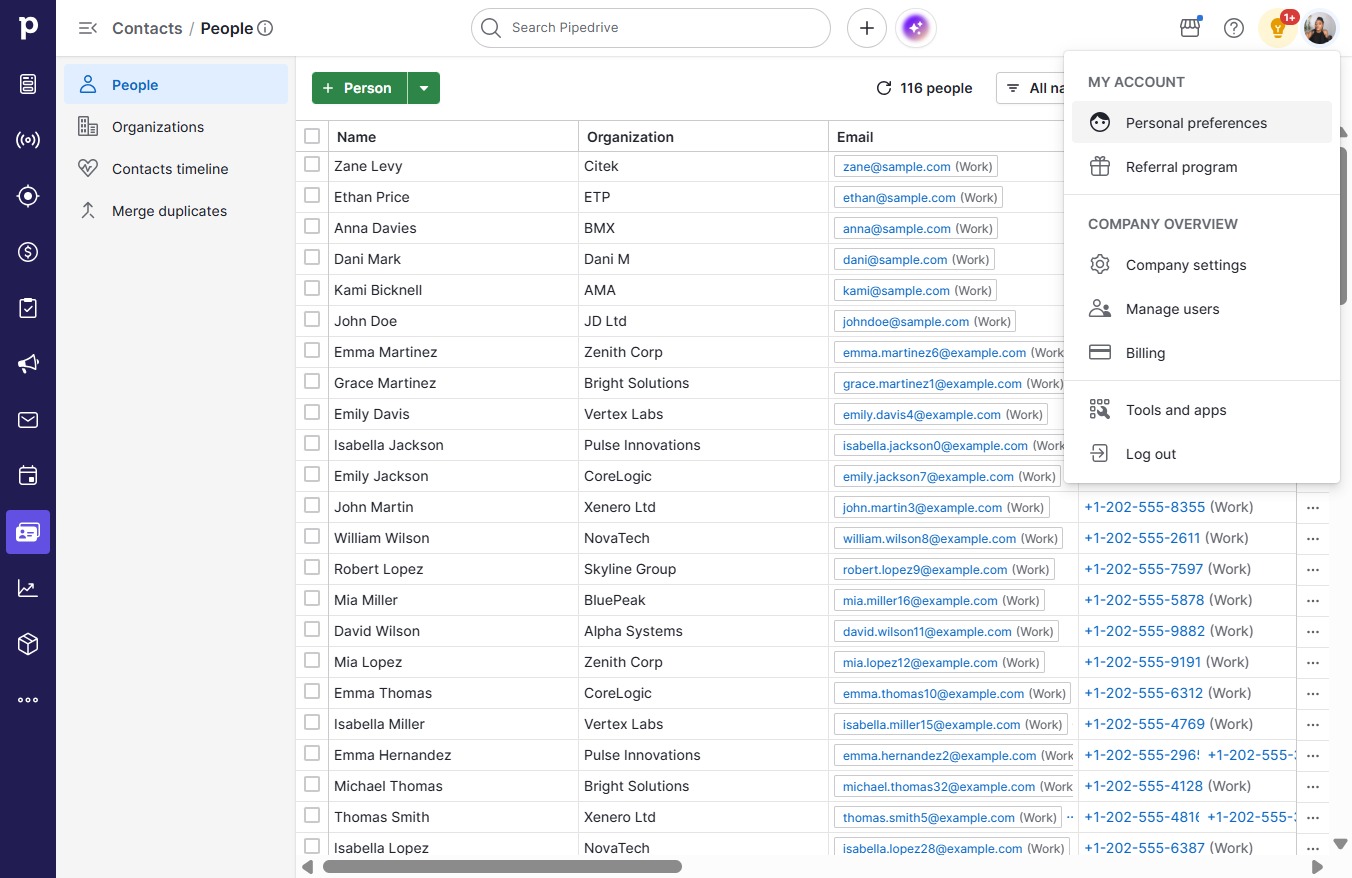
How to sync contacts with phone

This how-to guide walks you through the steps to sync your contacts with your phone using your Gmail account.

victoriaworkflowsvictoriaworkflows
·13 Schritte·54 Aufrufe·Veröffentlicht

This how-to guide walks you through the steps to sync your contacts with your phone using your Gmail account. Follow along as we detail the process from accessing personal preferences to enabling contact sync, ensuring all your contacts are connected seamlessly.

Step-by-step Guide13 Schritte
  1. Click on "Click here."
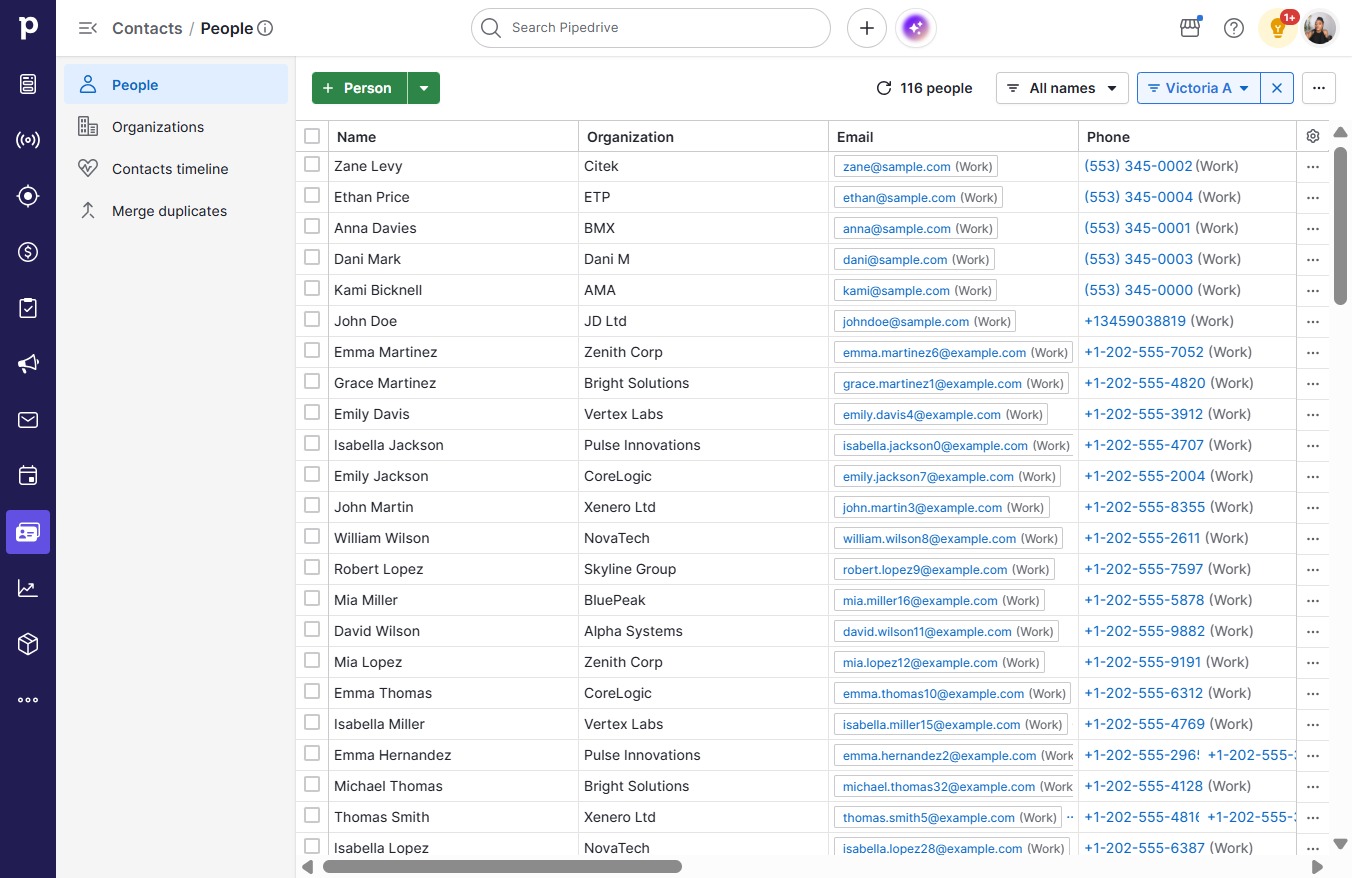
    Click on "Click here."
    Loading screenshot…
    100%
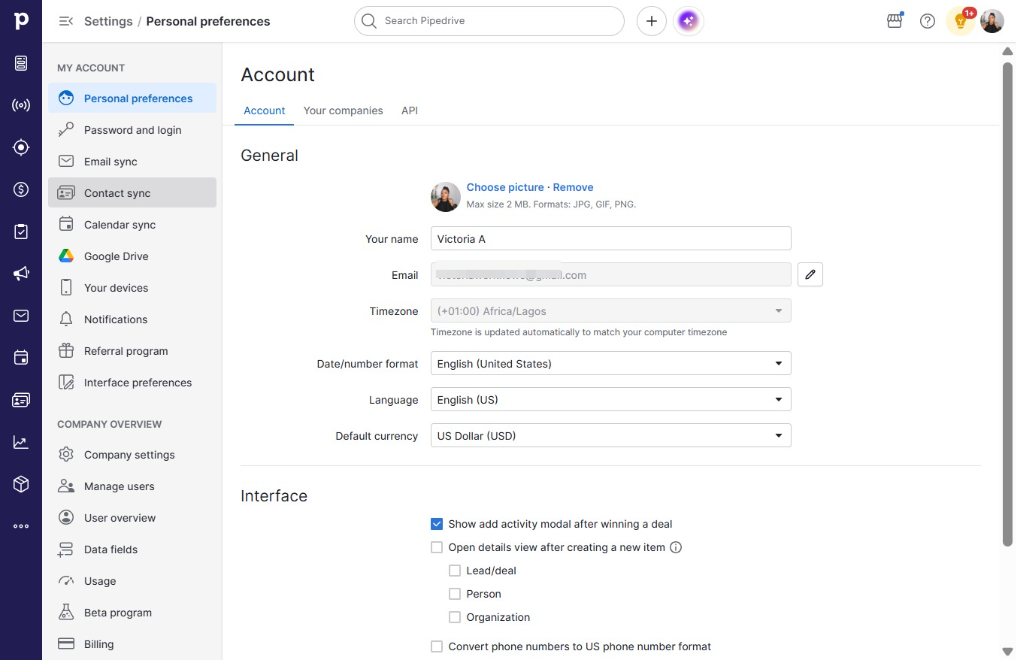
  2. Click Personal preferences

    Click Personal preferences
    Loading screenshot…
    100%
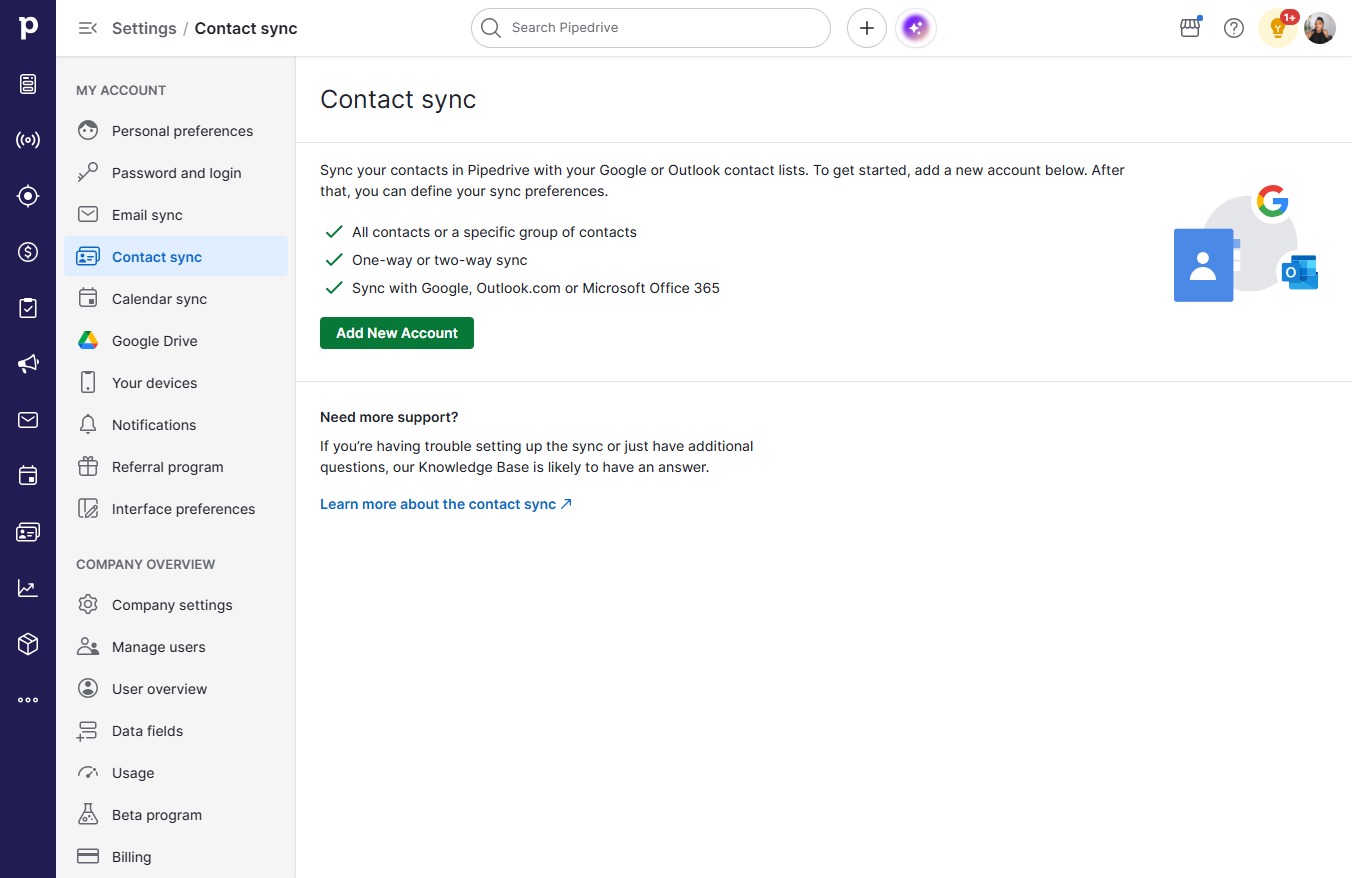
  3. Click Contact sync

    Click Contact sync
    Loading screenshot…
    100%
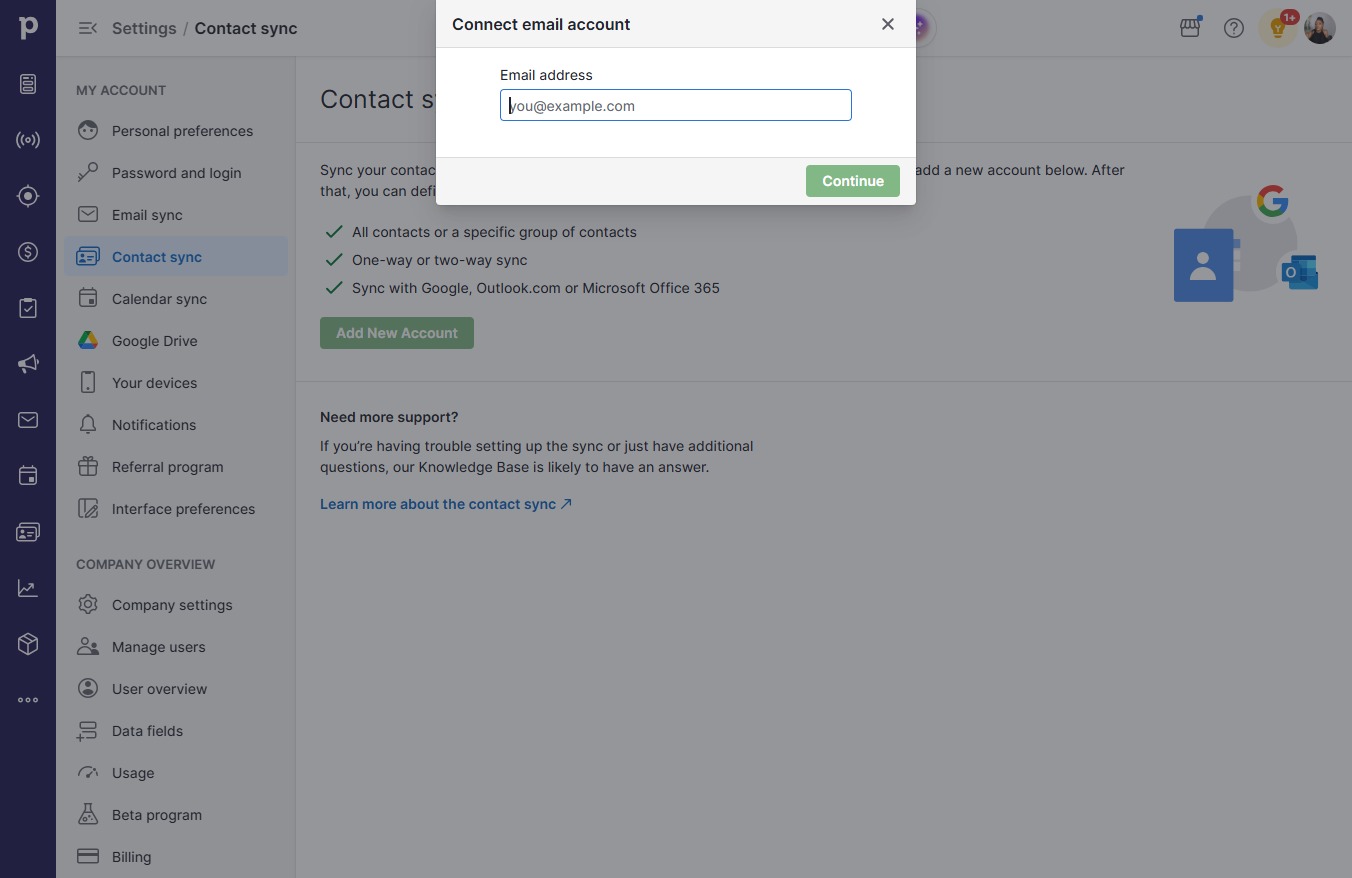
  4. Click Add New Account

    Click Add New Account
    Loading screenshot…
    100%
  5. Click on "Click here."

    Click on "Click here."
    Loading screenshot…
    100%
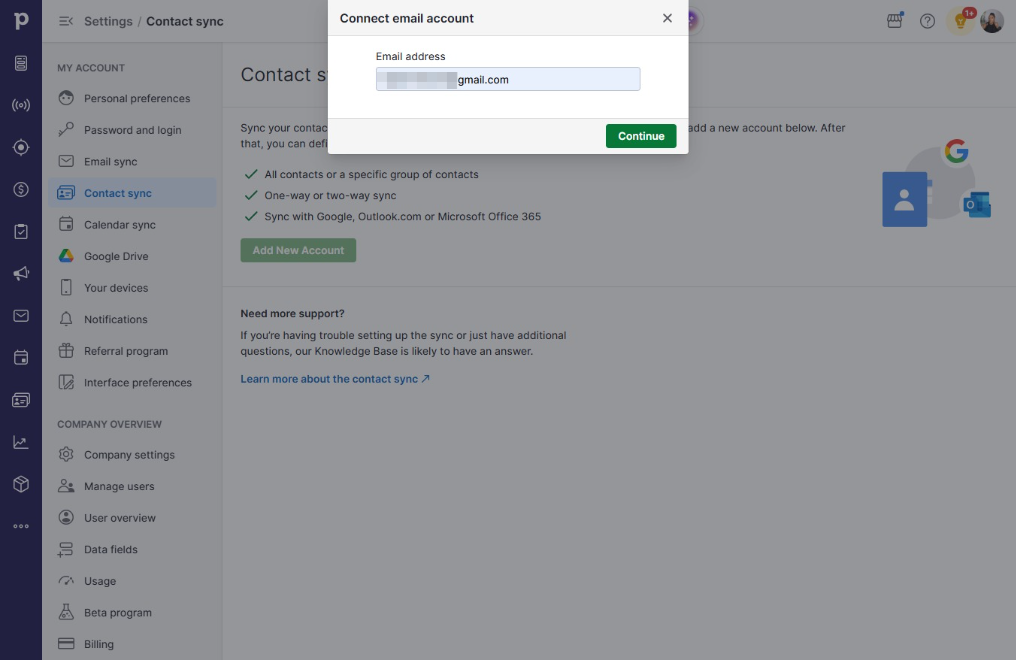
  6. Type "@gmail.com" in you@example.com

  7. Click Continue

    Click Continue
    Loading screenshot…
    100%
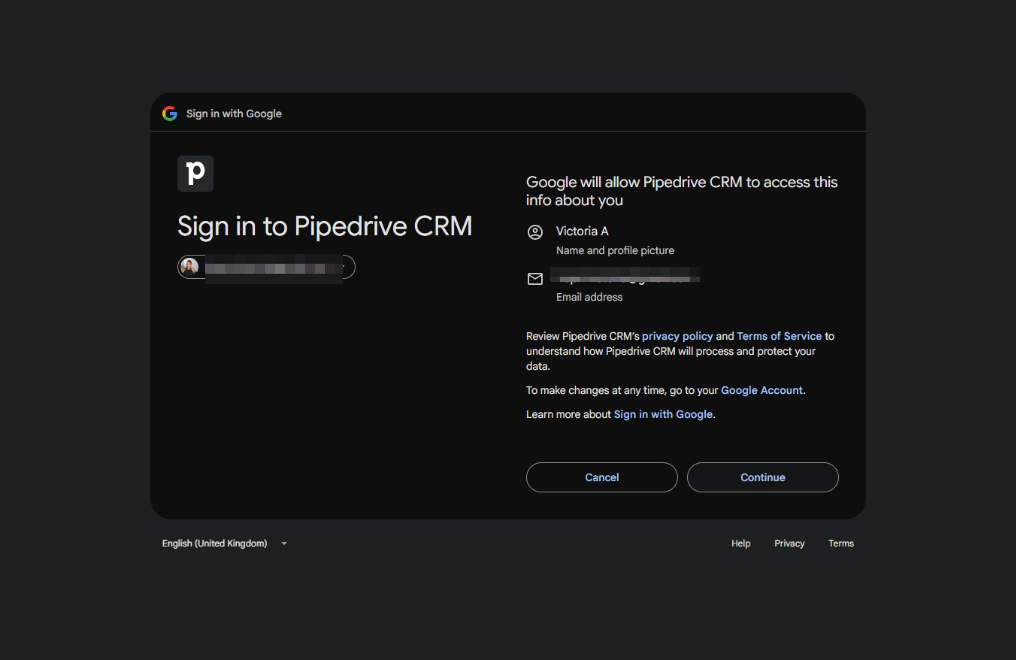
  8. Click @gmail.com

    Click @gmail.com
    Loading screenshot…
    100%
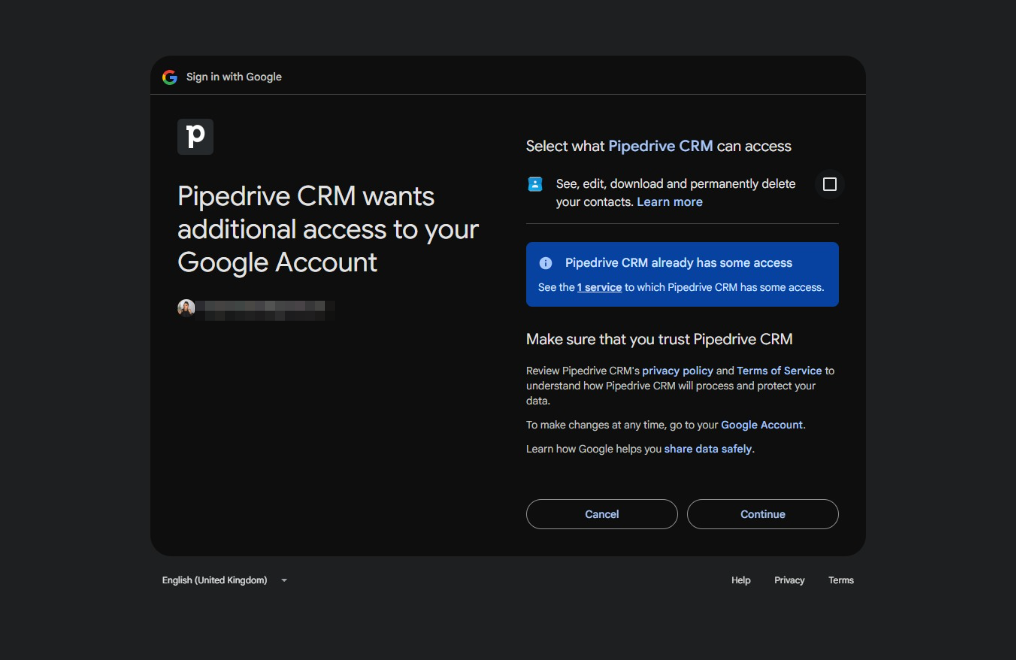
  9. Click on "Click here."

    Click on "Click here."
    Loading screenshot…
    100%
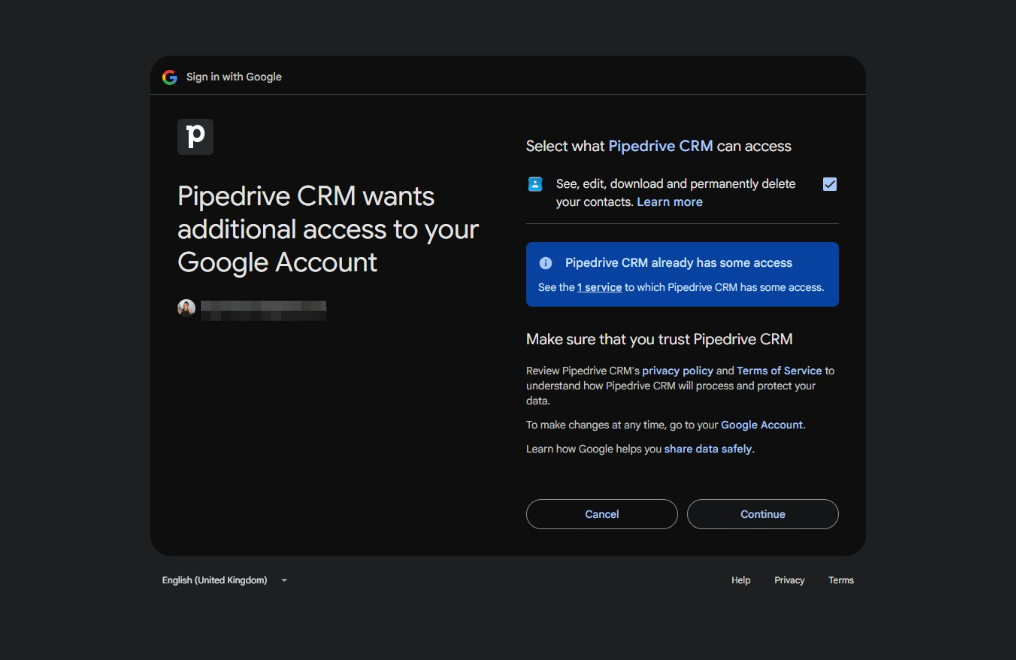
  10. Click on "Click here."

    Click on "Click here."
    Loading screenshot…
    100%
  11. Click Continue

    Click Continue
    Loading screenshot…
    100%
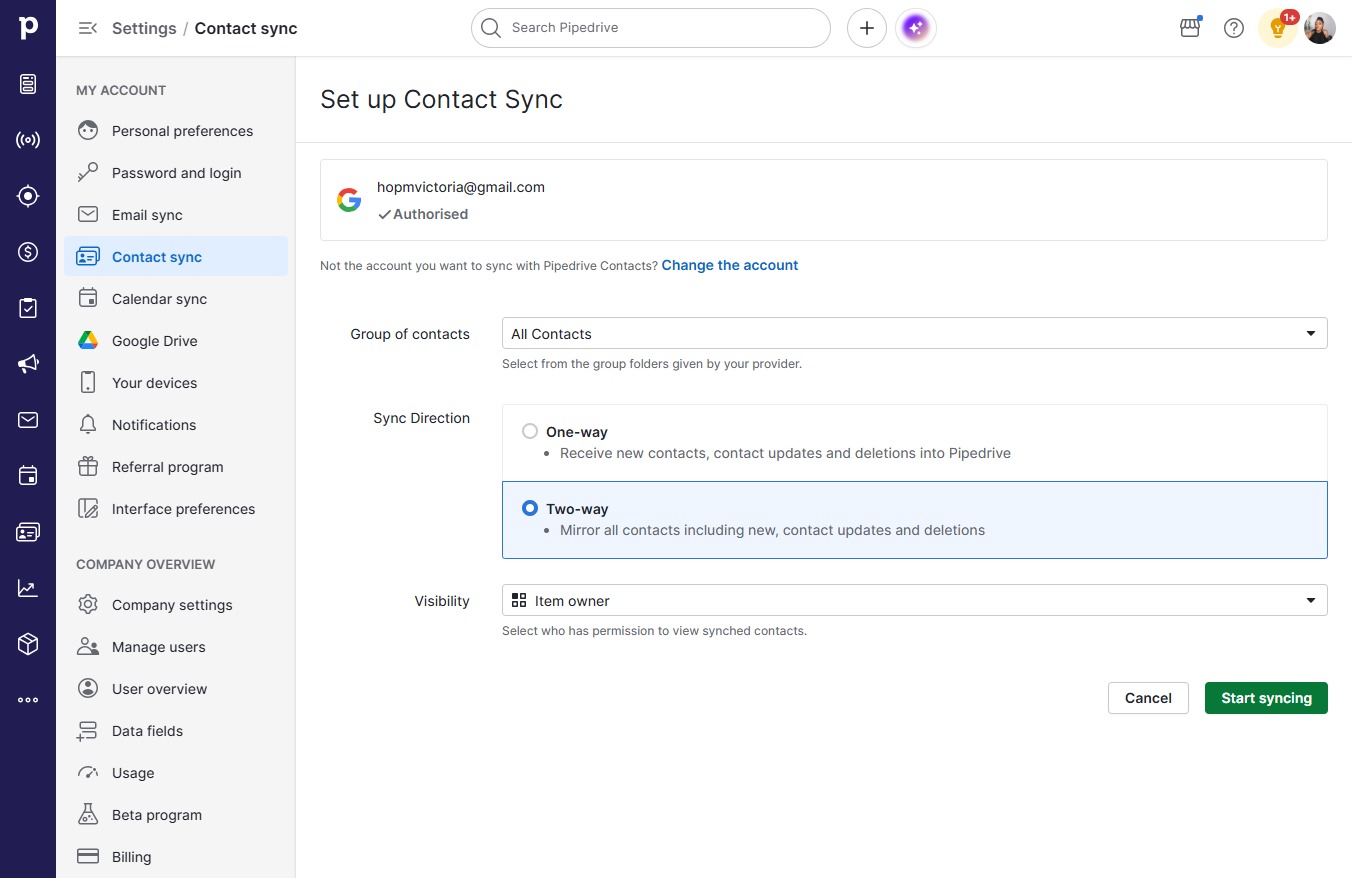
  12. Click Start syncing

    Click Start syncing
    Loading screenshot…
    100%
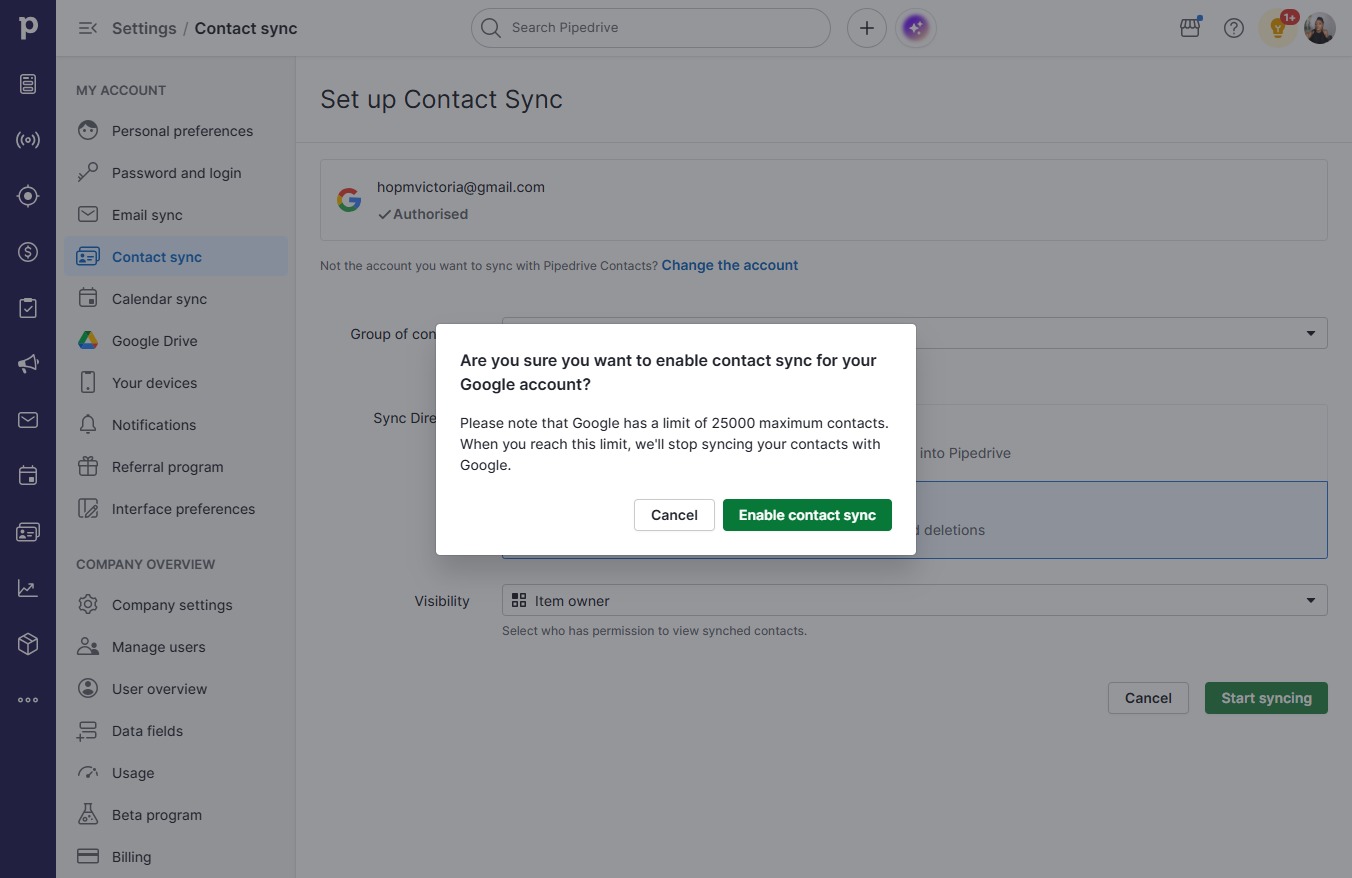
  13. Click Enable contact sync

    Click Enable contact sync
    Loading screenshot…
    100%