Shared guide

How to sync contacts with phone

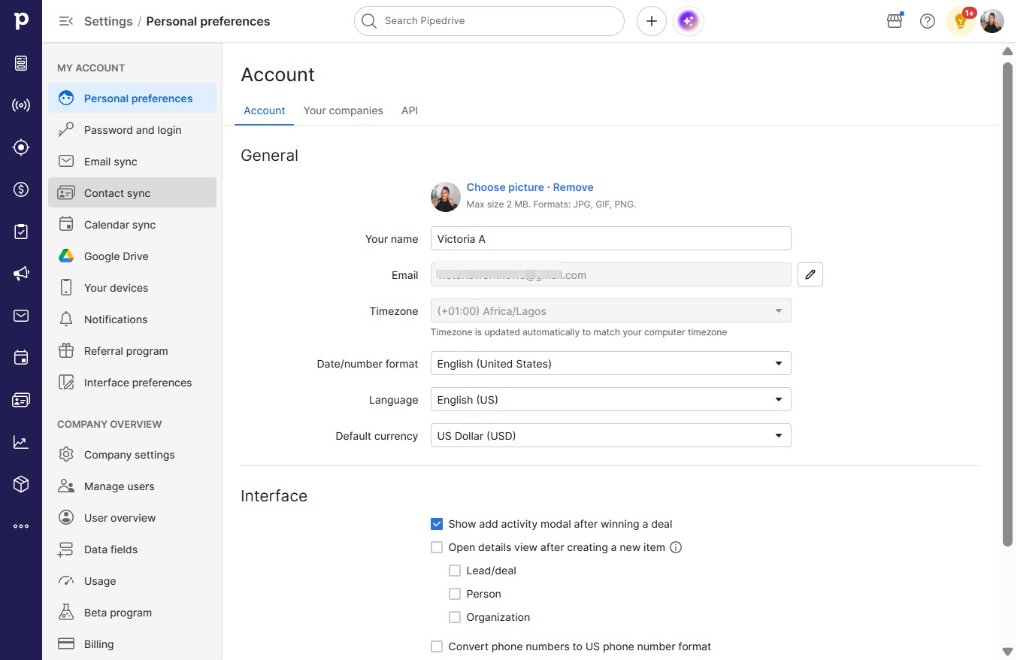
Step-by-step guide covering: Click on "Click here."; Click Personal preferences; Click Contact sync; Click Add New Account.

victoriaworkflowsvictoriaworkflows
·13 steps·5 views·Published
Step-by-step Guide13 steps
  1. Click on "Click here."

    Click on "Click here."
    Loading screenshot…
    100%
  2. Click Personal preferences

    Click Personal preferences
    Loading screenshot…
    100%
  3. Click Contact sync

    Click Contact sync
    Loading screenshot…
    100%
  4. Click Add New Account

    Click Add New Account
    Loading screenshot…
    100%
  5. Click on "Click here."

    Click on "Click here."
    Loading screenshot…
    100%
  6. Type "@gmail.com" in you@example.com

  7. Click Continue

    Click Continue
    Loading screenshot…
    100%
  8. Click @gmail.com

    Click @gmail.com
    Loading screenshot…
    100%
  9. Click on "Click here."

    Click on "Click here."
    Loading screenshot…
    100%
  10. Click on "Click here."

    Click on "Click here."
    Loading screenshot…
    100%
  11. Click Continue

    Click Continue
    Loading screenshot…
    100%
  12. Click Start syncing

    Click Start syncing
    Loading screenshot…
    100%
  13. Click Enable contact sync

    Click Enable contact sync
    Loading screenshot…
    100%