Click the Spaces section
This will open the Spaces panel where you can view all your collaborative areas and projects in Confluence.

Loading screenshot…
100%
This how-to guide demonstrates the step-by-step process to switch between spaces in Confluence, enabling you to navigate and manage collaborative areas and projects effectively.
 viktoria
This how-to guide demonstrates the step-by-step process to switch between spaces in Confluence, enabling you to navigate and manage collaborative areas and projects effectively. Follow along to learn how to access different spaces and their associated content with ease.
This will open the Spaces panel where you can view all your collaborative areas and projects in Confluence.
This action opens the details and documents associated with Project 1, allowing you to view and manage its contents.

This action opens the Spaces dropdown, allowing you to manage or navigate to different spaces within Confluence.
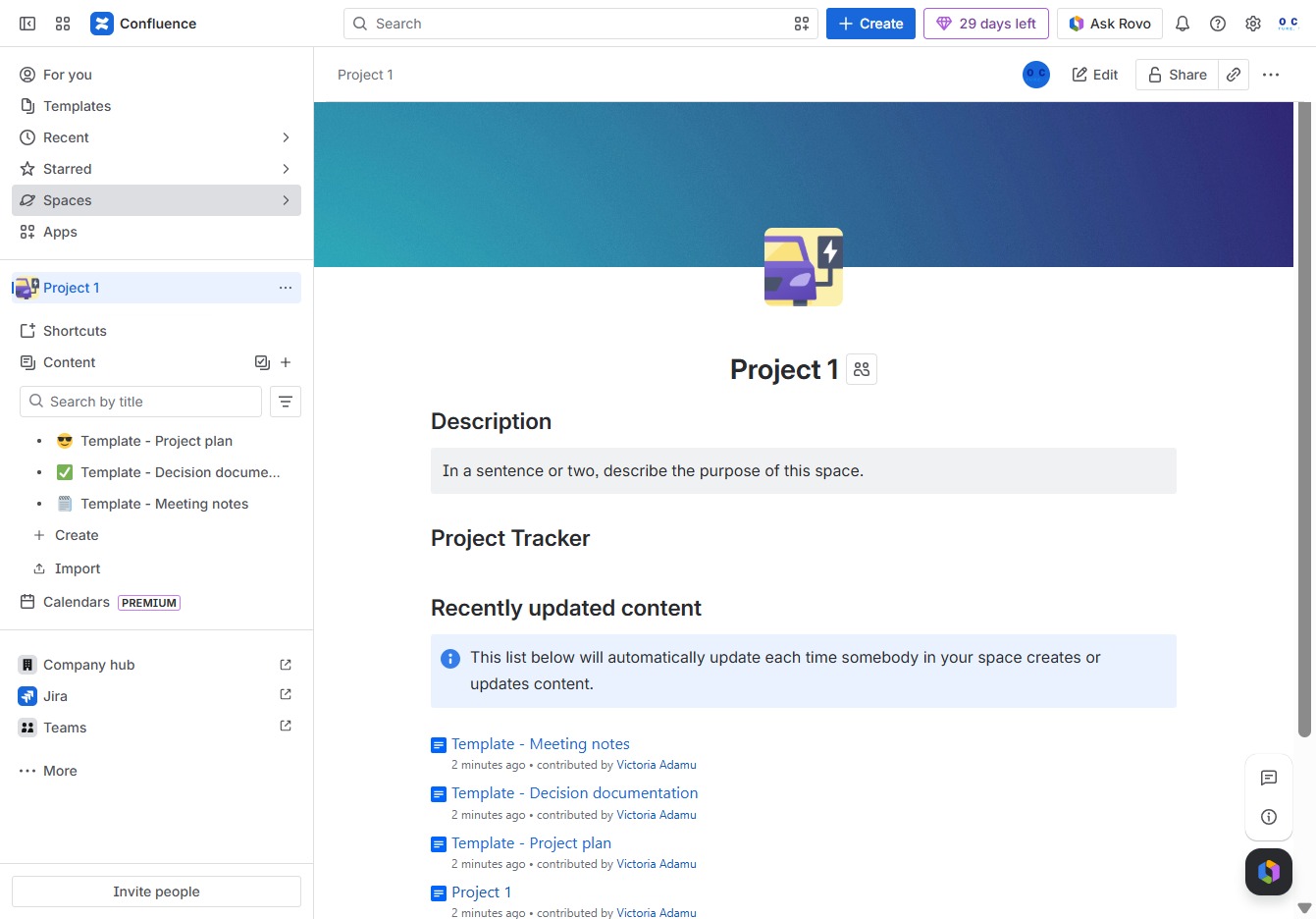
This action will display a list of all spaces available in your Confluence environment, allowing you to navigate between different projects and areas.

This action opens the Software Development space, allowing you to view and manage the related pages and documentation.
