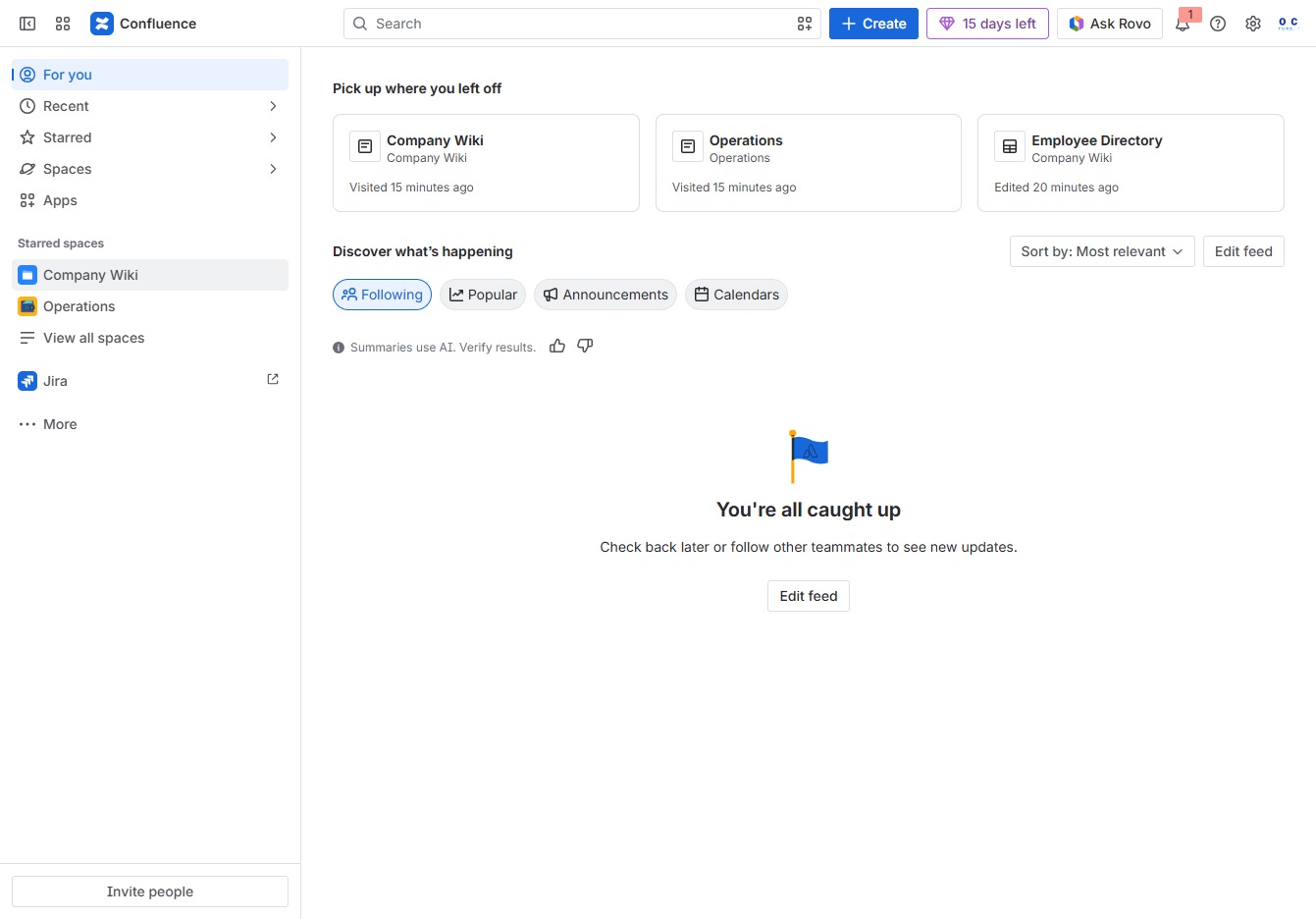
Click the Company Wiki section
This action will navigate you to the Company Wiki where you can view and edit company-related documents and resources.
Loading screenshot…
100%
In this guide, you'll learn how to efficiently sort employee data within your company's Employee Directory using a structured approach.
 viktoria
In this guide, you'll learn how to efficiently sort employee data within your company's Employee Directory using a structured approach. Follow the steps to access, create, and arrange entries based on specific criteria, ensuring streamlined organization and easy retrieval of employee information.
This action will navigate you to the Company Wiki where you can view and edit company-related documents and resources.
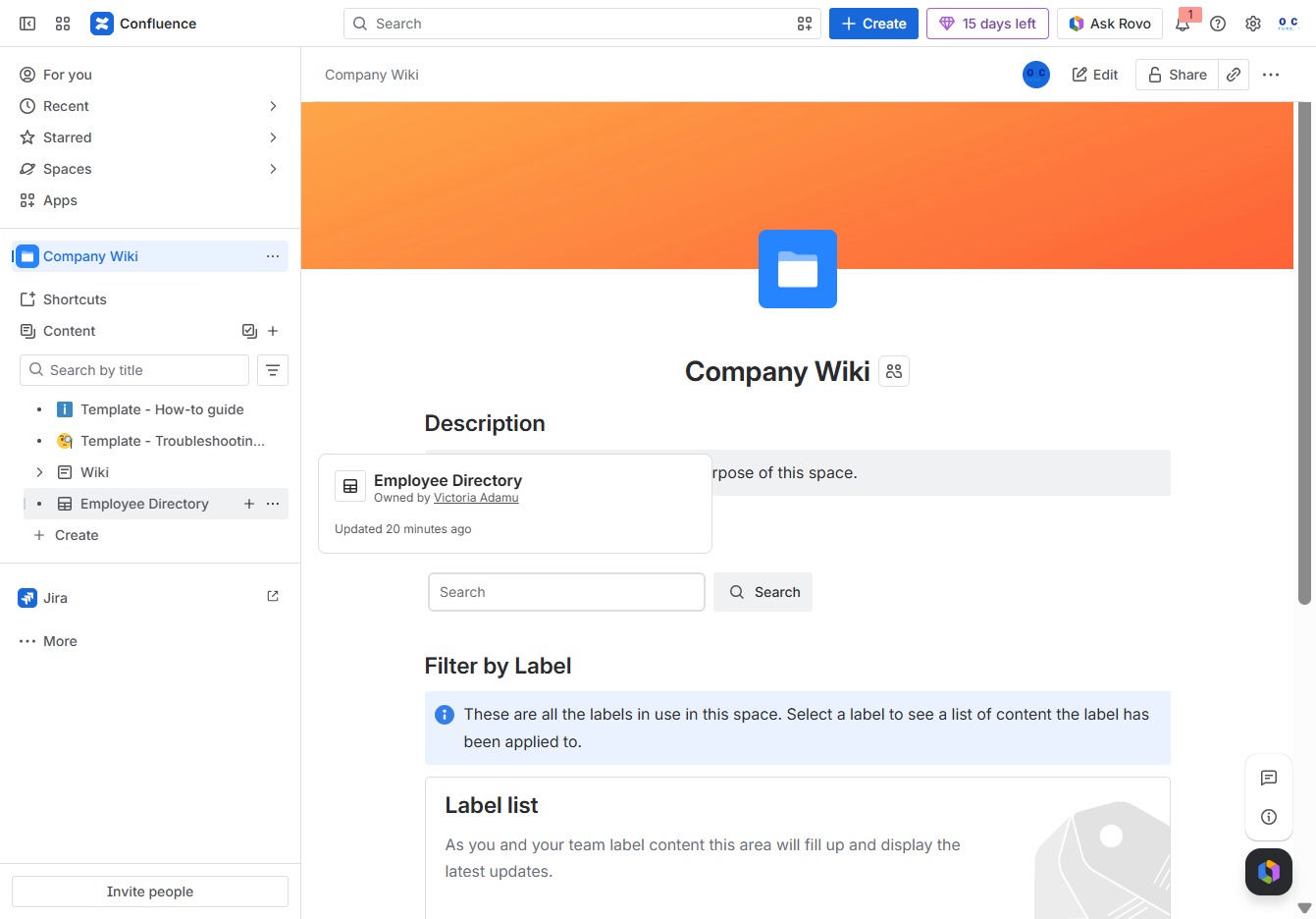
This will allow you to create child content specifically for the Employee Directory section. From here, you can manage entries and further actions related to employee information.
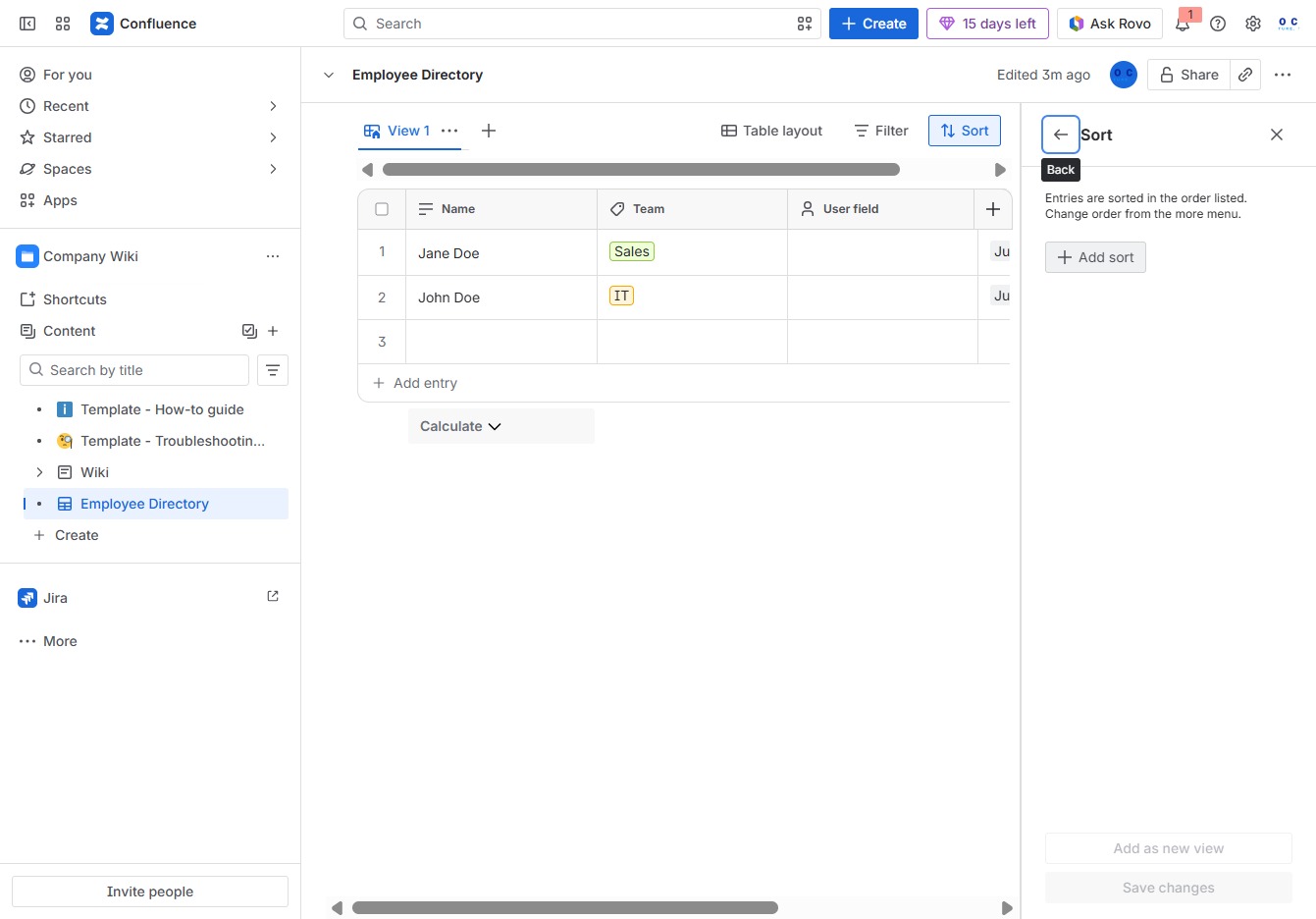
Clicking the Sort option will allow you to organize the employee directory based on selected criteria, enhancing your ability to locate specific entries easily.

This will prompt you to define your sorting criteria for the Employee Directory list, allowing you to organize the entries by specific fields.
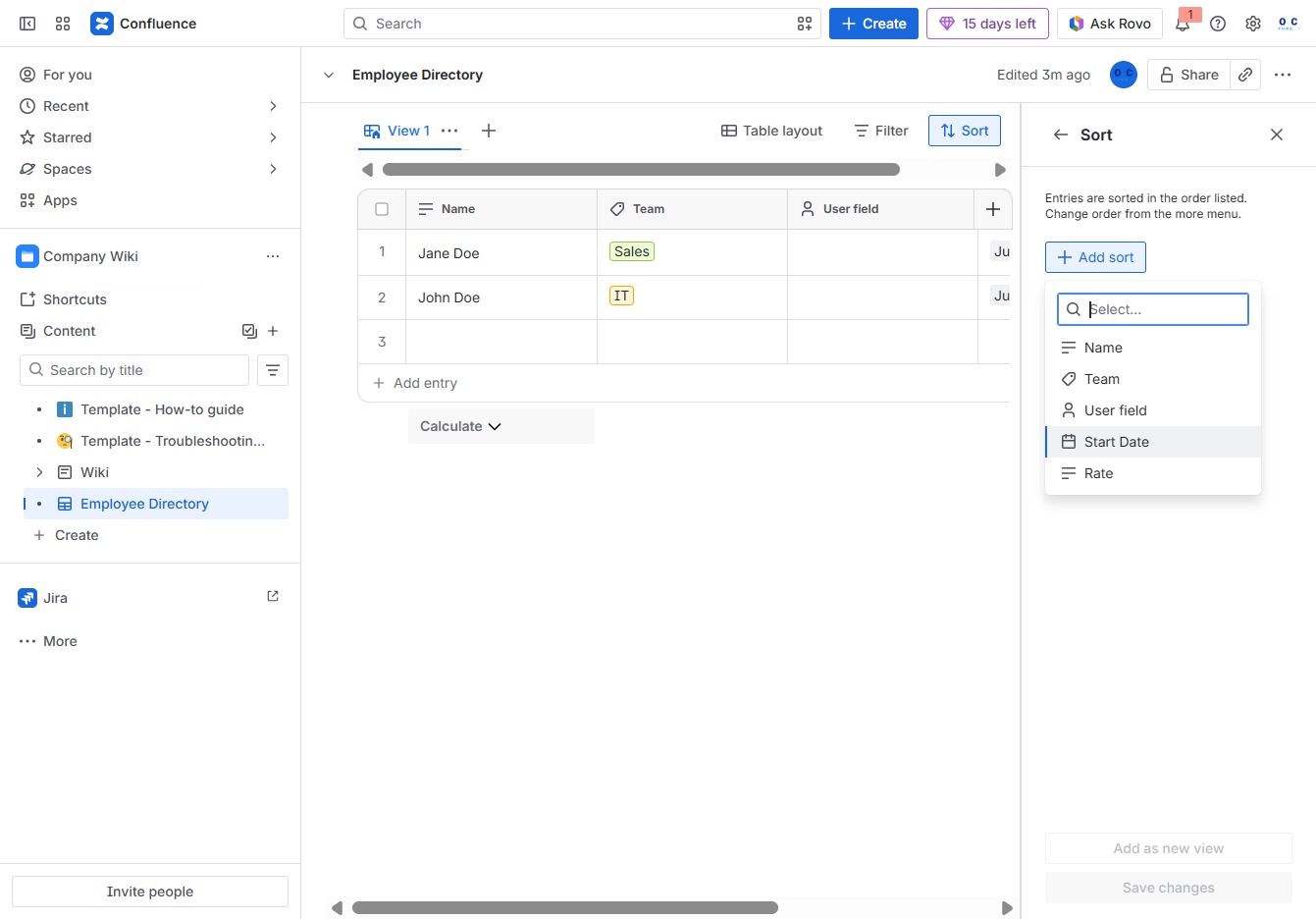
Clicking the Start Date field allows you to select a specific date to sort the entries in the Employee Directory. This helps organize the list based on when employees started.
This action opens the selected item, allowing you to view or edit its details within the Employee Directory.

This action opens a sorting menu where you can arrange entries in the Employee Directory from the latest to the earliest.
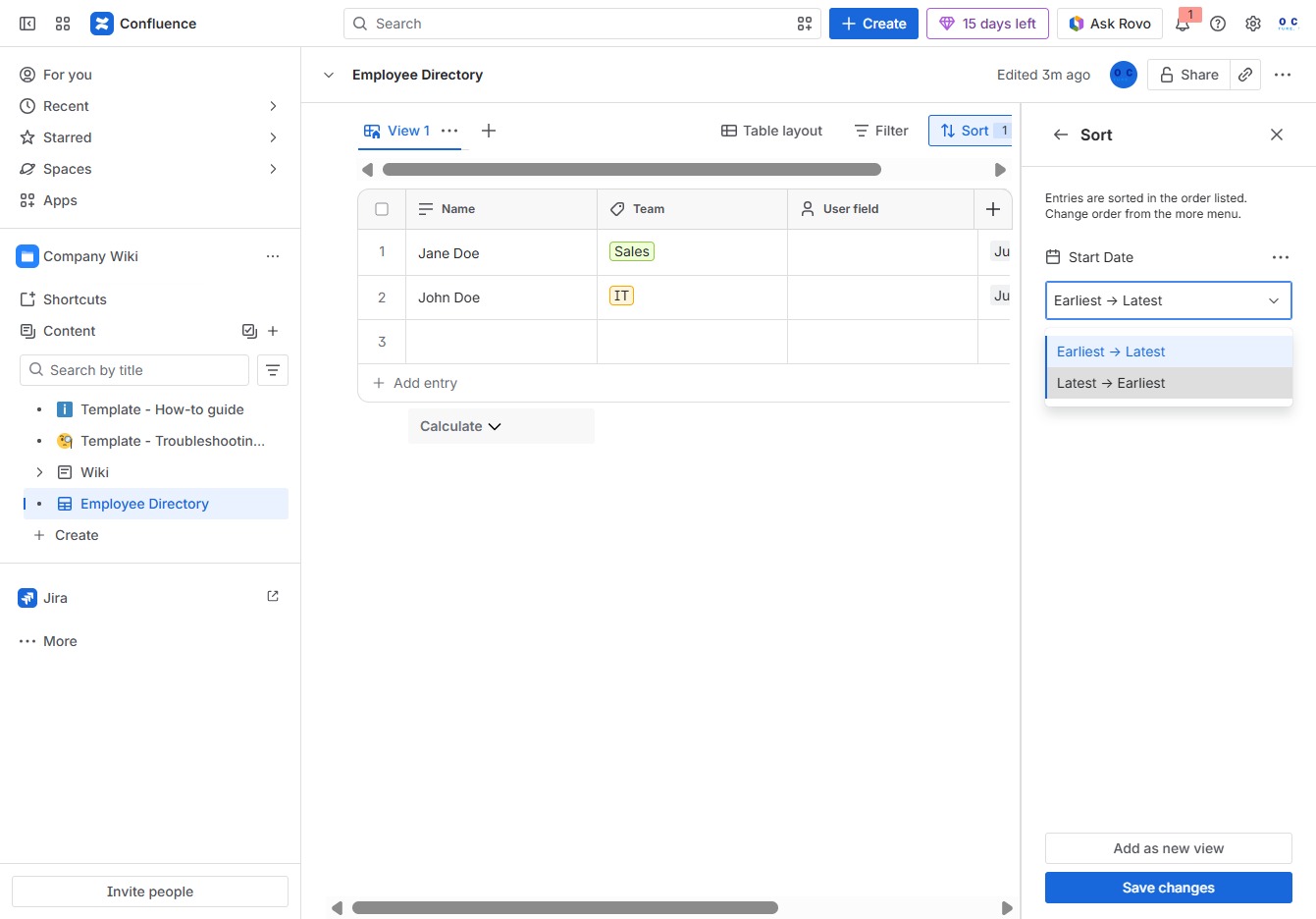
This action saves your modifications to the Employee Directory, ensuring that all edits and adjustments made are applied and stored.
