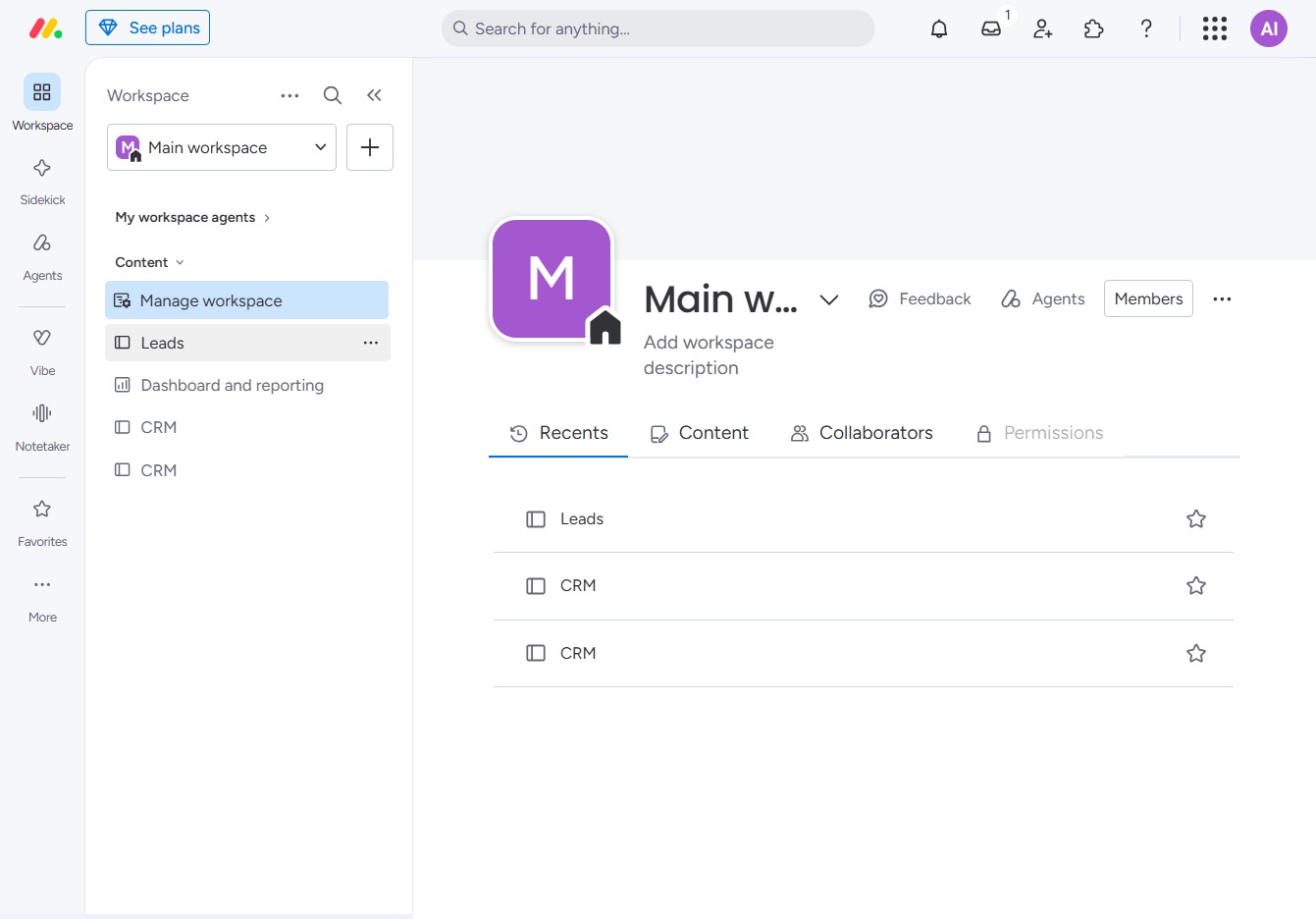
Click the BoardLeads section
This action will direct you to the BoardLeads interface, allowing you to manage your leads and access related analytics.
Loading screenshot…
100%
Learn how to efficiently sort your board data in BoardLeads by navigating to specific views and utilizing the Sort button to organize tasks by due dates.
 viktoria
Learn how to efficiently sort your board data in BoardLeads by navigating to specific views and utilizing the Sort button to organize tasks by due dates. This guide provides step-by-step instructions to enhance your workflow and prioritize your leads effectively.
This action will direct you to the BoardLeads interface, allowing you to manage your leads and access related analytics.
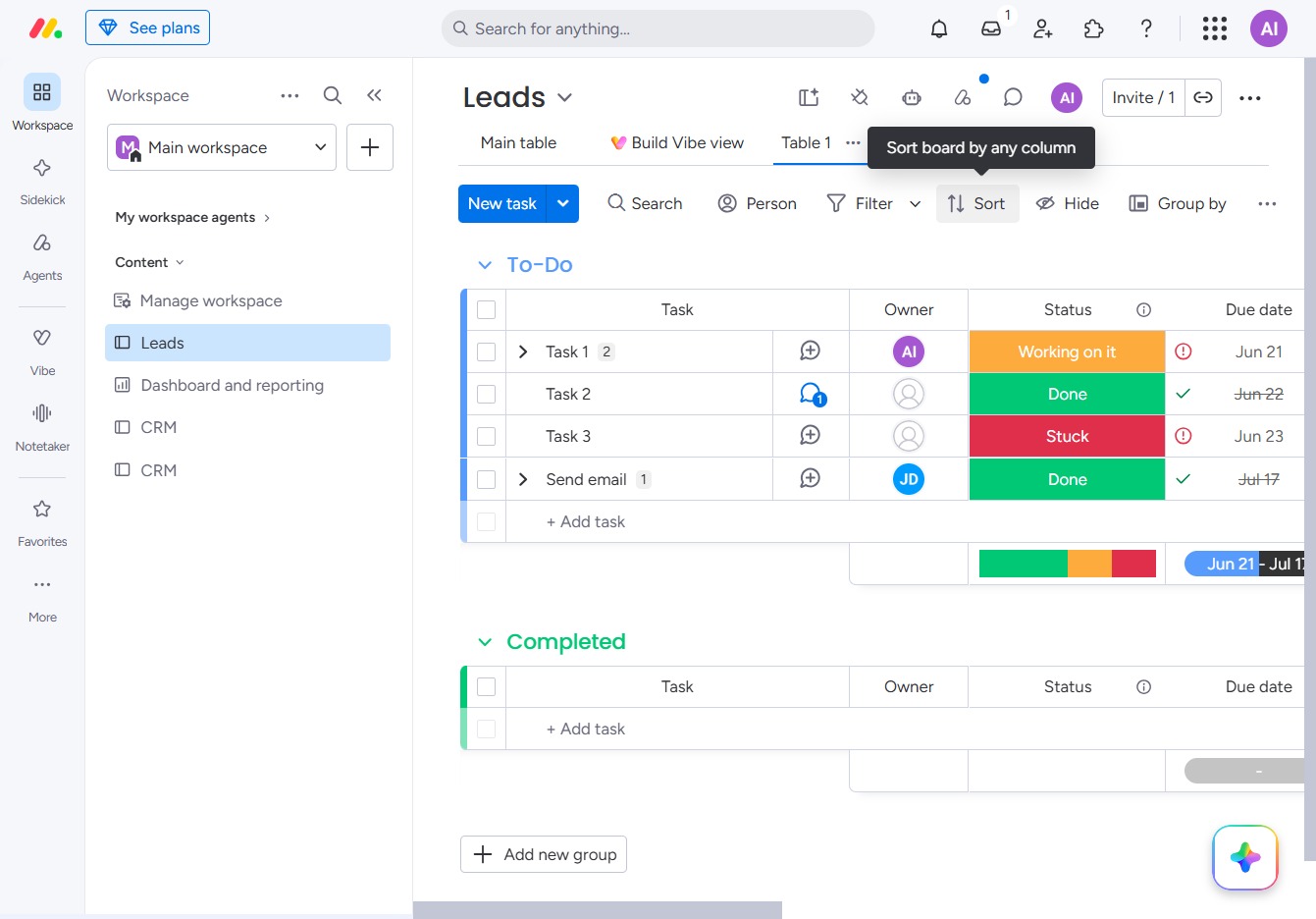
Clicking the Sort button allows you to organize the tasks in the Leads section based on any column, helping you manage your workflow more effectively.
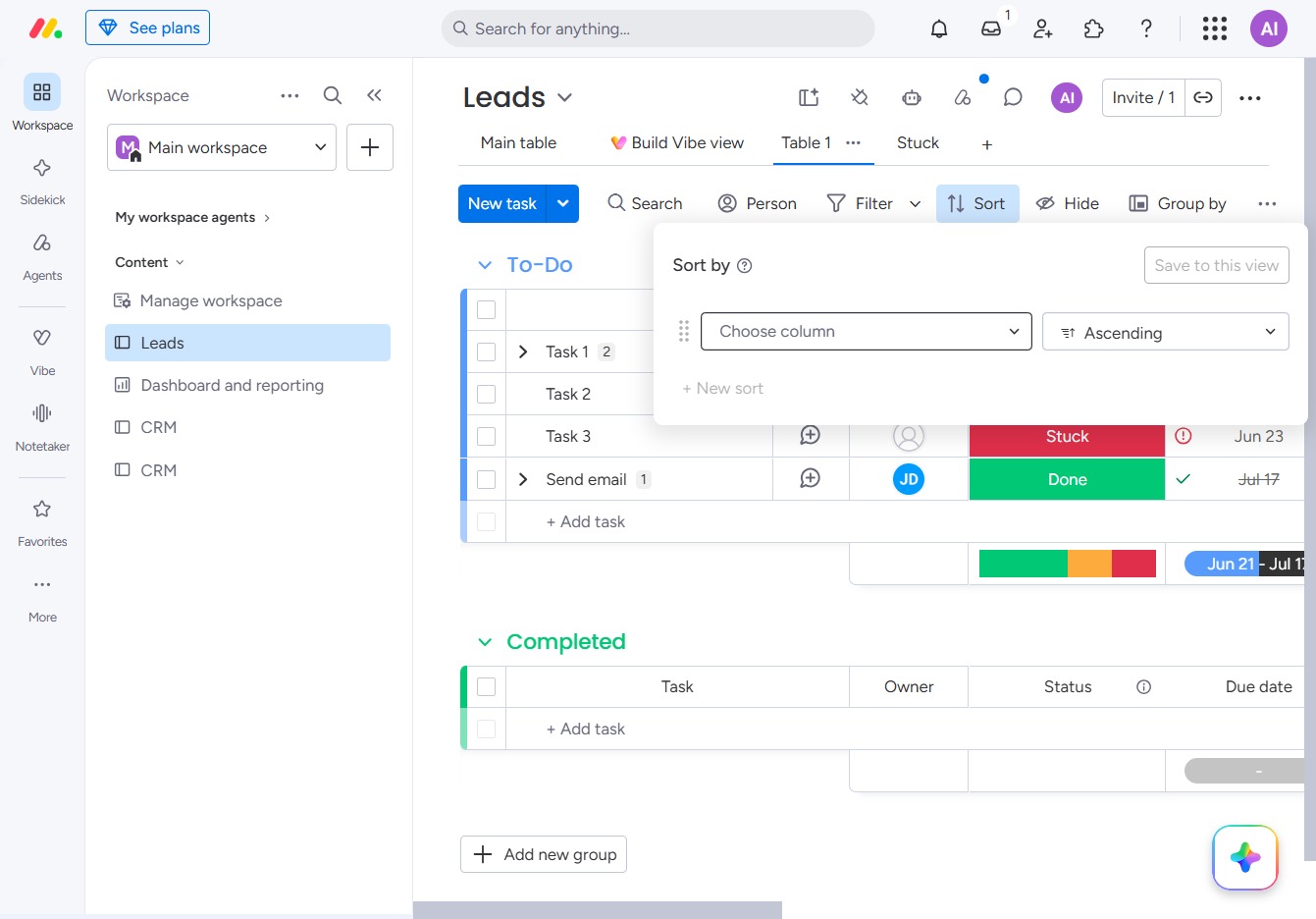
Clicking the Sort button opens a dropdown menu to choose the column by which to organize your tasks, allowing for better management of your leads.
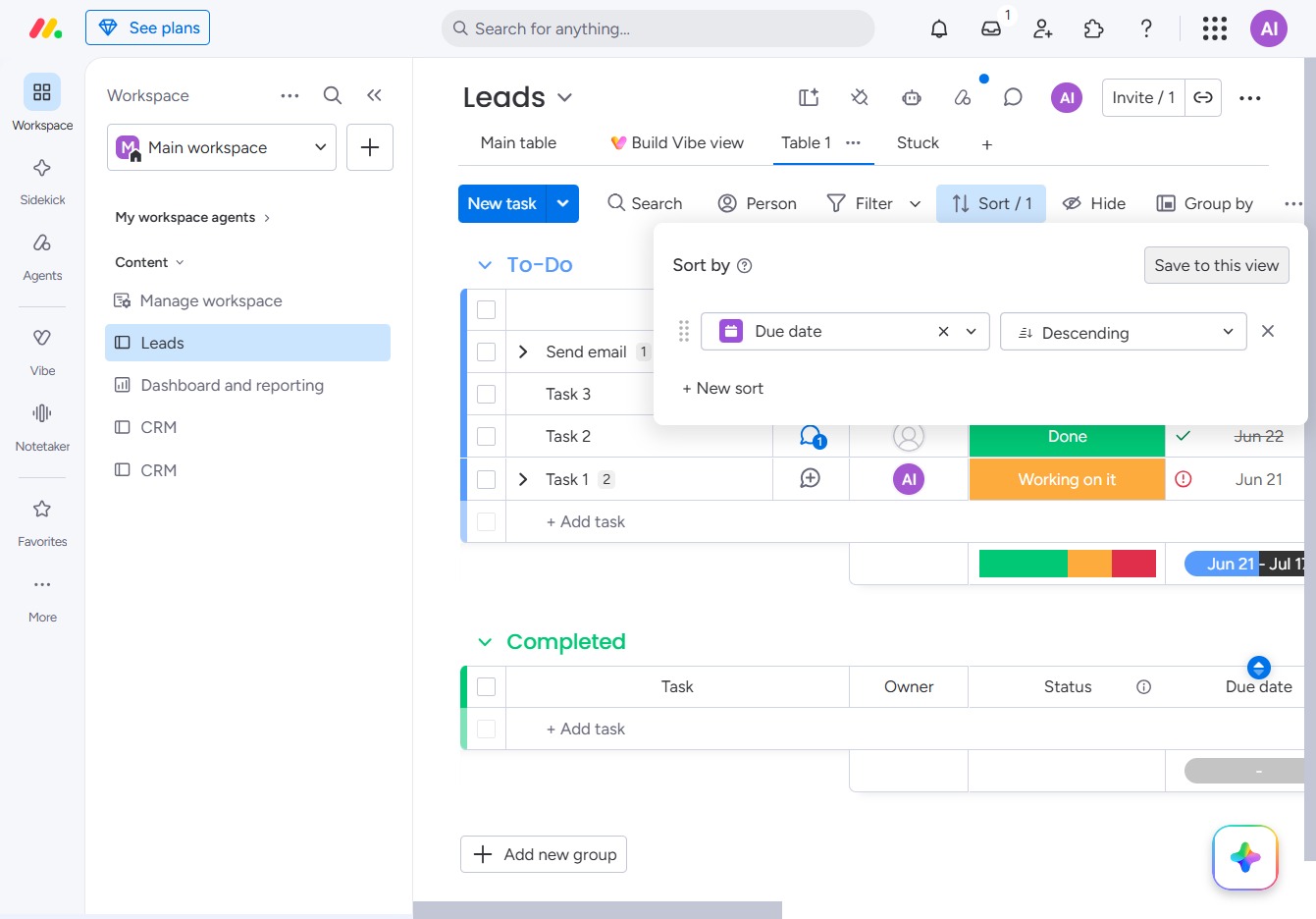
By selecting the 'Due date' option, you will sort the tasks in your Leads view according to their due dates, allowing for better prioritization of your tasks.
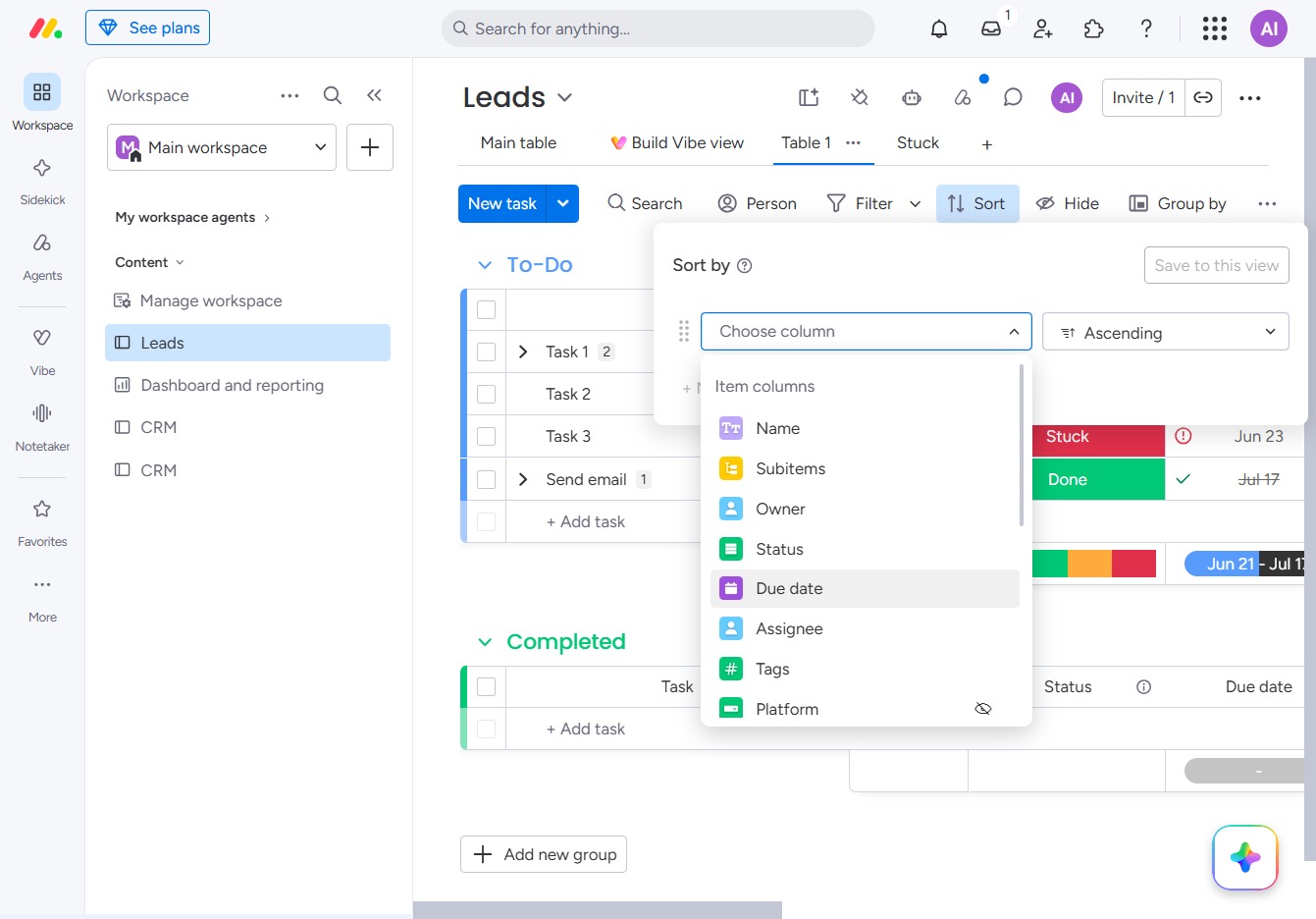
Click this control to open the sorting options for tasks in the Leads view. You can choose to sort tasks by due date in ascending or descending order.
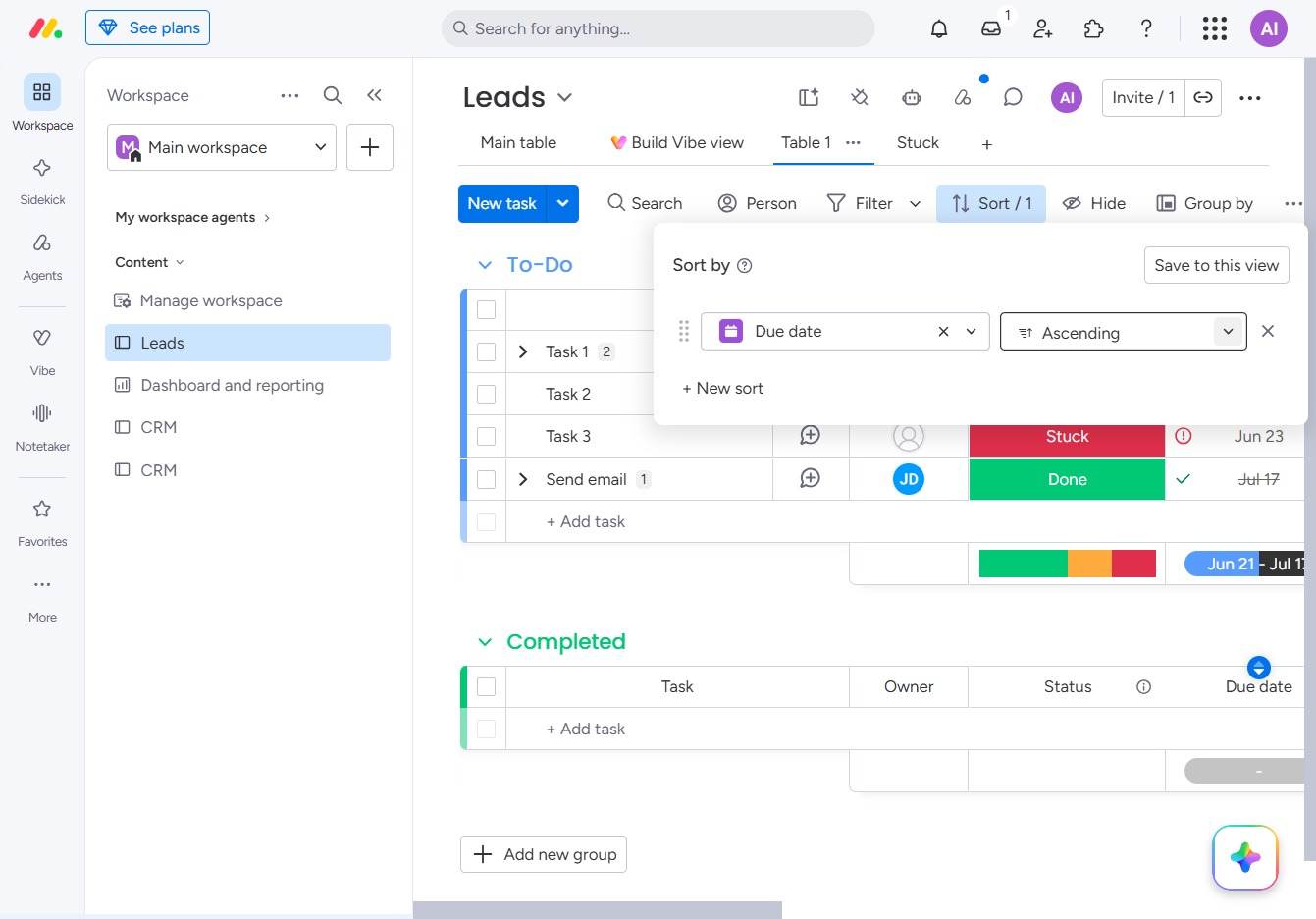
This will reorder your tasks in descending order based on their due dates, allowing you to view the most urgent tasks first.
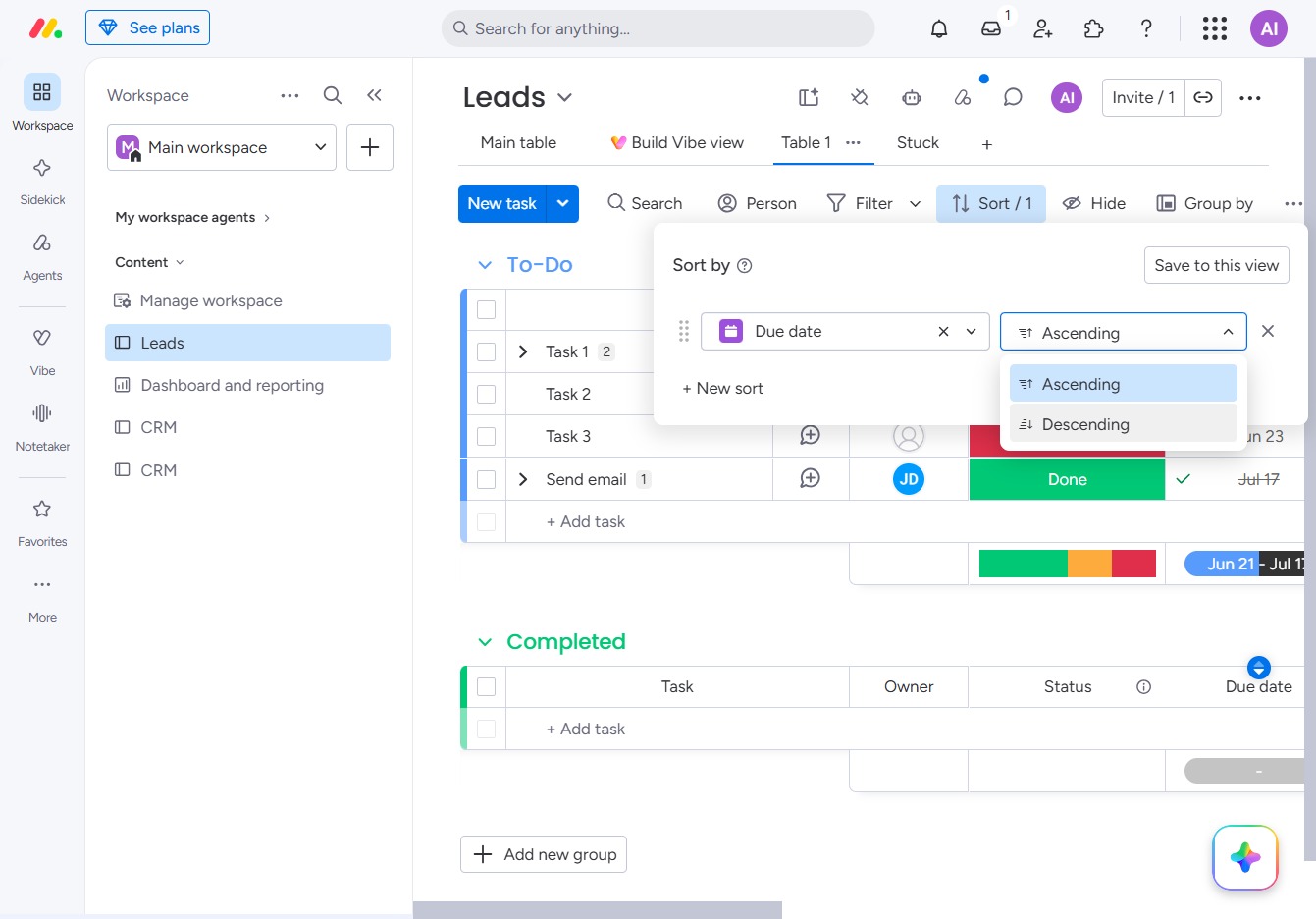
This saves your current view settings, including sorting and filtering options, ensuring they are applied the next time you access the Leads table.