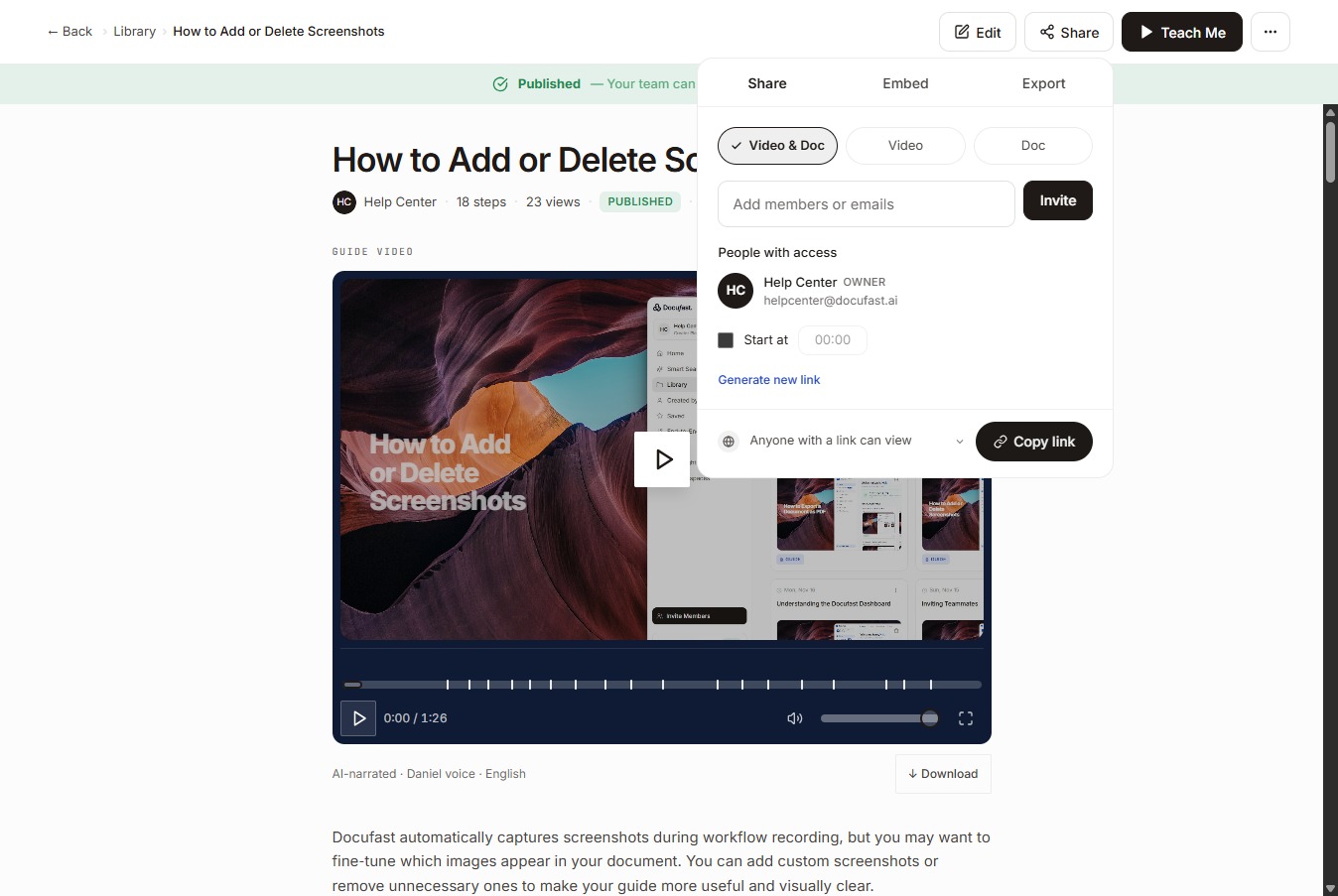
Click Library
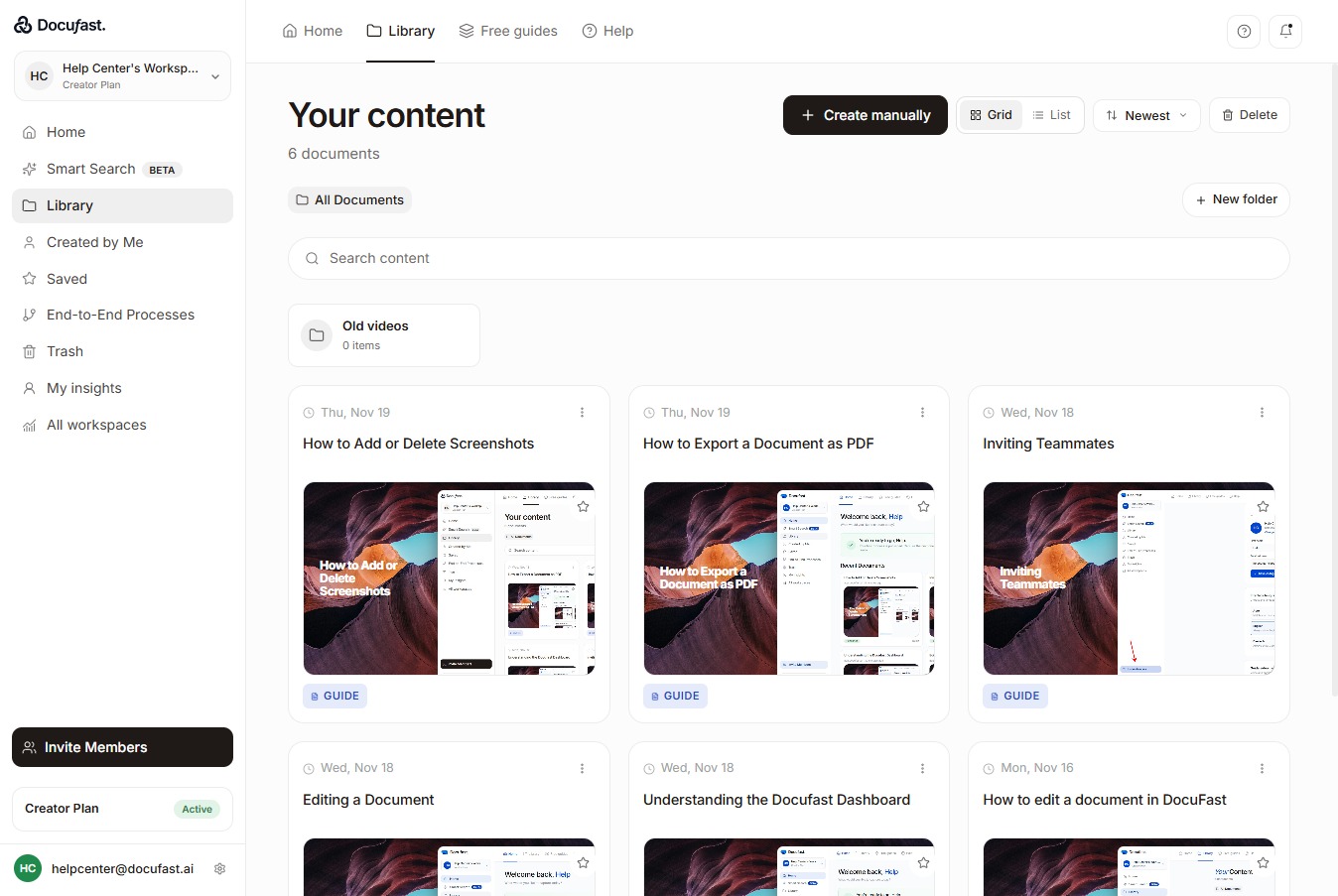
Go to Library on the left-hand side of your dashboard
Loading screenshot…
100%
You can easily share your Docufast documents with teammates or external users.
You can easily share your Docufast documents with teammates or external users. Sharing is available directly inside each document from the top menu bar.
Go to Library on the left-hand side of your dashboard
Select the recorded workflow you want to edit.
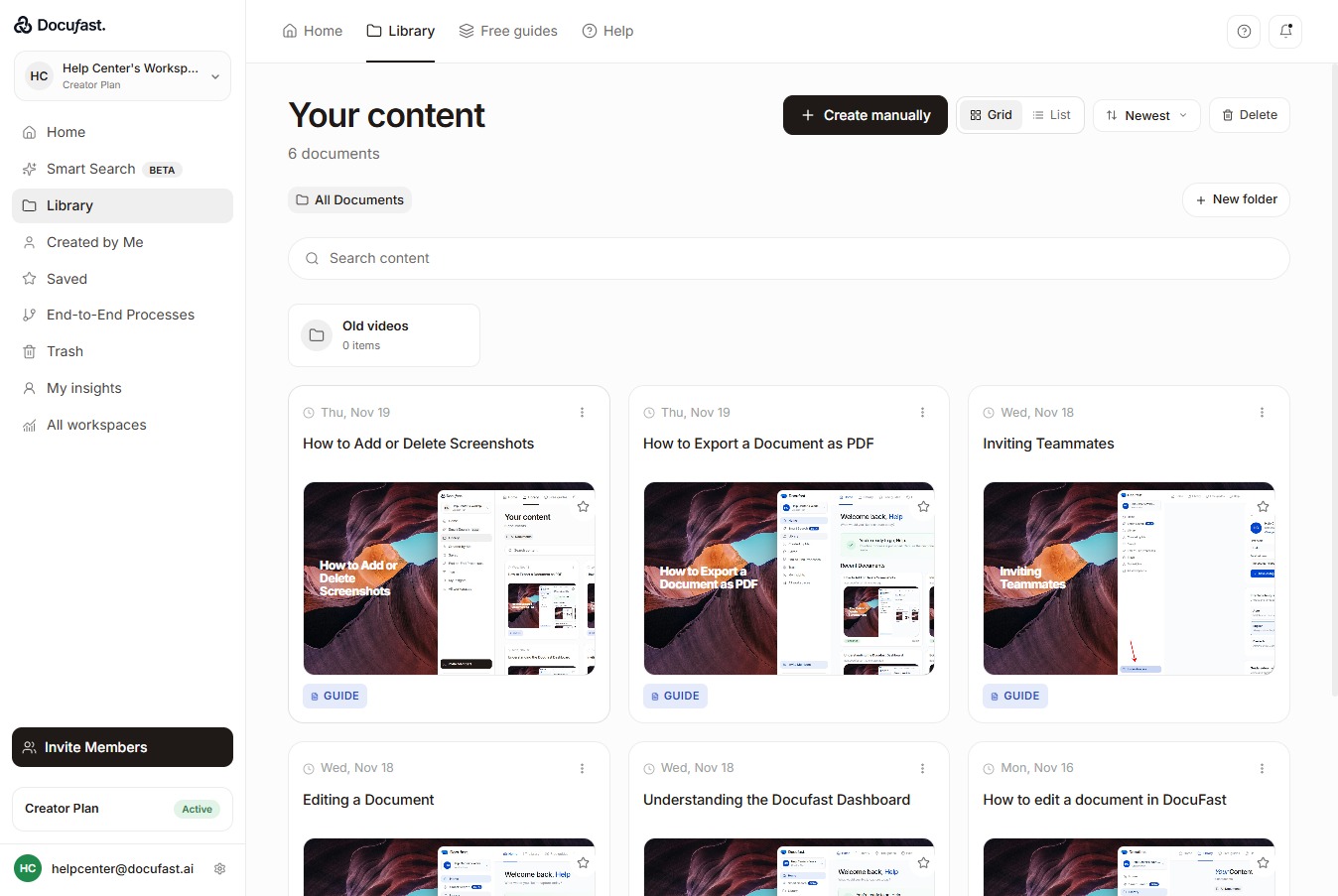
In the top menu bar, click the Share button, A sharing panel will open on the right side.
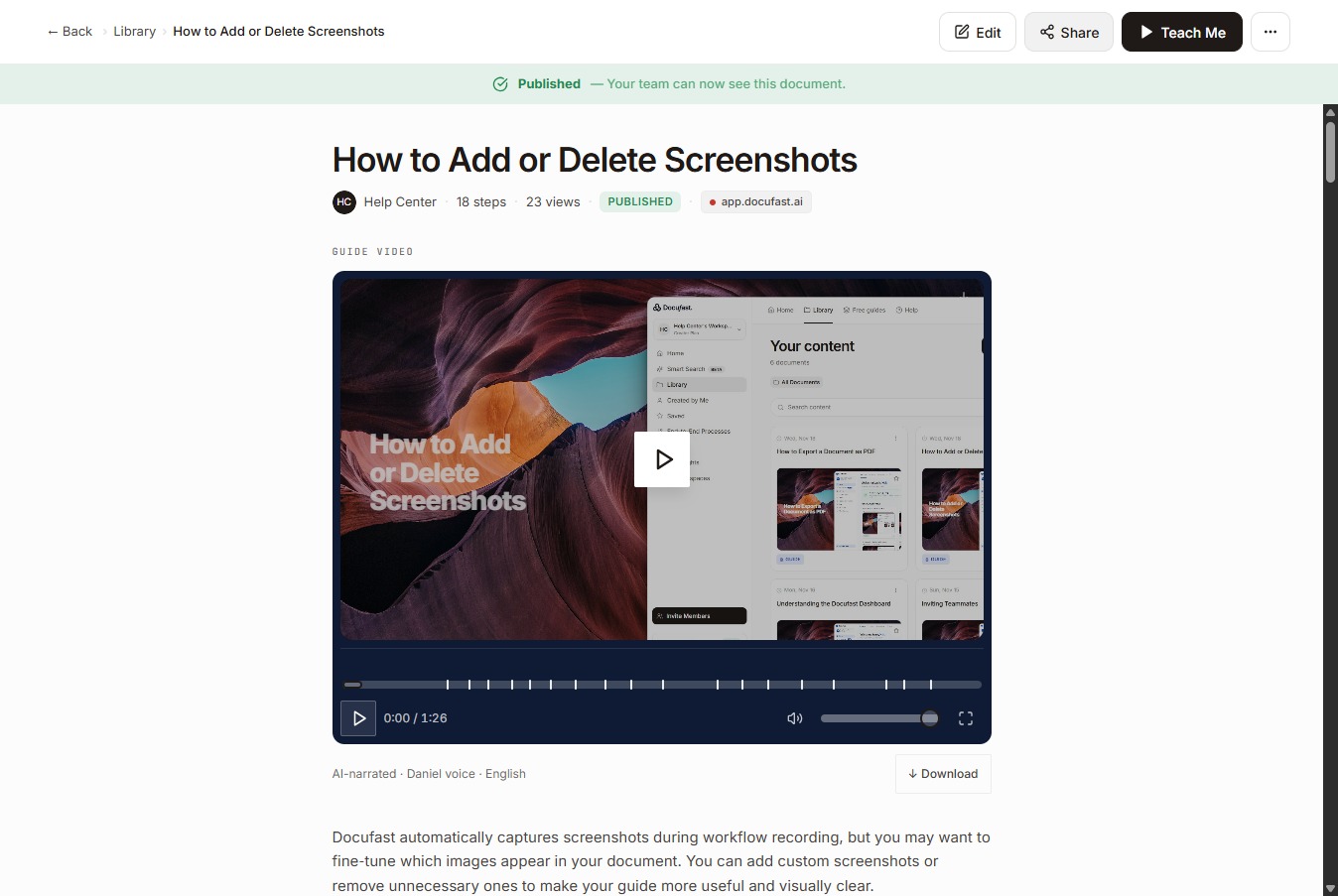
To enable sharing options, click on 'Link sharing is off'. This action will allow you to adjust the link sharing settings for your document.
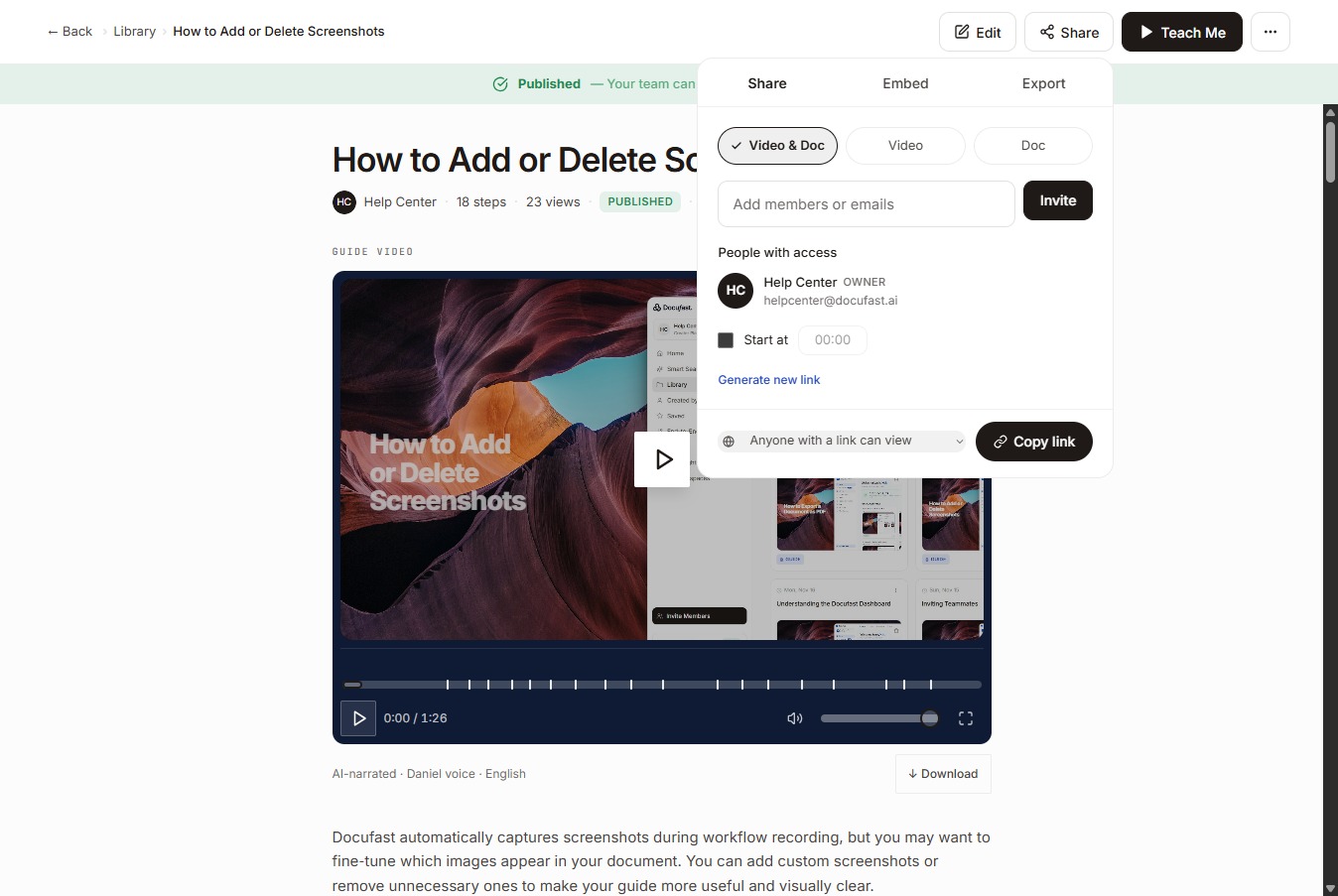
Private access - Only you can view the document with the generated link. Public access - Toggle on the Anyone with the link button to grant access to anyone with the link. This allows external access.
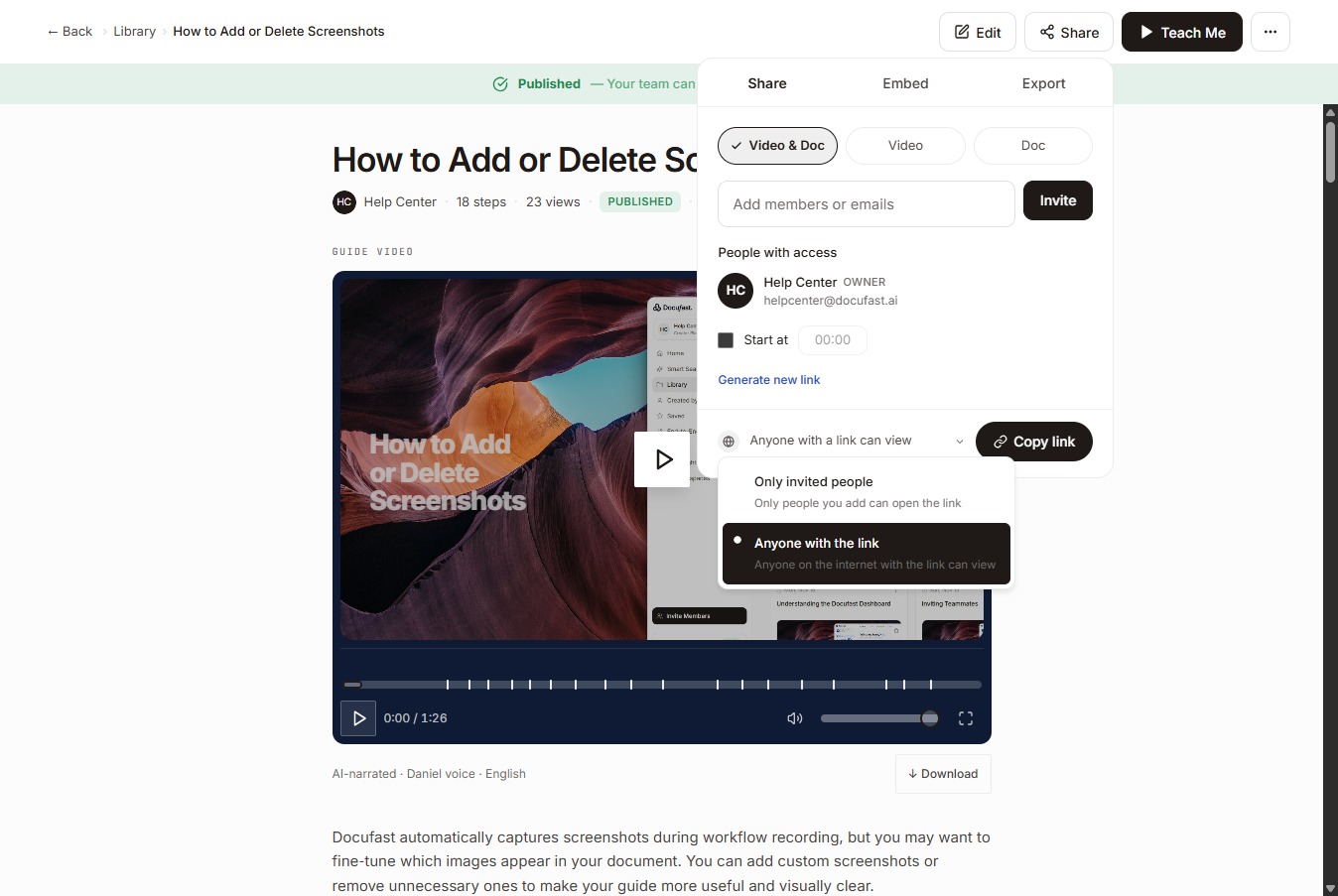
Select Copy link to copy the document’s sharing URL to your clipboard. You can now paste it anywhere you need to share this file.