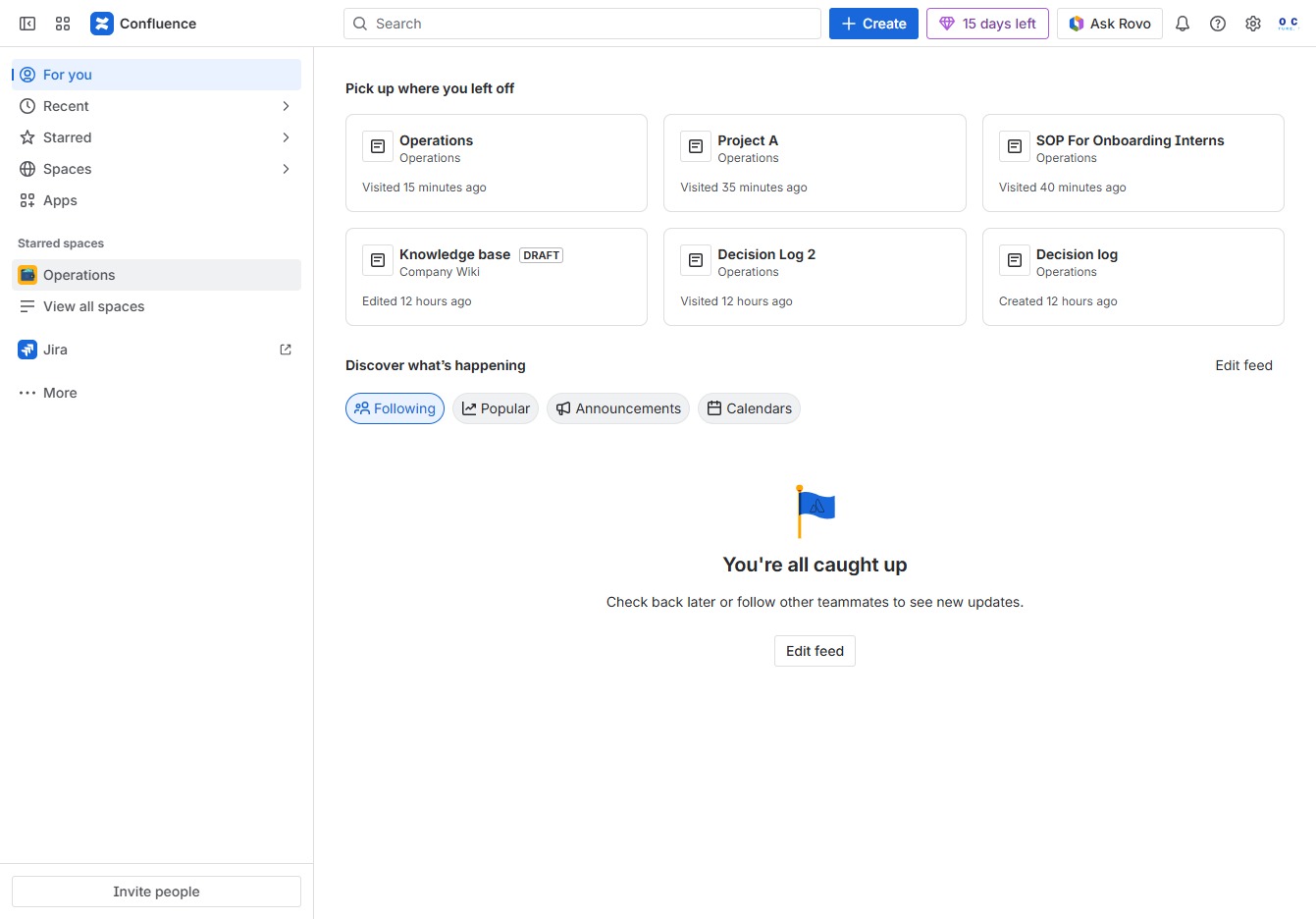
Click the Operations section
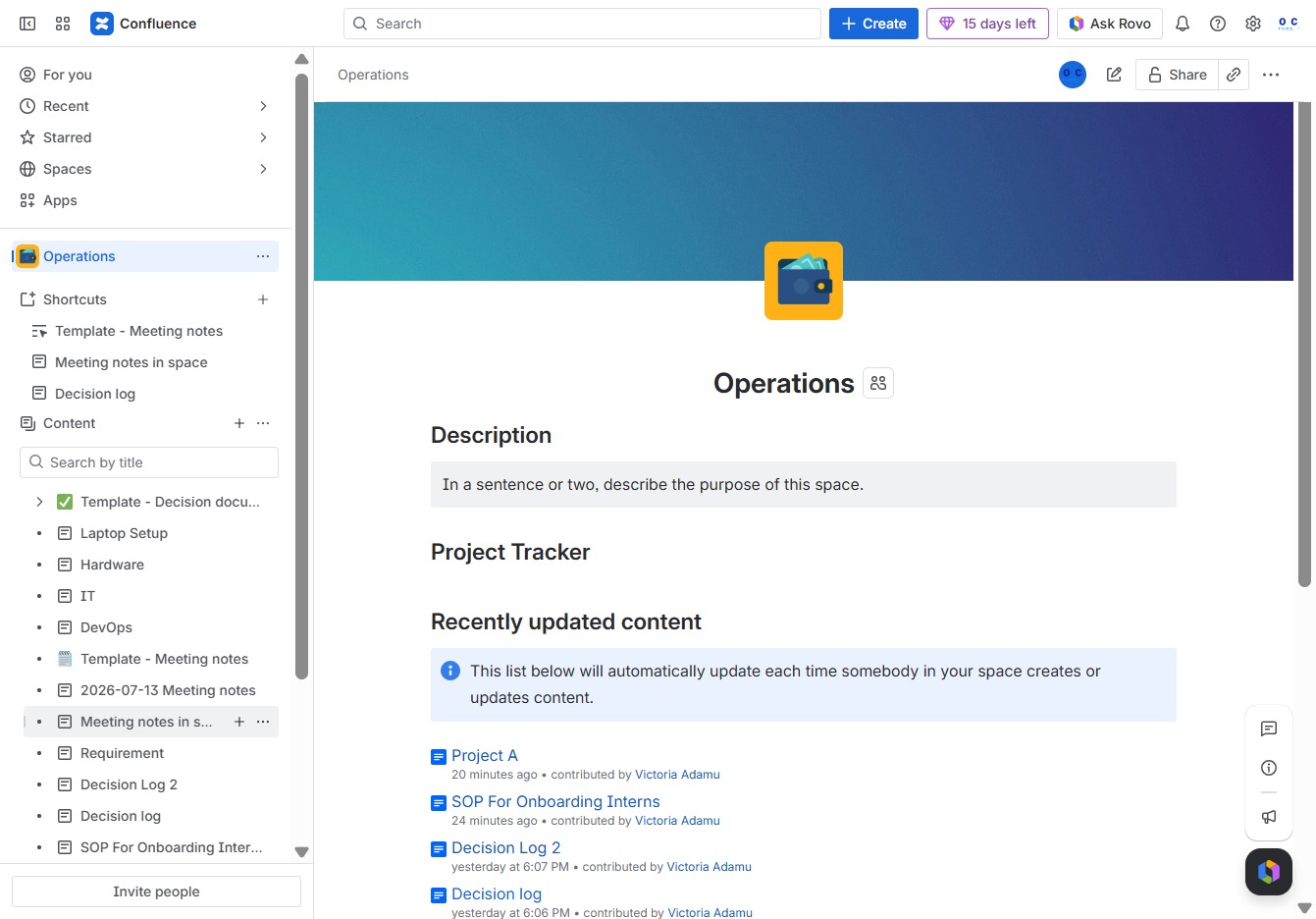
This will open the Operations page, allowing you to view and manage operational tasks and documents within your workspace.
Loading screenshot…
100%
This video guide demonstrates how to efficiently share a page within your workspace, from accessing the Operations page to adjusting sharing settings and inviting collaborators.
 viktoria
This video guide demonstrates how to efficiently share a page within your workspace, from accessing the Operations page to adjusting sharing settings and inviting collaborators. Learn to enhance your team's organization and communication by granting appropriate access to meeting notes and operational documents.
This will open the Operations page, allowing you to view and manage operational tasks and documents within your workspace.
This will allow you to create or access meeting notes specific to the current space, enabling better organization and collaboration.
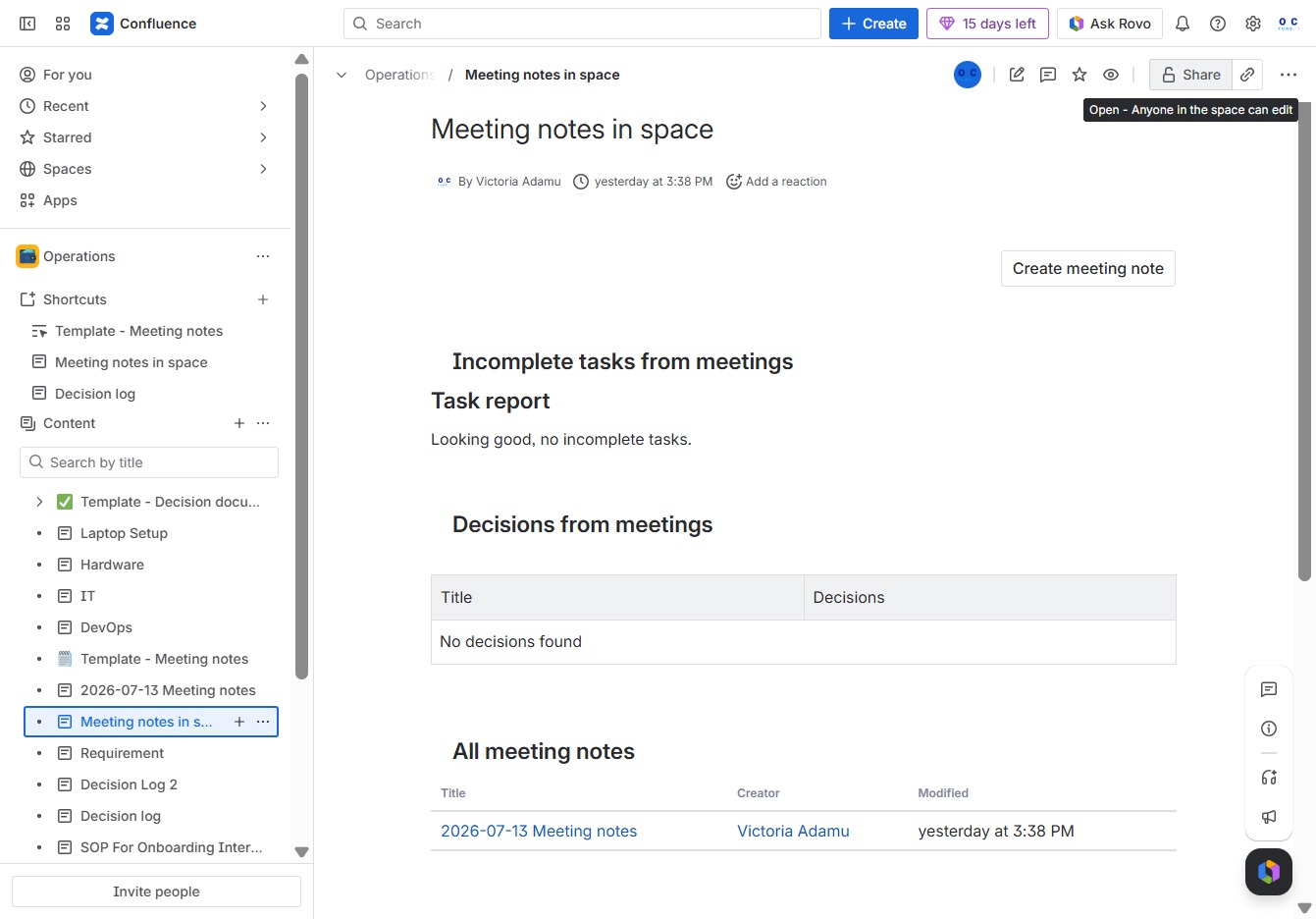
This allows you to adjust sharing settings for the document, enabling editing access for anyone in the designated space.
This action allows you to add names, groups, or emails to share the document with. After clicking, you can enter additional recipients to grant access.
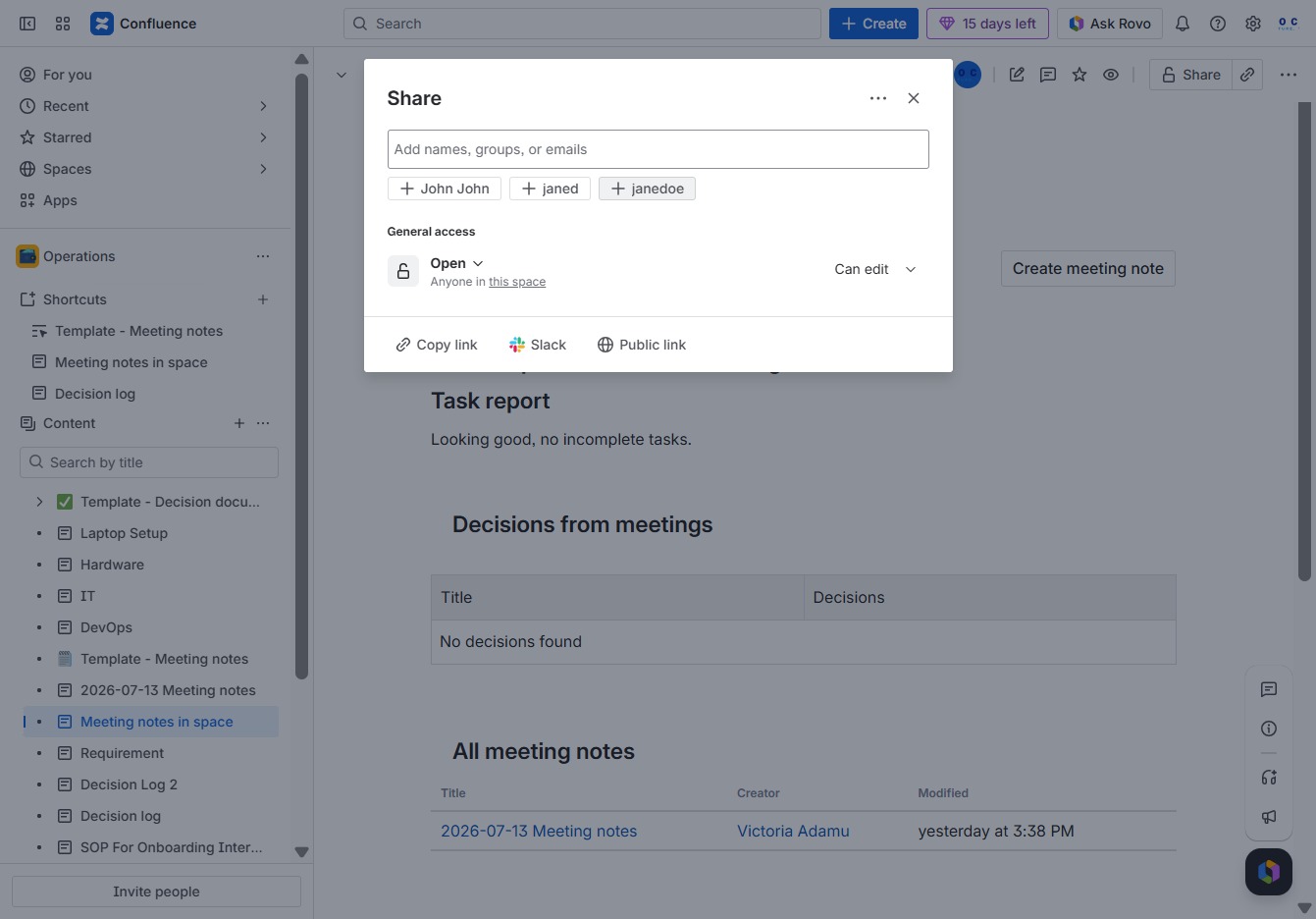
This action opens a dialog to invite users to access the current document. You can specify their access level and notify newly added people before sharing.
