Shared guide

How to set up deal automation

In this guide, learn how to efficiently set up deal automation by configuring trigger dates and custom conditions.

victoriaworkflowsvictoriaworkflows
·48 steps·71 views·Published

In this guide, learn how to efficiently set up deal automation by configuring trigger dates and custom conditions. Follow the step-by-step process to ensure your automation runs seamlessly based on deal closure dates.

Step-by-step Guide48 steps
  1. Click Automation
    Click Automation
    Loading screenshot…
    100%
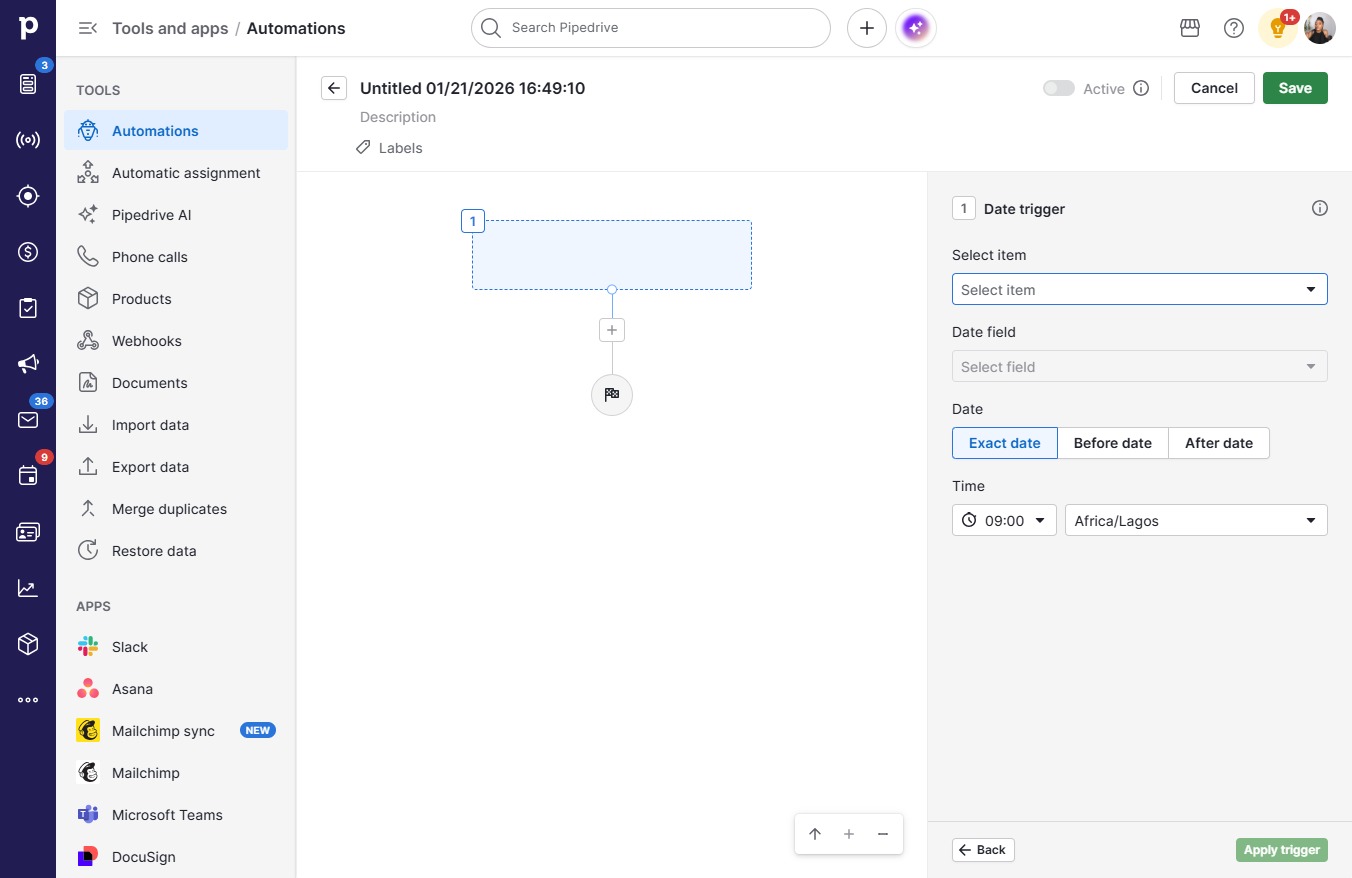
  2. Click Date triggerStart automation based on a date field

    Click Date triggerStart automation based on a date field
    Loading screenshot…
    100%
  3. Click Select item

    Click Select item
    Loading screenshot…
    100%
  4. Click Deal

    Click Deal
    Loading screenshot…
    100%
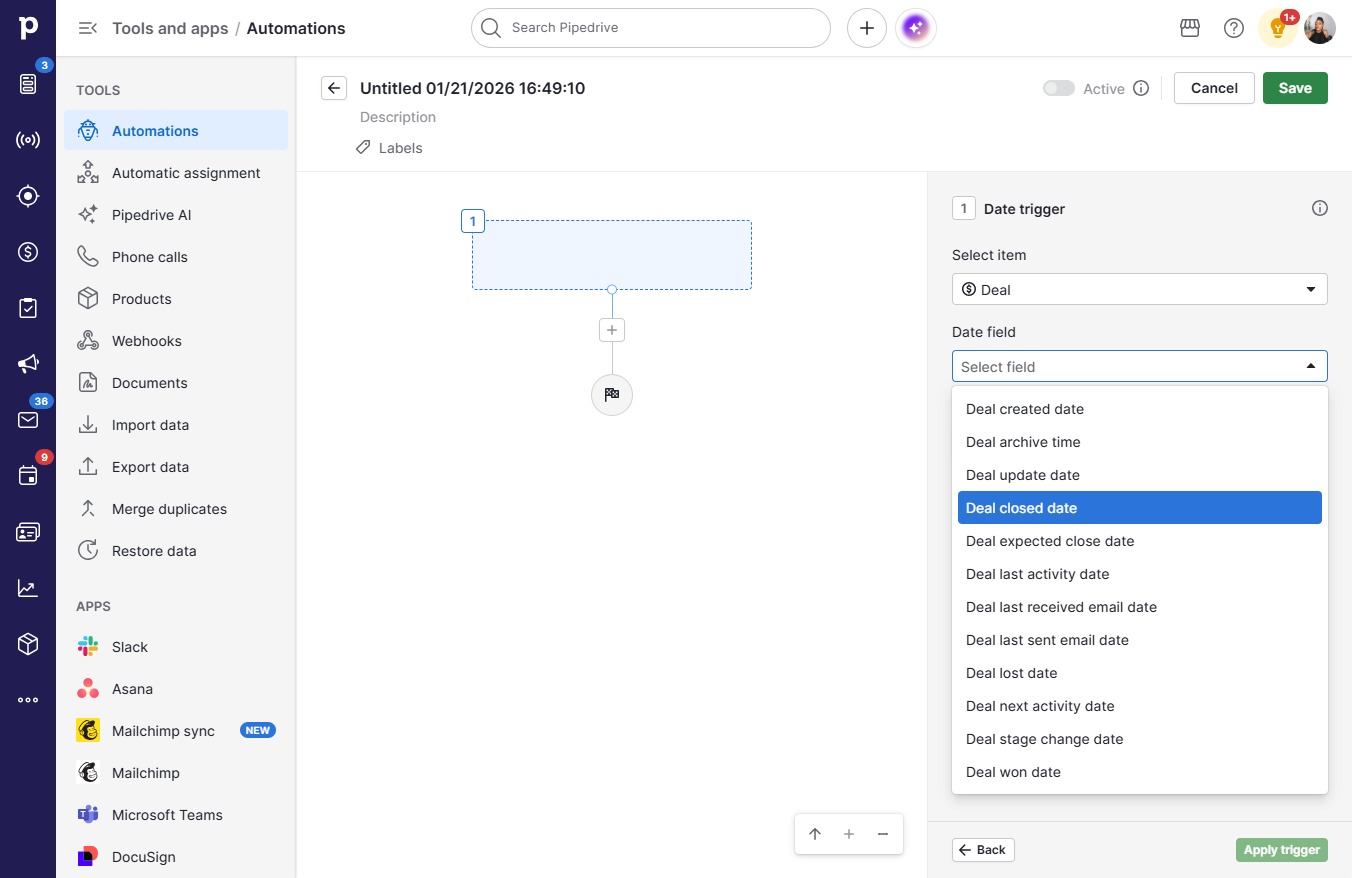
  5. Click Select field

    Click Select field
    Loading screenshot…
    100%
  6. Click Deal closed date

    Click Deal closed date
    Loading screenshot…
    100%
  7. Click Before date

    Click Before date
    Loading screenshot…
    100%
  8. Click Number of days

    Click Number of days
    Loading screenshot…
    100%
  9. Type "1" in Days

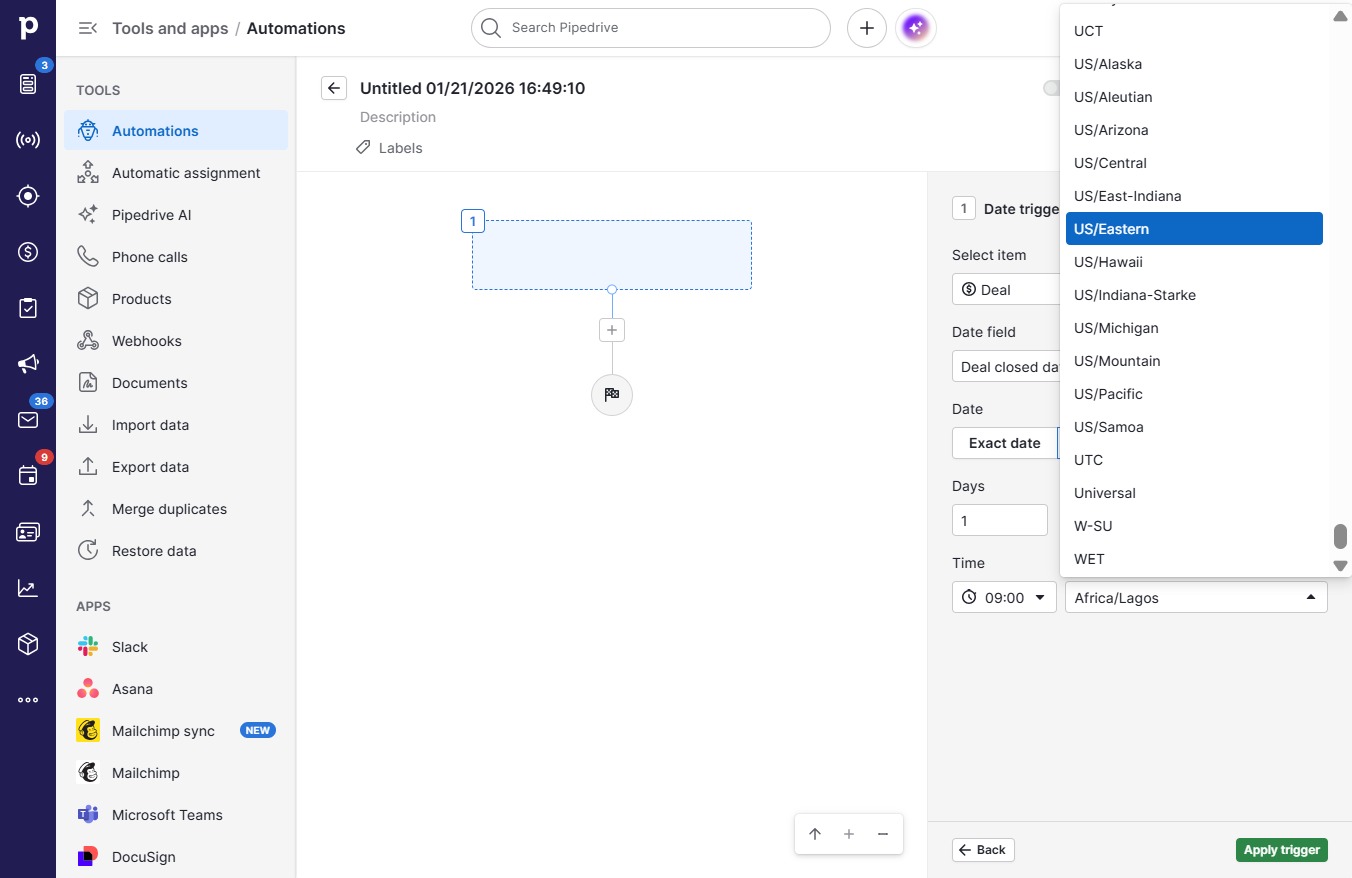
  10. Click Africa/Lagos

    Click Africa/Lagos
    Loading screenshot…
    100%
  11. Click US/Eastern

    Click US/Eastern
    Loading screenshot…
    100%
  12. Click Apply trigger

    Click Apply trigger
    Loading screenshot…
    100%
  13. Click on "Click here."

    Click on "Click here."
    Loading screenshot…
    100%
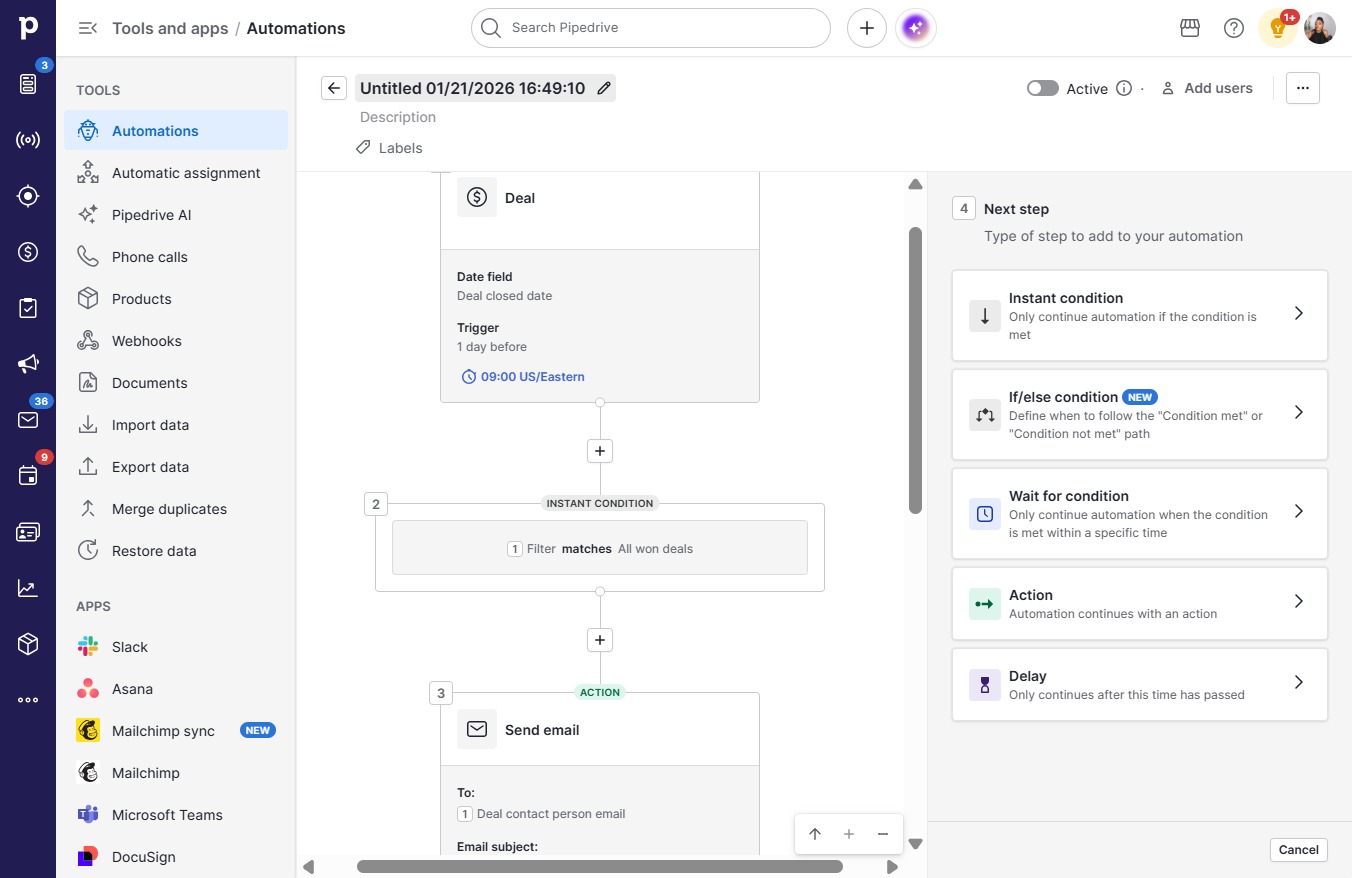
  14. Click Add custom condition

    Click Add custom condition
    Loading screenshot…
    100%
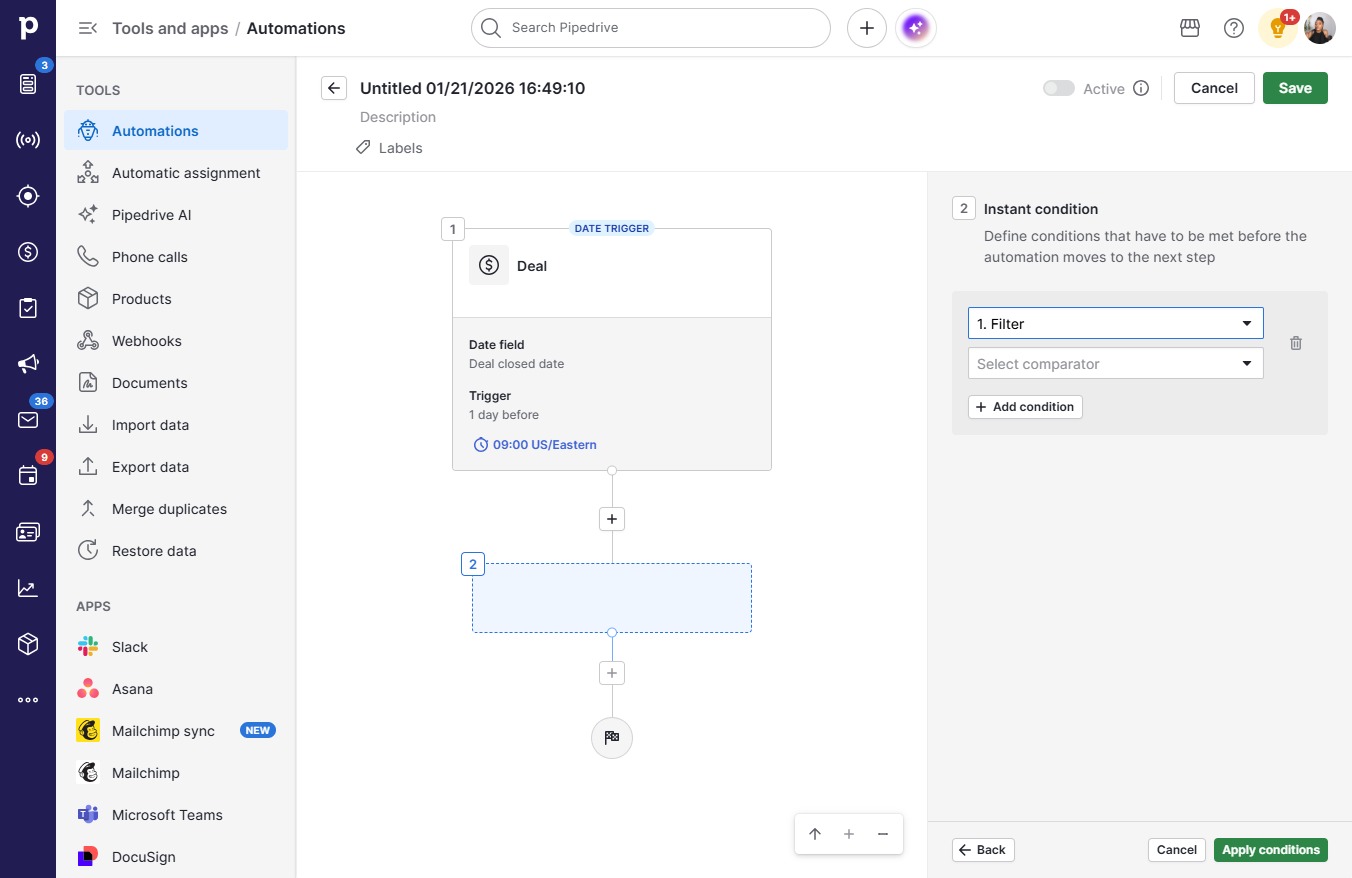
  15. Click Filter

    Click Filter
    Loading screenshot…
    100%
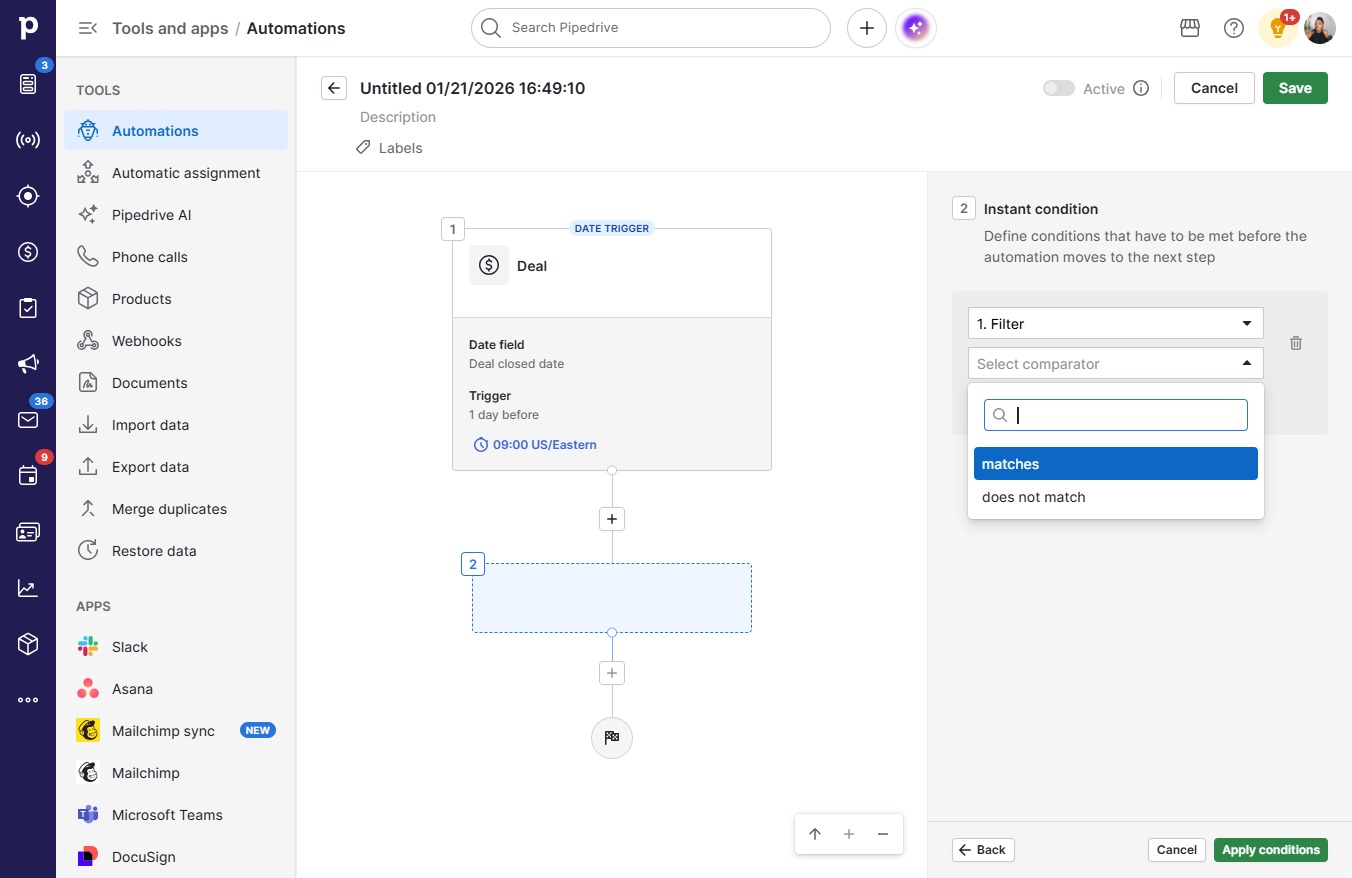
  16. Click Select comparator

    Click Select comparator
    Loading screenshot…
    100%
  17. Click matches

    Click matches
    Loading screenshot…
    100%
  18. Click on "Click here."

    Click on "Click here."
    Loading screenshot…
    100%
  19. Click All won deals

    Click All won deals
    Loading screenshot…
    100%
  20. Click Apply conditions

    Click Apply conditions
    Loading screenshot…
    100%
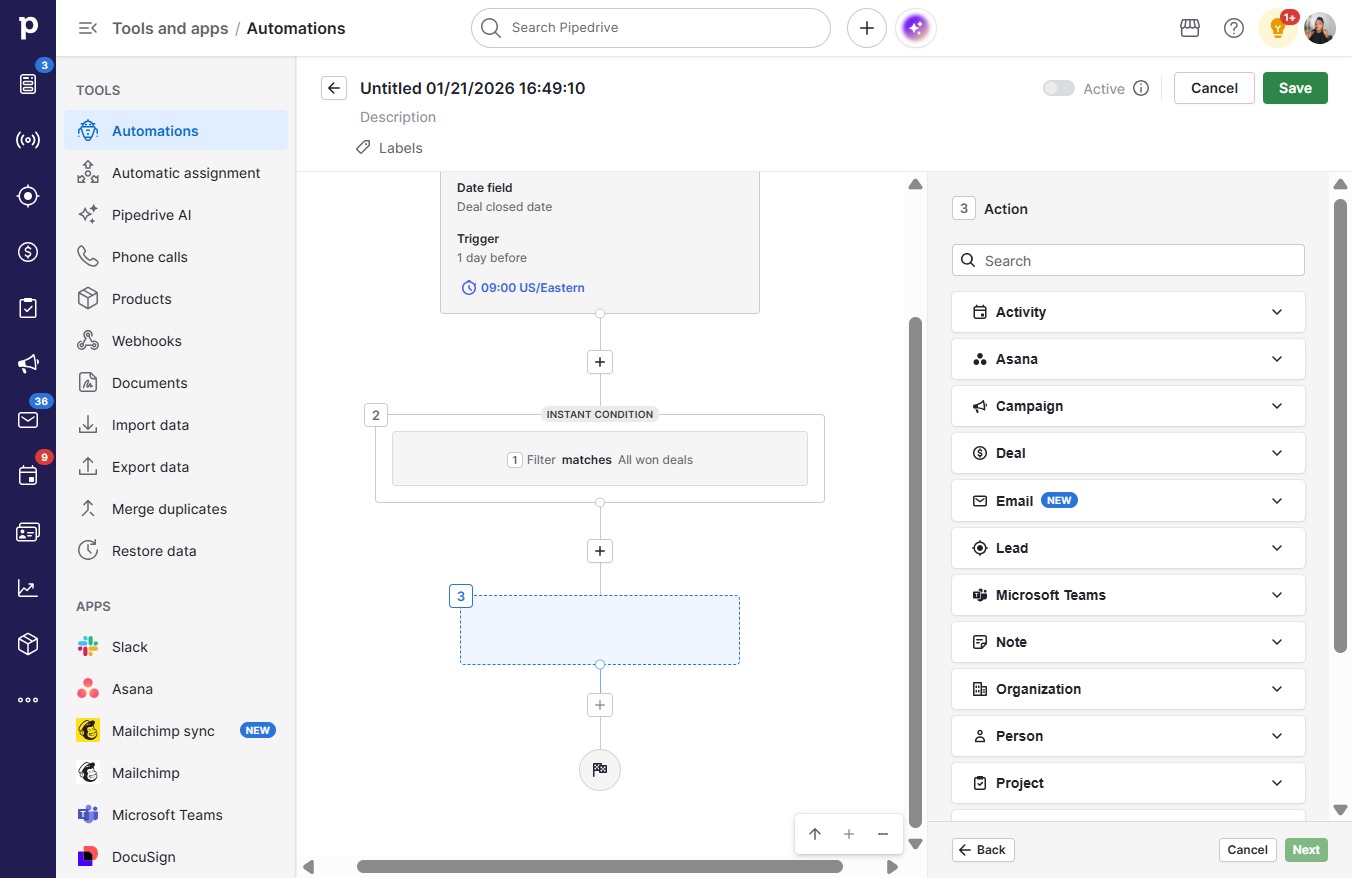
  21. Click on "Click here."

    Click on "Click here."
    Loading screenshot…
    100%
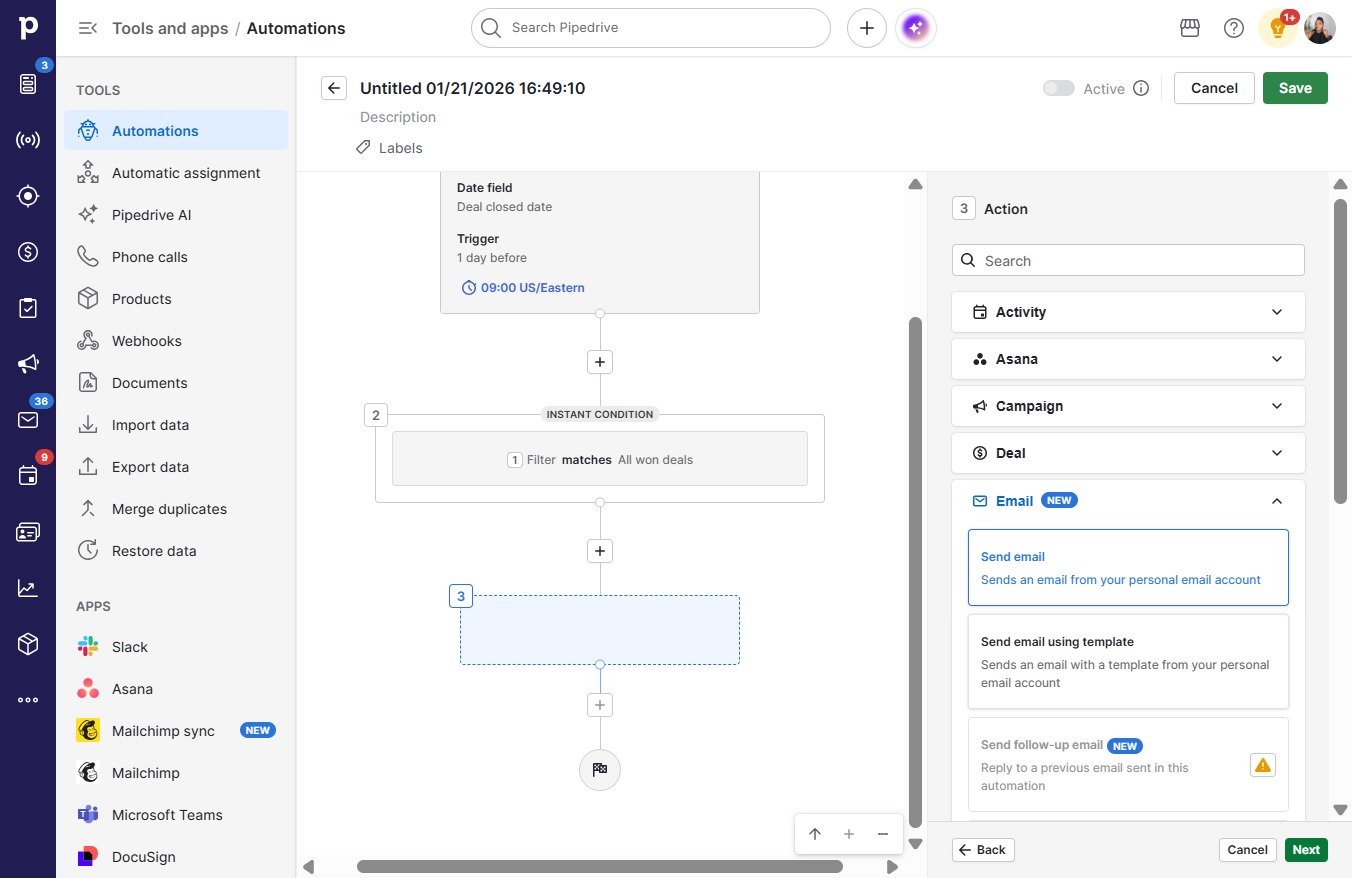
  22. Click Emailnew

    Click Emailnew
    Loading screenshot…
    100%
  23. Click Send email

    Click Send email
    Loading screenshot…
    100%
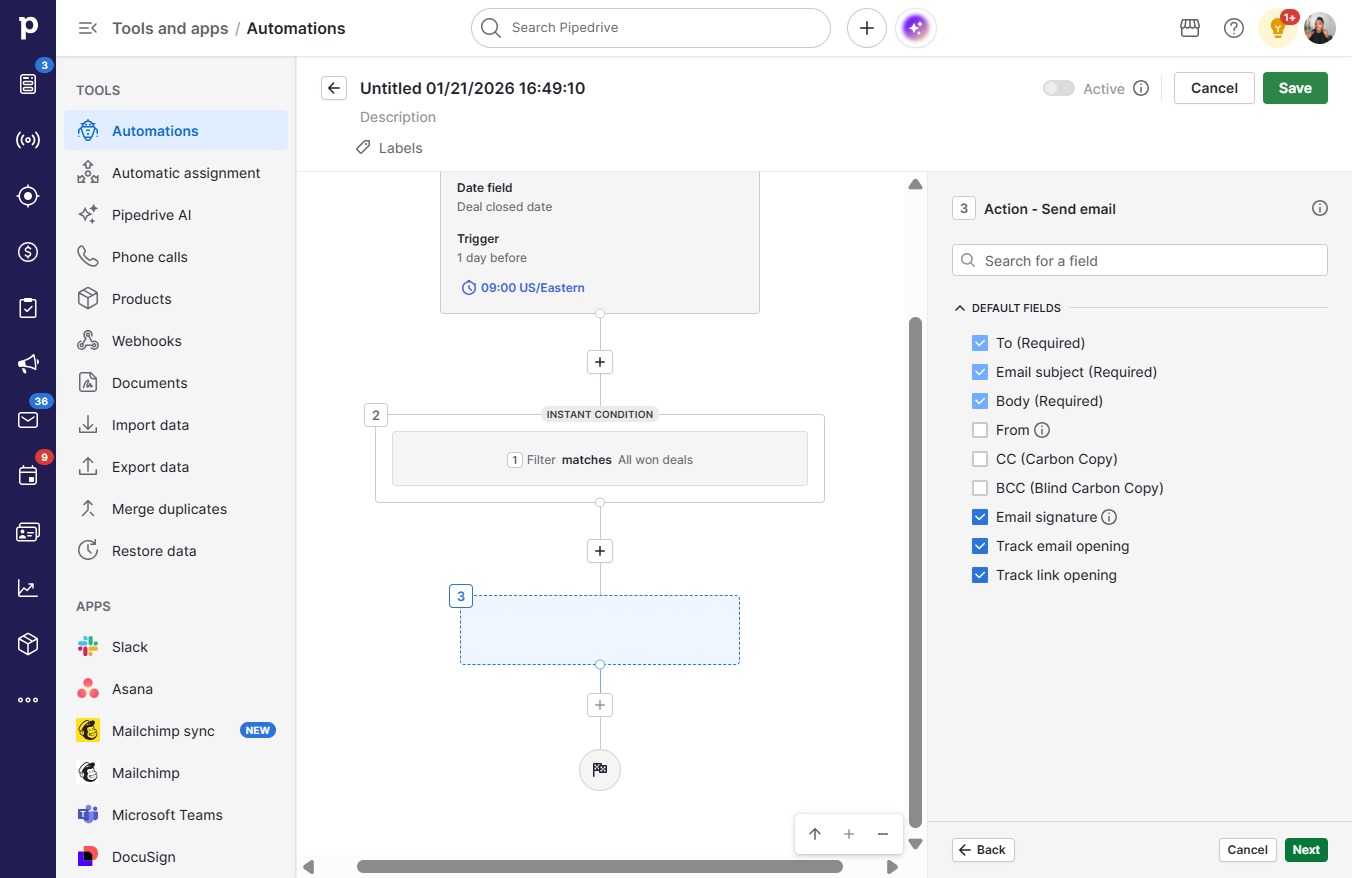
  24. Click Next

    Click Next
    Loading screenshot…
    100%
  25. Click on "Click here."

    Click on "Click here."
    Loading screenshot…
    100%
  26. Click on "Click here."

    Click on "Click here."
    Loading screenshot…
    100%
  27. Click on "Click here."

    Click on "Click here."
    Loading screenshot…
    100%
  28. Click Next

    Click Next
    Loading screenshot…
    100%
  29. Click on "Click here."

    Click on "Click here."
    Loading screenshot…
    100%
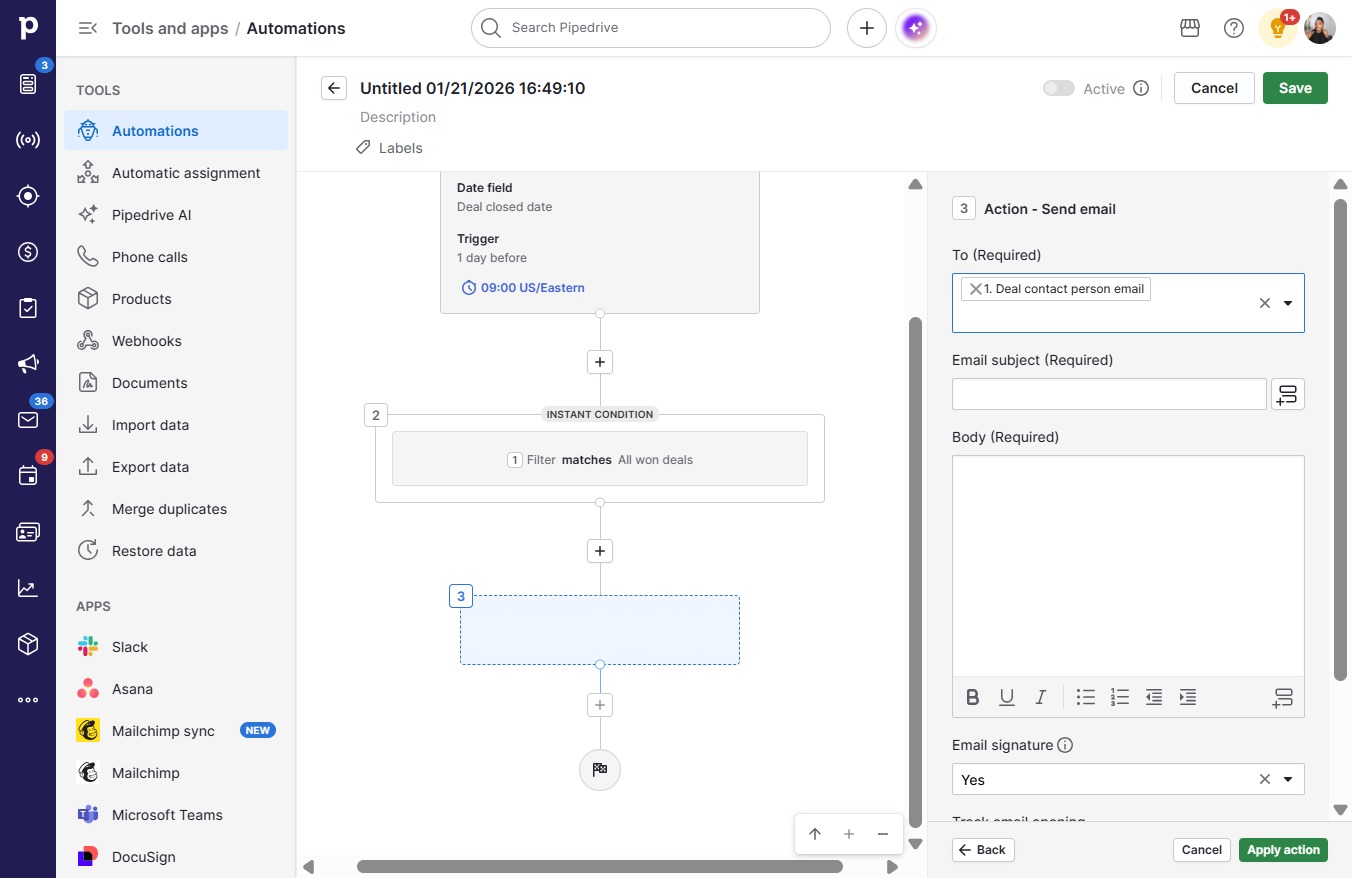
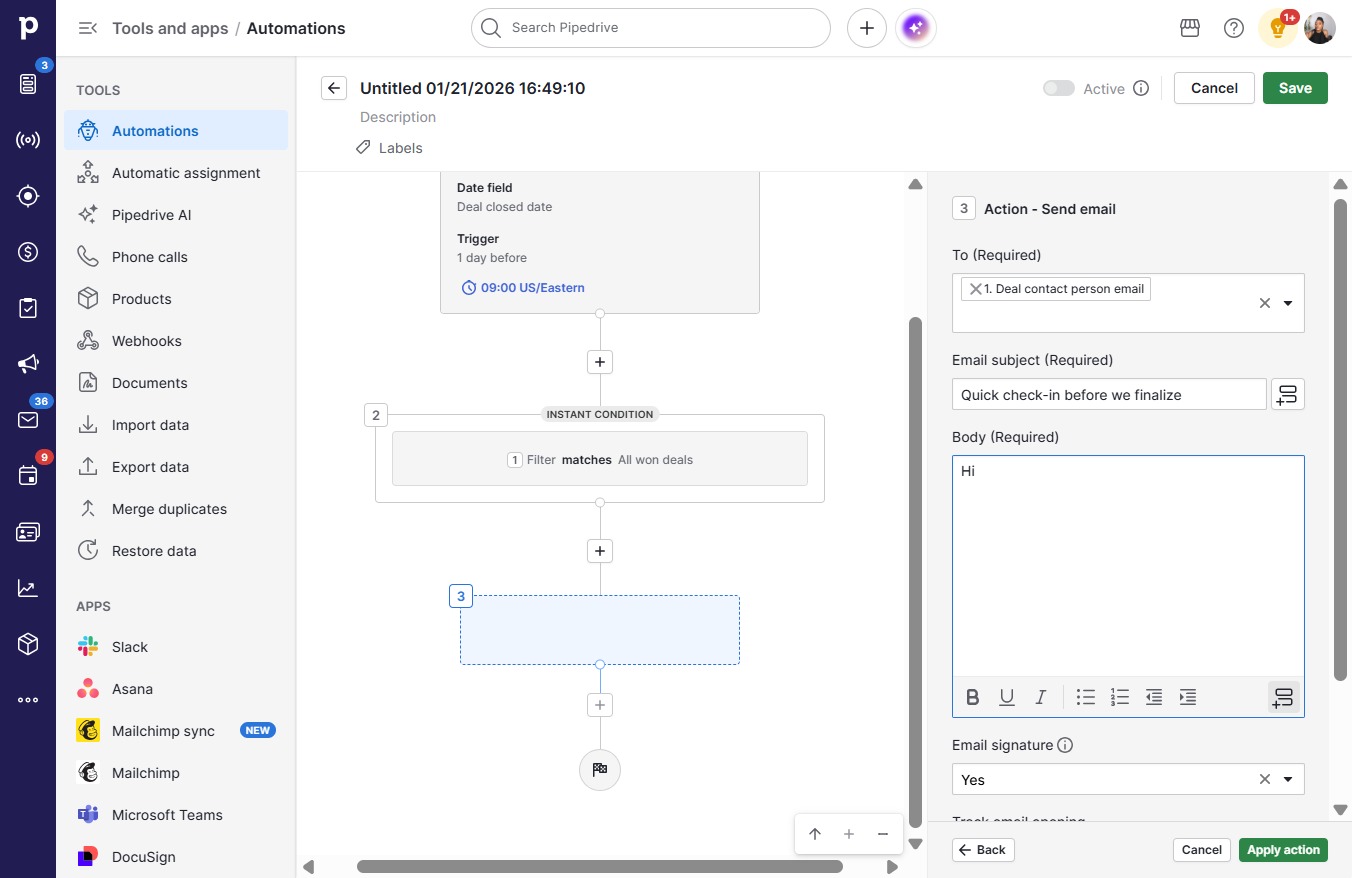
  30. Click Deal contact person email

    Click Deal contact person email
    Loading screenshot…
    100%
  31. Click on "Click here."

    Click on "Click here."
    Loading screenshot…
    100%
  32. Type "Quick check-in before we finalize"

  33. Click on "Click here."

    Click on "Click here."
    Loading screenshot…
    100%
  34. Type "Hi "

  35. Click on "Click here."

    Click on "Click here."
    Loading screenshot…
    100%
  36. Click Deal contact person name

    Click Deal contact person name
    Loading screenshot…
    100%
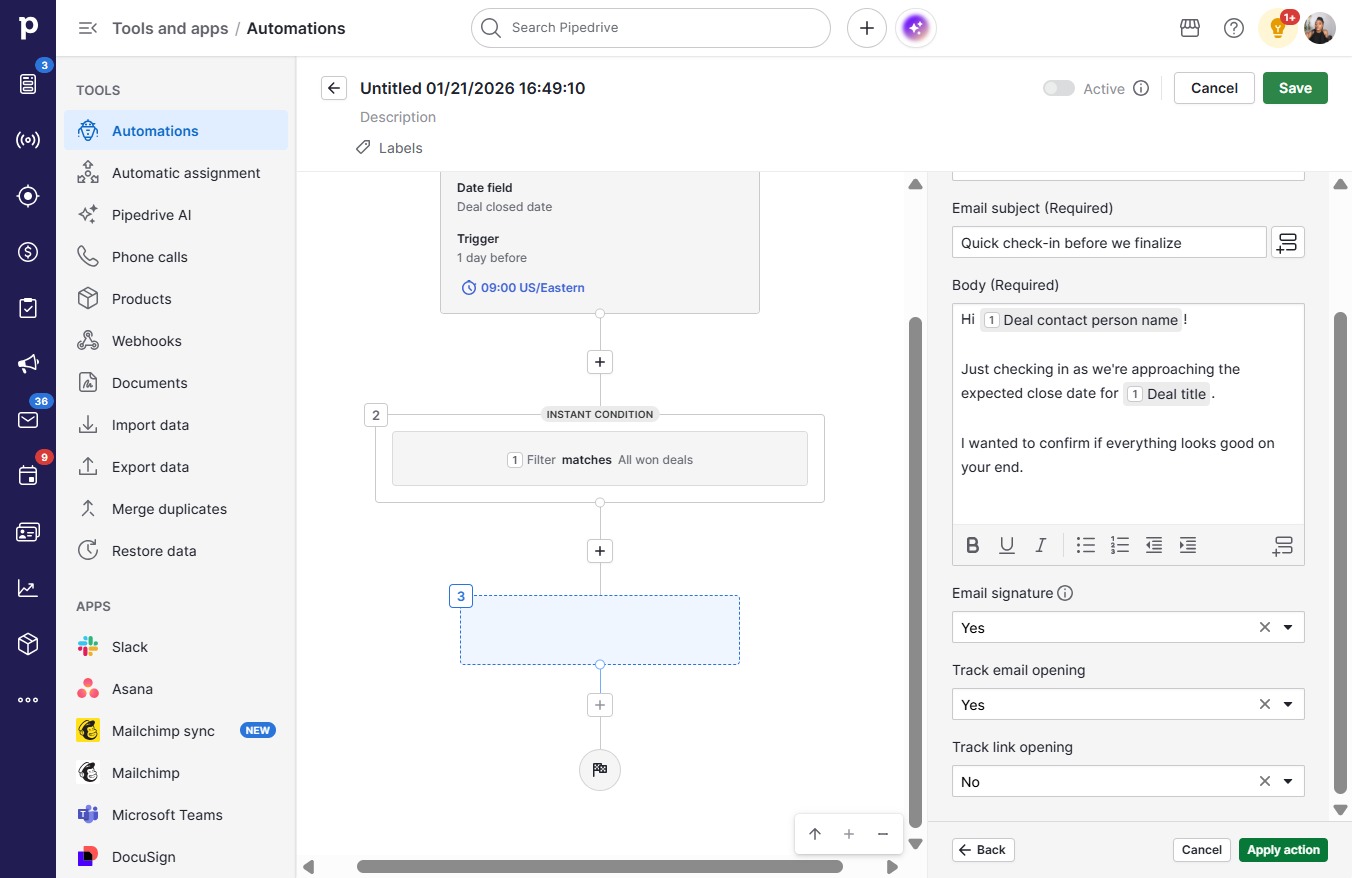
  37. Type "Hi 1Deal contact person name!Just checking in as w..."

  38. Click on "Click here."

    Click on "Click here."
    Loading screenshot…
    100%
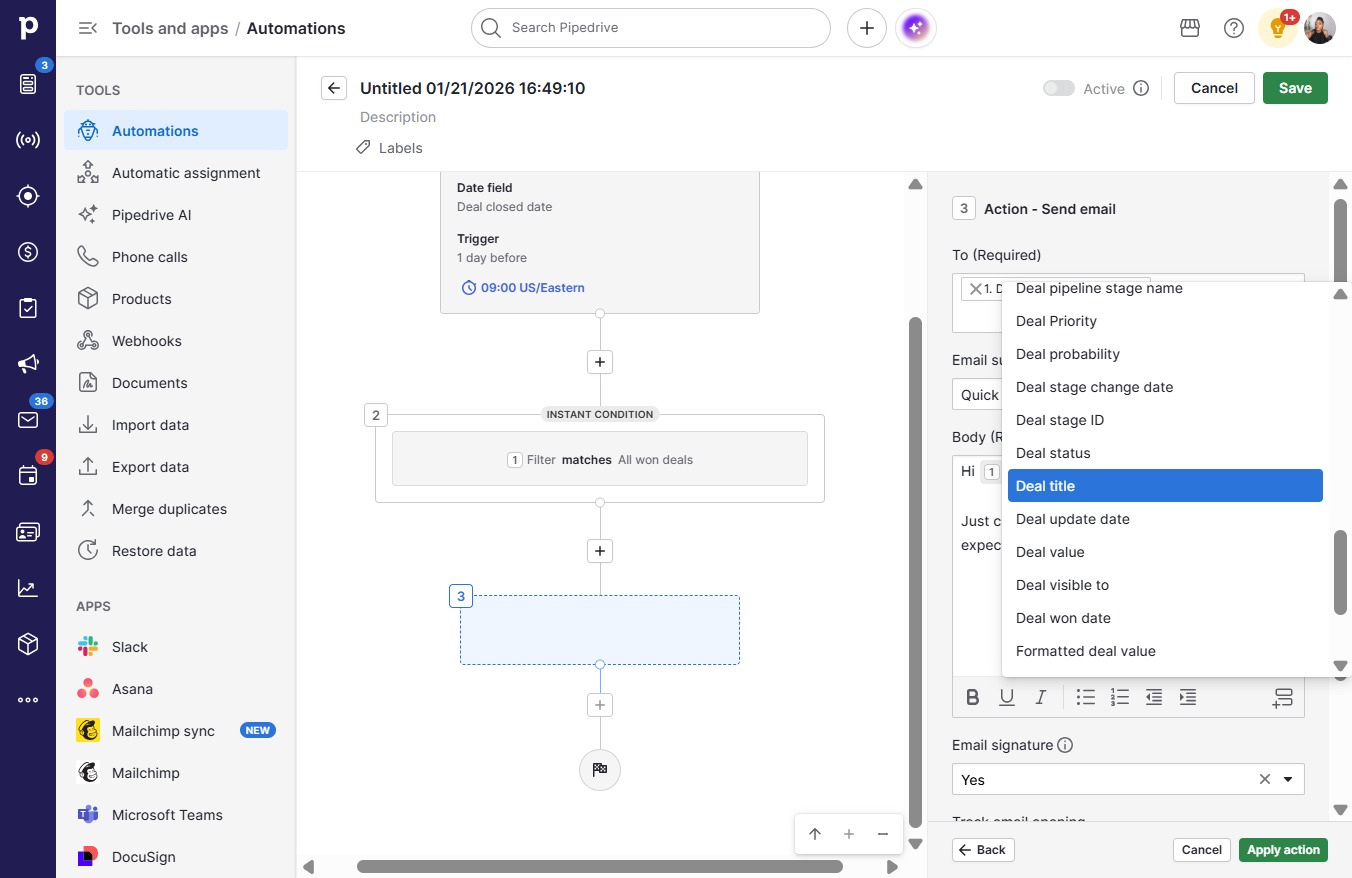
  39. Click Deal title

    Click Deal title
    Loading screenshot…
    100%
  40. Type "Hi 1Deal contact person name!Just checking in as w..."

  41. Click on "Click here."

    Click on "Click here."
    Loading screenshot…
    100%
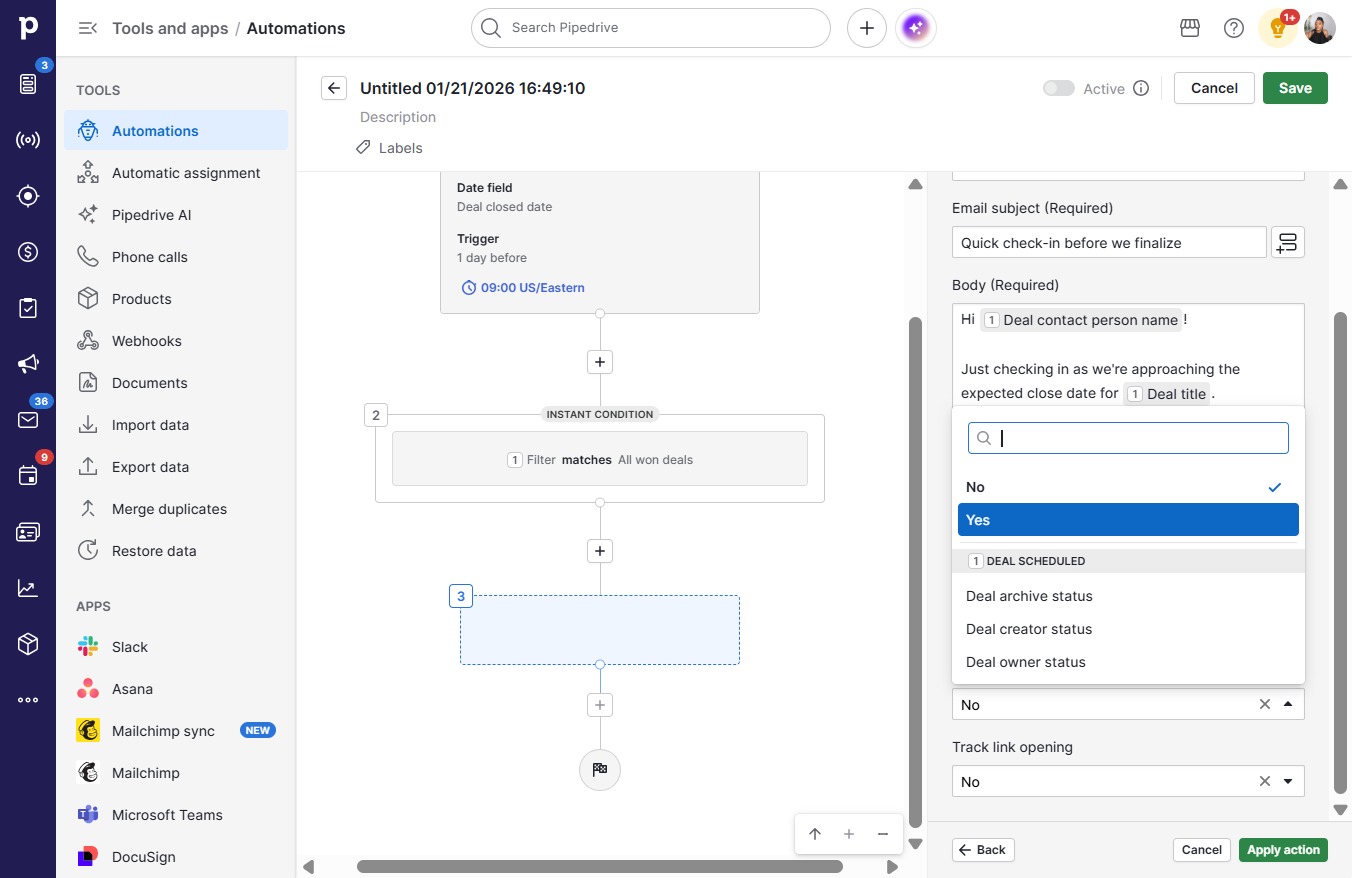
  42. Click Yes

    Click Yes
    Loading screenshot…
    100%
  43. Click Apply action

    Click Apply action
    Loading screenshot…
    100%
  44. Click Save

    Click Save
    Loading screenshot…
    100%
  45. Click on "Click here."

    Click on "Click here."
    Loading screenshot…
    100%
  46. Press a

  47. Type "Day Before Deal Close Automati..." in Untitled 01/21/2026 16:49:10

  48. Click on "Click here."

    Click on "Click here."
    Loading screenshot…
    100%