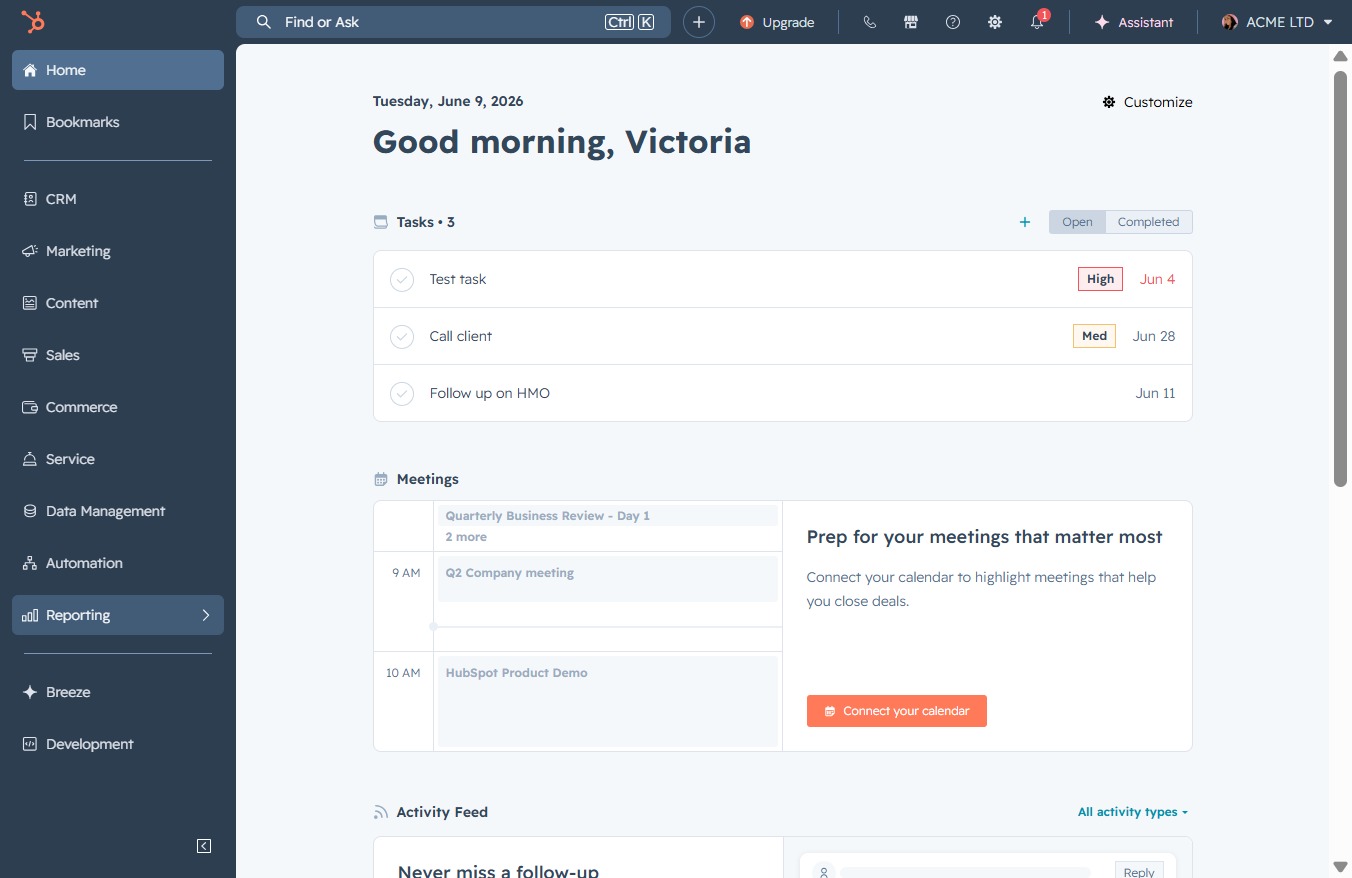
Click the Reporting link
This action will navigate you to the Reporting section, where you can access and manage your reports and analytics.
Loading screenshot…
100%
Schedule recurring report emails in the reporting tool to automate the delivery of updates, allowing you to select frequency, timing, and content for efficient performance…
 viktoria
Schedule recurring report emails in the reporting tool to automate the delivery of updates, allowing you to select frequency, timing, and content for efficient performance tracking.
This action will navigate you to the Reporting section, where you can access and manage your reports and analytics.
This will navigate you to the Reports section where you can view and manage various reports related to your activities and performance.

This will open a dropdown menu with various options for managing your reports, such as editing or deleting selected entries.

This action opens a menu that allows you to select various sharing options for the report, enabling you to distribute its data or insights to others.

Select the Email method to share your latest updates. This allows you to send a report via email to specified recipients.

Proceed to the next step in sharing your report by confirming your preferred sharing method.

Select the checkbox labeled 'Yes, this is a recurring email' to indicate that the email will be sent on a regular basis. This ensures recipients receive updates as configured.
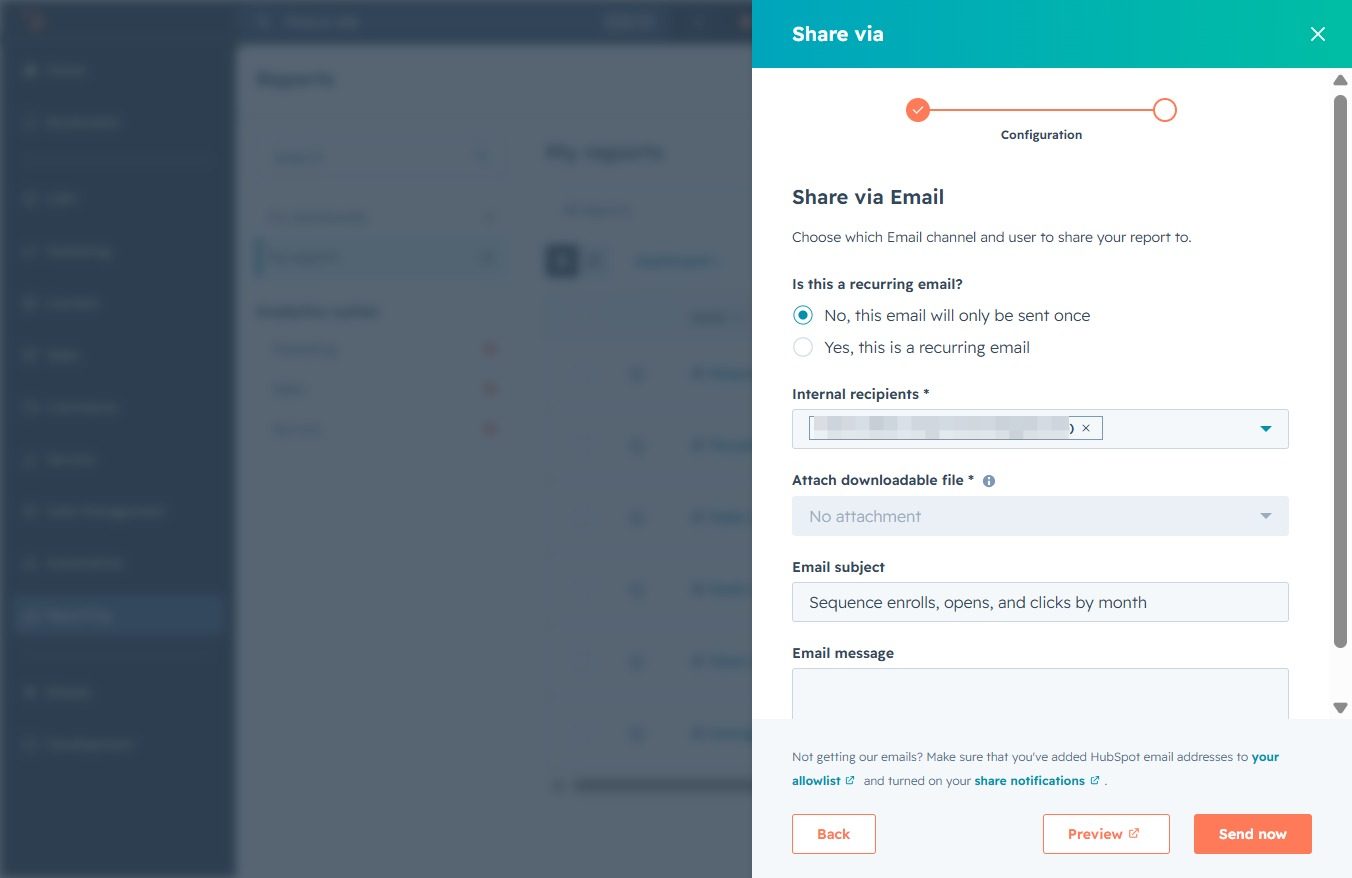
Enter a description for the email that summarizes the content, such as 'Sequence enrolls, opens, and clicks by month'. This subject line will be displayed to recipients when they receive the scheduled email.

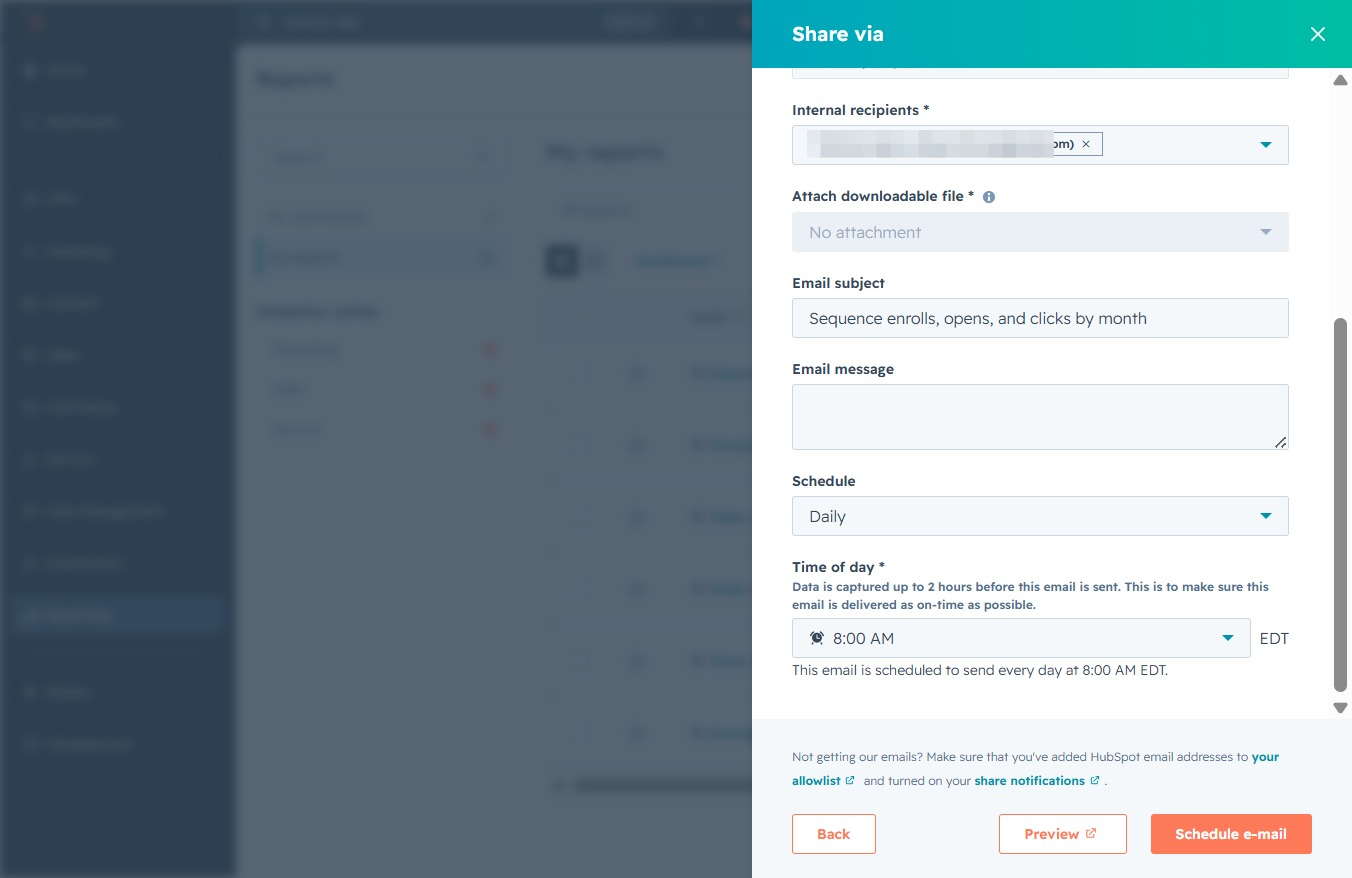
Selecting 'Daily' will configure the email to be sent every day at the specified time, ensuring timely delivery of your scheduled reports.
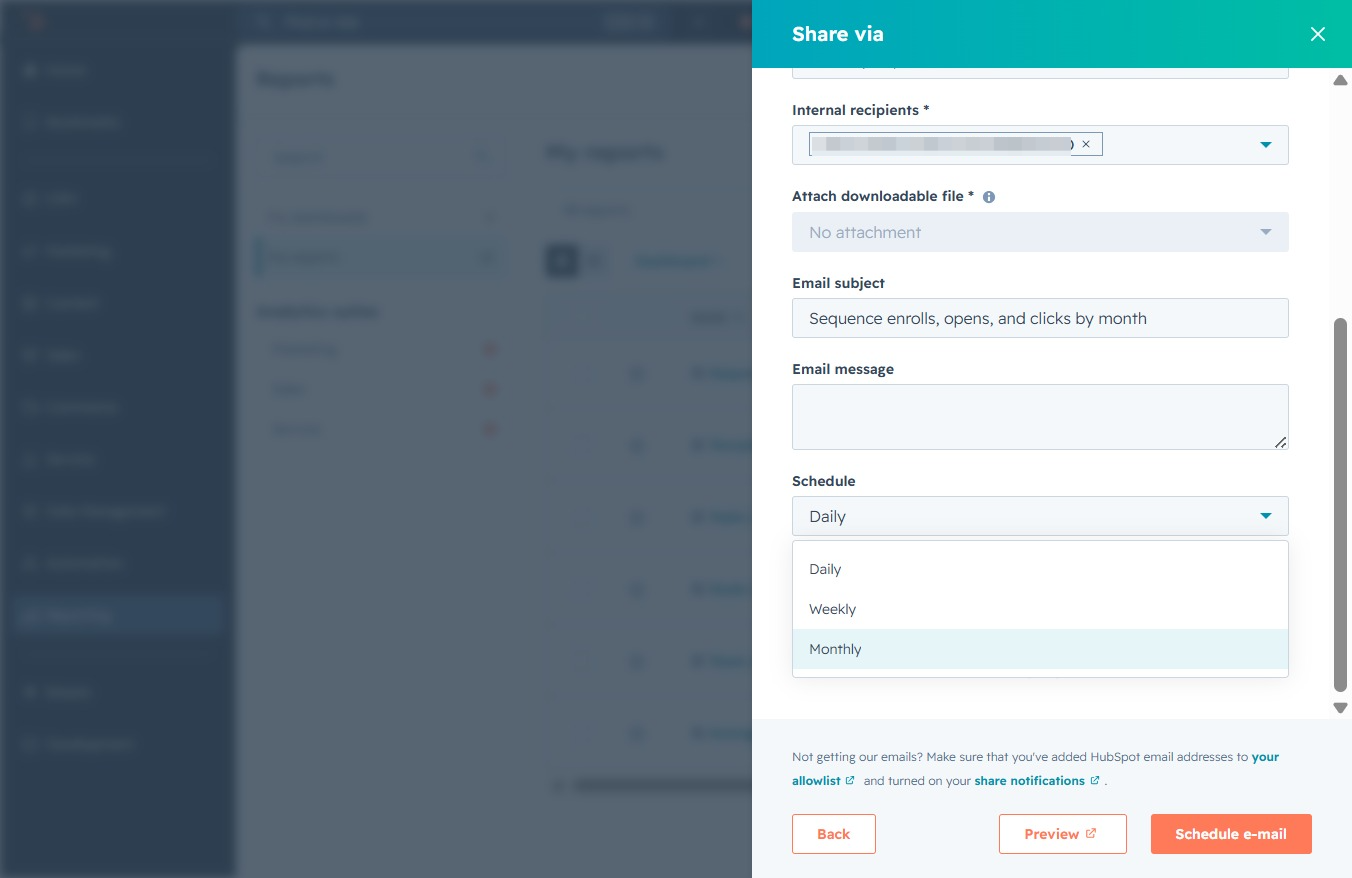
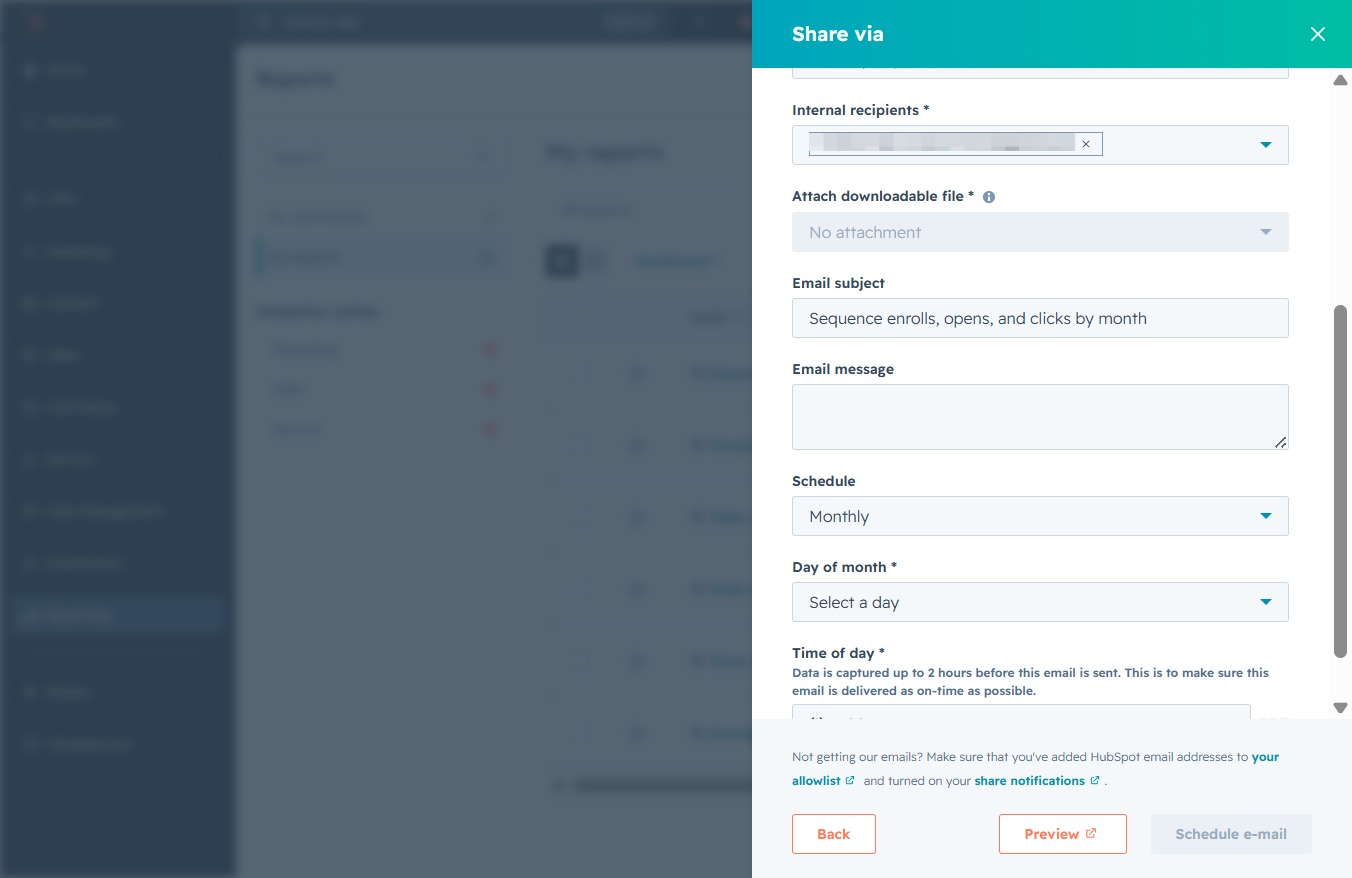
This action sets the email report frequency to monthly, allowing you to receive updates on sequence metrics once per month.
Choose a specific day from the dropdown menu to schedule when the email will be sent. This setting is crucial for customizing the timing of your scheduled email.
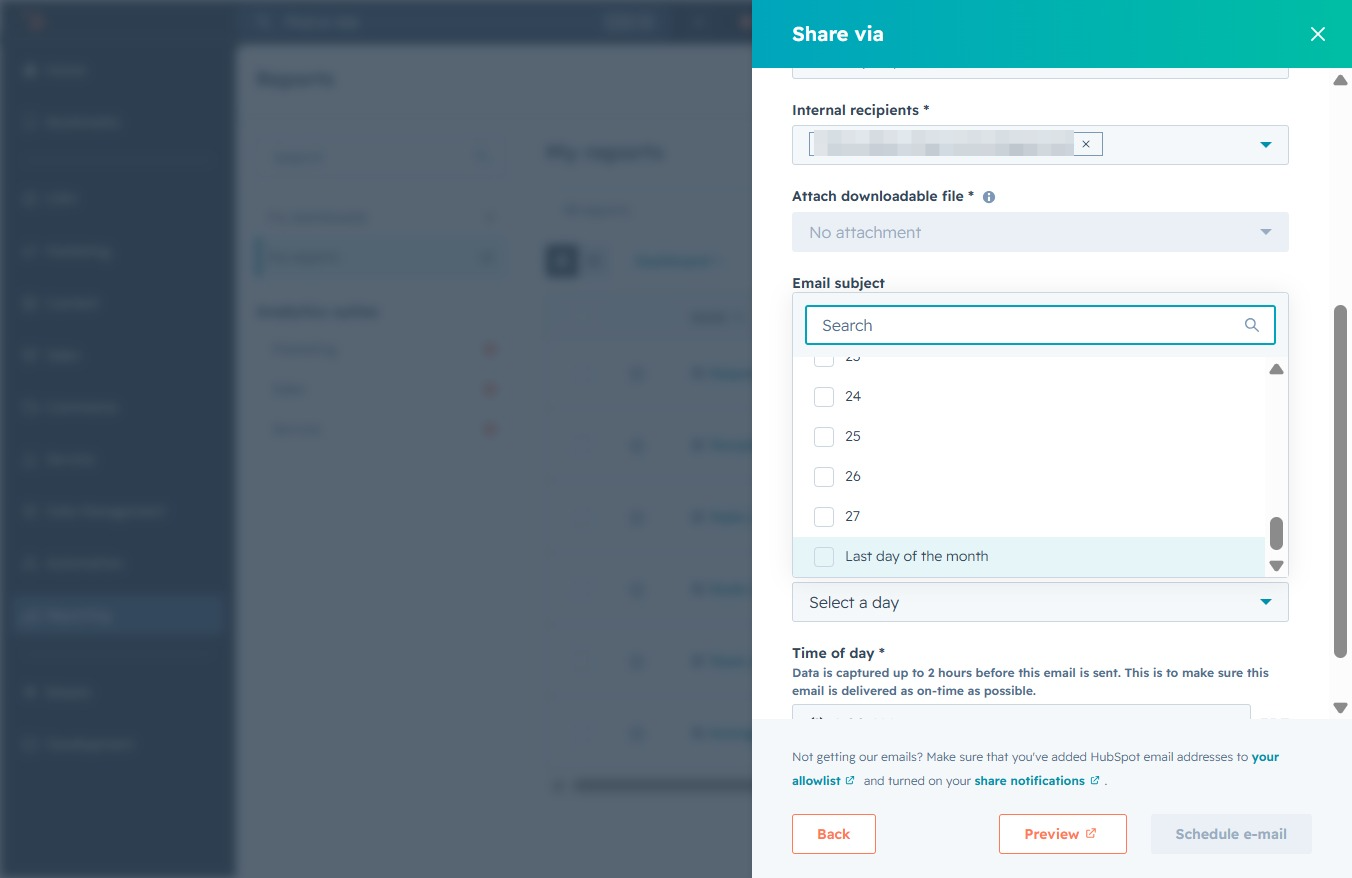
Selecting 'Last day of the month' will schedule the email to be sent on the final day of the current month, ensuring timely delivery.
Select the desired time for your scheduled email. This sets the specific time of day, in this case, 8:00 AM, for sending the email every month on the specified date.
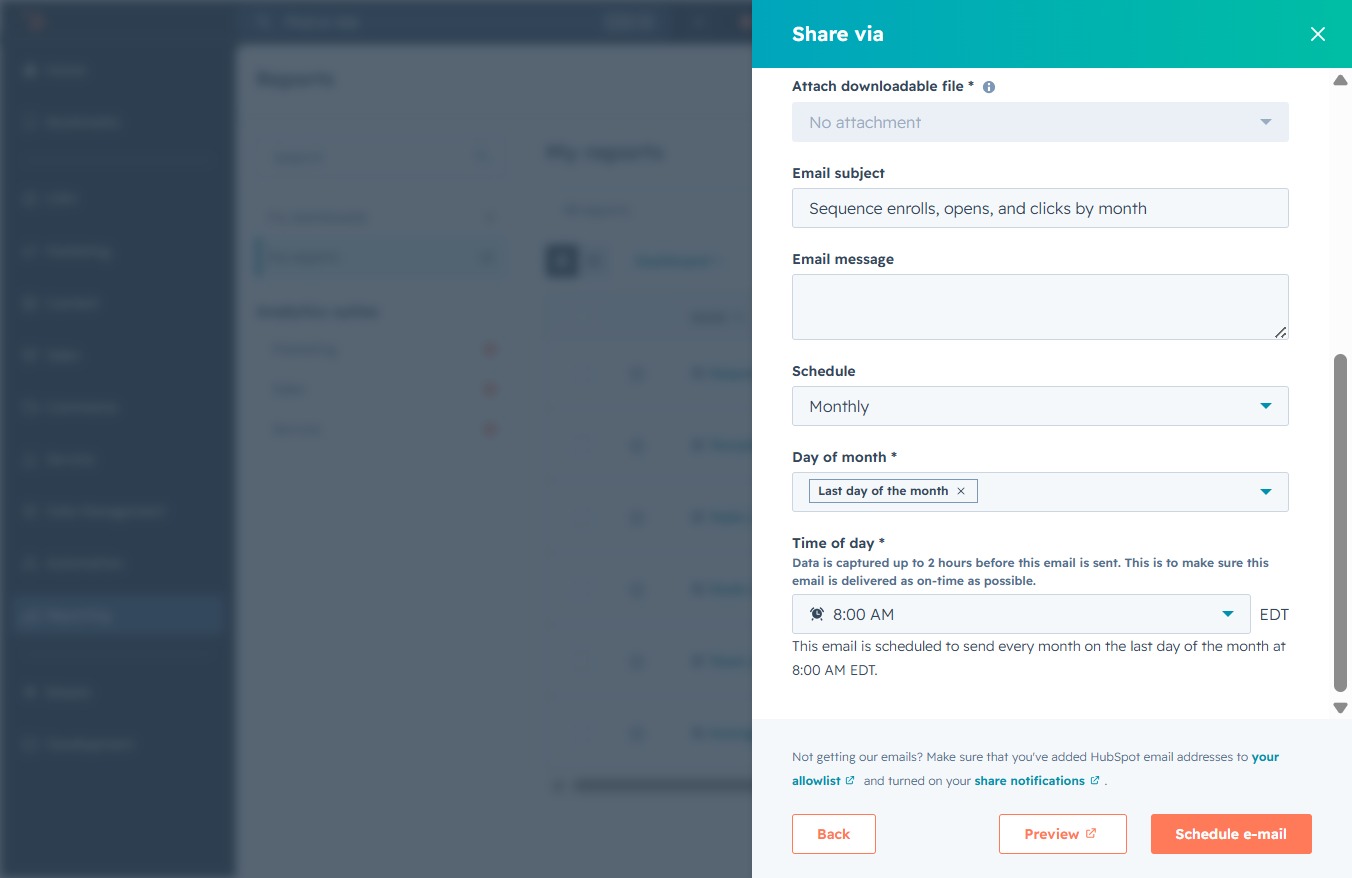
This action selects the 10:00 AM time slot for your scheduled email. The selected time will determine when the email is sent each month.

This action sets up an automated email to be sent on the specified schedule, allowing you to track sequence emails, opens, and clicks effectively.
