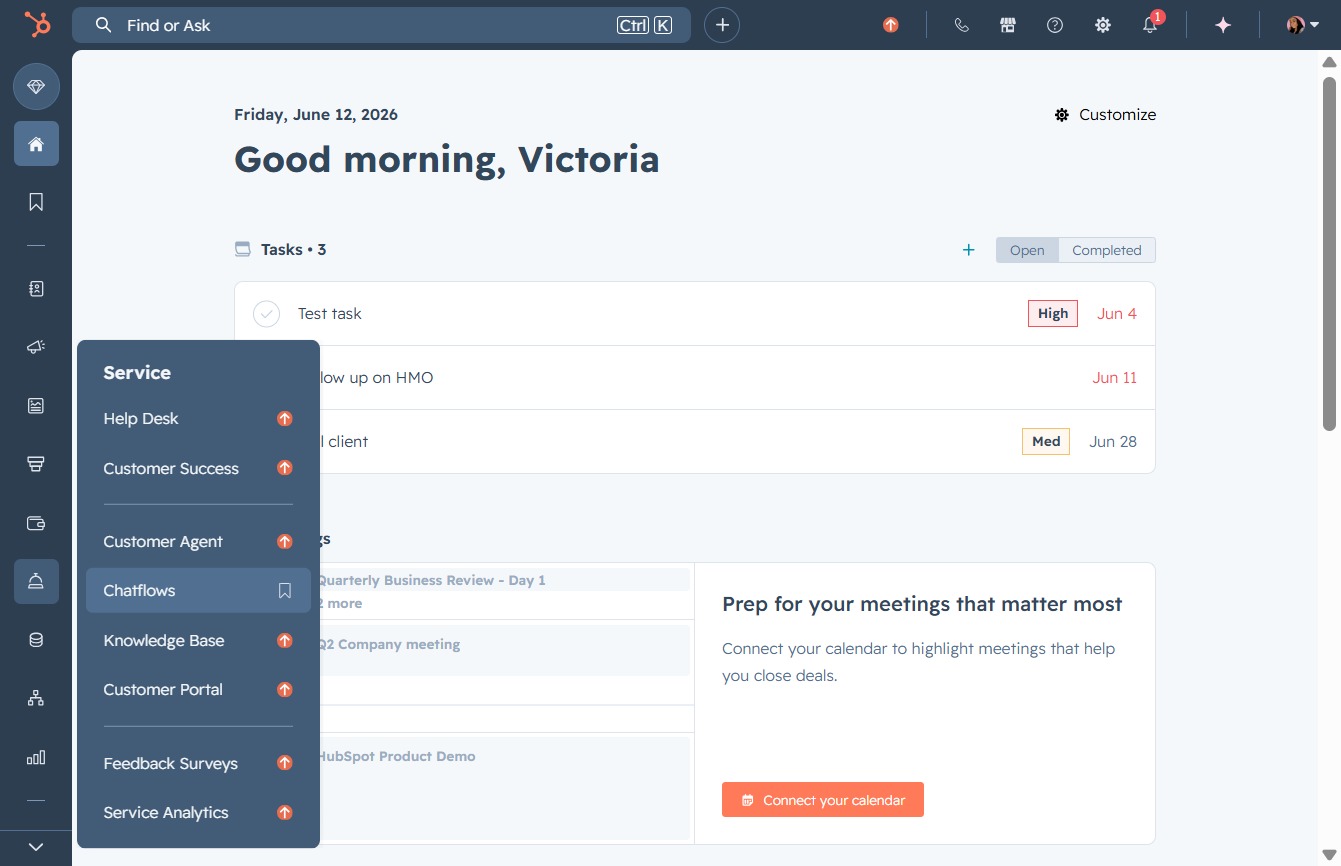
Click the Chatflows link
Selecting the Chatflows link will navigate you to the section where you can manage and create various chat automation flows to enhance customer interactions.
Loading screenshot…
100%
Create a rules-based chatbot in HubSpot to engage users directly on your website, enabling functionalities such as booking meetings and providing assistance through a Knowledge…
 viktoria
Create a rules-based chatbot in HubSpot to engage users directly on your website, enabling functionalities such as booking meetings and providing assistance through a Knowledge Base.
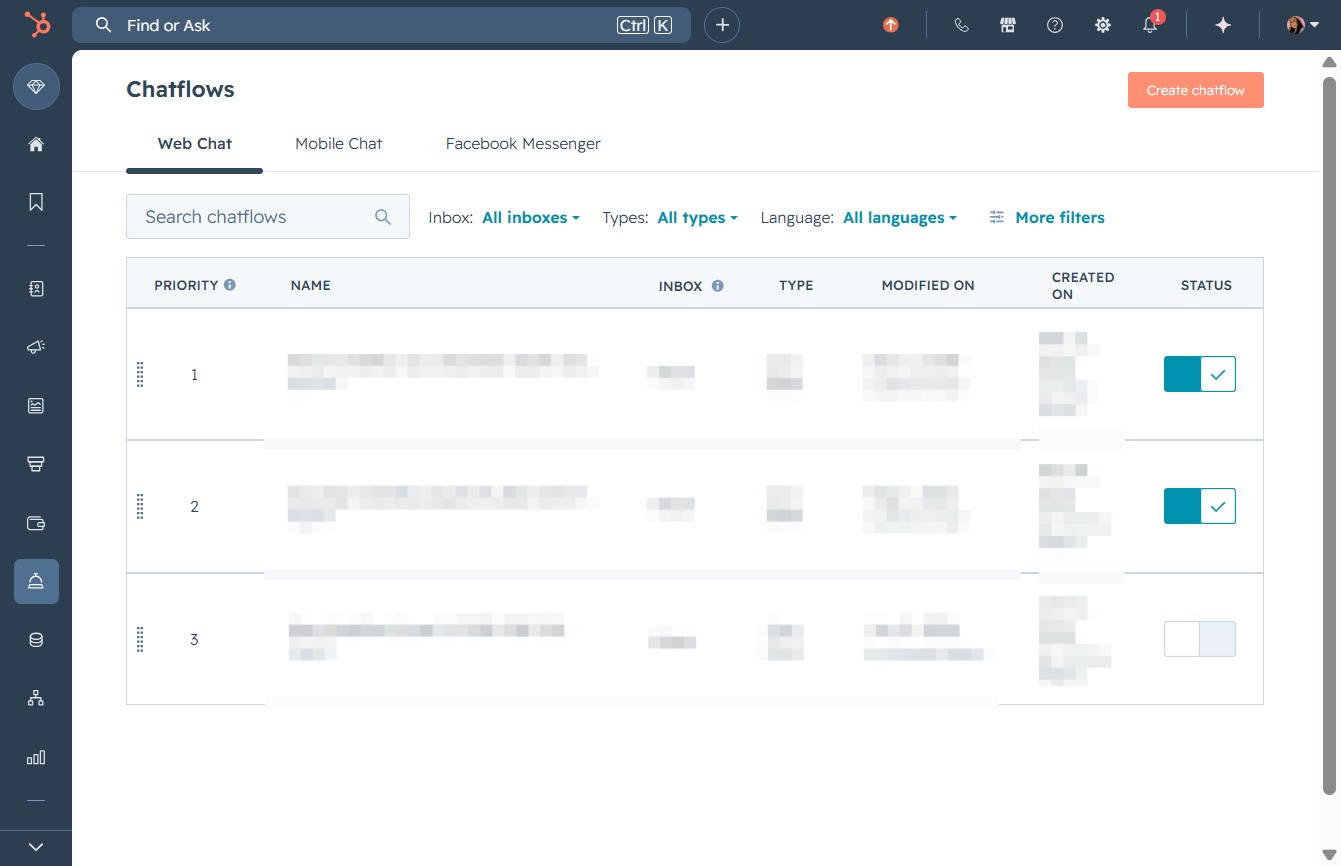
Selecting the Chatflows link will navigate you to the section where you can manage and create various chat automation flows to enhance customer interactions.
This action opens a modal or page where you can set up a new chatflow for your web chat or messaging services. You will be guided through the steps to customize your chatflow and define its interactions.
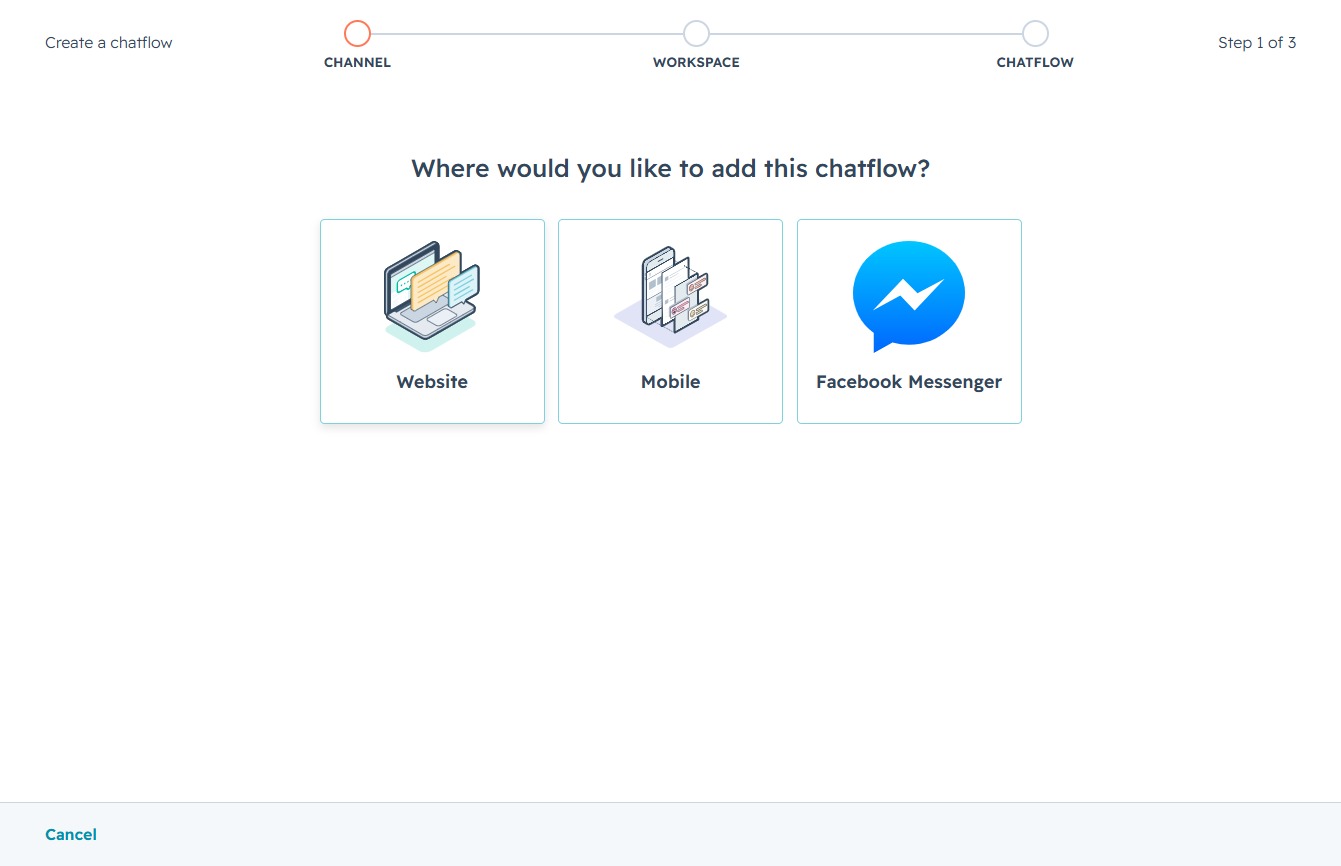
Selecting the 'Website' option will configure the chatflow to be integrated into your website, allowing users to interact with it directly from there.
This will proceed to the next step in the chatflow creation process, allowing you to configure additional settings related to your chatflow.
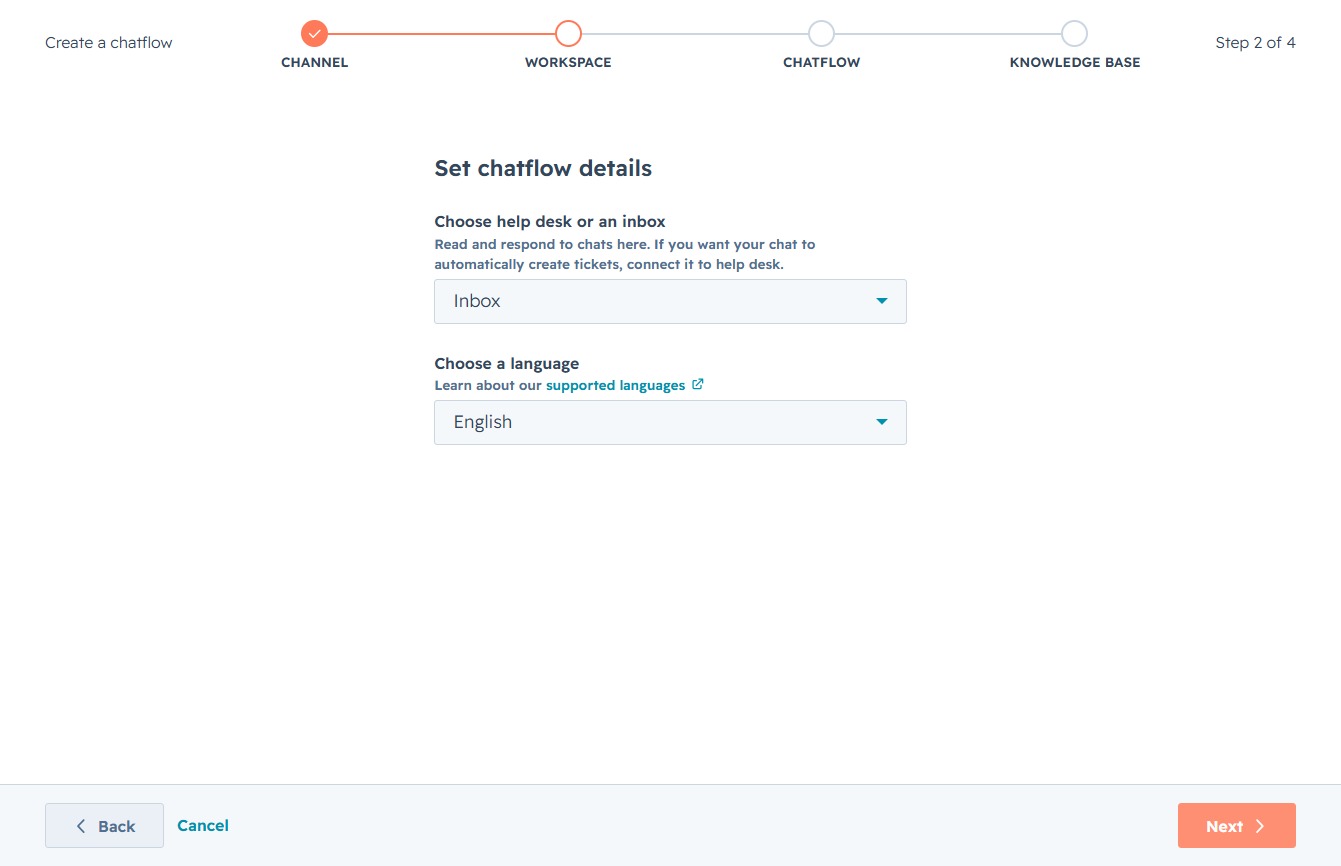
Select the Rules-Based Chatbot to create flows with specific tasks like booking meetings or talking to sales. This will guide you to choose a template or start from scratch.
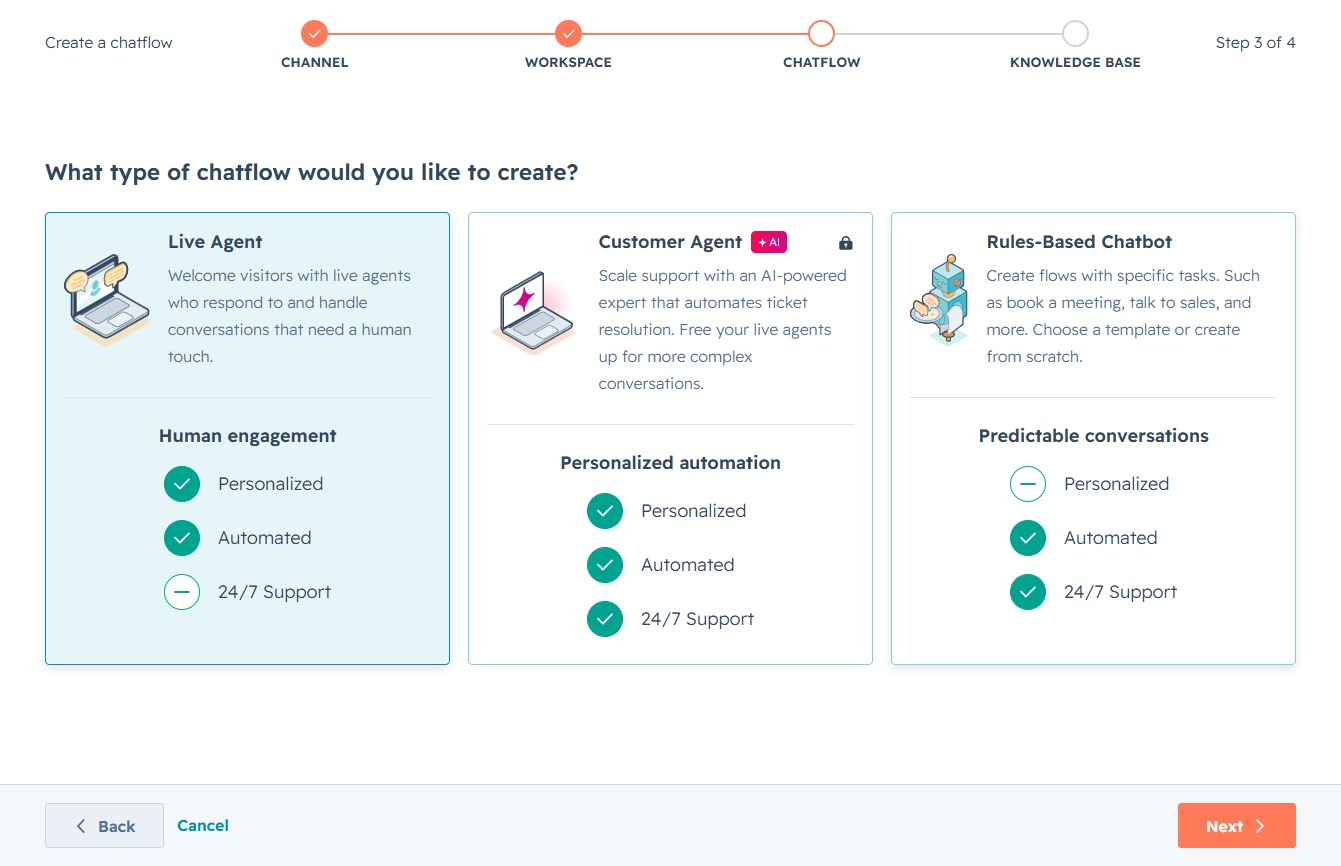
After clicking 'Next', you will move on to the next step in creating your chatflow, where you can select templates or create from scratch.

By clicking the Create button, you will finalize the setup process for enabling the Knowledge Base feature, allowing customers to access help articles directly within the widget.
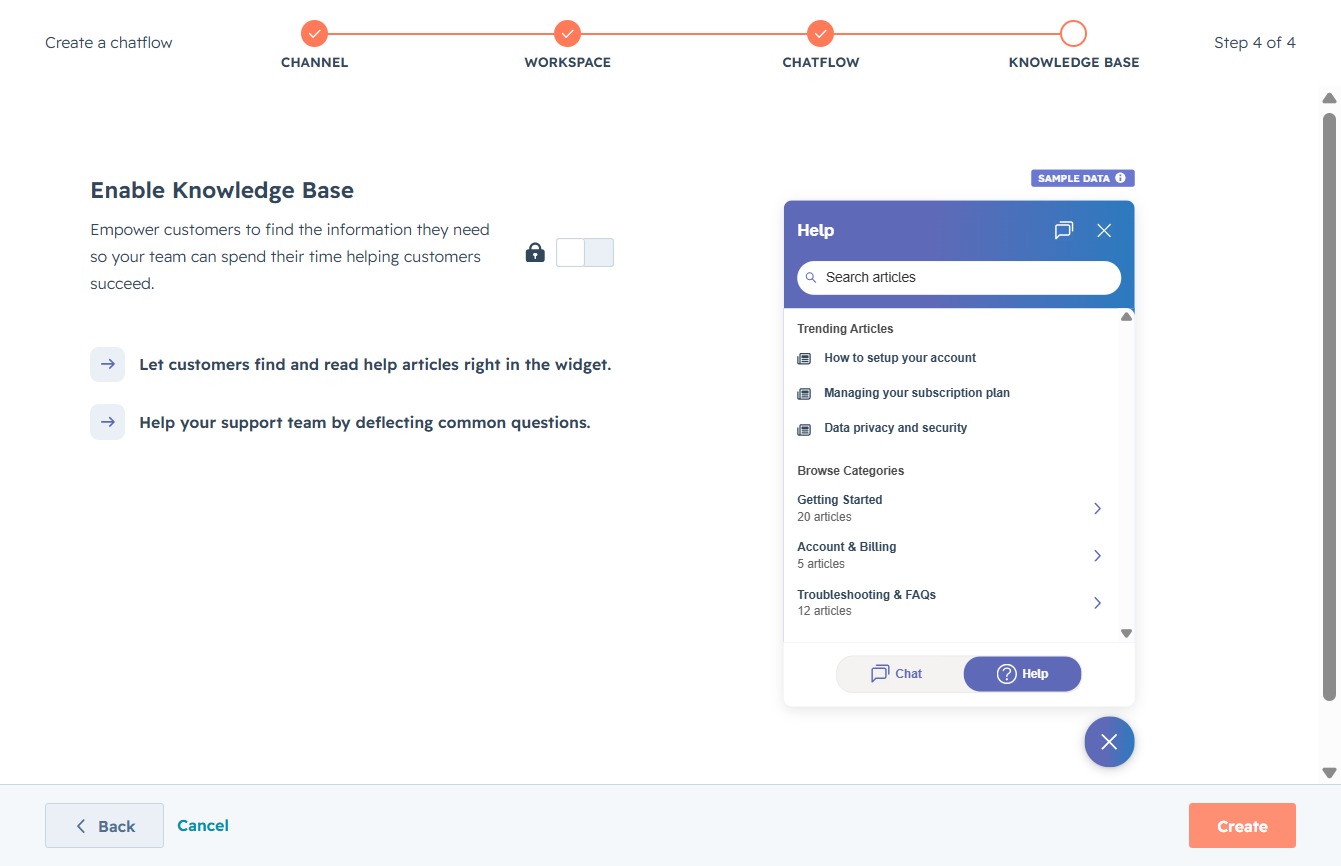
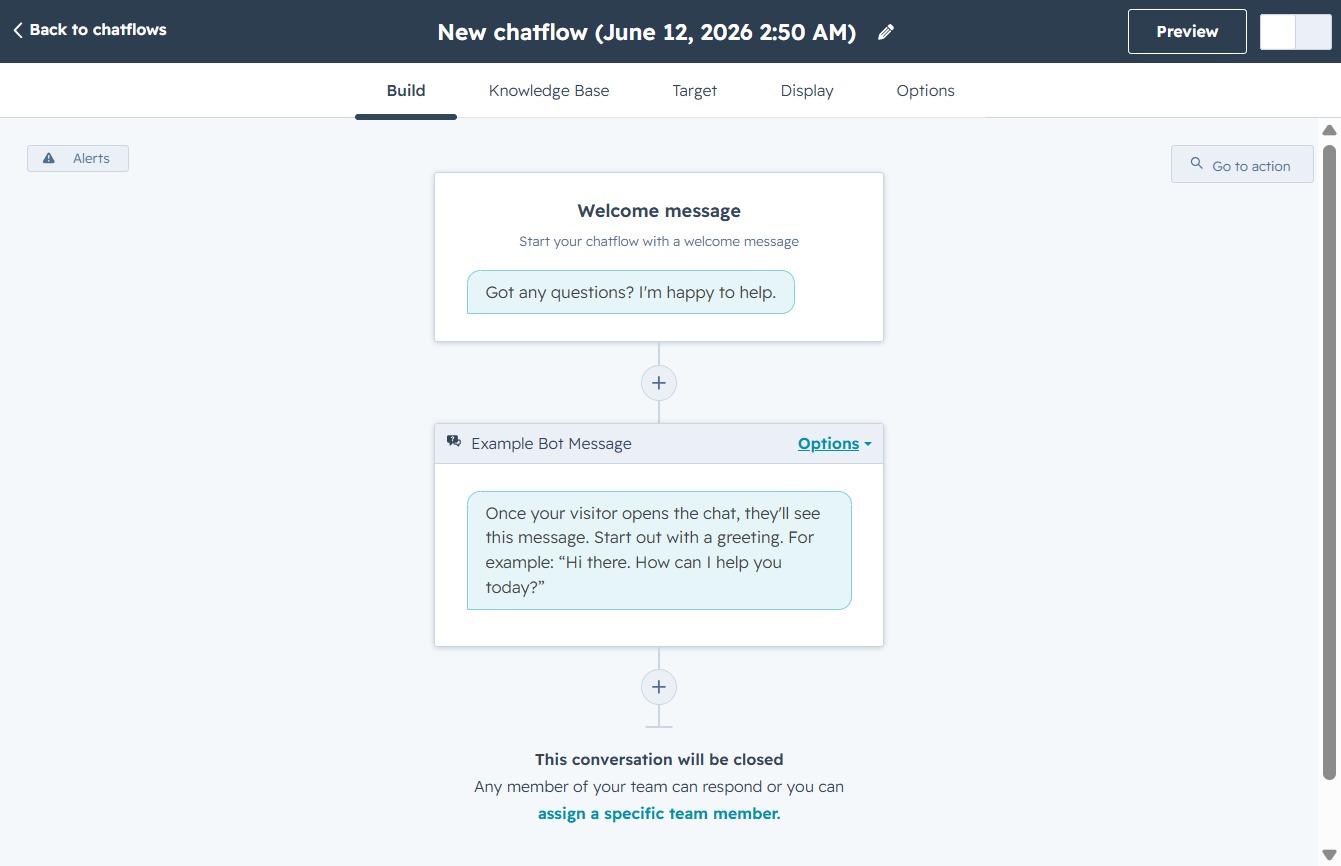
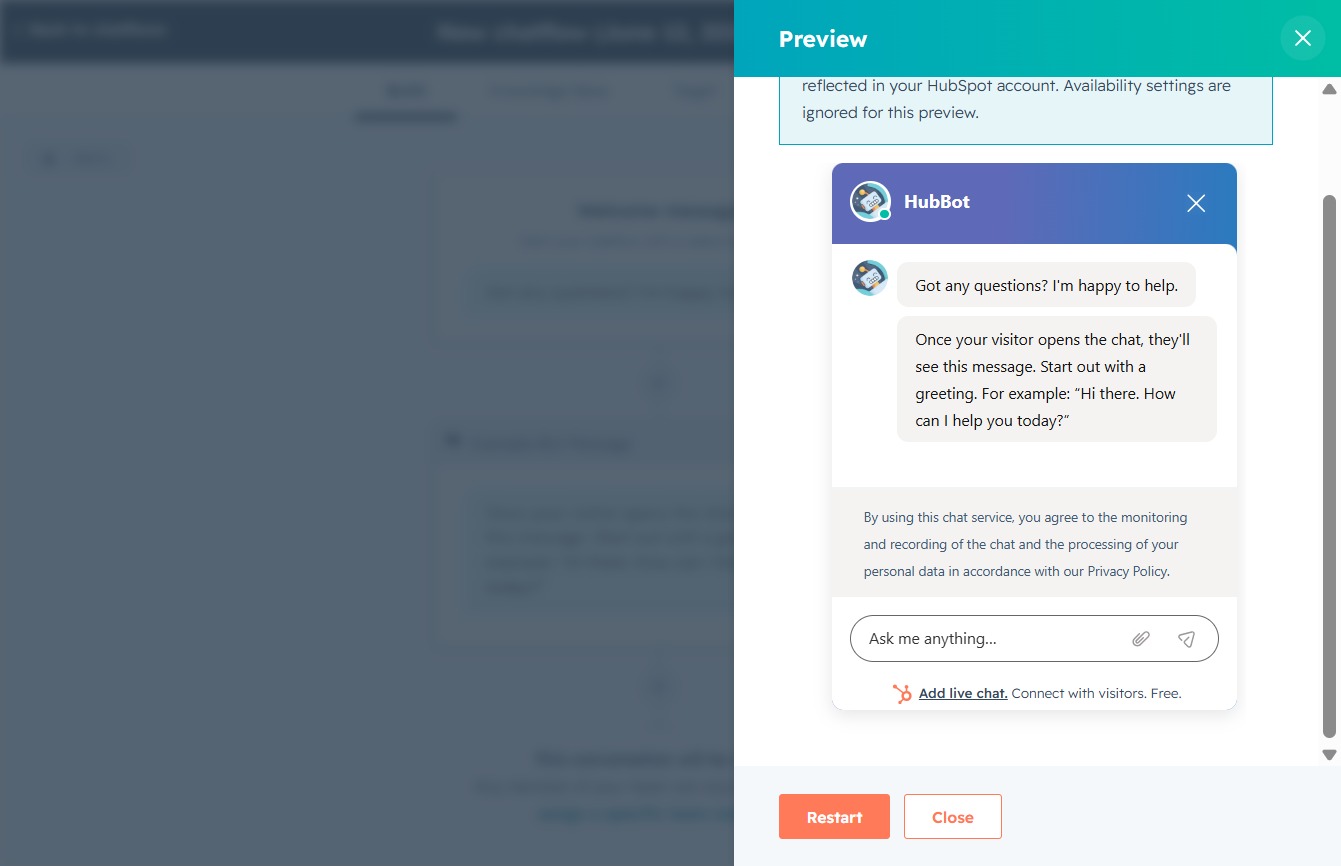
This action opens a preview of your chatflow, allowing you to see how it will appear to users before finalizing your settings.
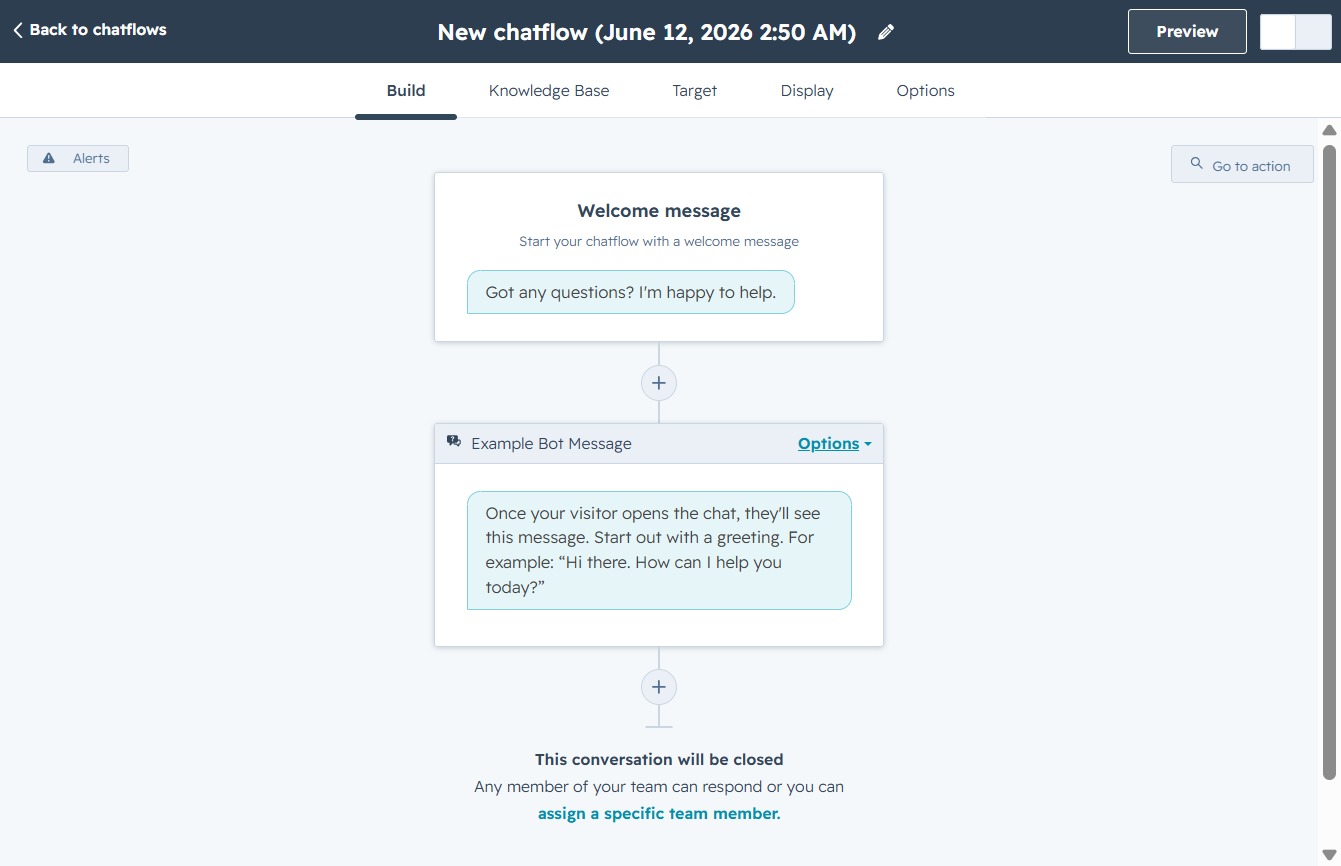
Clicking the Close button will exit the current preview of the HubSpot chatbot, allowing you to return to the main settings interface.
Toggling the ONOFF switch will activate or deactivate the current settings for your chatbot. This controls whether the chatbot is enabled or disabled for interaction on your website.