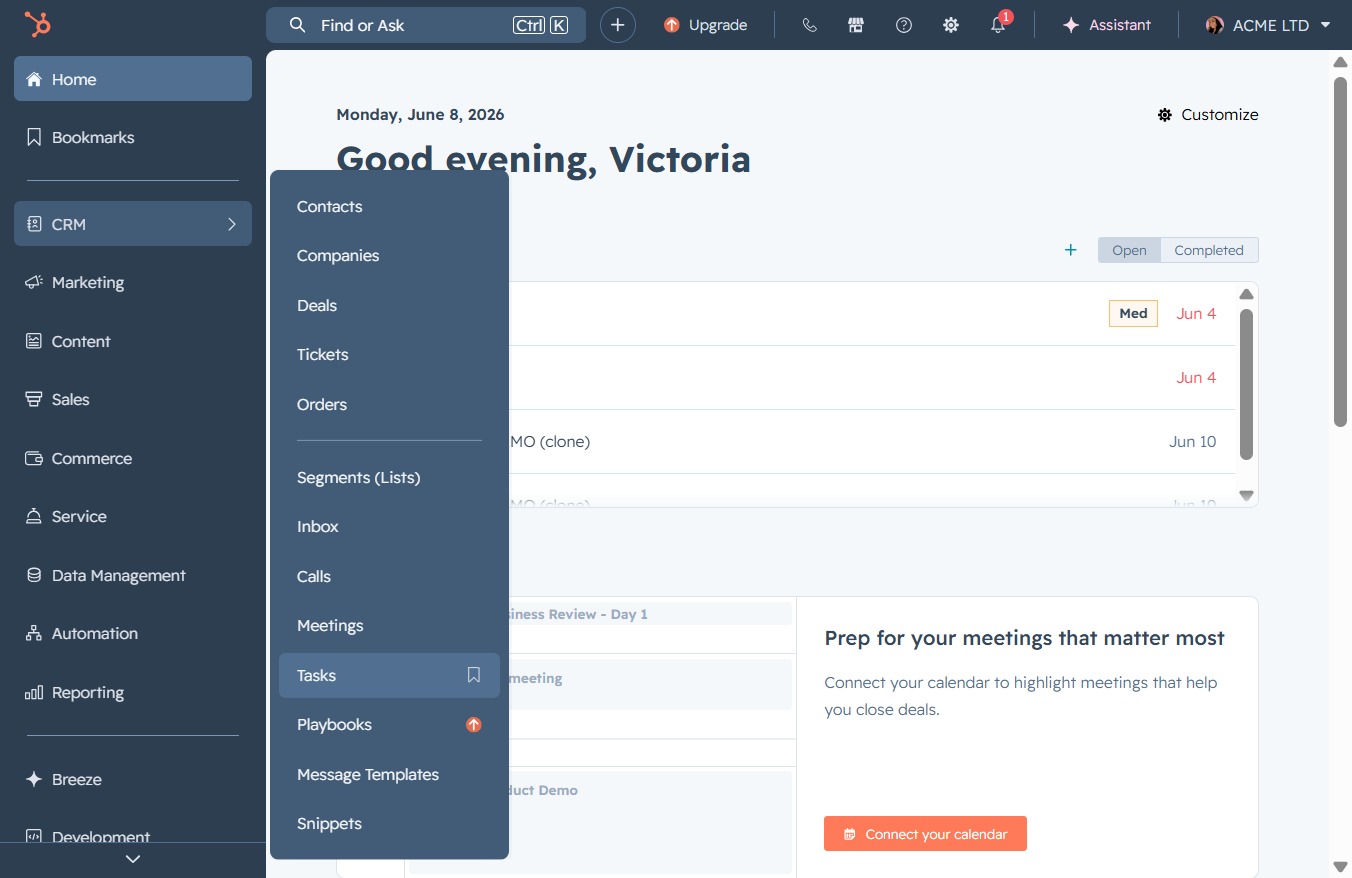
Click the CRM icon
This action opens the CRM section, allowing you to manage customer relationships, track sales, and view related tasks and analytics.

Loading screenshot…
100%
Manage task priorities in the CRM system by modifying task details and assigning urgency levels to optimize your workflow and enhance project tracking.
 viktoria
Manage task priorities in the CRM system by modifying task details and assigning urgency levels to optimize your workflow and enhance project tracking.
This action opens the CRM section, allowing you to manage customer relationships, track sales, and view related tasks and analytics.
By clicking the Tasks link, you will access your task management section, where you can view, create, and organize tasks related to your projects and meetings.
Clicking the 'Edit' button allows you to modify the details of the selected task, enabling you to update information such as the status, title, or associated contact.

This saves the details of the task you just entered, ensuring that all changes are recorded in the task management system.

Select the 'High' priority from the dropdown menu to assign a high urgency level to the task you are adding or editing.

Clicking the Save button will store the task details you have entered, ensuring that changes are preserved in your task management.
