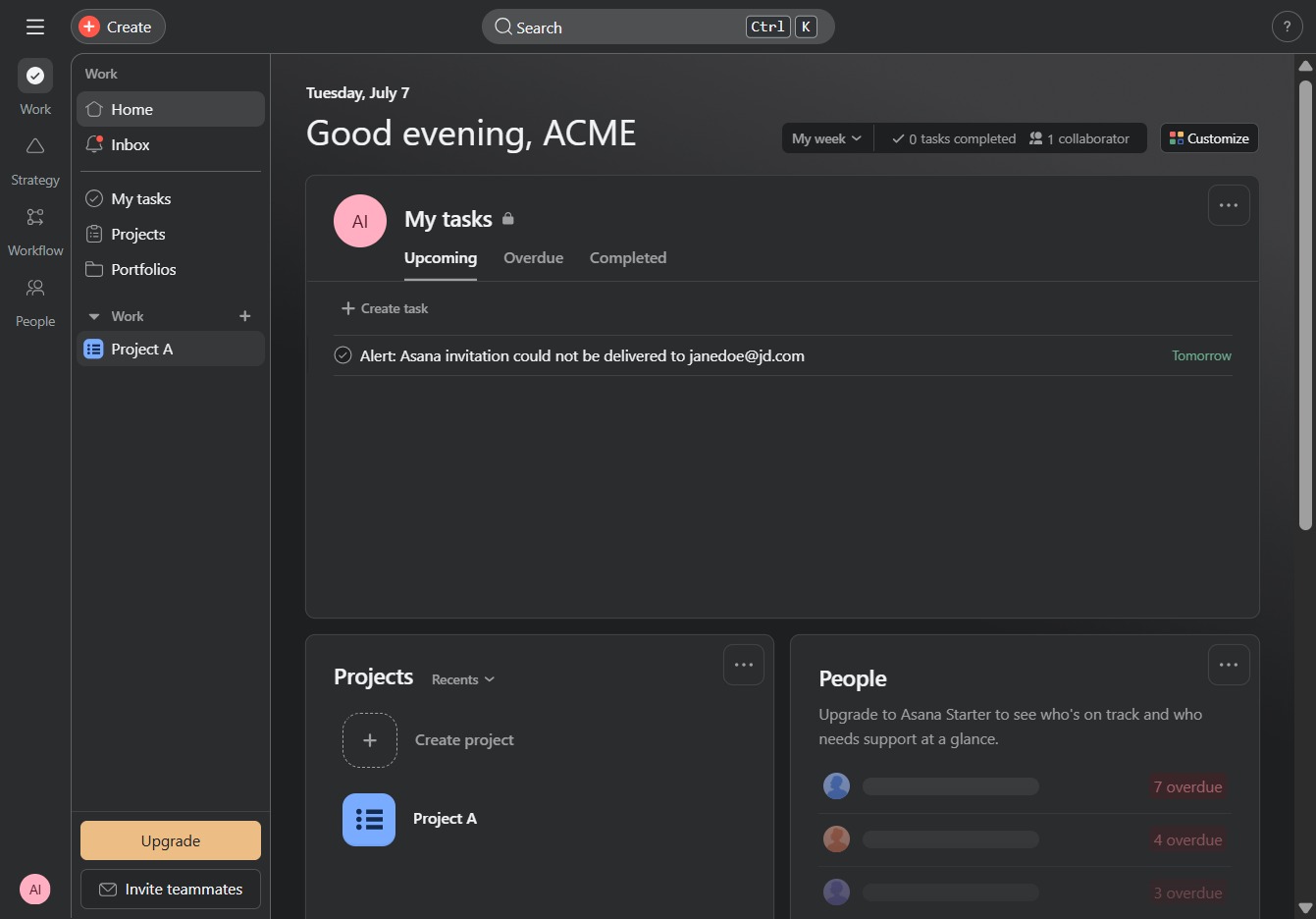
Click on Project A
Selecting 'Project A' will open the detailed view of this specific project, allowing you to manage tasks and collaborate with team members.
Loading screenshot…
100%
In this how-to guide, learn the essential steps to set task priorities within Project A, enhancing your project's organization and collaboration.
 viktoria
In this how-to guide, learn the essential steps to set task priorities within Project A, enhancing your project's organization and collaboration. Discover how to view tasks, navigate the project interface, add new tasks, and assign priority levels to maintain an efficient workflow.
Selecting 'Project A' will open the detailed view of this specific project, allowing you to manage tasks and collaborate with team members.
By clicking this link, you will initiate a specific action or navigate to a relevant section within the project management interface.
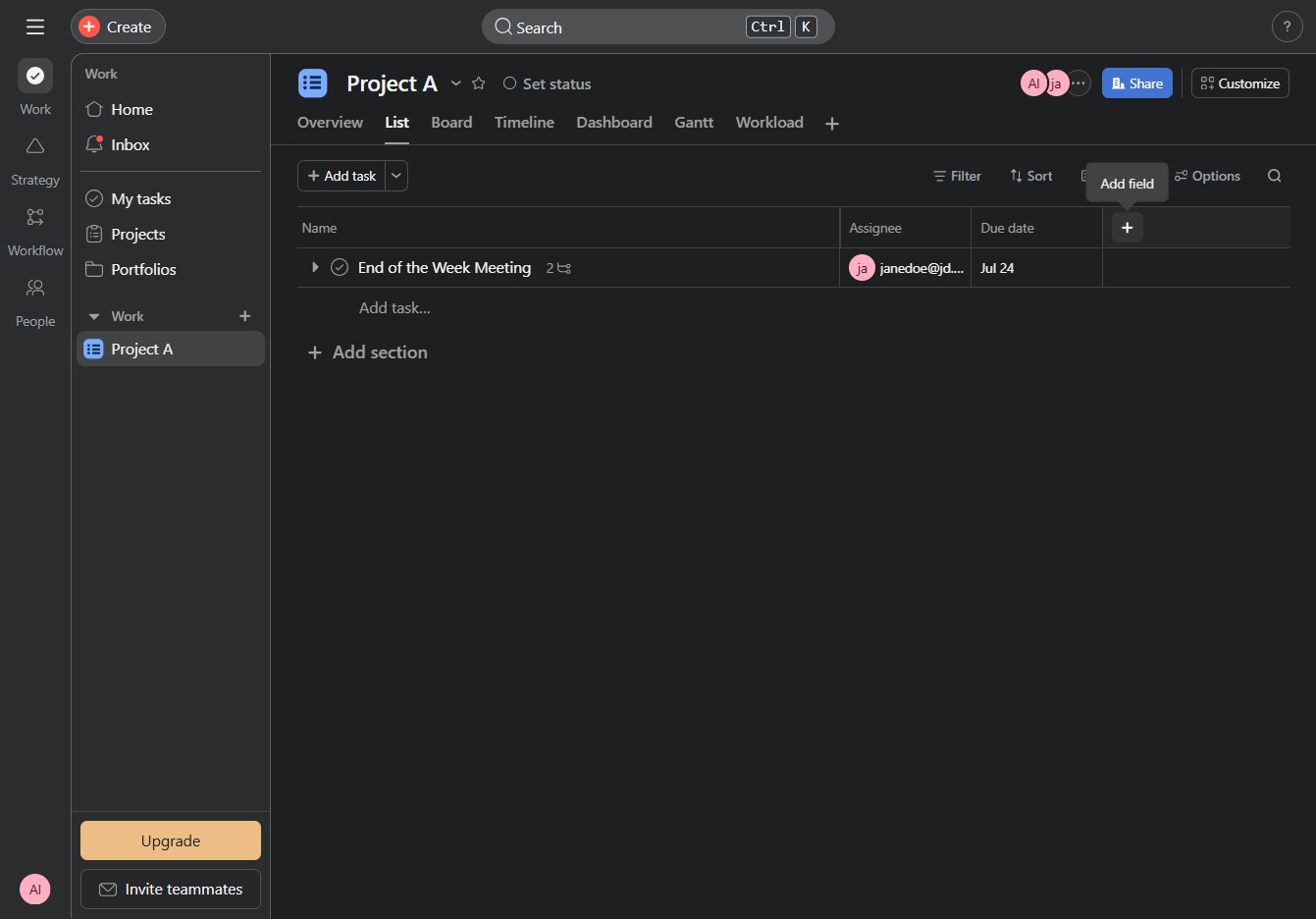
This action allows you to include specific tasks or sections to your project, enhancing organization and prioritization within Project A.

This will open a new task creation panel where you can enter the details for a new task in Project A.
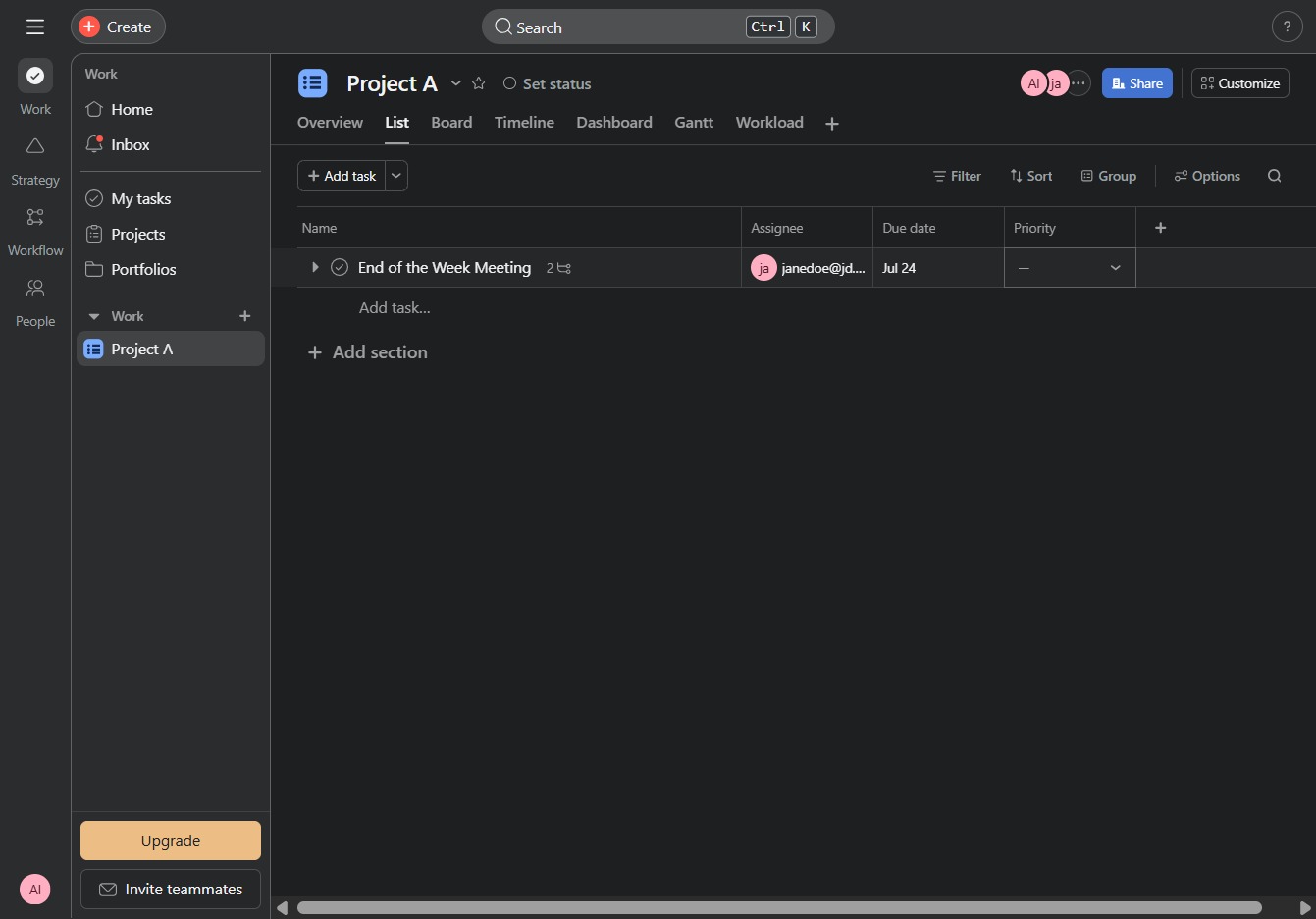
This action selects 'Medium' as the priority level for the specified task, helping to ensure the task is appropriately prioritized in the project workflow.
